
01Who this is for
- Marketers can adjust capture forms without breaking their design flow.
- Agency owners can edit client funnels and forms in a single interface.
02Form Builder pop up, explained
The pop up Form Builder is a modal window that opens inside the Funnel Builder, allowing you to create a new form or edit an existing one without navigating away from the funnel page you are working on.
When you launch the builder, all form fields, styling options, and theme settings appear in the same overlay. You can drag standard fields from the Quick Add panel or add custom input types using the Add Object Fields panel. After making changes, click Save to apply them right away.
The builder respects the language selected for your account, automatically translating interface elements. Only the builder UI is localized; any custom text you have added to the form stays as you entered it.
03How businesses use the Form Builder pop up
- Dental practice. A dental office can open the funnel step that contains a patient intake form, launch the pop up builder, and drag in fields like Full Name, Email, Phone, and a custom field for dental concerns. After saving, the updated form appears on the appointment booking page.
- Ecommerce store. The store adds a checkout form to a sales funnel step, uses the Add Object Fields panel to include a custom SKU field, and saves the changes. The form now captures product details directly within the funnel without leaving the editor.
- Coaching business. A coach selects a lead capture step, opens the pop up builder, and uses Quick Add to place Name, Email, and Phone fields. They then add a custom field for coaching goals, save, and continue building the funnel without reloading the page.
04Before you start
- User must have access to the Funnel Builder and Form Builder.
- At least one existing form must be available, or permission to create new forms.
05How to set up and use the Form Builder pop up in HighLevel
Edit a form using the pop up Form Builder
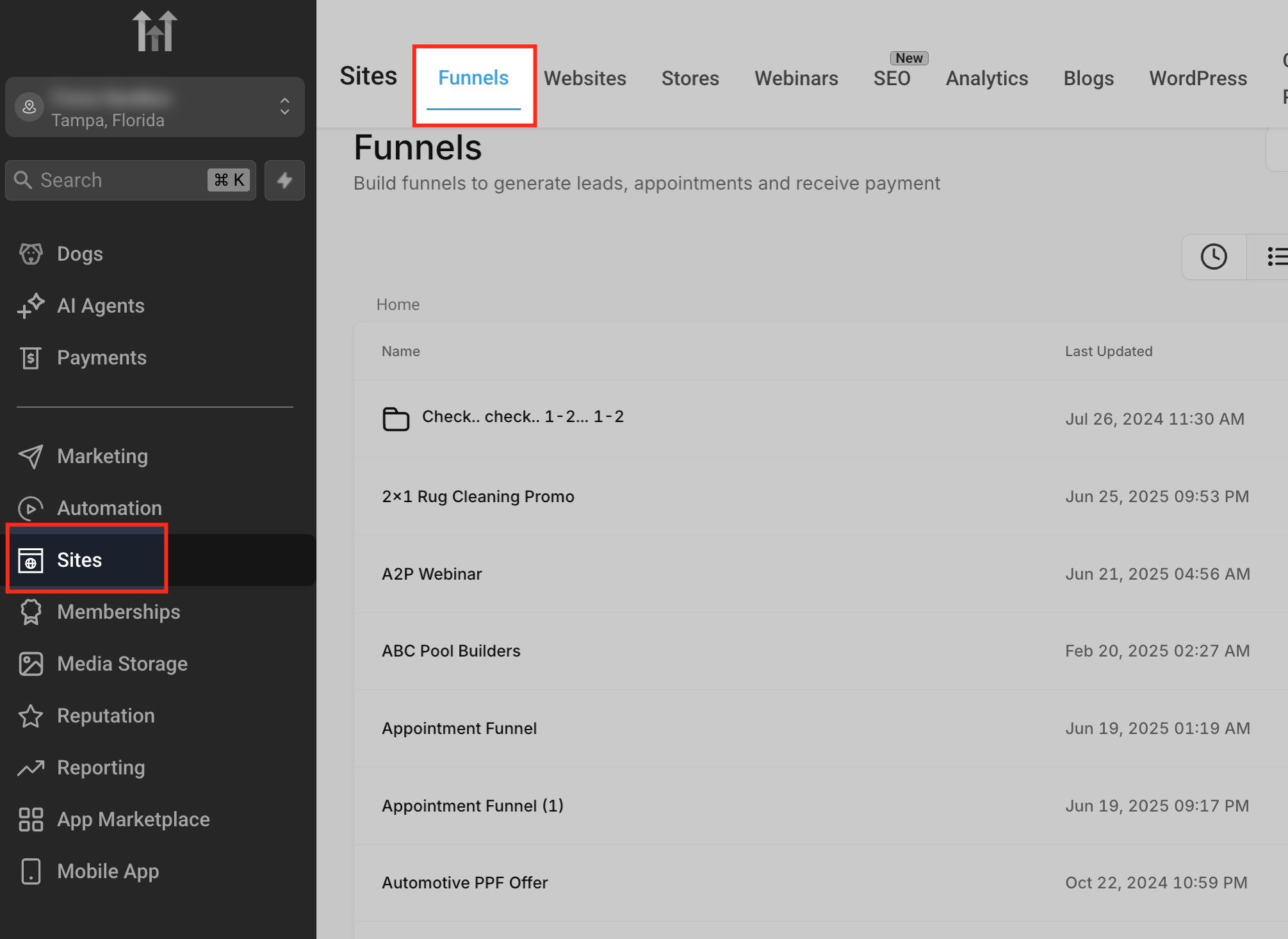
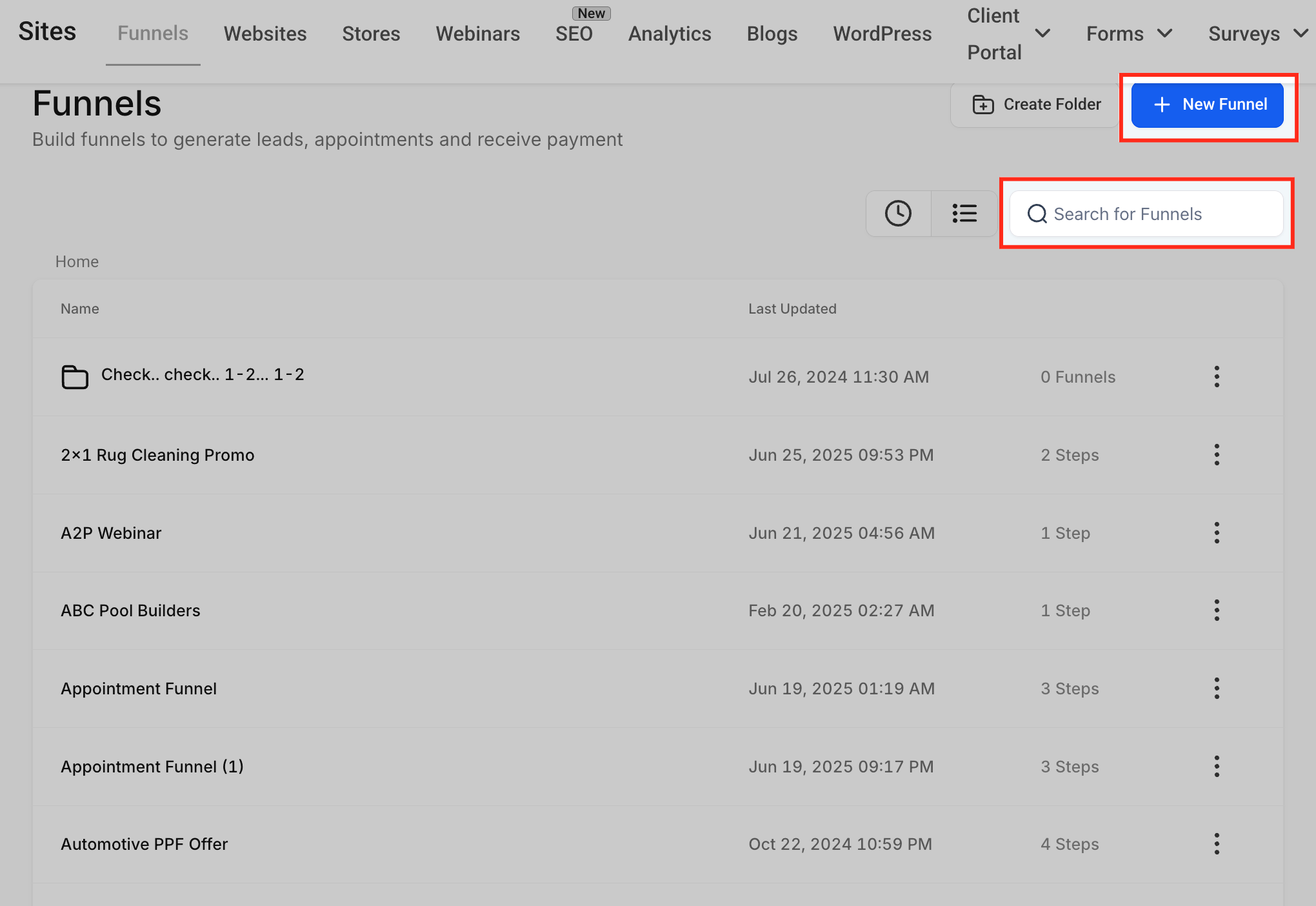
- Select Sites > Funnels from the left hand menu.
- Find an existing funnel or click + New Funnel to start a new one.
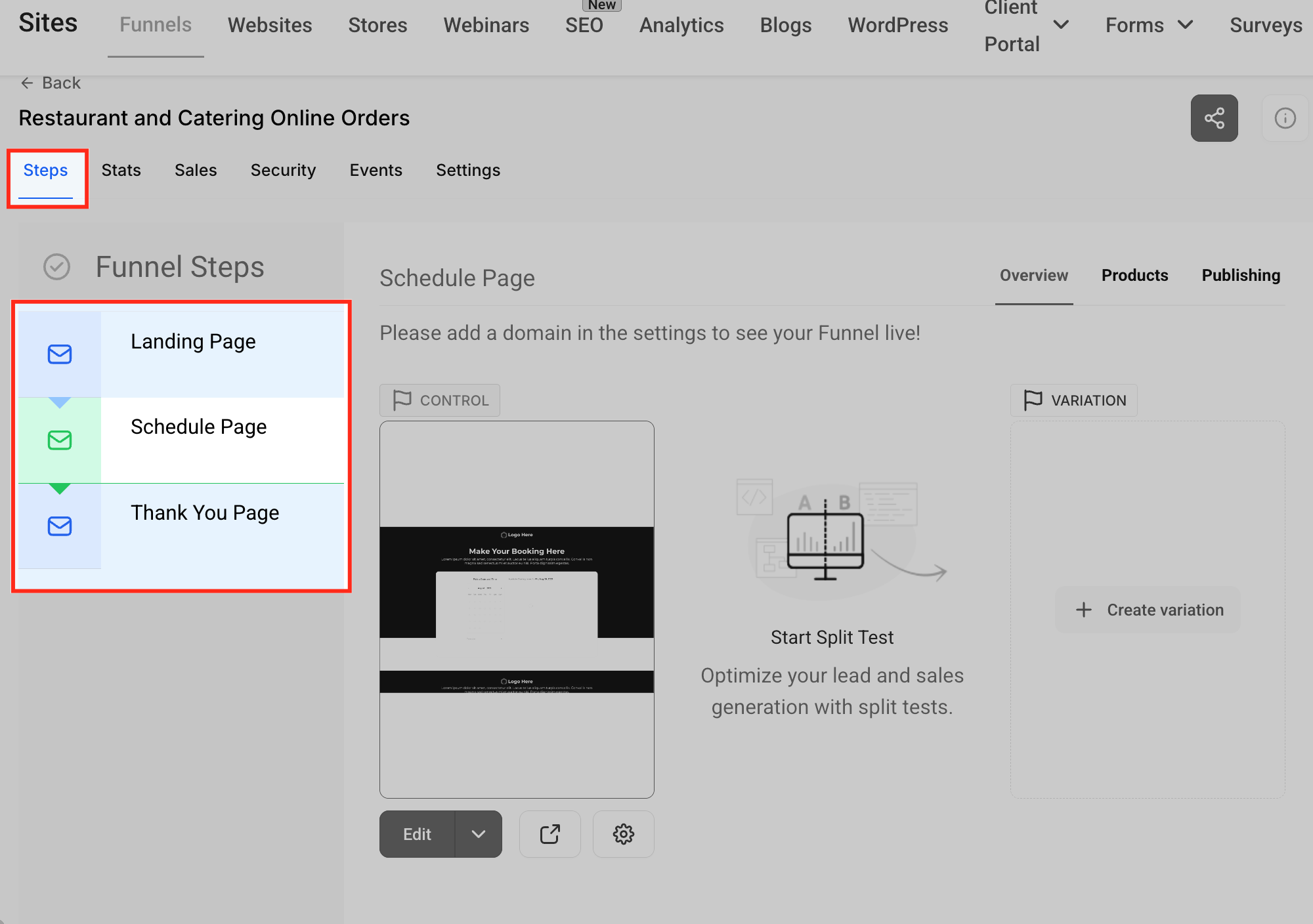
- Open the Steps tab and pick the step where the form will be placed.
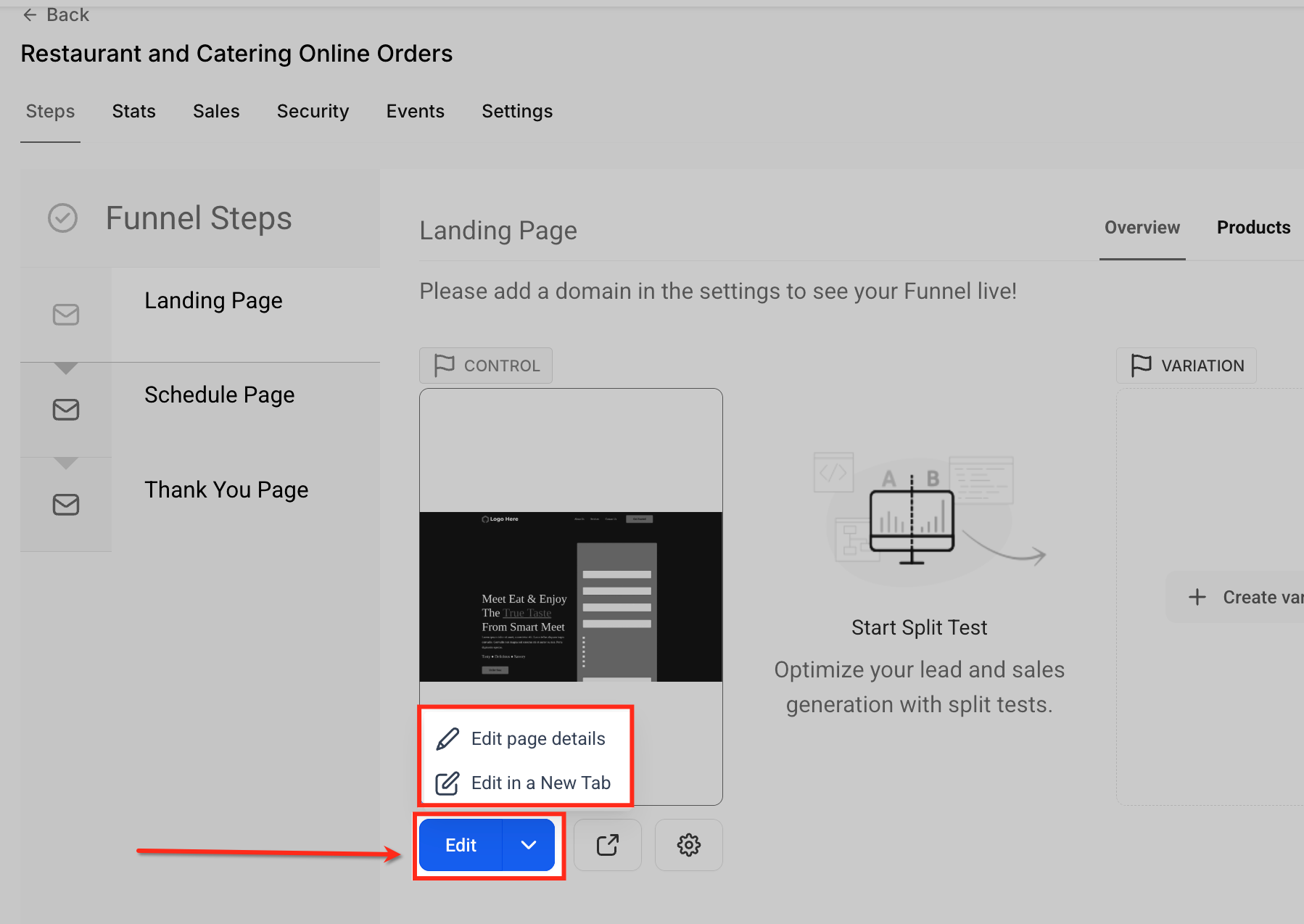
- Click the Edit button beneath the step preview and choose either Edit page details or Edit in a New Tab.
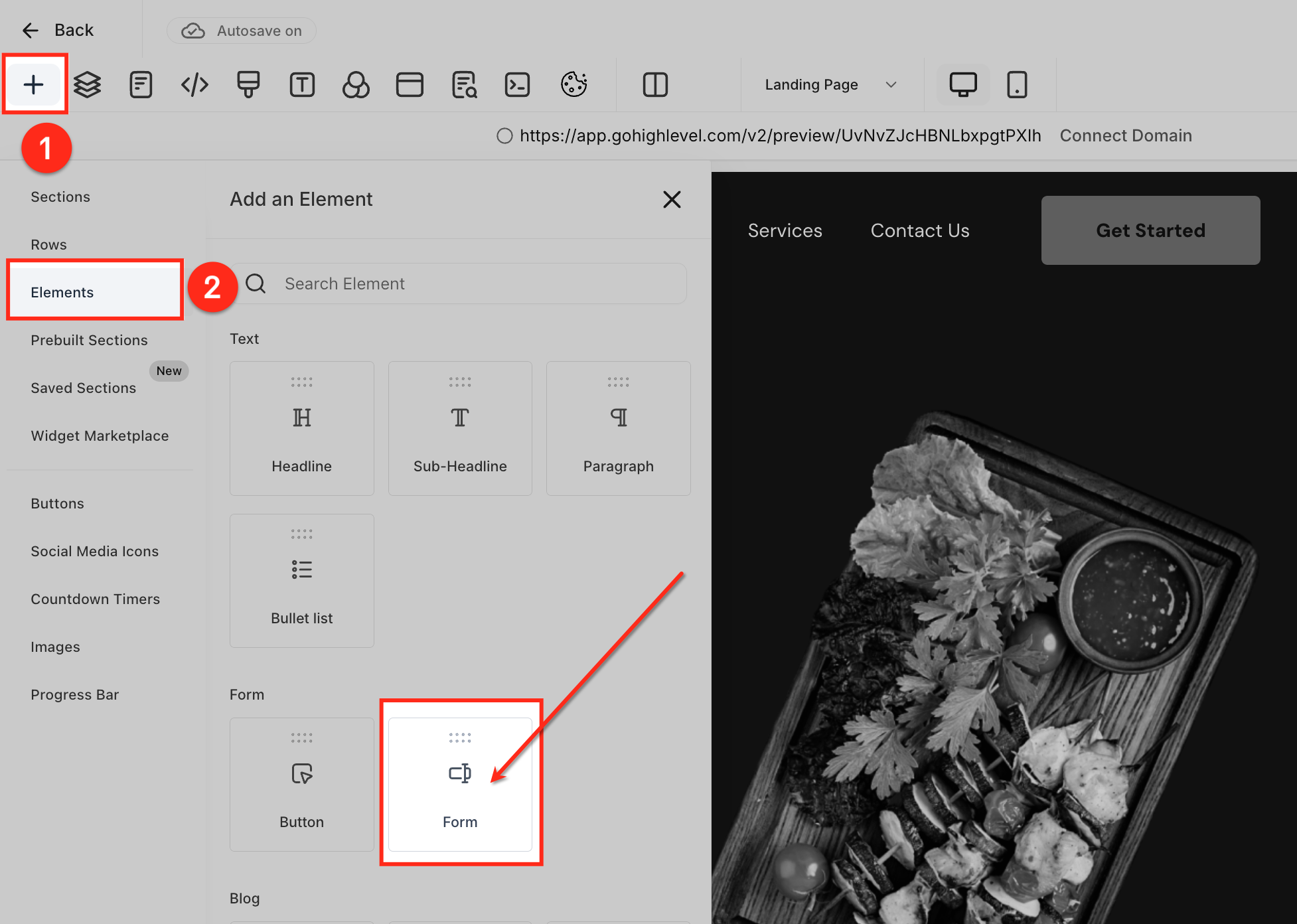
- Press the + icon in the top toolbar, choose Elements, scroll to the Form section and drag the Form element onto the canvas.
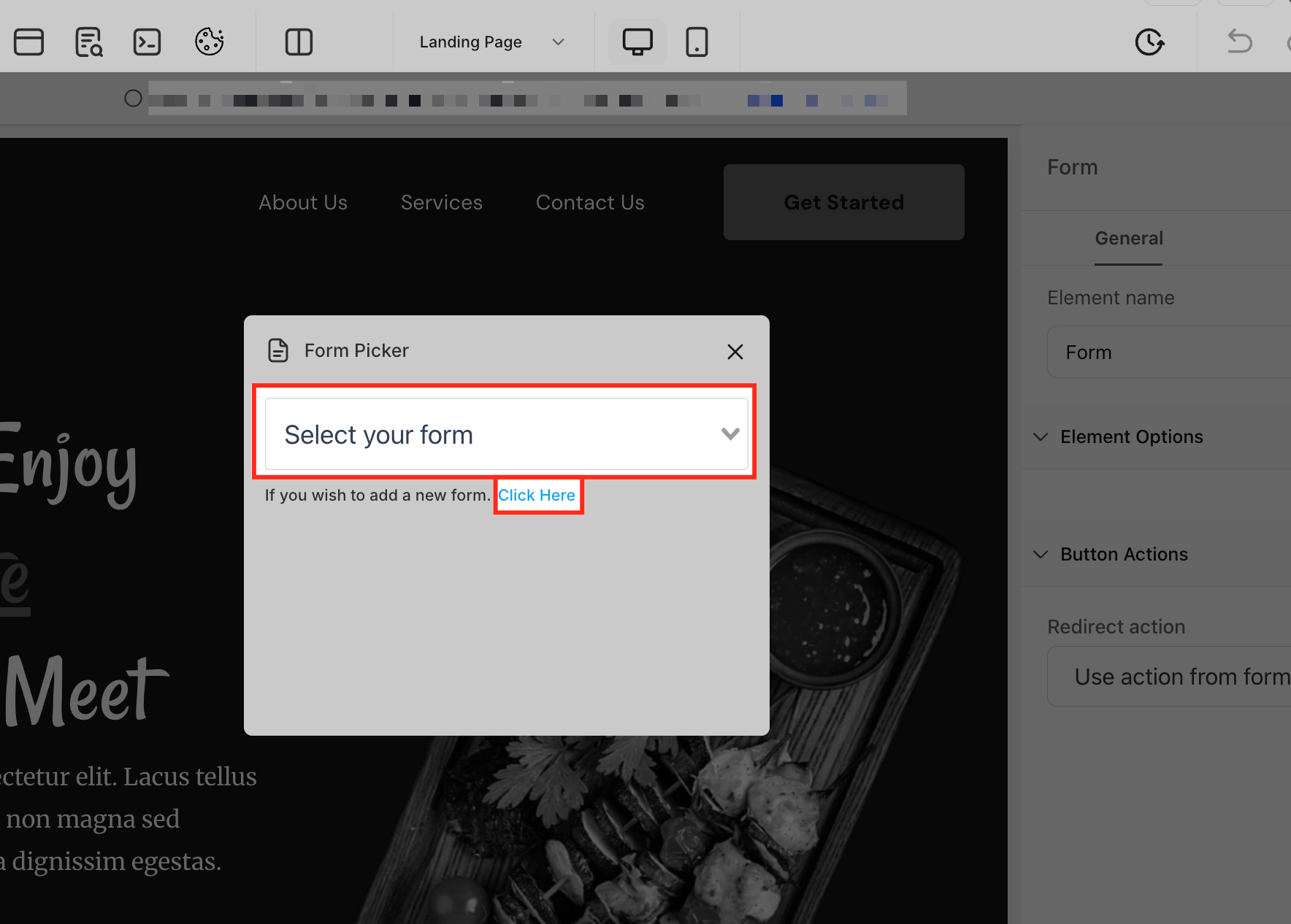
- When the Form Picker appears, select a saved form from the dropdown or click the “Click Here” link to create a new form.
- In the right hand panel, click the Edit form button to launch the pop up builder.
- Within the pop up, use the Quick Add panel to drag common fields and the Add Object Fields panel to insert custom inputs.
- Click the Save icon in the top right corner of the pop up to apply changes and close the window.
06What it looks like in HighLevel
07Settings that matter
- Edit form button. Opens the pop up Form Builder for the selected form.
- Quick Add. Provides shortcuts to add common fields such as Full Name, Email, and Phone.
- Add Object Fields. Allows insertion of custom input types to capture specific data.
- Language settings. Determines which language the Form Builder interface displays.
08Things to know before you rely on it
- Localization only changes the builder’s UI text; custom text inside forms is not translated.
- Supported translations are limited to the languages HighLevel provides.
- If the pop up is closed without saving, any changes are lost.
09If something goes wrong
- Closing the pop up without saving. Click the Save button before closing the modal to keep changes.
10How it connects to the rest of HighLevel
- Add a two step order form inside a funnel for advanced checkout options. Two step order form
- Add tracking scripts to funnels and websites for analytics integration. Add tracking code
- Review HighLevel pricing and plan details to ensure access to Funnel Builder features. Pricing
Michael's take

When you’re deep in funnel building, the biggest irritation is jumping to another screen just to tweak a form. The Form Builder pop up solves that by letting you stay right where you are and adjust fields, styles, or add custom inputs without losing context. The first thing I would lock in is the Quick Add panel, because getting the core name email phone fields right at the start saves a lot of back and forth.
Once the basics are set, I’d walk through a quick edit of a form on a live funnel step just to confirm the save closes cleanly and the changes appear fast. A brief sanity check on the language setting confirms the UI translates as expected, keeping the experience consistent for any multilingual accounts.