
01Who this is for
- Marketing agencies benefit because they can build multi step funnels for clients without switching screens.
- Ecommerce owners gain speed when adding product landing pages and checkout steps inside the same builder.
- SaaS Founders can organize documentation sites and onboarding flows without leaving the design canvas.
02Pages in the page builder, explained
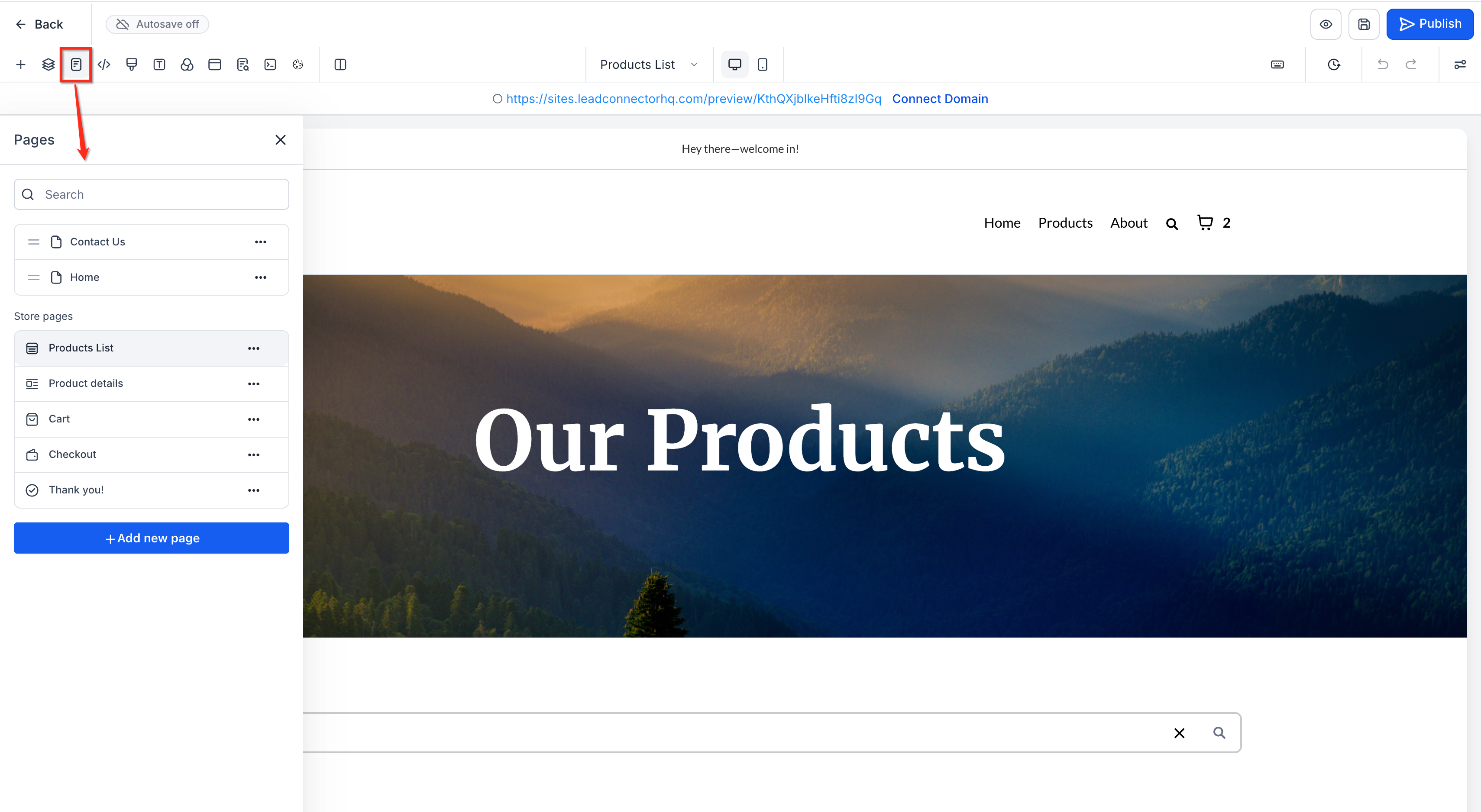
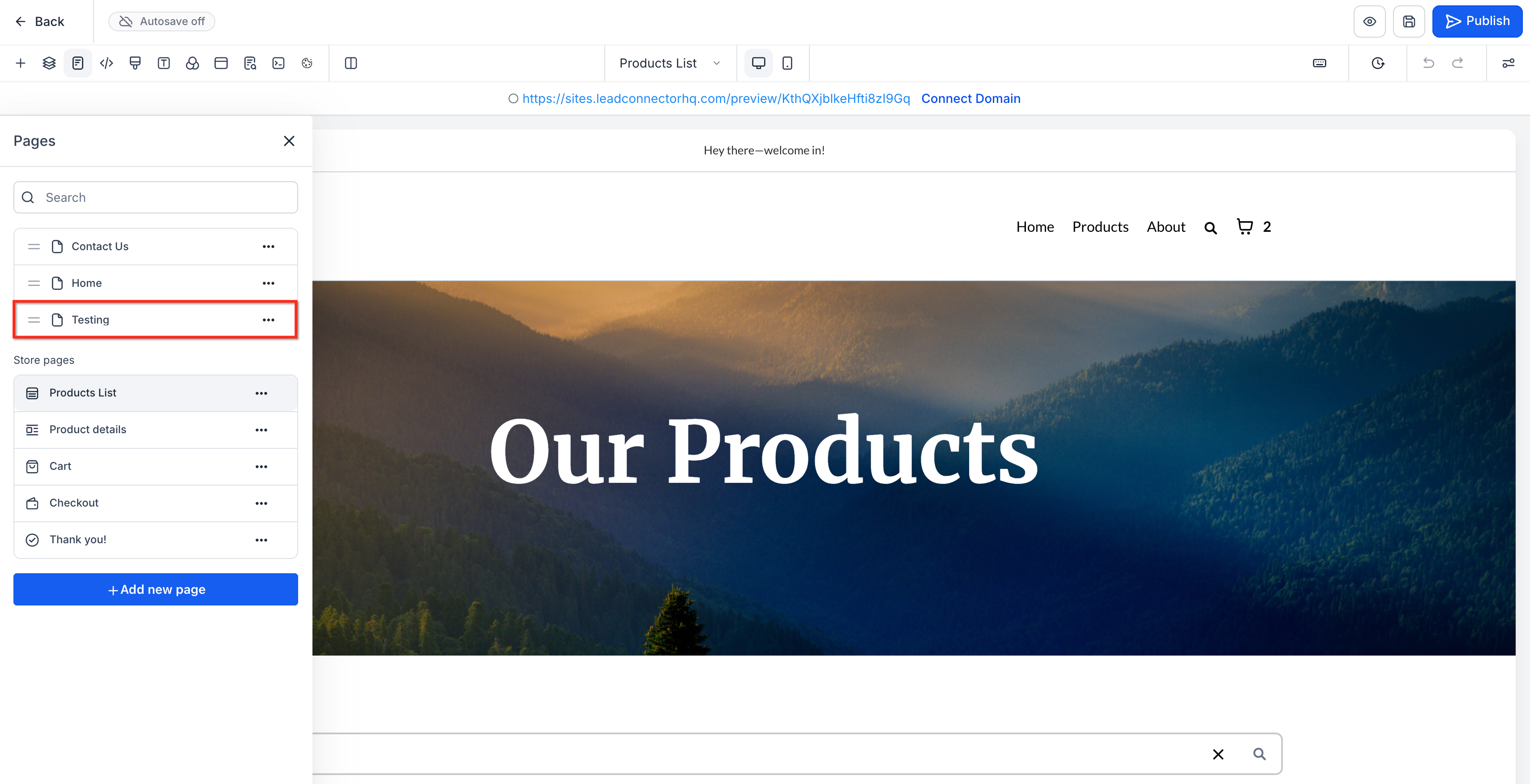
New Page Creation from Page Builder integrates page addition, naming, URL configuration, ordering and search directly into the HighLevel Page Builder. The tools appear in the Pages drawer, a popover on the secondary action bar, and a search field at the top of the drawer.
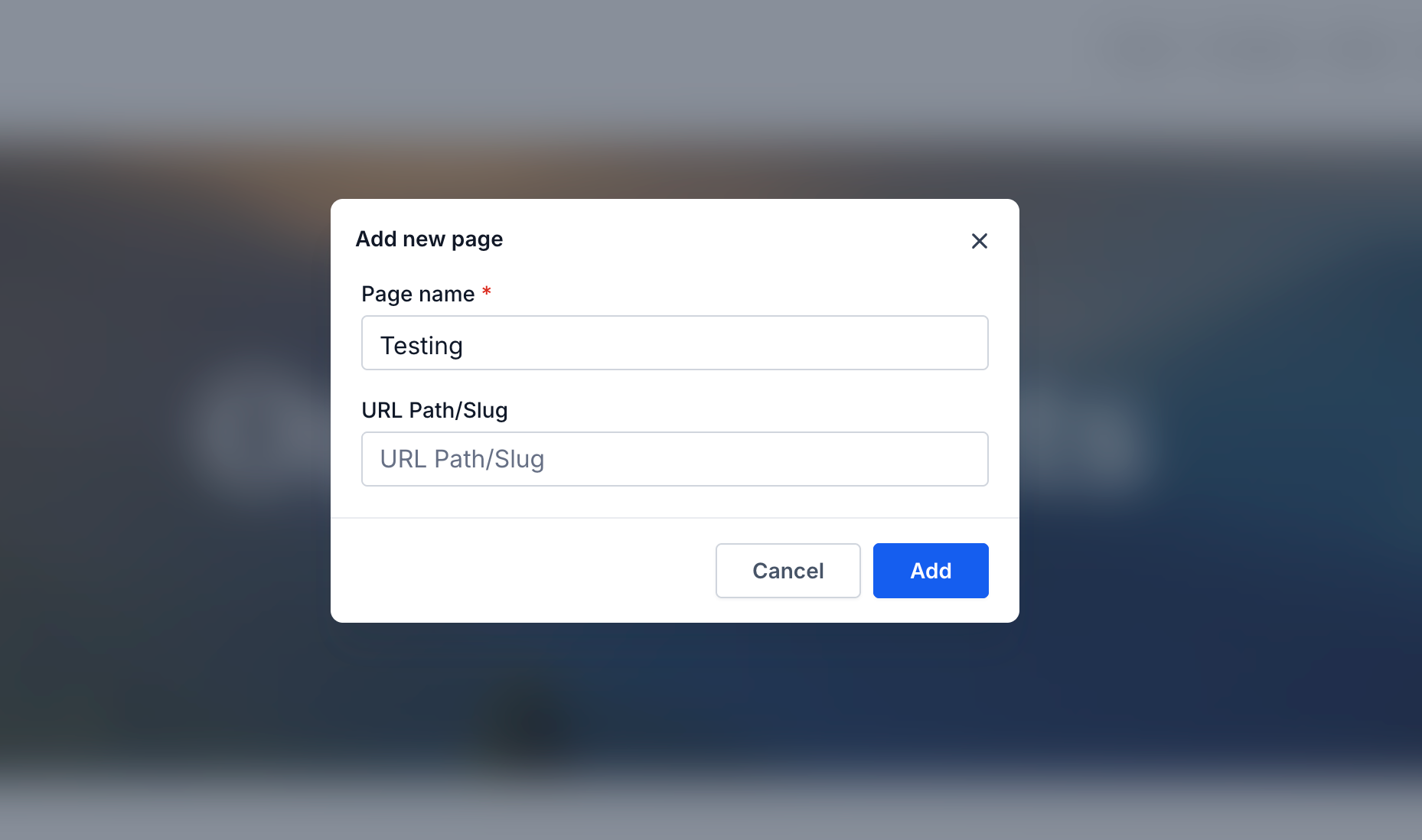
When you click Add New Page, a modal asks for a Page Name and a URL Path / Slug. After saving, the page shows up right away in the drawer and can be opened for design. Reordering is done by dragging entries in the drawer, the popover or the website Pages grid; the new order saves automatically, with an optional confirmation modal for flows that depend on sequence. The search bar filters the page list in real time, letting you jump to a page without scrolling.
All of these controls live inside the editor, so you never need to exit to the main Funnels or Websites settings screen unless you prefer to manage pages there.
03How businesses use pages in the page builder
- Digital marketing agency. The agency opens a client funnel in the builder, adds landing, thank you and upsell pages via the Add New Page button, drags them into the proper flow, and uses the popover to switch between pages while styling shared headers.
- Online course provider. The provider creates separate course module pages inside a website, assigns each a clear URL slug, reorders them to match the curriculum, and searches for a specific module quickly when updating content.
- Local service business. The business builds a multi page website, adds Home, Services, Pricing and Contact pages, sets concise URL paths, reorders the pages to match the navigation menu, and uses the drawer search to locate the Contact page for final tweaks.
04Before you start
- A funnel or website must already exist in the subaccount before opening the Page Builder.
05How to set up and use pages in the page builder in HighLevel
Add New Page from Pages Drawer
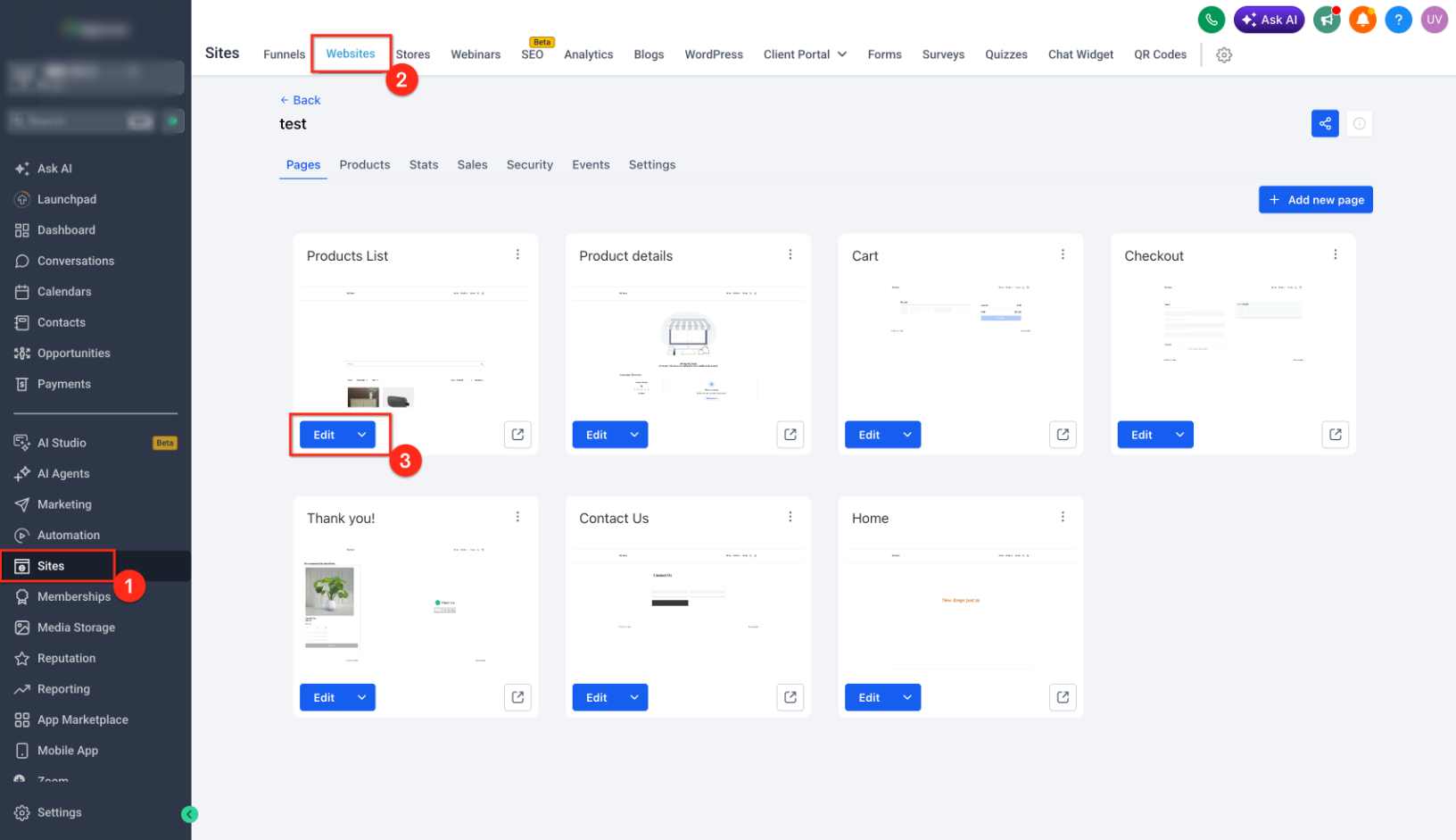
- Open the desired funnel or website and click Edit on a page to launch the builder.
- Reveal the Pages drawer from the left or side navigation.
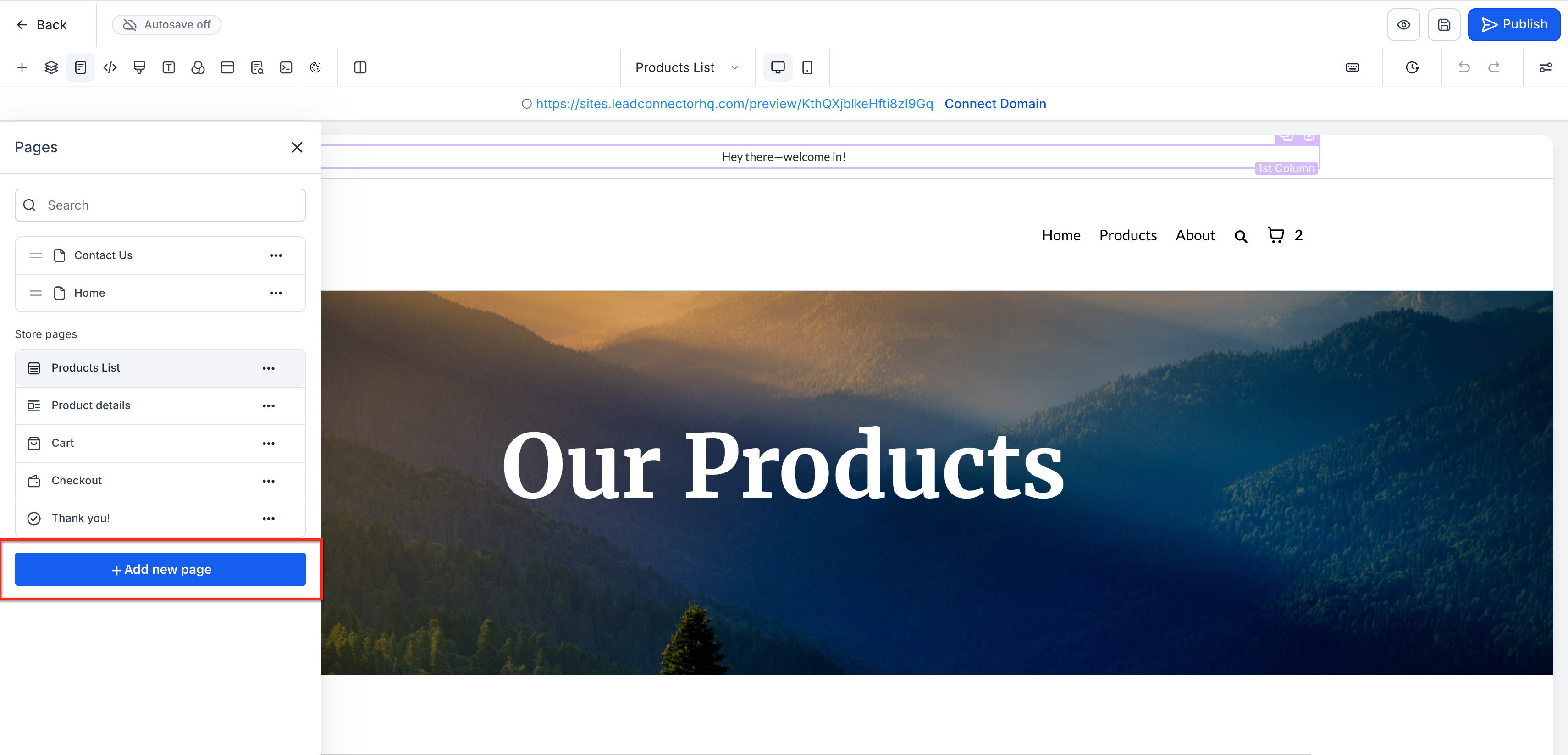
- Click the Add New Page button located at the top or bottom of the list.
- Enter a Page Name and a URL Path / Slug in the modal that appears.
- Confirm creation; the new page appears right away in the drawer.
- Select the new page in the drawer to begin designing its content.
Page Selector Popover on Action Bar
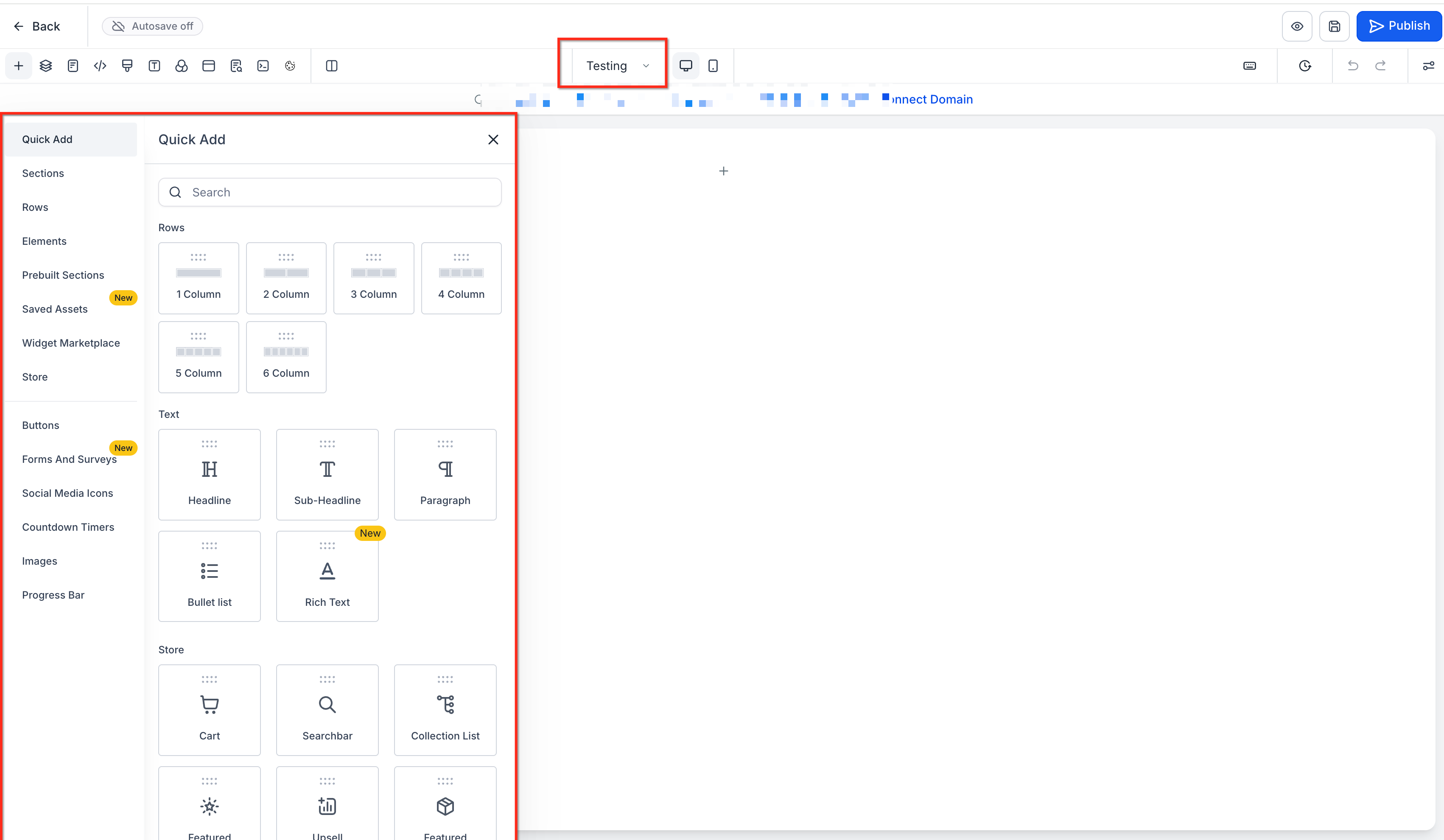
- Find the current page name or dropdown icon in the secondary action bar.
- Click it to open the page selector popover.
- Click any listed page to jump to that canvas.
- Use the inline new page form or Add New Page option, fill in the name and URL path, and save.
- Click outside the popover or on the close icon to return to design.
Drag & Drop Page Reordering
- Open either the Pages drawer or the page selector popover.
- Hover over the page entry until a drag handle appears and press the mouse button.
- Move the entry up or down to the desired position.
- Release the mouse to drop the page; confirm any modal that appears if prompted.
- Check navigation menus to ensure they still point to the correct destinations.
Search in Pages Drawer
- Open the Pages drawer in the builder.
- Locate the Search input at the top of the drawer.
- Type part of the page name or URL segment.
- Click the matching page result to switch to that canvas.
- Clear the search field to view the full page list again.
How to Set Up New Page Creation from Page Builder
- Navigate to Sites > Funnels or Sites > Websites and open or create a funnel or website, then click Edit.
- Outline the pages you need for the project.
- In the Pages drawer, click Add New Page and fill in the name and URL for each required page, repeating until complete.
- Drag and drop pages in the drawer or popover to arrange them in the correct order, confirming any warnings.
- Use the page selector popover to jump between pages while applying shared styles or sections.
- Employ the drawer search bar to locate pages quickly in large builds.
- Publish the funnel or website and preview the flow to verify navigation, order, and URLs.
06What it looks like in HighLevel
07Settings that matter
- Page Name. Sets the label that appears for the page in the drawer, popover and any navigation elements.
- URL Path / Slug. Defines the segment of the web address visitors will use to reach the page; each path must be unique within the funnel or website.
08Things to know before you rely on it
- The feature is enabled by default; there is no separate toggle to activate it.
- Page URL paths must be unique; if a conflict occurs you must adjust the path.
- A confirmation modal may appear when reordering pages that rely on a specific sequence, such as webinar funnels.
- Reordering changes the page order only; the URL paths remain unchanged unless edited separately.
09How it connects to the rest of HighLevel
- Learn how to create and customize full websites in HighLevel. Website setup guide
- Add tracking scripts to funnels and websites for analytics. Tracking code guide
- Review HighLevel pricing and plan options, including the Founder Plan. Pricing page
Michael's take

Skipping page management tools and bouncing between the builder and settings can bleed time and focus. The in canvas page drawer and popover keep everything you need at your fingertips, so you stay in the design zone.
When you’re crafting a multistep funnel, having the ability to add, rename, reorder and jump between pages without leaving the canvas lets you stay in the design zone. I’d use the popover to hop between header and footer sections, then drag pages into the final flow before you hit publish.