
01Who this is for
- Marketing agencies, retain every client site revision without manual saves.
- Ecommerce store owners, protect product page layouts against accidental edits.
- Coaches and consultants, keep blog and webinar content versions for reference.
02AutoSave and version history, explained
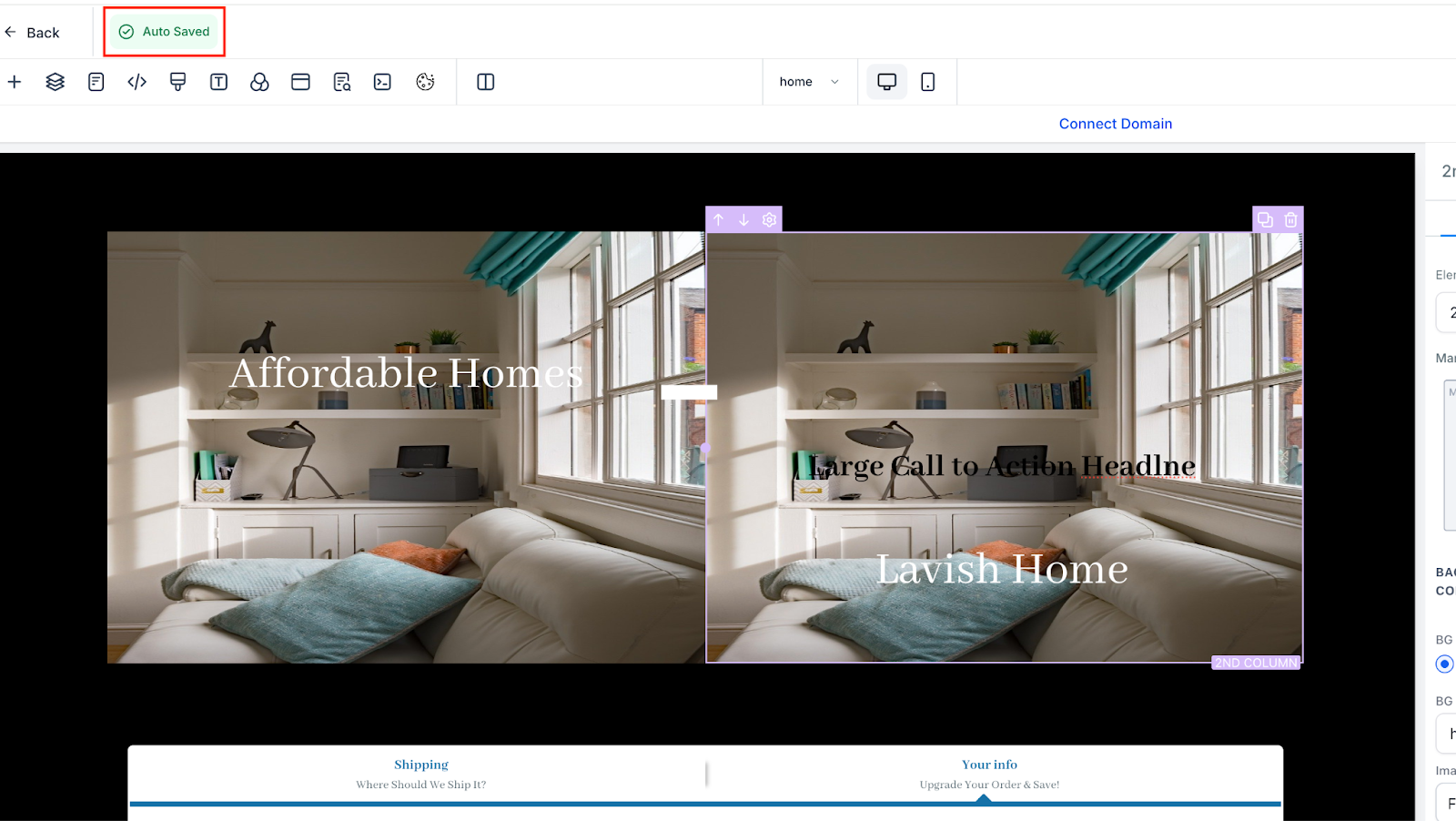
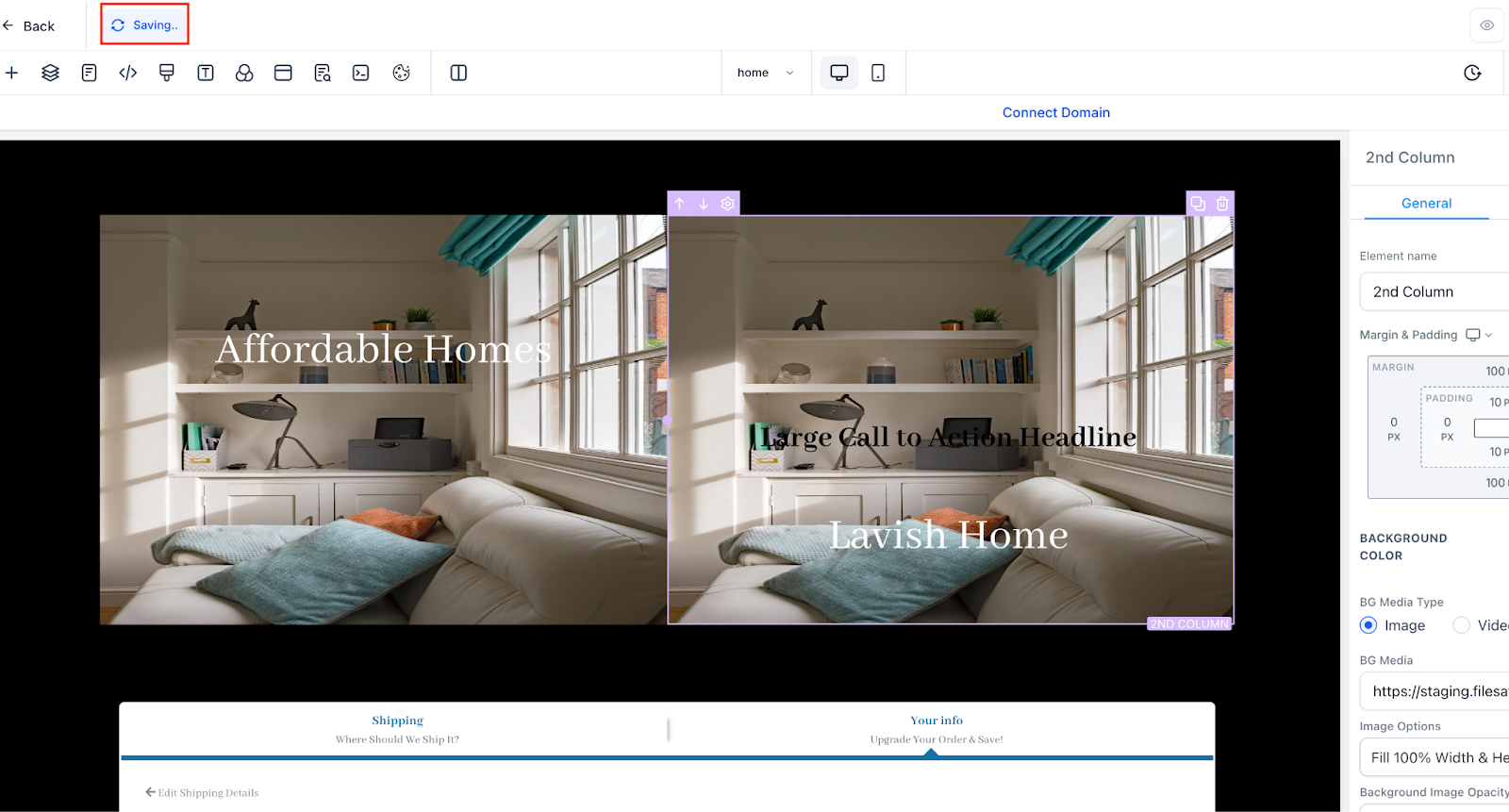
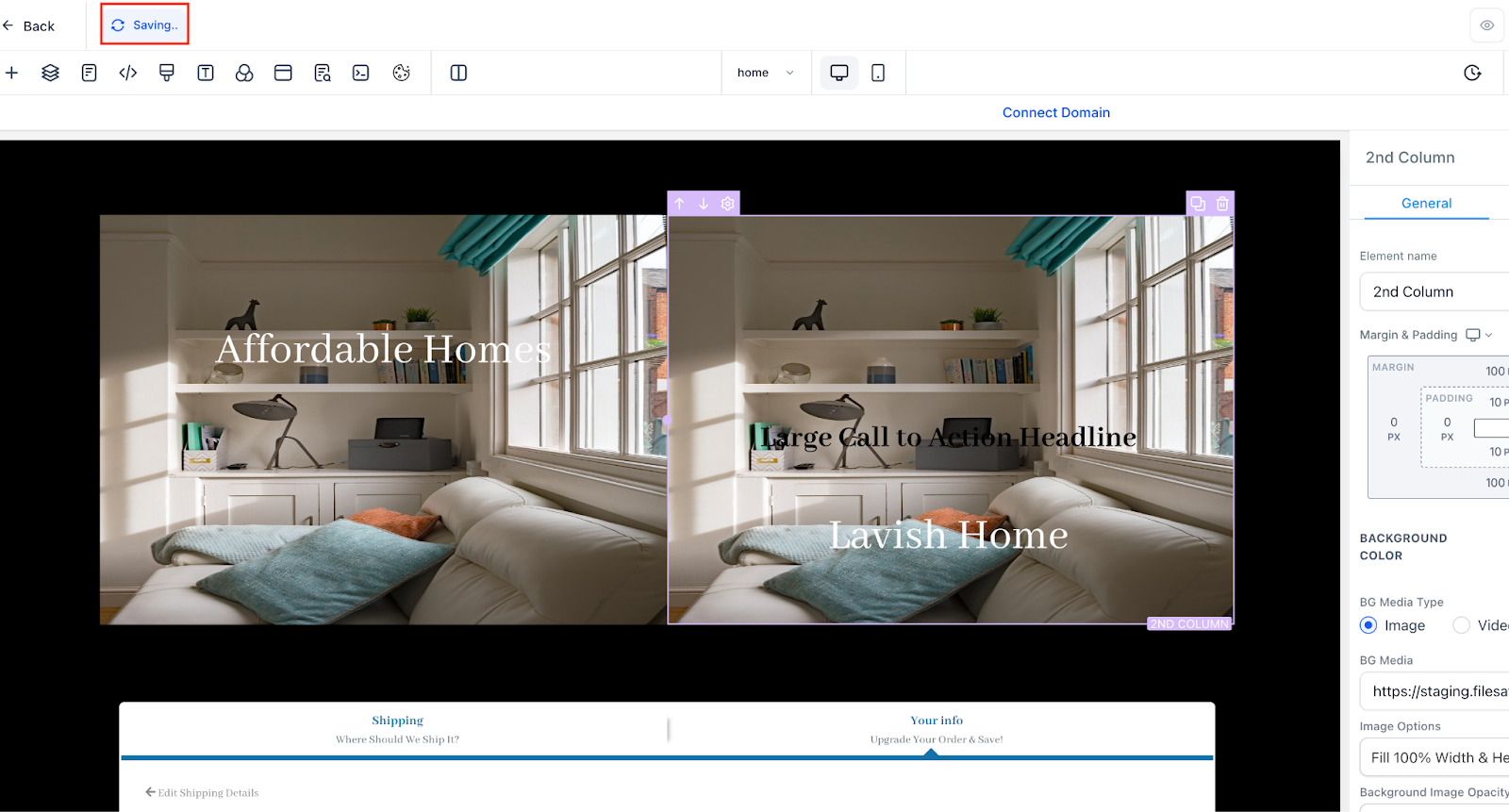
Auto save runs in the background while you edit a funnel, website, blog, webinar or ecommerce page. As soon as a change is detected, the platform records it and shows indicators such as “Saving…” and “Auto Saved” in the editor. You can still click the Save button if you prefer a manual record.
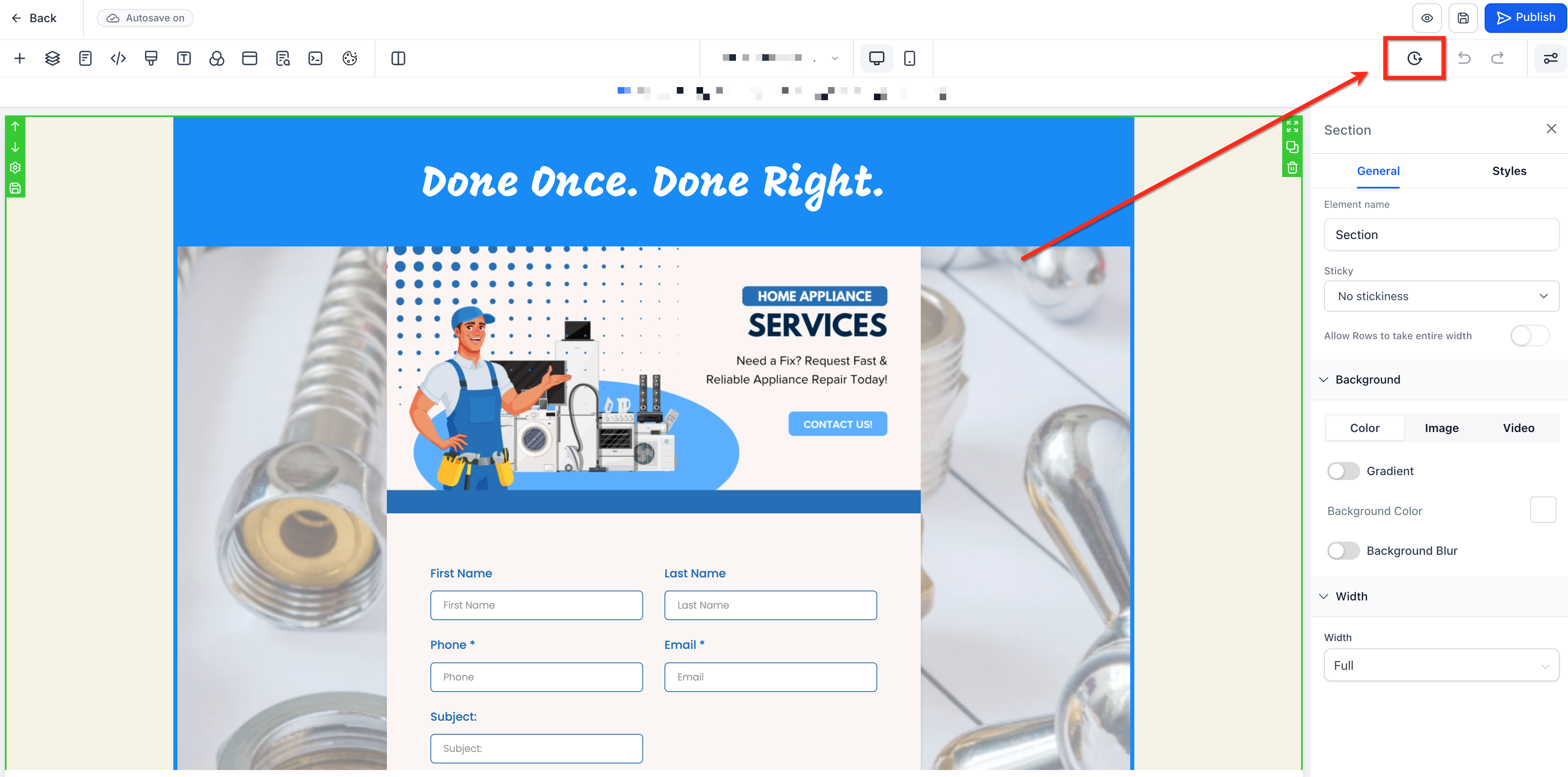
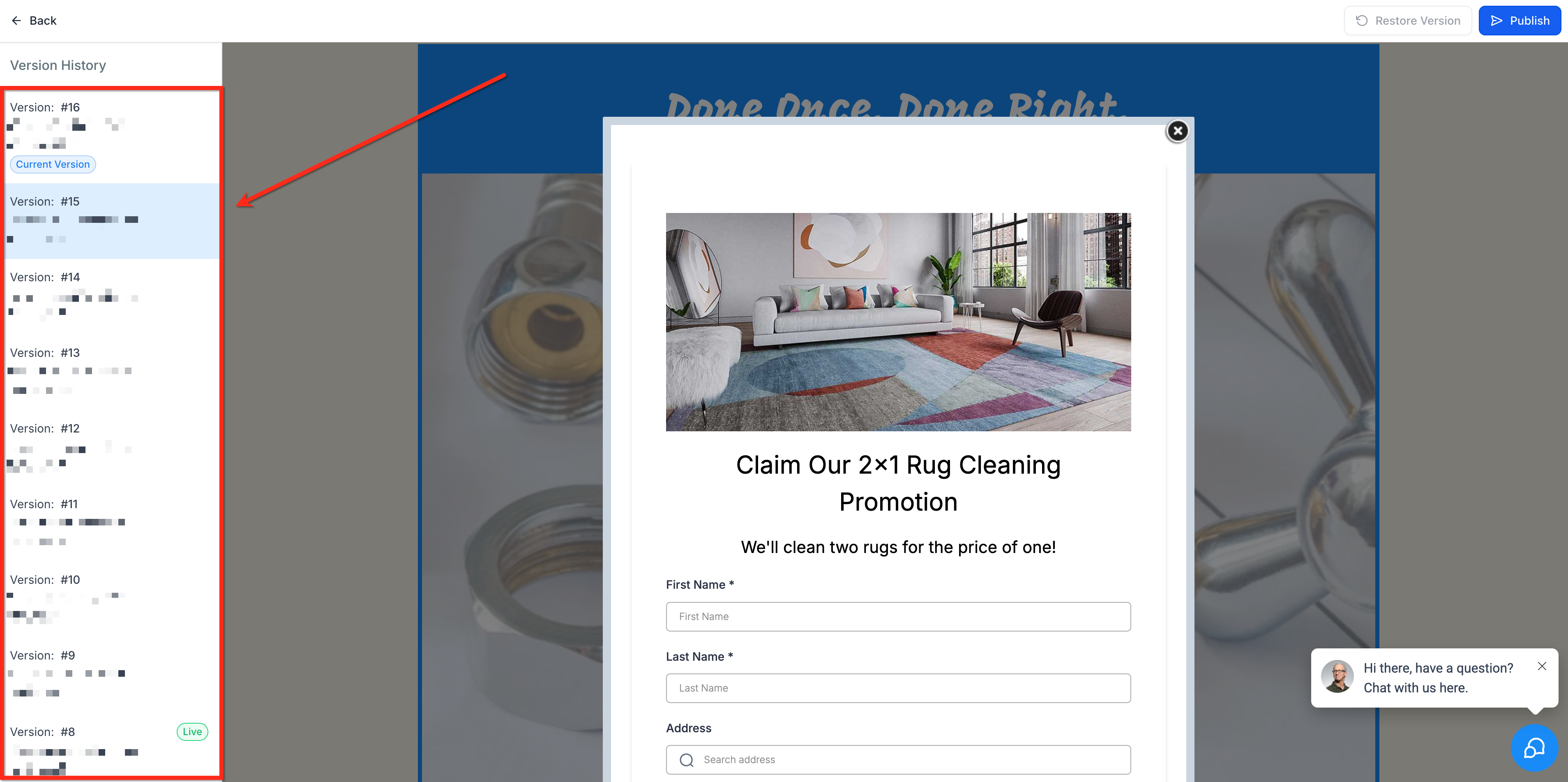
Version history appears when you click the Clock icon in the top right of the site editor. A panel lists each saved snapshot with its date and time. Selecting a snapshot lets you preview it, and you can either publish it live or restore it to continue editing from that point. The feature is available across all steps, pages and components of the listed content types.
03How businesses use the autosave and version history
- Digital marketing agency. An agency edits a client landing page, then opens the version history to select a snapshot from two days ago. By clicking Restore, the page reverts to the earlier layout, allowing the team to continue work without rebuilding the page.
- Online retailer. A retailer updates a product description, then later decides the previous wording performed better. Using the version history list, they choose the prior version and click Publish to make that content live right away.
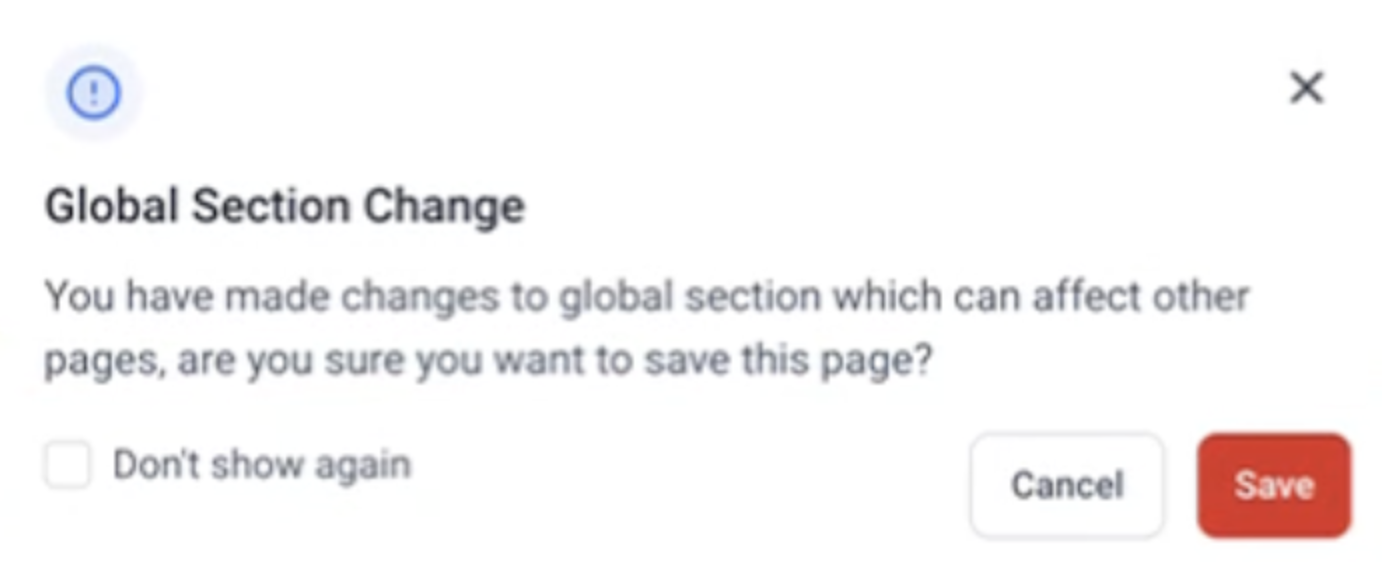
- Webinar host. When editing a Global Section that appears on multiple webinar registration pages, the platform shows a popup warning that changes will affect every instance. The host proceeds, knowing the update will be reflected everywhere.
04The numbers and rules that matter
- A new version is saved every 10 minutes if changes were made.
- Up to 50 versions (auto and manual combined) are stored for each item.
- Supported in Funnels, Websites, Blogs, Webinar, and eCommerce.
05How to set up and use the autosave and version history in HighLevel
Restore or publish a previous version
- Click the Clock icon at the upper right of the site editor to open the version history panel.
- Select a snapshot from the list on the left to view its contents.
- Press either the Publish button or the Restore Version button in the top right to make that snapshot live.
06What it looks like in HighLevel
07Settings that matter
- Auto Save. Controls whether edits are recorded automatically as you work.
- Version History. Enables the list of dated snapshots and the ability to restore or publish them.
08Things to know before you rely on it
- A maximum of 50 versions, combining auto and manual saves, are kept for each item.
- A new version is created every 10 minutes, but only if changes occurred during that period.
- When the version limit is reached, the oldest snapshots are removed automatically.
- Editing a Global Section triggers a popup informing you that the changes will apply across all uses of that section.
09How it connects to the rest of HighLevel
- How to add a two step order form in HighLevel funnels Two step order form
- Add tracking code to funnels and websites in HighLevel Add tracking code
- HighLevel website setup: create pages, customize design, connect domain, and review mobile settings before launch Website setup overview
Michael's take

I let autosave run while I build, then hit the Save button once I reach a version I want to lock in. That way I have a clear snapshot in version history that I can restore without hunting through the ten minute intervals.