
01Who this is for
- Founders of agencies that manage multiple client subaccounts need to monitor compliance across all accounts.
- Marketing managers for ecommerce brands use the log to verify that bulk campaigns stay within opt out limits.
- Compliance officers in health services rely on the history to ensure patient messaging meets carrier guidelines.
02SMS restriction history, explained
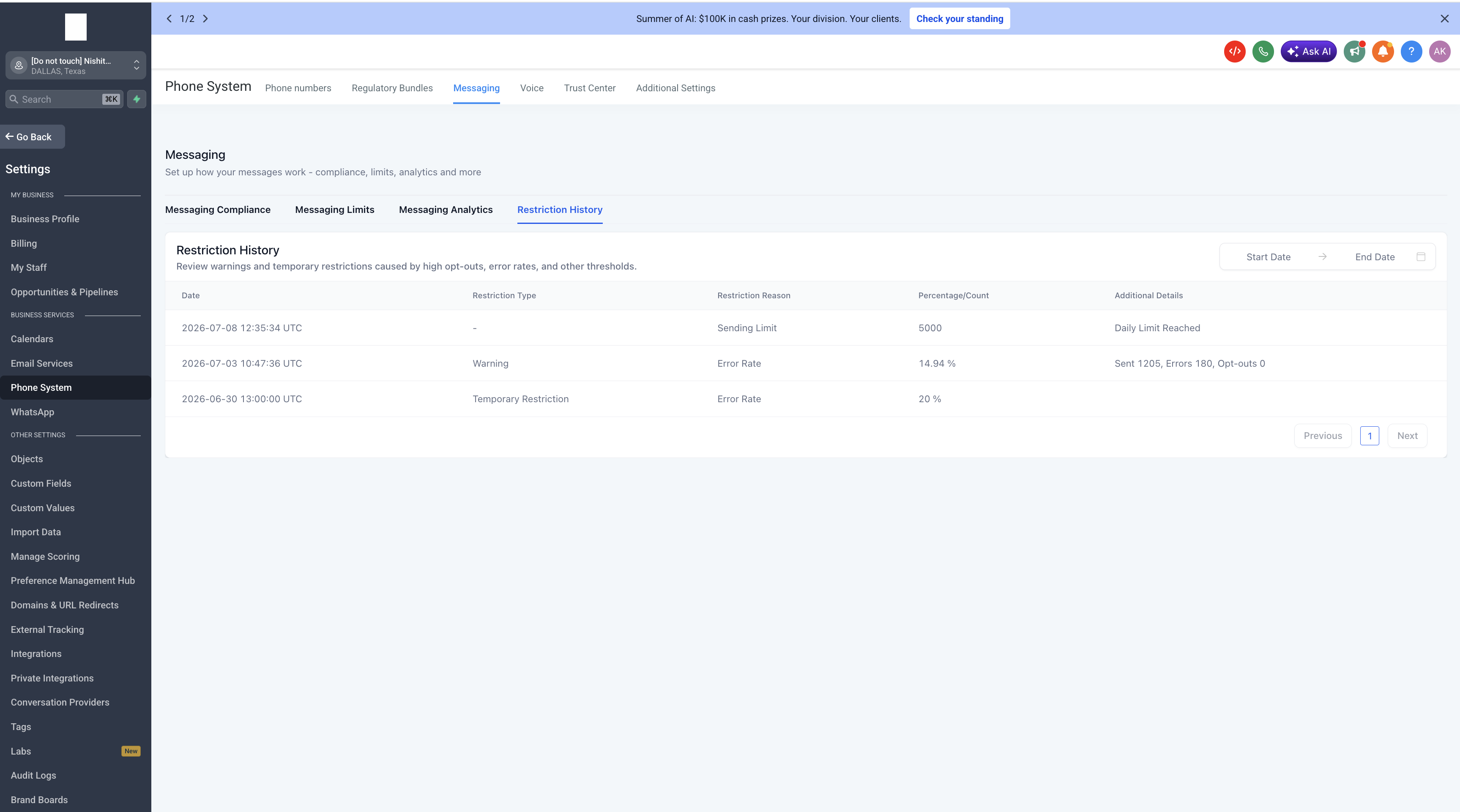
SMS Restriction History is a dashboard inside HighLevel that records every warning and temporary sending lock triggered by carrier thresholds. The log cannot be edited; it simply displays events with timestamps in UTC.
The dashboard lives under Location > Settings > Phone system > Messaging, on the far right Restriction History tab. A table shows the date, restriction type, reason, percentage or count, and any related metrics. Filters on the right let you narrow the view by start and end dates, and pagination lets you browse multiple pages.
Threshold guidance is provided: opt out rates above 3 % or delivery error rates above 10 % cause a 24 hour lockout. Staying under the recommended ranges (opt out 0 to 1 %, error 0 to 6 %) helps avoid restrictions.
03How businesses use SMS restriction history
- Ecommerce store. The owner opens the Restriction History to see if a recent promotion pushed the opt out rate above the safe range. By filtering to the promotion dates, they identify the exact warning and adjust future messaging content.
- Health clinic. Staff check the log after sending appointment reminders to spot any spikes in delivery errors. Using the date filter, they isolate the period with high error rates and clean the patient contact list accordingly.
- Real estate agency. Agents review the history following a bulk property alert campaign. They filter the log to the campaign window, read the restriction reason, and ensure future blasts stay within carrier limits.
04The numbers and rules that matter
- Typical causes of restrictions: Daily/weekly sending limit violations, high opt out rate, high delivery error rate (including carrier filtering such as Error 30007).
- Opt Out rate good range: 0 to 1%.
- Opt Out target: Stay below 2 to 3%.
- Opt Out lockout at 3% for 24 hours.
- Delivery error rate good range: 0 to 6%.
- Delivery error target: Keep under 10%.
- Delivery error lockout at 10% for 24 hours.
05How to set up and use SMS restriction history in HighLevel
Filter restriction log by date
- Navigate to Location > Settings > Phone system > Messaging.
- Select the Restriction History tab on the far right side.
- Enter the desired Start Date and End Date values to limit the displayed records.
- Note that all timestamps in the log are shown in UTC.
06What it looks like in HighLevel
07Settings that matter
- Start Date filter. Sets the earliest date shown in the restriction log.
- End Date filter. Sets the latest date shown in the restriction log.
08Things to know before you rely on it
- Warning and temporary restriction entries are read only; they cannot be edited.
- A lockout occurs for 24 hours when opt out reaches 3 % or delivery error reaches 10 %.
- All timestamps are recorded in UTC, requiring conversion for local analysis.
- The table may span multiple pages; use the pagination control to navigate.
09How it connects to the rest of HighLevel
- Set carrier compliance rules and opt out handling. SMS compliance settings
- Read best practices for preventing carrier filtering and restrictions. SMS deliverability best practices
- Follow a checklist for troubleshooting delivery problems that may cause restrictions. SMS delivery troubleshooting
Michael's take

A small business that relies on text messaging can avoid lockouts by watching the SMS restriction history. It tells you when a carrier or policy has paused your sending, why it happened, and what metric crossed the line.
Don’t ignore the thresholds; a temporary lockout can halt all outbound texts for a full day.