
01Who this is for
- Founders who run marketing campaigns need consistent opt out language to meet regulations.
- Agency owners managing multiple client subaccounts require per location control of compliance settings.
02Autoupdating opt out & sender info, explained
The feature automatically appends required opt out wording and sender identification to outbound SMS/MMS messages at a frequency you define. It works on each subaccount (location) and runs in the background, so you do not have to add the text manually for every message.
You set a day interval from 1 to 60 days. After that period, HighLevel checks the next outbound message in the thread and inserts the compliance details if they are missing. The first message in any conversation always includes the opt out and sender information, regardless of the periodic setting. Optional regional restrictions, such as blocking messages to Texas recipients, can also be enabled.
03How businesses use autoupdating opt out & sender info
- Real estate agency. The agency enables the periodic opt out feature so that follow up texts about new listings always contain the unsubscribe instruction and agency name. They set a 30 day interval because listings are sent weekly. The optional Texas block is turned on to comply with state rules.
- Fitness studio. The studio activates the sender info toggle to add its brand name to class reminder messages. It chooses a 7 day interval because promotions are sent several times a week, ensuring the opt out text stays visible in each ongoing conversation.
- Ecommerce store. The store configures the compliance automation to re add the opt out language every 14 days for order status updates. It also enables the sender ID field so customers see the store name on every shipment notification.
04The numbers and rules that matter
- Frequency range: 1 to 60 days.
- Default interval: 30 days.
05Before you start
- You must have permission to edit subaccount (location) settings.
- New subaccounts have Enable Periodic Opt Out turned on by default; existing subaccounts start disabled.
06How to set up and use autoupdating opt out & sender info in HighLevel
Enable automatic opt out and sender info updates
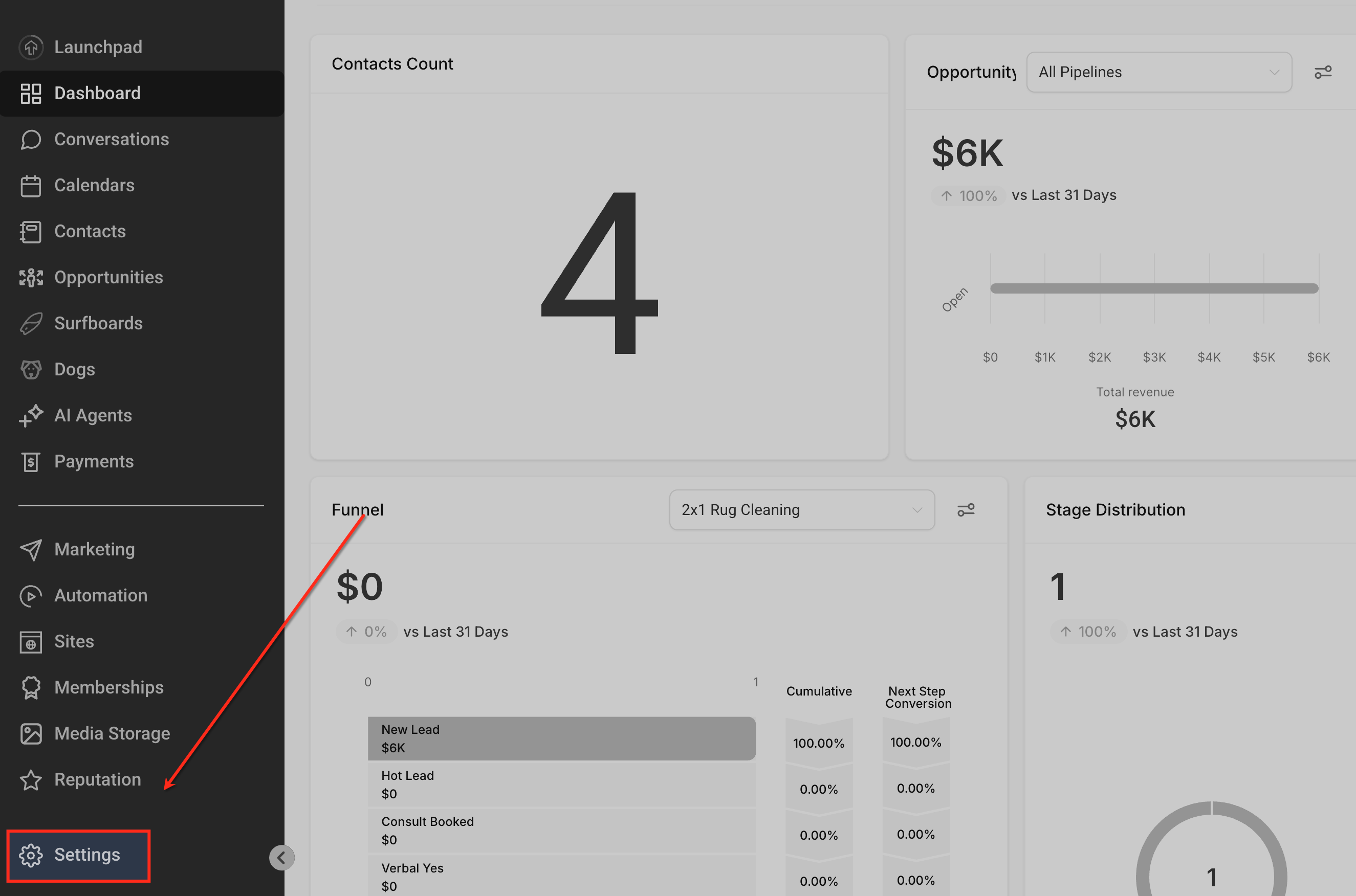
- From the main dashboard, click Settings in the left navigation menu.
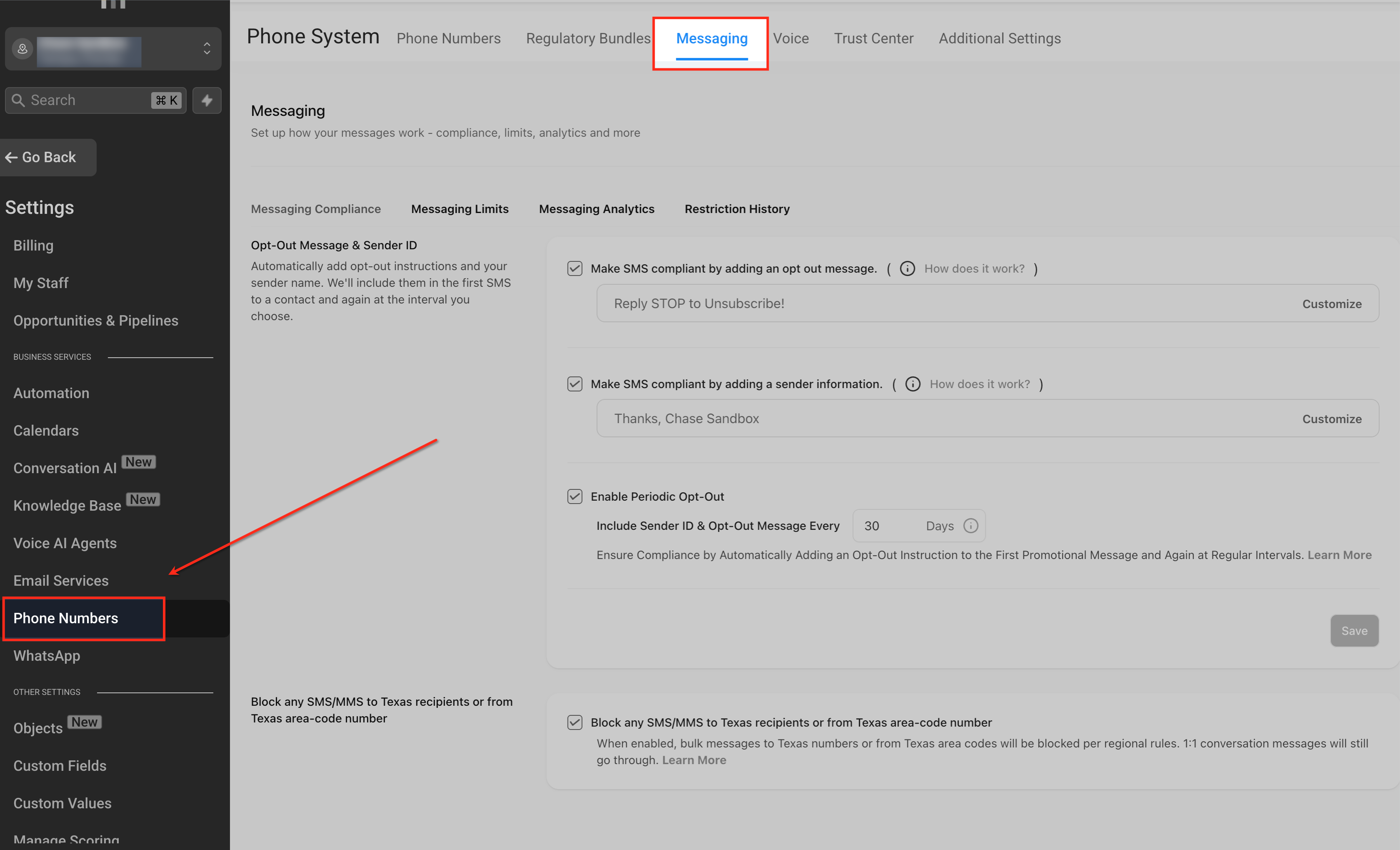
- In Settings, select Phone Numbers to open the messaging configuration area.
- Click the Messaging tab at the top of the Phone System page.
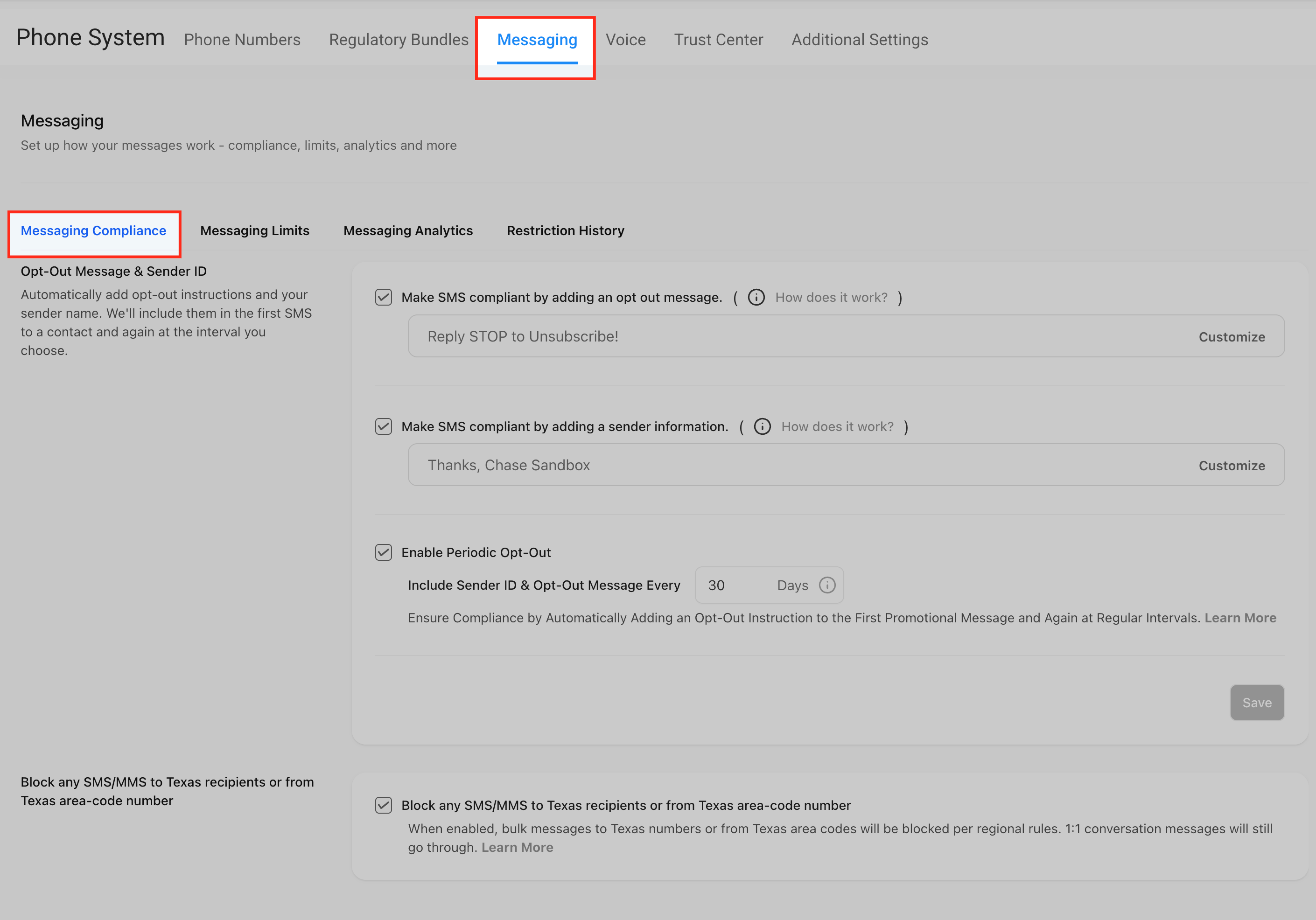
- Choose the Messaging Compliance sub tab to view compliance controls.
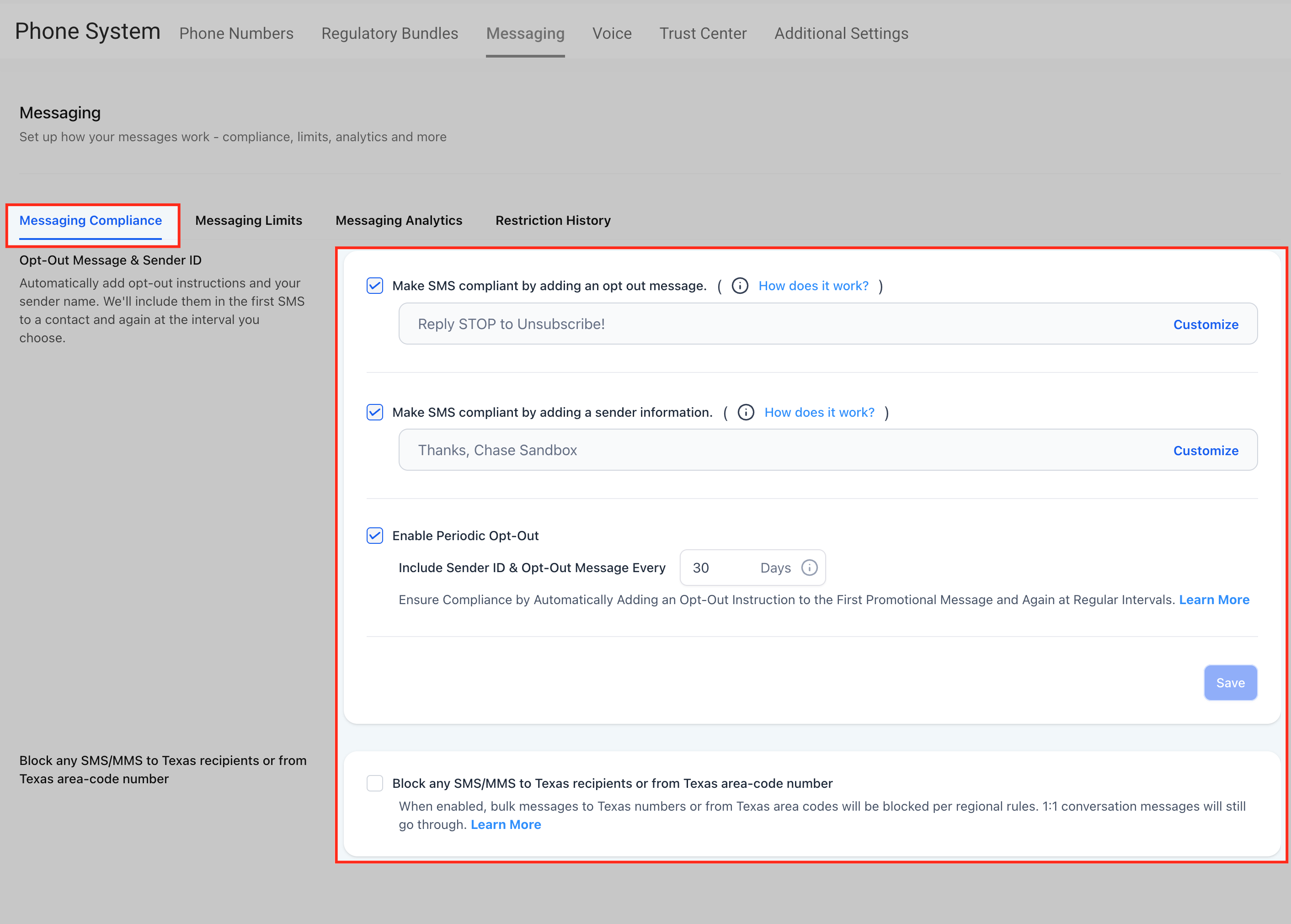
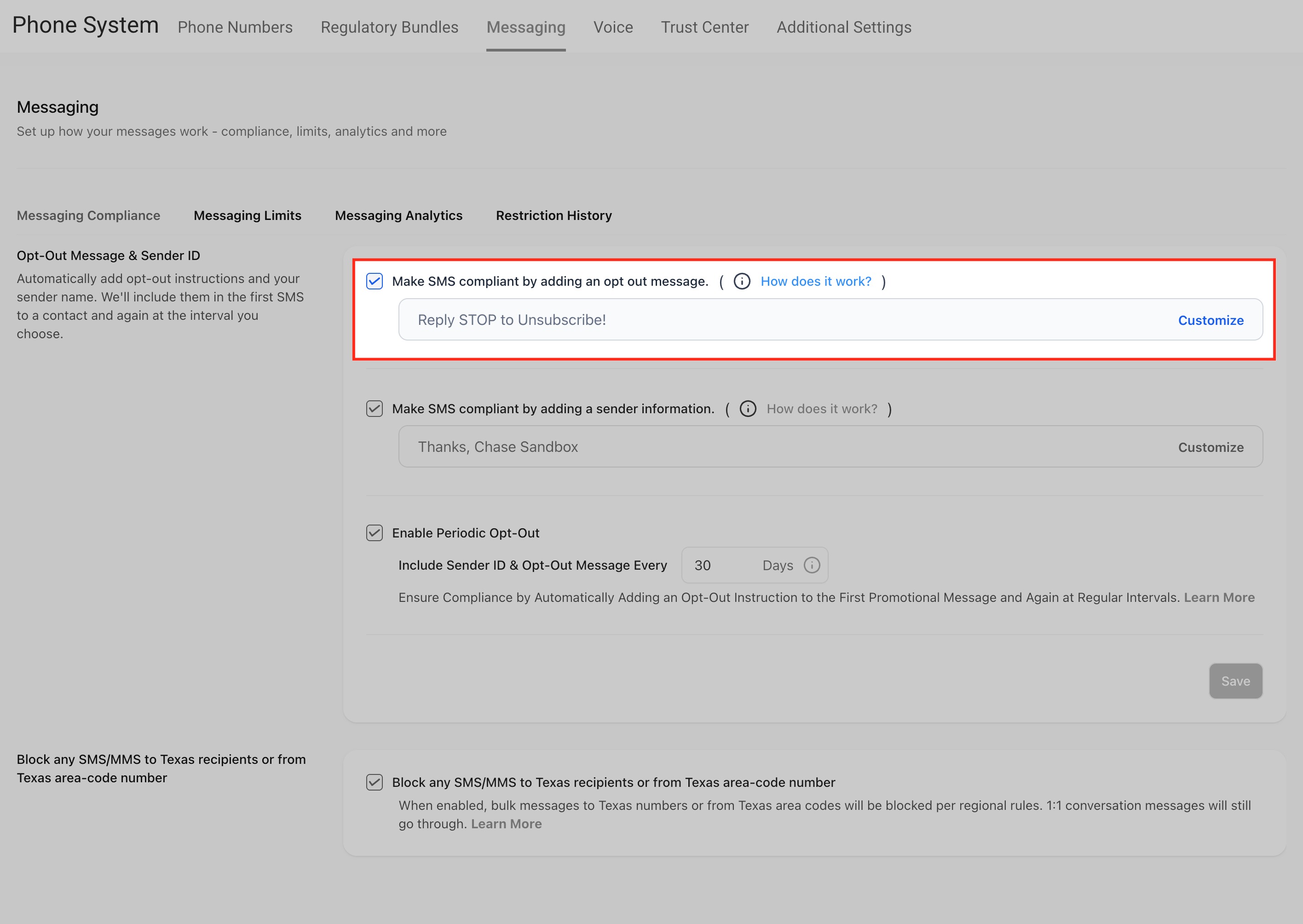
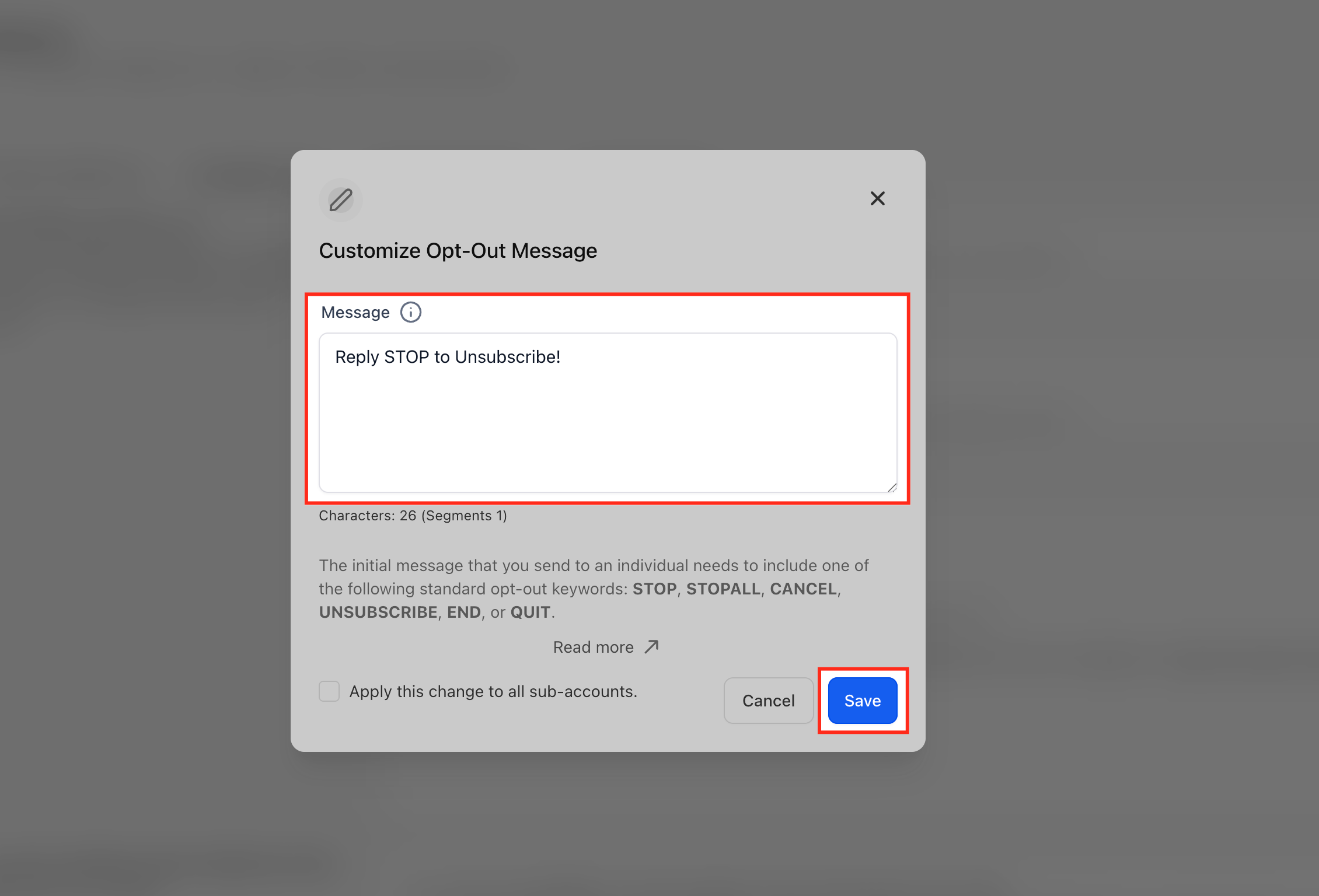
- Enable Make SMS compliant by adding an opt out message, then enter the opt out text and click Customize.
- Enable Make SMS compliant by adding sender information, enter the sender name or signature, and click Customize.
- Toggle Enable Periodic Opt Out on, select a value between 1 and 60 days in Include Sender ID & Opt Out Message Every [X] Days, and click Save.
- Optionally, enable the block for any SMS/MMS to Texas recipients if regional restrictions are needed.
07What it looks like in HighLevel
08Settings that matter
- Enable Periodic Opt, Out. Controls whether the platform automatically re adds opt out wording and sender details at the interval you set for the subaccount.
- Include Sender ID & Opt, Out Message Every [X] Days. Specifies the number of days between each automatic compliance insertion, from 1 to 60 days.
- Make SMS compliant by adding an opt, out message. Enables the inclusion of required unsubscribe language in outbound messages.
- Make SMS compliant by adding sender information. Enables the inclusion of a sender name or signature in outbound messages.
- Block any SMS/MMS to Texas recipients. When turned on, prevents sending messages to Texas numbers or from Texas area code numbers.
09Things to know before you rely on it
- Interval can be set from 1 to 60 days; the default is 30 days.
- New subaccounts have periodic opt out enabled by default; existing ones are disabled until you turn them on.
- The first outbound message always includes opt out and sender info, even if periodic updates are off.
- Agencies in Trial Mode, subaccounts created within the last 15 days, or users without permission cannot disable some compliance settings.
10How it connects to the rest of HighLevel
- SMS compliance settings: opt out and sender ID SMS compliance settings
- SMS delivery troubleshooting checklist SMS troubleshooting
- Best practices for SMS deliverability SMS deliverability tips
Michael's take

When you run long running SMS campaigns or nurture sequences, the automation saves you from manually adding opt out text to every message.
If you only send one off promotions or already have a strict manual compliance process, the feature adds little value.