
01Who this is for
- Sales managers who need to pull up a particular deal during a call.
- Marketing teams that track leads by company or tag and must verify status fast.
- Customer support reps looking for a client’s opportunity to reference details while assisting.
02Searching for opportunities, explained
GoHighLevel includes a search bar inside the Opportunities section. The bar appears at the top of the page once the Opportunities view is opened. Users type a term and the list updates right away to show only matching records.
The search works on several fields: opportunity name, phone, email, company, tags and the associated contact name. It begins filtering after three characters are entered and only matches from the start of a word, not from the middle.
The feature is part of the standard Opportunities interface and does not require additional configuration. It runs in real time, so results appear as the user continues typing.
03How businesses use searching for opportunities
- Real estate agency. An agent types the property address or client email into the search bar to pull up the corresponding opportunity. The list narrows to that exact deal, allowing the agent to review notes and next steps without scrolling through all listings.
- Dental practice. The front desk enters a patient’s phone number in the search field to find the associated treatment plan opportunity. The filtered view shows the correct record, enabling the staff to confirm appointment details quickly.
- Software startup. A sales rep enters a prospect’s company name to locate the relevant opportunity. The real time filter displays the matching entry, so the rep can update the stage or add a follow up note immediately.
04The numbers and rules that matter
- Search works only after typing a minimum of 3 characters in the search box.
05How to set up and use searching for opportunities in HighLevel
Search for opportunities
- Log in to your GoHighLevel account and open your subaccount.
- Navigate to the Opportunities section from the sidebar menu.
- Find the search bar positioned at the top of the Opportunities page.
- Enter at least three characters of the opportunity name, phone, email, company, tags, or contact name.
- Review the list that narrows automatically to items that start with the entered text.
06What it looks like in HighLevel
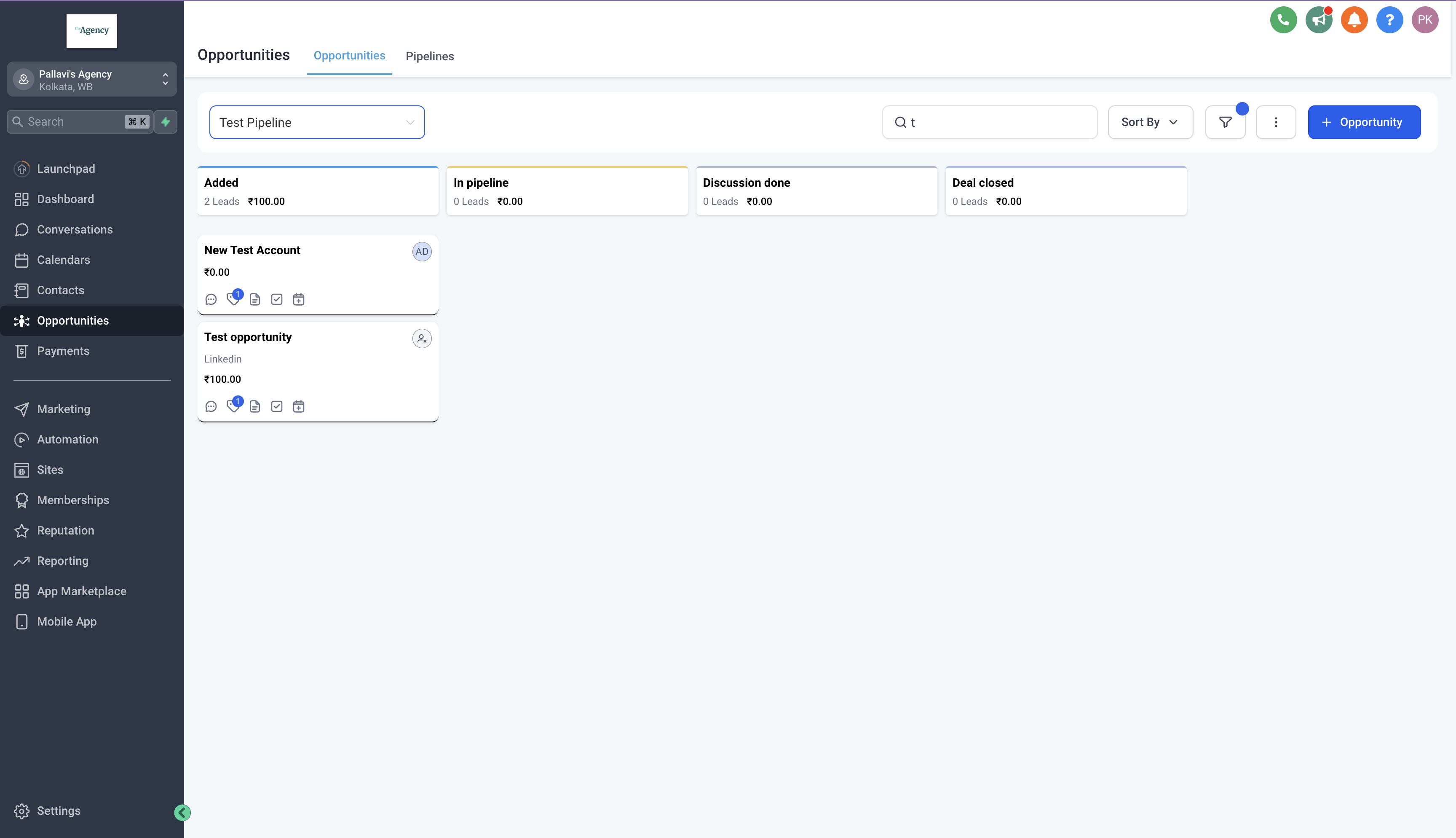
07Things to know before you rely on it
- The filter starts only after a minimum of three characters is typed.
- The search matches only from the beginning of a word; it will not find a term that appears in the middle of a word.
08How it connects to the rest of HighLevel
- How to filter opportunities for precise views Opportunity filters
- List view options for sorting and notes List view guide
- Understanding opportunities within GoHighLevel Opportunities overview
Michael's take

The search bar in Opportunities can feel a bit fragile if you’re used to more forgiving tools. It won’t match a term that appears midword and it won’t start until you’ve typed three characters, so you can easily miss a record if you’re not careful.