
01Who this is for
- Sales managers who need stage specific data collection without cluttering forms.
- Customer success teams that must capture onboarding details only after a deal is Won.
- Compliance officers who require mandatory fields for certain pipeline stages.
02Conditional Custom Fields, explained
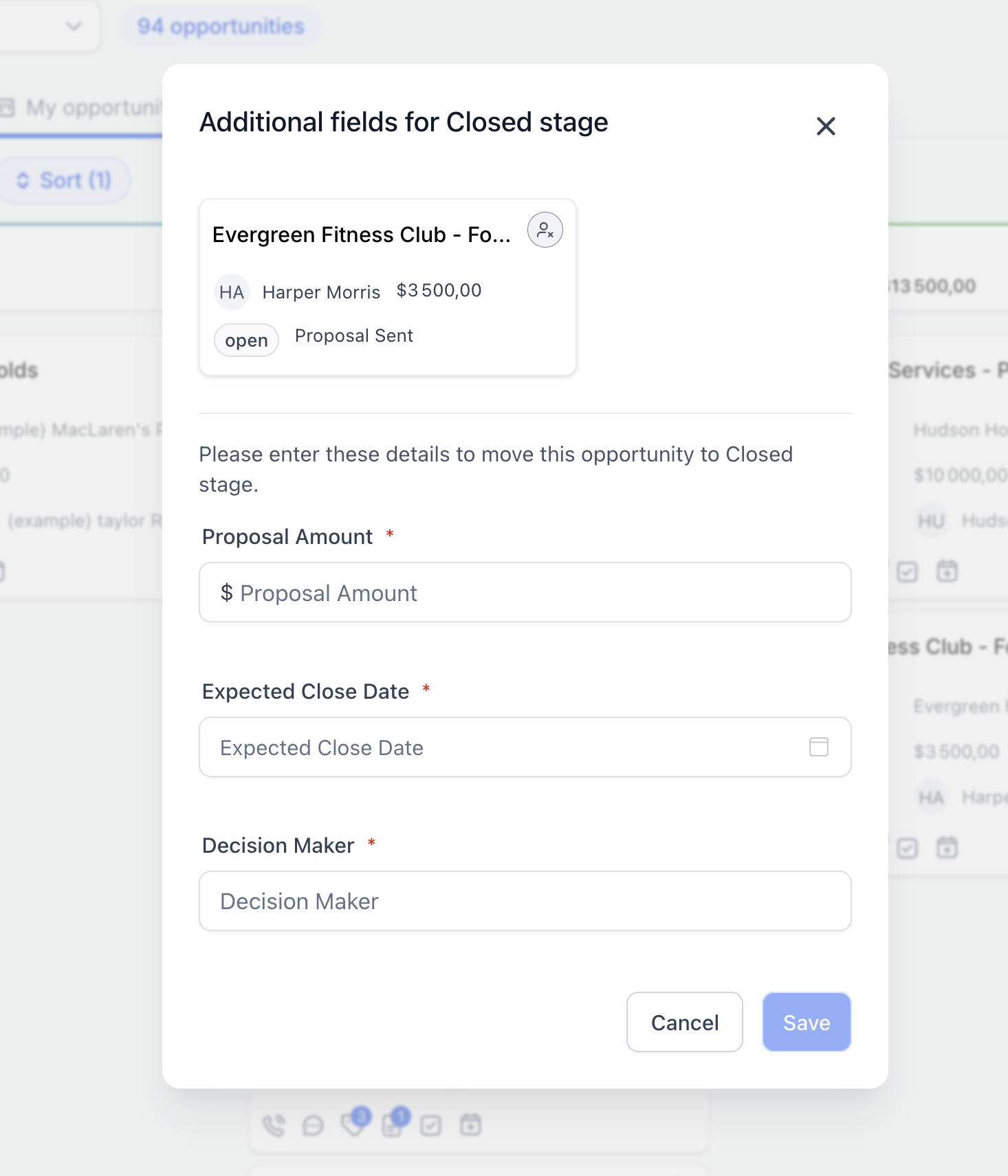
Conditional Custom Fields are a feature in HighLevel that controls visibility and required status of opportunity fields. Admins set rules that trigger when a deal meets specific conditions such as a particular pipeline, stage, status, or the value of a dropdown, radio, checkbox, or multi select field. When conditions are met, the rule can show an individual field, display an entire folder of fields, or make a visible field mandatory before the opportunity can be saved.
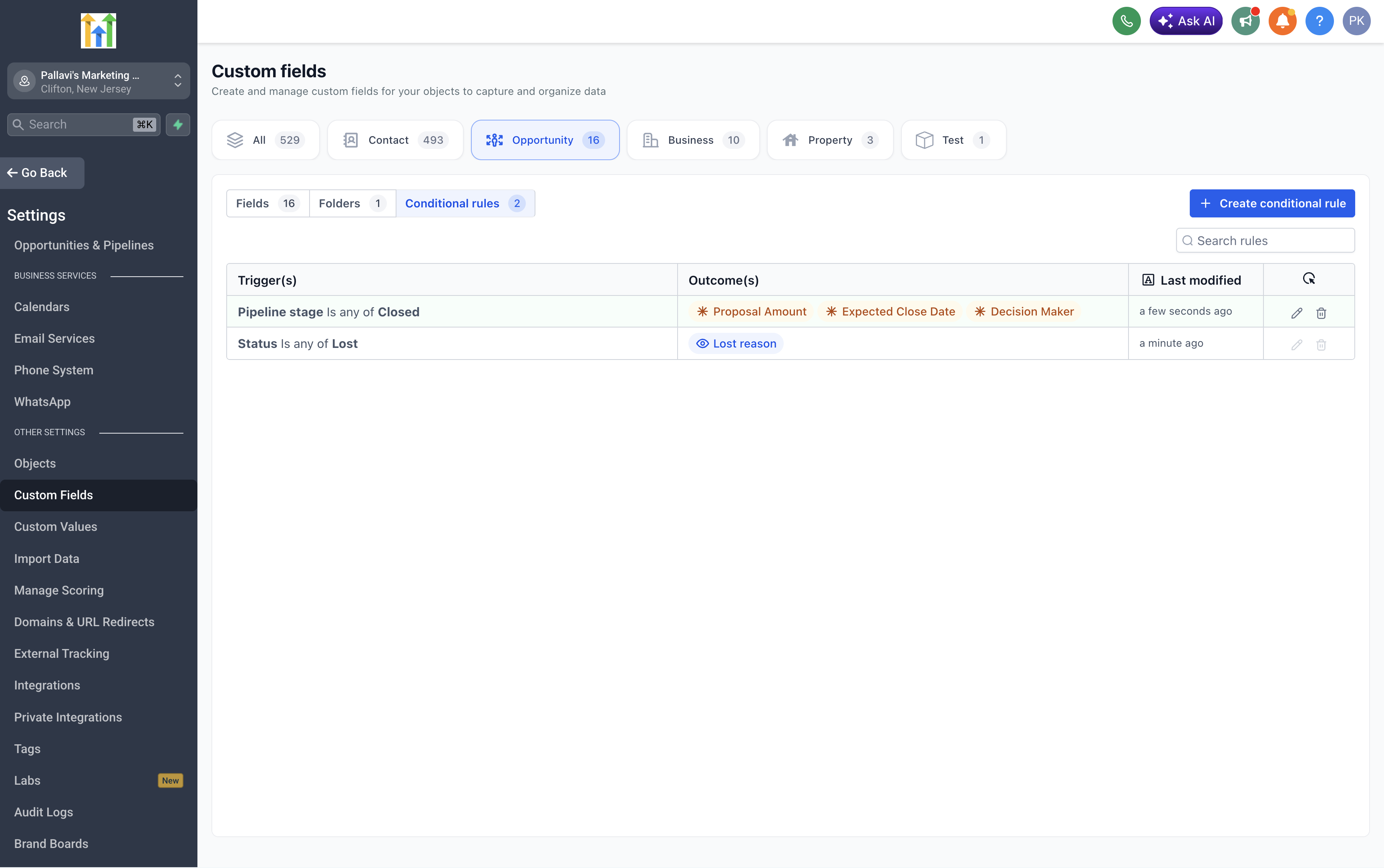
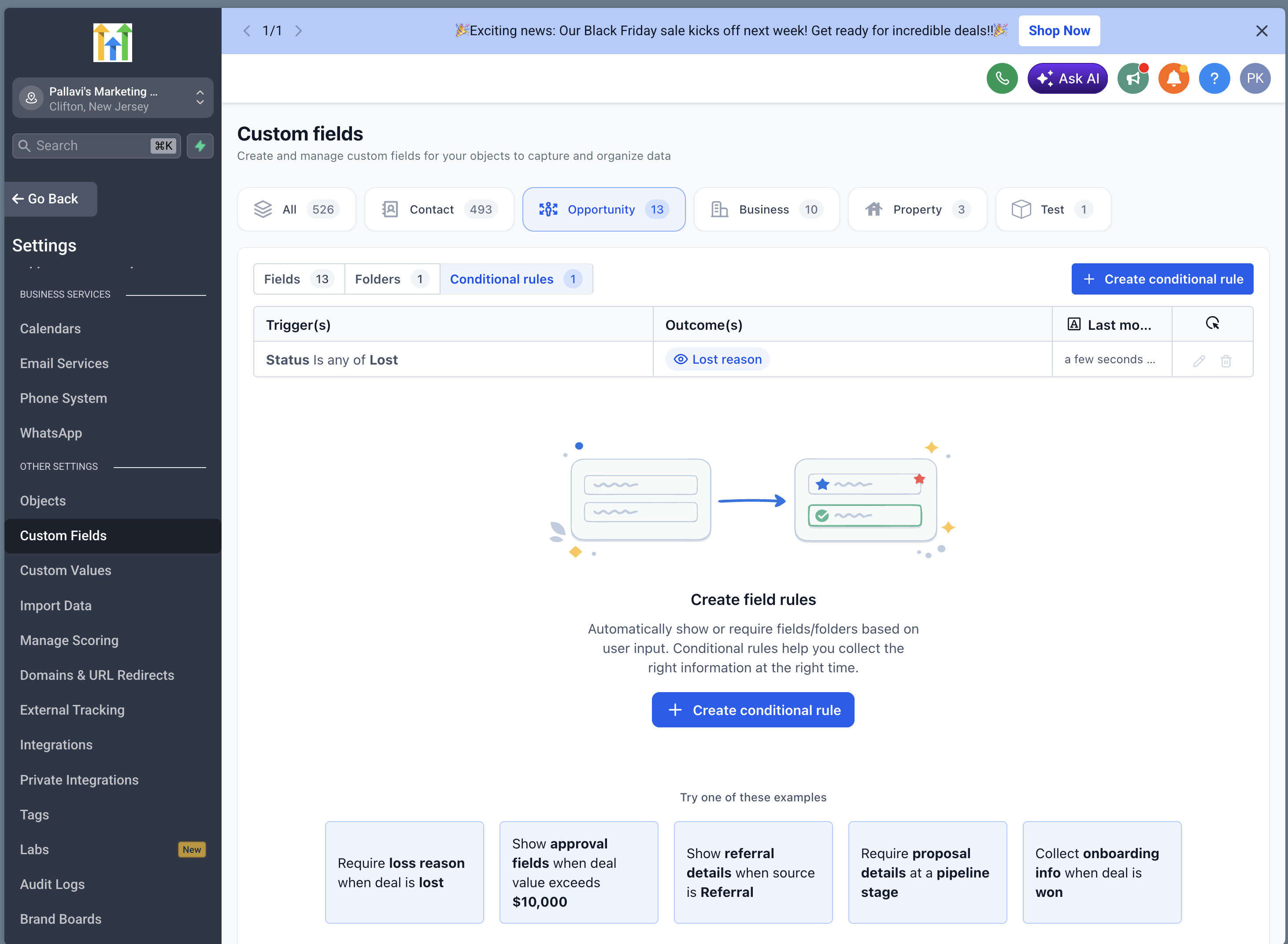
The feature lives under Settings. Once enabled in the Labs section, rules are created on the Custom Fields page under the Opportunity tab. Rules take effect immediately after they are saved and work when users add, edit, or bulk edit opportunities on both web and mobile interfaces. They do not affect API or workflow based updates.
Admins can also manage pipeline specific rules from the Pipelines page, allowing quick edits to rules that belong to a particular pipeline. All changes become active as soon as the rule is saved.
03How businesses use Conditional Custom Fields
- Real estate agency. The agency creates a rule that shows a "Closing Date" field only when the opportunity stage reaches "Under Contract". The same rule makes the field mandatory, ensuring agents cannot save the deal without entering the date.
- SaaS startup. The startup configures a rule that displays a folder of "Onboarding" fields when the opportunity status changes to "Won". The rule also requires the "Implementation Date" field, forcing the sales rep to provide that detail before finalizing the win.
- Medical clinic. The clinic sets a rule that reveals a "Insurance Verification" checkbox when the pipeline stage is "Proposal Sent". If the checkbox is shown, the rule makes the "Policy Number" field mandatory, guaranteeing the data is collected before the deal moves forward.
04The numbers and rules that matter
- Supported triggers: Pipeline, Pipeline Stage, Status, Dropdown fields, Radio fields, Checkbox fields, Multiselect fields.
- Available outcomes: Show field, Show folder, Make mandatory.
05Before you start
- An Admin must have access to Settings in the subaccount.
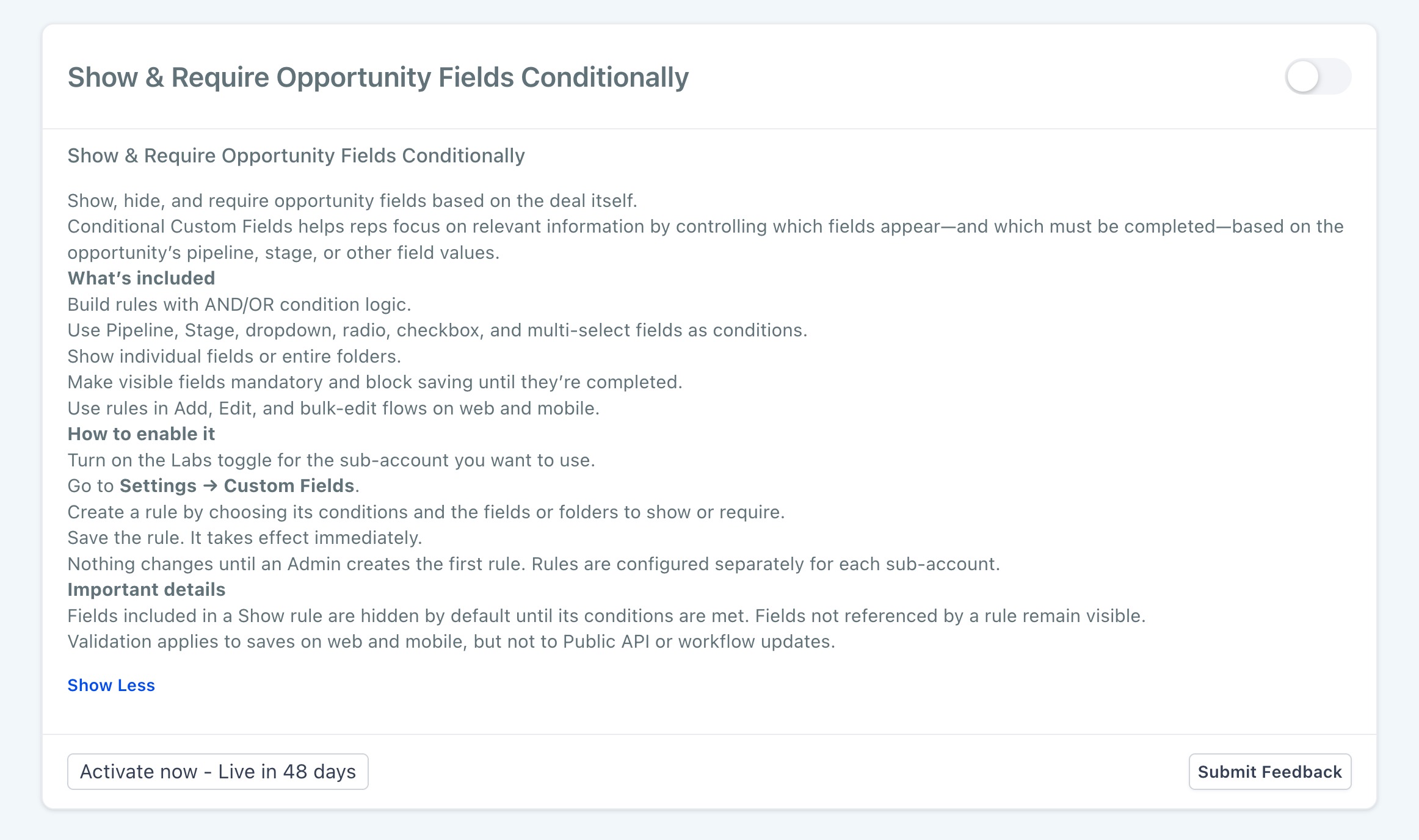
- The "Show & Require Opportunity Fields Conditionally" feature must be enabled in Settings > Labs.
06How to set up and use Conditional Custom Fields in HighLevel
Enable conditional custom fields
- Navigate to Settings > Labs.
- Locate the setting named Show & Require Opportunity Fields Conditionally.
- Turn the setting on for the subaccount.
Create a conditional rule
- Open Settings > Custom Fields.
- Select Opportunity.
- Open the Conditional Rules tab.
- Click Create conditional rule.
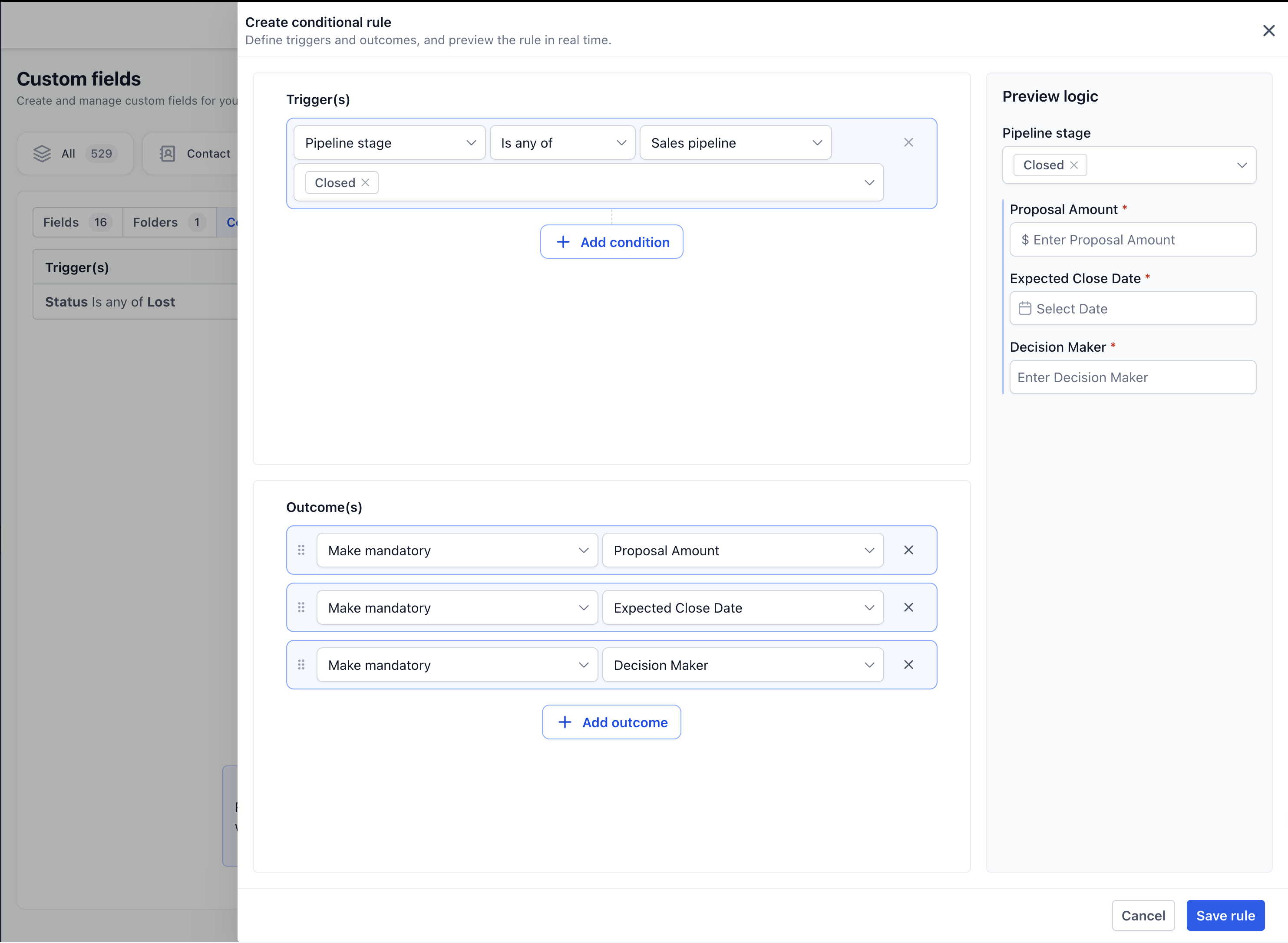
- Choose the field that will trigger the rule.
- Select an operator and enter the trigger value.
- Add additional conditions if required.
- Link conditions with AND or OR logic.
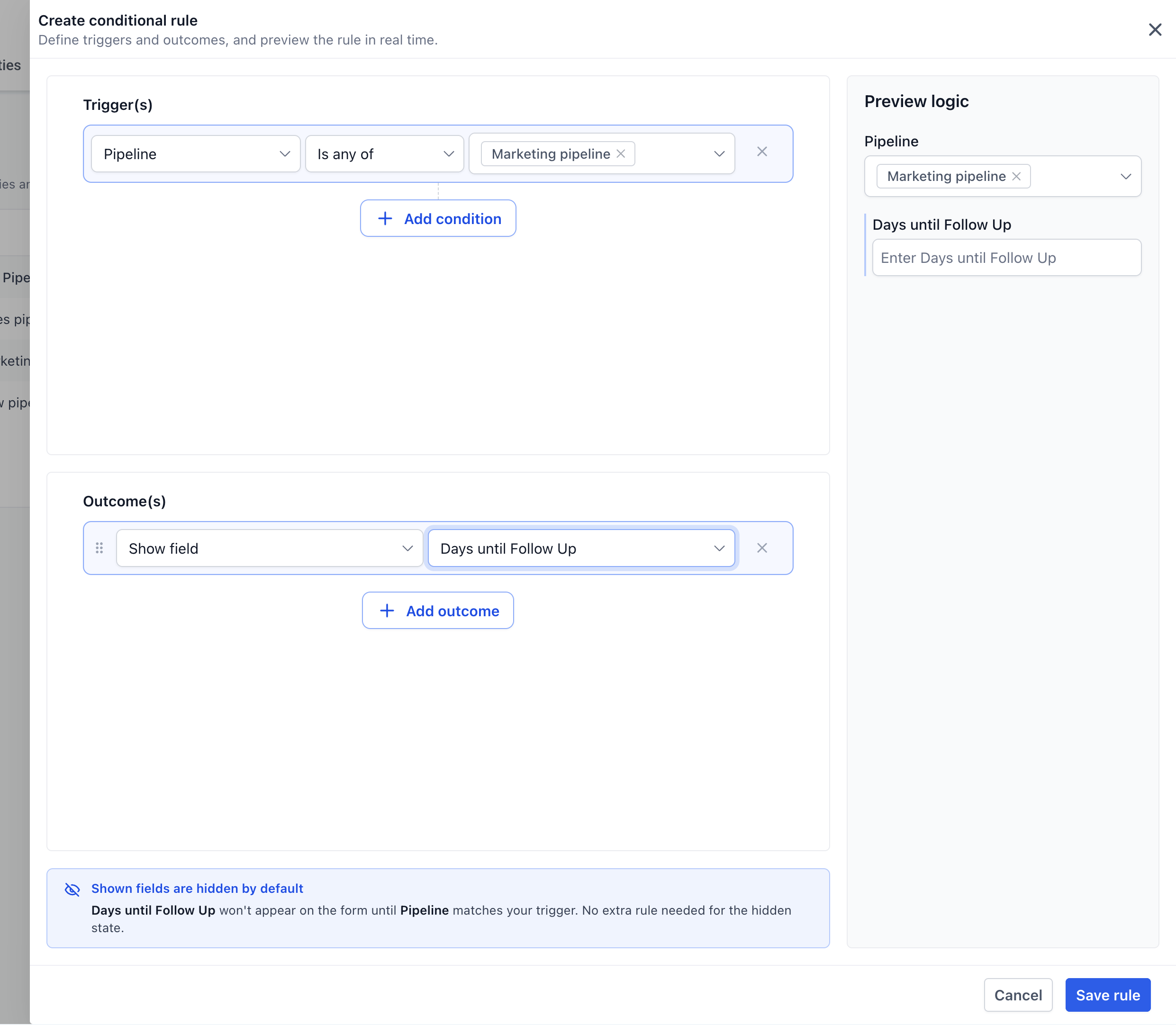
- Add one or more outcomes.
- Preview the rule with the live preview.
- Save the rule.
Manage rules from the pipelines page
- Go to Settings > Opportunities & Pipelines.
- Locate the pipeline you want to edit.
- Open its Actions menu.
- Select Manage conditional rules.
- Create a new rule or modify an existing one.
- Check the behavior in the live preview.
- Save the rule.
07What it looks like in HighLevel
08Settings that matter
- Show & Require Opportunity Fields Conditionally. Activates the Conditional Custom Fields feature for the subaccount, allowing rules that control field visibility and mandatory status.
09Things to know before you rely on it
- Only Admins can create, edit, or delete conditional rules.
- Rules are defined per subaccount; they do not carry over between accounts.
- Conditional behavior starts after the first rule is saved; existing forms remain unchanged until then.
- Fields hidden by a Show outcome stay hidden until their conditions are met and retain any previously entered values.
- Hidden fields are excluded from mandatory validation.
- When several rules apply, all mandatory requirements are combined.
- Conditional validation does not apply to Public API calls or workflow based updates.
10If something goes wrong
- A field stays visible even though rule conditions are not met. Check that the feature is enabled, the rule has been saved, the opportunity matches the trigger conditions, and the field or folder is included in a Show outcome.
- A mandatory field does not block saving the opportunity. Confirm the field is visible via a Show rule; mandatory validation only works on visible fields.
- Conditional rule does not run on bulk edit. Conditional validation applies to bulk edit actions on web and mobile; ensure the rule is correctly configured and saved.
11How it connects to the rest of HighLevel
- Enable multiple opportunities per contact Multiple opportunities
- Use opportunity filters for precise deal views Opportunity filters
- Set up and use custom fields for opportunities Custom fields guide
- Start a 30 day HighLevel trial Free trial
- HighLevel pricing and plans Pricing
Michael's take

Skipping the setup of conditional Custom Fields can leave your team wading through irrelevant fields or missing critical data at key moments. Without these rules, forms become noisy and users may overlook required information, slowing down the sales cycle.
When used correctly, the feature lets you surface the exact fields you need right when you need them, keeping opportunity records clean and complete. I would test a single rule on a low risk pipeline first, watch how it behaves in live preview, and then roll it out to the rest of the process.