
01Who this is for
- Online course creators benefit because learners can control playback without leaving the app.
- Membership site owners gain smoother engagement for members watching long videos.
- Community managers can let participants manage media while interacting in chats or posts.
02Media controls, explained
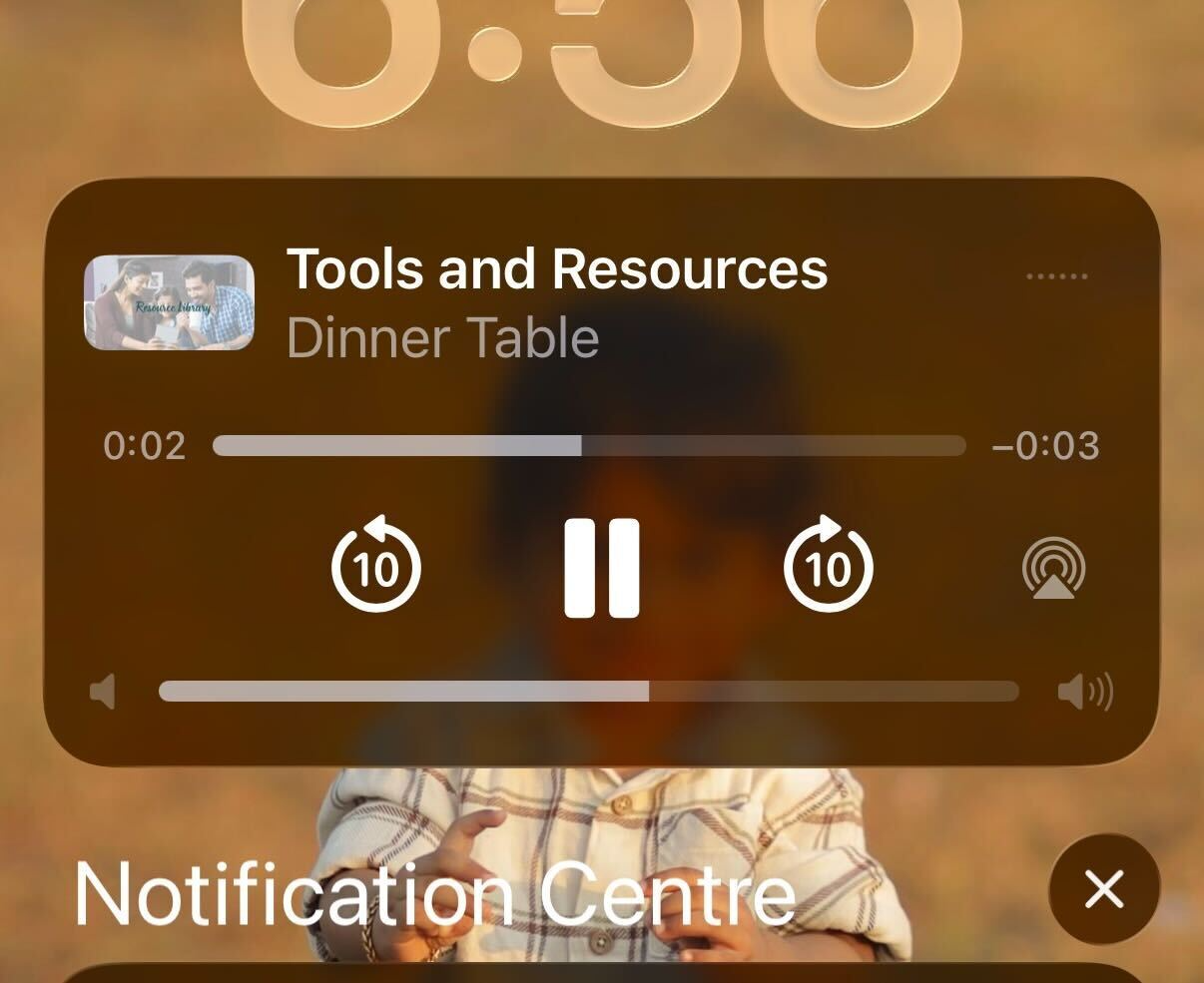
The feature adds playback buttons to the device's notification area after a supported media file begins playing inside the HighLevel mobile app. Users tap the pause, play, or skip icons to control the media without reopening the app.
Controls appear only on iOS and Android devices running version v26.03.210 or later. The media must be a supported type, such as a course, membership video, or other media enabled content, and the app must have notifications enabled.
03How businesses use media controls from the notification tray
- Online education platform. An instructor uploads a course video. A student starts the video in the HighLevel app, then uses the notification tray to pause while taking notes in another app, and resumes playback later without returning to the course screen.
- Fitness coaching membership. A member begins a workout video inside the HighLevel app. While the video runs, the member taps the skip control in the notification tray to move to the next segment, keeping the workout flow smooth while checking a timer app.
- Real estate community forum. A participant watches a recorded market update in the community section. They open the notification tray to pause the video while answering a client call, then resume playback from the same spot without re entering the forum.
04The numbers and rules that matter
- IOS: V26.03.210 or later.
- Android: V26.03.210 or later.
- Controls allow pause, resume, and skip of supported media.
05Before you start
- The HighLevel mobile app must be updated to version v26.03.210 or later.
- Supported media must be playing inside the app before opening the notification tray.
- Device notifications must be enabled for the HighLevel app.
- The media type must support notification tray controls.
06How to set up and use media controls from the notification tray in HighLevel
Use media controls from the notification tray
- Update the HighLevel mobile app to v26.03.210 or later.
- Open the HighLevel mobile app on iOS or Android.
- Navigate to supported media content, such as a course, membership, or other media enabled area.
- Start playing the media inside the app.
- Swipe down from the top of the screen to open the device notification tray.
- Use the available media controls to pause, resume, or skip playback.
- Return to the HighLevel app when you want to continue interacting with the content directly.
07What it looks like in HighLevel
08Things to know before you rely on it
- Controls work only on iOS and Android versions v26.03.210 or later.
- Skip functionality may depend on the specific media type and device behavior.
09If something goes wrong
- Media controls do not appear in the notification tray.. Confirm the app is updated to v26.03.210 or later, start playback inside the app, and ensure notifications are enabled.
- Controls appear but do not respond.. Check that the device allows background playback and that battery restrictions are not limiting the app.
- No skip button is shown.. Verify that the current media type supports skip controls.
- Controls still missing after checking settings.. Close and reopen the app, start playback again, and if needed, restart the device.
10How it connects to the rest of HighLevel
- See the full list of mobile app improvements in version 4.0.0 Revamped mobile app experience
- Explore all mobile and desktop app features All Mobile & Desktop App features
- Review pricing and plan options for HighLevel HighLevel pricing and plans
Michael's take

Media controls from the notification tray are valuable for a small business that delivers courses or membership content. They let learners keep moving without the app getting in the way.
The biggest mistake is forgetting to update the app before expecting the controls to work.