
01Who this is for
- Sales teams that schedule client meetings and need quick access to notes and payment status.
- Coaches or fitness studios that run class bookings and must manage individual attendee status from a phone.
- Service businesses such as salons that collect payments at the time of the appointment while on the go.
02Unified appointment screen, explained
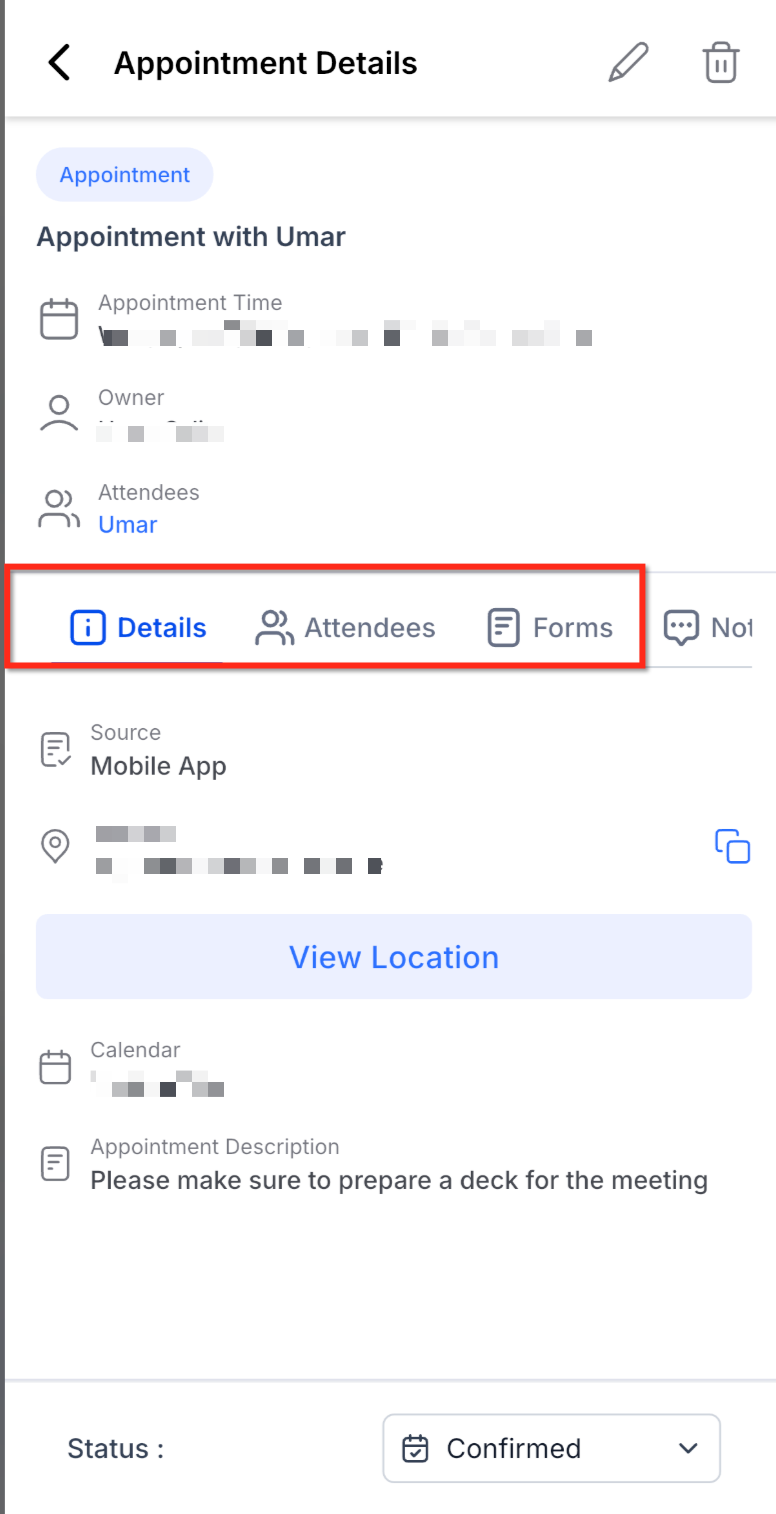
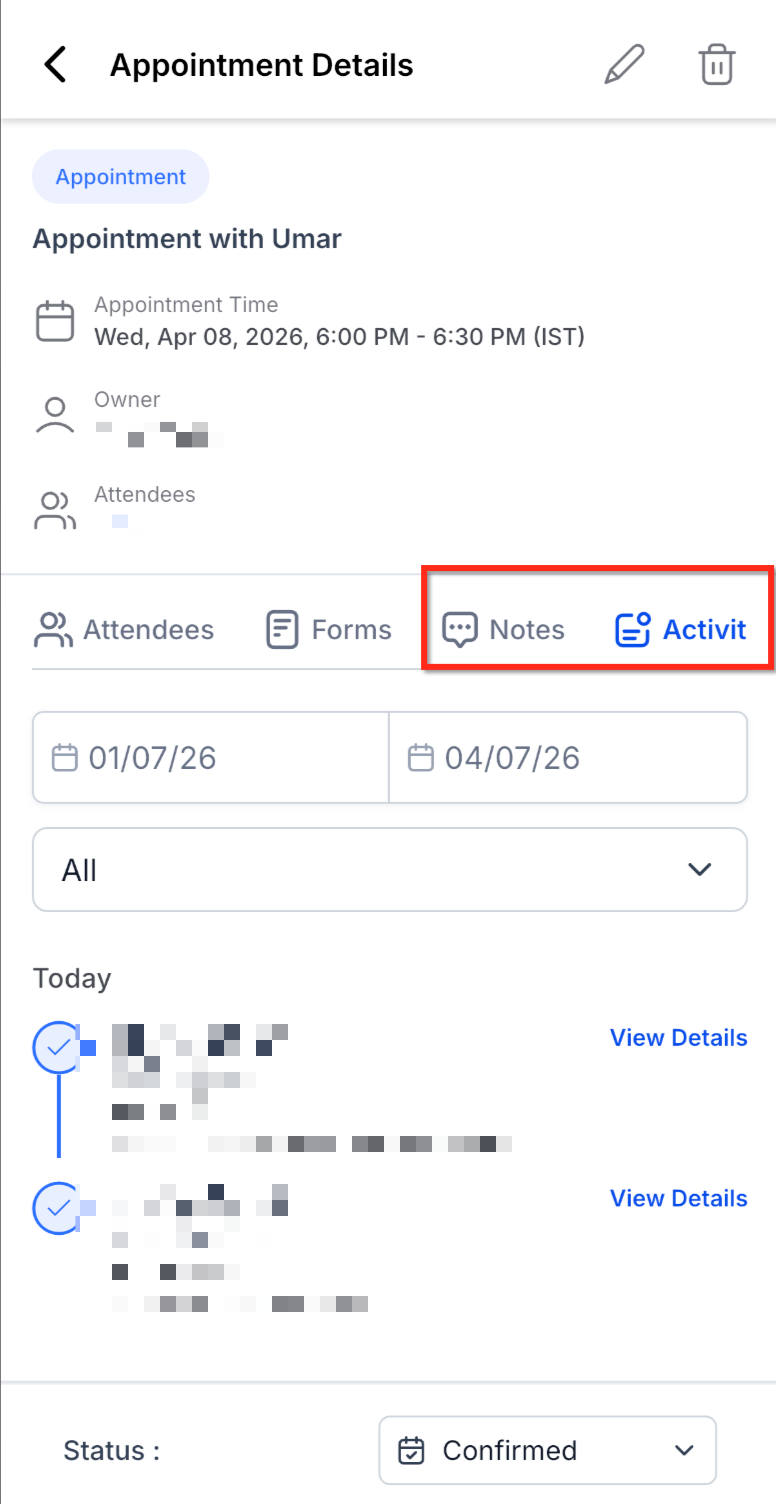
The feature adds a new screen inside the HighLevel mobile app that shows every piece of information attached to an appointment. A row of tabs lets users flip between Details, Attendees, Form Submission, Notes, Activity Log and, when payments are set up, a Payments tab. All data appears without opening separate modules.
When a user opens an appointment from the Calendar, the app loads the Unified Appointment Screen automatically. The screen is read only for the Activity Log, but users can edit details, add notes, change attendee status, record payments or generate a reschedule link directly from the relevant tabs.
The screen lives in the HighLevel and LeadConnector mobile apps. It requires a supported app version (4.12.0 (816) or later) and access to the Calendar module. Additional capabilities, such as custom form submissions or class booking attendee actions, need newer versions (4.20.0 or later).
03How businesses use the unified appointment screen
- Fitness studio. A studio opens a class booking on the mobile app, selects the Attendees tab, and changes a member’s status to Confirmed or cancels an individual seat. The studio can also reschedule that member without affecting the rest of the class.
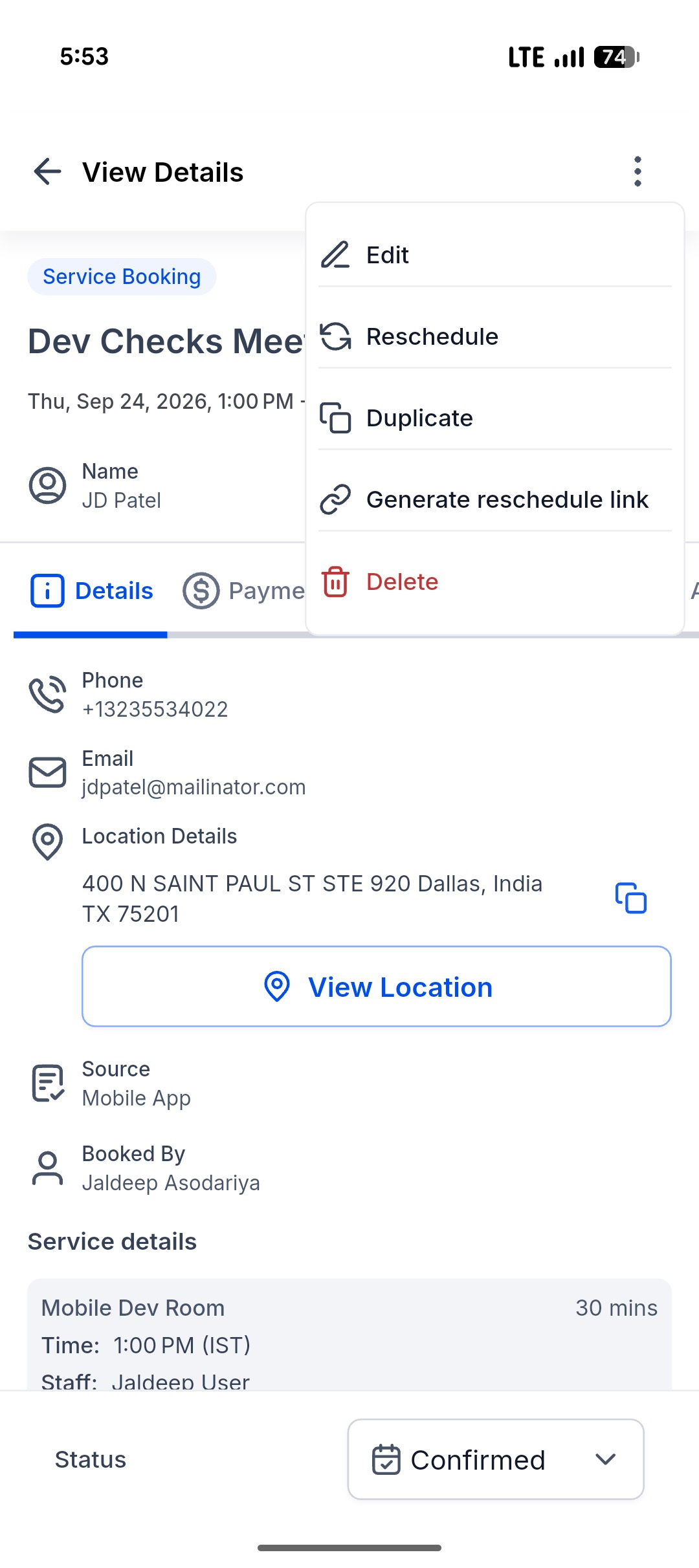
- Consulting firm. A consultant opens a Meeting appointment, taps the three dot menu, generates a reschedule link and shares it via email from the device. The client receives the link and selects a new meeting time.
- Salon. When a client arrives, the stylist opens the appointment, reviews the Payments tab, records a card charge or logs a manual payment, and adds internal notes for the next service.
04The numbers and rules that matter
- Unified Appointment Screen is available in version 4.12.0 (816) or later.
- Individual attendee actions require HighLevel mobile app version 4.20.0 or later.
05Before you start
- Use the HighLevel mobile app version 4.12.0 (816) or later; class booking attendee controls need version 4.20.0 or later.
- Have access to the Calendar module in the mobile app.
- Configure payment settings for the calendar if you want the Payments tab to appear.
06How to set up and use the unified appointment screen in HighLevel
Access unified appointment screen
- Open the HighLevel mobile app.
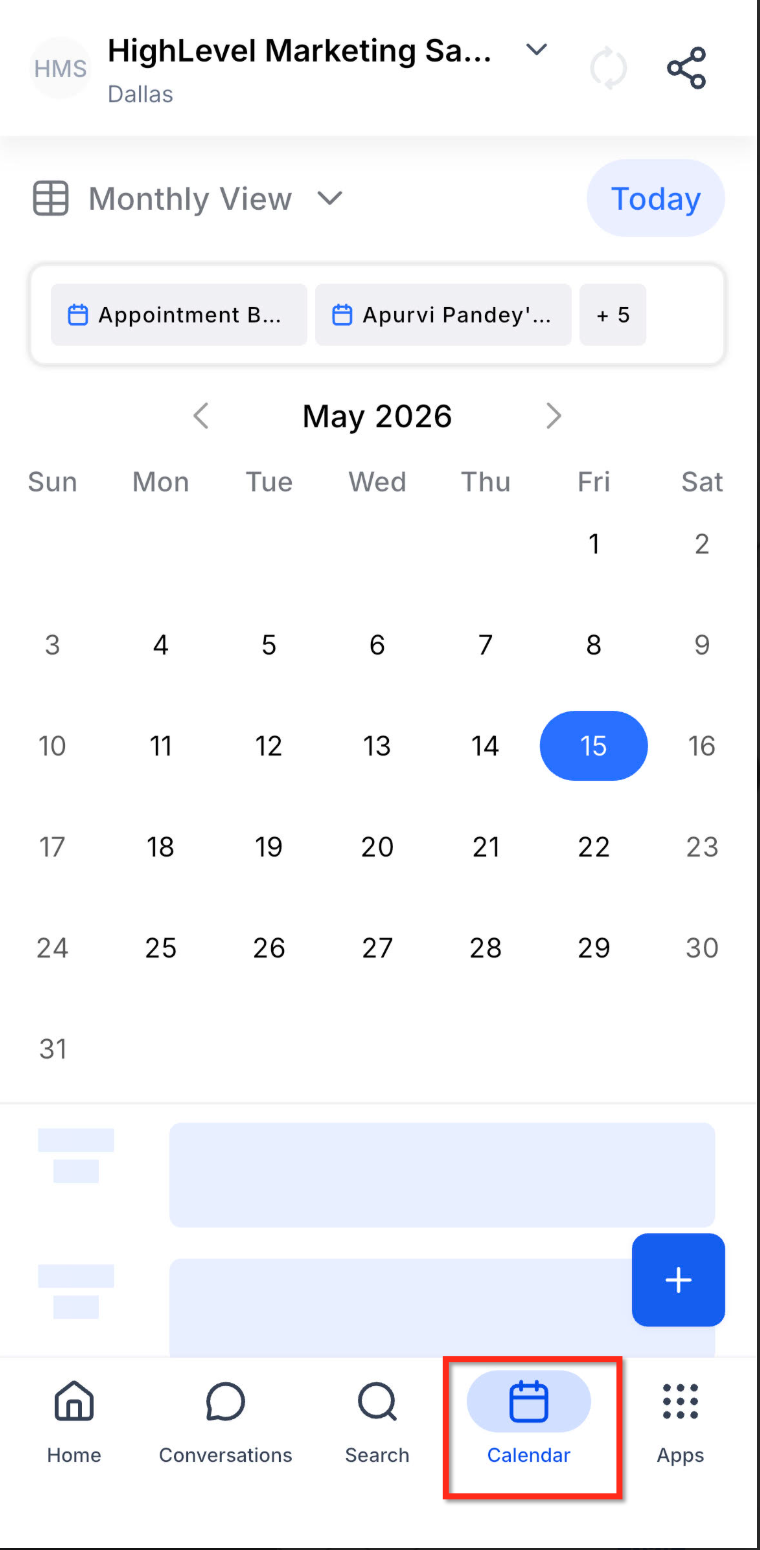
- Navigate to the Calendar module.
- Tap an existing appointment or Service (v2) appointment.
- View the tab bar that lists Details, Attendees, Form Submission, Notes, Activity Log, and Payments when available.
Manage individual class booking attendee
- Open the HighLevel mobile app.
- Select the Calendar module.
- Tap the Class Booking appointment you want to manage.
- Open the Attendees tab.
- Tap the three dot menu beside the desired attendee.
- Choose an action such as Change Status, Reschedule, View Contact, or Cancel.
Generate and share a reschedule link
- Open the appointment from Contacts, Conversations, Appointments, or Opportunities.
- Tap the three dot menu in the upper right corner.
- Select Generate reschedule link.
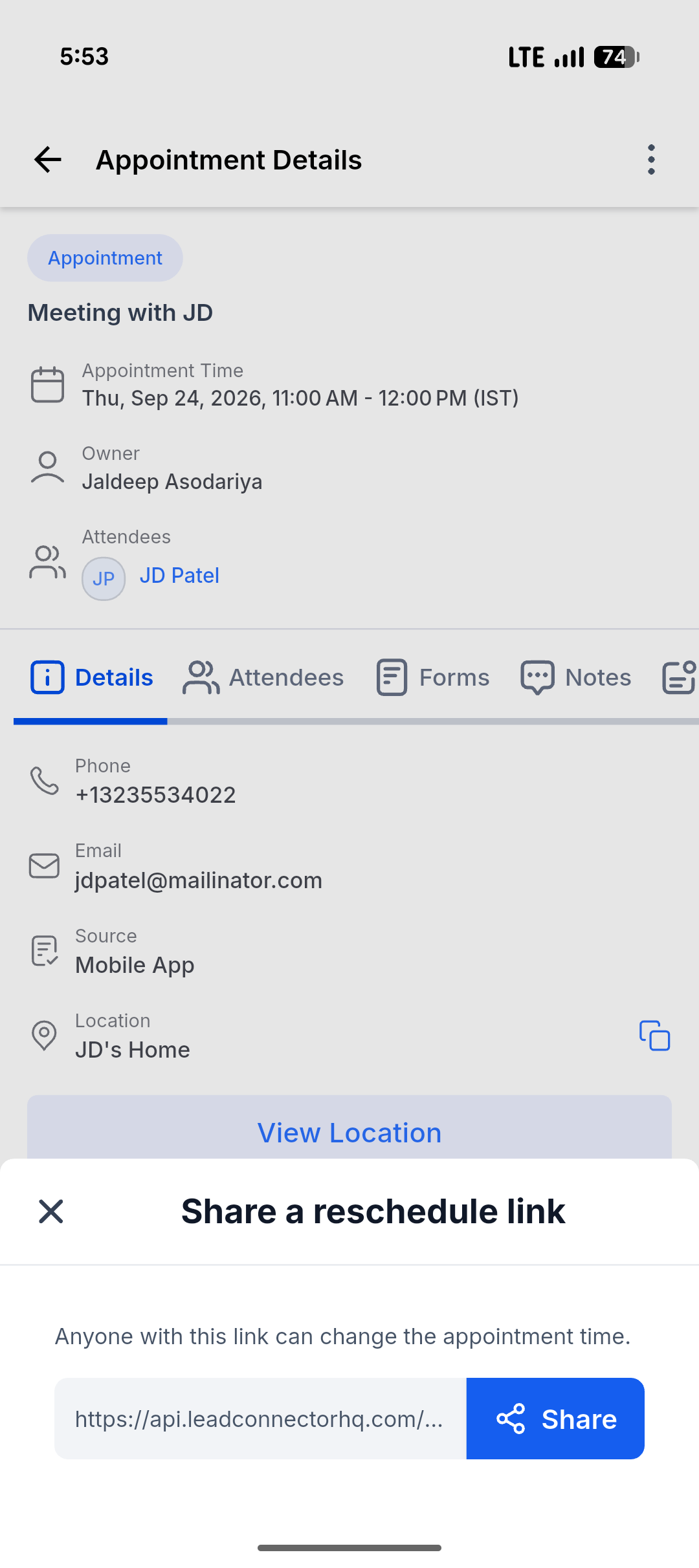
- Tap Share on the displayed sheet.
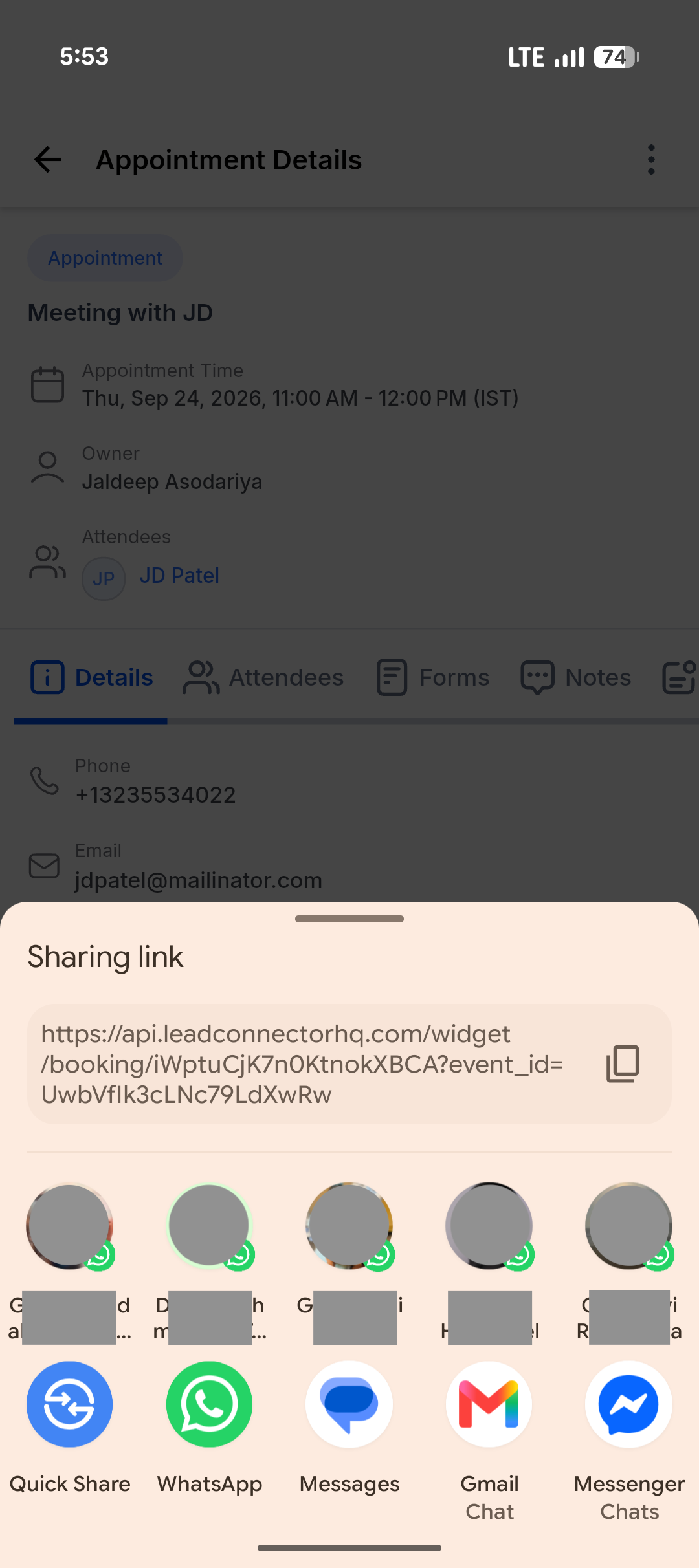
- Pick an app from the device’s share sheet and send the link to the customer.
07What it looks like in HighLevel
08Things to know before you rely on it
- The Unified Appointment Screen works only in app version 4.12.0 (816) or later; individual class attendee actions require version 4.20.0 or later.
- The Form Submission tab shows only default forms; custom form support is planned for a future update.
- The Payments tab appears only when payment settings are configured for the appointment or calendar.
- Generate reschedule link is available for supported Meeting appointments and Service bookings, but not for Calendly sourced meetings, custom recurring meetings, loading or error states, or users lacking permission.
- If the app cannot build the reschedule link, the Share a reschedule link sheet displays N/A and the Share button is disabled.
09How it connects to the rest of HighLevel
- Review the overall mobile app updates that introduced the Unified Appointment Screen. Mobile app overview
- Learn how incoming calls are handled across locations alongside appointment management. Multilocation calls
- Explore the full list of mobile and desktop app capabilities. All app features
Michael's take

The unified appointment screen is worth the time it saves your team by keeping every booking detail in one place on the mobile app. When you can edit, view and collect payments without flipping between modules, you cut down on missed steps and errors.
Don’t forget that the reschedule link lets anyone with it change the time, so only share it with the intended client.