
01Who this is for
- Customer support teams can reply faster to incoming texts while still reviewing each response.
- Sales agents benefit from quick, AI drafted replies that they can tweak before sending to prospects.
- Marketing agencies handling many client chats can maintain consistency with AI suggestions and retain edit control.
02AI Employee suggestive mode, explained
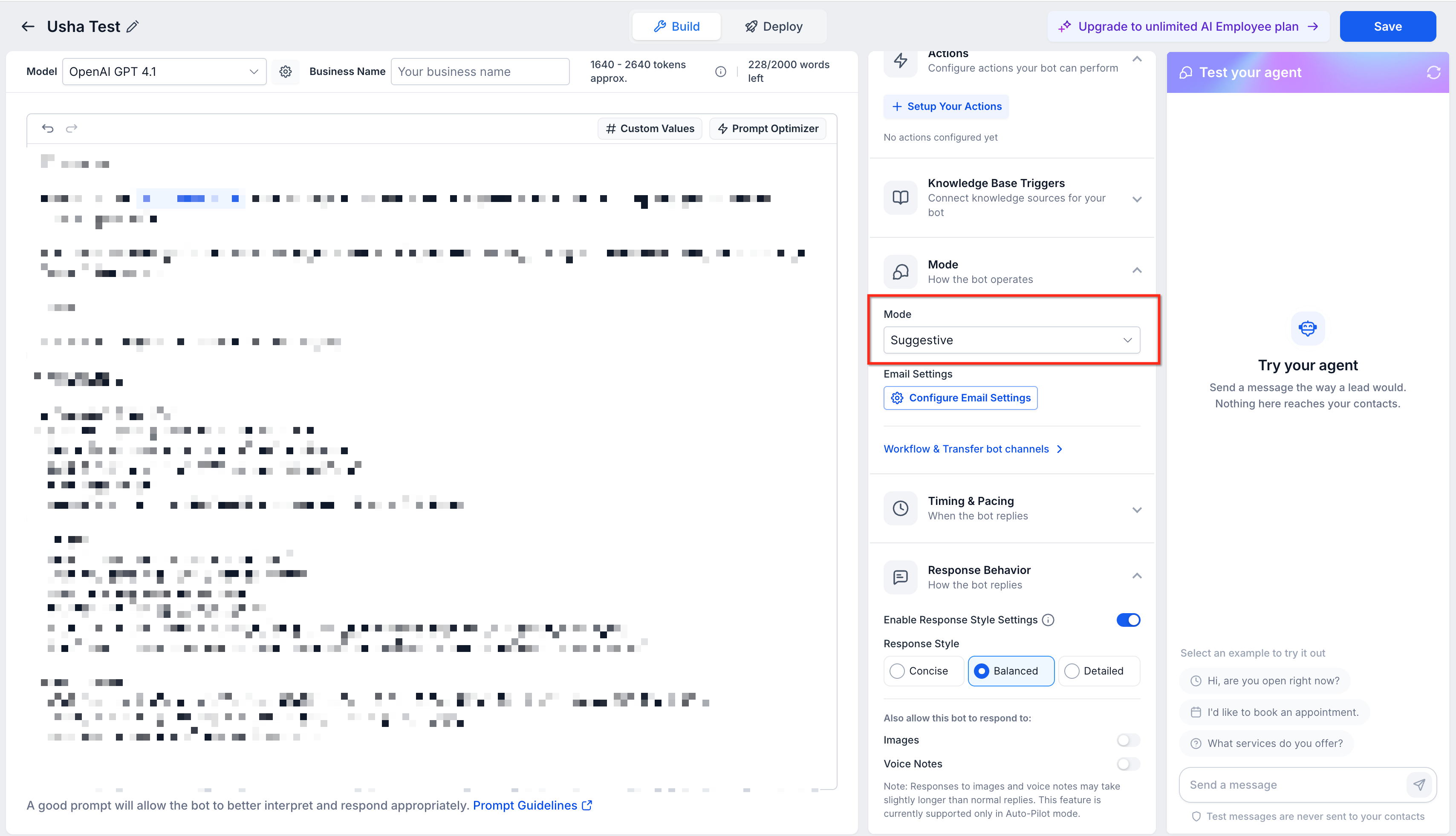
The feature creates one AI generated reply that appears above the message composer in the HighLevel mobile app whenever an inbound message meets eligibility criteria. The suggestion is not sent automatically; the user decides whether to send it, edit it, hide it, or bring it back. Core configuration, including creating the bot, choosing Suggestive Mode, and assigning channels, is performed in the web application under AI Agents > Conversation AI, while the mobile app provides the in conversation tools.
When an eligible message arrives, the AI suggestion updates to reflect the latest conversation, but any text the agent has already typed stays safe in the composer. The suggestion can be dismissed temporarily and later restored with a single tap. This keeps the mobile workflow aligned with the web experience and ensures a human remains in control of every outgoing message.
03How businesses use AI Employee suggestive mode
- Real estate agency. Agents open a new client conversation on the mobile app, view the AI Suggested Reply above the composer, and either tap Send to reply right away or tap Edit to adjust property details before sending. They can also dismiss the suggestion to write a custom note and later bring the AI reply back if needed.
- Dental practice. Front desk staff receive appointment confirmations via SMS. The AI Suggestive Mode drafts a reply confirming the time. Staff can quickly tap Send if the draft is correct, or tap Edit to add a personalized greeting or instructions, then send the customized message.
- Online retailer. Support representatives handle order inquiries on the mobile app. When a question comes in, the AI Suggestive Mode offers a response about shipping status. Representatives can edit the draft to include the specific order number, then send the tailored reply.
04The numbers and rules that matter
- Supported channels include SMS, Email, Facebook, Instagram, WhatsApp, Live Chat, and Chat Widget, although individual feature availability can vary by channel.
05Before you start
- The Conversation AI bot must be set to Suggestive Mode in the web app.
- Conversation AI must be active and deployed to the messaging channel used.
- The relevant channel or provider must be enabled for the bot.
- The bot must not be sleeping or paused for the conversation.
- The mobile app must be running a supported version.
06How to set up and use AI Employee suggestive mode in HighLevel
Set up AI Employee Suggestive Mode for mobile
- In the web app, navigate to AI Agents > Conversation AI.
- Create a new Conversation AI bot or open an existing one.
- Configure the bot according to business needs.
- Set the bot's response mode to Suggestive Mode.
- Assign the appropriate channels and destinations in the deployment settings.
- Save the Conversation AI configuration.
- Open the HighLevel mobile app and go to Conversations.
- Open a conversation when an eligible inbound message arrives.
- View the AI Suggested Reply displayed above the composer.
- Choose an action: tap Send, tap Edit, dismiss the suggestion, or tap Show AI suggestion to restore.
Send an AI suggested reply
- Open Conversations in the HighLevel mobile app.
- Select the conversation that contains an eligible new inbound message.
- Review the AI Suggested Reply shown above the composer.
- Tap Send to deliver the reply exactly as drafted.
Edit an AI suggested reply
- Review the AI Suggested Reply.
- Tap Edit.
- The suggested response loads into the message composer.
- Make the required changes to the text.
- Tap Send to deliver the edited message.
07What it looks like in HighLevel
08Settings that matter
- response mode. Determines how the Conversation AI bot replies; setting it to Suggestive Mode enables the AI Suggested Reply feature in the mobile app.
- deployment. Controls which messaging channels and destinations the bot can respond on, allowing AI suggestions to appear for supported channels.
09Things to know before you rely on it
- Email suggestions are not available in the mobile release.
- Group chats and internal chats do not show AI suggestions.
- Suggestions will not appear while the bot is sleeping or paused for the conversation.
- Only supported channels such as SMS, Facebook, Instagram, WhatsApp, Live Chat, and Chat Widget can display suggestions, and availability may vary by channel.
10If something goes wrong
- AI Suggested Reply does not appear in a conversation. Verify that the bot is set to Suggestive Mode, Conversation AI is active, the channel is enabled for the bot, the bot is not sleeping, the conversation is not a group or internal chat, you are not using Email, and the mobile app is updated to a supported version.
11How it connects to the rest of HighLevel
- Explore all Mobile & Desktop App features All mobile features
- Review pricing and plan options Pricing
- Start a 30 day trial of HighLevel Free trial
Michael's take

AI Employee suggestive mode is a practical way for a small team to speed up replies without losing the personal touch; it lets agents lean on AI drafts while staying in control of every message.
Avoid relying on the suggestion without reviewing it first.