
01Who this is for
- Sales managers who oversee several office locations can answer leads without constantly changing accounts.
- Customer support teams handling multiple service zones can see where a call originates and log notes in the correct workspace.
02MultiLocation incoming calls, explained
The feature lives inside the HighLevel mobile app under the Calls section. Once turned on, the app rings for any inbound call routed to the selected subaccounts, regardless of the account currently active in the app. The incoming call screen displays a location badge that tells the user which subaccount the call belongs to.
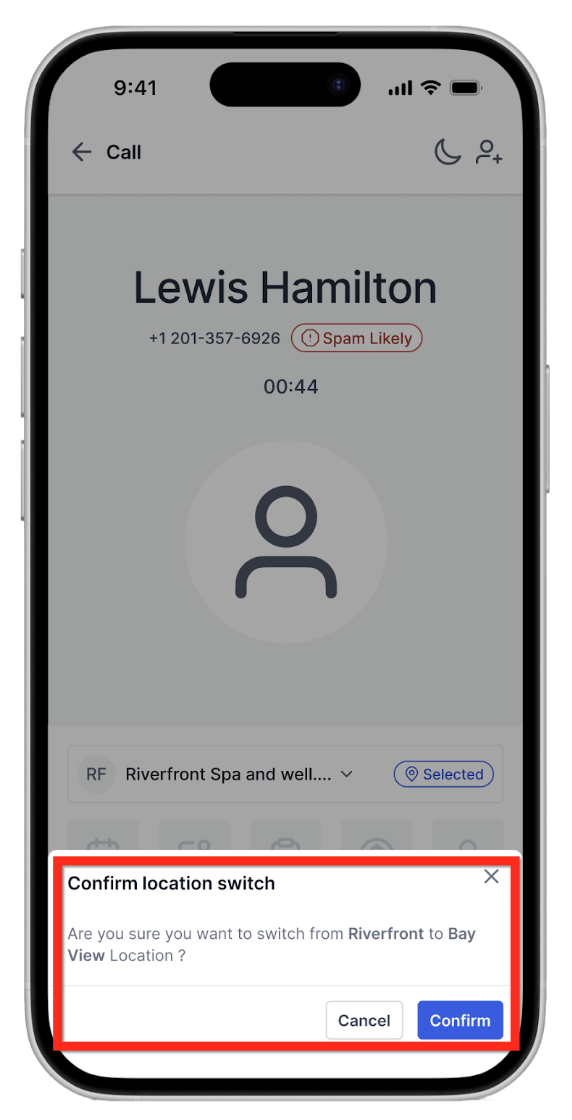
During a call, a one tap Switch Location button lets the user move into the appropriate subaccount. This provides immediate access to contacts, pipelines and other CRM tools for that location. After the call ends, the user can add follow up notes or updates directly in the correct workspace, ensuring the activity is logged to the right subaccount.
No additional permissions are required and the feature does not consume extra LC Phone minutes. It works only on the mobile app and supports a maximum of ten locations at once.
03How businesses use multiLocation incoming calls
- Real estate brokerage. Agents select the offices they support, then receive calls from any of those offices on their phone. The location badge tells them which office the lead belongs to, and they switch into that office’s workspace to add notes and update the listing pipeline.
- Dental practice with multiple clinics. Dental staff enable calls from each clinic. When a patient calls, the badge shows the clinic name, and the staff member taps Switch Location to open that clinic’s records and log the appointment details without leaving the call.
- Home services company. Field coordinators enable calls from all service zones. Incoming calls display the zone badge, and the coordinator switches into the zone’s subaccount to log the service request and schedule a technician while staying on the call.
04The numbers and rules that matter
- Maximum 10 locations at a time.
05Before you start
- Install the HighLevel mobile app on a supported device.
- Be a member of every subaccount you plan to receive calls from.
- Select no more than ten locations for the feature.
06How to set up and use multiLocation incoming calls in HighLevel
Enable multilocation ringing on mobile
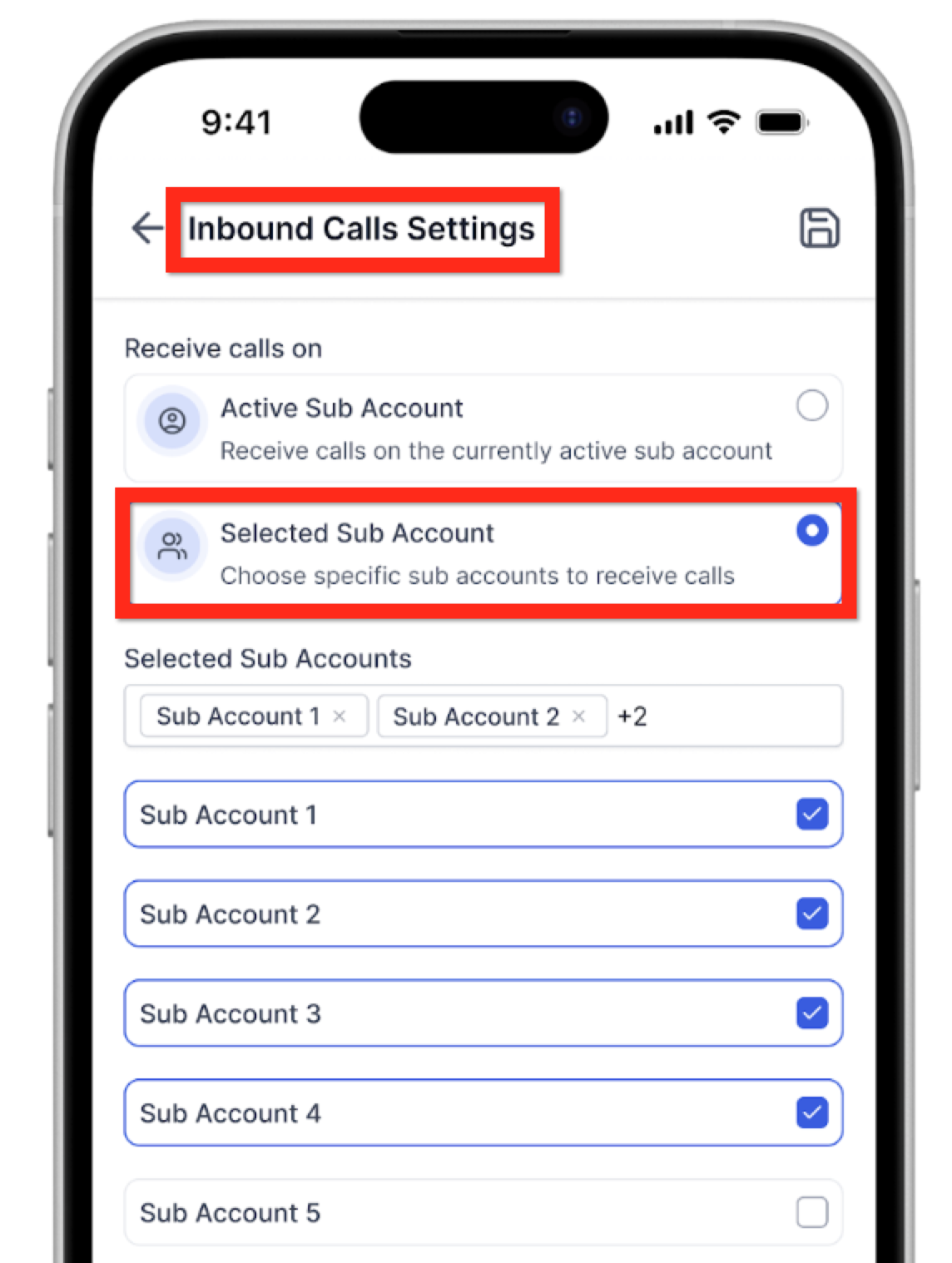
- Open the Mobile App and navigate to Settings > Calls/Voice.
- Turn on the toggle for Multi Location Incoming Calls.
- Choose up to ten locations you want calls from; you must already belong to those locations.
- Confirm that your phone now rings for calls to any of the chosen locations, even when another subaccount is active.
- When a call arrives, look at the Location Badge on the call screen to see its origin.
- Tap Switch Location during the call to move into the matching subaccount.
- After the call ends, add follow ups and notes in the correct CRM workspace.
07What it looks like in HighLevel
08Settings that matter
- Multi, Location Incoming Calls. Controls whether the device rings for inbound calls to any selected subaccounts.
09Things to know before you rely on it
- You can select a maximum of ten locations at one time.
- The feature works only in the HighLevel mobile app; desktop users will only receive calls for the active location.
- Each user chooses their own set of locations, preventing notification overload.
10How it connects to the rest of HighLevel
- Revamped mobile app experience Mobile v4.0.0 overview
- Unified Appointment Screen Appointment screen details
- All Mobile & Desktop App features Feature list
Michael's take

Teams that juggle leads across several storefronts often lose opportunities because they have to keep switching between subaccounts. That back and forth costs time and can let a hot lead slip away.
The first thing I would set right is the MultiLocation Incoming Calls toggle in Settings > Calls/Voice. Turning it on and picking the right locations ensures the phone rings for every inbound lead, no matter which workspace you happen to be in.