
01Who this is for
- Marketing managers can use the trigger to keep sales and support teams informed of new affiliates.
- Affiliate managers benefit from automatic tagging and segmentation of affiliates by campaign.
02Affiliate Enrolled in Campaign triggers, explained
The trigger fires a workflow when an affiliate is added to a campaign, whether the addition is manual or driven by another automation. Once active, the workflow receives a set of affiliate related custom values such as name, contact details, revenue, referral links and portal URLs. These values can be placed inside any subsequent step like emails, SMS or internal notifications.
You find the trigger inside the workflow builder under Automation > Workflows. After selecting the trigger, you can narrow its scope with filters that target a specific campaign. The trigger only appears if the Affiliate Manager feature is turned on and at least one affiliate campaign exists in the subaccount.
03How businesses use Affiliate Enrolled In Campaign trigger
- Digital marketing agency. The agency creates a workflow that sends a personalized welcome email and a magic login link to each new affiliate. Custom values pull the affiliate’s name and campaign details, so the email reads like a hand crafted message.
- Ecommerce store. When a new affiliate joins a product launch campaign, the store adds an internal notification step that includes the affiliate’s email and phone number, enabling the support team to follow up right away.
- Online course creator. The creator applies a tag that reflects the specific course affiliate program during the workflow. Later, the tag is used to segment affiliates for targeted promotions and reporting.
04The numbers and rules that matter
- Custom Values include affiliate name, contact info, revenue earned, referral link, portal link, and magic login link.
05Before you start
- Affiliate Manager must be enabled in the subaccount.
- At least one affiliate campaign needs to be created.
06How to set up and use Affiliate Enrolled In Campaign trigger in HighLevel
Configure Affiliate Enrolled In Campaign trigger
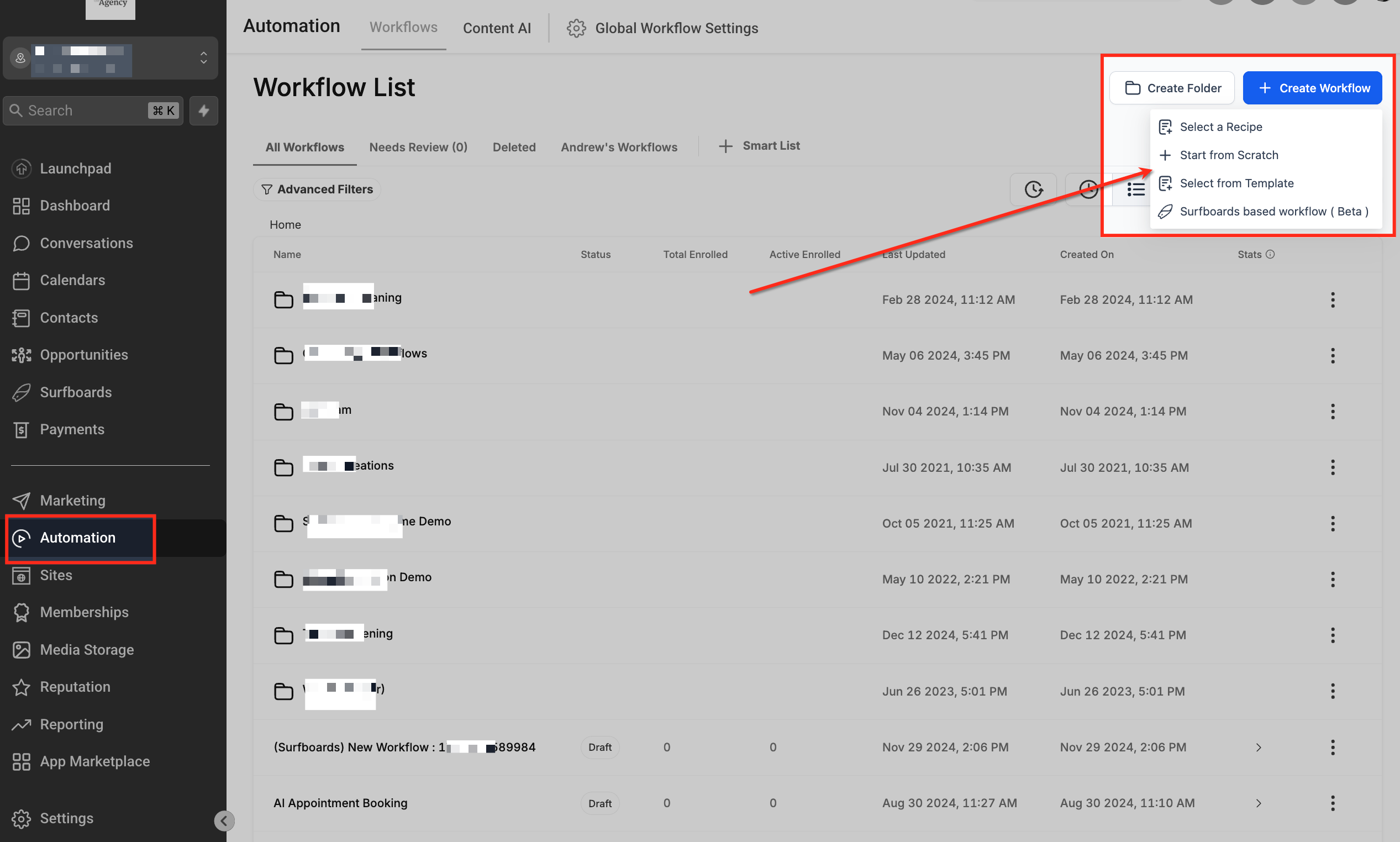
- Navigate to Automation > Workflows, click the blue + Create Workflow button, and pick Start from Scratch.
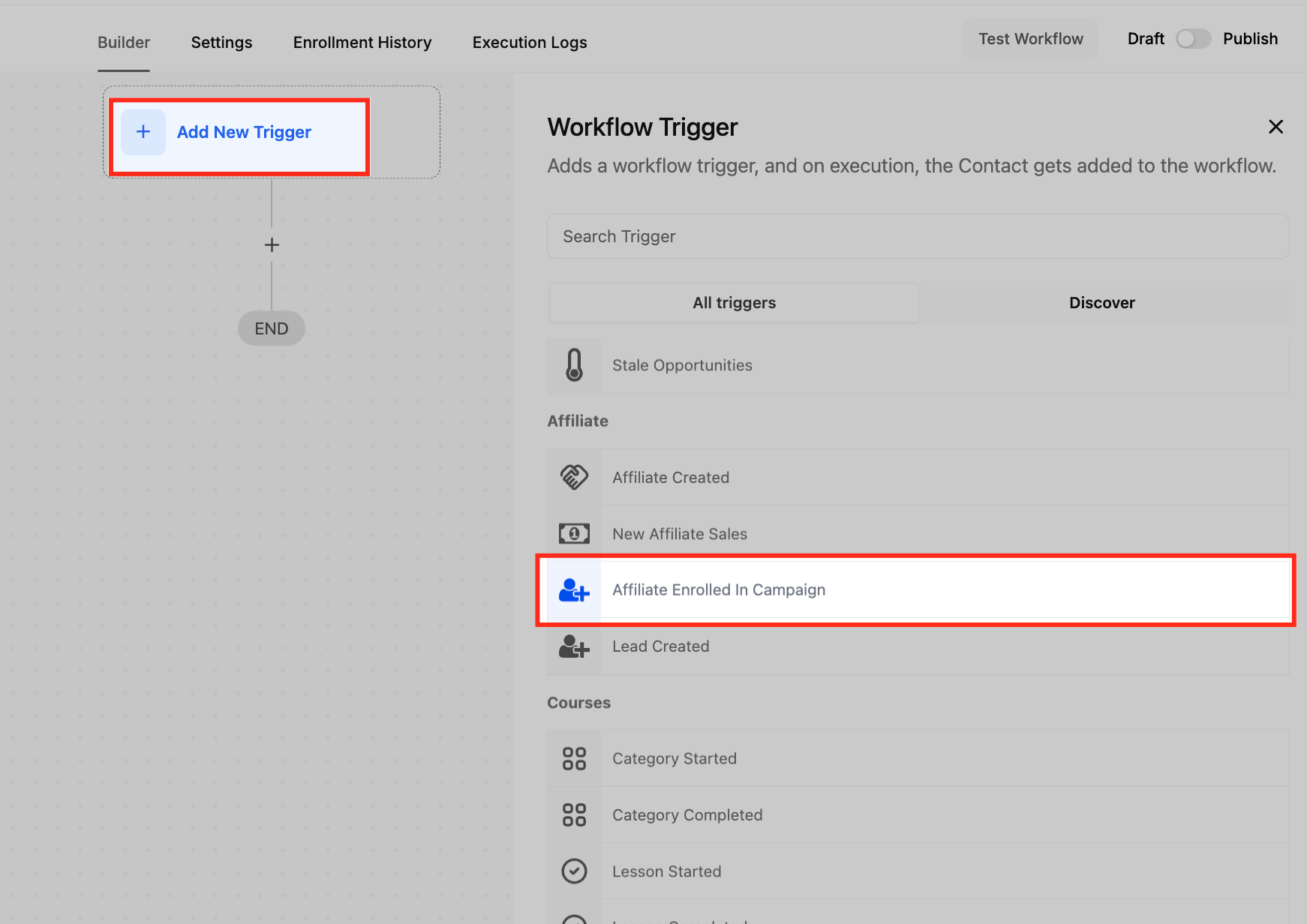
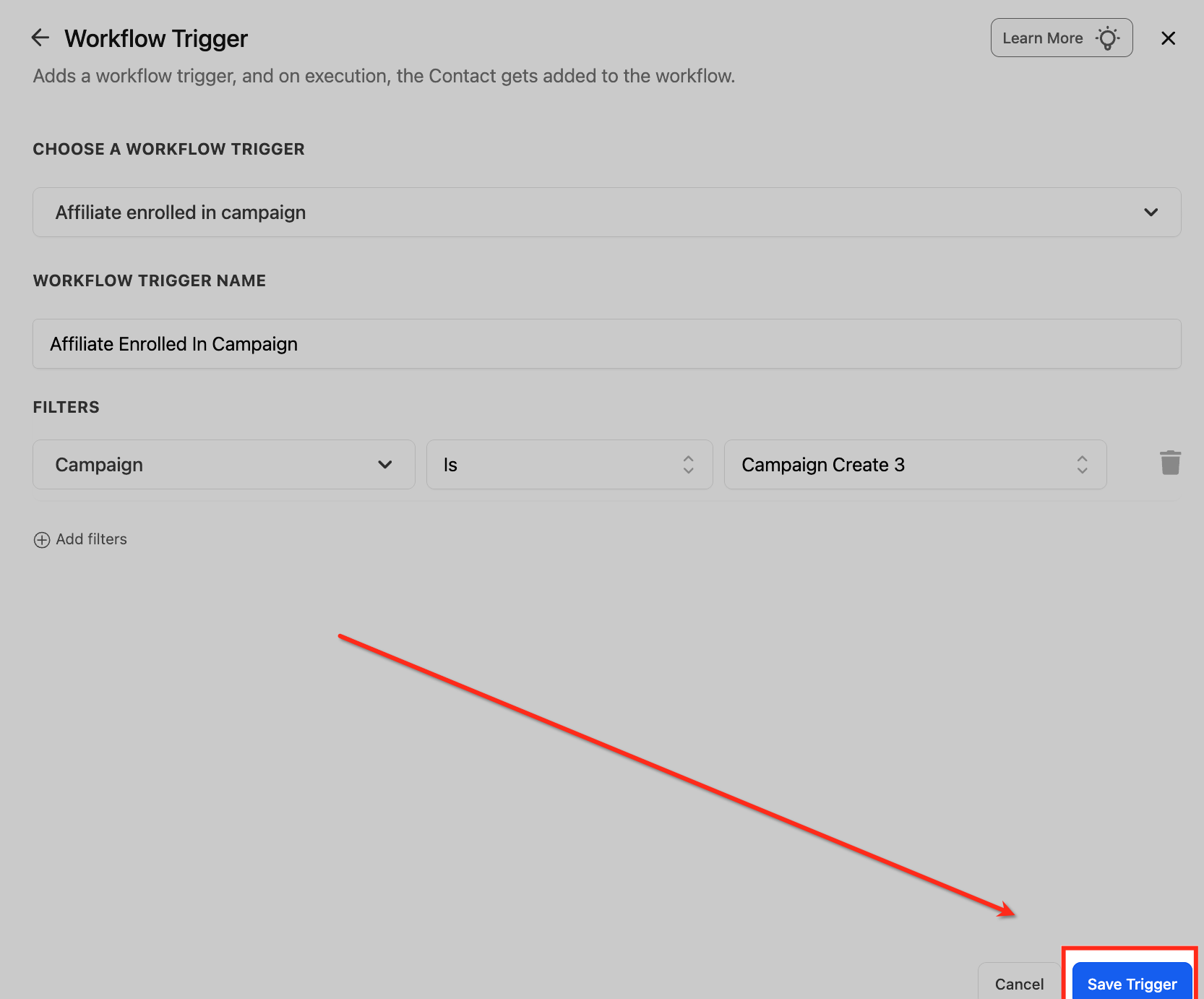
- Inside the builder, select + Add New Trigger, scroll to the Affiliate section, and choose Affiliate Enrolled In Campaign.
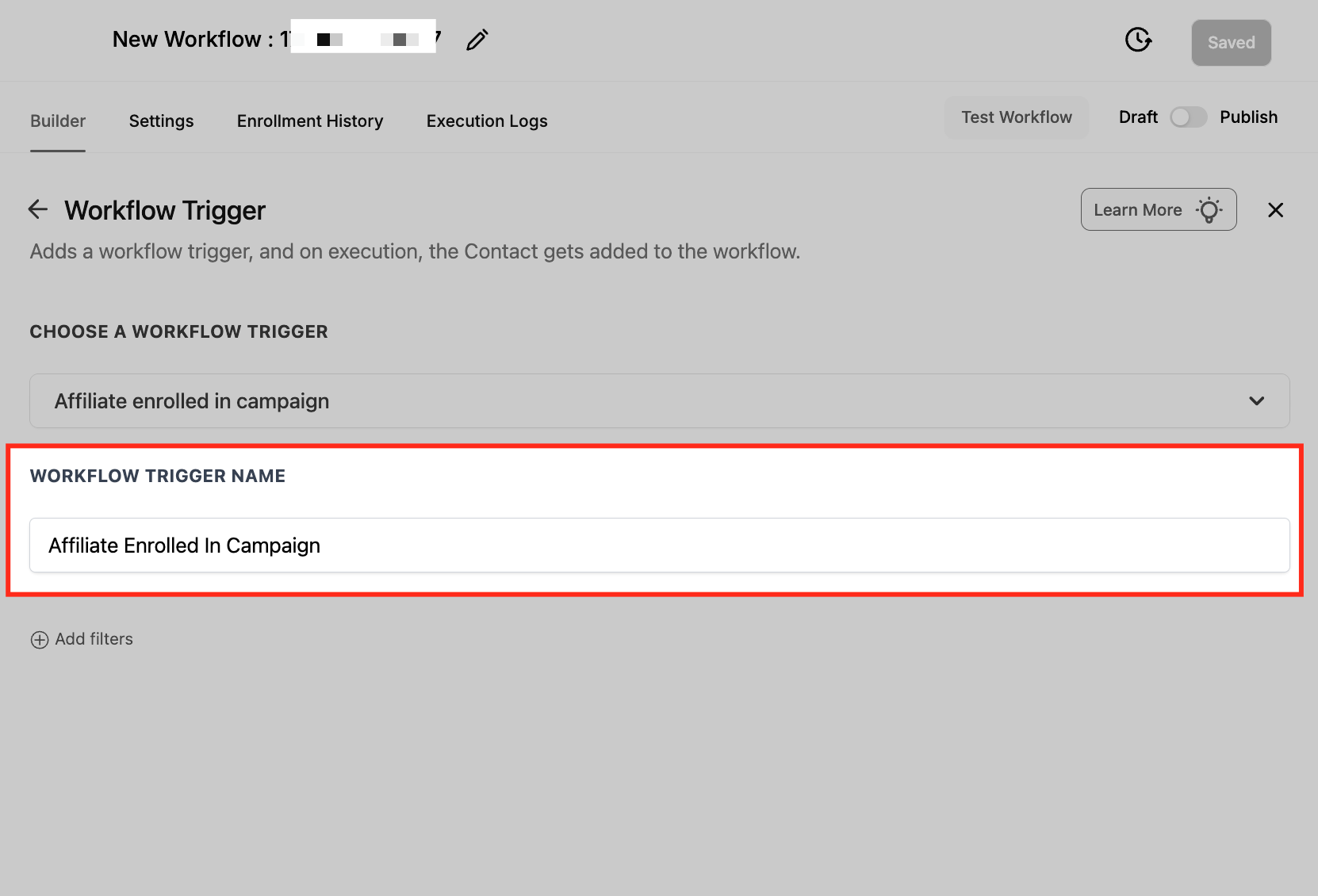
- Give the trigger a clear label, for example Affiliate Enrolled In Campaign.
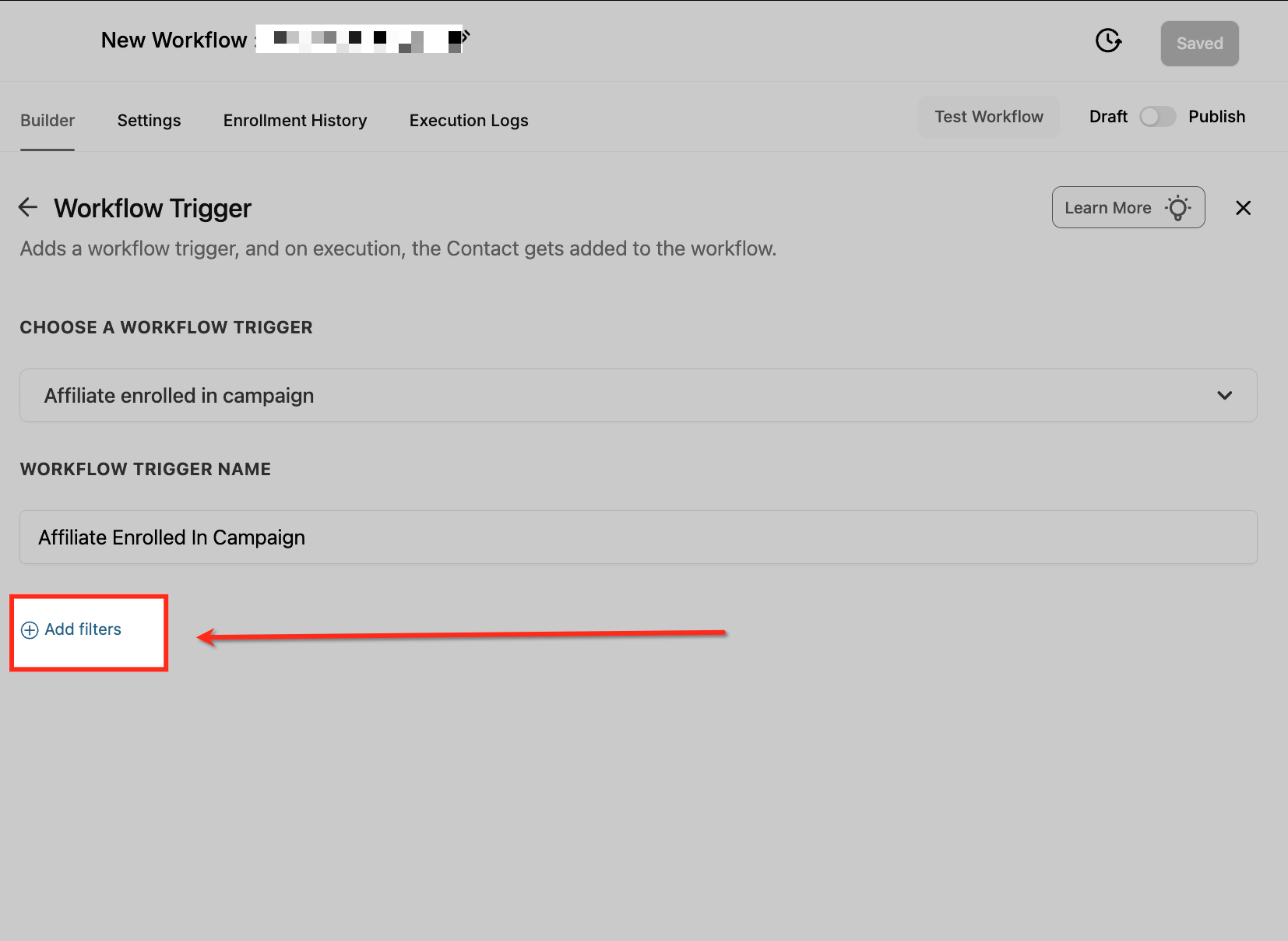
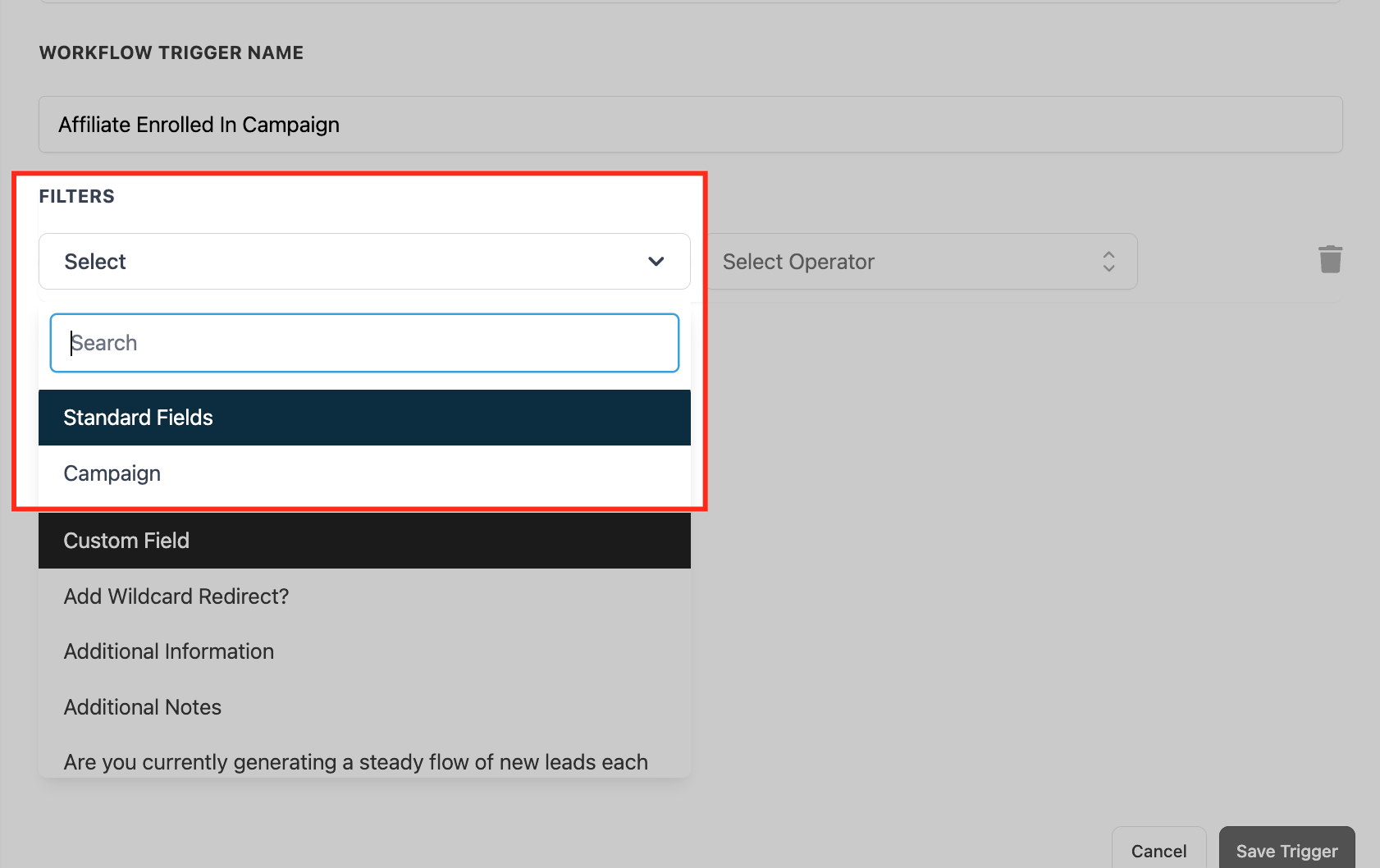
- Click Add filters and pick the campaign condition to limit the trigger to a particular campaign.
- From the Filter Type dropdown, select the desired type such as Standard Fields to define when the trigger should fire.
- Press Save Trigger to store the configuration.
07What it looks like in HighLevel
08Settings that matter
- Affiliate Enrolled In Campaign. Selecting this option sets the workflow to start when an affiliate is added to a campaign.
- Filter Type. Determines which field set (standard or custom) is used to define the conditions that must be met for the trigger to activate.
09Things to know before you rely on it
- The trigger appears only if Affiliate Manager is active and a campaign exists in the subaccount.
- Custom values are populated only during a real enrollment event; test runs will not fill them.
- Both manual and automated affiliate enrollments will fire the trigger when the filter criteria match.
10If something goes wrong
- Trigger does not show in the workflow list. Confirm Affiliate Manager is enabled and at least one affiliate campaign has been created in the subaccount.
- Affiliate custom values are empty in email or SMS steps. Make sure the workflow uses the Affiliate Enrolled In Campaign trigger, that the trigger is saved, and that the affiliate was actually enrolled in the campaign.
11How it connects to the rest of HighLevel
- Set up the Affiliate Created trigger for other automations Affiliate Created trigger
- Automate follow ups when an affiliate makes a sale New Affiliate Sale trigger
- Use Affiliate Manager workflows to assign leads and send notifications Affiliate manager workflows
Michael's take

Great for teams that already run an affiliate program, but if you don’t use Affiliate Manager or have no campaigns, skip it.