
01Who this is for
- Agency Admins, they can restrict or allow template access for subaccounts.
- Location (subaccount) users, they see only the templates the admin makes available.
02Template library visibility control, explained
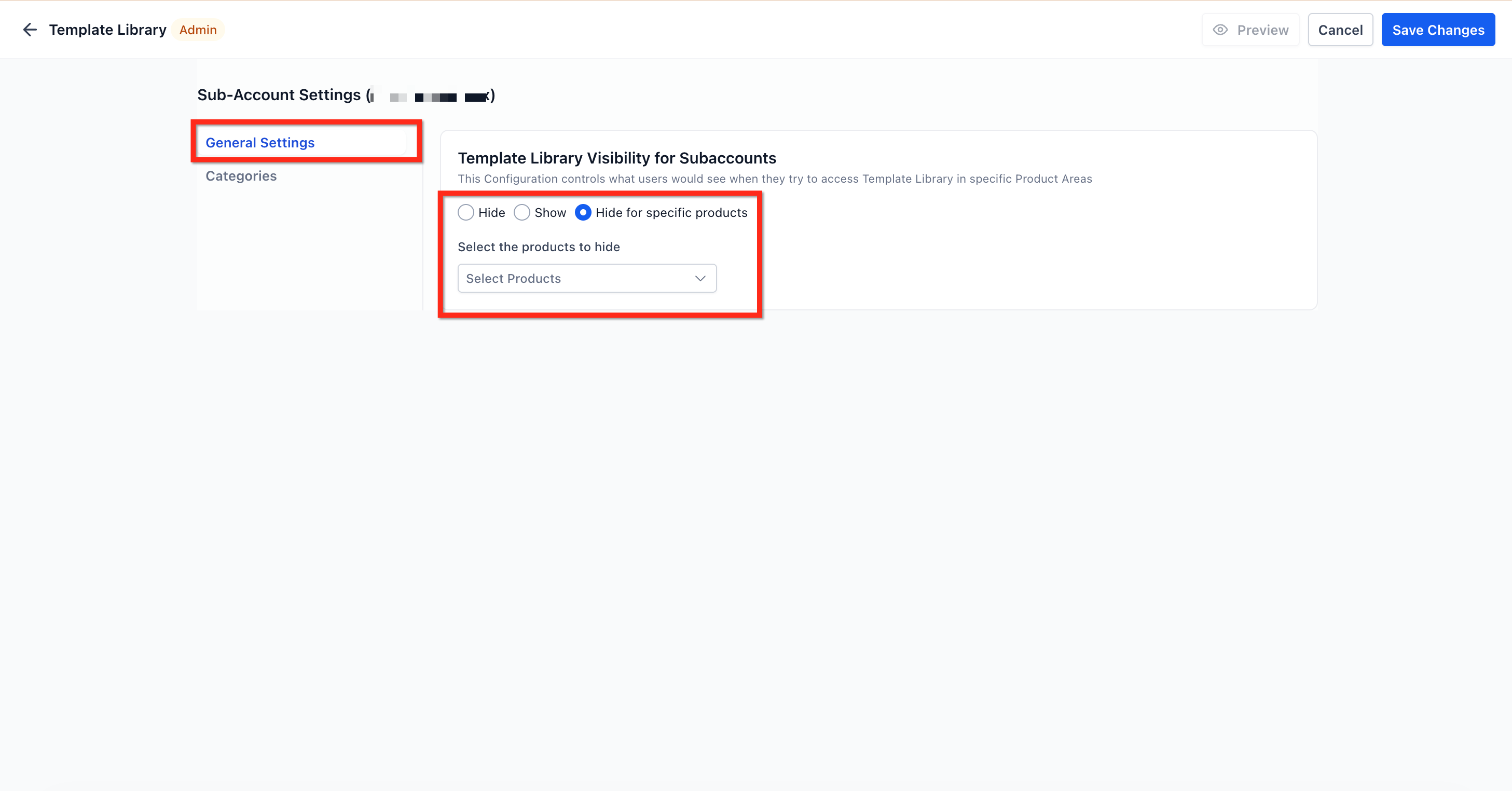
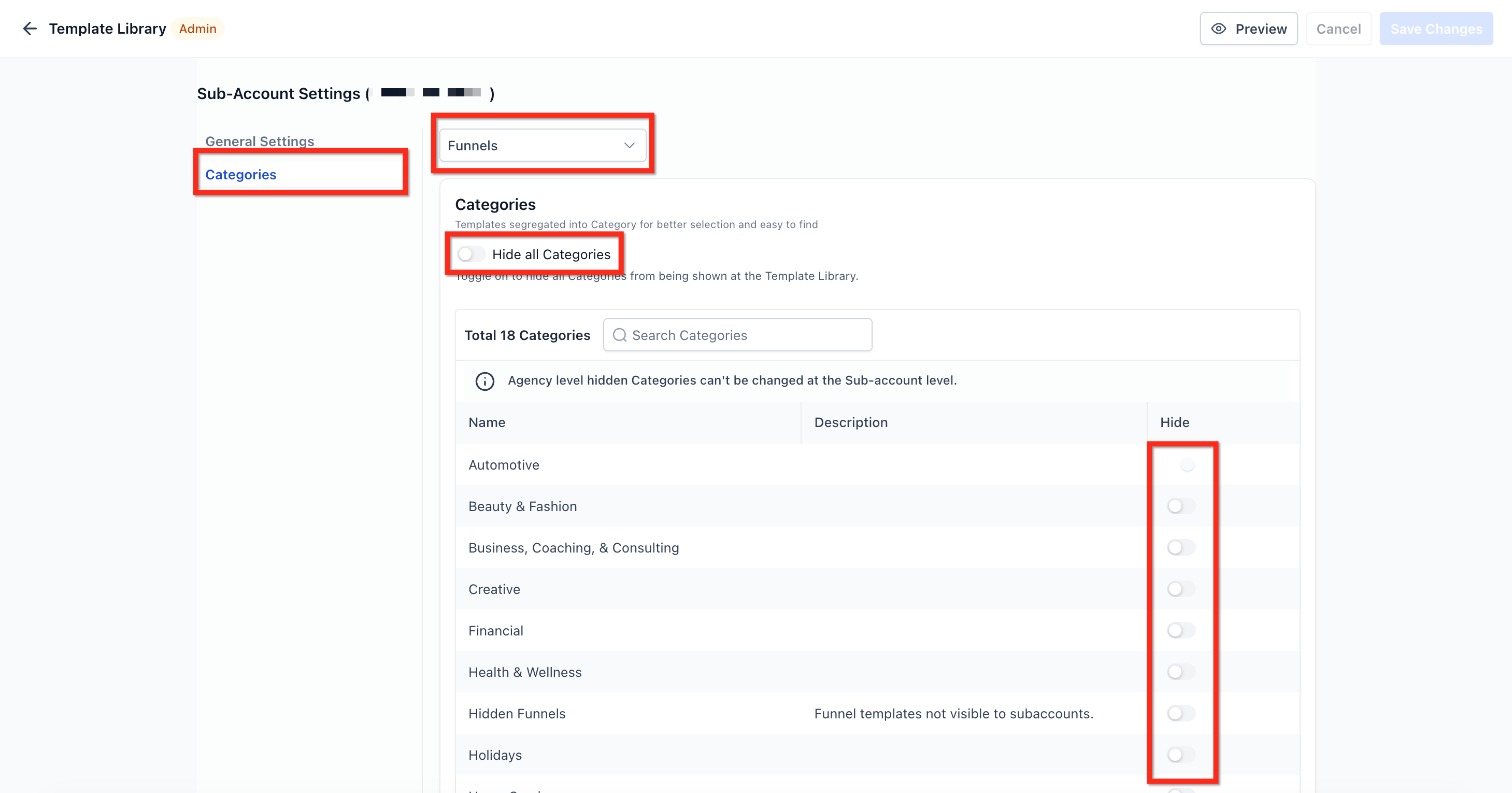
The feature lives inside the Template Library module. From the Agency view, an admin opens the library settings, selects a subaccount, and chooses Hide, Show, or Hide for specific products on the General Settings tab. If Hide for specific products is chosen, the Categories tab lets the admin hide all categories or toggle individual categories for each product. System Email templates remain visible for all users, and agency admins always retain full access. Changes are saved and take effect right away. Subaccount users who lose library access also lose the Ad Manager Templates option when creating ads and are sent directly to the campaign builder.
03How businesses use Template Library Visibility Control
- Marketing agency. The agency admin hides the template library for new franchise locations and only shows website templates, keeping branding consistent.
- Real estate franchise. The franchise manager reveals only the forms and email modules for each office so agents see just the needed categories.
- Health clinic chain. The corporate admin shows the entire library to central offices but hides it for individual clinic subaccounts, allowing only system email templates at the clinic level.
04Before you start
- User must be logged in as an Agency Admin.
- Agency Admin role is required to modify visibility settings.
05How to set up and use Template Library Visibility Control in HighLevel
Set template library visibility per subaccount
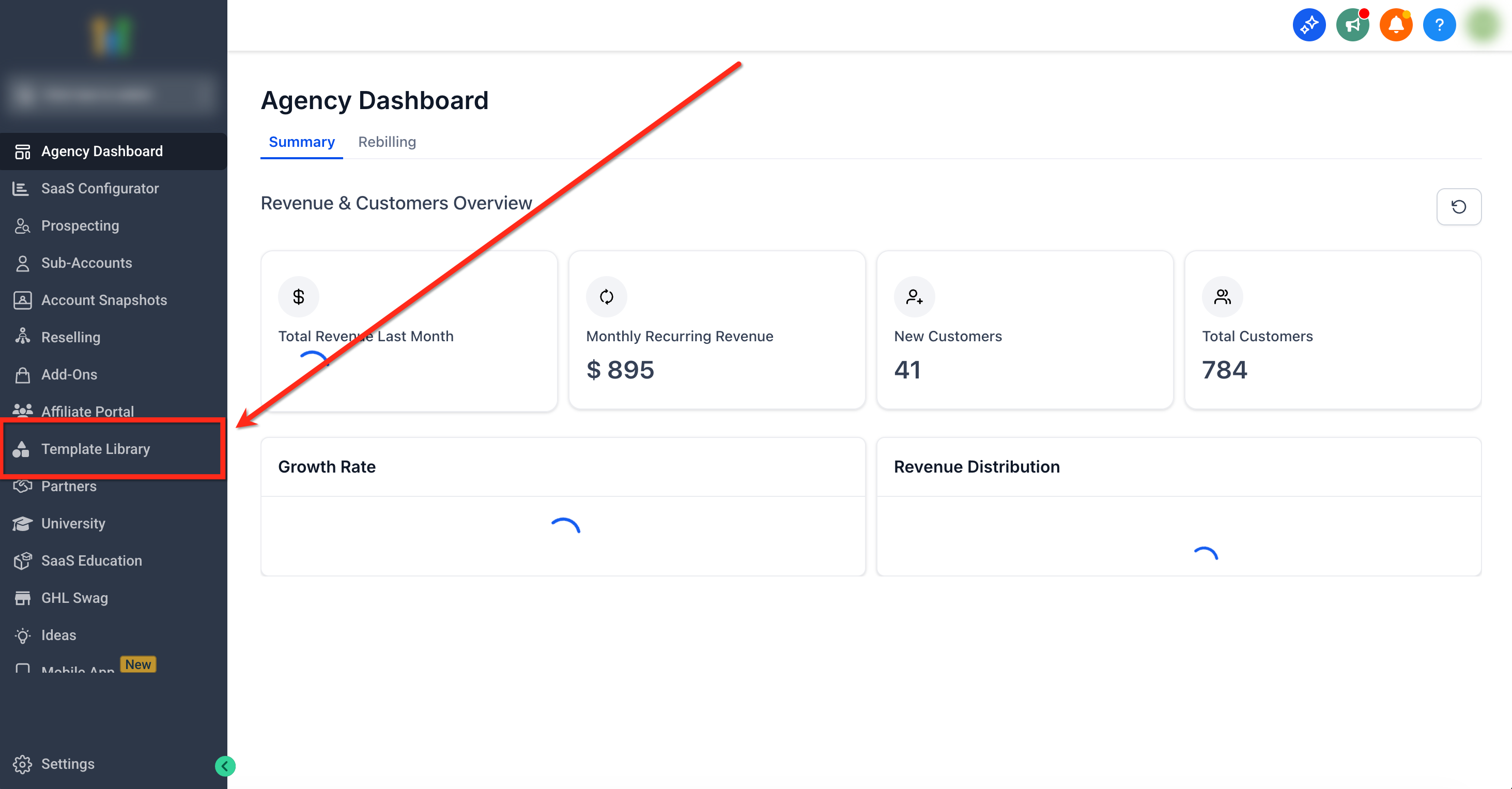
- Log in as an agency admin and open the Agency Dashboard.
- Select Template Library from the main navigation menu.
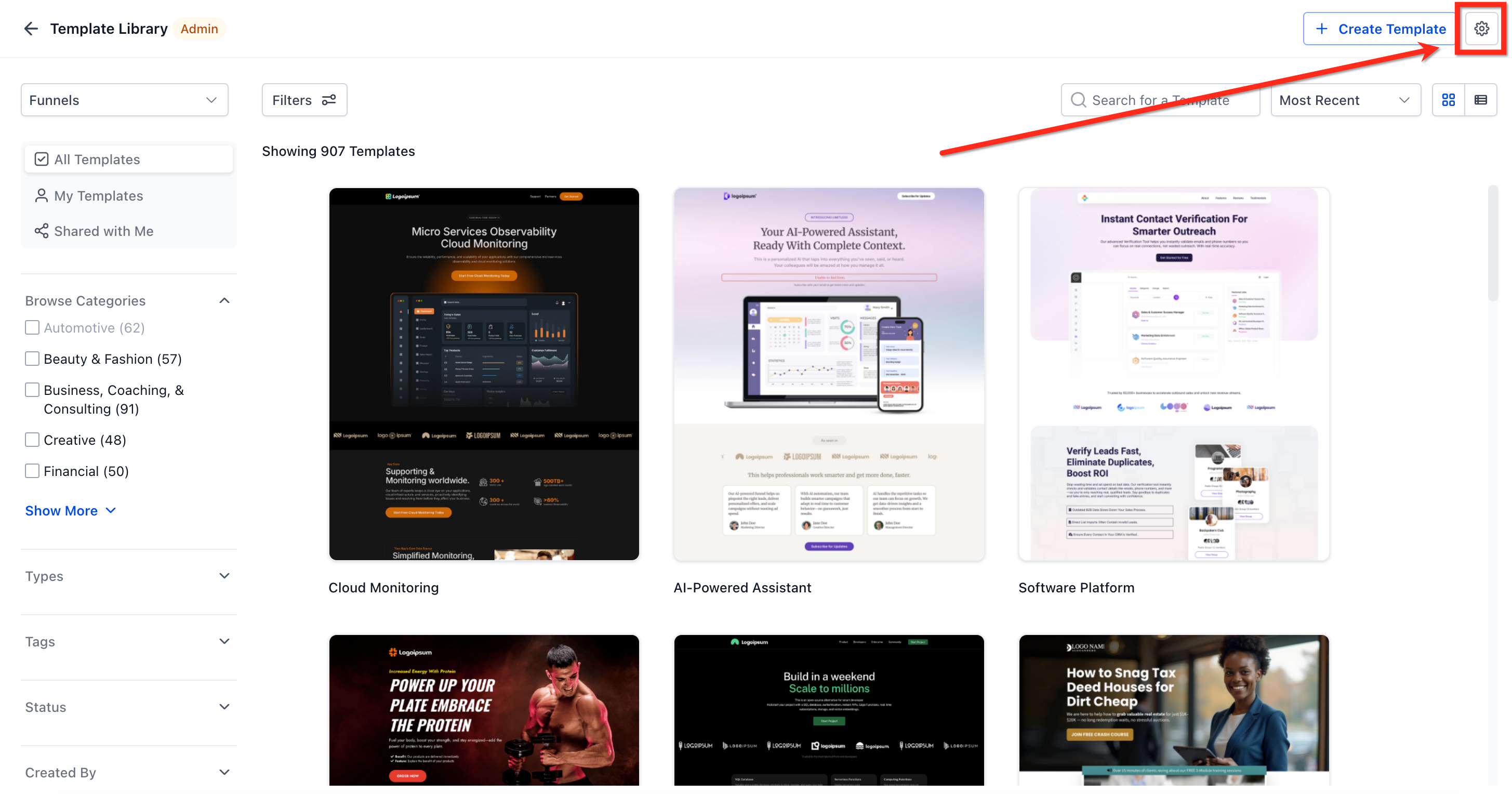
- Click the Settings gear icon in the top right of the Template Library view.
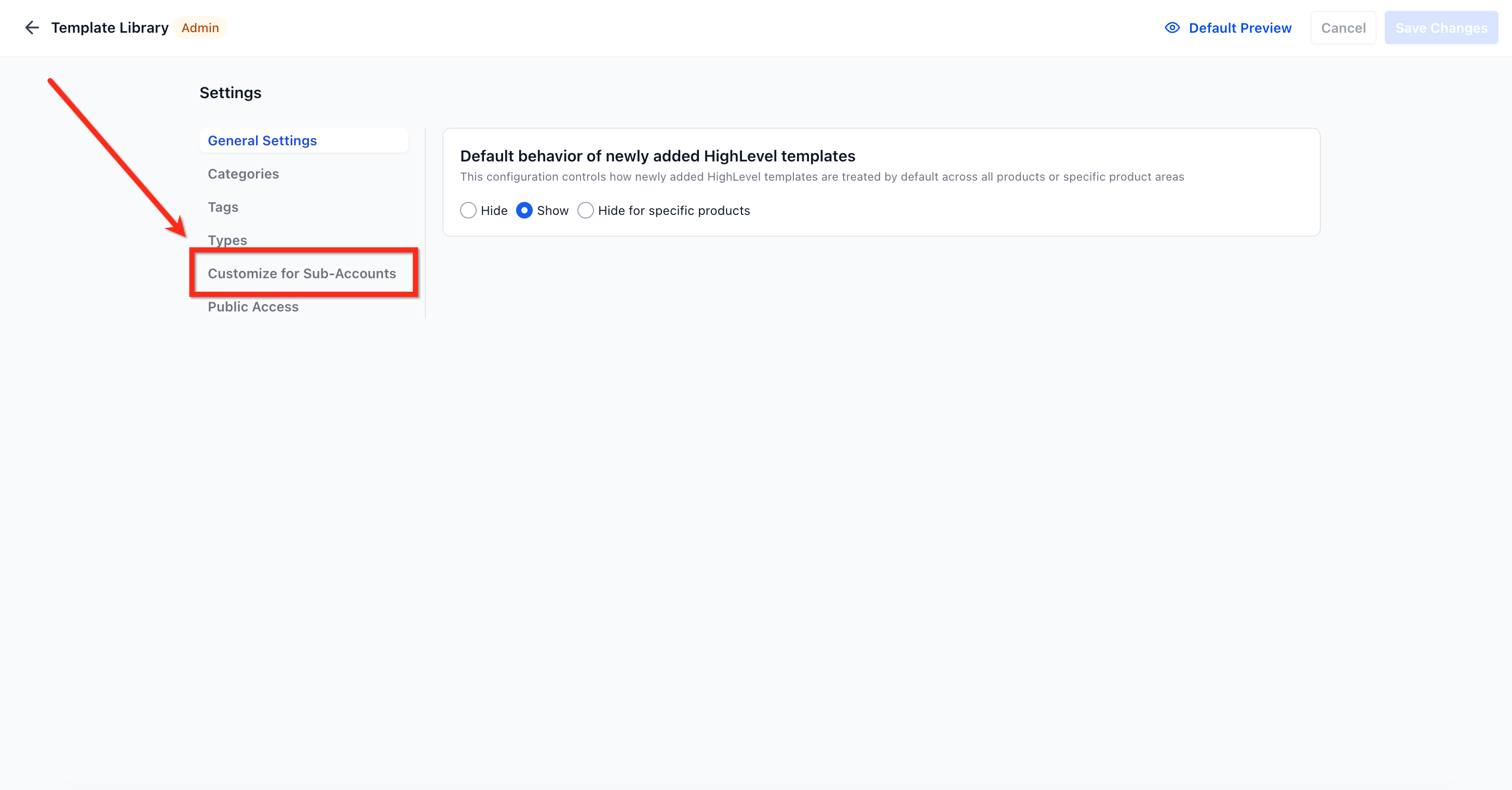
- Choose the Customize for Subaccount Settings tab on the left sidebar.
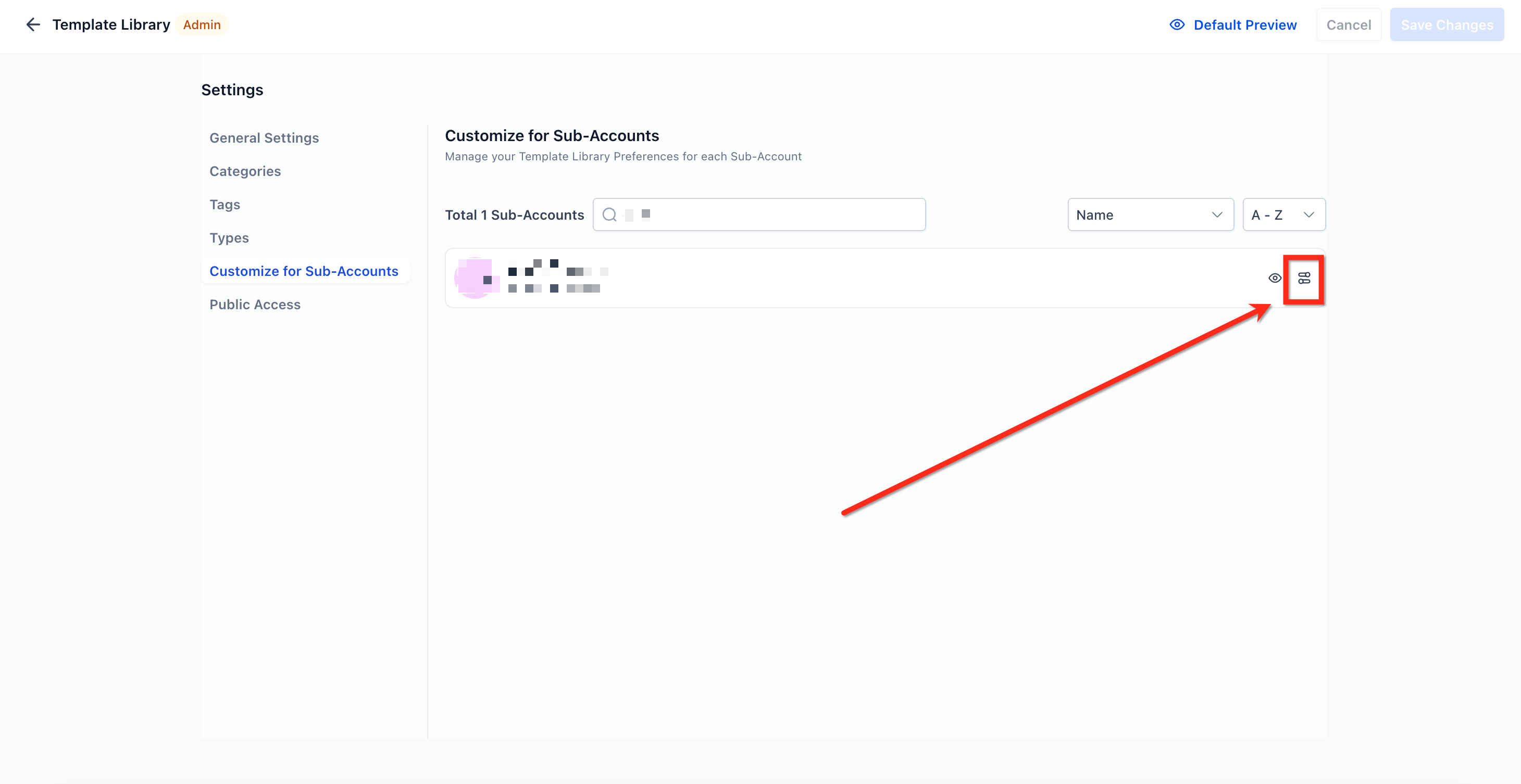
- Search for the target subaccount and press the Edit button beside it.
- Adjust visibility: pick Hide, Show, or Hide for specific products, then configure category visibility as needed.
06What it looks like in HighLevel
07Settings that matter
- General Settings. Controls whether the entire library is hidden, fully shown, or selectively hidden for individual products.
- Categories. Allows the admin to hide all categories for a product or toggle individual categories on or off.
08Things to know before you rely on it
- Visibility must be set for each subaccount individually; bulk changes are not supported.
- System Email templates stay visible for all users regardless of settings.
- Agency admins retain unrestricted access to the library in every location.
09How it connects to the rest of HighLevel
- Overview and setup of the HighLevel template library Template library overview
- How to manage categories, types, and tags in the library Manage categories
- Guide to hiding default or HighLevel templates from the library Hide default templates
Michael's take

This feature is a modest convenience. It won’t overhaul how you work, but it does keep location users from stumbling into templates they don’t need, supporting consistent branding.
For example, a chain of boutique fitness studios can configure each location to see only the funnel and website templates they use for class sign ups, providing a cleaner list.