
01Who this is for
- Agency admins, can add and manage templates for the whole agency.
- Agency users, can start new posts with any pre made template.
02Template library, explained
The Template Library stores a collection of social media post designs that appear inside the Social Planner. Users open the library, choose a design, and the selected template fills the post editor, saving time on content creation.
The library lives under the Social Planner interface. An admin panel appears for Agency admins on the $497 plan, allowing them to upload new templates, edit details, and set visibility for subaccounts (per HighLevel's help center, checked November 2026).
03How businesses use template library
- Marketing agency. The agency admin uploads high performing client posts to the library. Team members then select those templates to craft new campaigns quickly, ensuring brand consistency across clients.
- Real estate brokerage. Agents open the Social Planner, choose a property listing template from the library, add their own photos and details, and schedule the post to reach prospective buyers on multiple channels.
- Restaurant. The restaurant manager selects a menu highlight template, edits the dish description, sets the publishing time, and imports the post into the planner for daily specials.
04The numbers and rules that matter
- $497 plan provides access to the admin panel and the ability to upload templates (per HighLevel's help center, checked November 2026).
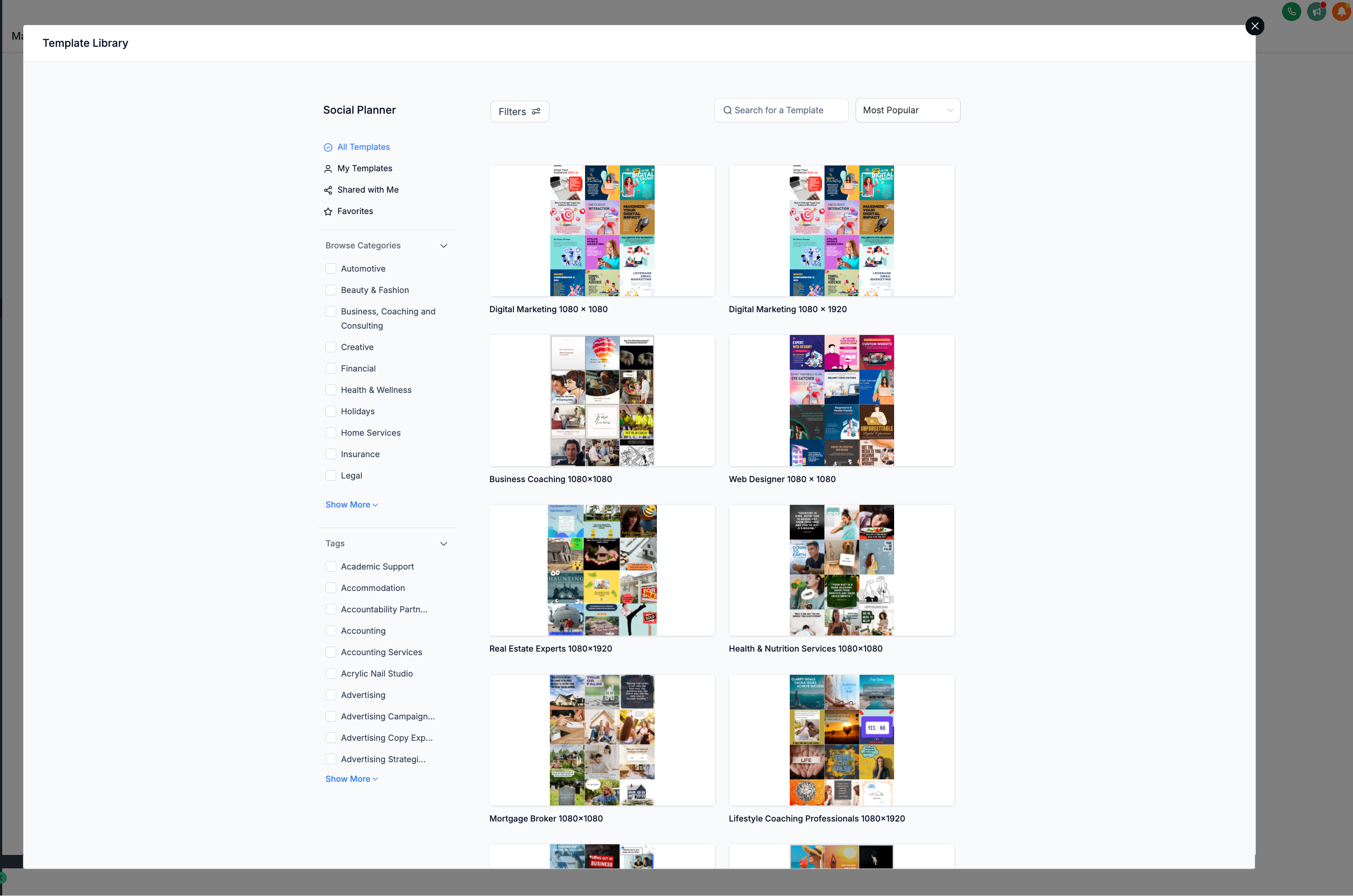
- Template Types: Post (1080×1080), Story/Reel (1080×1920).
05Before you start
- The account must be on the $497 plan or higher (per HighLevel's help center, checked November 2026).
- Only an Agency admin can view the admin panel and upload templates.
06How to set up and use template library in HighLevel
Create a post using a template
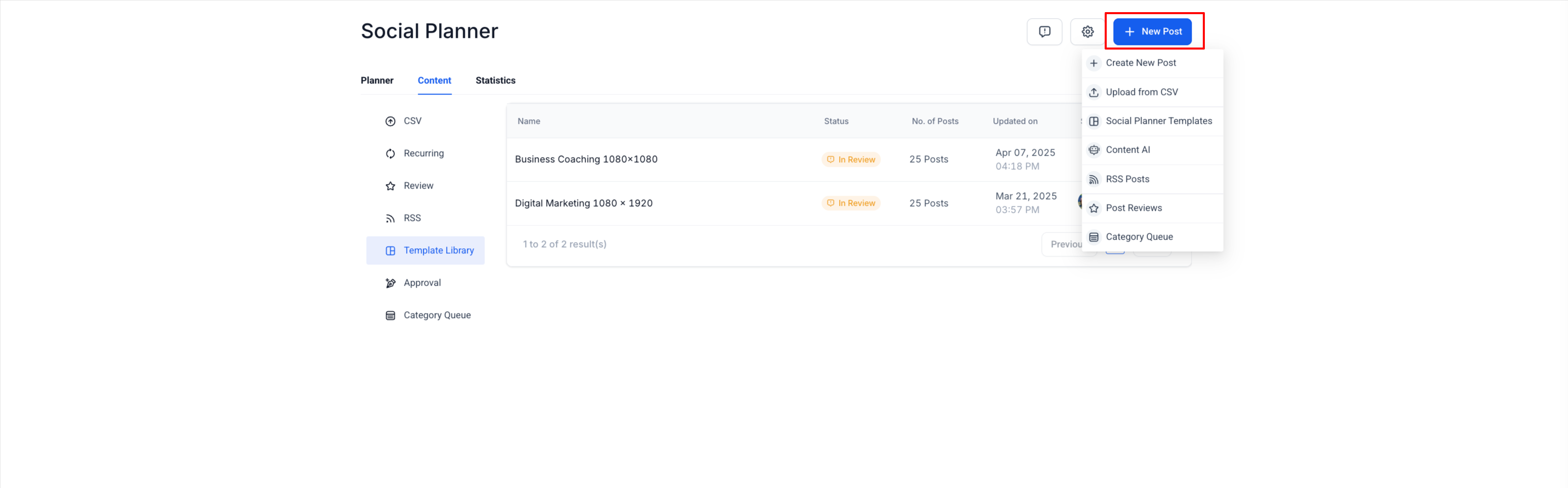
- Open the Social Planner and click “New Posts”.
- Navigate to the Social Planner dashboard.
- Press the “New Posts” button to begin a new post.
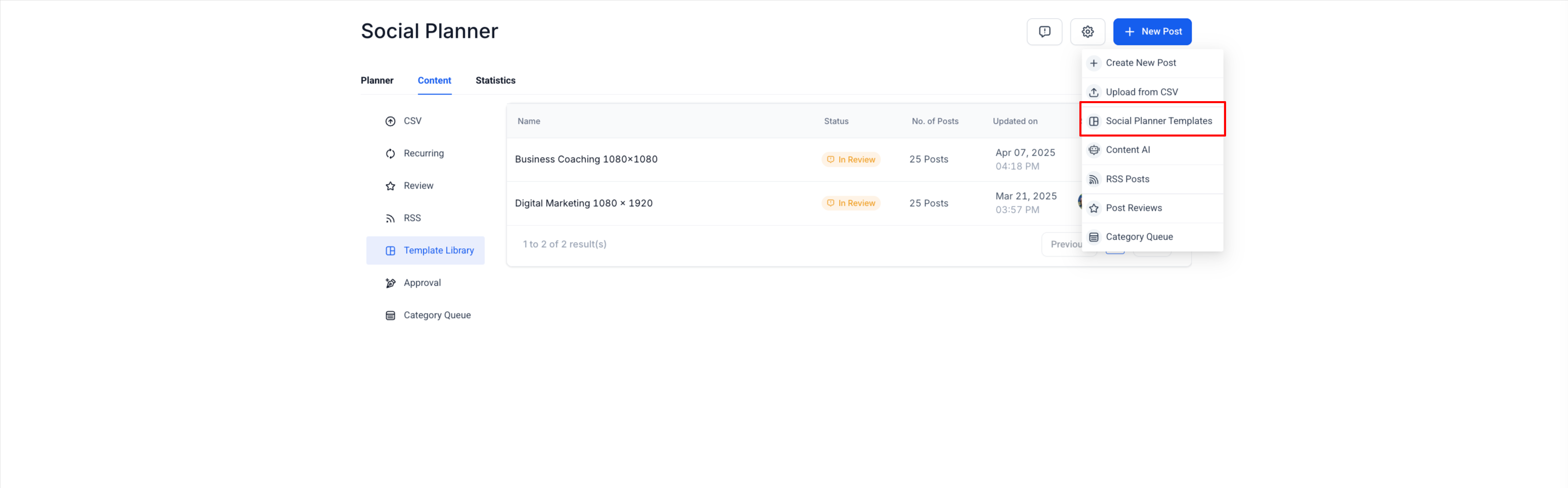
- Select the “Social Planner Templates” option.
- Pick a template from the library.
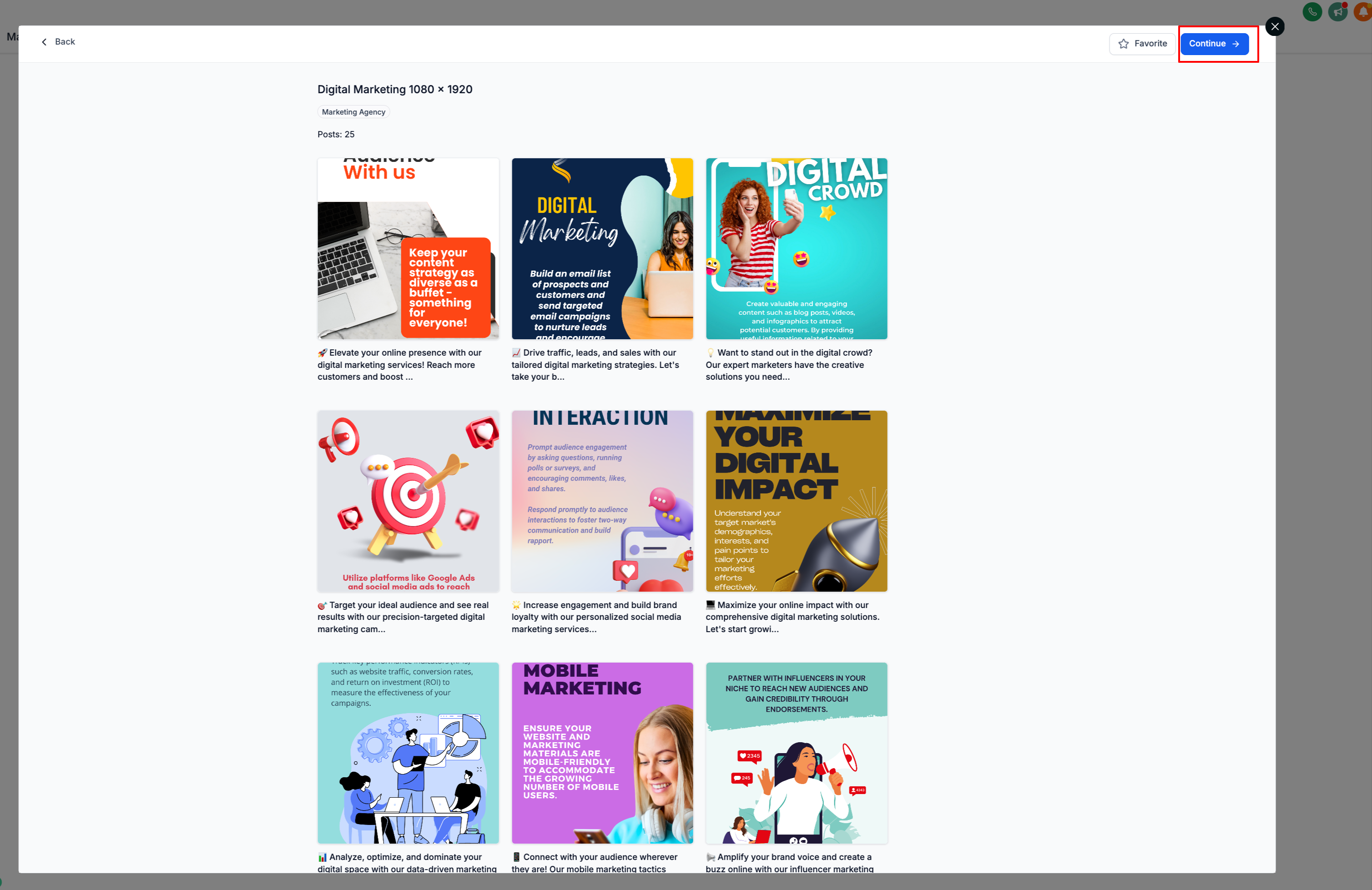
- Click the “Continue” button.
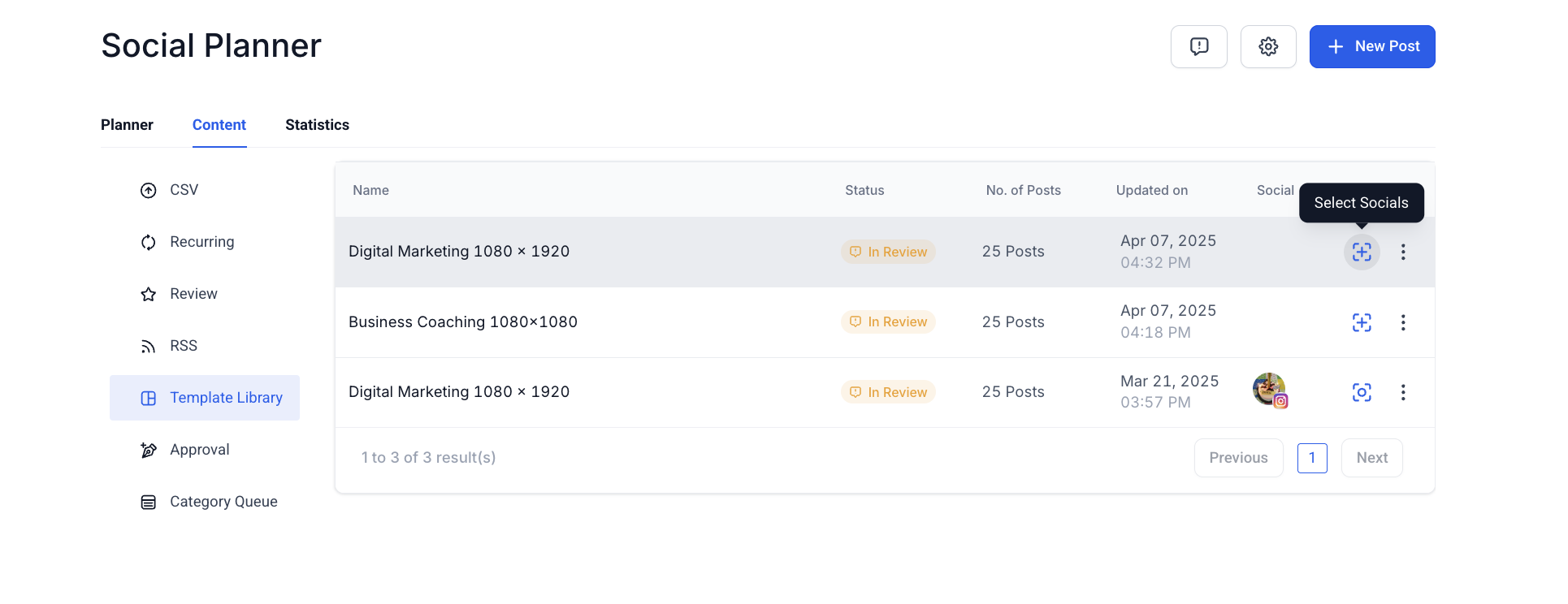
- Click on “Select Socials”.
- Choose the social channels for the post.
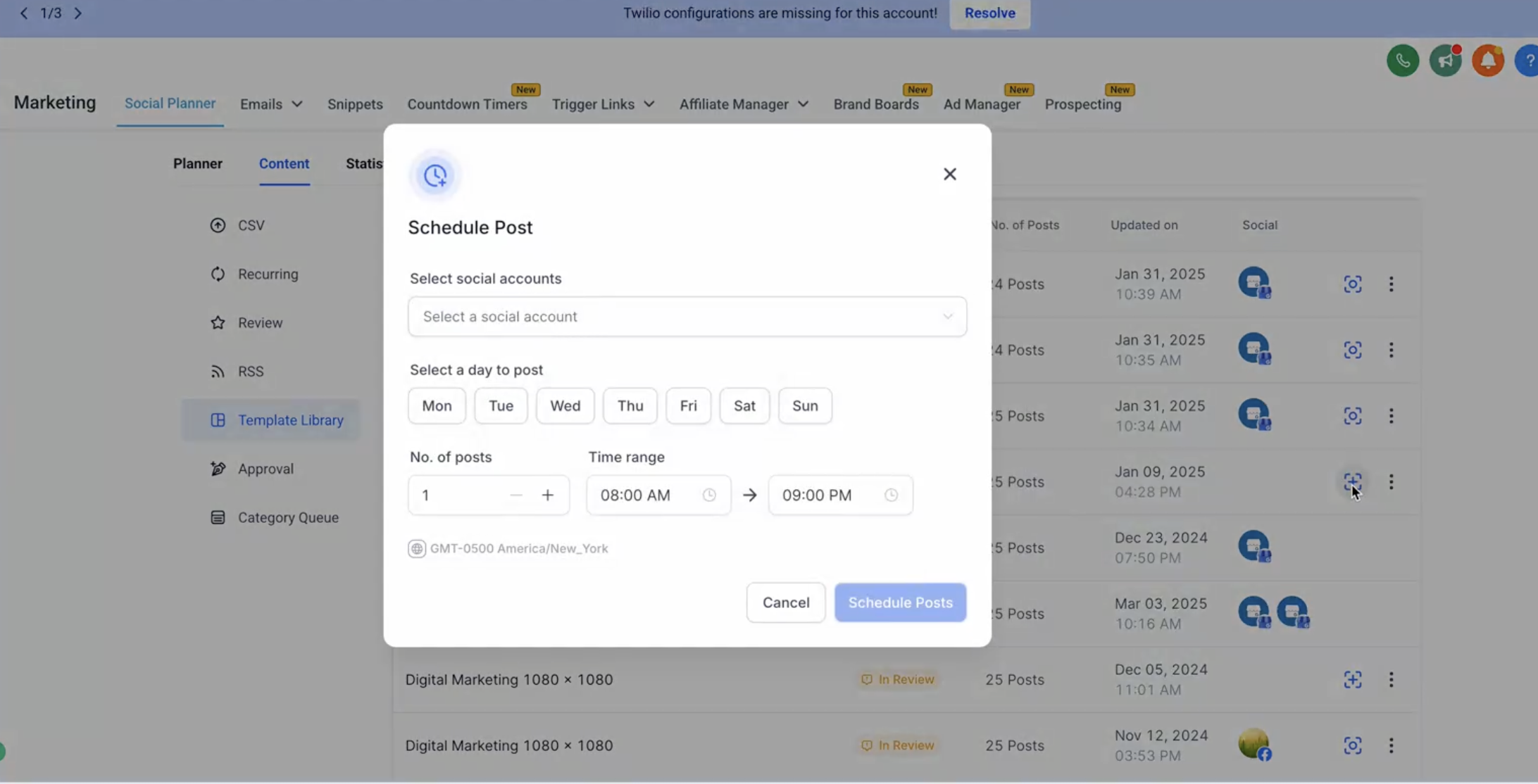
- Press “Review & Schedule” to go to scheduling.
- Enter date, time and channel details then click “Schedule”.
- After the screen refreshes, click the “Review & Schedule” button again.
- Edit any text, media or settings as needed.
- Click “Import” to add the post to the planner.
Upload a template to the library
- Navigate to Social Planner.
- Open the CSV tab or the Template Library tab under Content.
- Click the three dot menu and choose “Upload to Template Library”.
- Enter a template name and select a category.
- The system opens Template Library Admin mode.
- Add a cover photo for the template.
- Add tags, edit the name and confirm the category.
- Write a brief description for the template.
- Define required integrations such as Stripe for a one step order form.
- Assign featured tags to highlight the template.
- Choose “Draft” to keep the template private for future edits or select “Public” to make it visible to subaccounts.
- Optionally hide default HighLevel templates via the hide feature.
07What it looks like in HighLevel
08Settings that matter
- admin panel. Controls who can upload and manage templates; visible only to Agency admins on the $497 plan (per HighLevel's help center, checked November 2026).
- Template Library Admin mode. Provides editing fields for cover photo, tags, description, requirements, and featured tags when a template is being created or edited.
- Public/Draft status. Sets a template’s visibility: Public makes it available to subaccounts, Draft keeps it private for further edits.
09Things to know before you rely on it
- Only the $497 plan grants access to the admin panel and upload capability (per HighLevel's help center, checked November 2026).
- Only Agency admins can add or edit templates; other roles can only use existing templates.
- Public templates cannot be updated with new elements; draft templates retain all changes.
- Agency admins can hide default templates supplied by HighLevel.
10How it connects to the rest of HighLevel
- Overview of the Template Library and how to set it up Template library overview
- Guide to adding custom templates to the library Add custom templates
- Instructions for hiding default or HighLevel templates Hide default templates
Michael's take

Wondering if the template library is worth the upgrade? It gives every team member access to polished post designs, and agency admins can seed the library with their proven winners.
If I were setting up a new agency, I’d make sure the admin is on the $497 plan, upload a handful of high performing posts, and then let the rest of the team pull from that pool. Test a couple of templates first to see they render correctly before you go fully public.