
01Who this is for
- Marketing teams at agencies benefit because templates speed up multi client ad creation.
- Small business owners gain consistency across campaigns without design resources.
- Brand managers appreciate the ability to keep messaging on brand while customizing ads.
02Ads manager templates, explained
The Template Library in Ads Manager holds pre built ad designs linked to specific platforms. Users select a layout, preview how it appears in various placements, and then edit the content before launching.
It lives inside the HighLevel Marketing area under the Ad Manager tab. Access to the library is controlled by account permissions; if a subaccount lacks access, the template option is hidden and users start from scratch.
03How businesses use ads manager templates
- Digital marketing agency. An agency user opens Ad Manager, selects a template that matches a client’s goal, updates the copy and images, and publishes the ad. The process lets the agency roll out multiple client campaigns quickly while keeping each brand’s style.
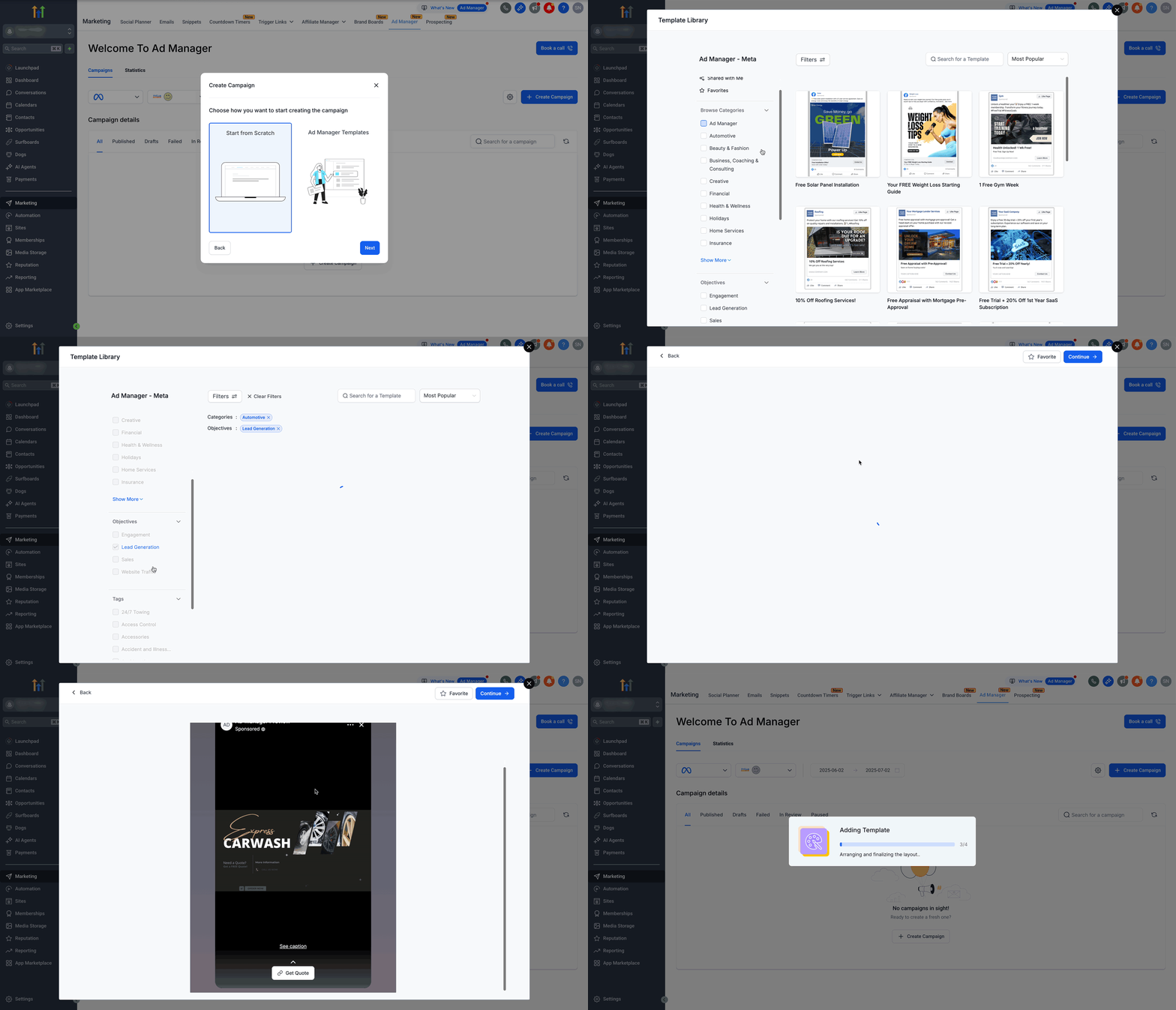
- Local car dealership. The dealership marketer opens the template library, filters for the Automotive category, previews a lead generation template, swaps in the dealership’s photos and URL, and then launches the campaign on Meta.
- Real estate brokerage. A broker accesses the library, chooses a template tagged for Real Estate, edits the property details and call to action text, and publishes the ad to attract new listings.
04The numbers and rules that matter
- Templates are linked to specific platforms (Google, Meta, LinkedIn).
- Filters include Categories, Objectives, and Tags.
05Before you start
- The user’s subaccount must have Template Library access enabled.
- The user must be logged into HighLevel with permission to view the Marketing section.
06How to set up and use ads manager templates in HighLevel
Create a campaign using a template
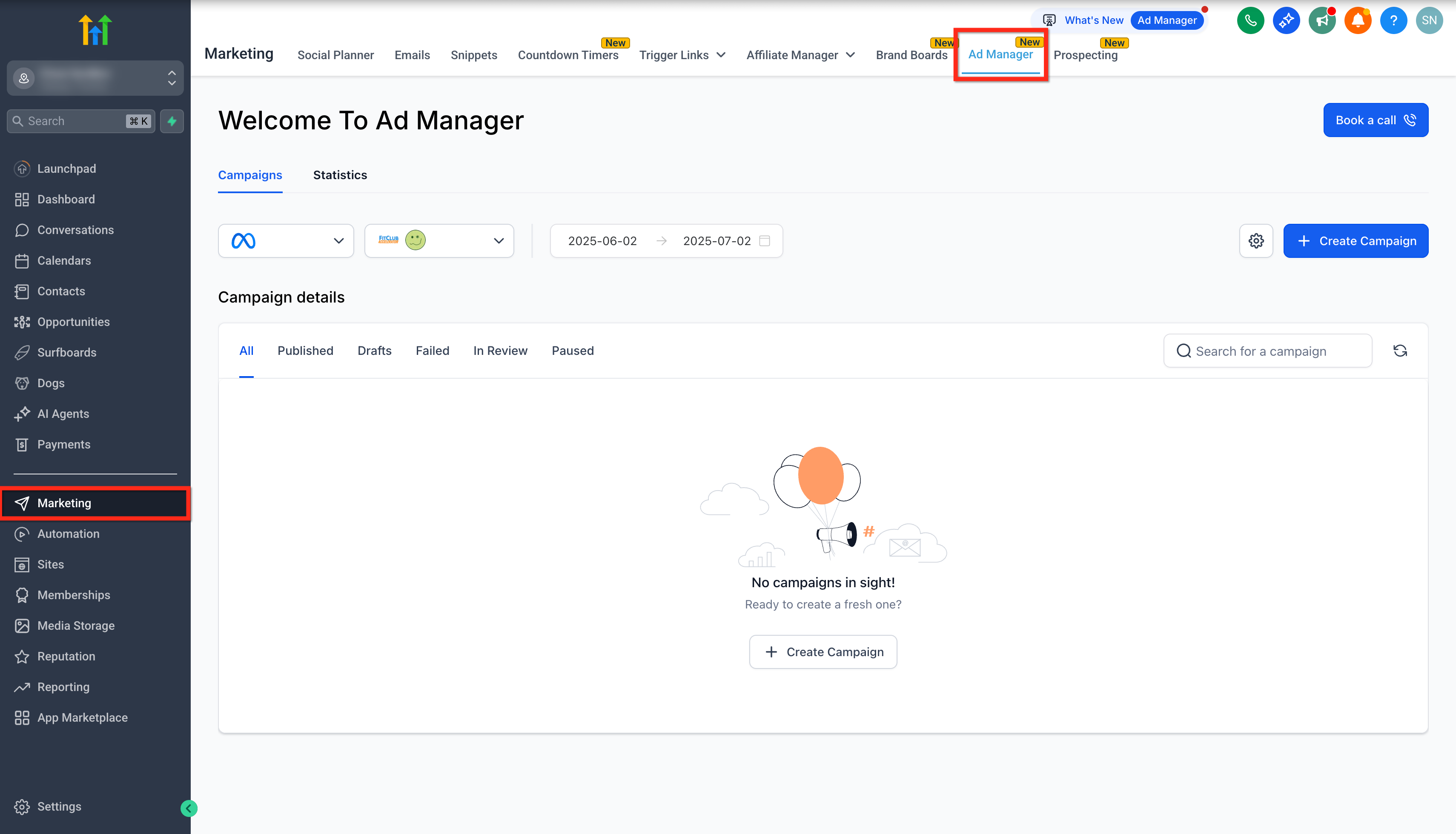
- Select Marketing from the main navigation.
- Open the Ad Manager tab.
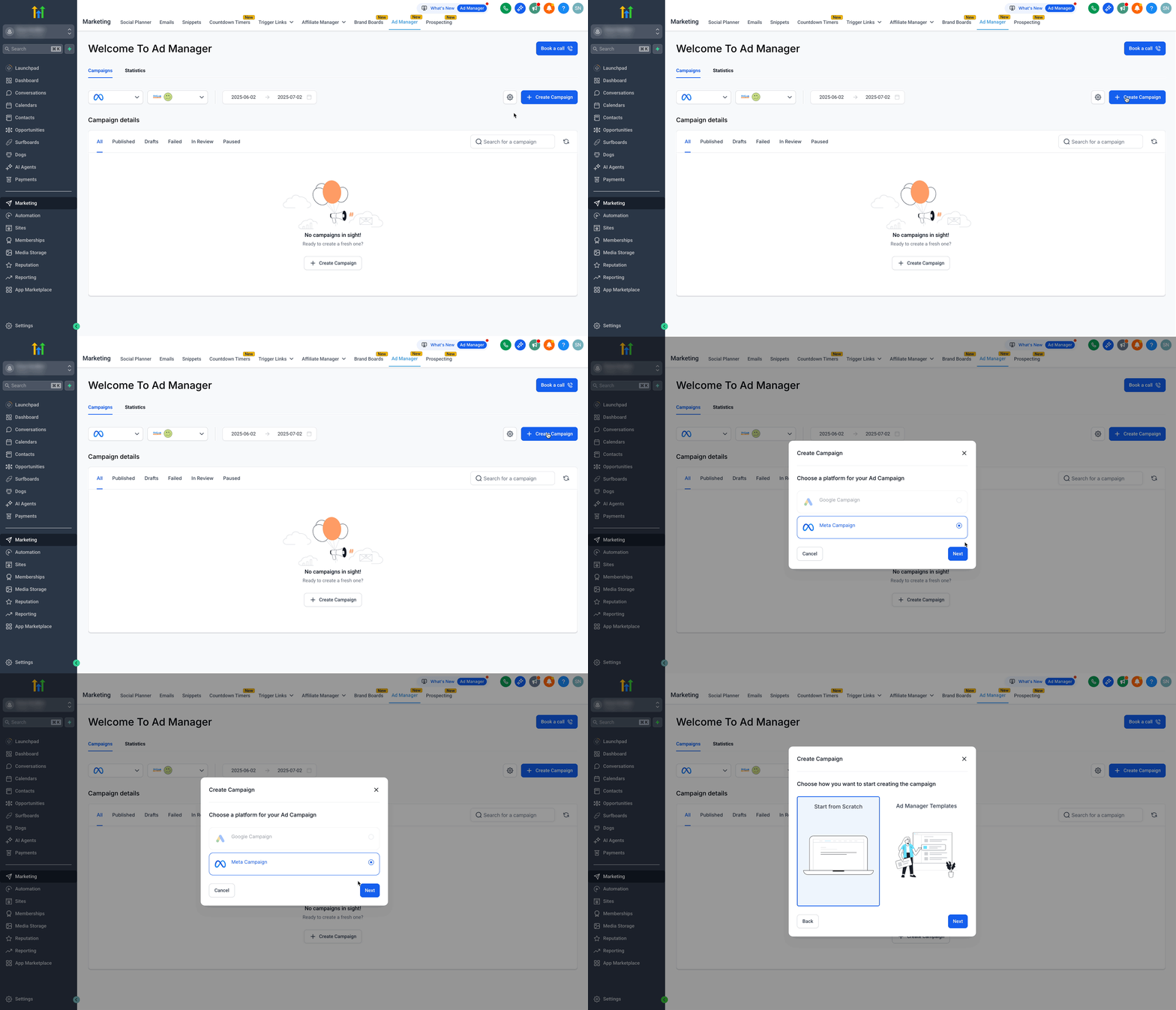
- Click the + Create Campaign button.
- Choose Google, Meta, or LinkedIn as the campaign platform.
- Press Next to continue.
- Choose Ad Manager Templates on the start screen.
- Click Next to proceed.
- Filter templates by category, objective, or tag as needed.
- Click the Eye icon on a template to view placement previews.
- Click the template itself to see full details.
- Press Continue to load the selected template.
- Edit the ad copy, images, URLs, and any other settings.
- Publish the ad to launch the campaign.
07What it looks like in HighLevel
08Things to know before you rely on it
- Only users with Template Library access see Ad Manager Templates; subaccounts without access do not see this option.
- Templates are linked to specific platforms, so a Facebook oriented template cannot be used for Google ads.
- If no template is selected, the builder defaults to Start From Scratch.
09How it connects to the rest of HighLevel
- Get an overview of setting up the Template Library and using it in HighLevel. Template library overview
- Learn how to add your own custom templates to the library. Add custom templates
- Find out how to organize templates with categories, types, and tags. Manage template categories
Michael's take

Michael ReimerFounder of CRM Pros, HighLevel Commander and Certified Admin
Templates are a fast way to roll out ads without reinventing the wheel.
If you rarely run paid campaigns or prefer custom builds every time, you can skip this feature.
Get More InformationOpens on HighLevelPublished November 2, 2026 · Updated November 17, 2026