
01Who this is for
- Marketing teams can centralize TikTok content with other platforms, reducing manual steps.
- Small business owners can schedule videos ahead, freeing time for daily operations.
- Social media managers can avoid push notifications by publishing directly from the planner.
- Content creators can keep their posting calendar consistent across channels.
02TikTok posts, explained
TikTok posting in Social Planner lets you select a connected TikTok profile, attach a video, write a caption, and set who can see the post. The feature lives inside the Marketing > Social Planner area of HighLevel. From there you can publish right away, schedule for a future time, send the draft for approval, create recurring posts, or add the item to a posting queue. All actions happen inside the platform without needing separate push alerts.
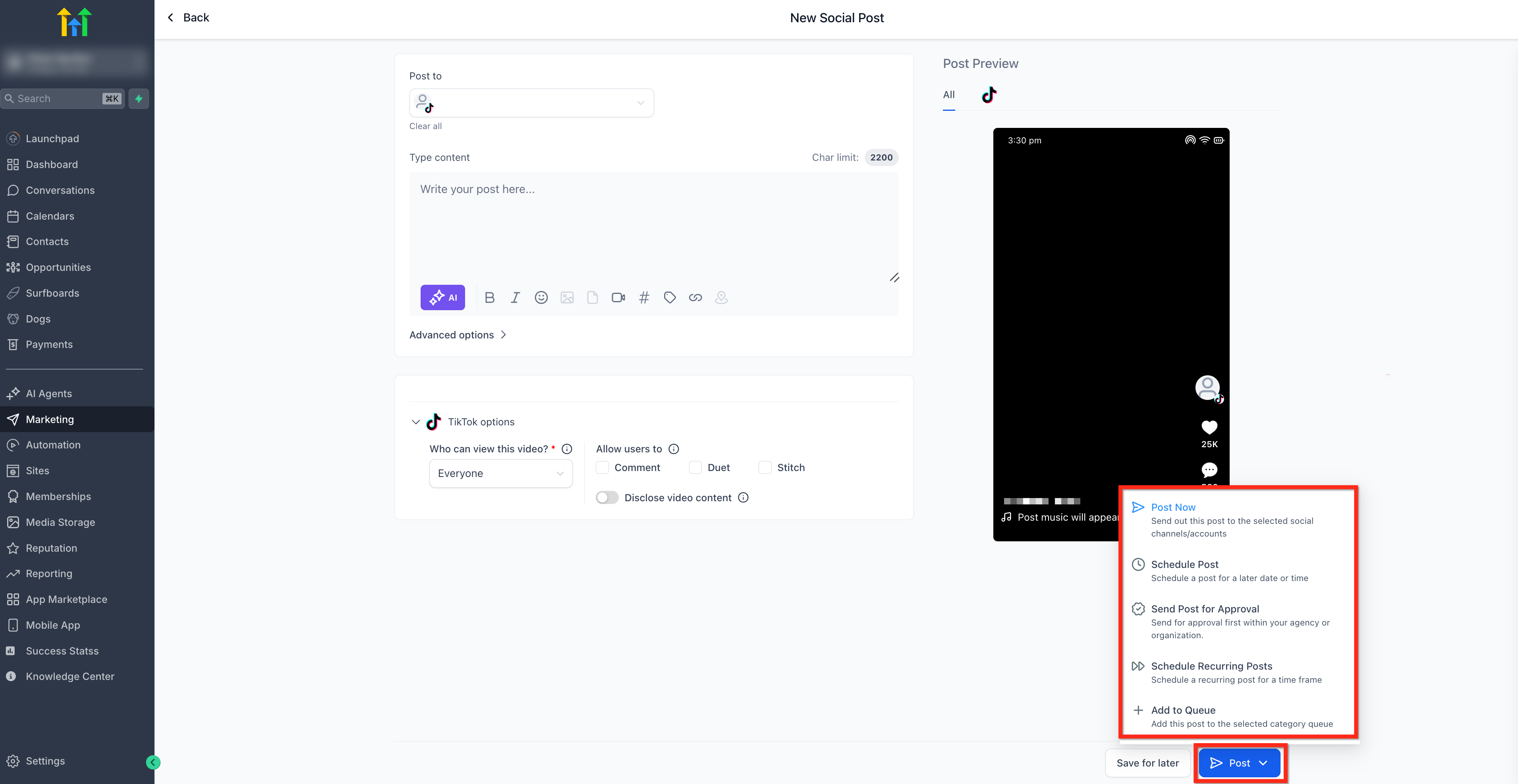
When you click Post, a menu of options appears: Post Now, Schedule Post, Send Post for Approval, Schedule Recurring Posts, or Add to Queue. Choose the appropriate option to control when and how the video goes live. The system tracks each post for reporting and analytics alongside your other social media activity.
03How businesses use TikTok posting
- Fitness studio. The studio creates short workout clips, adds a catchy caption, selects its TikTok profile, and schedules the videos to publish after class hours, ensuring consistent content without daily manual posting.
- Ecommerce brand. The brand uploads product showcase videos, sets captions with hashtags, chooses visibility, and uses the schedule feature to align releases with promotional calendars.
- Real estate agency. Agents record property tours, enter descriptive text, pick the agency’s TikTok account, and either post immediately for hot listings or schedule for optimal viewing times.
04Before you start
- A TikTok profile must be connected to the Social Planner.
- Video files must meet TikTok’s specification requirements.
05How to set up and use TikTok posting in HighLevel
Post a TikTok video
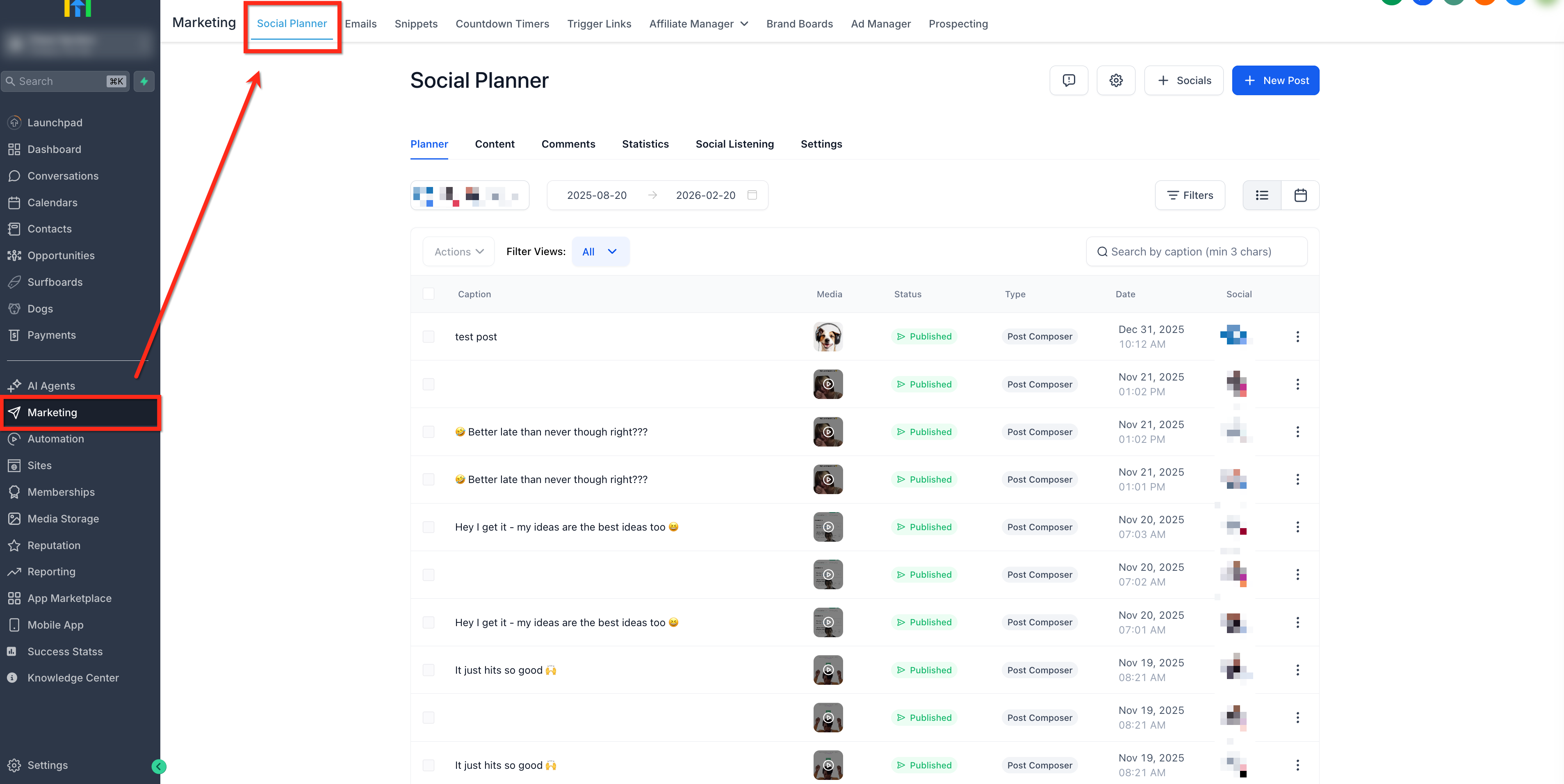
- Open the platform and go to Marketing > Social Planner.
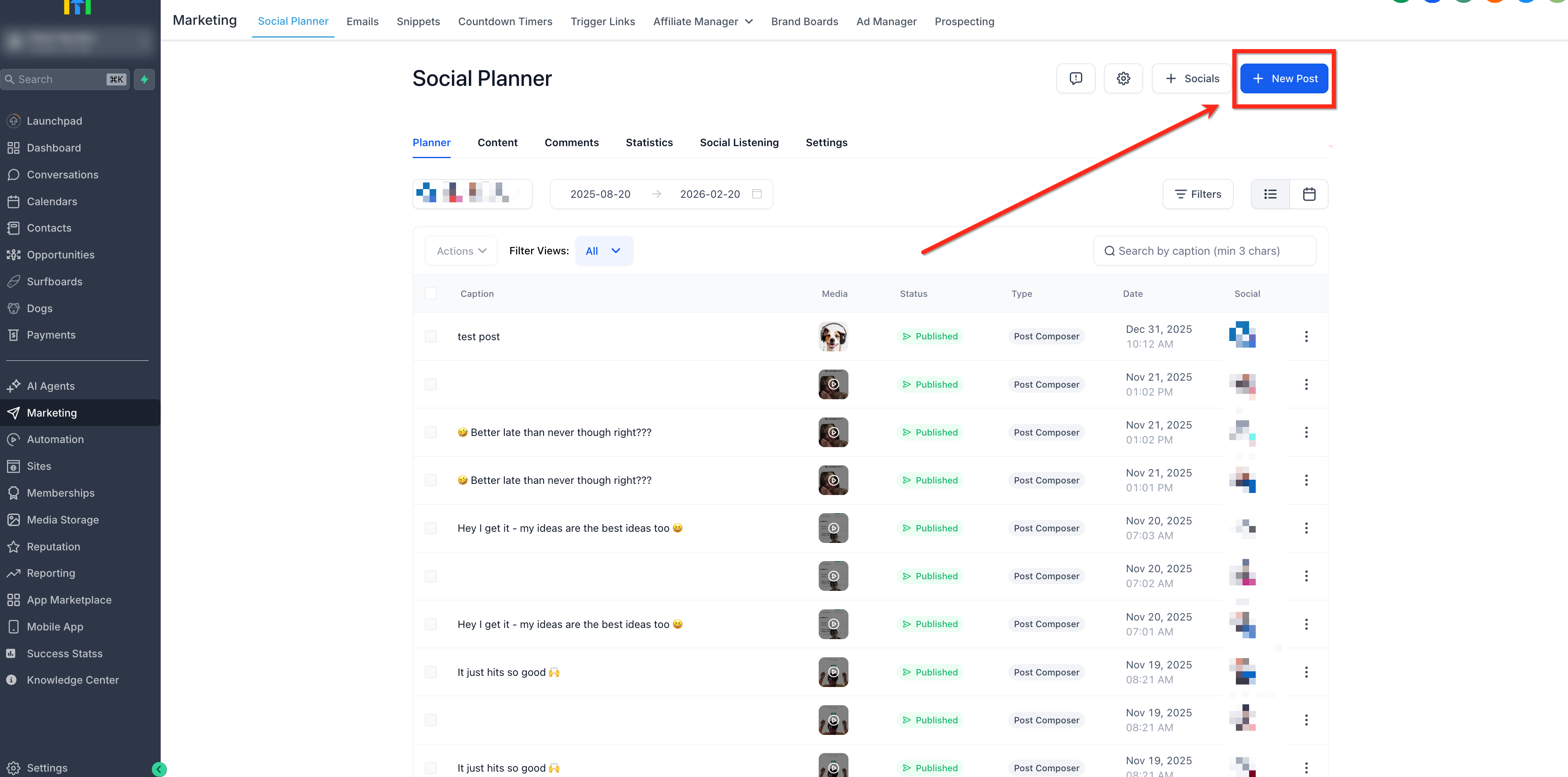
- Click the + New Post button to start a new post.
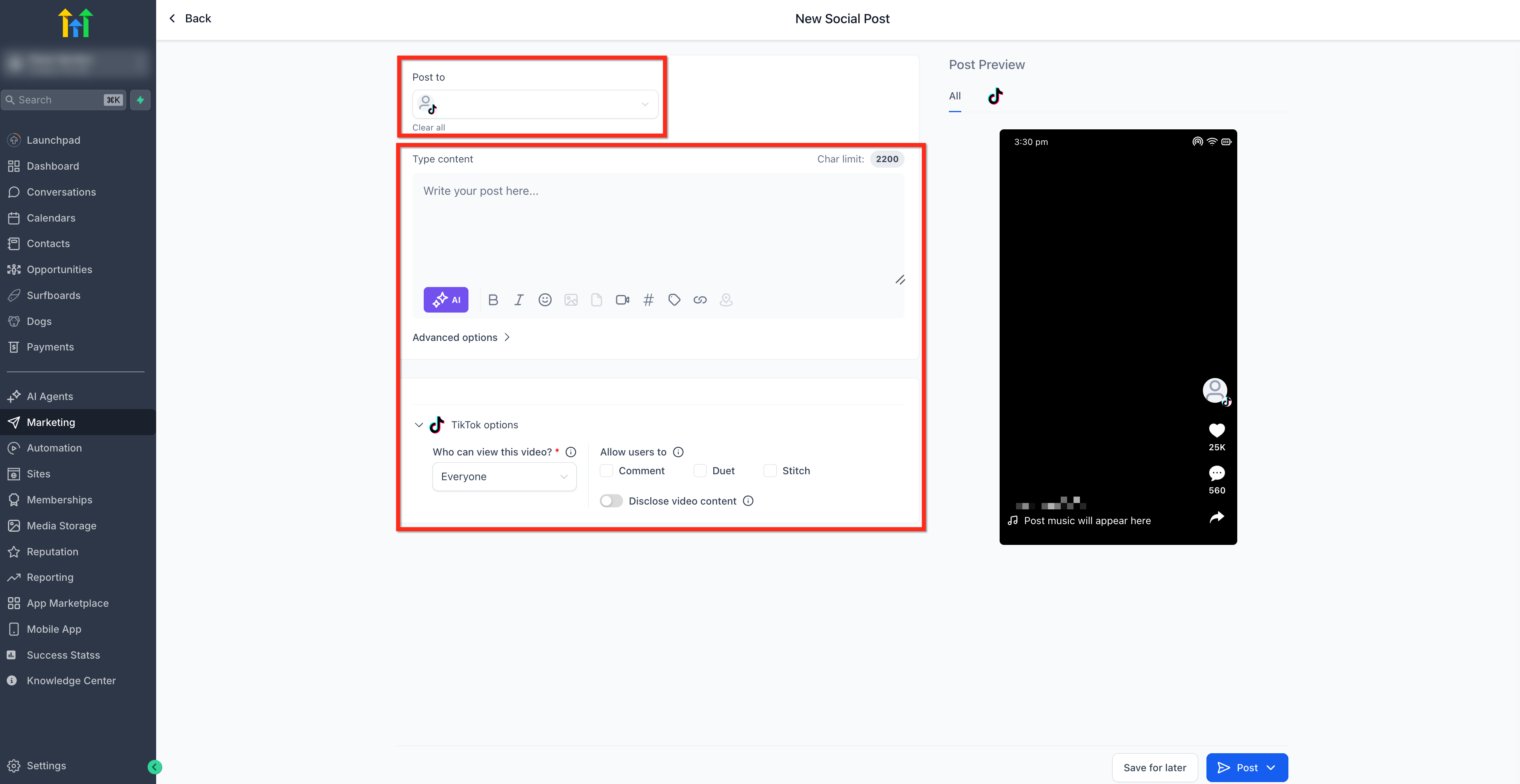
- Select the TikTok account from the Post To dropdown and add the video, caption, and visibility settings.
- Click the Post button to open posting options.
- Choose Post Now, Schedule Post, Send Post for Approval, Schedule Recurring Posts, or Add to Queue as needed.
06What it looks like in HighLevel
07Settings that matter
- Post To. Determines which connected TikTok profile will receive the uploaded video.
- Visibility. Controls who can view the TikTok video once it is published.
08Things to know before you rely on it
- Scheduled TikTok posts cannot have their media replaced; create a new post for changed files.
- Comment management is not available within Social Planner; handle comments on TikTok directly.
- Posting may fail if the TikTok profile is disconnected, permissions have expired, or video specifications are not met.
09If something goes wrong
- Scheduled post fails. Reconnect the TikTok profile, refresh permissions, or re export the video so it meets required specs, then reschedule.
10How it connects to the rest of HighLevel
- Review image and video specifications for TikTok posts Content guidelines
- Explore all Marketing features in HighLevel Marketing overview
Michael's take

It feels like a small convenience that smooths out the daily grind of uploading videos. The ability to schedule and approve TikTok content from one dashboard removes the need for separate push notifications and keeps the workflow tidy.
A boutique fitness studio that posts workout clips and challenges can use the approval queue to let instructors review content before it goes live. That way the brand stays on message while the studio stays consistent on TikTok.