
01Who this is for
- Founders of digital marketing agencies, they can manage client histories without recreating past posts.
- Owners of local service businesses, they can view previous promotional posts alongside upcoming campaigns.
- Social media managers at enterprises, they gain a single view of historical performance across platforms.
02Post sync, explained
Post Sync is a one way import that brings recent posts from Facebook, Instagram, LinkedIn, TikTok, Google Business Profile, and Threads into the Social Planner. After a connection is authorized, the platform begins pulling supported content automatically.
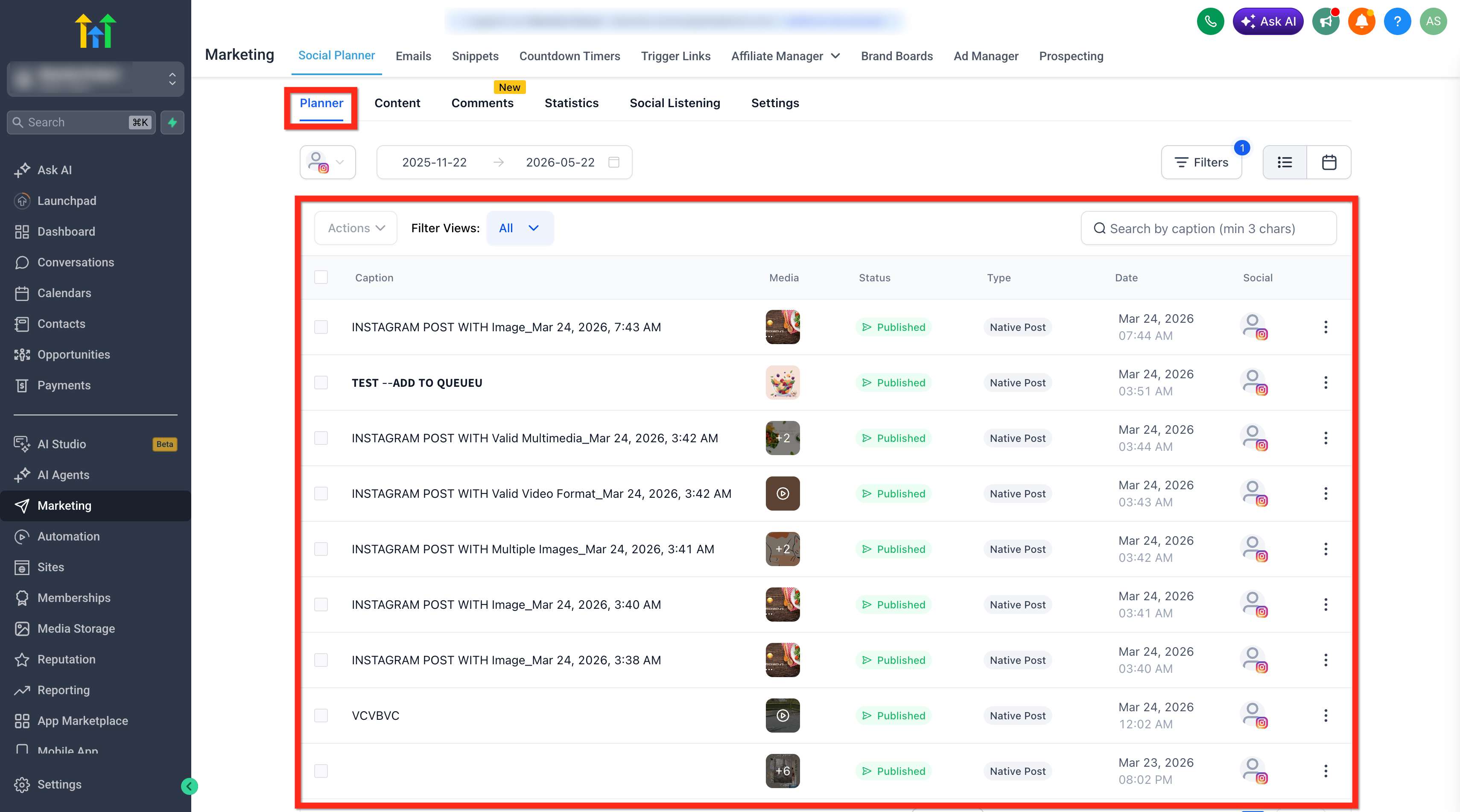
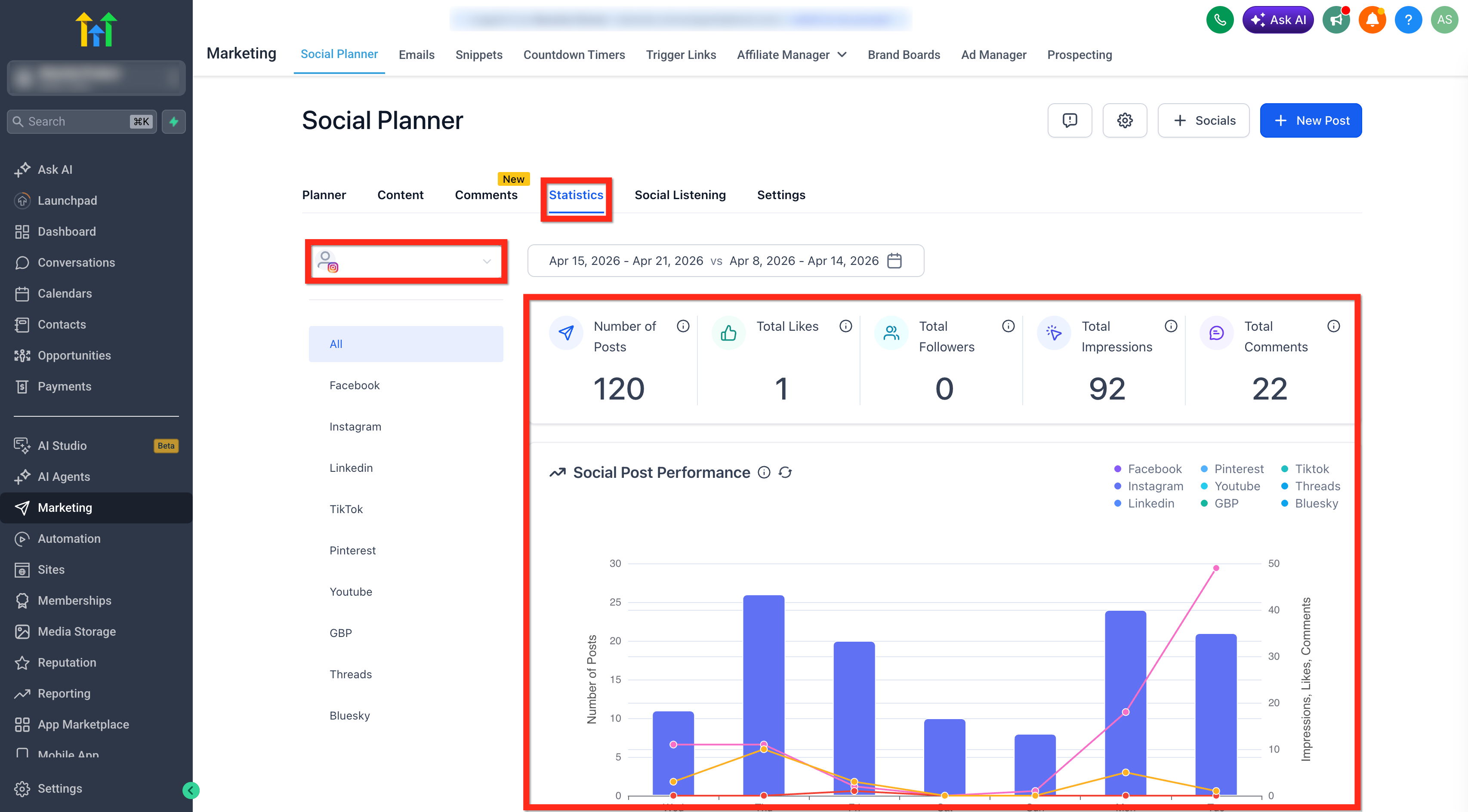
The feature updates engagement metrics roughly every 24 hours. Users can open the Planner to see the imported posts and open Statistics to review the refreshed insights. Deleting a post on the original network does not remove the imported copy.
Settings for Post Sync live in the Social Planner area. New accounts can enable the option while connecting; existing accounts enable it via the Settings tab. Threads and Google Business Profile require the specific Post Sync toggle inside Settings > Labs.
03How businesses use post sync
- Digital marketing agency. The agency connects client Facebook and Instagram accounts, enables Sync Posts Automatically during the connection, and then reviews imported historic ads in the Planner. This gives a complete audit of past performance without manual data entry.
- Restaurant. The restaurant adds its Google Business Profile account, turns on the Post Sync option in Labs, and lets the social calendar show past promotional offers. Staff can compare older offer engagement with upcoming specials directly in Social Planner.
- Real estate brokerage. The brokerage links its LinkedIn Organization Page, enables the Sync Posts toggle in Settings, and accesses previously published market updates and listings. Agents can see past post metrics while planning new property highlights.
04The numbers and rules that matter
- Supported platforms: Facebook, Instagram, LinkedIn, TikTok, Google Business Profile, Threads.
- Supported content: Facebook (text, images, videos); Instagram (images, videos, carousels, reels); LinkedIn (published posts, PDFs, events, polls, articles); TikTok (published videos); Google Business Profile (standard, event, offer, CTA posts); Threads (text, images, videos, carousels, GIFs, polls).
- Available engagement metrics: Facebook post insights; Instagram post insights; LinkedIn reactions, comments, shares; TikTok likes, comments, shares, views; Google Business Profile API metrics; Threads views, likes, replies, reposts, quotes, shares.
- Sync default range: Last 30 days for most platforms; Facebook may pull extra historical posts; Google Business Profile and Threads can extend to 365 days when recent posts are insufficient.
- Engagement metrics refresh approximately every 24 hours.
05Before you start
- A supported social account must be connected (Facebook Page, Instagram Professional, LinkedIn Organization Page, TikTok account, Google Business Profile, or Threads).
- For Threads and Google Business Profile, the respective Post Sync option must be turned on under Settings > Labs in the subaccount.
06How to set up and use post sync in HighLevel
Enable Post Sync while connecting a new social account
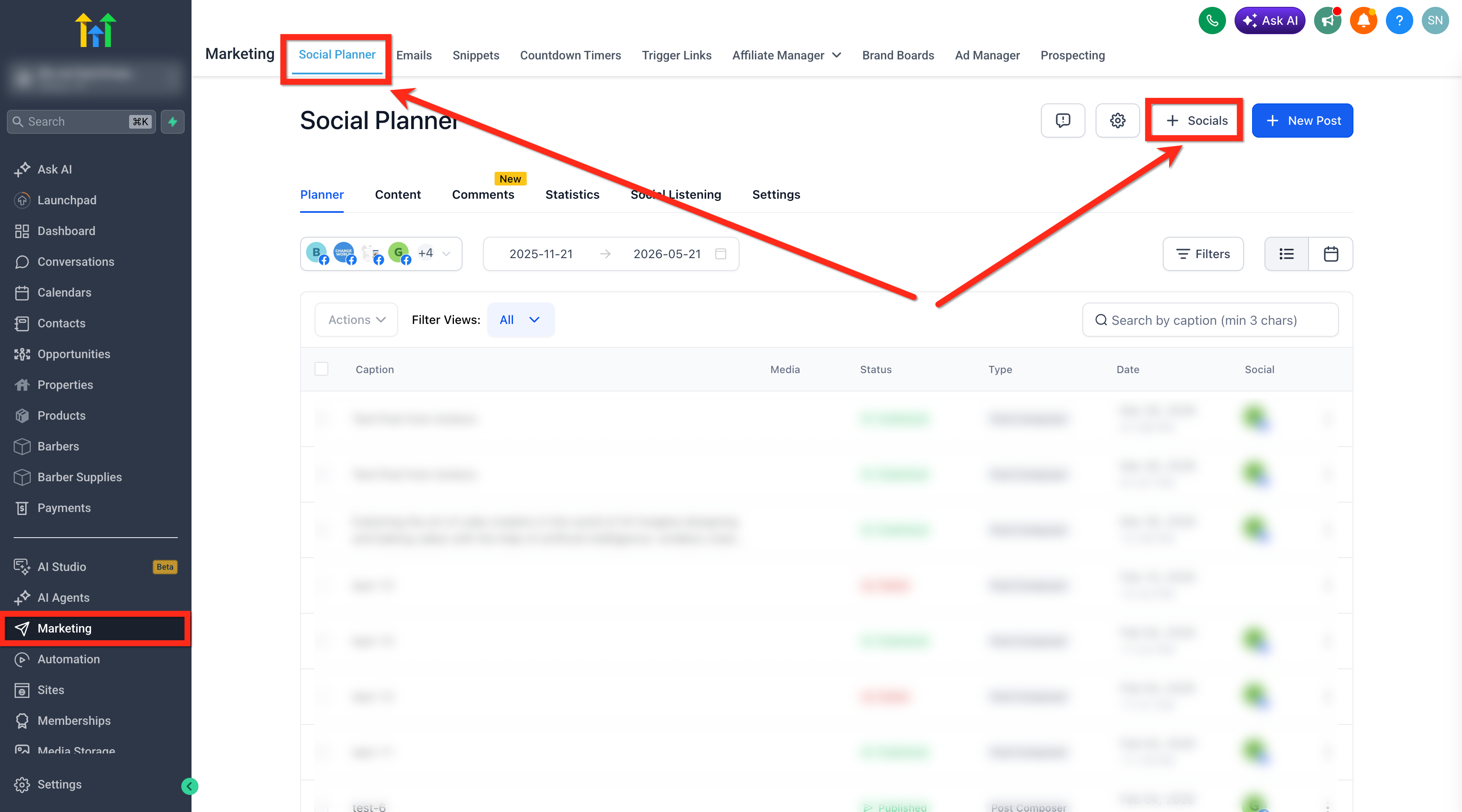
- Open Marketing > Social Planner.
- Click the + Socials button to start a new connection.
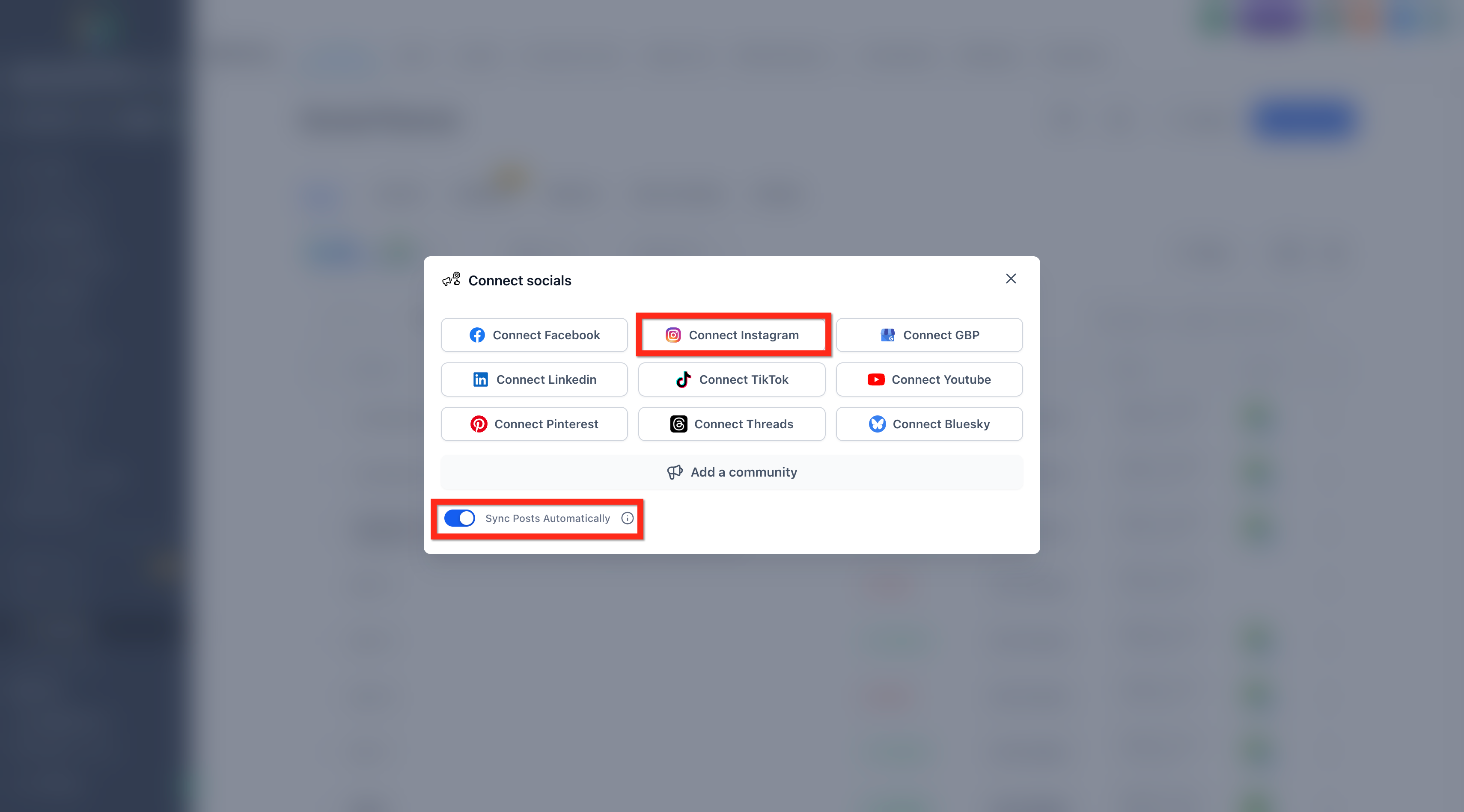
- In the Connect Socials popup, check the Sync Posts Automatically option.
- Choose the desired platform and complete the authorization flow.
- After the account links, the Social Planner begins importing supported posts automatically.
Enable Post Sync for an existing social account
- For Threads, first turn on Threads Post Sync under Settings > Labs in the subaccount.
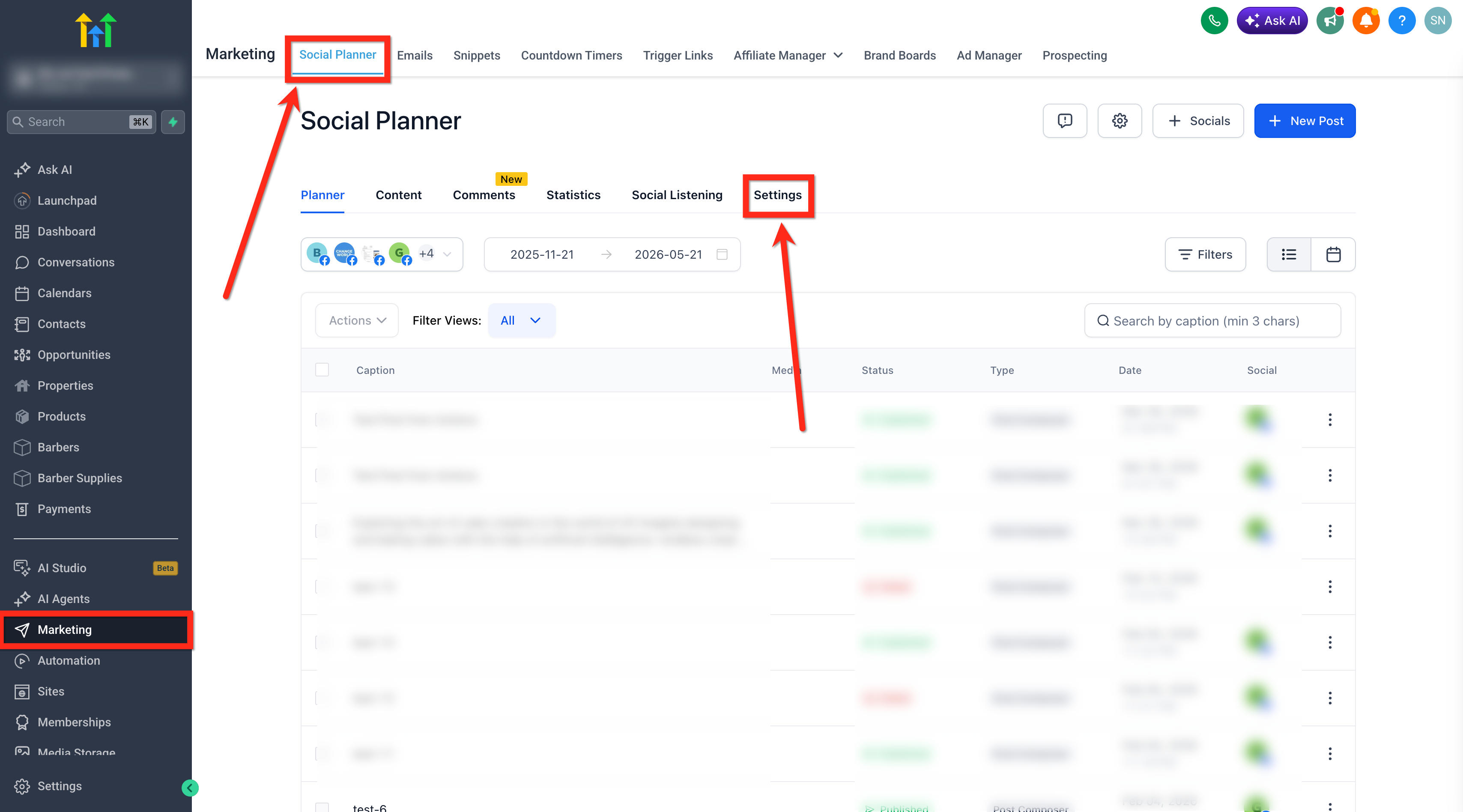
- Navigate to Marketing > Social Planner > Settings.
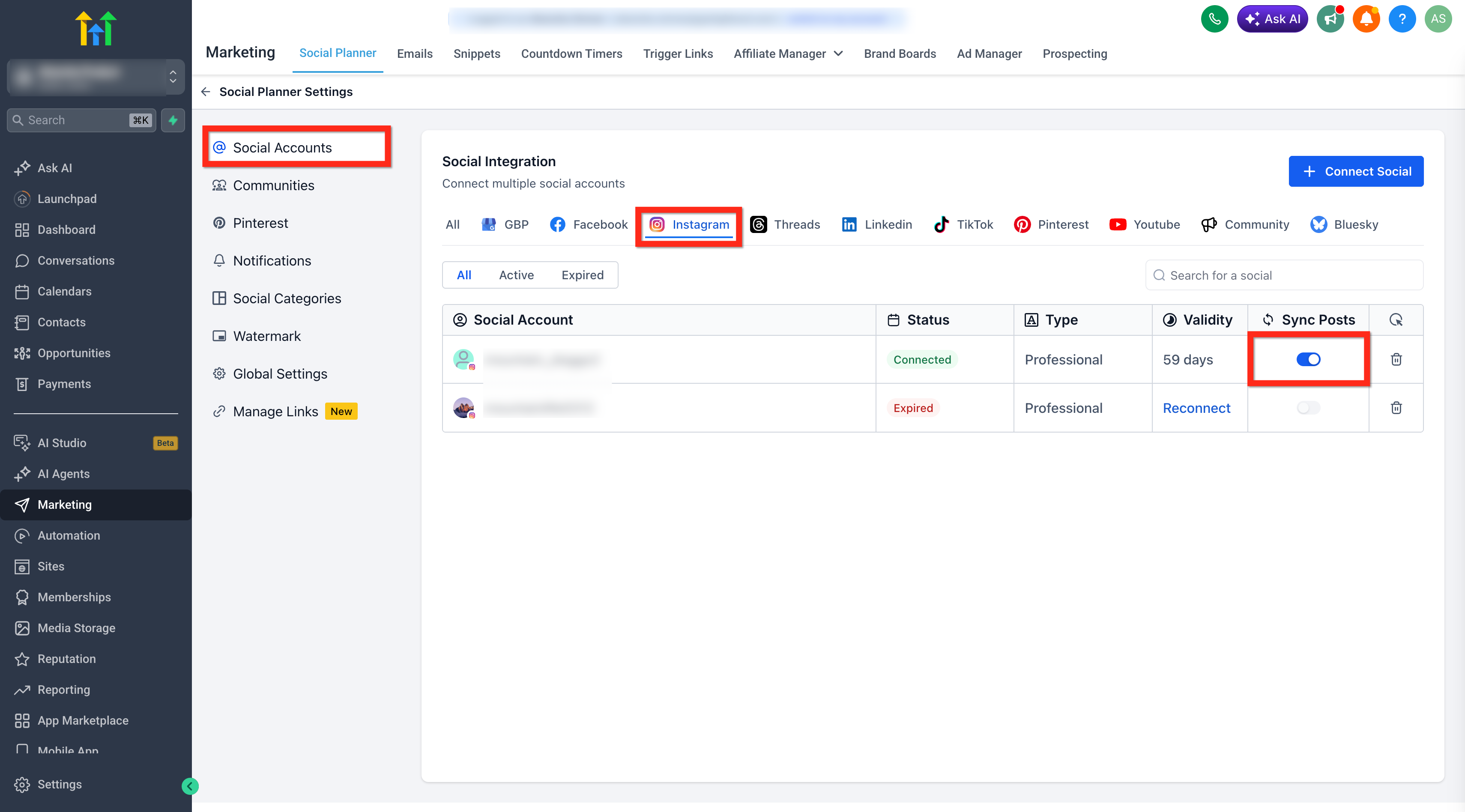
- Under Social Accounts, pick the platform you want to update (Facebook, Instagram, LinkedIn, TikTok or Threads).
- Find the already linked account or Page in the list.
- Toggle the Sync Posts switch for that account.
- Wait for the initial synchronization to finish.
- Open Planner to see the imported posts.
- Open Statistics to review the refreshed engagement data.
07What it looks like in HighLevel
08Settings that matter
- Sync Posts Automatically. Enables automatic import of existing posts when a new social account is connected.
- Sync Posts. Controls whether an already linked account imports its historical content.
- Threads Post Sync. Activates Post Sync for Threads accounts; must be enabled in Settings > Labs.
09Things to know before you rely on it
- Post Sync works one way; changes made in Social Planner do not affect the original social posts.
- Deleted posts on the source platform remain visible in Social Planner.
- Engagement metrics refresh about every 24 hours, not in real time.
- By default, most platforms import the last 30 days of content; Facebook may pull older posts, while Google Business Profile and Threads can extend back up to 365 days when recent posts are scarce.
- Platform specific constraints limit previews, tags, collaborator details, and cloning capabilities as described in the article.
10If something goes wrong
- Posts are not syncing. Verify that Sync Posts is turned on under Marketing > Social Planner > Settings > Social Accounts. If the account shows as disconnected, use the Reconnect prompt. For Google Business Profile and Threads also confirm the Post Sync toggle is enabled in Settings > Labs.
11How it connects to the rest of HighLevel
- How to connect a Facebook page for Social Planner Facebook connection guide
- Instagram connection options: Facebook linked vs direct Instagram connection guide
- HighLevel pricing and plans Pricing page
Michael's take

If critical details are missing, I note them and plan to recreate those posts manually for future reporting.