
01Who this is for
- Social media managers who need a single dashboard for all brand channels, avoiding context switches.
- Small business owners who want to keep their Threads presence active without hiring a dedicated content creator.
- Marketing teams that run bulk uploads and automated posting workflows and require compliance with API limits.
02Threads integration, explained
The integration adds a Threads option inside the Social Planner section of HighLevel. After authentication through Instagram, the profile appears in the All Accounts drop down and can be selected for any post composition or scheduling action. The platform enforces the Threads API limits, 500 characters for text, up to 20 images or a single video of up to five minutes, and file size caps, so posts that exceed those limits are rejected at publish time.
Threads content behaves like other social posts in the calendar. You can attach images, videos, or a mix, assign hashtags, and use the same Review Flow, RSS Auto Posting, and Category Queues that power other channels. Comments on eligible Threads posts are visible in Social Planner, enabling reply and moderation without leaving HighLevel.
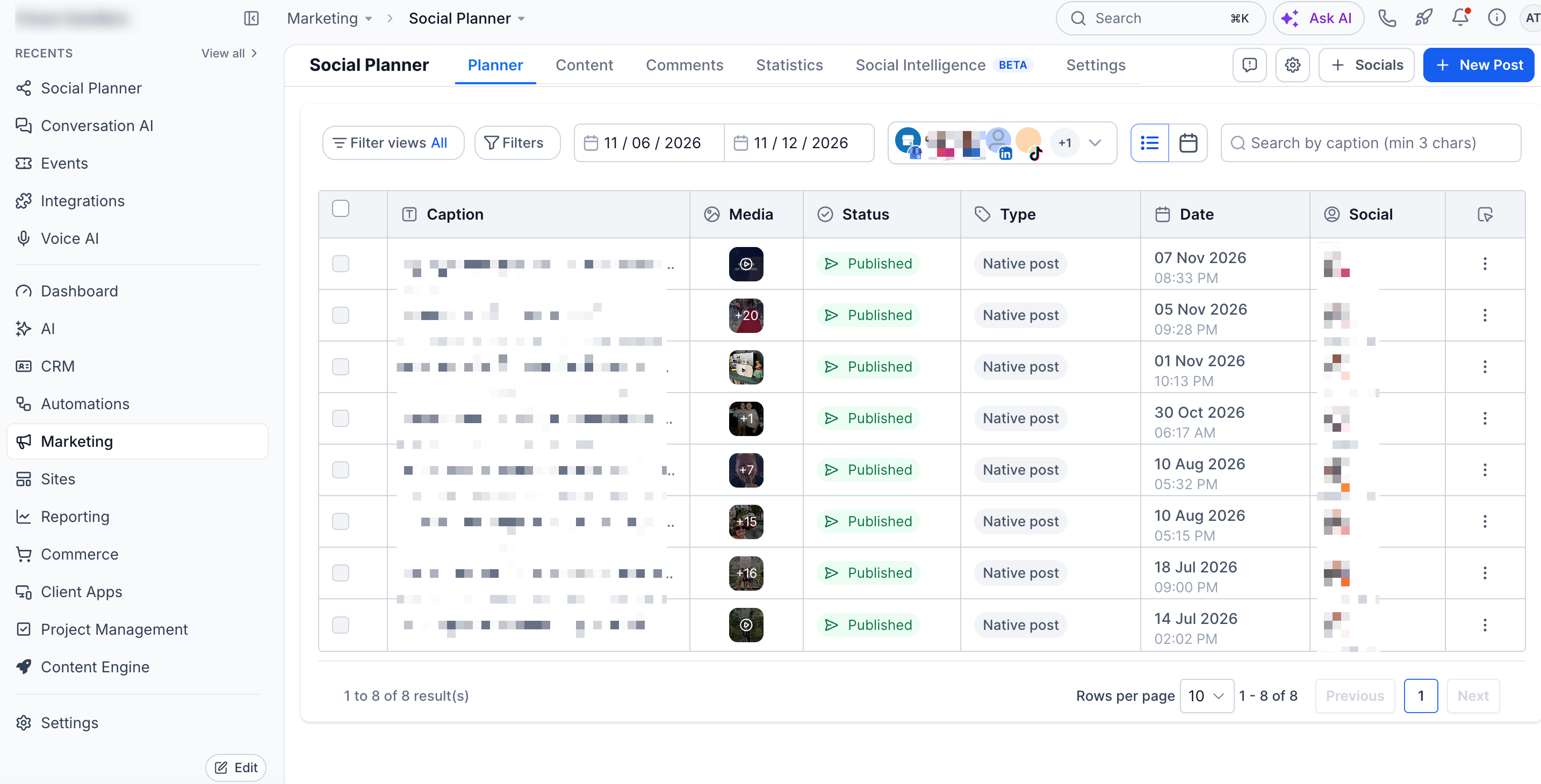
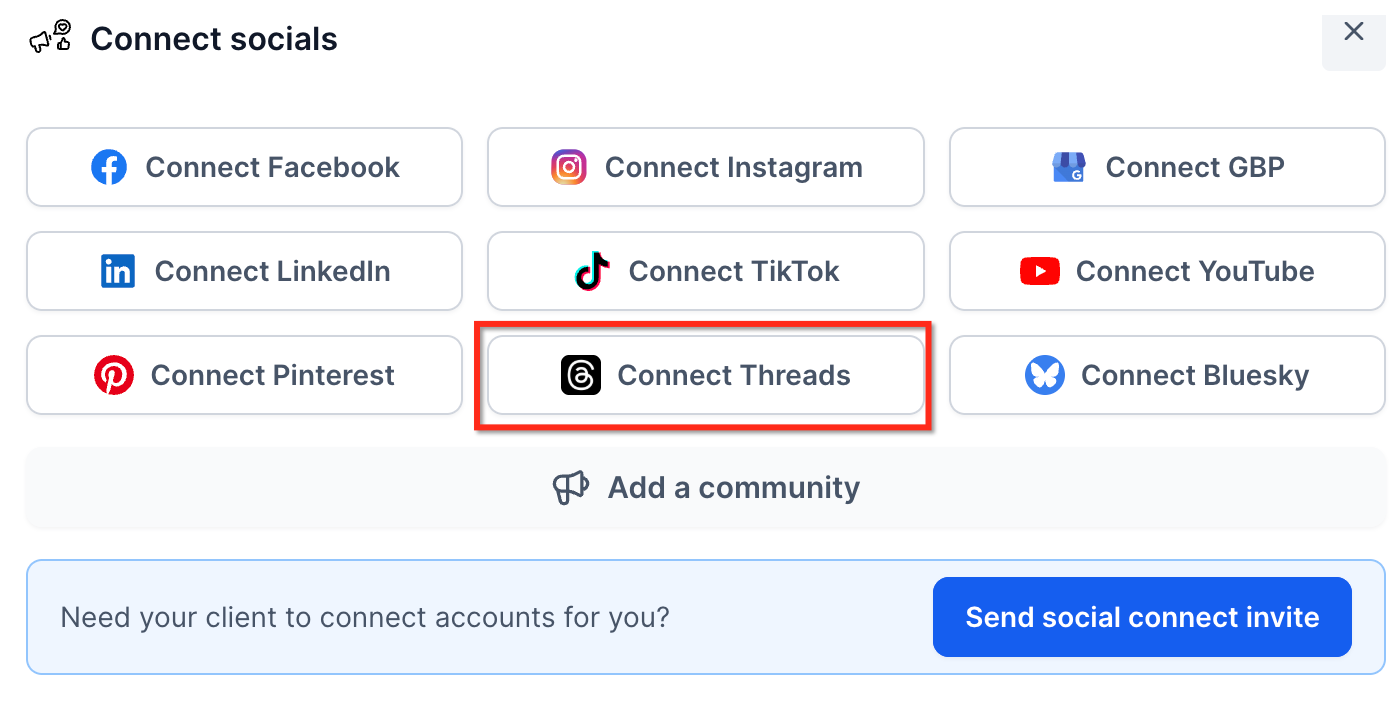
The feature lives under Marketing > Social Planner in each subaccount. The initial connection step uses the + Socials button and the Connect Threads option, after which the profile is managed like any other social account.
03How businesses use threads integration
- Fitness studio. The studio links its public Threads profile through Instagram, then schedules daily workout tips and promotional images directly from Social Planner. The bulk CSV upload feature lets the team preload a month’s worth of posts, keeping the channel active while staff focus on client sessions.
- Real estate agency. Agents connect their Threads accounts, create mixed media posts that combine property photos and short video tours, and schedule them alongside Facebook listings. The platform’s comment review flow lets the agency monitor inquiries from Threads without leaving HighLevel.
- Ecommerce boutique. The boutique attaches its Threads profile, then uses the RSS Auto Posting rule to pull new product releases into the calendar. Images of new items are attached, and the team schedules a series of posts that recycle evergreen sale announcements.
04The numbers and rules that matter
- Up to 500 characters per post.
- Maximum 8 MB per image.
- MP4 and MOV video formats.
- Maximum 1 GB per video.
- Video up to 5 minutes.
- Up to 20 images or videos per post.
- Video width up to 1920 pixels.
05Before you start
- A public Threads profile must already be linked to an Instagram account.
06How to set up and use threads integration in HighLevel
Connect Threads to Social Planner
- Select Marketing from the subaccount navigation.
- Open the Social Planner tab.
- Press the + Socials button and choose the Connect Threads option.
- Sign in with Instagram credentials and grant the requested permissions.
- Click the Add button next to the Threads profile you wish to link.
- Verify that the new Threads account appears in the All Accounts drop down.
07What it looks like in HighLevel
08Settings that matter
- Text. Controls the maximum length of a Threads post to 500 characters.
- Image Formats. Specifies accepted image file types, JPEG and PNG.
- Image File Size. Limits each image attachment to a maximum of 8 MB.
- Video Formats. Accepts MP4 and MOV video files for Threads uploads.
- Video File Size. Restricts the video file to no larger than 1 GB.
- Video Duration. Ensures video clips do not exceed five minutes.
- Media Attachments. Allows up to 20 images or videos combined in a single post.
- Video Resolution. Sets the maximum video width to 1920 pixels.
09Things to know before you rely on it
- Threads posts are limited to 500 characters; excess text is not auto continued.
- A maximum of 20 images or videos can be attached per post.
- Custom video thumbnails are not supported.
- Only public Threads profiles linked to Instagram can be connected.
10How it connects to the rest of HighLevel
- Learn how to add Facebook pages to the same Social Planner calendar. Connect Facebook pages
- Understand the difference between Facebook linked and direct Instagram connections. Instagram connection guide
- Find steps to attach LinkedIn profiles and business pages to Social Planner. Connect LinkedIn
Michael's take

People often try to post long Threads content without checking the 500 character cap, then wonder why their post is cut off. I’d keep the core message under the limit and put any extra details in the follow up comment field.
If I were setting this up, I’d first verify the Threads profile is public and linked to Instagram, then connect it in Social Planner. Once linked, I’d schedule a few evergreen posts to keep the channel active while I experiment with the bulk CSV upload.