
01Who this is for
- Social media managers, get a single place to handle audience interaction across all connected platforms.
- Small business owners, save time by replying to comments without switching between each native network.
- Content teams, keep conversation context with threaded replies and quick emoji or mention inserts.
02Comment management, explained
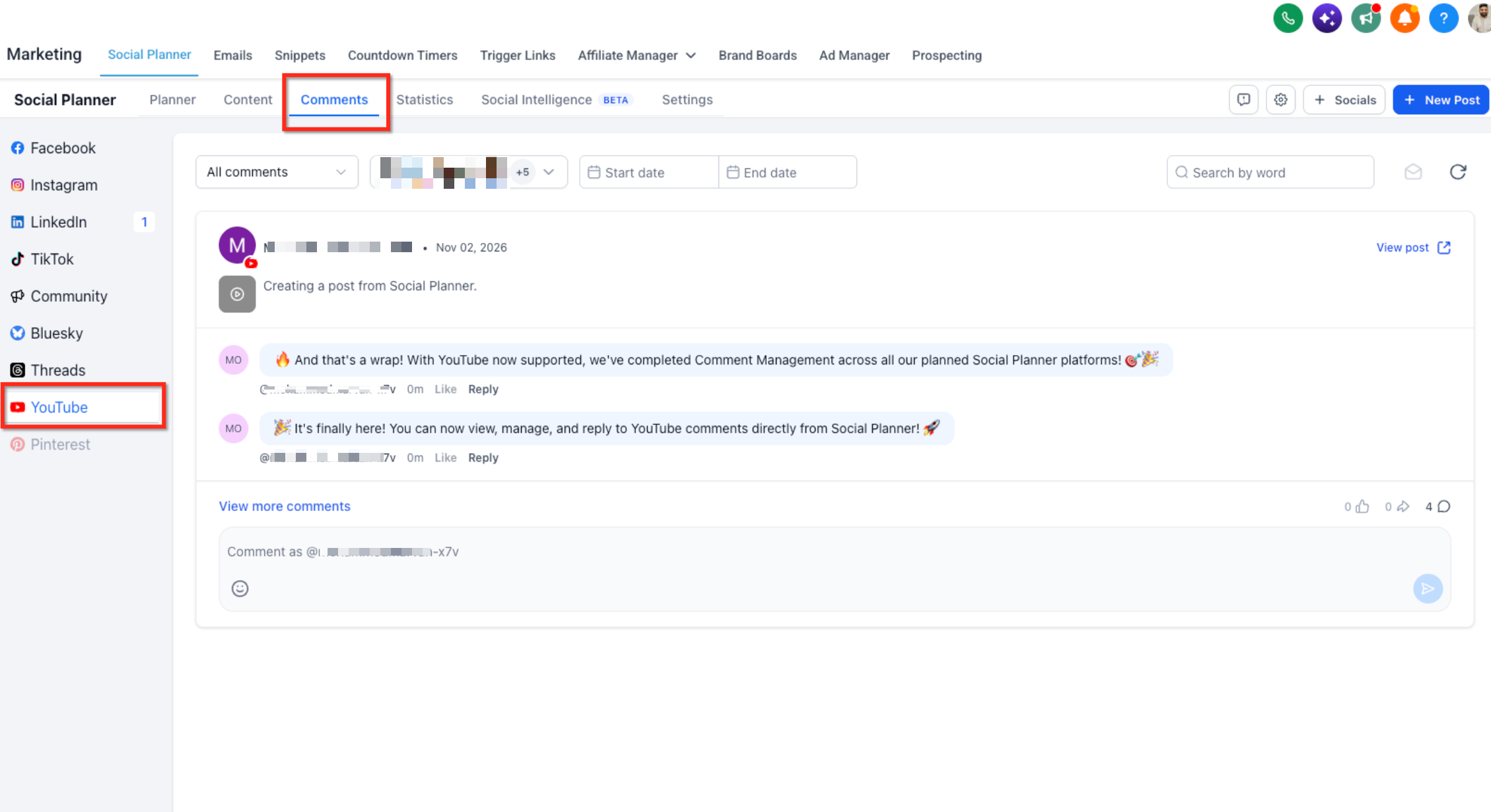
Comment Management aggregates comments from supported networks into the Social Planner dashboard. You open the Comments view, see every comment tied to posts you scheduled in HighLevel, and can reply, like, or mention other pages directly. The feature works only for posts that originated in Social Planner; native posts are ignored.
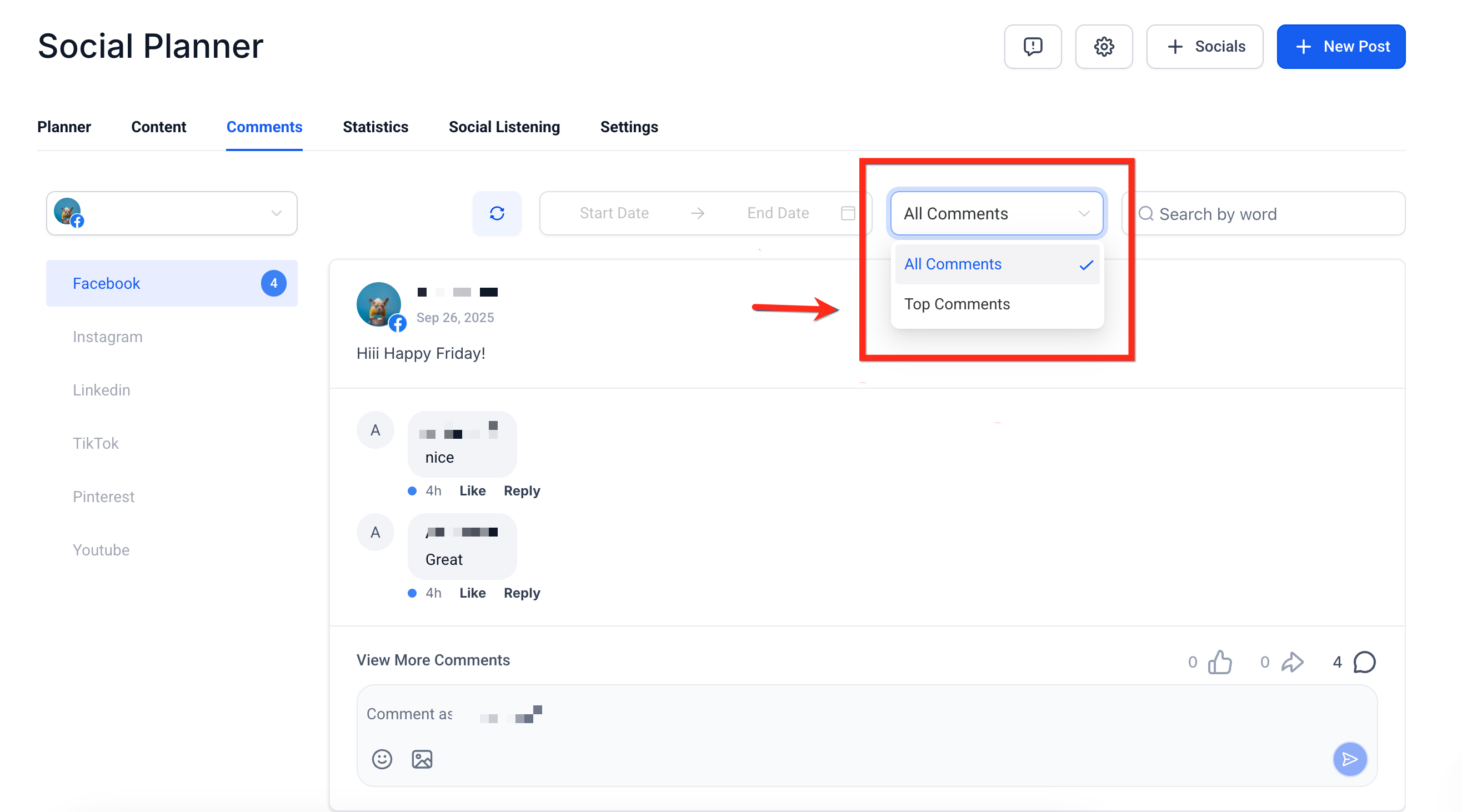
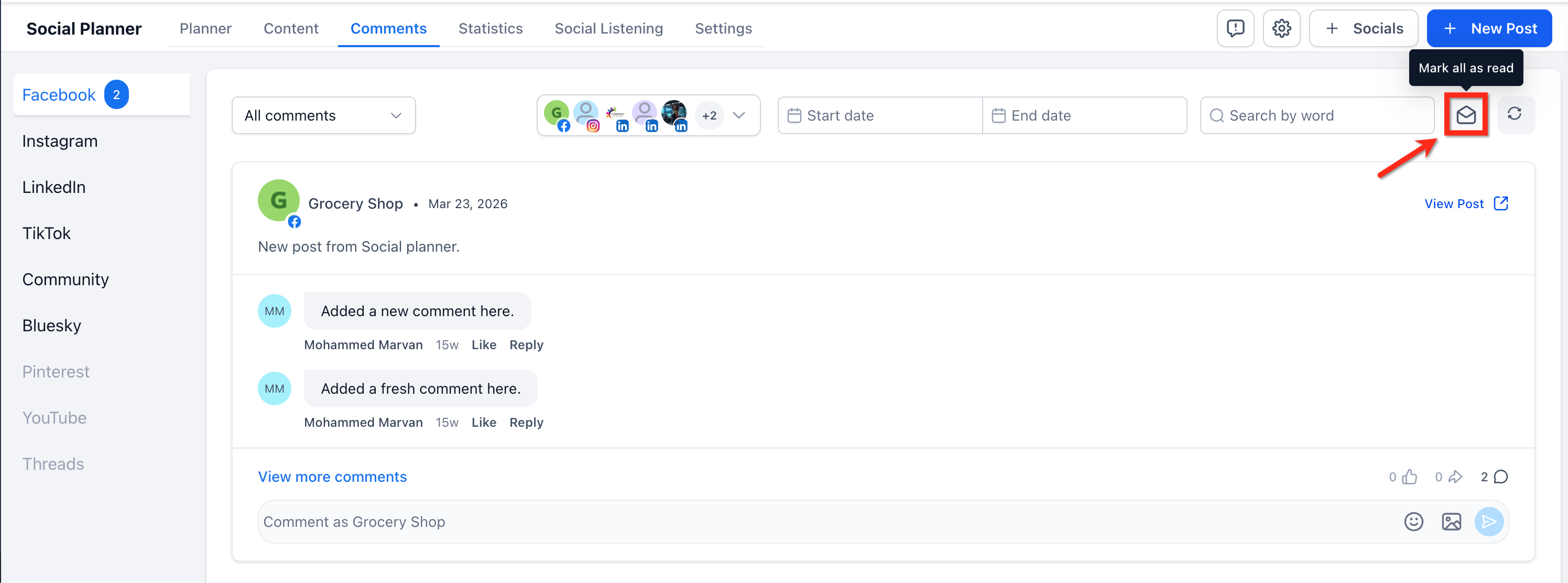
Replies preserve author names, emojis, and platform specific media where allowed. You can sort the inbox by the newest activity (Latest) or by each platform’s relevance algorithm (Top). A Mark All as Read button clears the unread count for the current filter and platform without deleting any comments.
The comment panel lives under Marketing > Social Planner > Comments. Platform capabilities differ: Facebook and Instagram allow image uploads up to 10 MB, LinkedIn supports one level of threading, TikTok limits replies to 150 characters, and YouTube syncs automatically every six hours.
03How businesses use comment management
- Fitness studio. The studio connects its Facebook page to Social Planner, then reviews comments on class announcements. Staff reply with emojis and occasional images, and use the Mark All as Read button each morning to keep the inbox tidy.
- Real estate agency. Agents link their LinkedIn Page, view comments on property posts, and respond using text and emojis. They use the thread arrow to address nested inquiries about listings without leaving HighLevel.
- YouTube content creator. The creator links their YouTube channel, lets Social Planner fetch comments every six hours, and replies with text and emojis from the Comments page, keeping audience interaction centralized.
04The numbers and rules that matter
- Supported platforms: Facebook, Instagram, LinkedIn, TikTok, Communities, Bluesky, Threads, YouTube.
- YouTube syncs automatically every 6 hours.
- Image uploads up to 10 MB on Facebook and Instagram.
- Threaded replies: Multiple levels on Facebook; one level on Instagram, LinkedIn, TikTok, Communities, Threads, and YouTube; up to 3 levels visible on Bluesky.
- YouTube initial sync fetches 100 comments per page, no limit on pages, for the 15 most recent videos.
05Before you start
- Connect the social platform account to Social Planner.
- Publish the post using Social Planner; only those comments will appear.
- For Threads accounts, reconnect once to grant comment management permissions.
06How to set up and use comment management in HighLevel
Manage comments using Social Planner
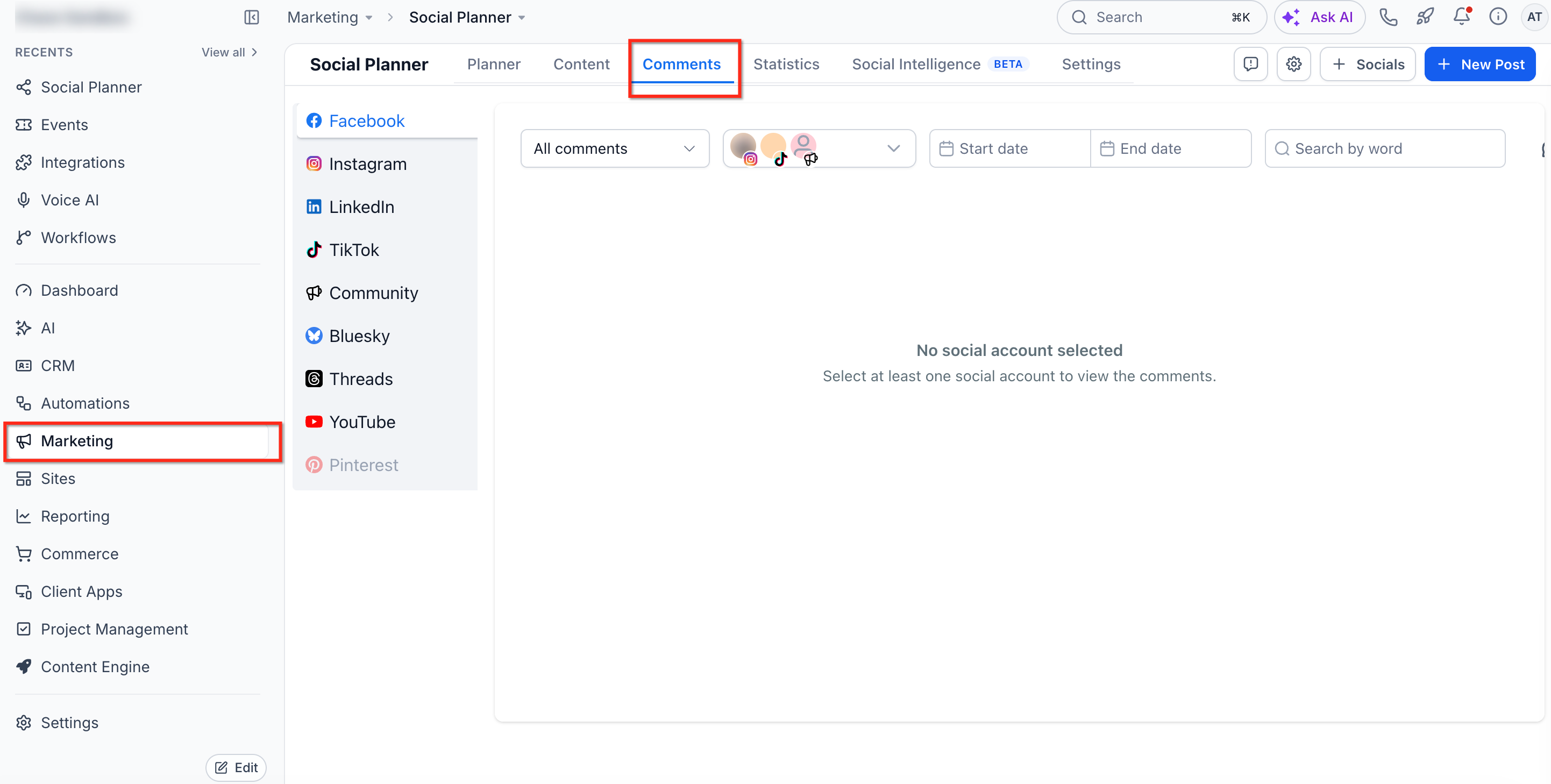
- Open Marketing > Social Planner > Comments.
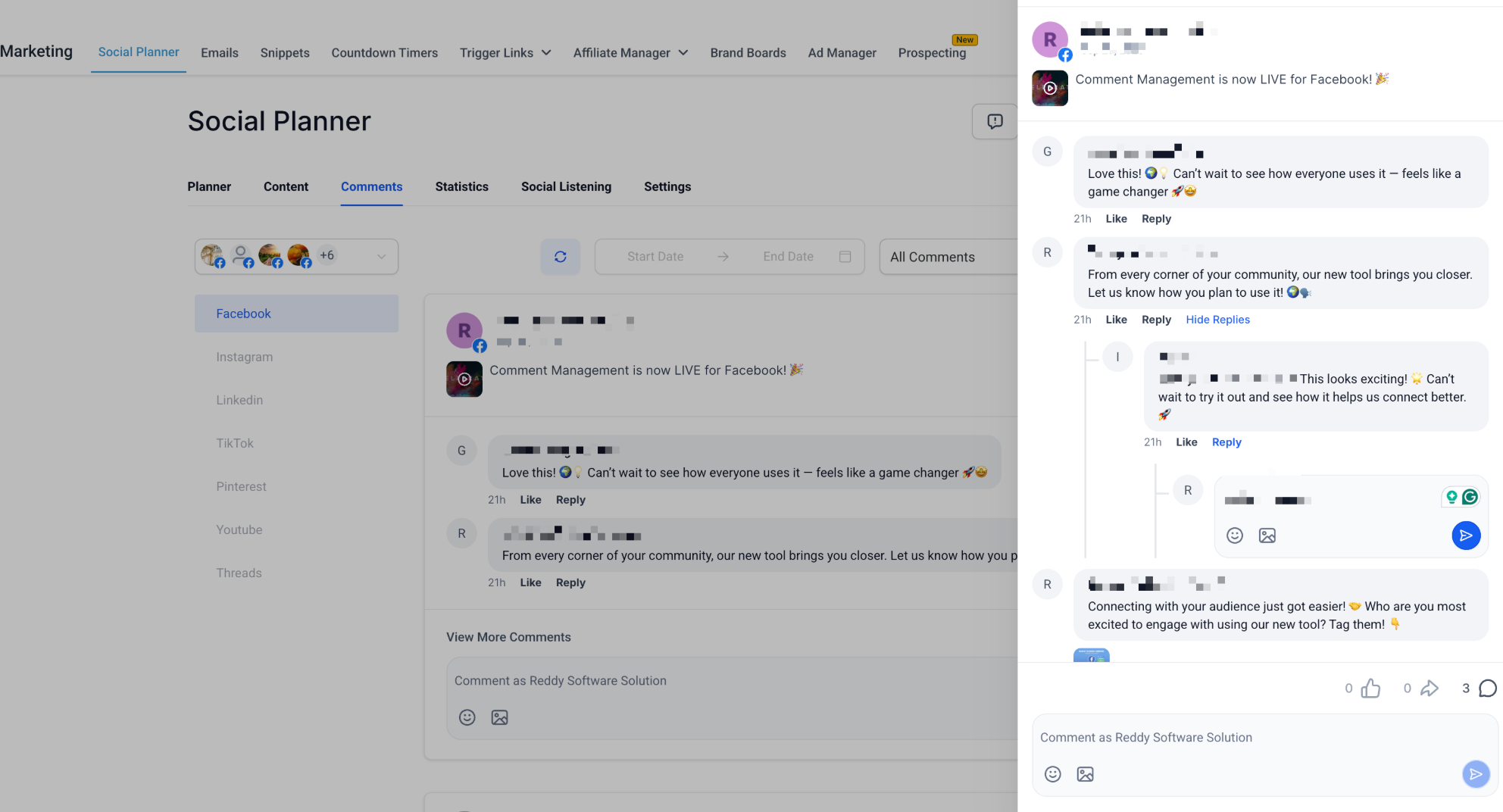
- Read each comment and reply, like, or add emojis; attach images where the platform supports them.
- Select the dropdown above the inbox and choose Latest or Top to change the sorting order.
- Pick the platform, apply any active filters, and click Mark All as Read to clear unread counts.
- Click the arrow next to a parent comment to open and answer threaded (nested) replies.
- Type @ followed by at least three characters to mention a Facebook Page or public profile in a reply.
07What it looks like in HighLevel
08Settings that matter
- Smart Filters (Latest vs Top). Controls whether comments are shown by most recent activity (Latest) or by the platform’s relevance ranking (Top).
- Mark All as Read. Marks every unread comment in the selected platform and filter view as read, clearing the unread count.
09Things to know before you rely on it
- Only comments from posts published via Social Planner are available; native posts are excluded.
- Facebook and Instagram image uploads are limited to 10 MB per comment.
- LinkedIn replies cannot exceed 3 000 characters and support only one level of threading.
- TikTok Business Profiles limit comment length to 150 characters and allow only one level of threaded replies.
- Bluesky sync includes only the last 15 posts and runs every six hours; replies are limited to 300 characters.
- Threads supports one level of threaded replies and requires a Business/Professional account.
- YouTube sync runs automatically every six hours and covers only the 15 most recent videos; only text and emojis are allowed.
10How it connects to the rest of HighLevel
- Connect a Facebook page to bring its comments into Social Planner. Connect Facebook
- Link an Instagram account so you can manage its post comments. Connect Instagram
- Add a YouTube channel to see video comments alongside other platforms. Connect YouTube
- Review image and video specifications for supported platforms. Content guidelines
- Start a free 30 day trial to explore Social Planner comment management. Start trial
Michael's take

Most people assume they can control every comment on their page, but Comment Management only works for posts that originated in Social Planner. Trying to handle native posts here will just leave you empty handed. Instead, keep your high impact posts scheduled through Social Planner so the comments flow into the unified inbox.
If I were setting up a new campaign, I’d connect the accounts, publish the first batch of posts through Social Planner, and then use the Mark All as Read feature each morning. That way the team starts the day with a clean slate while still being able to dip back into any conversation at any time.