
01Who this is for
- Marketing managers who oversee multiple brand pages can see disconnections immediately and act before scheduled posts fail.
- Agency owners handling client social accounts can keep all client calendars running by monitoring shared banners.
02In app notification banners for disconnected accounts, explained
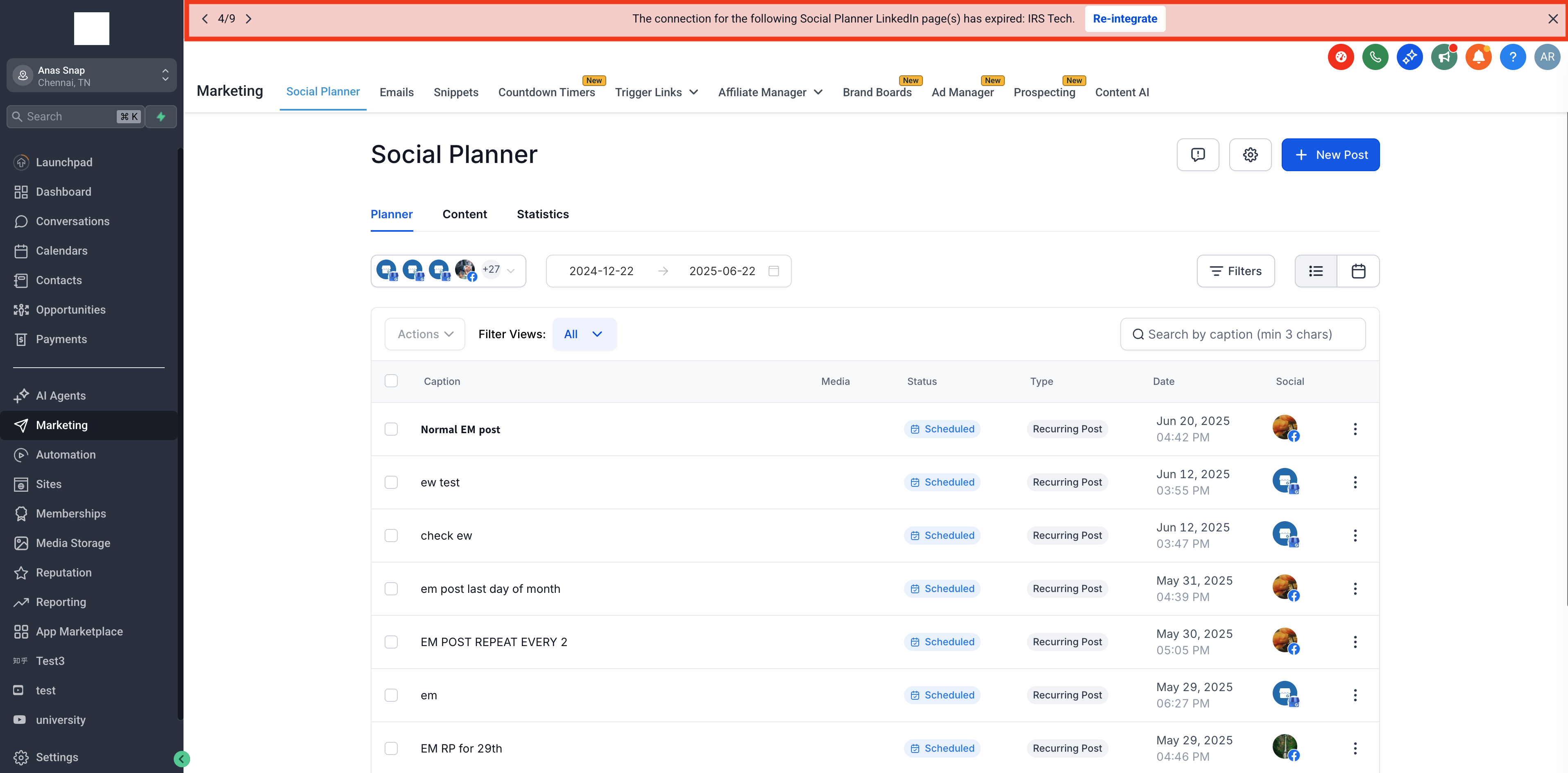
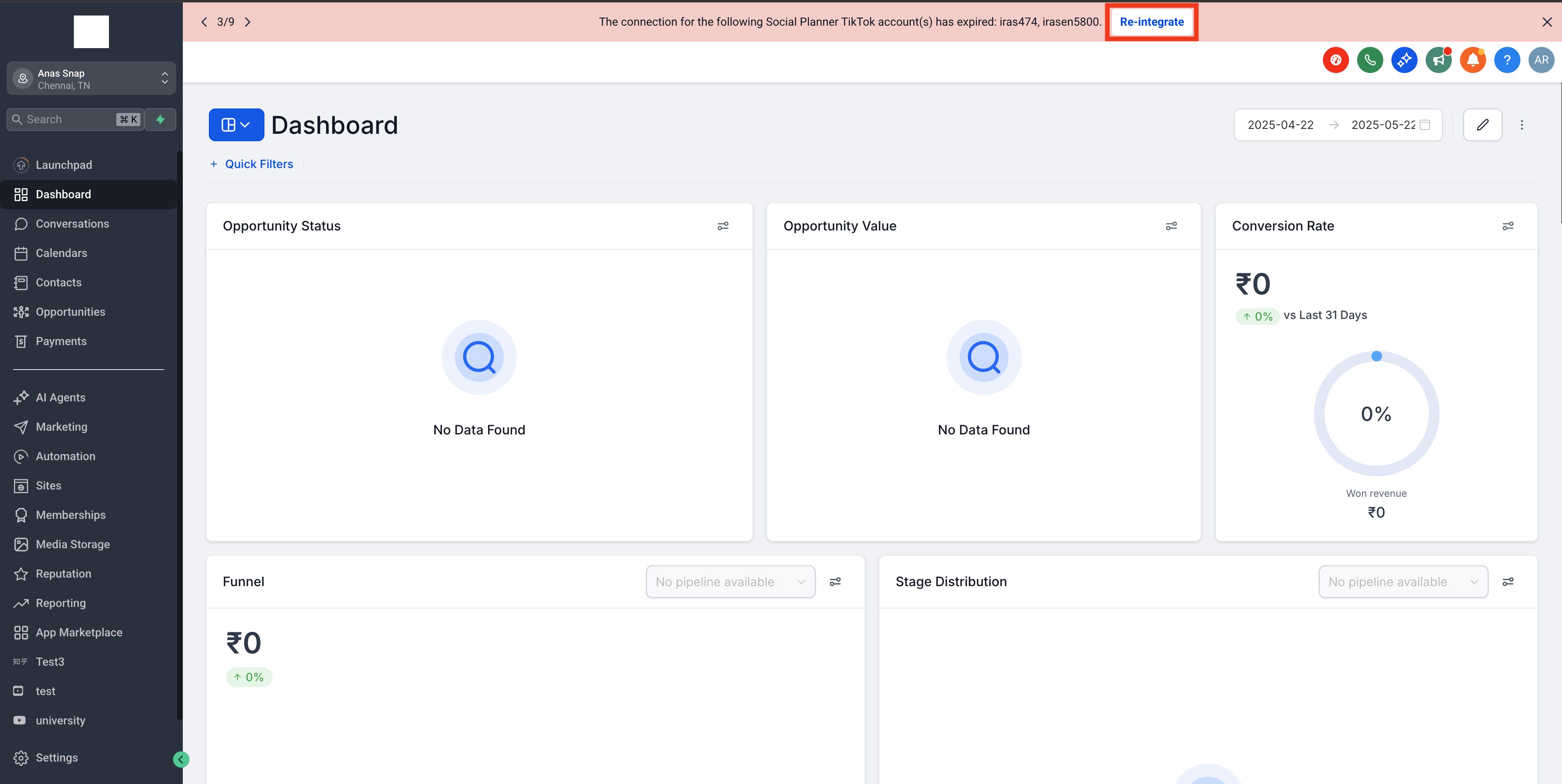
The feature adds a real time alert banner inside the Social Planner, Launchpad and Dashboard. When a connected account’s token expires or permission is revoked, the banner appears at the top of the screen. The message identifies the platform and the specific account that needs attention.
The alert is also sent by email, so users are notified even when they are not logged into HighLevel. All team members who have access to Social Planner can view the banner, making collaboration straightforward.
To restore connectivity, users click a Reintegrate button on the banner and complete the platform’s authentication flow. Once reconnected, the calendar resumes publishing as scheduled.
03How businesses use in app notification banners for disconnected accounts
- Digital marketing agency. The agency watches for banners in each client’s Social Planner workspace. When a banner appears, the social media specialist clicks the Reintegrate button and follows the authentication steps, preventing missed client posts.
- Local restaurant. The restaurant owner checks the Dashboard daily for any banner indicating a disconnected Facebook or Instagram page. Using the banner’s button, they quickly sign back into the platform, keeping daily specials visible online.
- Real estate brokerage. Agents monitor the Launchpad for alerts about their LinkedIn or YouTube accounts. Upon seeing a banner, they reconnect the account directly, ensuring new property videos continue to publish on schedule.
04The numbers and rules that matter
- Supported platforms: Facebook, Instagram, Google Business Profile, LinkedIn, TikTok, Pinterest, YouTube.
05Before you start
- Social accounts must be linked through the Social Planner before the banner system can monitor them.
06How to set up and use in app notification banners for disconnected accounts in HighLevel
Connect your social accounts
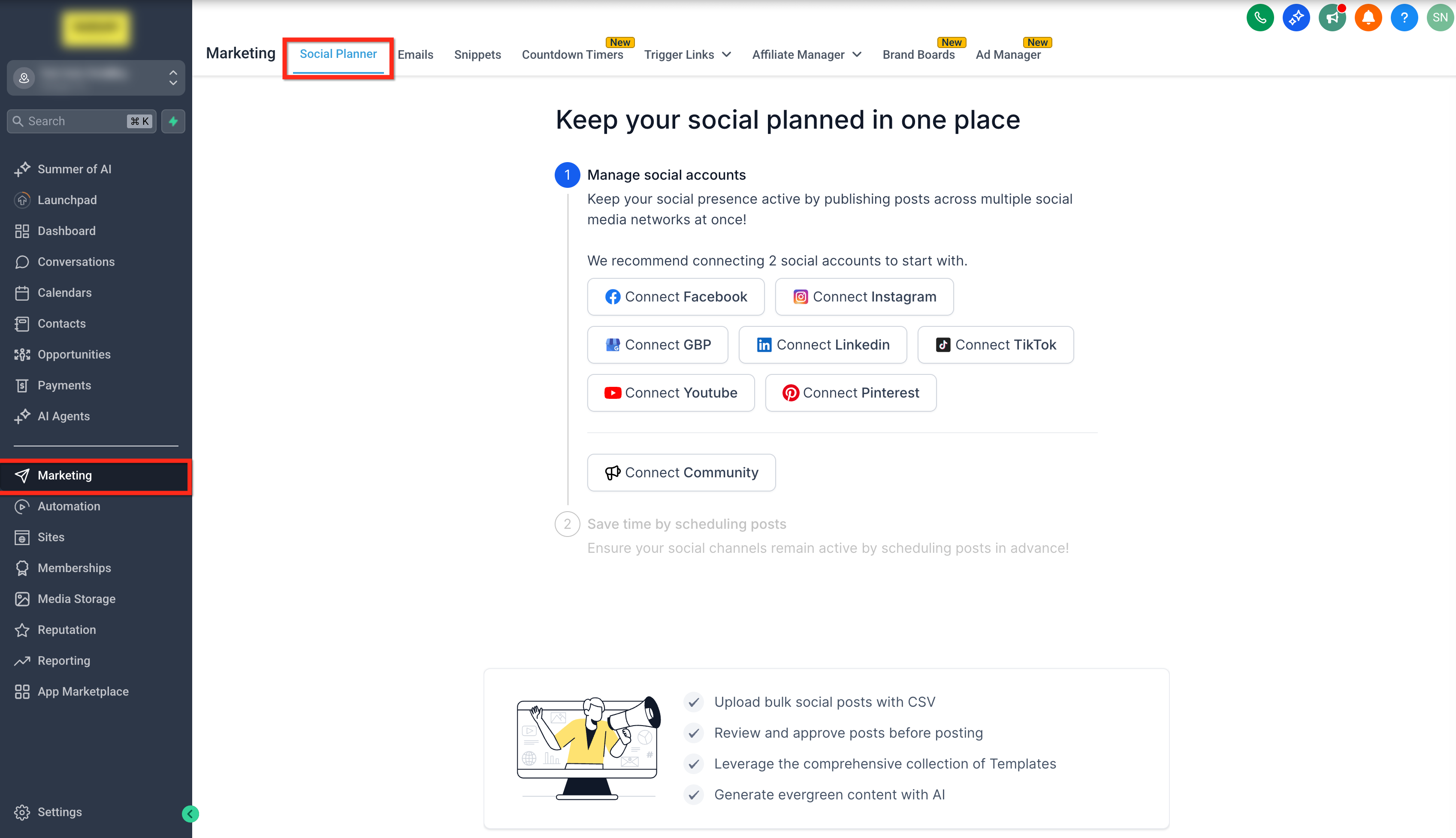
- Select Marketing from the main navigation.
- Open the Social Planner tab.
- Add each desired platform such as Facebook, Instagram, Google Business Profile, LinkedIn, TikTok, Pinterest or YouTube.
Monitor for disconnected account banners
- Watch the top of Social Planner, Launchpad, or Dashboard for a banner that appears when an account disconnects.
- Check your email for a corresponding notification if you are not logged into HighLevel.
Take action to reconnect a disconnected account
- Press the Reintegrate button shown on the banner.
- Complete the authentication flow for the indicated social platform.
- Confirm the reconnection by observing the banner disappear and by noting the email confirmation.
07What it looks like in HighLevel
08Things to know before you rely on it
- The banner system works for Facebook, Instagram, Google Business Profile, LinkedIn, TikTok, Pinterest and YouTube accounts.
- All users who can access Social Planner will see the same banner.
- Email alerts act as a backup to the in app banners.
09How it connects to the rest of HighLevel
- Connect a Facebook page in Social Planner Facebook connection guide
- Connect a Google Business Profile Google Business profile guide
- Connect a LinkedIn profile or page LinkedIn connection guide
Michael's take

Missing a social connection can stall your entire publishing schedule, and that can slip by unnoticed if you’re juggling multiple accounts. The in app banner keeps the problem front and center, and the email backup makes sure you get the alert even when you’re out of the dashboard.
When you see the banner, the Reintegrate button drops you right back into the platform’s auth flow, so you can get back to posting with minimal downtime. It’s a straightforward safeguard that lets you focus on content instead of hunting down broken links.