
01Who this is for
- Marketing managers who need to keep a steady flow of evergreen posts without daily manual effort.
- Social media coordinators looking to prioritize fresh content while still recycling older posts.
- Small business owners who want to automate posting across multiple connected accounts on a set schedule.
02Category queues, explained
Category Queues are an automation feature inside the Social Planner. You pick a content category, define which days and time slots the queue should use, and the platform schedules each post in order. When the queue reaches the final post, it restarts at the first item, allowing perpetual publishing of evergreen material.
The queue respects two optional preferences: automatically adding future posts that are assigned to the same category, and placing newly added content at the front of the queue. You can edit post details, reorder items by dragging, add multiple content variations, and pause or resume the queue from the Content tab.
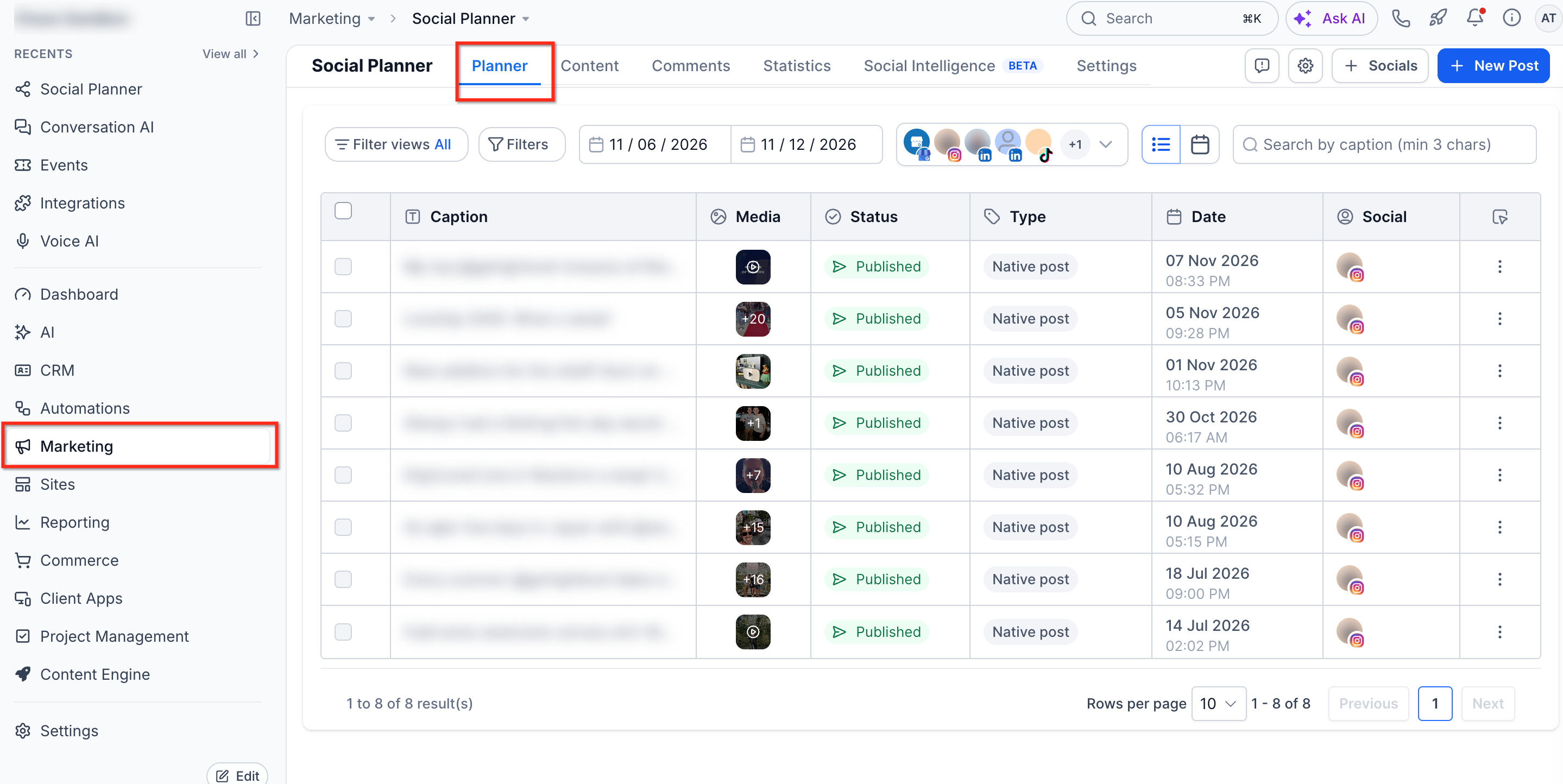
All queue settings and status are managed under Marketing > Social Planner. The queue appears in the Content > Category Queue list, where you can access edit, preferences, calendar view, rescheduling, and deletion options.
03How businesses use category queues
- Local coffee shop. The shop creates a "Daily Specials" category and builds a queue with posts for each drink. By setting the queue to run Monday through Friday at 9 am, the shop automatically shares the day's special without updating the schedule each day.
- Real estate agency. Agents assign new property listings to a "Featured Listings" category. Enabling "Prioritize new content" places the freshest listings at the top of the queue, ensuring the most recent homes appear first in the automated posting cycle.
- Online education platform. The platform adds a "Study Tip" category and includes several tip variations. With multiple content variations enabled, the queue rotates different tips each time it loops, keeping the social feed fresh while using the same set of posts.
04Before you start
- Connect the social accounts you plan to publish from within Social Planner.
- Assign existing posts to a category or create new posts that you will include in the queue.
- Select an existing category or create a new one for the queue.
- Determine the days and time slots you want the queue to publish on.
05How to set up and use category queues in HighLevel
Create a Category Queue
- Log in to your subaccount.
- Navigate to Marketing > Social Planner.
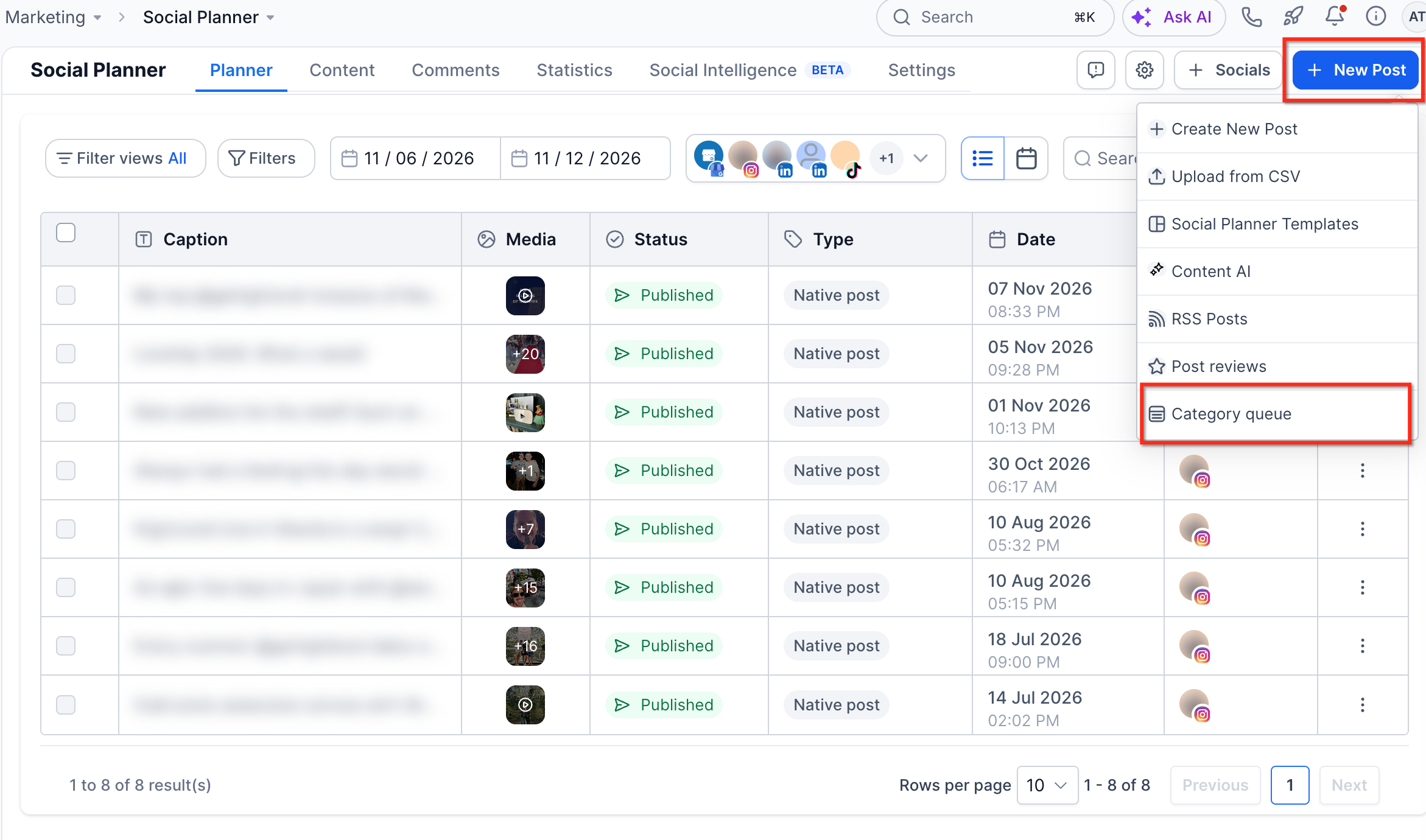
- Click the + New Post button and choose Category Queue.
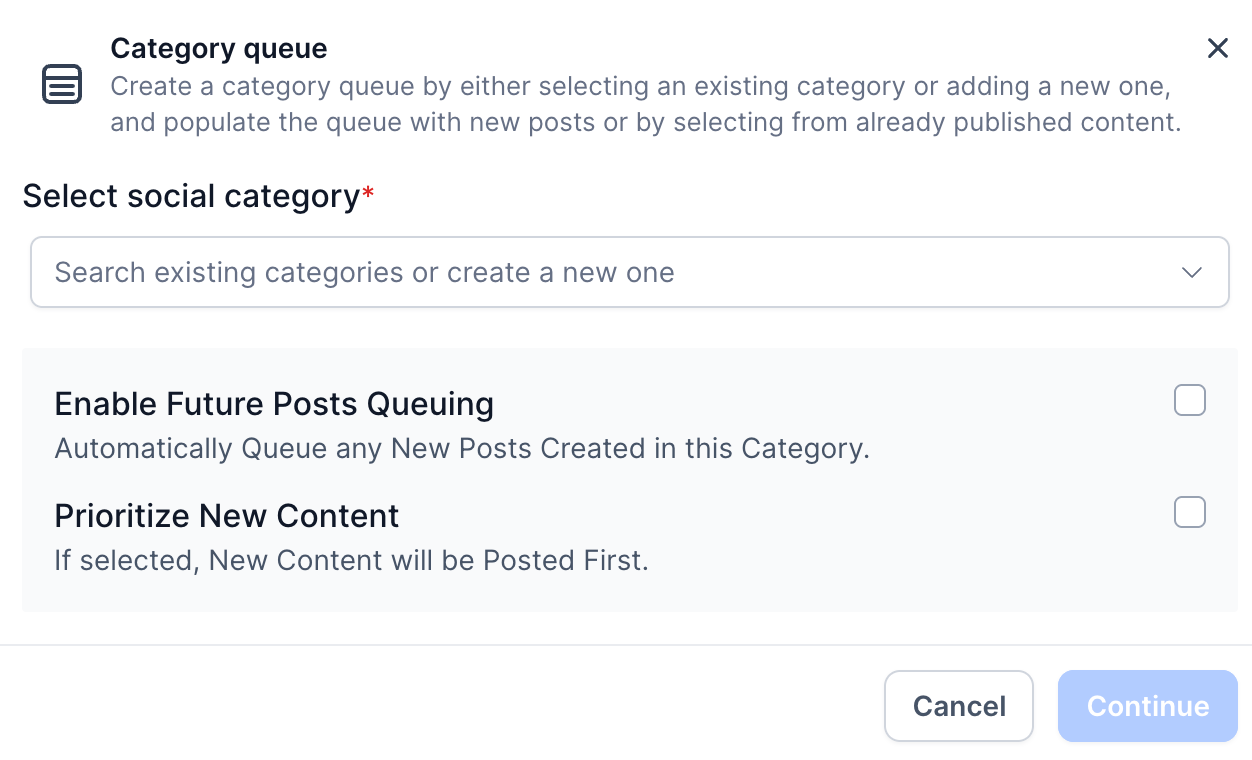
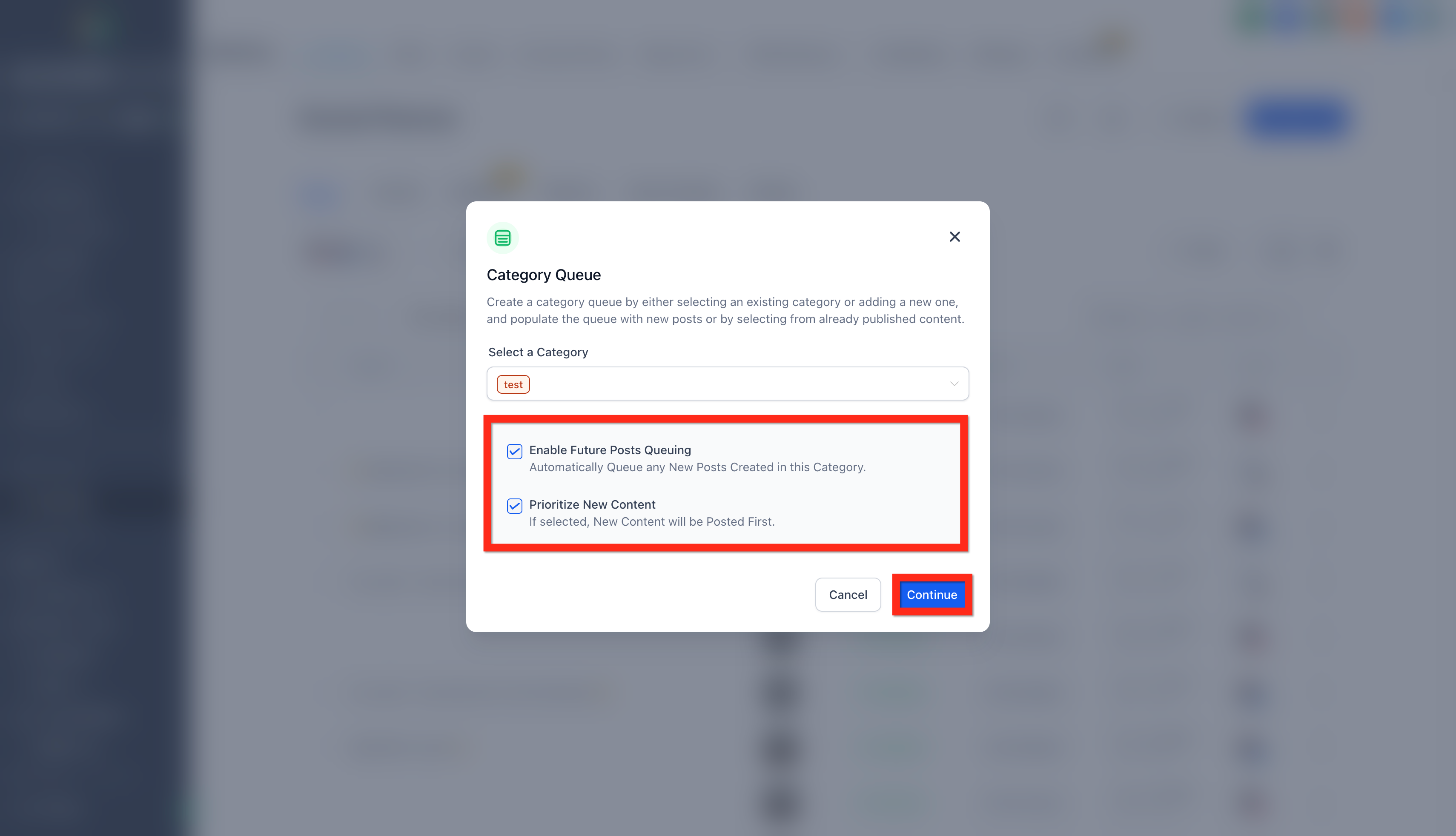
- Select the category you want the queue to use.
- If needed, type a new category name and add it.
- Turn on Enable future posts queuing to pull in future posts automatically.
- Turn on Prioritize new content if you want new items to appear first in the queue.
- Click Continue.
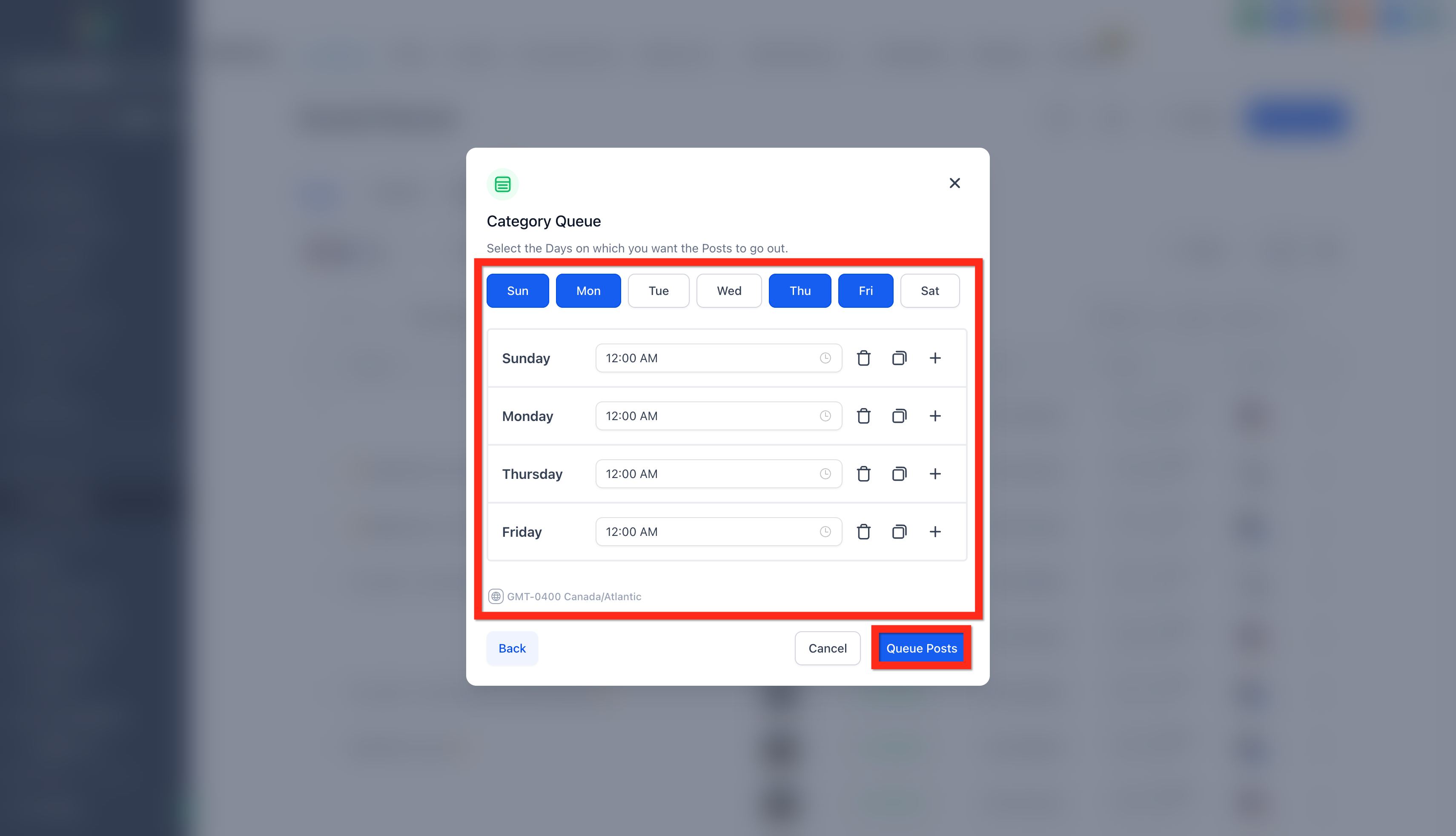
- Choose the publishing days and time slots for the queue.
- Click Queue Posts to apply the schedule and open the queue editor.
- Review the queued posts and edit any captions, media, or variations as required.
- Add multiple content variations when you want the queue to rotate different versions of a post.
- Review all caution, warning, and error messages, and resolve any identified issues.
- When no blocking errors remain, click Queue Posts again to activate the queue.
- Before activating the queue, you may select Save as Draft, Delete, or Reset, as needed.
Manage a Category Queue
- Open Marketing > Social Planner > Content > Category Queue.
- Find the queue you want to work with in the list.
- Click the More options icon next to that queue.
- Select Edit queue to change post details, schedule, or order.
- Choose Queue preferences to adjust future posts queuing and content priority.
- Pick View queue calendar to see the queue laid out by week or month.
- Select Reschedule queue to move the entire queue to a new start date.
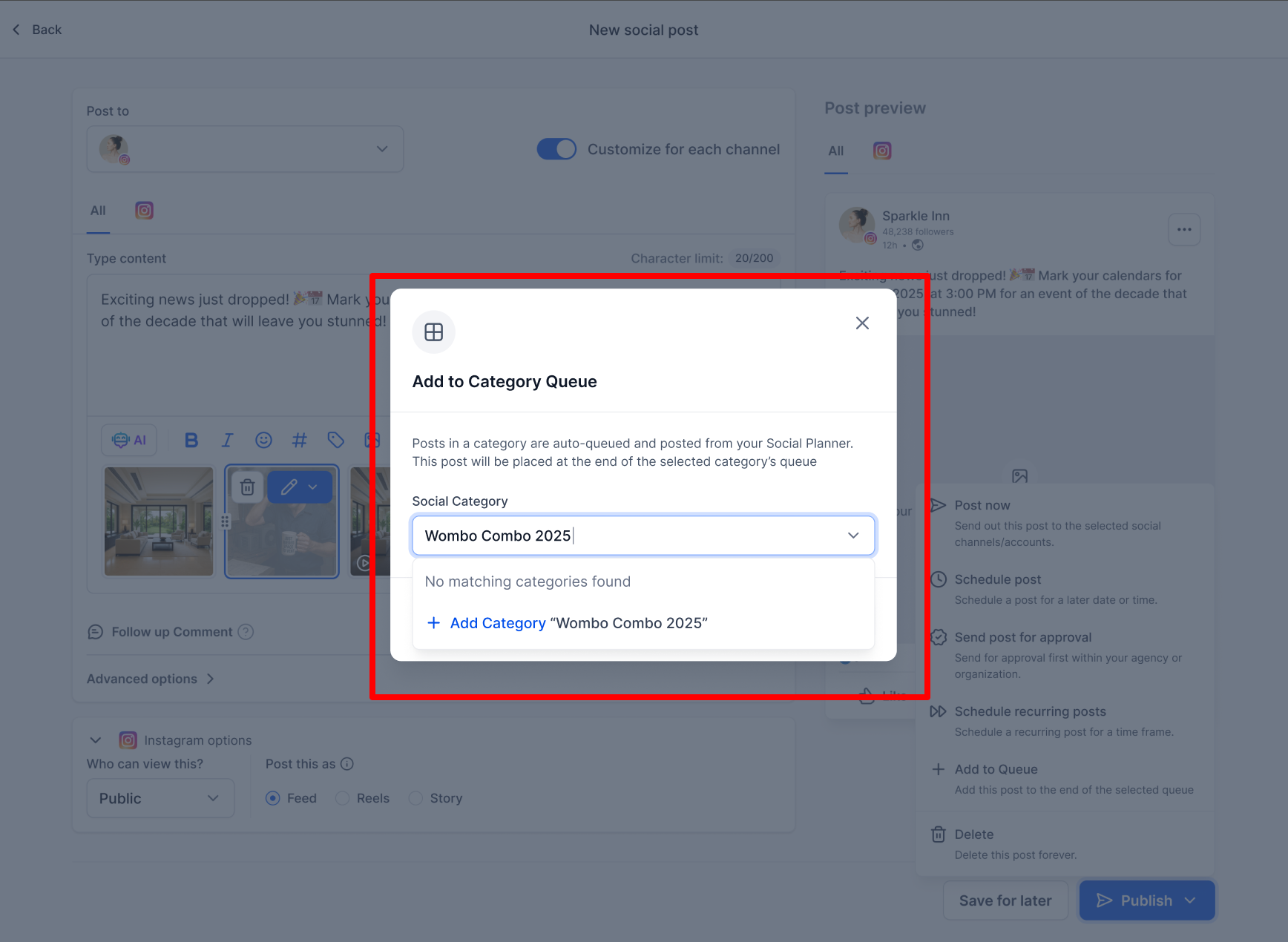
- Add new posts by selecting Add to Queue from the post composer and picking the category.
- Use the status toggle on the Content tab to pause or resume publishing.
- Choose Delete from the More options menu to remove the queue when it is no longer needed.
06What it looks like in HighLevel
07Settings that matter
- Enable future posts queuing. When turned on, any new post assigned to the queue’s category is automatically added to the queue.
- Prioritize new content. When enabled, newly added posts are placed at the beginning of the queue so they publish before existing items.
08Things to know before you rely on it
- Category Queues can include both previously published posts and newly created posts.
- Individual posts inside a queue cannot be rescheduled on their own.
- Posts cannot be rearranged directly from the queue calendar view.
- Changes made in Queue preferences start applying from the next queue cycle.
- The queue status (active, paused, draft) is shown in Marketing > Social Planner > Settings > Categories.
09How it connects to the rest of HighLevel
- How to connect Facebook pages for Social Planner publishing Connect Facebook
- Understanding Instagram connection options for Social Planner Instagram connection
- Linking LinkedIn profiles and pages to Social Planner LinkedIn connection
Michael's take

Category queues feel like a small convenience that can become a real shift for anyone who relies on steady social presence. They take the repetitive task of reposting evergreen material and turn it into a set and forget flow, freeing up time for strategy work instead of manual scheduling.
A boutique coffee shop that wants to keep its story and brewing tips in front of followers every morning will love this. They can drop a handful of posts into a coffee tips category, set a morning time slot, and let the queue cycle endlessly while the baristas focus on serving customers.