
01Who this is for
- Agency admins who oversee multiple client accounts can centralize social engagement without leaving HighLevel.
- Sales reps can treat incoming social comments as leads, replying publicly or moving the discussion to a private DM.
- Marketing teams that already use Social Planner can extend their workflow to respond to comments from the same inbox.
02Social comments in Conversations, explained
When comment sync is turned on, HighLevel watches the connected social accounts and creates a new contact for every new commenter. The comment is inserted into the Team Inbox as a separate conversation thread, and the original post is shown at the top for reference. From there users can send a public reply that appears under the comment on the social platform, or they can click Send DM to open a private direct message thread that moves into the main inbox.
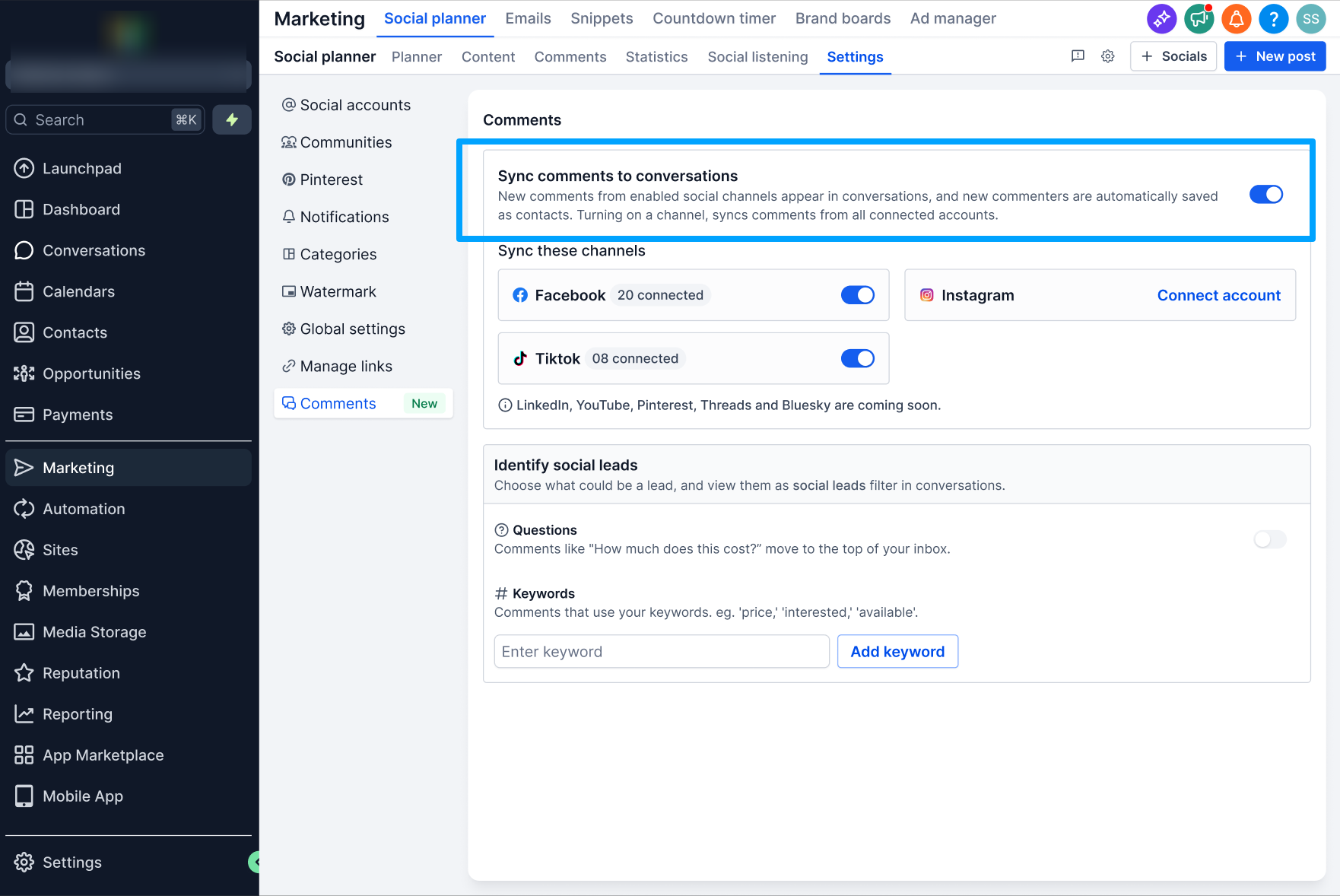
The feature lives under the Conversations module. The sync settings are managed in Agency Settings > Social Comments for agency level control, or in Marketing > Social Planner > Settings > Comments for subaccount level control. A one time setup modal appears the first time Conversations is opened after enabling sync, guiding users to the Social Planner settings page.
03How businesses use social comments in Conversations
- Real estate brokerage. Agents receive comments on listed property posts in the Conversations inbox. They can reply publicly to answer quick questions or send a private DM to share more details and schedule a showing.
- Fitness studio. The marketing team watches for keywords like "price" or "membership" in comments. When such a comment appears, they prioritize it and either respond publicly or open a private DM to discuss enrollment.
- Ecommerce retailer. Customer service reps view Instagram or TikTok comments about product availability. They reply publicly with stock updates or move the conversation to a DM to collect shipping information.
04The numbers and rules that matter
- Supported platforms at launch: Facebook, Instagram, TikTok.
- Reply limits: Facebook. No character limit, images up to 10 MB; Instagram. No character limit, images up to 10 MB; LinkedIn, 3,000 characters, no images; TikTok, 150 characters, no images.
05Before you start
- You must have Agency Admin or subaccount admin rights.
- At least one supported social account must be linked through Social Planner.
- The Conversations module must be active for the subaccount.
06How to set up and use social comments in Conversations in HighLevel
Manage social comment sync
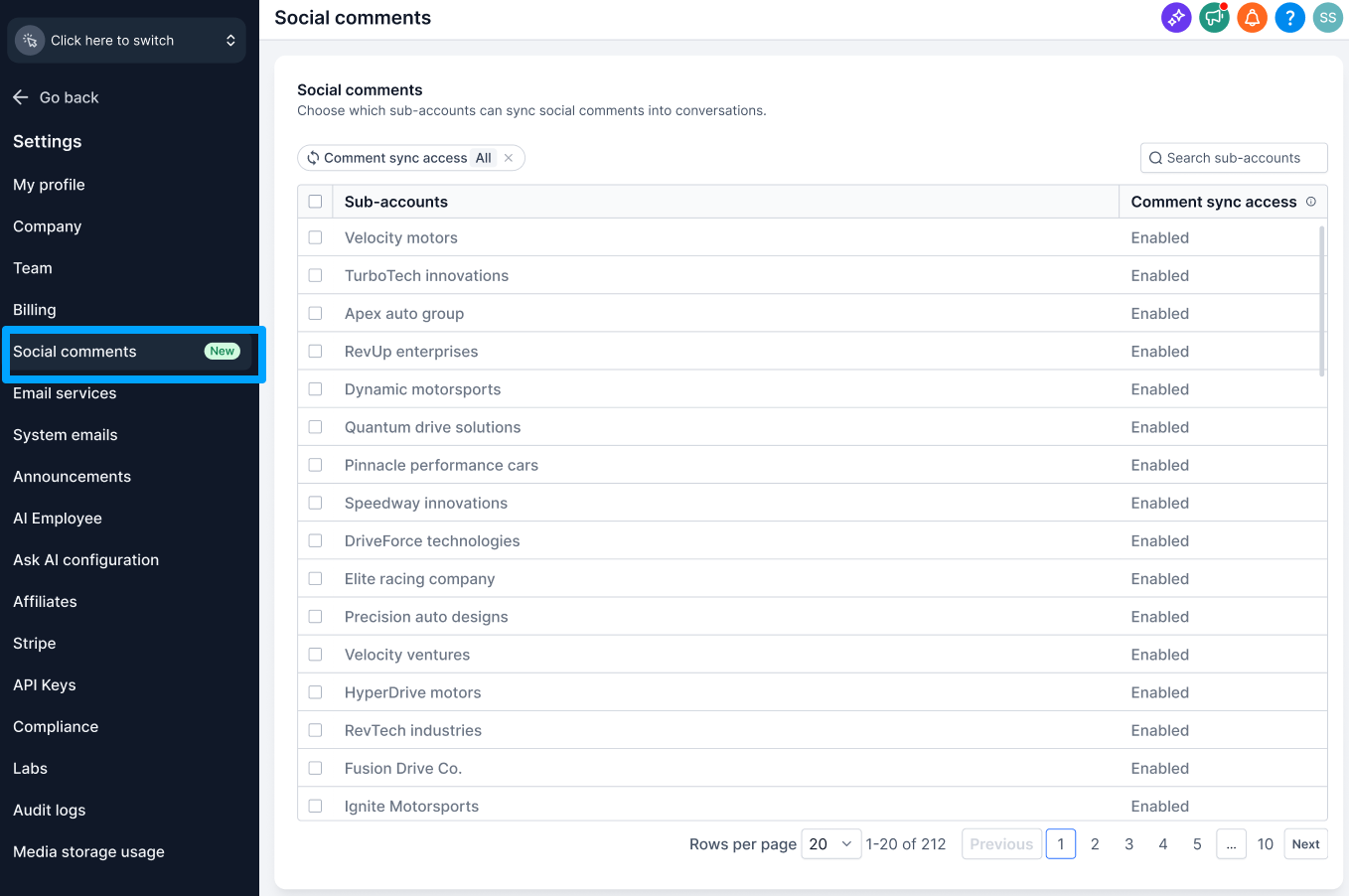
- Open Agency Settings > Social Comments.
- Find the subaccount where you want to adjust the setting.
- Toggle the Comment Sync switch off.
- Review the confirmation prompt.
- Click Confirm to apply the change.
Disable comment sync for multiple subaccounts
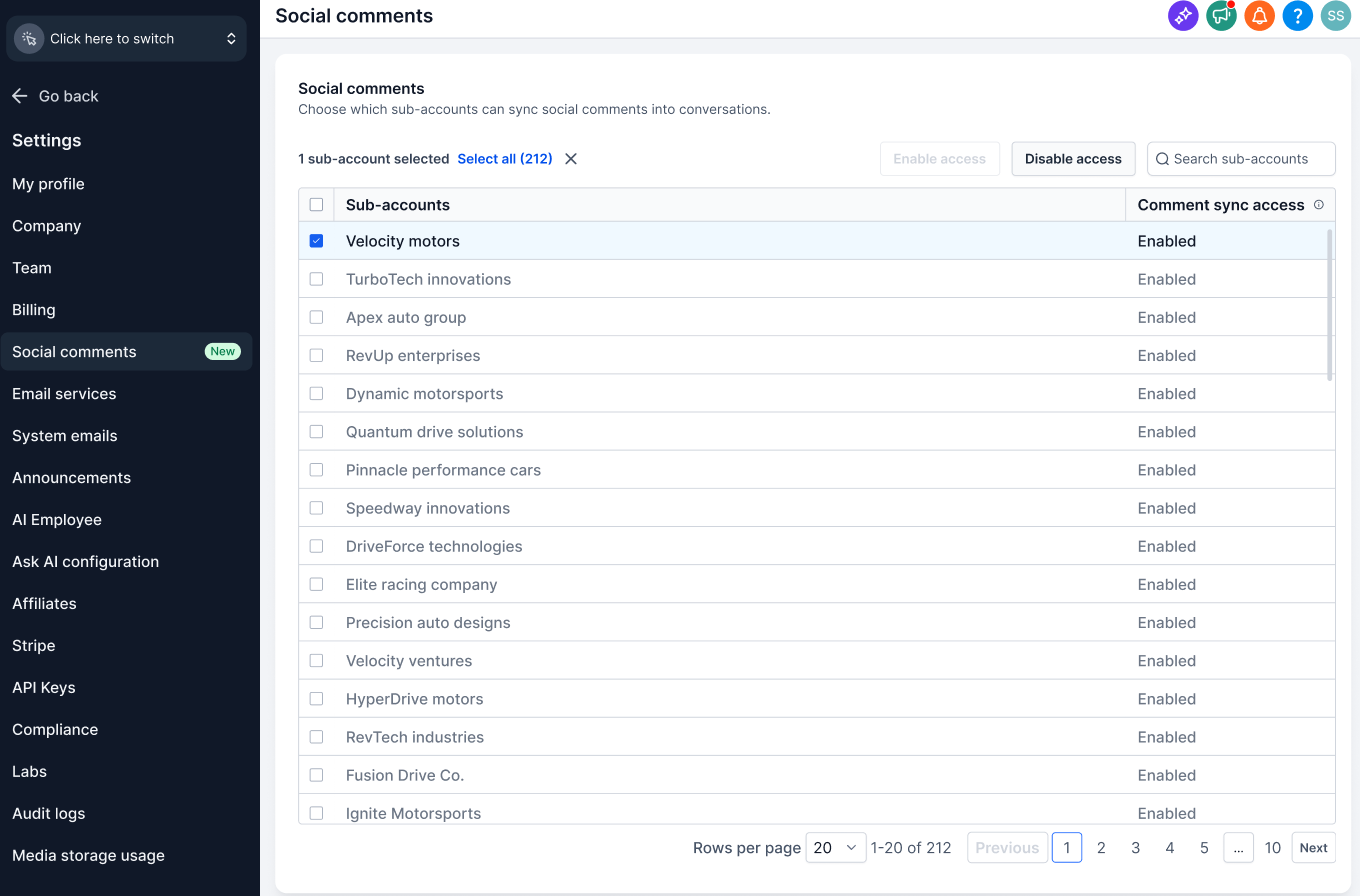
- Open Agency Settings > Social Comments.
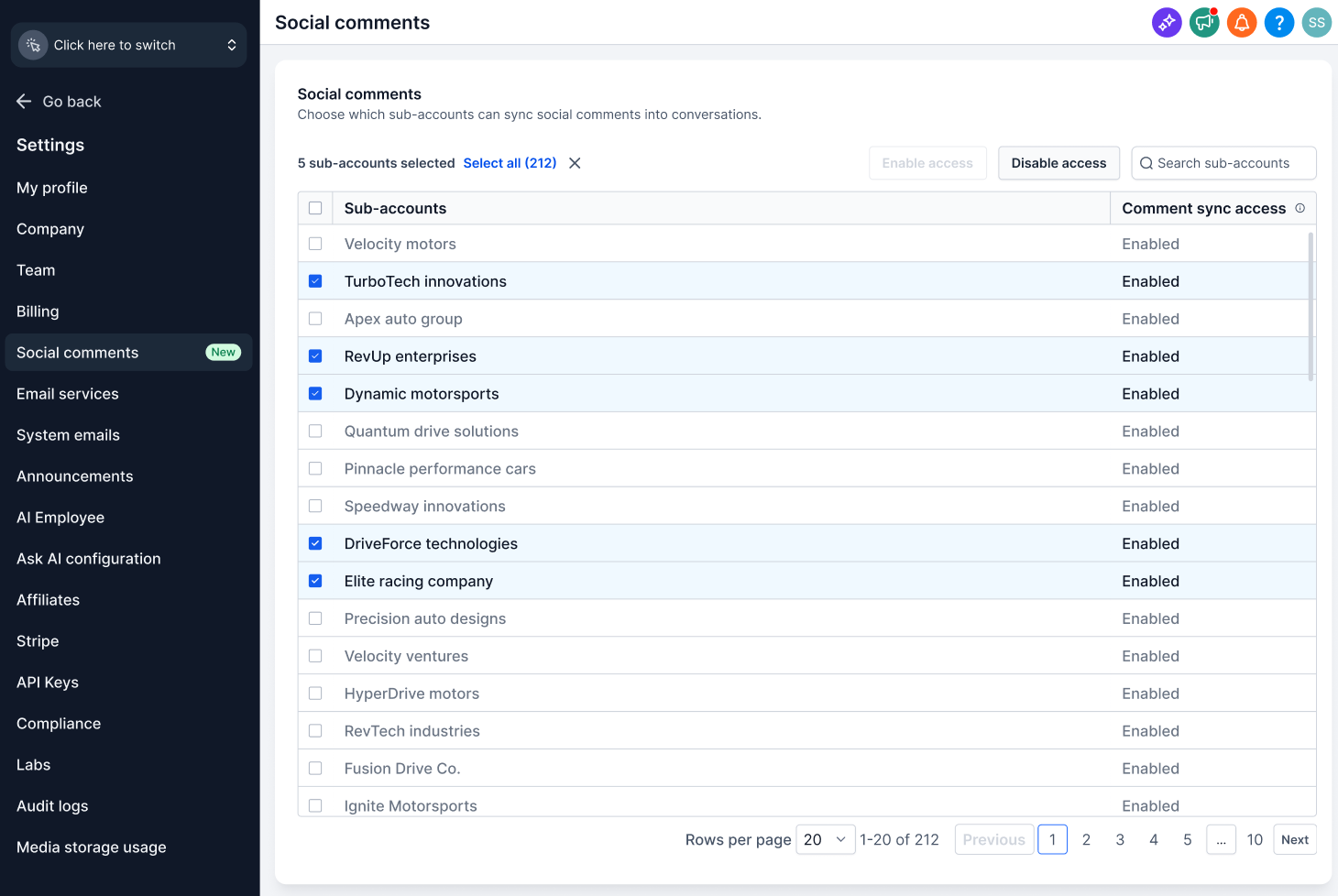
- Check the boxes next to the subaccounts to update.
- Choose Disable Comment Sync from the bulk action bar.
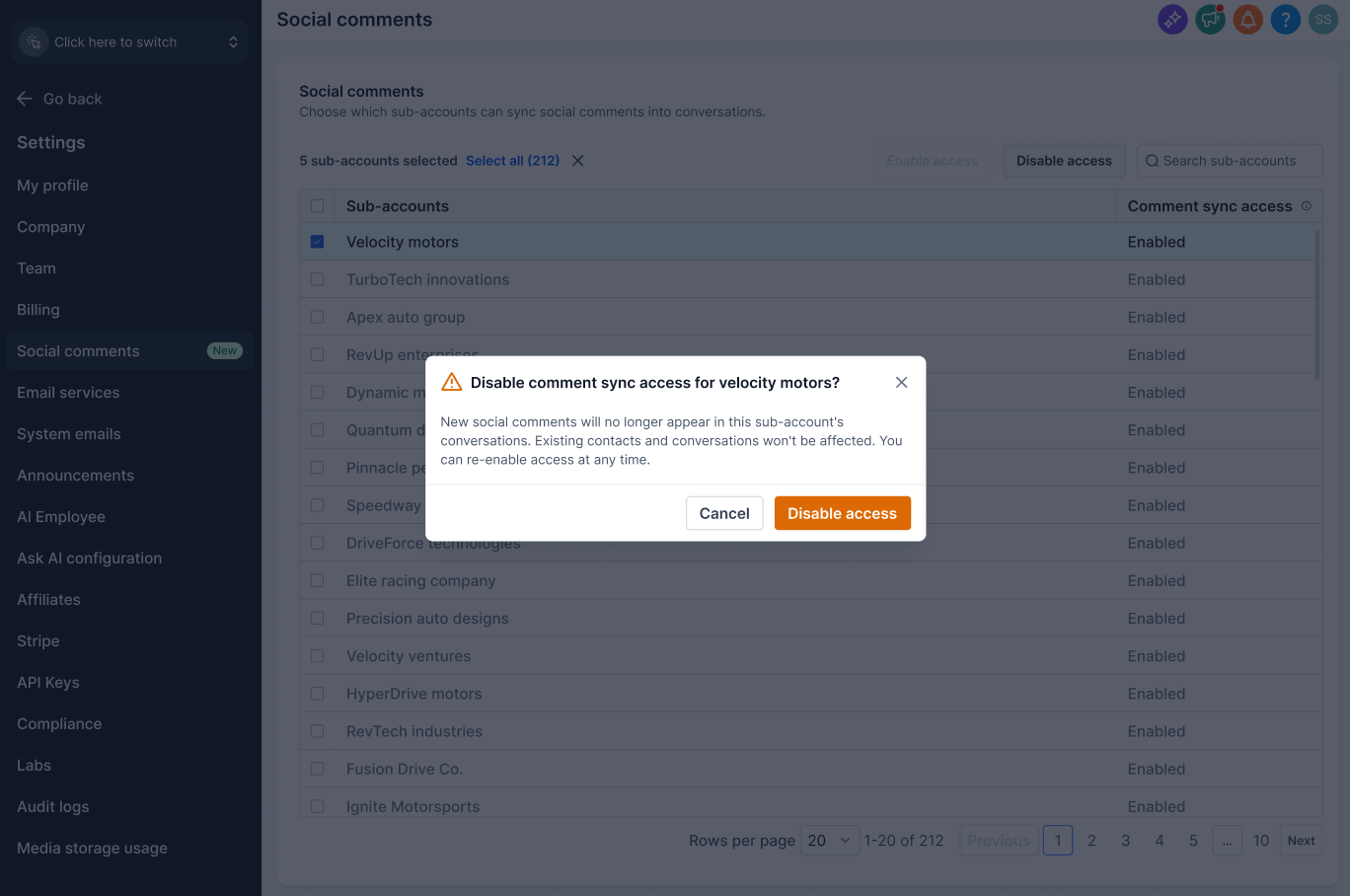
- Review the confirmation modal that appears.
- Click Confirm and wait for the success notification.
Configure comment settings at the subaccount level
- Navigate to Marketing > Social Planner > Settings > Comments.
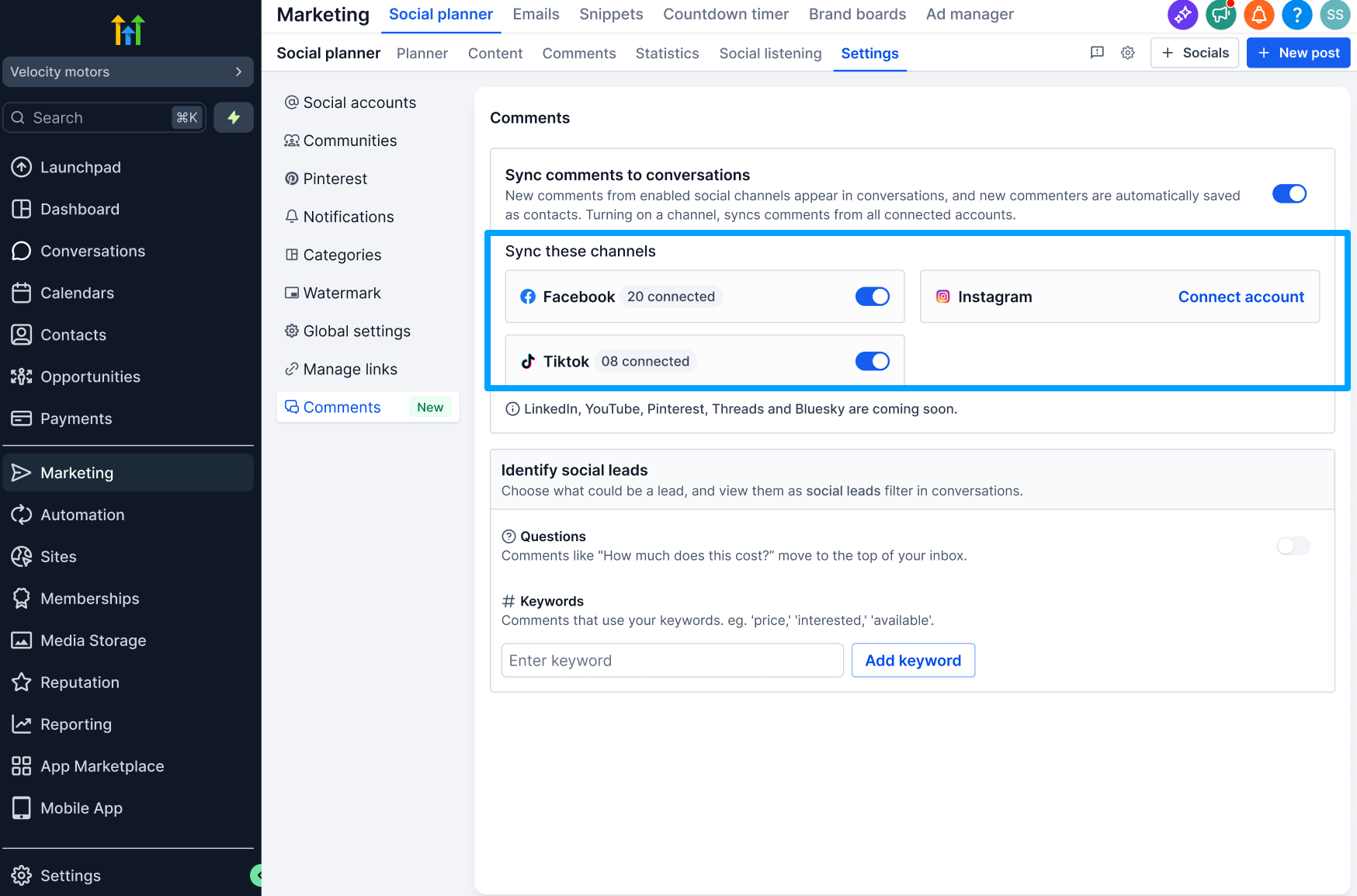
- Use the Sync These Channels toggles to select which platforms sync comments.
- Enter buying intent keywords under Identify Social Leads.
- Enable Comments With Questions to surface comment threads that contain a question mark.
Complete first time setup in Conversations
- Open the Conversations module after enabling comment sync.
- In the setup modal, click the Set up comment sync button.
- You are redirected to Social Planner > Settings to finish configuration.
Reply to a social comment publicly
- Open the comment thread from the Team Inbox.
- Select the Public Reply option.
- Type your response and send it; it appears under the original comment on the social platform.
Send a private DM from a social comment
- Open the comment thread in the Team Inbox.
- Choose the Send DM button.
- Enter your private message and send; the DM moves into the main inbox as a separate thread.
07What it looks like in HighLevel
08Settings that matter
- Comment Sync. Turns on or off the automatic creation of contacts and conversation threads for new social comments.
- Sync These Channels. Selects which connected social platforms (Facebook, Instagram, TikTok) are allowed to push comments into Conversations.
- Identify Social Leads. Defines keywords that flag comments as high intent leads and surface them higher in the inbox.
- Comments With Questions. When enabled, comments containing a question mark are prioritized in the inbox view.
09Things to know before you rely on it
- Only comments on posts published through Social Planner are synced; comments on posts published directly on a platform are ignored.
- Supported platforms at launch are Facebook, Instagram and TikTok; additional platforms are listed as coming soon.
- Reply character limits vary by platform: Facebook and Instagram have no limit, LinkedIn allows up to 3,000 characters, TikTok limits to 150 characters.
- Images can be attached in replies on Facebook and Instagram (up to 10 MB); LinkedIn and TikTok do not support images in replies.
- TikTok does not support private DM replies; the Send DM option is unavailable for TikTok comments.
10If something goes wrong
- Comments from posts not published through Social Planner are missing. Publish the post using Social Planner; only those comments are eligible for sync.
- New comments stop appearing after comment sync was turned off. Re enable Comment Sync in Agency Settings > Social Comments.
- Social account connection expired. Reconnect the affected account from the Social Planner settings page.
11How it connects to the rest of HighLevel
- How to connect Facebook pages for Social Planner Connect Facebook
- Understanding Instagram integration options Instagram integration
- HighLevel pricing and plans Pricing
Michael's take

Great for teams that need a single place to handle social replies and lead capture. Skip it if you never use Social Planner or don’t want every commenter turned into a contact.