
01Who this is for
- Agencies that manage several client subaccounts can prepare a calendar once and push it to each client.
- Franchise owners with separate subaccounts per store can reuse the same social posting plan across locations.
- Founders running multiple brand subaccounts can keep a consistent posting schedule without rebuilding it each time.
02Snapshots, explained
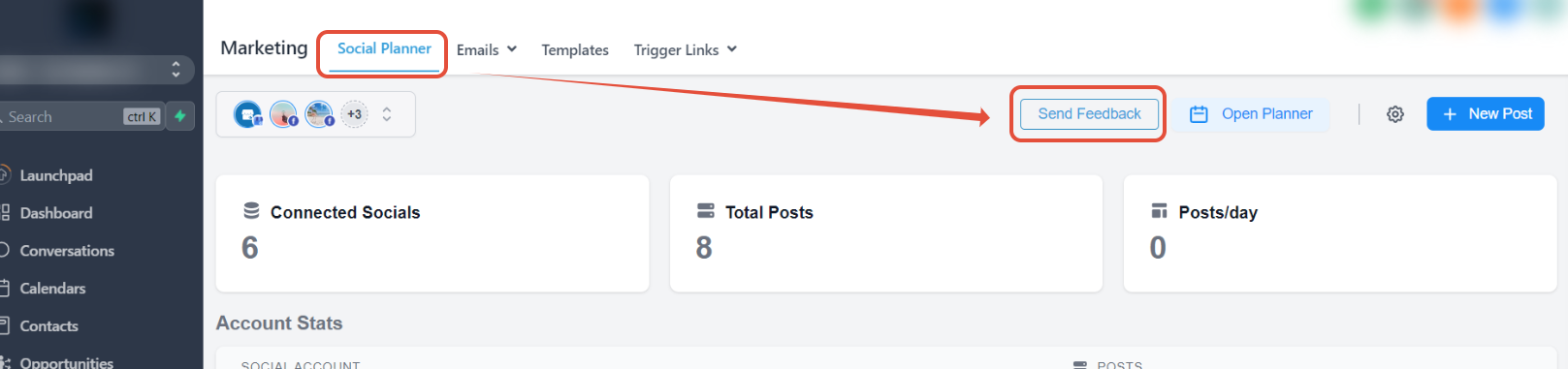
Snapshots let you capture Social Planner CSV content from a parent subaccount and expose it to other subaccounts in the same agency. The feature lives under Agency Settings > Snapshot for managing the saved copy, and under Marketing > Social Planner for creating and importing the CSV data. When the CSV reaches the Review and Schedule stage, it becomes part of the snapshot and appears in child accounts.
In the parent subaccount you create the CSV, select the social channel, and wait until the system marks it as Review and Schedule. Then you refresh or upload the snapshot from Agency Settings. In any child subaccount you open the CSV list view, select the shared entry, and schedule the posts after the system processes the data.
03How businesses use the snapshot
- Digital marketing agency. The agency builds a social calendar CSV in a master subaccount, creates a snapshot, and then imports that snapshot into each client subaccount. Users open the child account, locate the shared CSV, and schedule the posts for each client.
- Franchise chain. The corporate office creates a unified posting schedule, snapshots the CSV, and pushes it to each franchise location’s subaccount. Location managers select the shared CSV, process it, and move the content to their local social calendar.
- Multi brand startup. The Founder sets up a content plan in one brand’s subaccount, snapshots the CSV, and imports it into the other brand’s subaccount. Team members open the imported CSV, review the posts, and schedule them on the brand’s calendar.
04How to set up and use the snapshot in HighLevel
Create a snapshot in the parent subaccount
- Open Marketing > Social Planner.
- Click Create Post and choose Upload from CSV.
- Select the social channel (required for CSV import).
- Open the CSV list to view its status.
- Wait for the status to change to In Progress while the file is processed.
- When the status updates to Review and Schedule, the CSV data is ready.
- Go to Agency Settings > Snapshot and either refresh the snapshot or upload it.
Use the snapshot in a child subaccount
- Open Marketing > Social Planner > CSV list view.
- Find the CSV entry that originates from the parent subaccount.
- Click Select Social for scheduling the posts.
- Allow the system to process the CSV for the chosen socials.
- After processing, choose Review and Schedule to inspect and import the posts into the Social Calendar.
05What it looks like in HighLevel
06Settings that matter
- Snapshot. Controls the saved copy of Social Planner CSV data that can be refreshed or uploaded and then appears in child accounts.
07Things to know before you rely on it
- Only CSV items that reach the Review and Schedule status are included in a snapshot.
- The plan is to add more features in future releases.
08How it connects to the rest of HighLevel
- Social Planner image and video specs Content guidelines
- Connect Facebook pages to Social Planner Facebook connection
- Connect Instagram via Facebook link Instagram integration
Michael's take

Don’t forget to refresh the snapshot after any changes, or the child accounts will keep using stale content.