
01Who this is for
- Business owners who want to showcase fresh customer feedback without manual posting.
- Agencies and marketers who need to automate reputation content across client social profiles.
02Review post automations, explained
Review Post Automation is a feature inside the Social Planner that pulls eligible reviews from a connected Google Business Profile or Facebook Page. It then creates social posts and publishes them on any social accounts you have linked in Social Planner.
The automation runs on a schedule you define, daily, weekly or monthly. Each execution can publish a set number of reviews that match the star rating filter you chose. If no eligible reviews exist for that run, the execution is skipped.
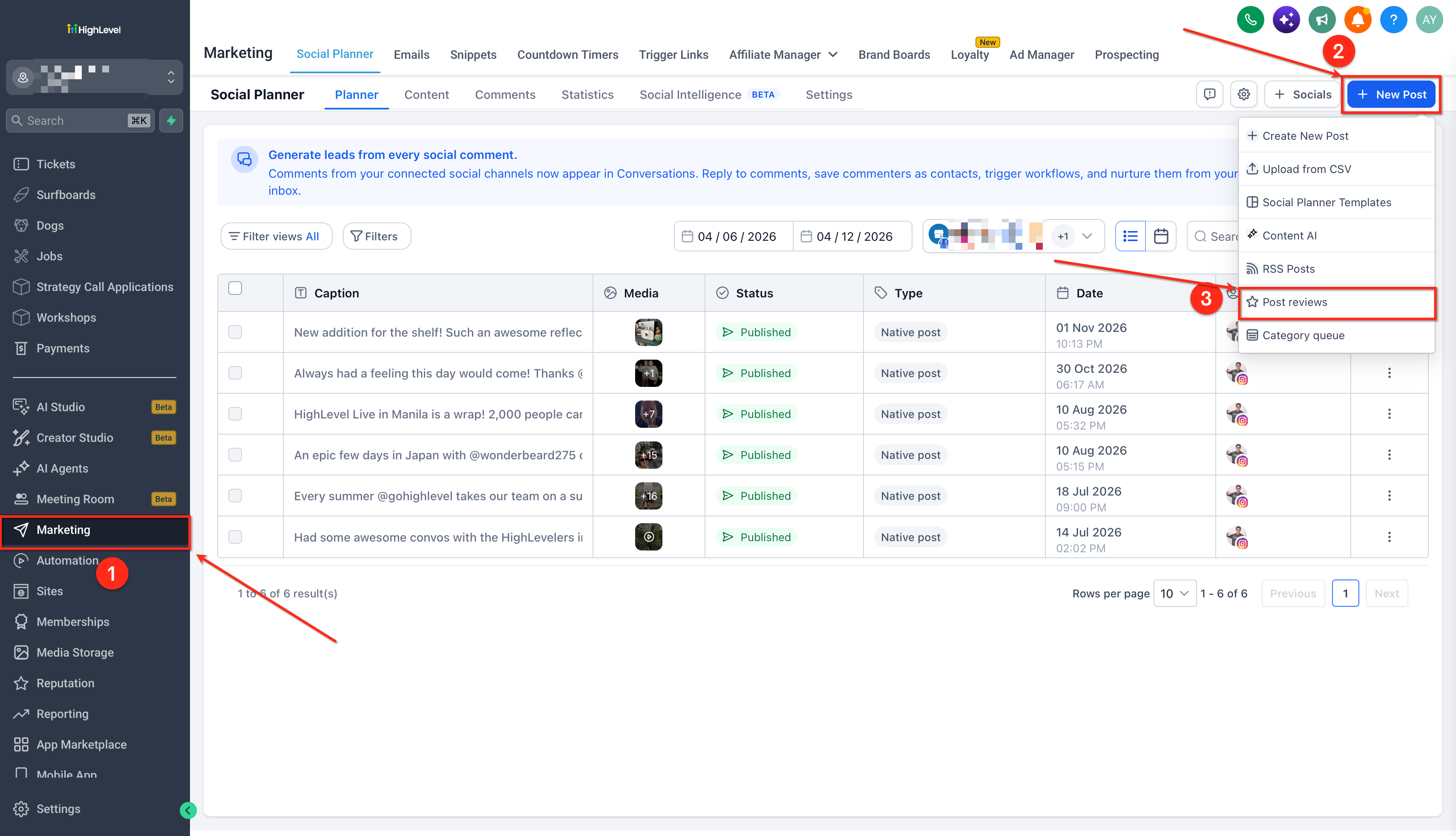
All settings for the automation live under Marketing > Social Planner. You access existing automations via Marketing > Social Planner > Content > Review.
03How businesses use review post automations
- Dental practice. The practice connects its Google Business Profile and Facebook Page, then creates an automation that shares only 5 star written reviews. Each week the system posts up to two new patient testimonials on the practice’s Instagram and Facebook, using a branded background image.
- Restaurant. The restaurant links its Google Business Profile, selects a rating range of 4 to 5 stars, and schedules daily publishing at lunch time. The automation inserts the reviewer’s first name and a custom caption promoting the menu, using the restaurant’s color scheme.
- Home services agency. The agency connects its Facebook Page, chooses to publish reviews with 3 to 5 stars, and sets a monthly run on the first of the month. Background images are uploaded to match each service category, and the posts are automatically shared to LinkedIn and Twitter.
04The numbers and rules that matter
- Background images must be JPEG or PNG, 1:1 ratio, maximum 5 MB.
- Choose how many reviews to publish per scheduled execution.
05Before you start
- Connect your Google Business Profile or Facebook Page to HighLevel.
- Connect the social media accounts where you want reviews published.
- Verify that reviews appear under Reputation > Reviews.
06How to set up and use review post automations in HighLevel
Configure review post automation
- Navigate to Marketing > Social Planner.
- Click New Post > Post Reviews.
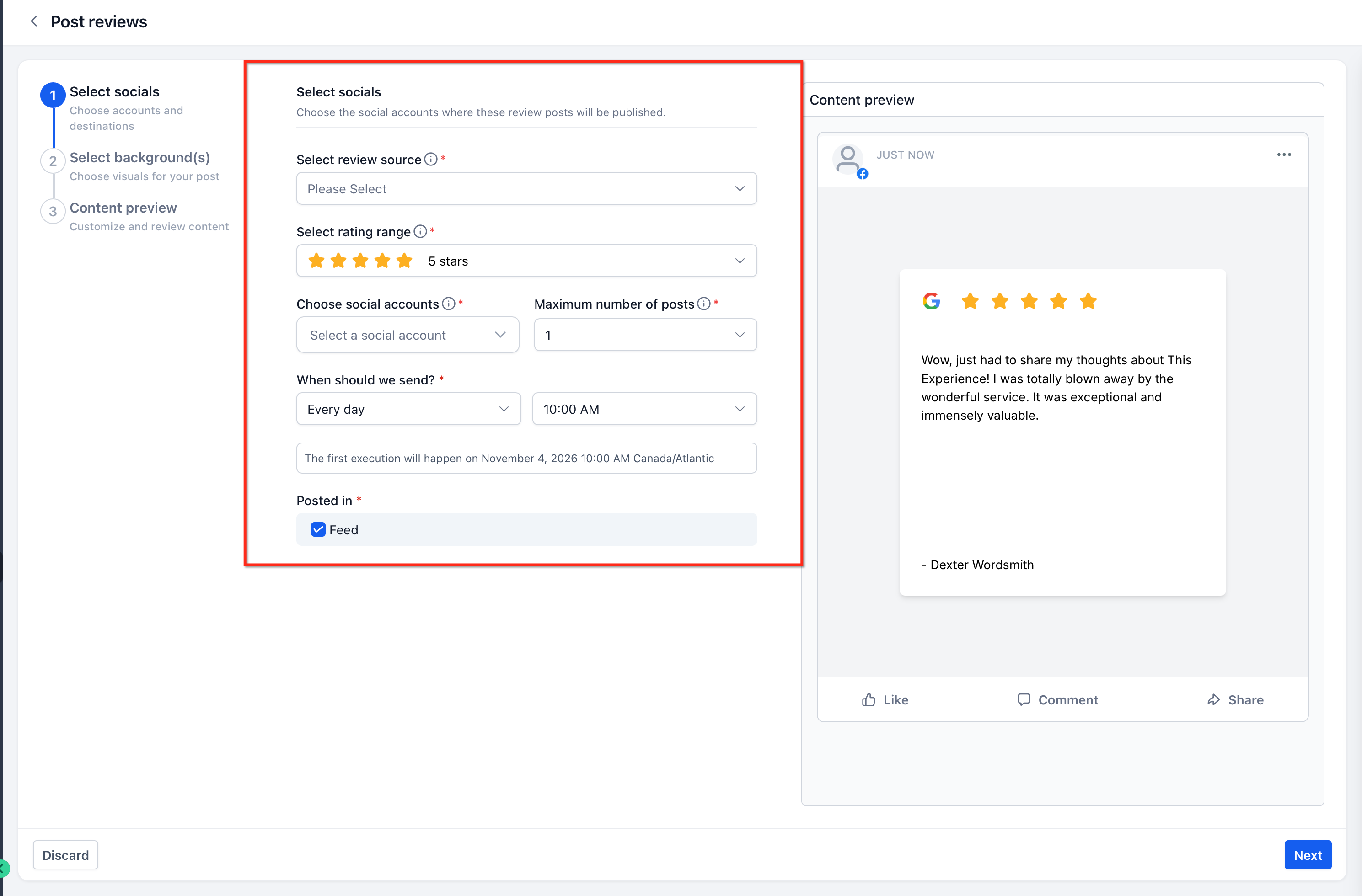
- Select the review source (Google Business Profile or Facebook) and set the star rating range.
- Choose the social accounts that should receive the review posts.
- Choose how many reviews to publish per scheduled execution.
- Under When should we send?, select Every day, Every week, or Every month.
- Select your preferred publishing time.
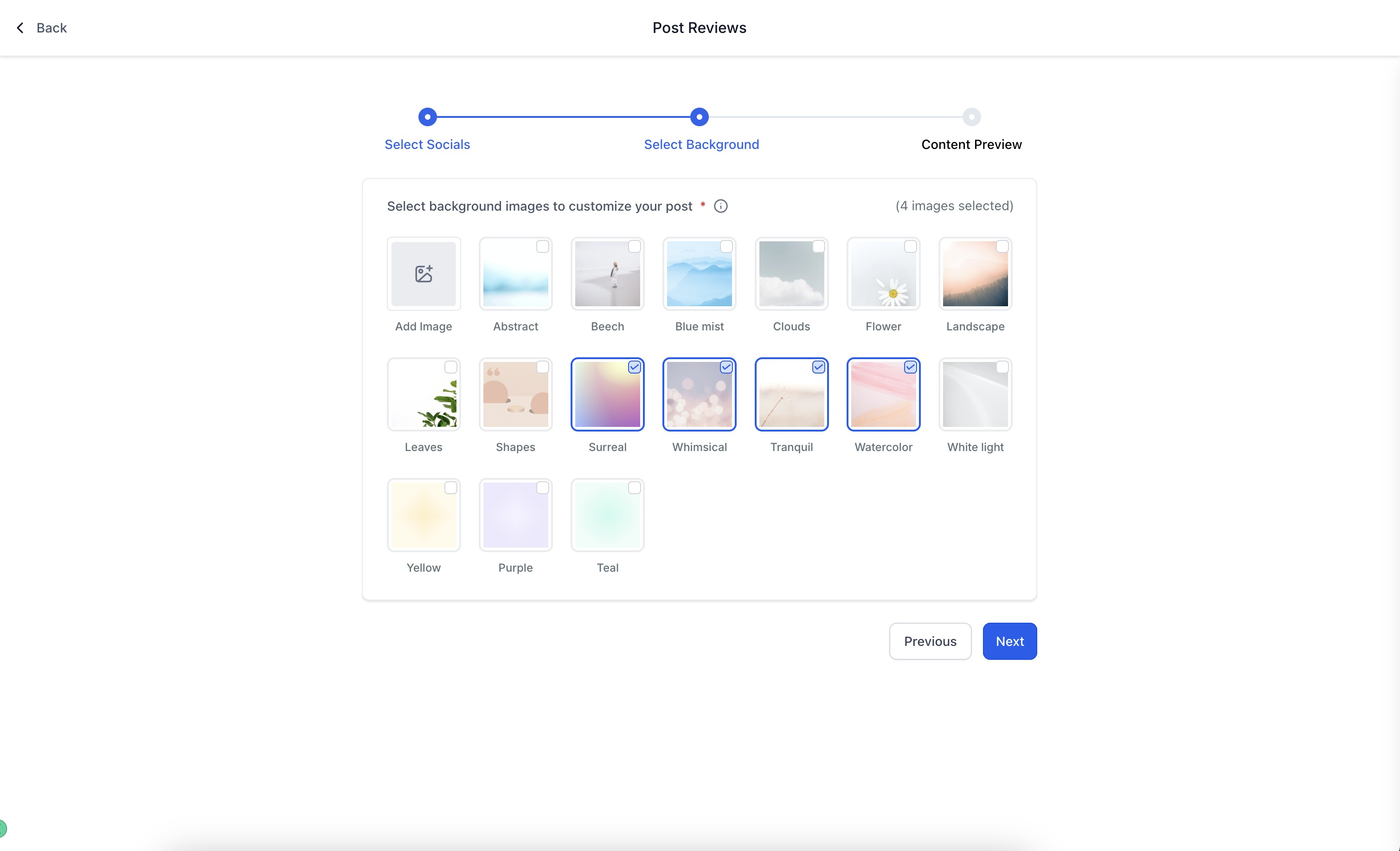
- Choose or upload a background image (JPEG/PNG, 1:1 ratio, max 5 MB).
- Add a custom caption or use the review content.
- Choose whether to display the customer's full name, first name, or initials.
- Adjust fonts, colors, and opacity, then confirm the setup.
07What it looks like in HighLevel
08Settings that matter
- Review sources. Specifies whether reviews are pulled from a Google Business Profile or a Facebook Page.
- Star rating range. Filters reviews so only those with the selected star ratings are eligible for posting.
- Social accounts. Selects which connected social media profiles will receive the automated review posts.
- Number of reviews per scheduled execution. Limits how many reviews the automation can publish each time it runs.
- When should we send?. Sets the frequency of the automation, daily, weekly, or monthly.
- Publishing time. Determines the time of day the automation will attempt to publish reviews.
- Background images. Defines the image used behind the review text; must be JPEG or PNG, 1:1 ratio, up to 5 MB.
- Caption. Allows a custom text to appear with the review or uses the review content itself.
- Customer name display. Controls whether the full name, first name, or initials of the reviewer are shown.
- Fonts, colors, and opacity. Customizes the visual style of the review text overlay on the background image.
09Things to know before you rely on it
- Only new Google reviews created after the automation is set up are considered.
- Reviews that contain only a star rating without written feedback are ignored.
- The background image must be JPEG or PNG, have a 1:1 aspect ratio, and be no larger than 5 MB.
- If fewer eligible reviews exist than the maximum post count, only the available reviews are published.
- When no eligible reviews are found, the scheduled execution is skipped.
10If something goes wrong
- Reviews are not being posted.. Check for new eligible reviews under Reputation > Reviews, confirm the rating filter settings, and verify that the review source and publishing accounts remain connected.
11How it connects to the rest of HighLevel
- Learn how to connect a Facebook page for social publishing. Connect Facebook page
- Set up a Google Business Profile connection to use for review sourcing. Connect Google Business Profile
- Connect LinkedIn profiles or business pages to the Social Planner. Connect LinkedIn
Michael's take

Michael ReimerFounder of CRM Pros, HighLevel Commander and Certified Admin
I find the automation convenient for keeping my social feeds up to date.
Get More InformationOpens on HighLevelPublished November 2, 2026 · Updated November 16, 2026