
01Who this is for
- Marketing managers can right away find drafts or scheduled posts using keywords, saving time reviewing campaigns.
- Social media agencies handling multiple client accounts benefit from reusable filter combos to track each platform’s content.
- Small business owners can organize posts by category and status, keeping their content library tidy.
02Search and smart filter views, explained
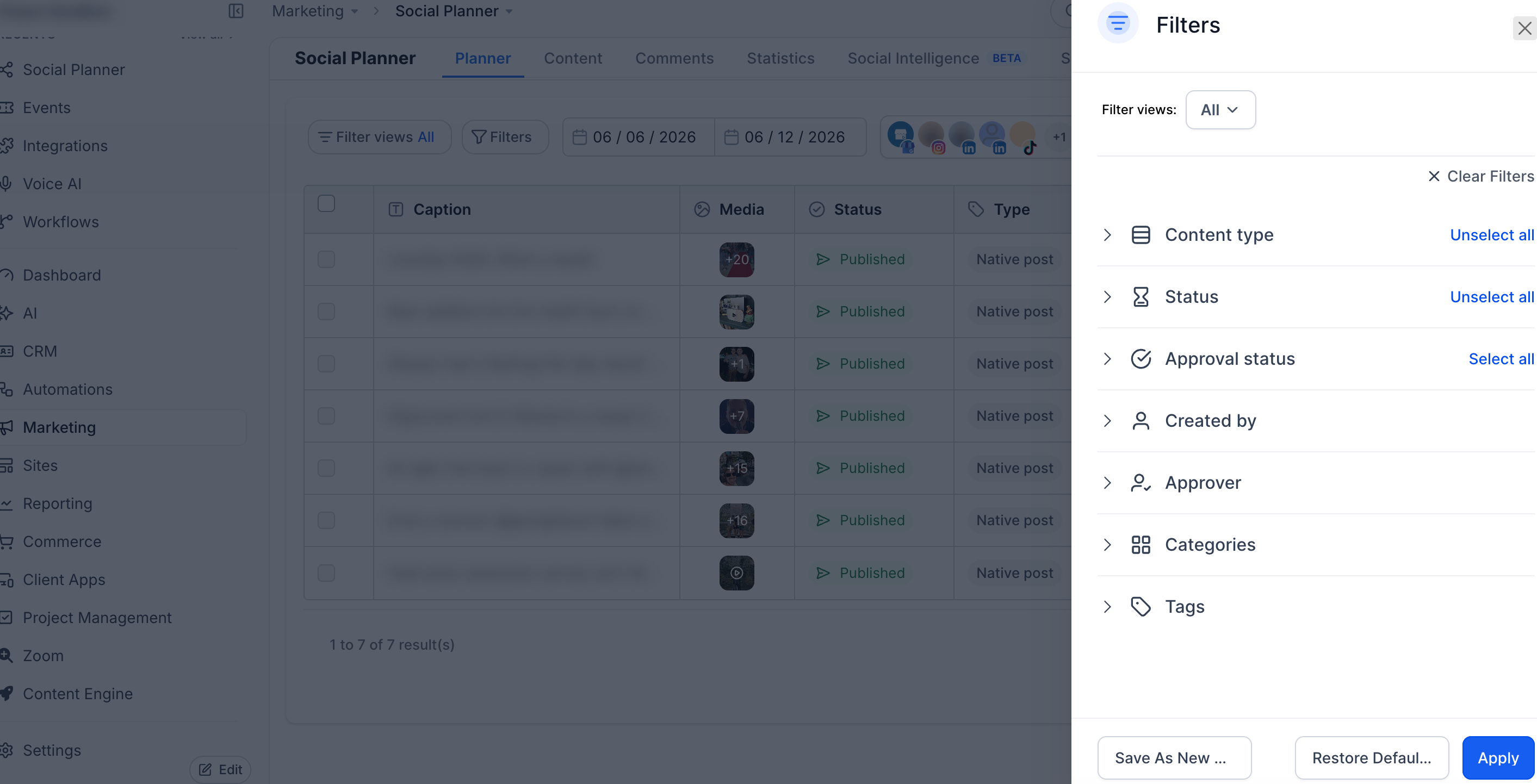
Search and Smart Filter Views are tools inside the Social Planner that let you locate posts without scrolling through the entire list. The Search bar matches any word in a post’s caption, description, or other text fields. Filters let you limit results by publishing status, the social channel, and the content category you assigned.
These features live in the List View of the Social Planner. After opening List View, you type a keyword in the Search bar, then open the Filters panel to pick one or more criteria. The platform right away updates the list to show only posts that meet the chosen conditions.
You can store a set of filter choices as a Saved Filter View. Up to four views can be saved per user, renamed, edited, or deleted later. Switching between saved views is done via a dropdown, giving quick access to frequently used combinations.
03How businesses use search and smart filter views
- Digital marketing agency. The agency selects the Draft status and a specific client’s channel in Filters, then saves that view to review pending content across all accounts quickly.
- Ecommerce retailer. The retailer searches for a product name in the Search bar and adds a Category filter, then saves the view to monitor all promotional posts for that product line.
- Local service provider. The provider filters by Scheduled status and the Facebook channel, saves the view, and uses it to check upcoming posts before they go live.
04The numbers and rules that matter
- Create up to 4 views.
05How to set up and use search and smart filter views in HighLevel
Use search and filter views
- Navigate to Marketing > Social Planner.
- Open List View to see all social posts.
- Enter a keyword or phrase in the Search bar.
- Click Filters to display filter options.
- Select one or more filter criteria, such as status, channel, or category.
- Review the filtered list to locate the desired posts.
06What it looks like in HighLevel
07Settings that matter
- Saved Filter Views. Controls the number and content of reusable filter combinations you can store for quick access.
08Things to know before you rely on it
- You can save up to four custom filter views per account.
- Saved views are user specific and are not shared with other team members.
- Search looks only at post text fields like captions and descriptions.
- Recurring posts are managed separately and may appear differently in List View.
09How it connects to the rest of HighLevel
- How to connect a Facebook page for posting in Social Planner Facebook connection guide
- Understanding Instagram integration options for Social Planner Instagram connection guide
- Linking LinkedIn profiles and pages to Social Planner LinkedIn connection guide
Michael's take

Don't underestimate the learning curve. Jumping straight into dozens of filters can make you lose track of what you actually need, especially if you rely on shared team workflows that don’t automatically inherit saved views.
I set a view for my daily draft queue and another for scheduled Instagram stories, then use the search bar to locate specific posts.