
01Who this is for
- Users with access to Social Planner can automate sharing of RSS feed content.
- Businesses that maintain an RSS or Atom feed can keep their social channels active automatically.
02RSS scheduling, explained
RSS scheduling pulls the newest items from a supplied RSS or Atom feed and creates separate social posts for each item. The platform checks the feed on a schedule you set, generates text that respects each network’s character limits, and posts to every social account you have linked in Social Planner.
The feature lives inside Marketing > Social Planner. When you create an RSS post you choose the feed URL, which socials receive the content, optional trailing text, how often the feed is refreshed, the maximum number of items per check, and whether to include the item description. A preview shows up to five items before you save.
Duplicate protection tracks processed items for 90 days using the feed’s GUID, link or title, so the same item is not posted twice during that period.
03How businesses use RSS scheduling
- Digital marketing agency. The agency adds a client’s blog RSS feed, selects the client’s Facebook and LinkedIn pages, and enables the description option. Each new blog post appears as a ready made social update, saving the team time while keeping the client’s profiles fresh.
- Ecommerce store. The store inputs its product launch RSS feed, chooses Instagram Business and Google Business Profile, and sets the feed to check every 30 minutes. New product announcements are automatically shared, maintaining a steady promotional rhythm.
- Podcast producer. The producer supplies the podcast’s RSS feed, selects LinkedIn and Facebook, and adds a hashtag via the “End with” field. Each episode’s title and optional description are posted without manual effort.
04The numbers and rules that matter
- Supported networks: Facebook Page, Instagram Business, LinkedIn Profile/Page, Google Business Profile, Pinterest.
- Feed check frequency can be set from every 5 mins to once a day.
- Maximum Posts per check: Minimum 1 to maximum 5.
- Duplicate protection tracks processed items for 90 days using GUID or link and title.
05Before you start
- A valid RSS or Atom feed URL must be available.
- Social accounts need to be connected under Marketing > Social Planner > Settings.
06How to set up and use RSS scheduling in HighLevel
Create an RSS post in Social Planner
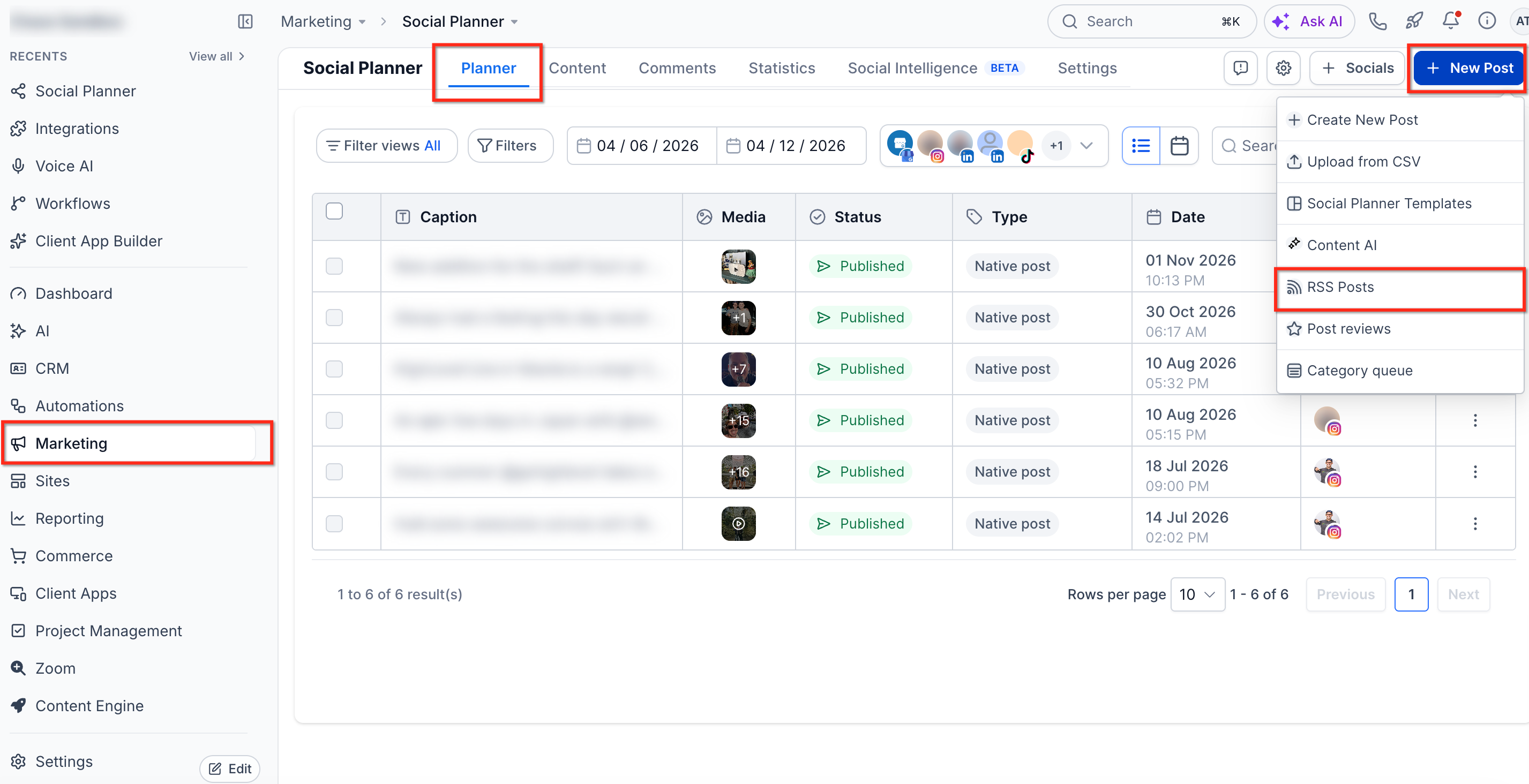
- Open Marketing > Social Planner and click New Post, then choose RSS Post.
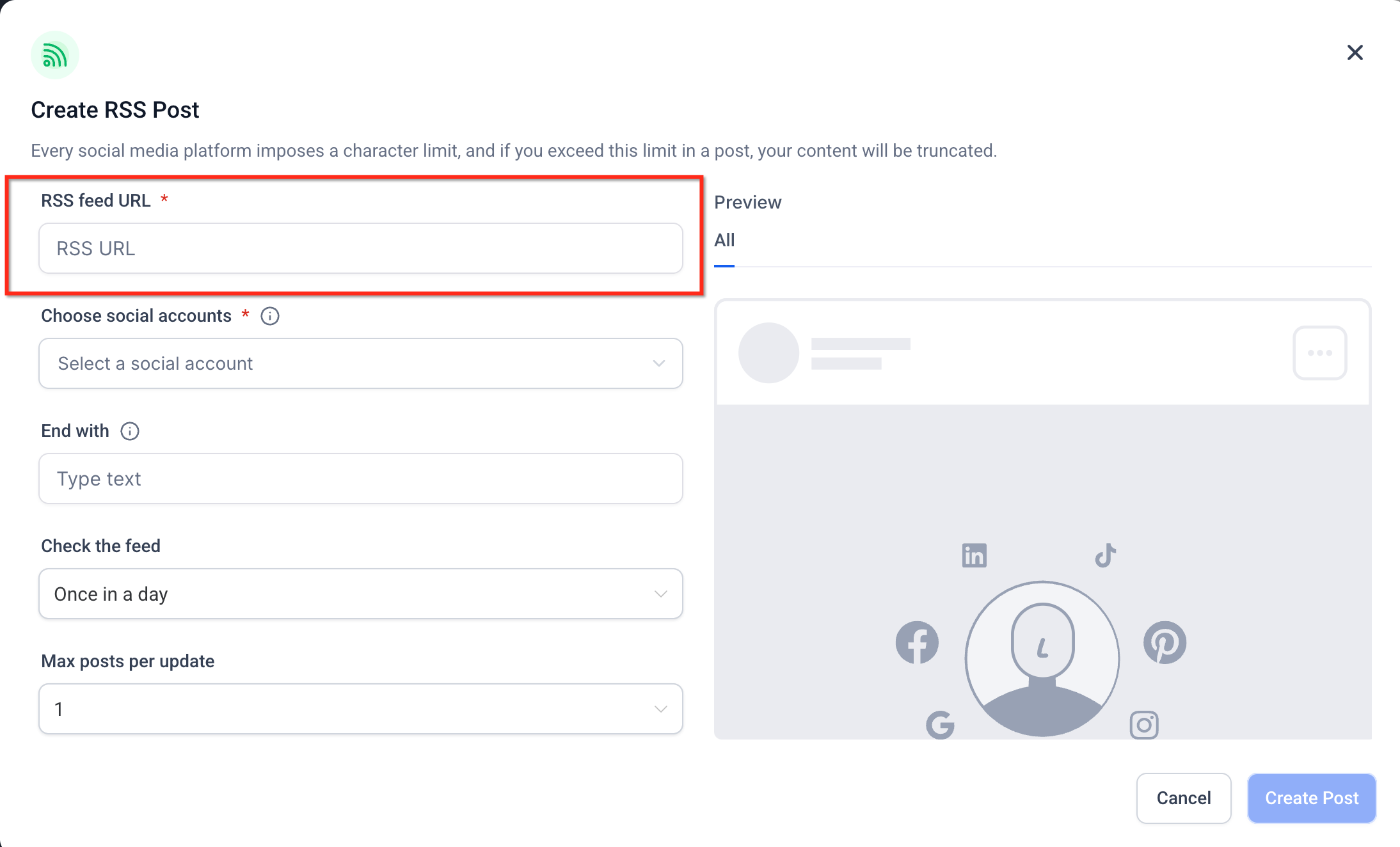
- Enter the URL of the RSS or Atom feed.
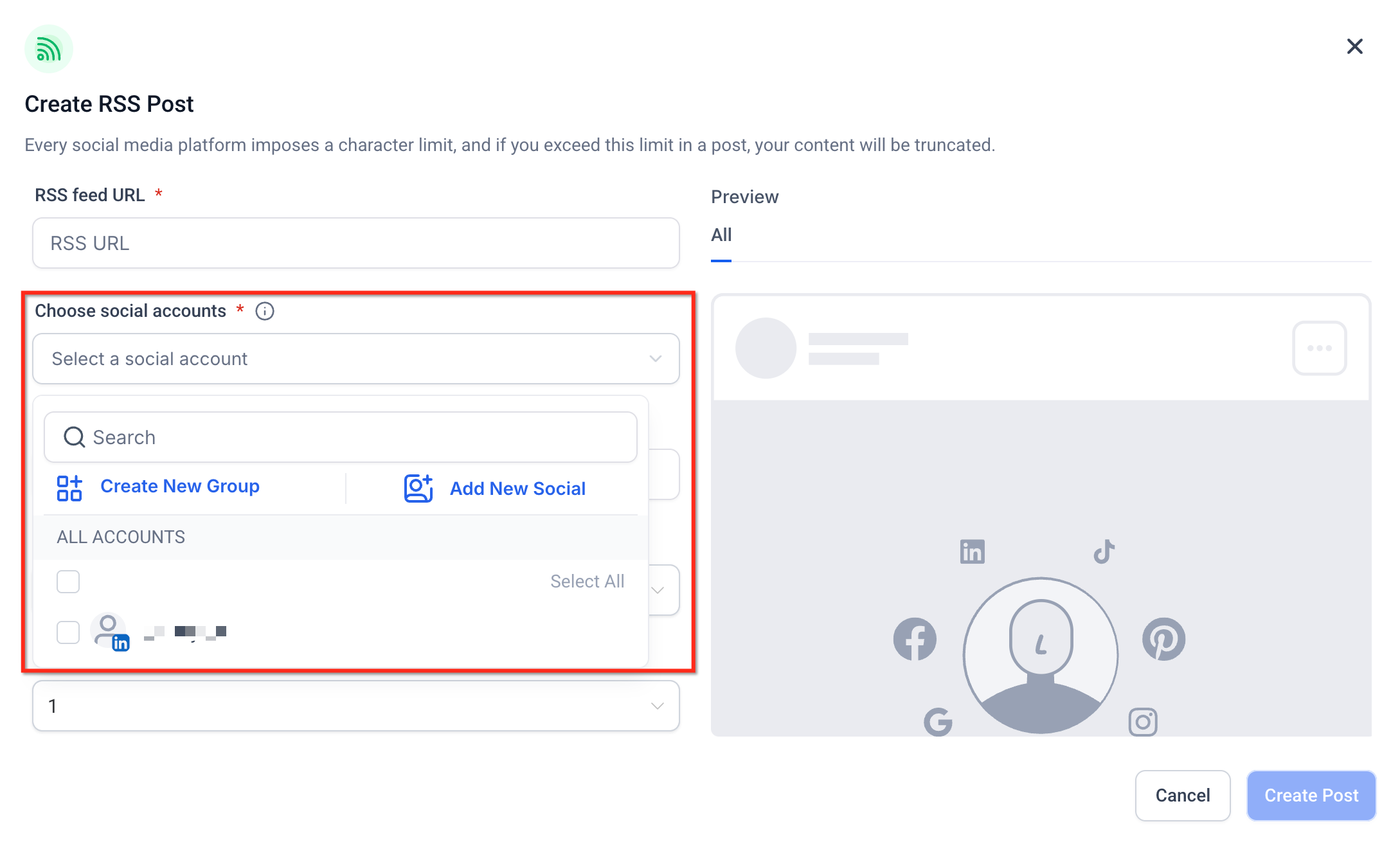
- Pick the social accounts where the content should be published.
- Note that X (Twitter) cannot be used for RSS publishing.
- Add any desired text, hashtags, or links using the End with field.
- Select how often the feed should be checked, from every 5 minutes to once a day.
- Set the maximum number of unique items to fetch per check, between 1 and 5.
- Choose whether to include the RSS item description in the posts.
- Use the multi item preview to review formatting and truncation for up to five items.
- Save the RSS post to activate automatic publishing.
07What it looks like in HighLevel

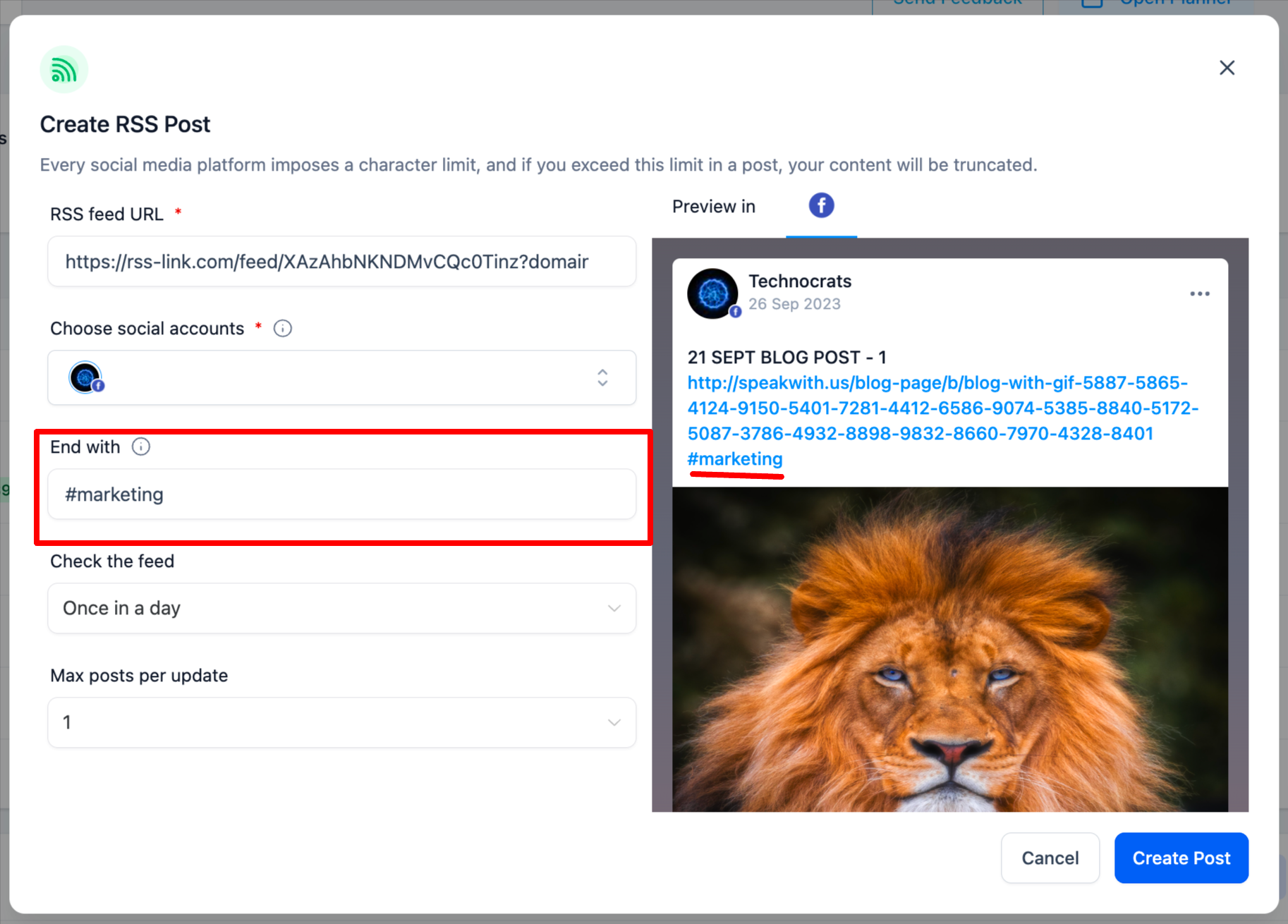
08Settings that matter
- RSS Feed URL. Specifies the source RSS or Atom feed that provides content to be shared.
- Socials selection. Determines which connected social accounts will receive the generated posts.
- End with. Appends custom text, hashtags, or links to each generated post.
- Update Time. Controls how frequently HighLevel checks the feed for new items.
- Maximum Posts. Limits the number of unique feed items fetched during each check, from 1 to 5.
- Include Description. When enabled, adds the RSS item’s description to the post; when disabled, only the title is posted.
09Things to know before you rely on it
- Twitter/X cannot be used for RSS publishing because of API restrictions.
- Only 1 to 5 unique items are processed each time the feed is checked.
- Feed check intervals range from every 5 minutes up to once per day.
- Duplicate protection tracks processed items for 90 days to avoid reposting the same content.
- Image previews rely on the source page’s Open Graph metadata; missing tags may affect how visuals appear.
10How it connects to the rest of HighLevel
- Connect Facebook pages for use in RSS publishing Facebook connection
- Follow image and video specifications for social posts Content guidelines
- Link LinkedIn profiles or business pages to Social Planner LinkedIn connection
Michael's take

Don’t forget that X (Twitter) can’t be used with this feature, so plan your crossposting accordingly.