
01Who this is for
- Affiliate managers who need to reassign partners without opening each profile, saving time on campaign changes.
- Marketing directors who oversee multiple campaigns and must keep affiliate records organized during program shifts.
- Founders of small businesses that run an affiliate program and want a fast way to manage assignments.
02Quick campaign actions, explained
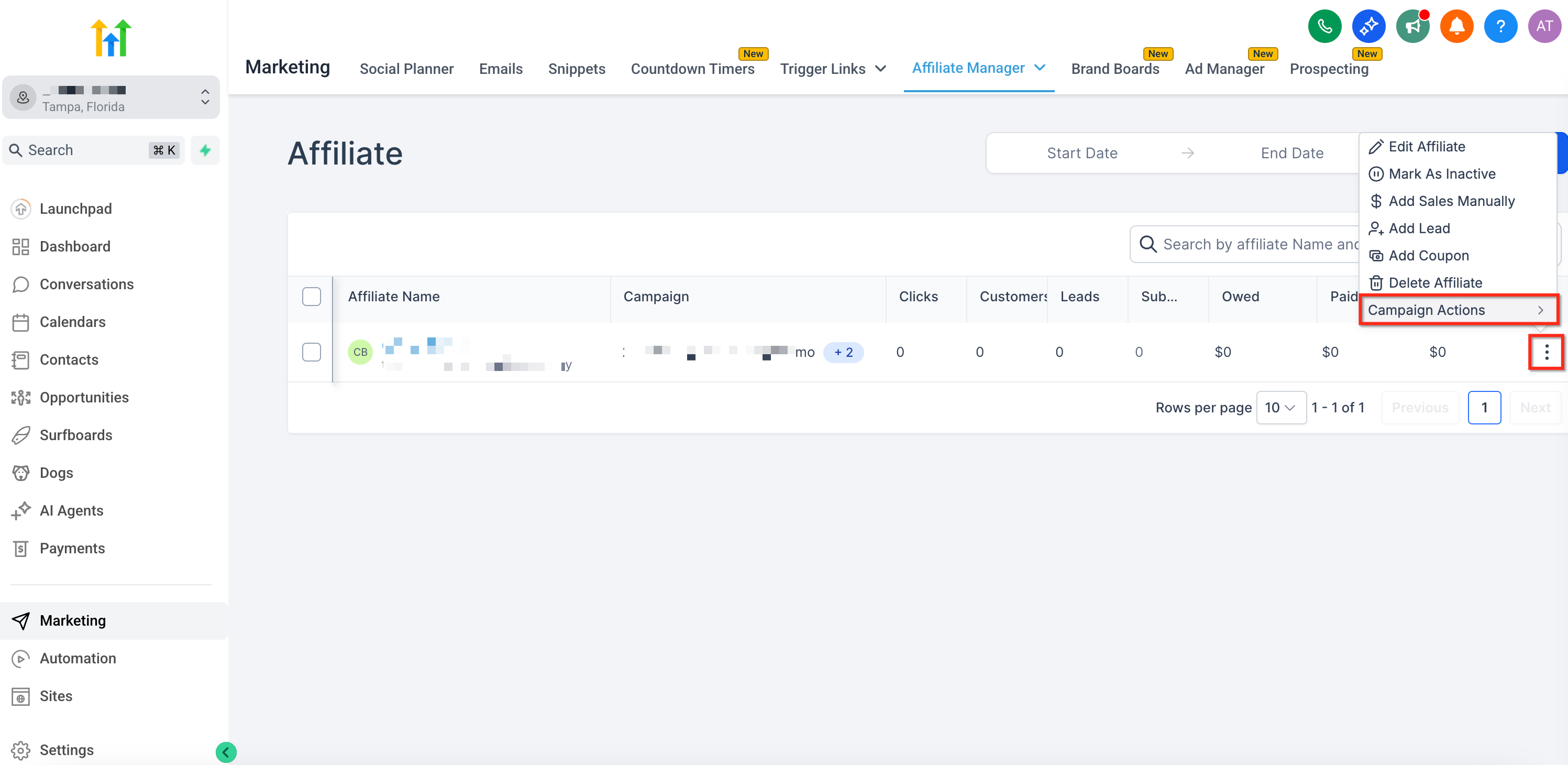
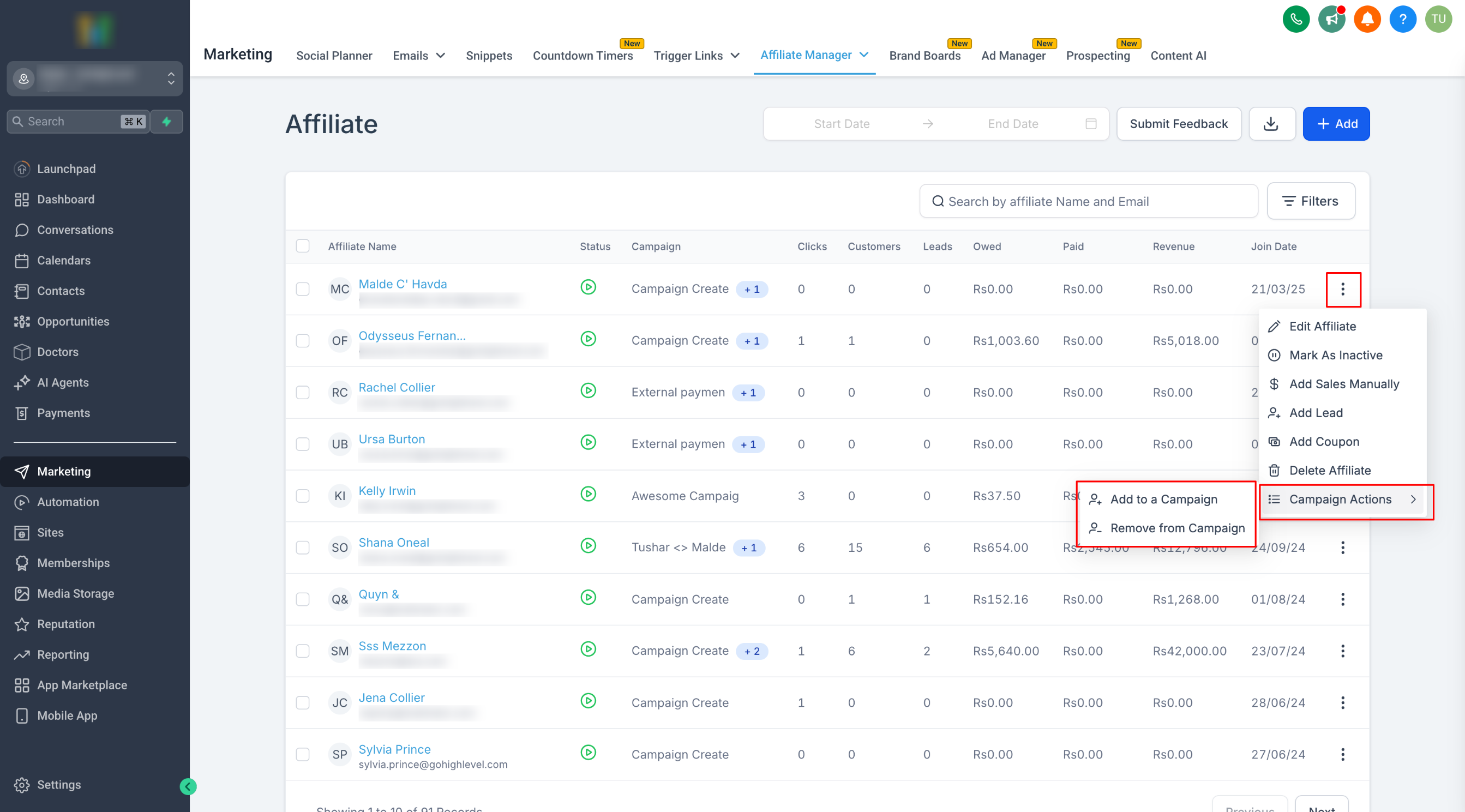
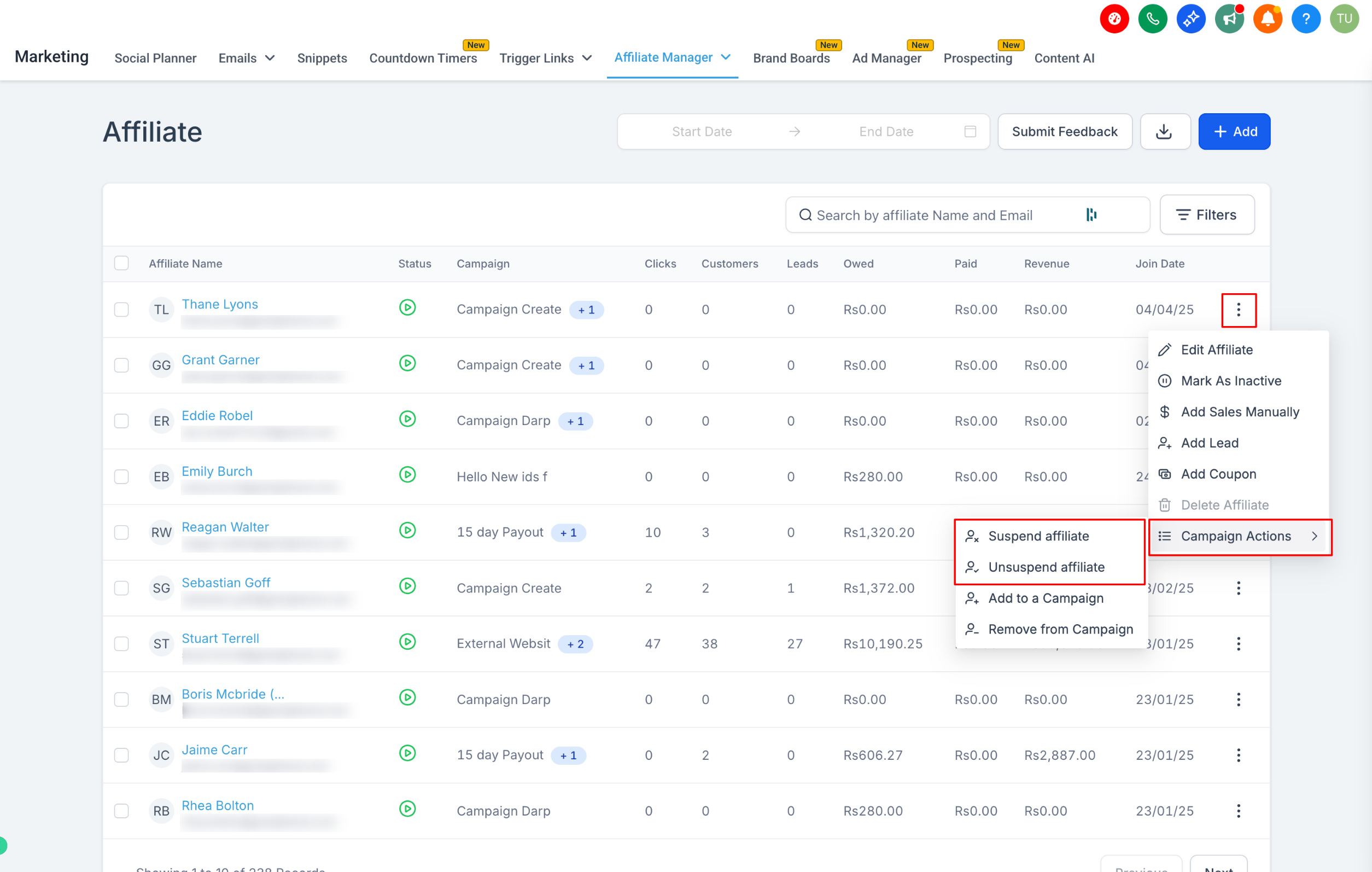
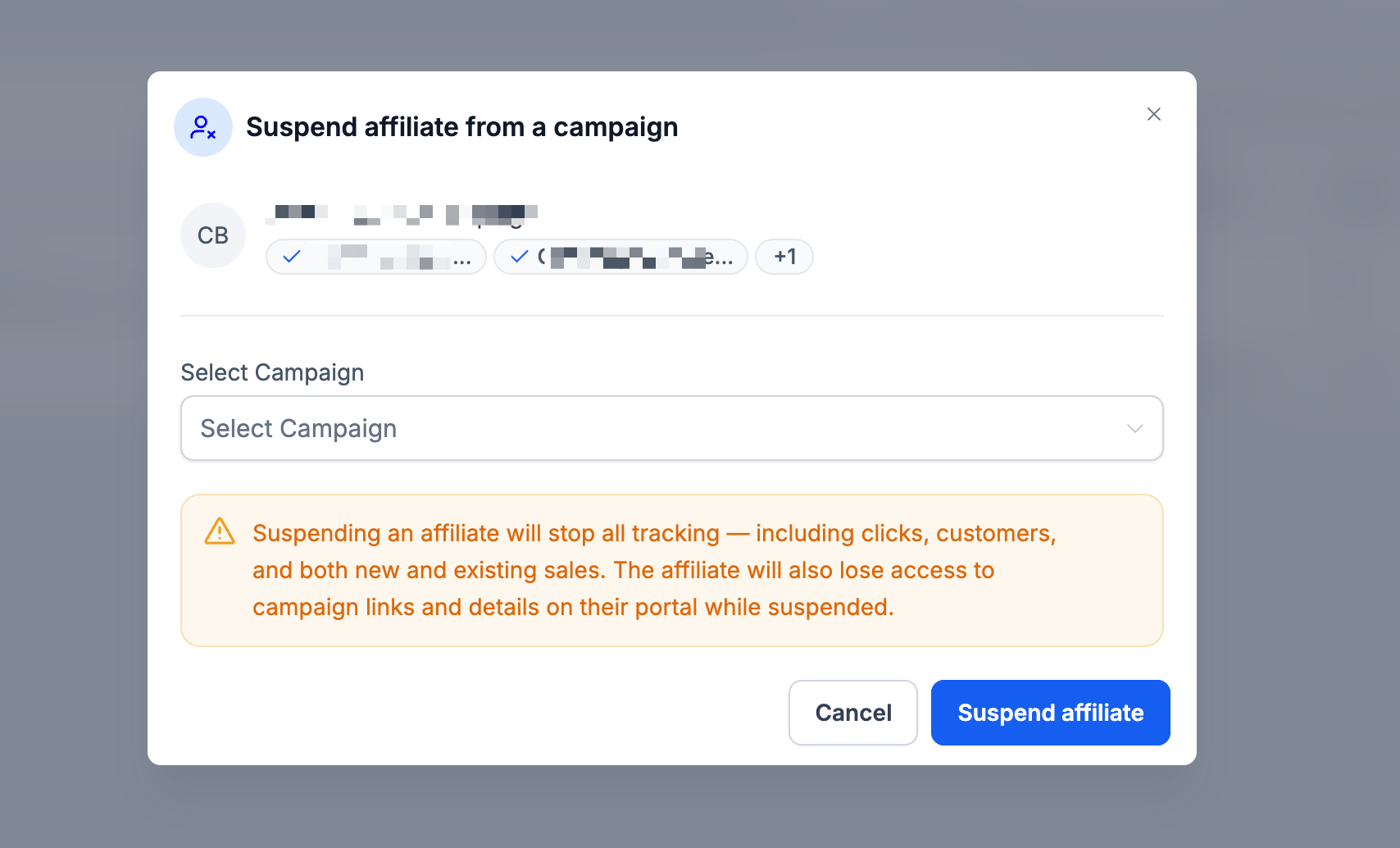
Quick Campaign Actions appear on the Affiliate List page as a three dot menu beside each affiliate. Selecting the menu reveals shortcuts for common tasks such as suspending, adding, removing, and moving affiliates. The Move to Campaign option opens a small workflow that lets you change the affiliate’s campaign, decide the fate of existing customers, and set the welcome email behavior.
When you move an affiliate, you first choose the target campaign. Then you specify whether the affiliate’s current customers stay in the original campaign or follow the affiliate to the new one. Finally, you can enable or disable the welcome email for the new campaign. The action completes with a single click, and the affiliate is reassigned right away.
These actions are limited to single affiliates; bulk changes require separate workflows or manual routines. No profile page needs to be opened, which reduces navigation and clicks.
03How businesses use quick campaign actions
- Digital marketing agency. The agency can reposition an affiliate from a low performing campaign to a higher budget one, choose to keep the affiliate’s existing leads in the original program, and decide whether the new campaign’s welcome email should be sent.
- SaaS startup. When launching a new pricing tier, the startup moves affiliates to the tier’s dedicated campaign, selects to move existing customers so future commissions follow the new tier, and disables the welcome email if the tier does not use it.
- Ecommerce store. The store shifts an affiliate to a seasonal promotion campaign, opts to keep current customers in the previous campaign to honor their original terms, and enables the welcome email to inform the affiliate of the new promotion.
04Before you start
- Go to the Affiliates page, locate the affiliate you want to manage, and click the three dot menu beside their name. From there, select Manage Affiliate to reveal the available actions.
05How to set up and use quick campaign actions in HighLevel
Move an affiliate to another campaign
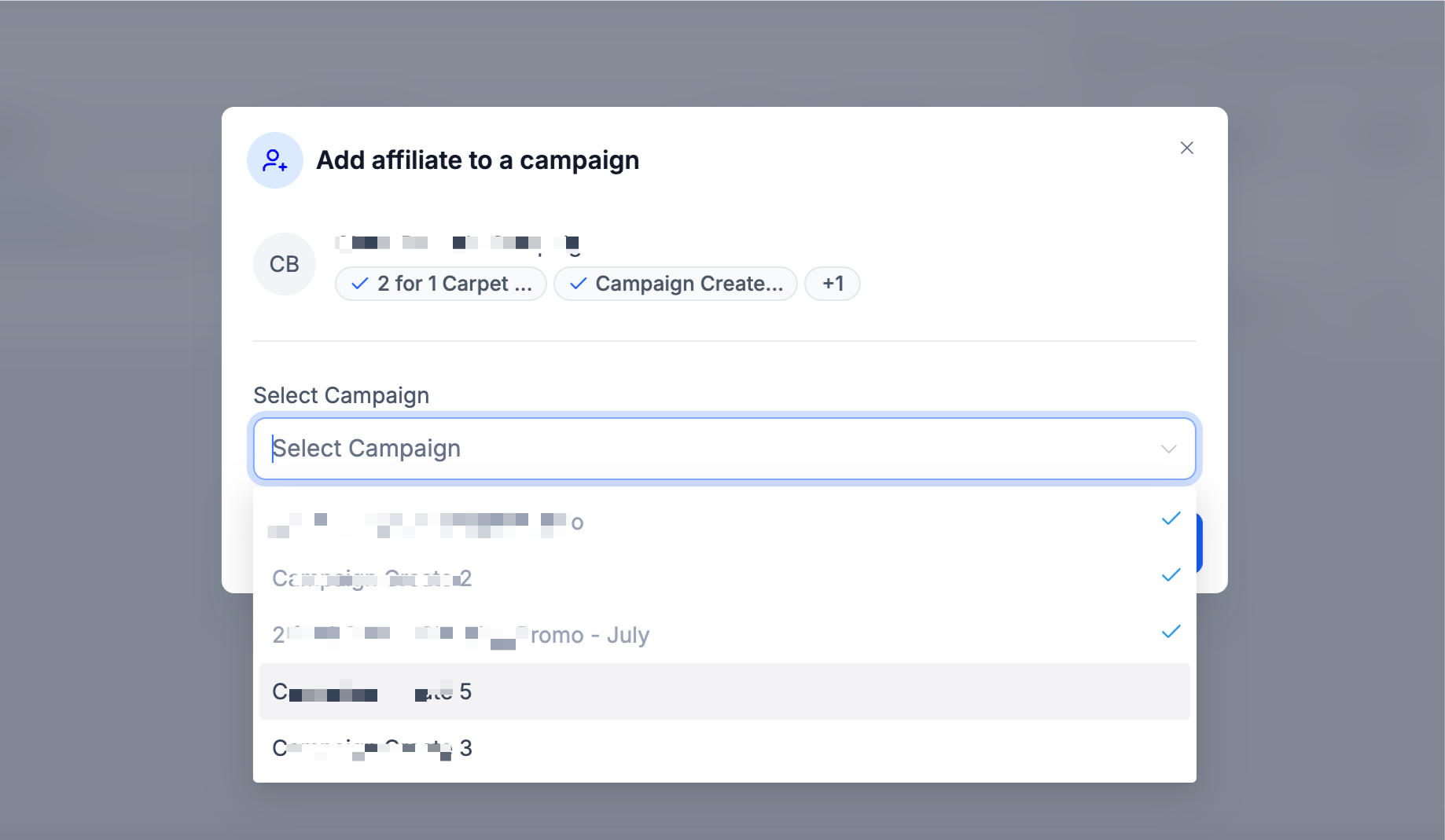
- Open the three dot menu next to the affiliate and select “Move to Campaign.”
- Pick the destination campaign from the pop up list.
- Choose how to handle the affiliate’s existing customers, keep them in the old campaign or move them to the new one.
- Set the welcome email option, enable or disable sending based on the target campaign’s email setting. If the target campaign has welcome emails disabled, no email will be sent.
- Click “Move Affiliate” to finalize the change.
06What it looks like in HighLevel
07Settings that matter
- Existing Customer Handling. Controls whether current customers stay under the original campaign or transfer to the new campaign for future commissions.
- Send Welcome Email. Determines if the affiliate receives a welcome email after being moved, respecting the target campaign’s email configuration.
08Things to know before you rely on it
- The move action cannot be undone; you must manually move the affiliate back if needed.
- Bulk moves are not available through Quick Campaign Actions; use workflows or manual bulk procedures instead.
- Welcome emails are sent only if the target campaign has them enabled; the toggle can suppress the email.
09If something goes wrong
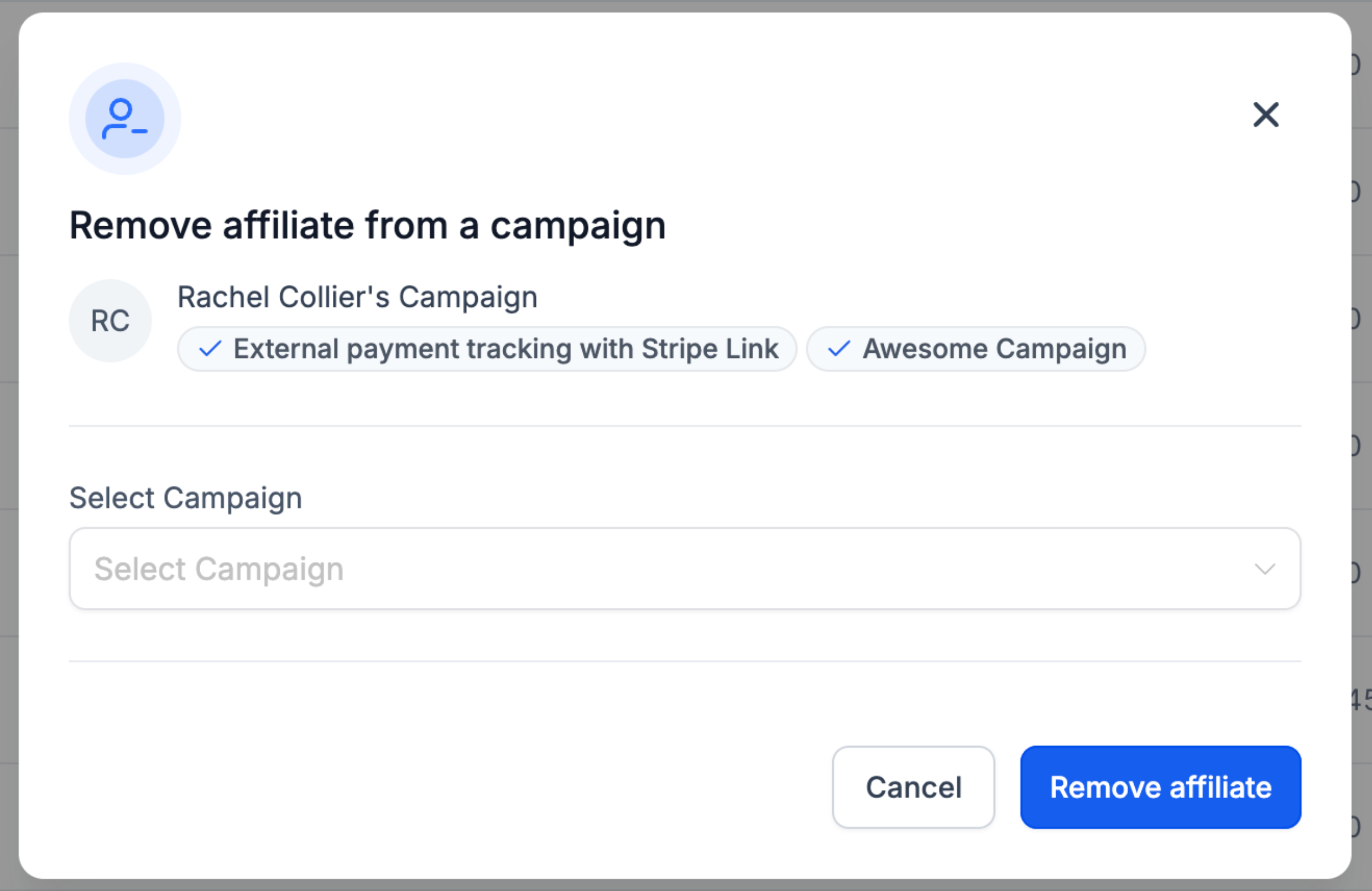
- Need to reverse a Move to Campaign action. Open the affiliate’s three dot menu again, select “Move to Campaign,” and choose the original campaign.
- Welcome email not sent after moving. Confirm that the destination campaign has welcome emails enabled; if not, the email will not be dispatched.
10How it connects to the rest of HighLevel
- Add affiliates in the Affiliate Manager Add affiliates guide
- Manage commissions with the Affiliate portal Commission portal guide
- HighLevel pricing and plans Pricing page
Michael's take

Quick campaign actions feel like a double edged sword. It’s easy to click through and make changes without double checking, and a missed click can suspend an affiliate or move them to the wrong campaign. Keep an eye on the confirmation dialogs and know exactly which campaign you’re targeting before you hit the final button.