
01Who this is for
- Digital marketing agencies benefit because they can onboard client accounts without sharing workspace access.
- Freelance social media consultants use it to let clients authorize their own platforms while keeping control of the agency side.
- Small business owners managing multiple brands can connect each brand’s accounts through a single invitation.
02Social connect invites, explained
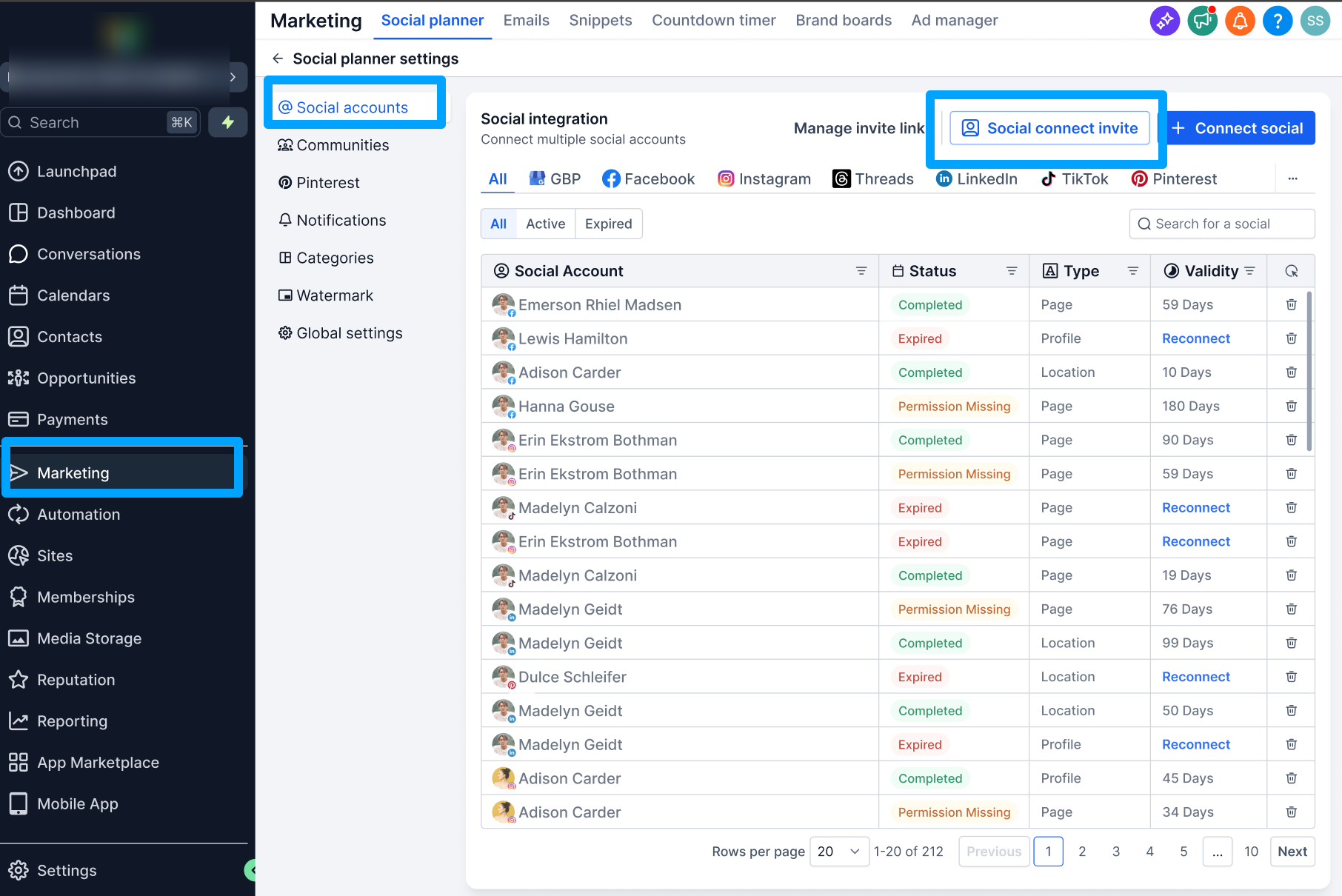
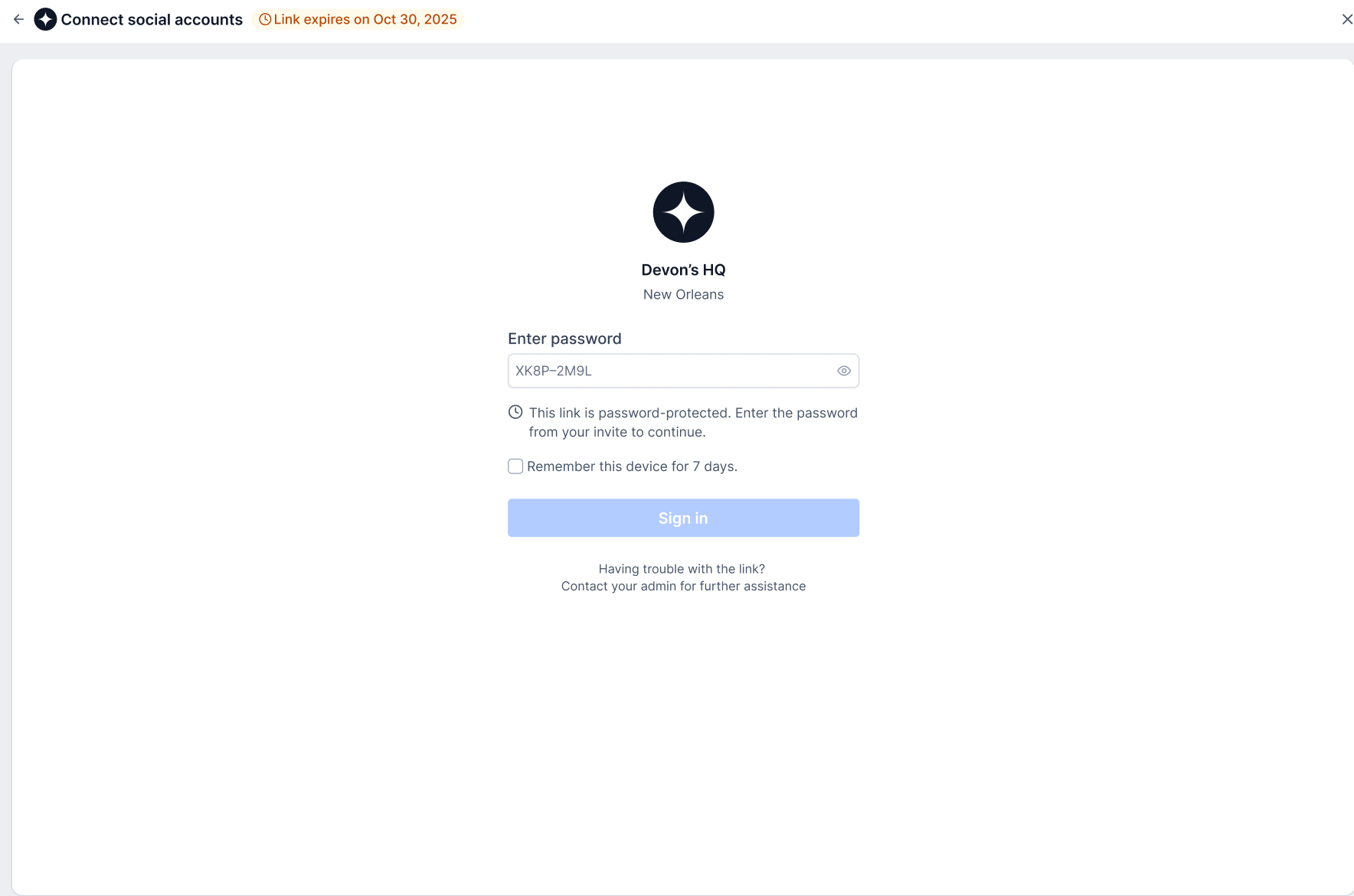
Social Connect Invite is a feature inside the Social Planner settings. It creates a password protected invitation that a client can open in a browser. The client follows the link, enters the password, selects a social platform and completes that platform’s authorization flow. When the process finishes, the new social account is added to the agency’s subaccount automatically.
The feature lives under Marketing > Social Planner > Settings > Social Accounts. A toggle for Social Connect Invite must be turned on from Settings > Labs before any invites can be generated. Invite management, including extending, regenerating or revoking links, is available through Settings > Manage Links > Social Connect Link.
03How businesses use social connect invites
- Digital marketing agency. The agency enables the feature, creates an invite link with a password, and sends it to the client. The client opens the link, authorizes their Facebook and Instagram pages, and the accounts appear in the agency’s subaccount without the client needing platform access.
- Real estate brokerage. The brokerage generates an invite, shares it via email, and each agent uses the link to connect their personal LinkedIn profile. Once linked, the brokerage can schedule posts from the Social Planner while agents keep their own login credentials private.
- Fitness studio chain. The studio manager creates a custom password invite, distributes it to each location manager, and each manager connects their Google Business Profile. The connected profiles are then visible in the central subaccount for unified posting.
04The numbers and rules that matter
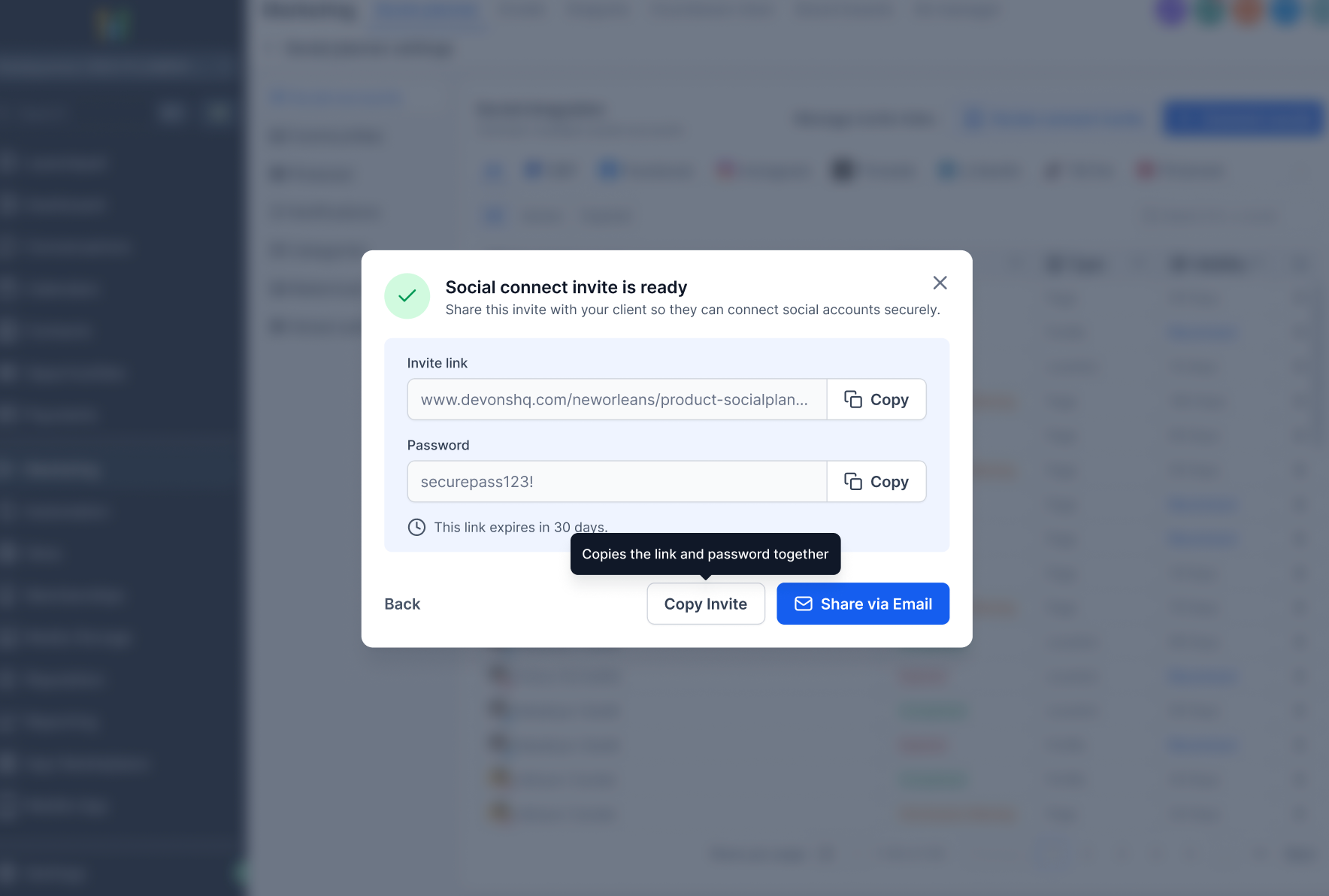
- Invite links expire 30 days after they are created.
05Before you start
- Enable Social Connect Invite in Settings > Labs.
- Access the Marketing > Social Planner section of the platform.
06How to set up and use social connect invites in HighLevel
Create a social connect invite
- Navigate to Marketing > Social Planner > Settings > Social Accounts.
- Select the Social Connect Invite option.
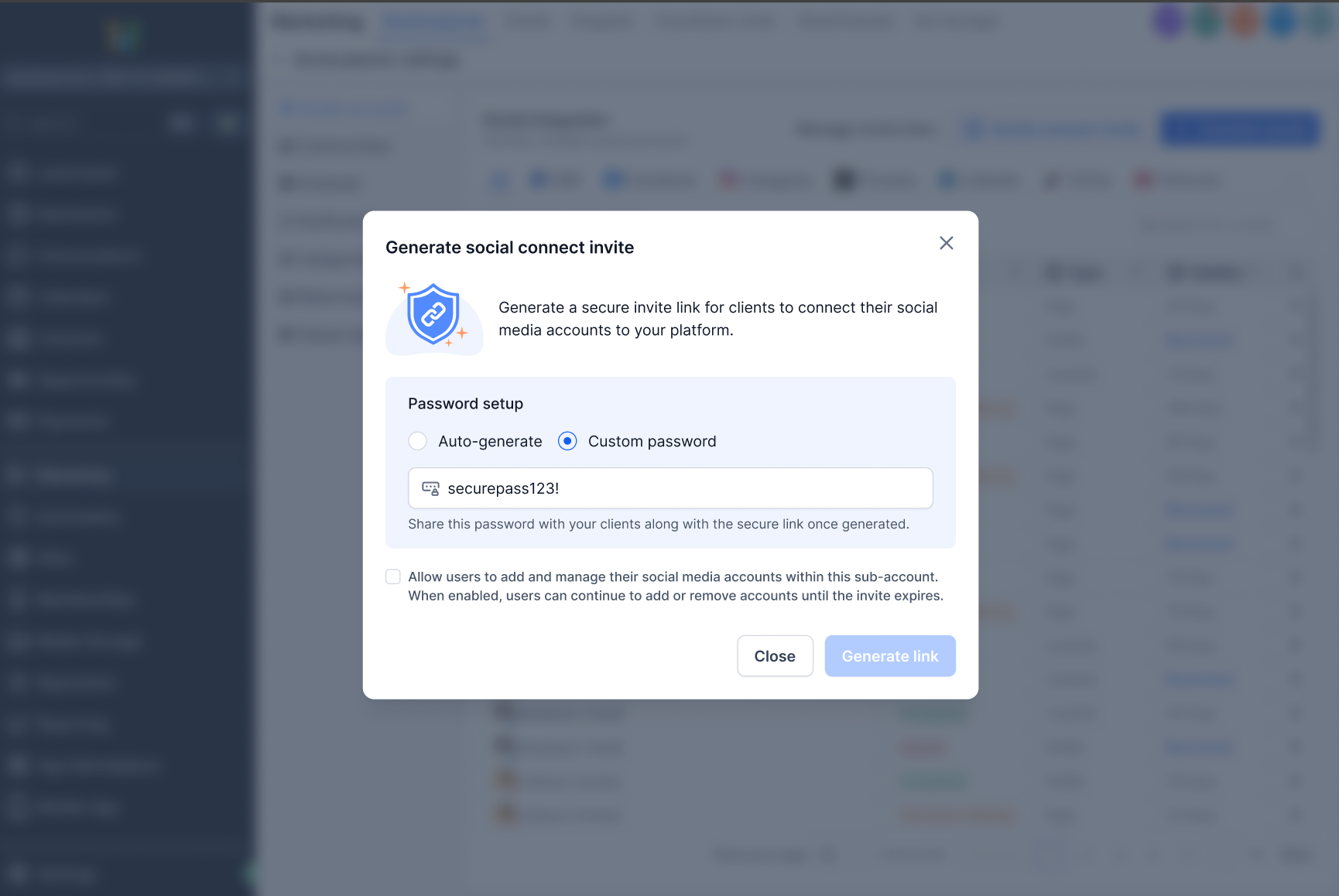
- Click the button to generate an invite link.
- Choose either an auto generated password or type a custom password.
- Copy the link and password or send them directly to the client.
07What it looks like in HighLevel
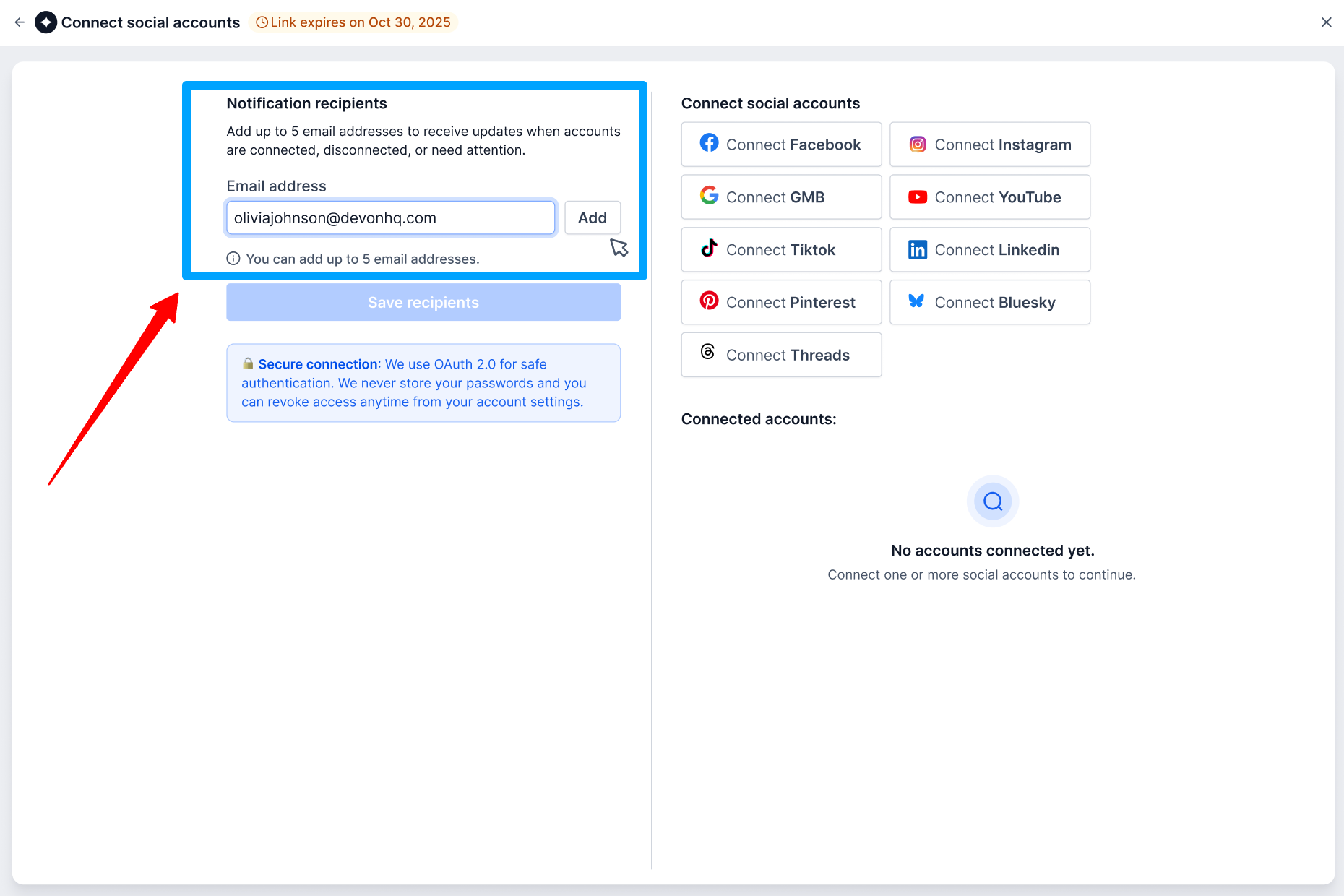
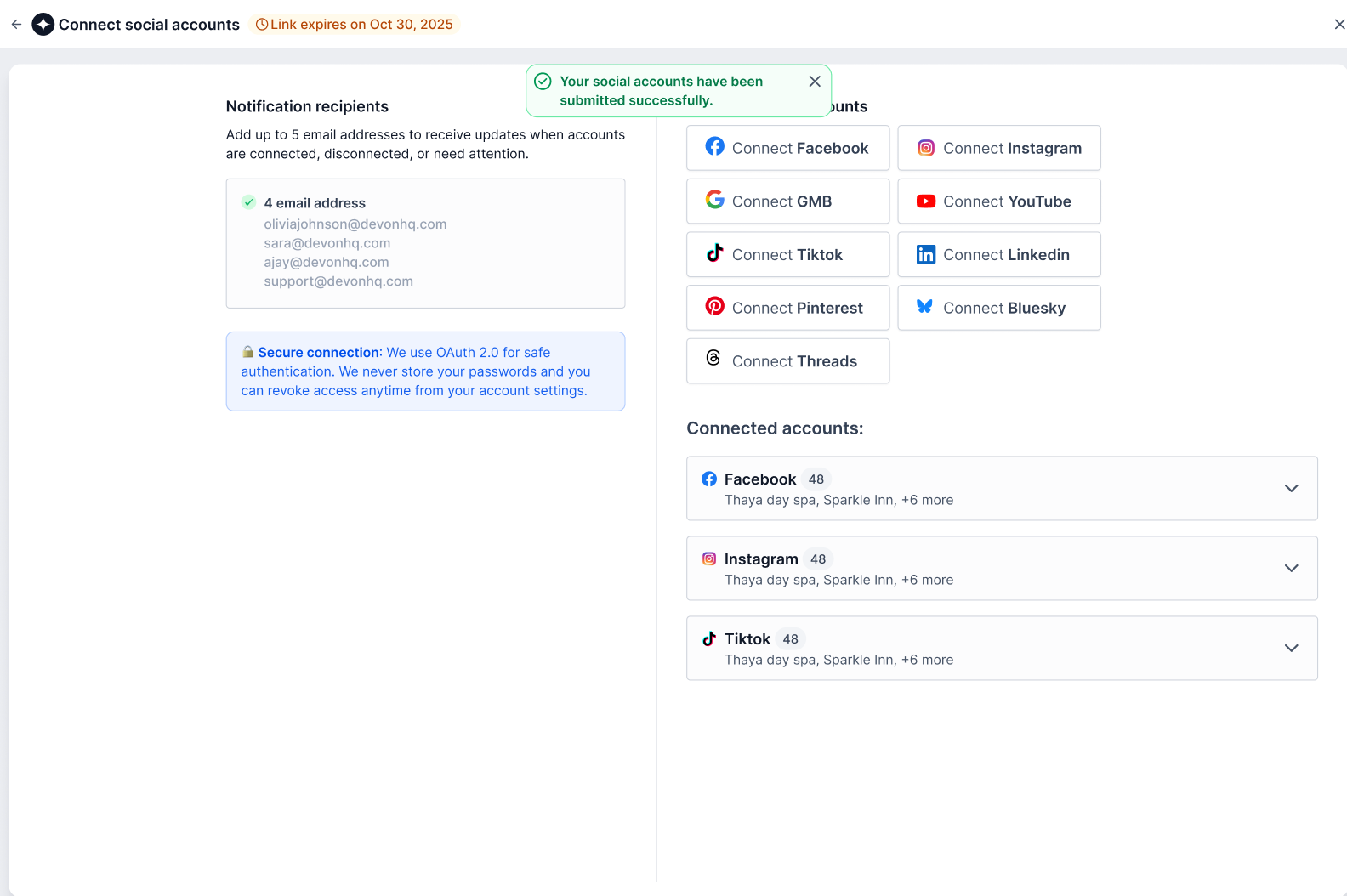
08Settings that matter
- Social Connect Invite. Controls whether password protected invitation links can be created for clients to connect their social media accounts.
09Things to know before you rely on it
- Invite links are valid for 30 days after creation.
- You can extend or regenerate an invite before or after it expires.
- Anyone with both the invite link and password can use the invite.
- Revoking an invite disables it immediately.
10How it connects to the rest of HighLevel
- How to connect a Facebook page in the Social Planner Connect Facebook
- HighLevel Instagram connection: Facebook linked vs direct Instagram options
- How to connect a Google Business Profile in HighLevel Google Business
Michael's take

Social Connect Invites are a practical way to let clients link their own social accounts without handing over HighLevel access. Agencies that already handle multiple client accounts will find it useful.
If you aren’t managing social media on behalf of clients, or you prefer to keep every integration inside your own workflow, you can skip this feature.