
01Who this is for
- Marketing managers at clothing brands can design launch stories and line them up for timed release.
- Event coordinators can build a series of countdown stories and schedule them ahead of the event date.
- Retail owners running flash sales can prepare stories that announce the start and end of limited time offers.
02Instagram Story Post Composer, explained
The Composer lives in the Social Planner section of HighLevel. It appears when you choose the "story" content type for an Instagram Professional account. The interface lets you attach media from the Media Library, set a publishing time, or keep the story as a draft.
Media uploads are limited to ten items per story. Images cannot exceed eight megabytes and videos must be under sixty seconds. The tool does not support adding captions, text, stickers, or tags through the API; those elements must be added directly in Instagram.
Once a story is saved, you can either schedule it for automatic posting or click Save for Later to return later and finish the draft.
03How businesses use the Instagram Story Post Composer
- Clothing brand. Upload a series of product images to the Composer, arrange them as a story, and set a future publish date that matches the launch schedule. The draft can be saved if edits are needed before the launch.
- Event planner. Create story slides that count down to the event, add the media files, and schedule each slide to go live at specific times leading up to the event day. Drafts allow the planner to refine content earlier.
- Retail store. Prepare a story that announces a flash sale window, attach up to ten images or video clips, and schedule the story to go live exactly when the promotion starts. The draft function can be used to pause work until the sale details are finalized.
04The numbers and rules that matter
- Supports up to 10 images or videos per story.
- Maximum image file size is 8 MB.
- Maximum video length is 60 seconds.
05Before you start
- Add an Instagram Professional account to HighLevel (personal or creator accounts are not supported).
- Upload any images or videos you plan to use to the Media Library.
06How to set up and use the Instagram Story Post Composer in HighLevel
Create and schedule an Instagram story
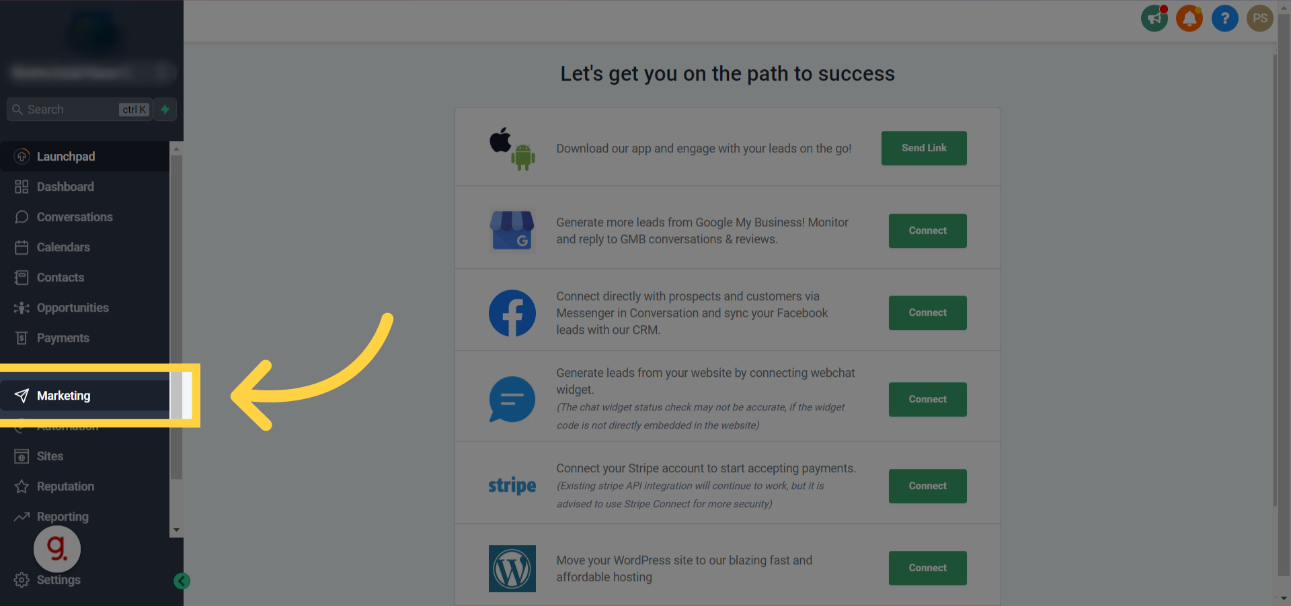
- Open the Marketing section.
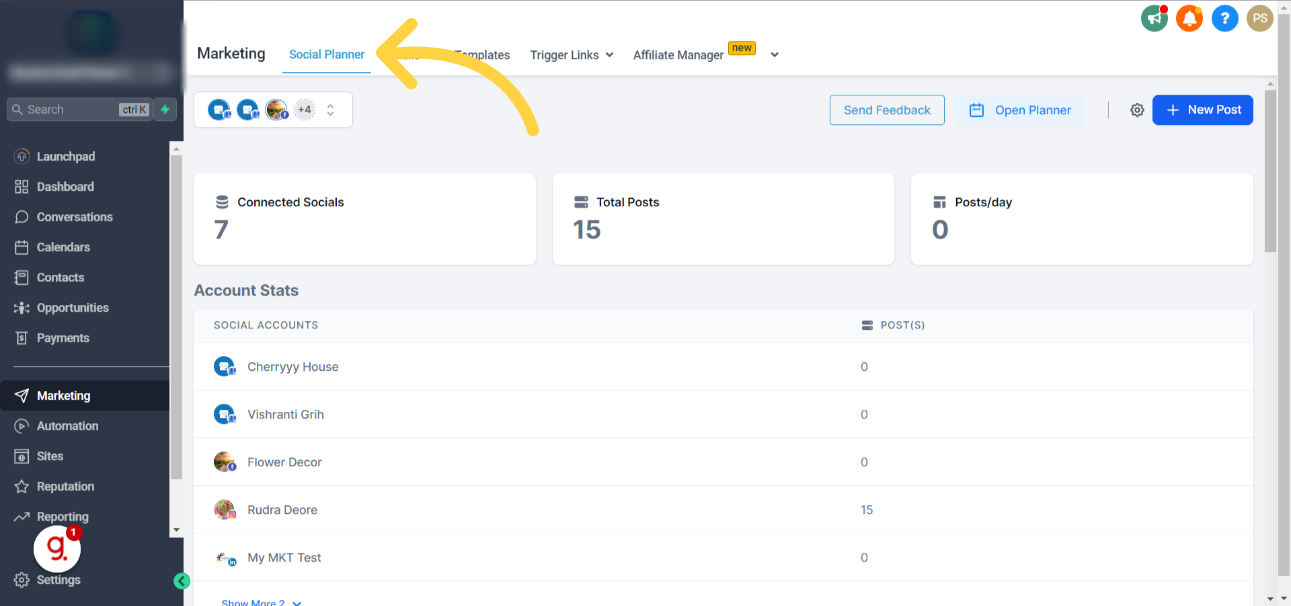
- Select Social Planner.
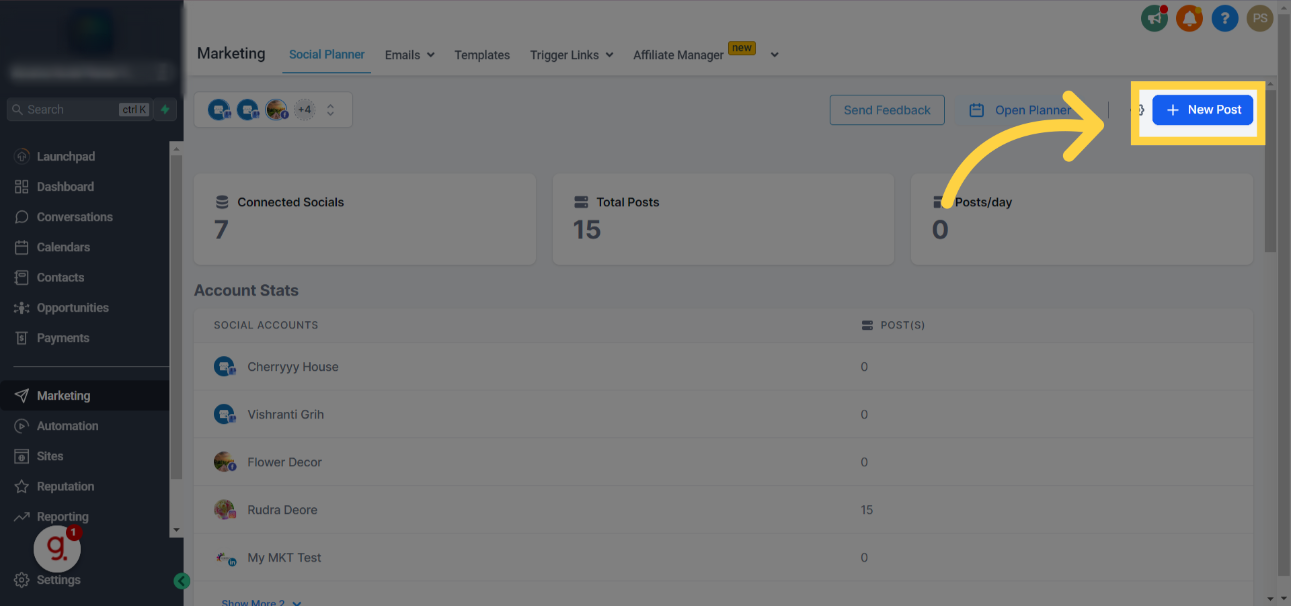
- Click the New Post button.
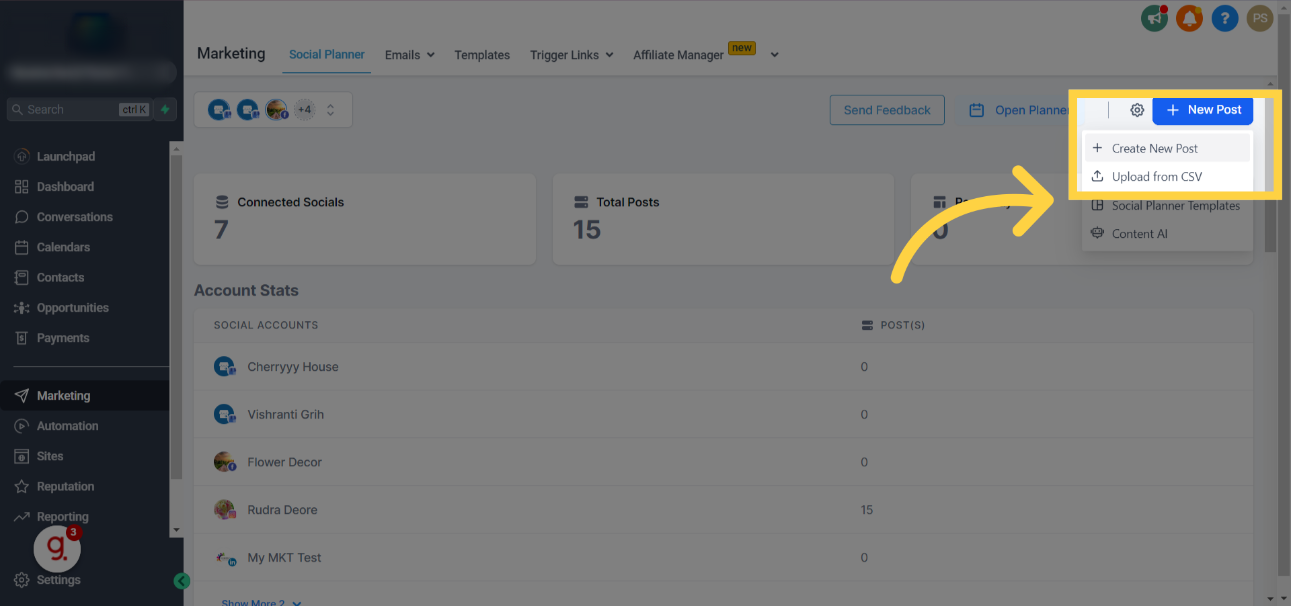
- Press the Create New Post option.
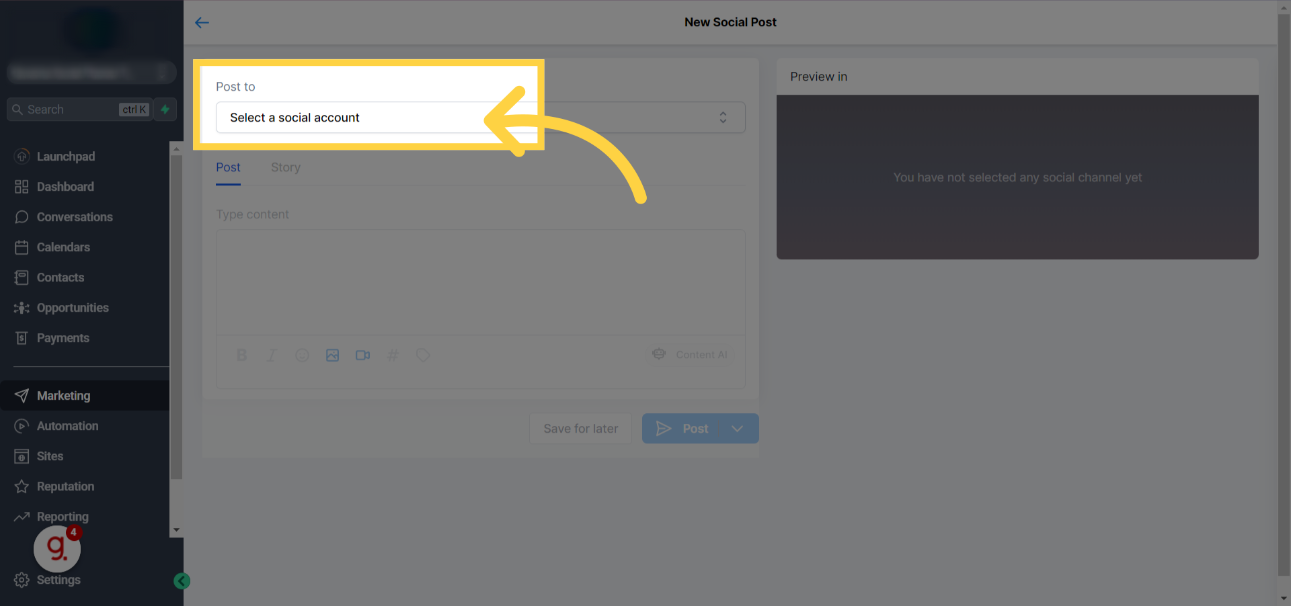
- Choose Select a social account under the Post to field.
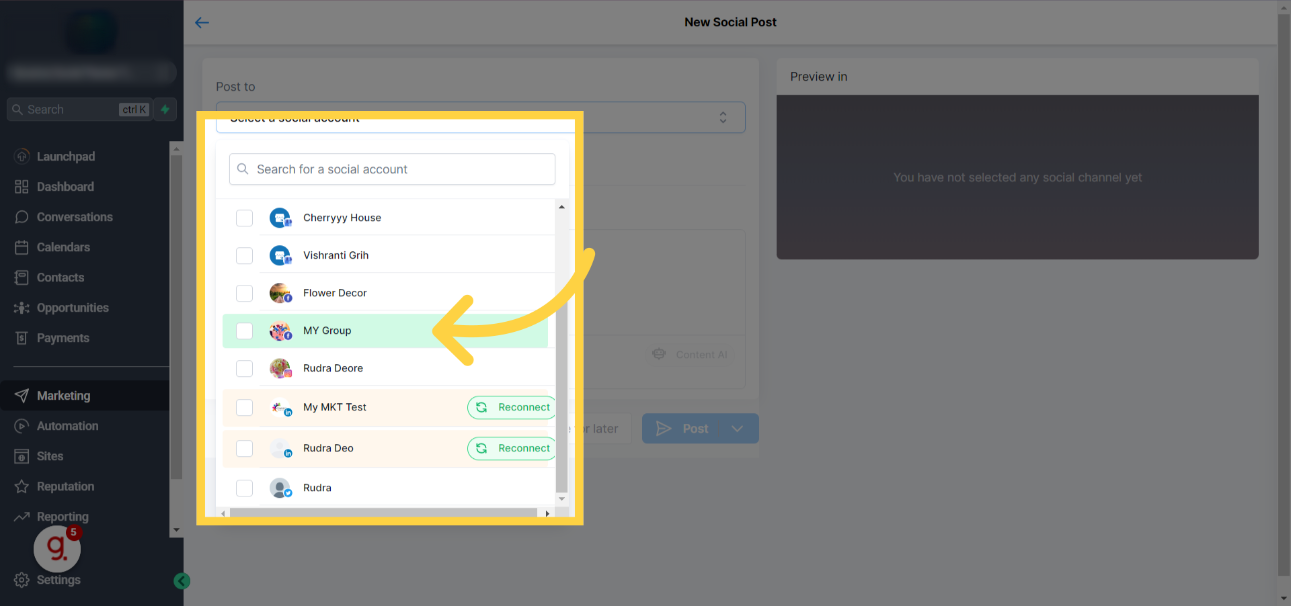
- Mark the Instagram Professional account(s) you want to publish to (selecting other accounts will prevent the story from being visible).
- Under Content Type, pick story.
- Upload up to ten images or videos using the Upload image or video button.
- Click the arrow next to Post to and set the desired publishing time or send the story for approval.
- If you need to finish later, click Save for Later to store the story as a draft.
07What it looks like in HighLevel
08Settings that matter
- Post to. Selects which social accounts the story will be published to.
- Content Type. Determines the format of the post; choosing story enables the Instagram Story Composer.
- Upload image or video. Allows you to attach media files to the story, respecting size and length limits.
- Save for Later. Saves the current story as a draft so you can return and edit it later.
09Things to know before you rely on it
- Only Instagram Professional (business) accounts are supported; personal and creator accounts cannot publish stories.
- A maximum of ten images or videos can be added to a single story.
- Image files must not exceed eight megabytes.
- Video clips must be sixty seconds or shorter.
- Captions, text, stickers, and tags cannot be added through the Composer.
10How it connects to the rest of HighLevel
- Check image and video specifications for Social Planner content Content specs
- Learn how to connect your Instagram account via Facebook linking or direct integration Instagram connection
- Connect a Facebook page to use with Social Planner Facebook connection
Michael's take

Make sure you’re posting to an Instagram Professional (business) account, otherwise the story won’t publish.
Upload your images and videos within the 8 MB and 60 second caps, then set your schedule.