
01Who this is for
- Social media managers, can schedule stories for multiple accounts and let any team member post on time.
- Small business owners, can prepare stories in advance and avoid missing optimal publishing windows.
- Marketing teams, can add internal notes for collaborators to include brand stickers or trending audio before posting.
02Instagram stories via push notifications, explained
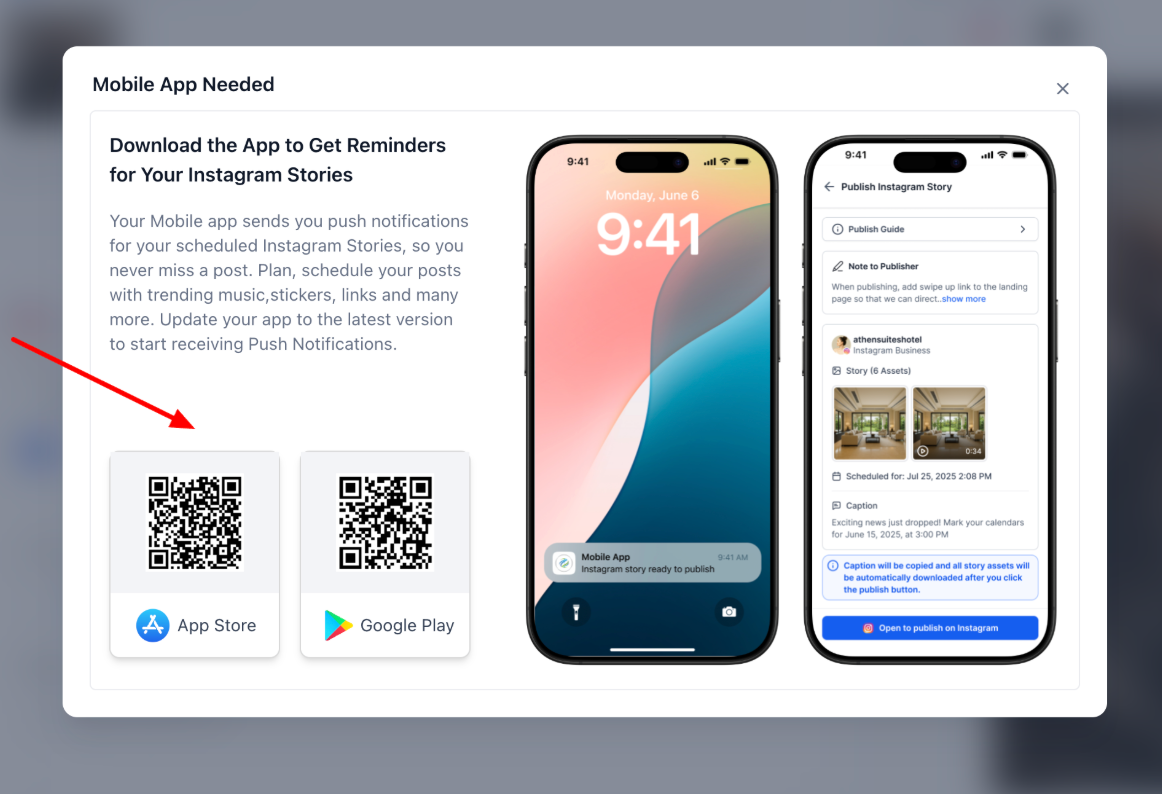
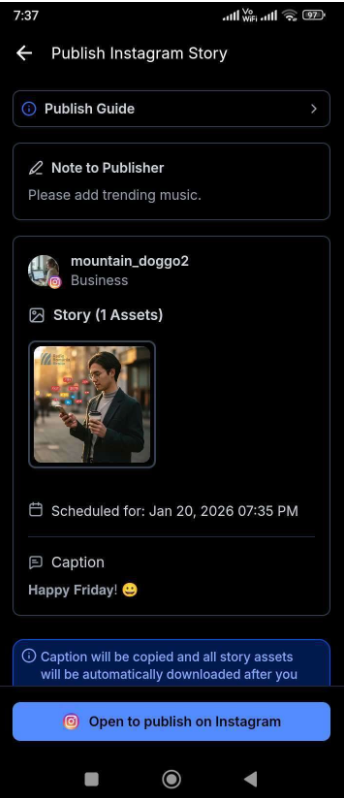
The feature adds a push notification option to the Social Planner when you create an Instagram Story. After you schedule the story, HighLevel stores it in the Scheduled list and sends a notification to the chosen mobile device at the selected time. Clicking the notification triggers the app to download the story media, copy the caption and any notes to the clipboard, and launch Instagram. From there you finish the post using Instagram’s native tools such as stickers, links, music, or mentions.
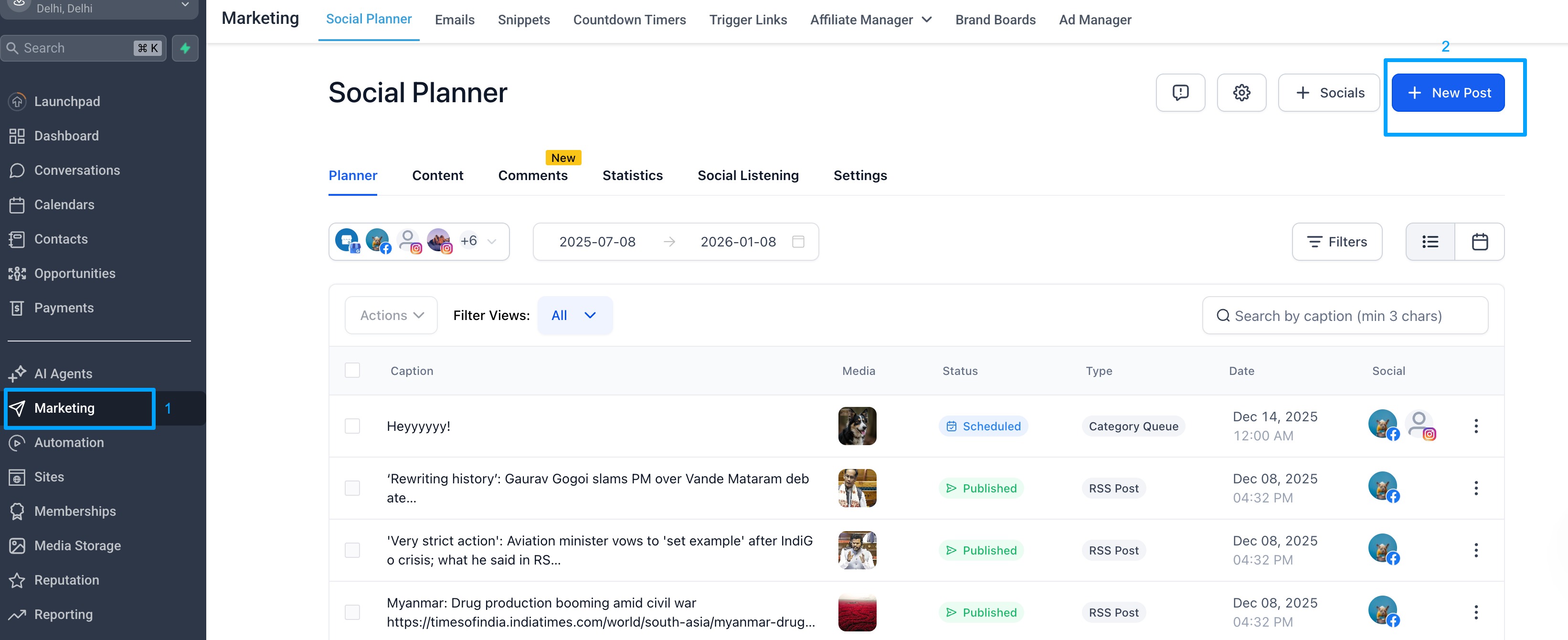
This workflow lives inside the Social Planner area of HighLevel. You access it by creating a new post, selecting Instagram Story, uploading your media, entering a caption, and toggling the “Publish via Push Notification” option. The scheduled story appears in the planner’s list and can be cloned or rescheduled if needed.
The push notification method is required because Instagram does not allow third party platforms to auto publish stories with interactive elements. The notification ensures the story is posted at the right moment while still using Instagram’s native editing capabilities.
03How businesses use Instagram stories via push notifications
- Local coffee shop. The owner schedules a daily promotional story with a caption and a note to add the new seasonal drink sticker. At the set time, the manager receives a push notification, taps it, adds the sticker inside Instagram, pastes the caption and publishes the story.
- Real estate agency. An agent pre loads a property tour video as an Instagram Story, adds a note to include a link sticker to the listing page, and schedules it for the evening open house. The notification prompts the agent to open Instagram, add the link sticker, and publish.
- Fitness trainer. The trainer creates a workout reminder story, notes to insert the music track of the session, and schedules it for the class start time. When the push arrives, the trainer opens Instagram, adds the music, pastes the caption and shares the story.
04Before you start
- Mobile app installed on the device that will receive the notification.
- Push notifications turned ON for the Instagram profile within the app.
- Logged into the correct Instagram account in the HighLevel mobile app.
05How to set up and use Instagram stories via push notifications in HighLevel
Schedule Instagram Stories via the web
- Open HighLevel and navigate to Marketing > Social Planner > Create Post.
- Choose the Instagram Story post type.
- Upload the story media file and type the caption.
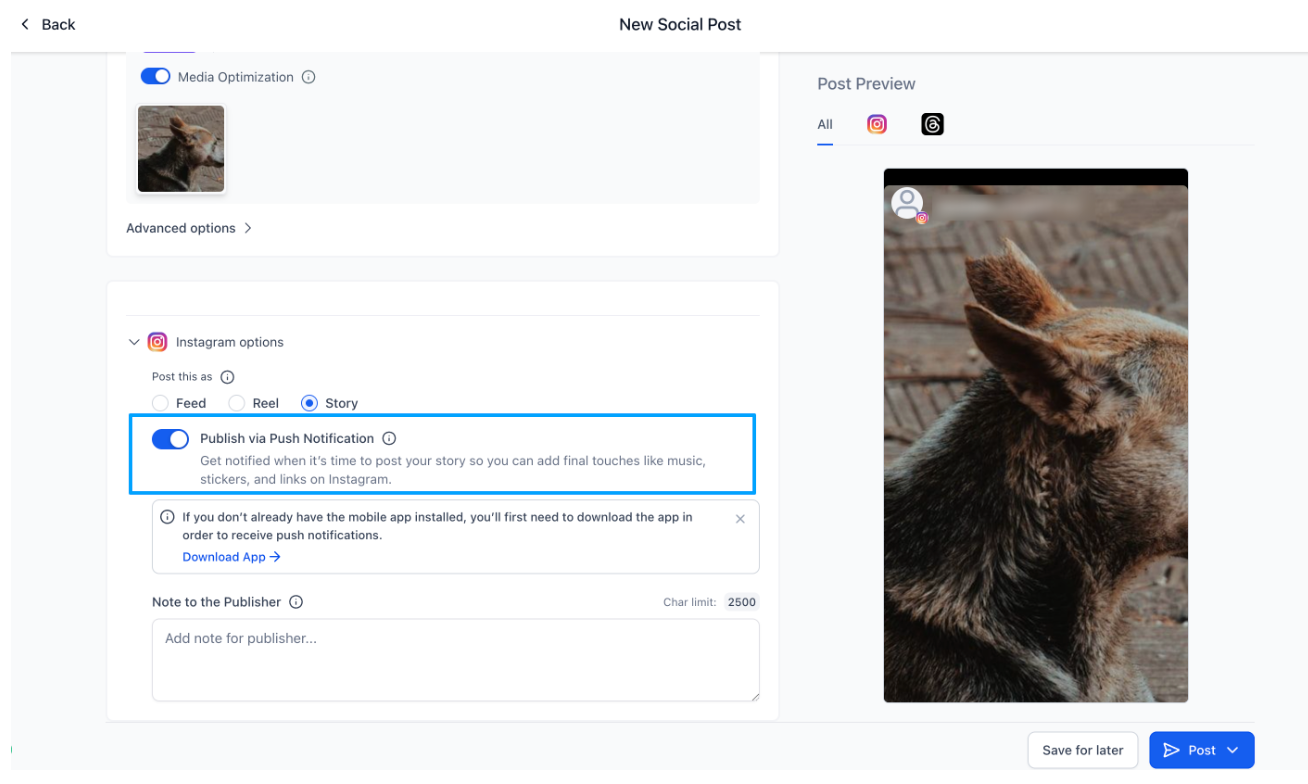
- Turn on the Publish via Push Notification toggle.
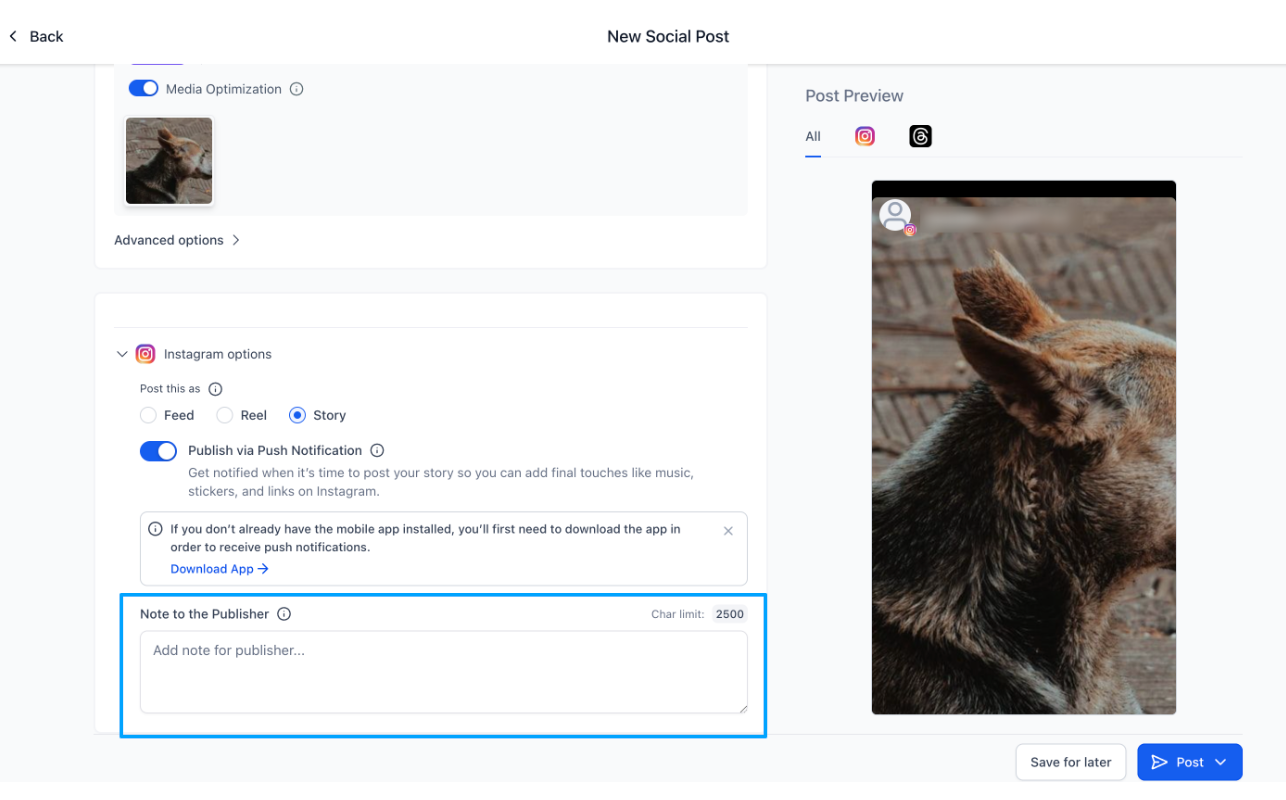
- Optionally, add a note for the teammate who will publish the story.
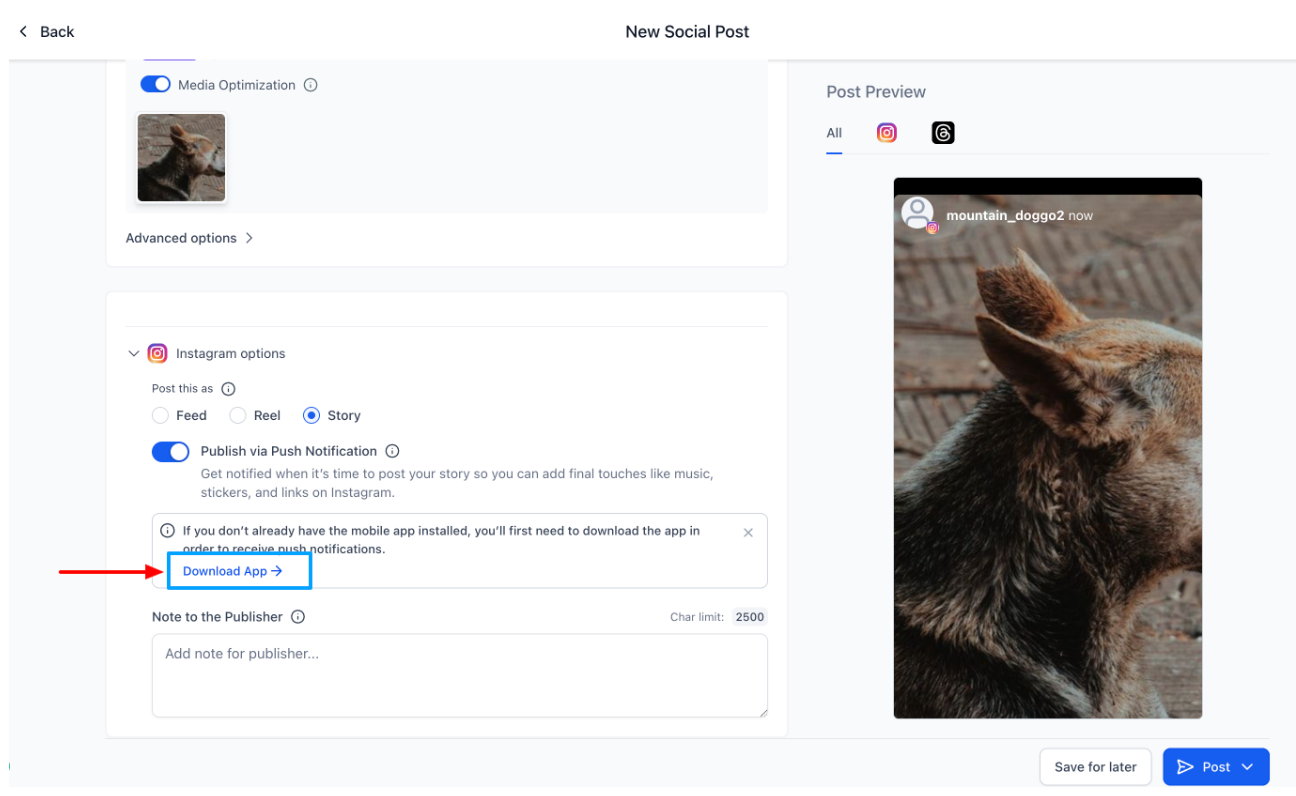
- If the mobile app is not installed, click Download App and scan the QR code to install it.
- Select the desired date and time for the story to be posted.
- Press Schedule so the story appears in the Scheduled list.
Publish an Instagram Story from a mobile device
- Confirm the HighLevel mobile app is installed on the phone.
- Enable push notifications for the Instagram profile in the app settings.
- At the scheduled moment, receive a push notification on the device.
- Tap the notification to launch the publishing flow.
- The app downloads the story media and copies the caption and notes to the clipboard.
- Instagram opens automatically; paste the caption, add stickers, links, music or mentions as needed.
- Publish the story inside Instagram.
06What it looks like in HighLevel
07Settings that matter
- Publish via Push Notification. Activates the push notification workflow so a scheduled Instagram Story triggers a mobile alert for manual publishing.
08Things to know before you rely on it
- Instagram blocks third party apps from auto publishing Stories that contain stickers, links, music, or trending audio.
- Only the caption and notes are copied; interactive elements must be added manually within Instagram.
09How it connects to the rest of HighLevel
- Connect your Facebook page to use Social Planner Facebook page connection
- Understand Instagram integration options, linked Facebook versus direct Instagram connection details
- Check image and video specs for Social Planner posts Content guidelines
Michael's take

Having the ability for any teammate to finish the Story using Instagram’s native tools makes the workflow more flexible, especially when schedules are tight.