
01Who this is for
- Affiliate managers who need to control when and how affiliate commissions are paid.
- Small ecommerce businesses that prefer bank transfers over PayPal for affiliate settlements.
- SaaS Founders who run subscription based affiliate programs and must review refunds before paying.
02Affiliate payouts, explained
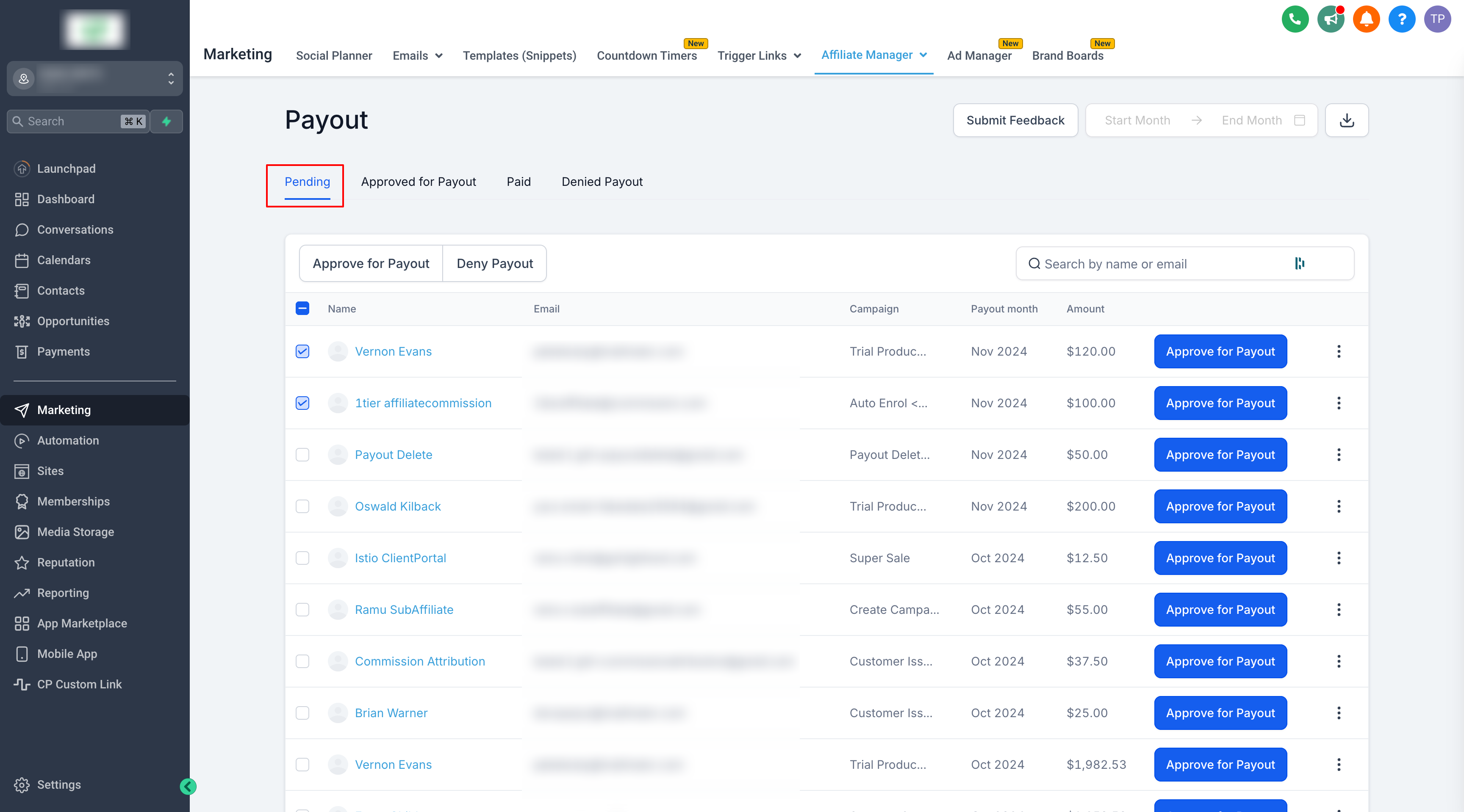
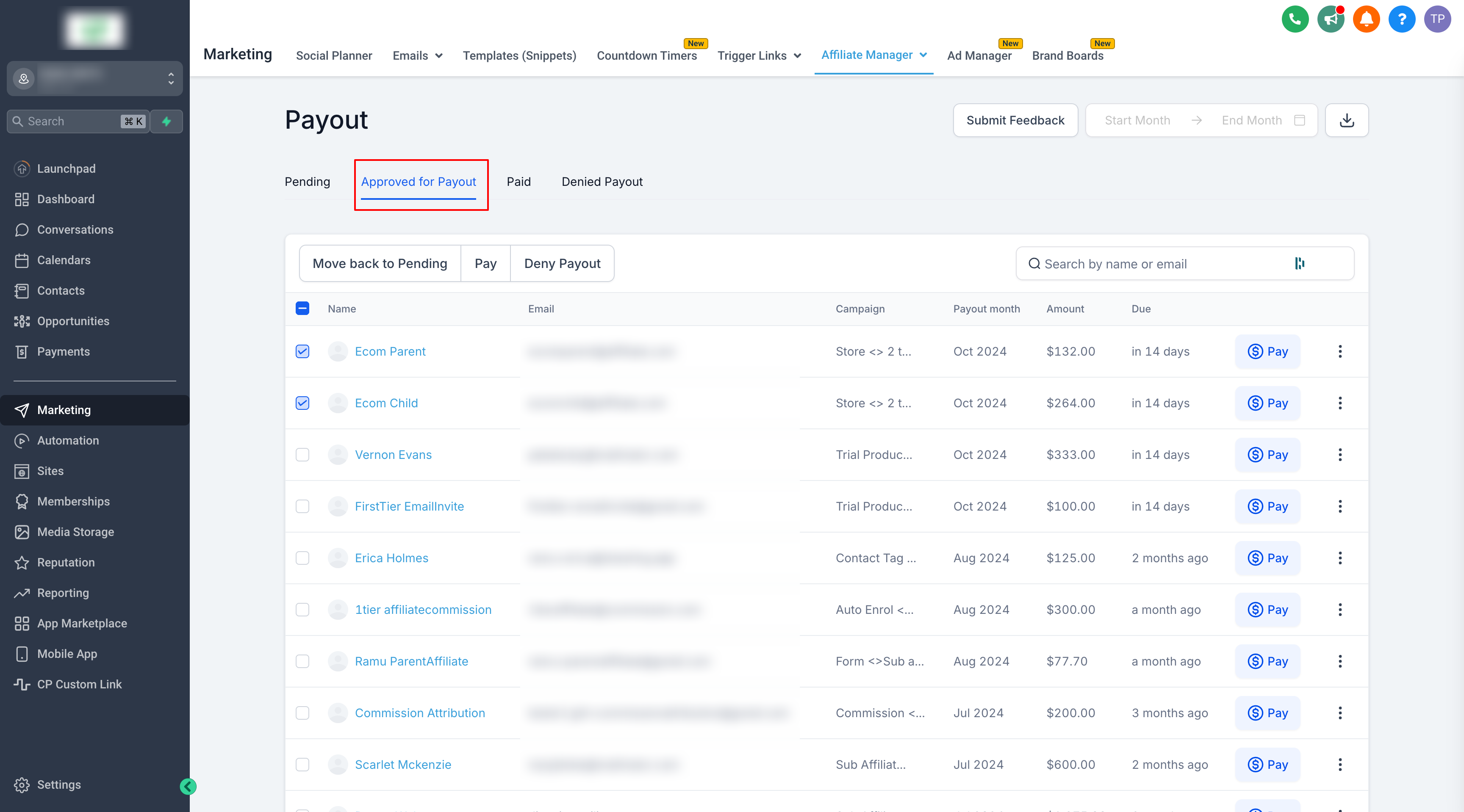
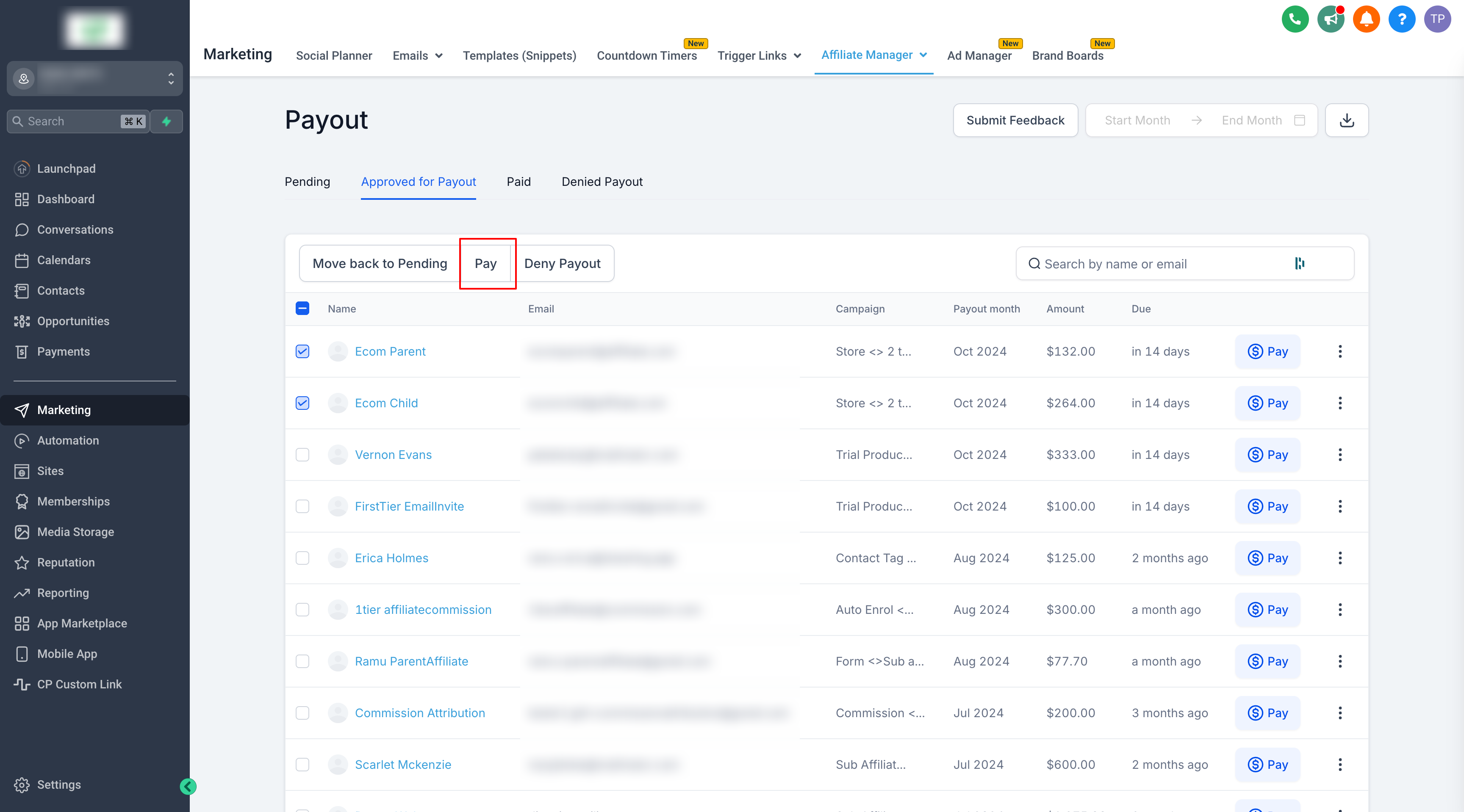
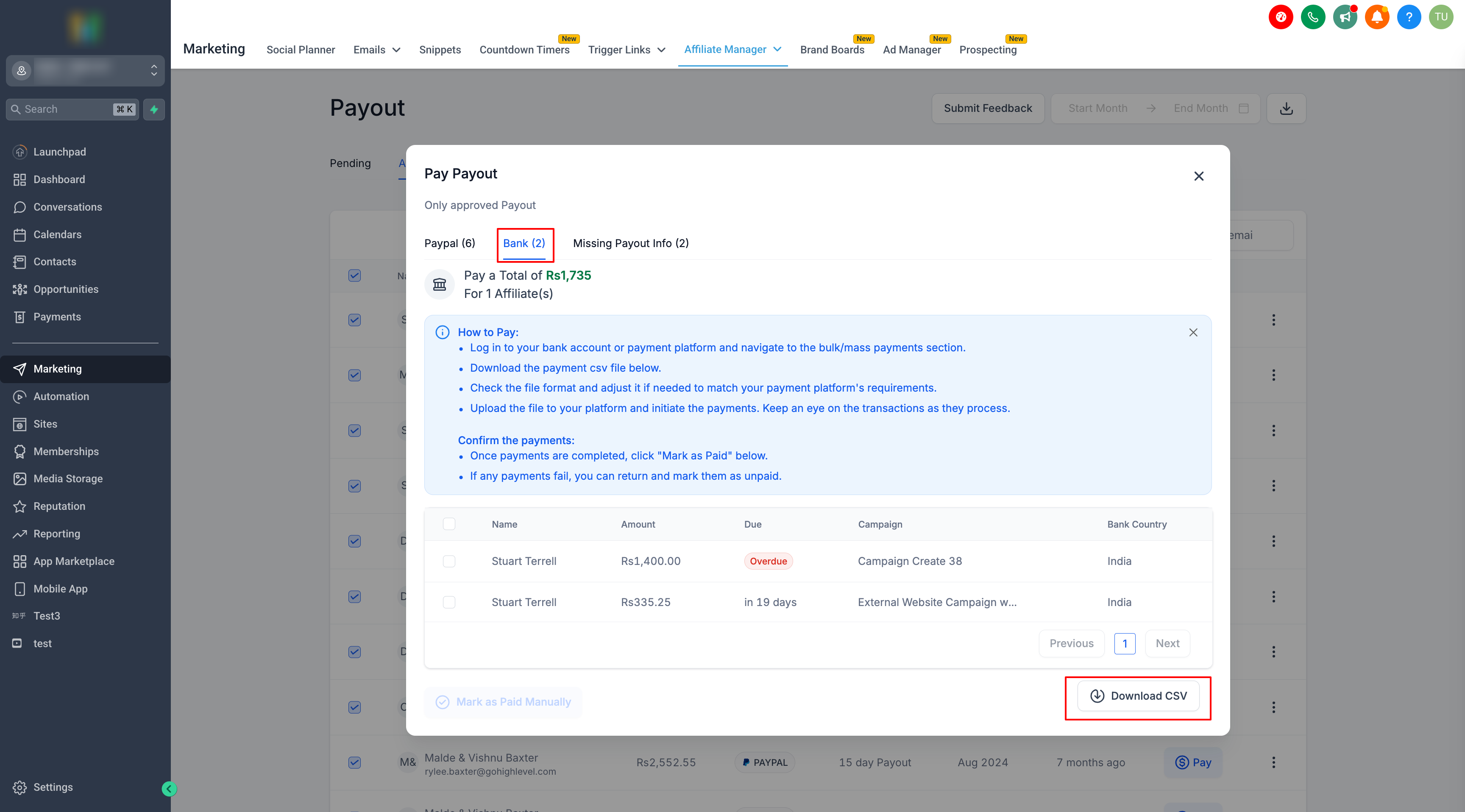
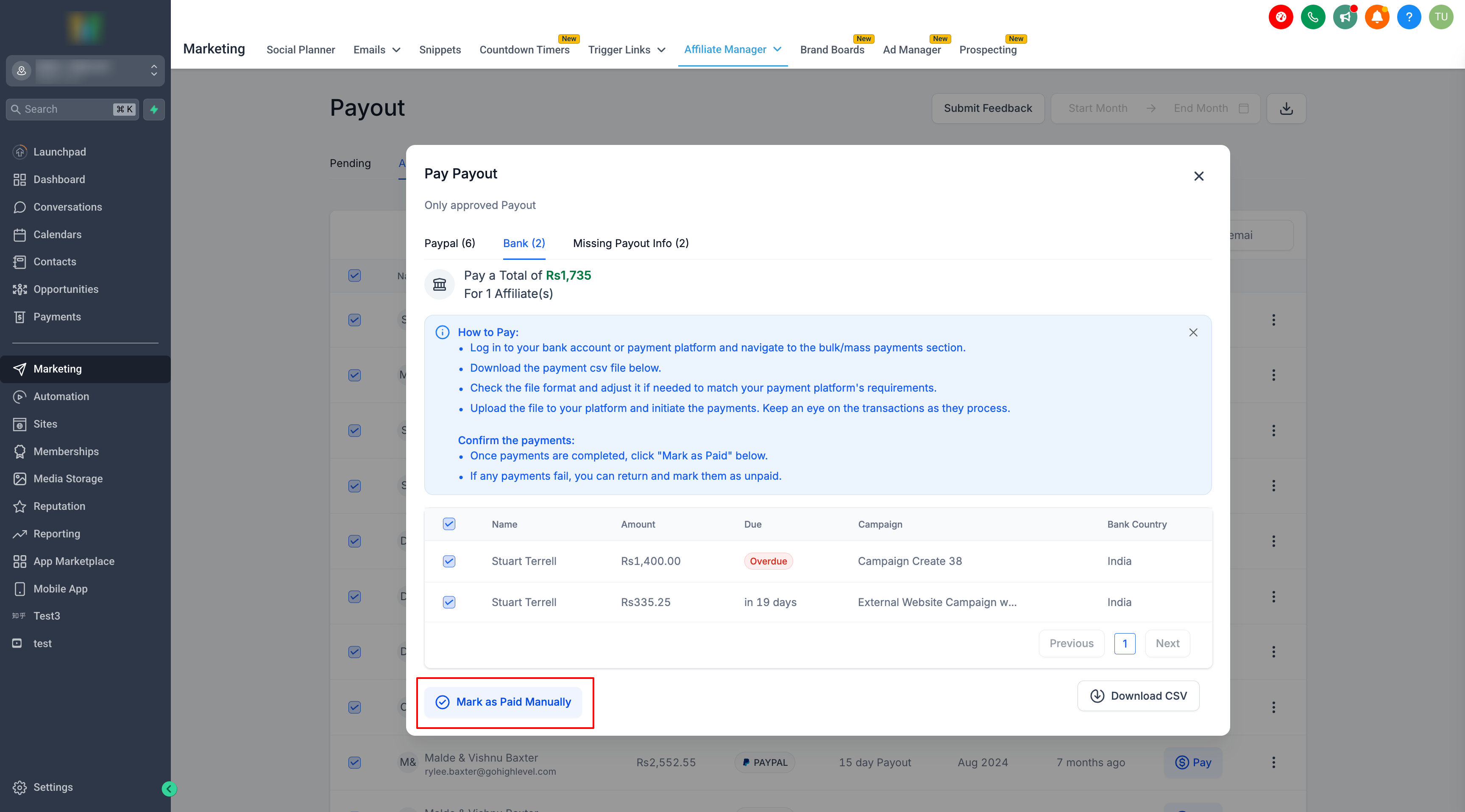
The manual payout feature resides in the Affiliate Manager section under the Payouts page. It shows commissions in a Pending tab, lets you approve them, and moves approved items to an Approved for Payout view. From there you can select payouts, initiate a Pay action (admin only), and then switch to a Bank tab to download a CSV for external processing. After you have paid affiliates outside the platform, you return to HighLevel and mark each payout as paid, which updates the commission status.
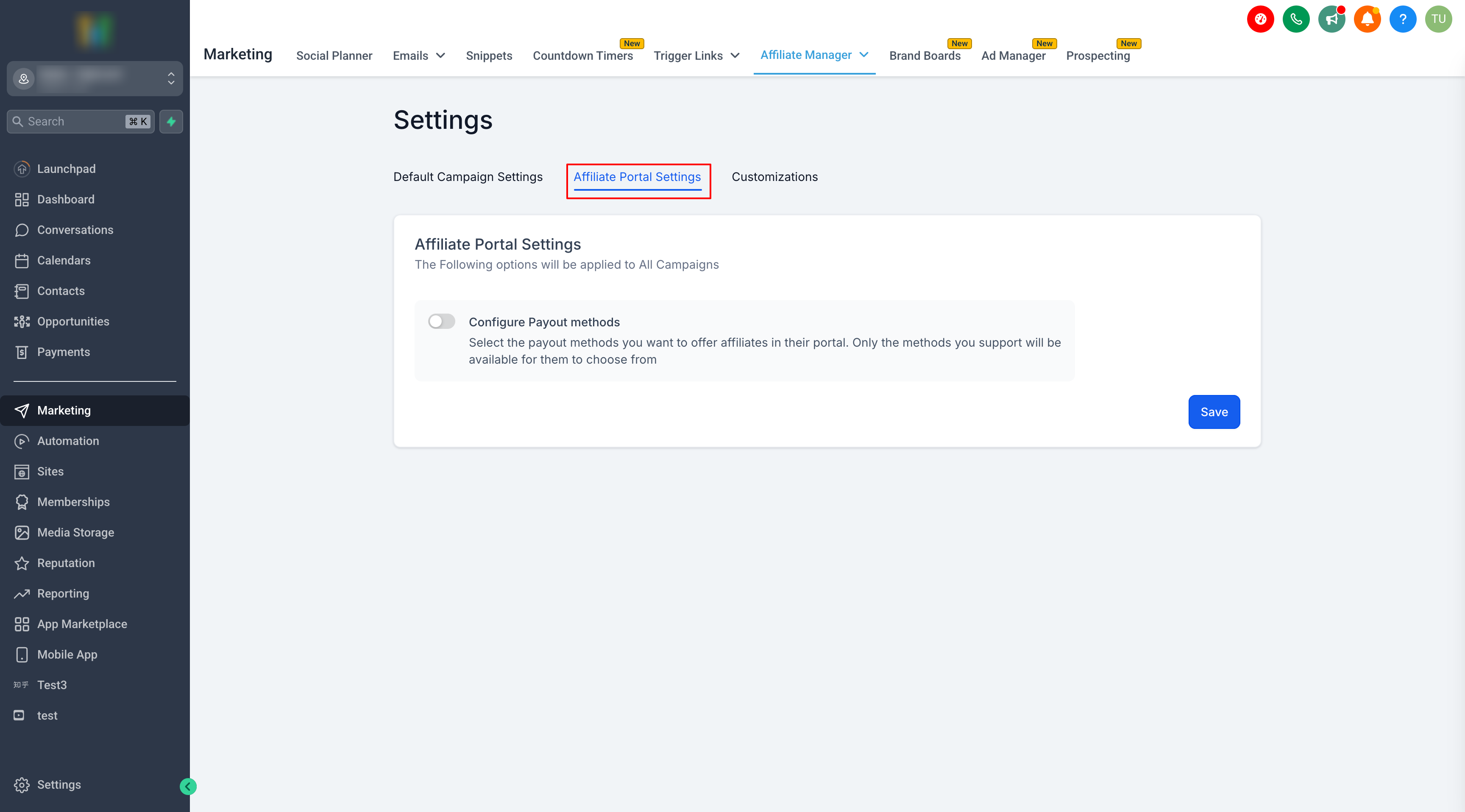
This workflow works alongside the automatic PayPal option. You can also configure which payout methods are visible to affiliates by adjusting settings in the Affiliate Portal. Enabling at least one method is required so affiliates can receive their earnings.
03How businesses use the affiliate payouts
- Ecommerce store. The owner opens the Payouts page, approves commissions for the month, downloads the CSV, pays affiliates via bank transfer, and then marks each payout as paid in HighLevel.
- SaaS company. The subscription manager reviews pending affiliate commissions, approves them, selects the payouts, and uses the Pay button if they have the required admin permission to send a batch PayPal payout.
- Digital marketing agency. The agency’s affiliate coordinator configures the allowed payout methods, ensures affiliates can choose bank transfer, and follows the manual payout steps to process payments for multiple client campaigns.
04Before you start
- At least one payout method (PayPal or Bank Transfer) must be enabled in Affiliate Portal Settings.
- Admins need the "Pay Affiliate Manager Payout" permission to see and use the Pay button.
05How to set up and use the affiliate payouts in HighLevel
Manually process affiliate payouts
- Open the Payouts page within HighLevel.
- In the Pending tab, approve the payouts you intend to process.
- Review any refunds or chargebacks before approving payouts.
- Switch to the Approved for Payout tab to view approved items.
- Select the payouts you want to pay.
- Click the Pay button (visible only to admins with the required permission).
- Change to the Bank tab to access payout instructions.
- Follow the on screen guidance and download the CSV file if you need it for external payment.
- After completing the external payments, return to HighLevel and click Mark as Paid.
06What it looks like in HighLevel
07Settings that matter
- Configure Payout Methods. Controls which payout options (PayPal, Bank Transfer) affiliates can see and select for receiving their commissions.
- Pay Affiliate Manager Payout. Permission that determines whether an admin can use the Pay button to initiate payouts from within HighLevel.
08Things to know before you rely on it
- The Pay action appears only for admins with the Pay Affiliate Manager Payout permission; otherwise it is hidden.
- Refunds and chargebacks are not automatically reflected in commission payouts and must be reviewed before approving payouts.
09How it connects to the rest of HighLevel
- Set up PayPal auto payouts for affiliates PayPal auto payouts guide
- Add and manage affiliate payout methods Payout methods setup
- Review and retry failed PayPal affiliate payouts Failed PayPal payouts
Michael's take

Most people assume they can just click Pay and the money will appear in the affiliate’s account. The permission check and the need to review refunds are often missed, which can lead to payout errors.
I would first verify that the Pay Affiliate Manager Payout permission is turned on, enable at least one payout method, and run a small test payout to confirm everything tracks correctly before processing larger batches.