
01Who this is for
- Agency admins benefit because they can produce client specific templates without leaving the admin console.
- Agency admins can manage templates for many client subaccounts from a single screen.
02Custom templates, explained
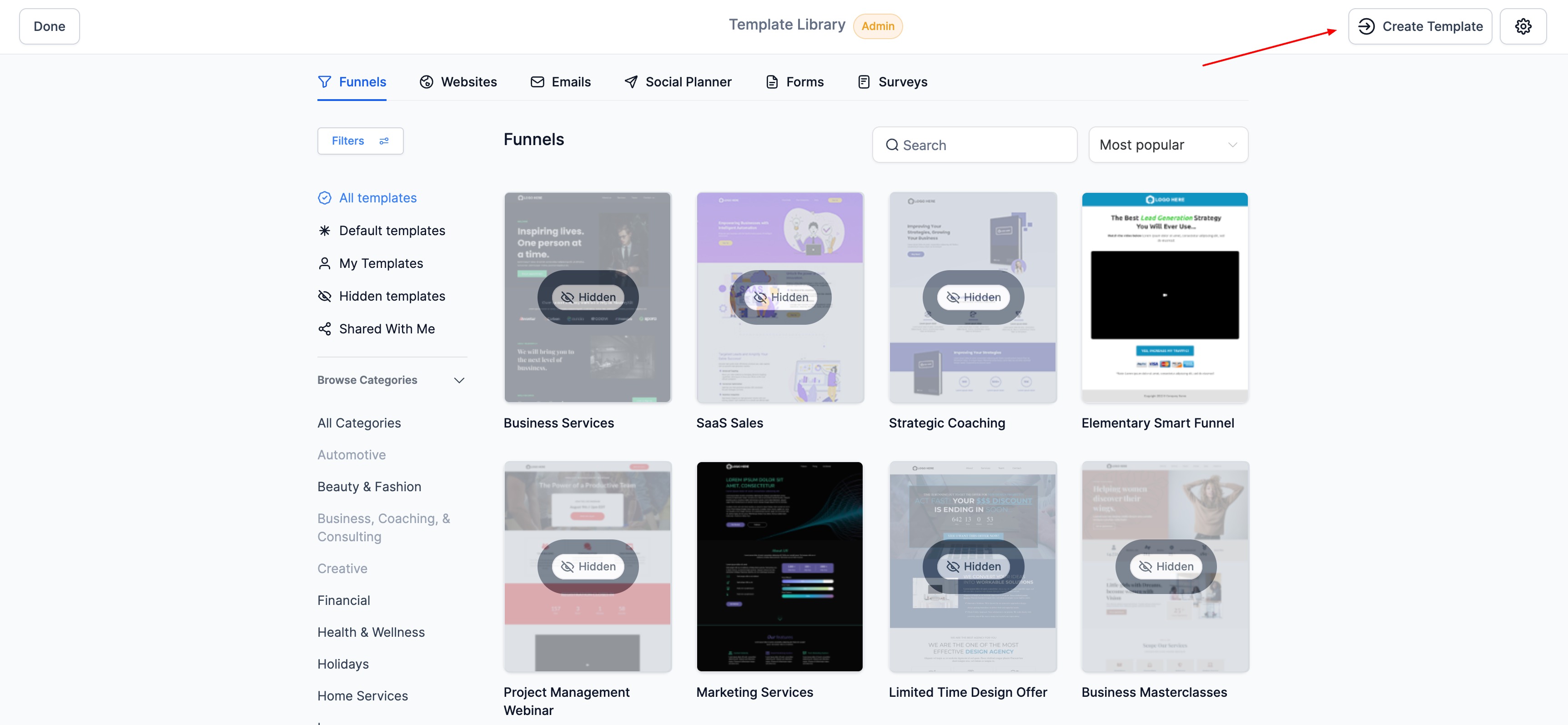
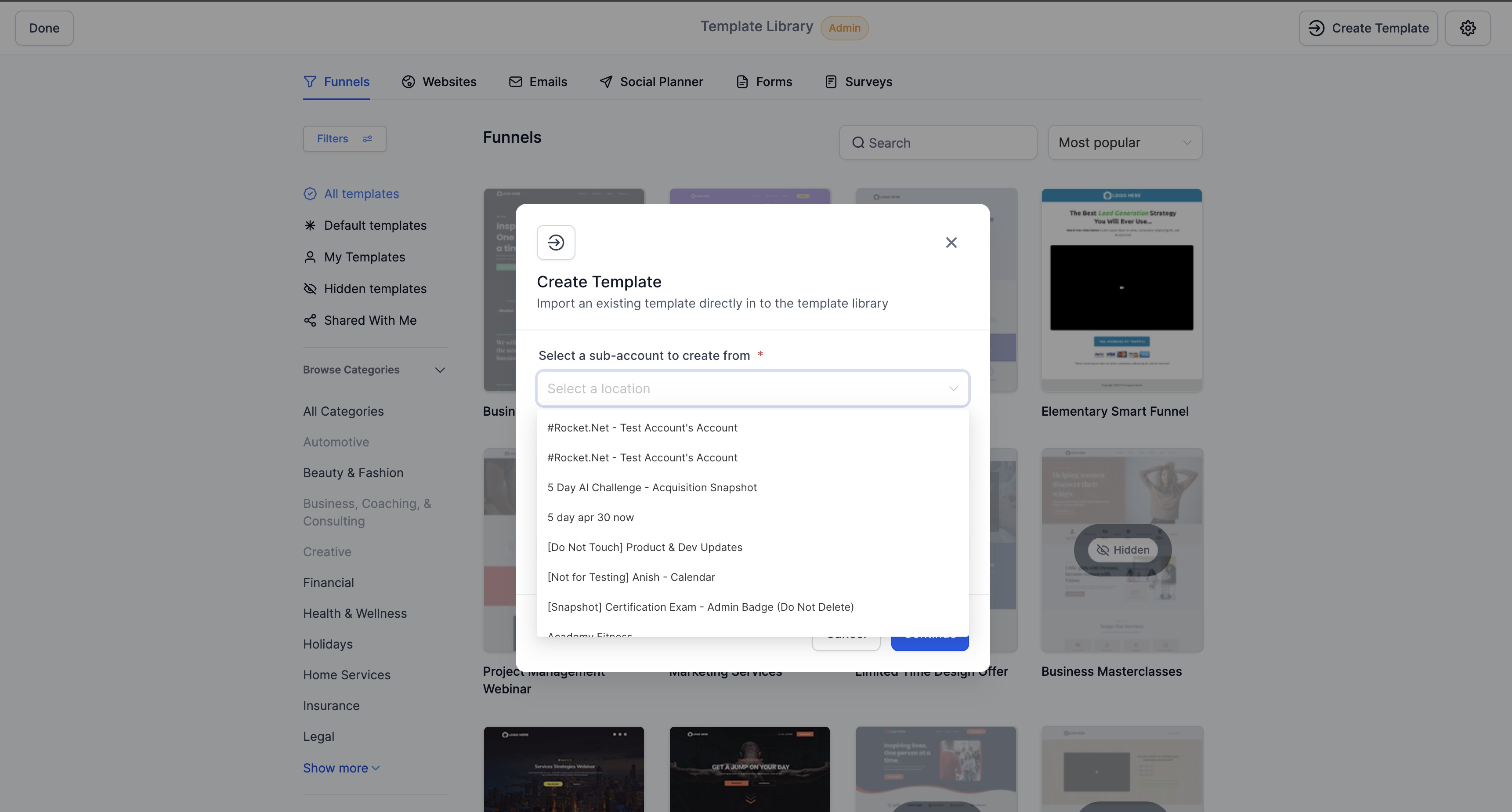
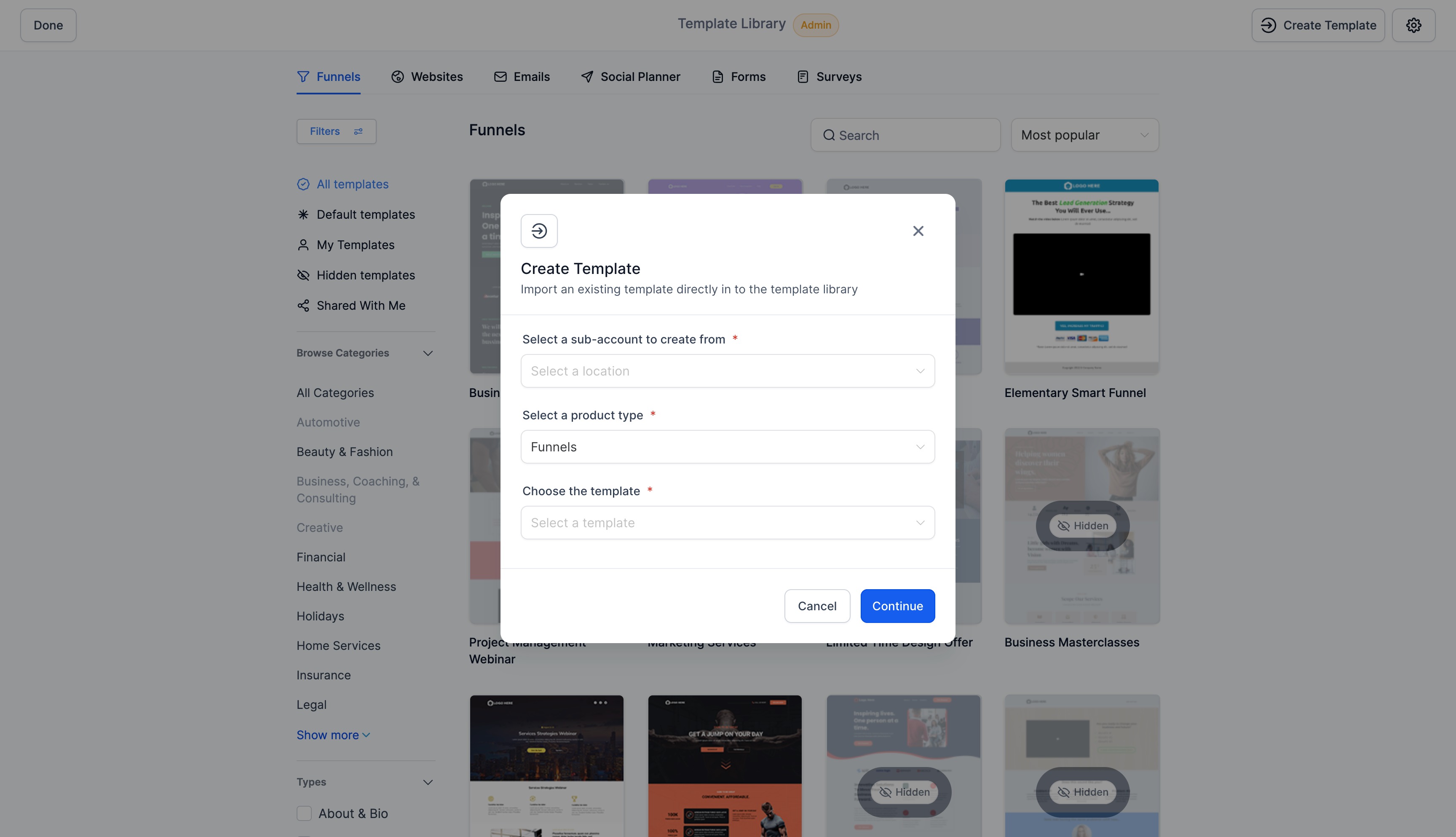
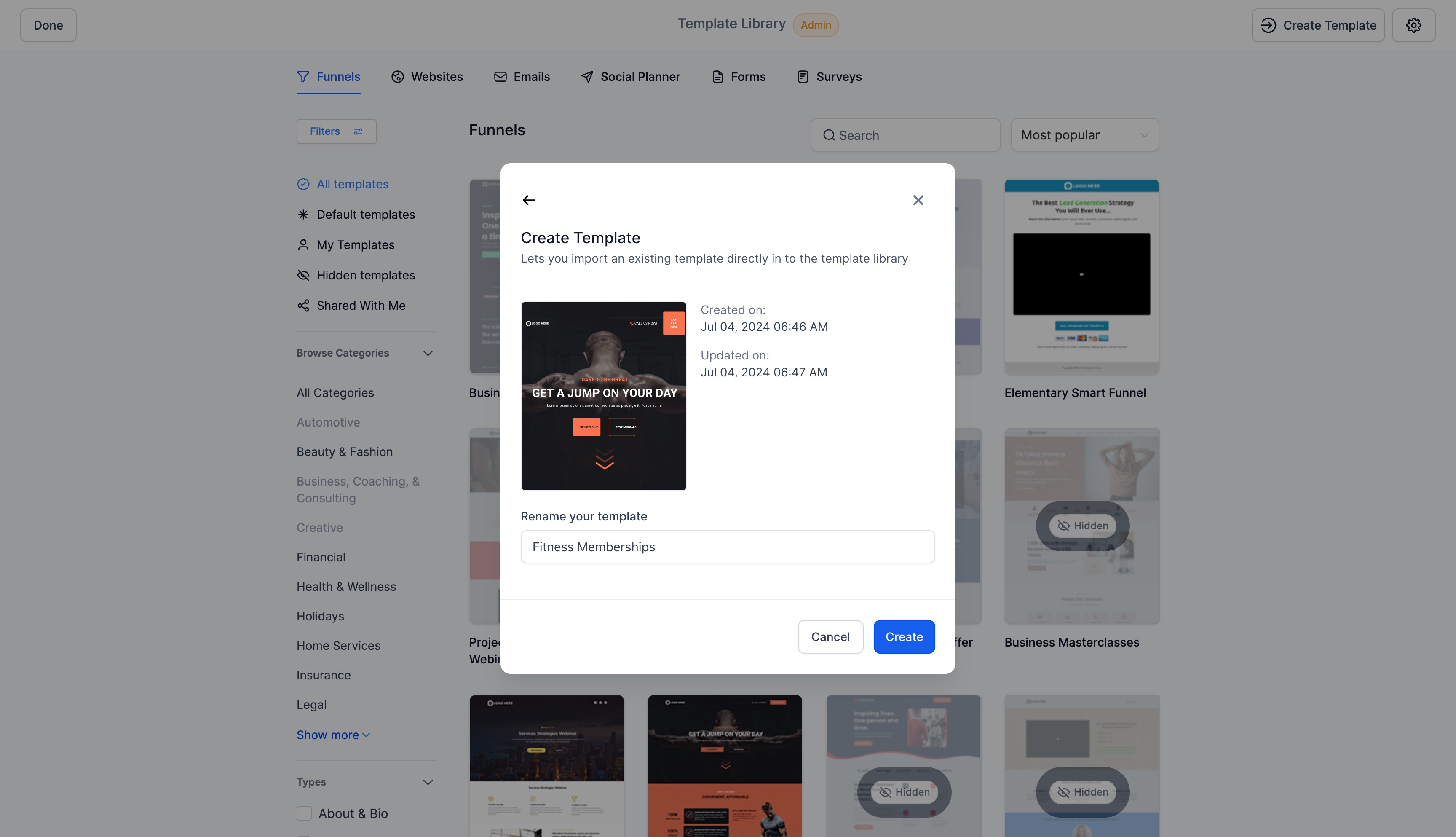
The feature adds a Create button to the Template Library when accessed from the Agency Admin dashboard. Selecting it opens a wizard where you choose the originating subaccount, the product type and give the new template a name. After confirming, a thumbnail preview appears; you can expand it for a full view, rename if desired, and then finalize the entry.
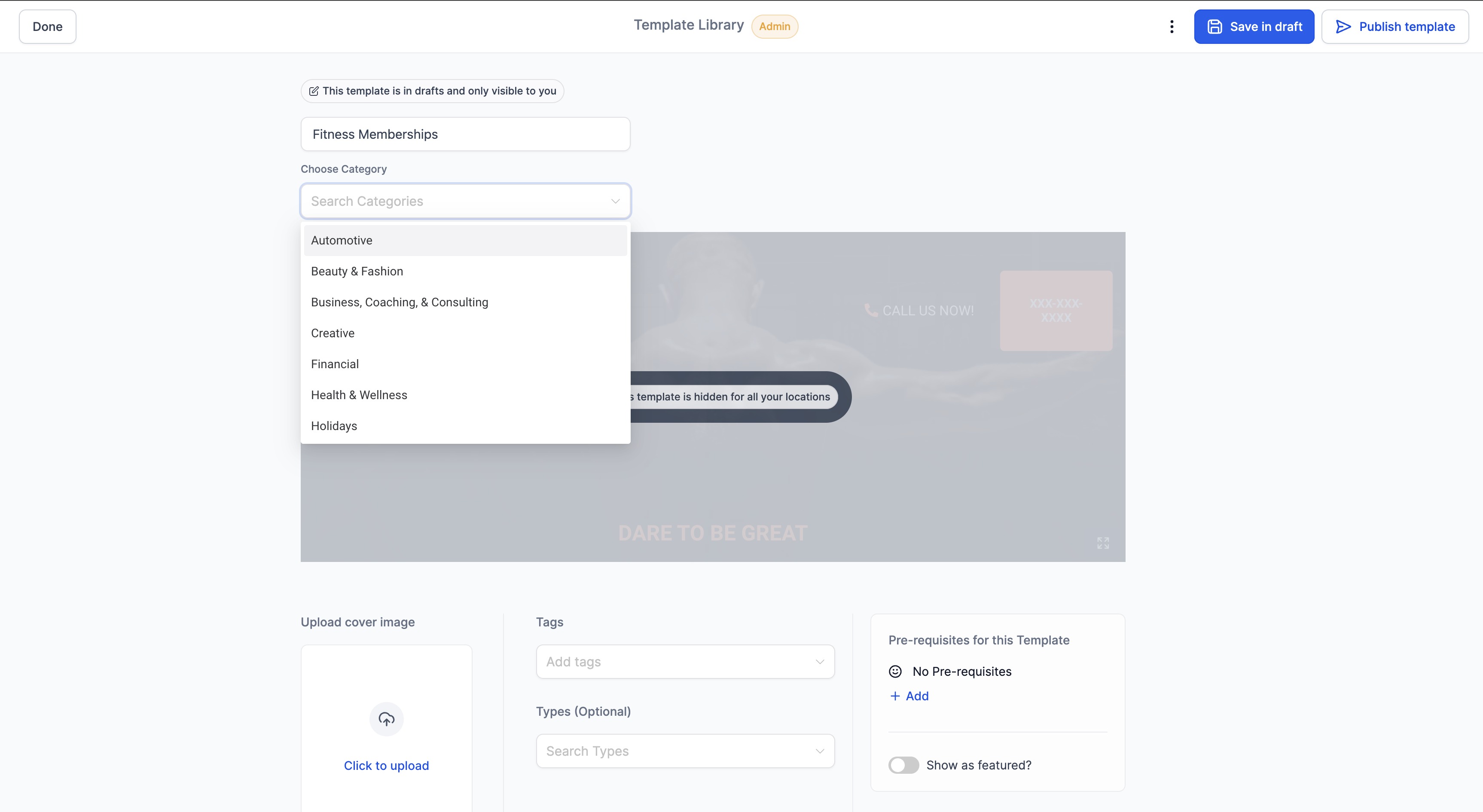
Once the template is created you can fill in optional fields such as description and category tags. The last step lets you decide whether the template goes live immediately or stays saved as a draft for later review. All actions happen within the same screen, removing the need to navigate between subaccounts.
03How businesses use custom templates
- Digital marketing agency. The agency selects the client subaccount, picks a funnel product, and creates a tailored landing page template. After previewing, they rename it to match the campaign and either publish it for immediate use or save it as a draft while awaiting approval.
- Local service business. A manager chooses the location subaccount, selects an appointment booking product, and builds a custom email template. They edit the description, assign a category, and keep it as a draft until the newsletter schedule is set.
- SaaS onboarding team. The team picks the onboarding subaccount, creates a welcome email template, previews the design, renames it to reflect the version, adds category tags, and publishes it directly for new users.
04Before you start
- An Agency Admin account that is eligible and subscribed to the Pro plan must exist.
05How to set up and use custom templates in HighLevel
Create a custom template from the admin screen
- Open the Template Library in Admin view.
- Select the Create option located at the top right.
- Choose the desired subaccount, pick the product, and type a template name.
- Press Continue to show a thumbnail preview of the template.
- Click the thumbnail to open a full screen preview.
- If needed, change the template name.
- Press Create to complete the creation.
- Enter optional details such as description and assign categories.
- Select either Publish or Save as draft for the final status.
06What it looks like in HighLevel
07Settings that matter
- Publish or Save as draft. Controls whether the new template becomes immediately available or remains in a draft state for later activation.
- Description. Allows adding a brief note that explains the purpose or contents of the template.
- Categories. Enables grouping the template under specific tags for easier filtering and organization.
08Things to know before you rely on it
- Only Agency Admins on the Pro plan can use this creation flow.
- The process is limited to the Admin view; it does not work from individual subaccount screens.
09How it connects to the rest of HighLevel
- Overview of the HighLevel template library Template library overview
- Step by step guide for adding custom templates Add custom templates
- HighLevel pricing and plans for Pro eligibility Pricing page
Michael's take

Jumping between subaccounts to manage templates can quickly become a time sink, especially when you’re juggling multiple client assets. Missing a step or editing the wrong version is a real risk if you’re flipping screens.
Being able to create, preview, rename, and publish a template all from the admin screen cuts down on that friction. It keeps the workflow tidy and lets you focus on delivering consistent branding across your agency’s accounts.