
01Who this is for
- Social media managers can produce eye catching updates without switching to Facebook.
- Marketing agencies can keep client posts in one calendar and maintain a native look.
- Small business owners can quickly announce offers or events using colorful text posts.
02Facebook text posts with backgrounds, explained
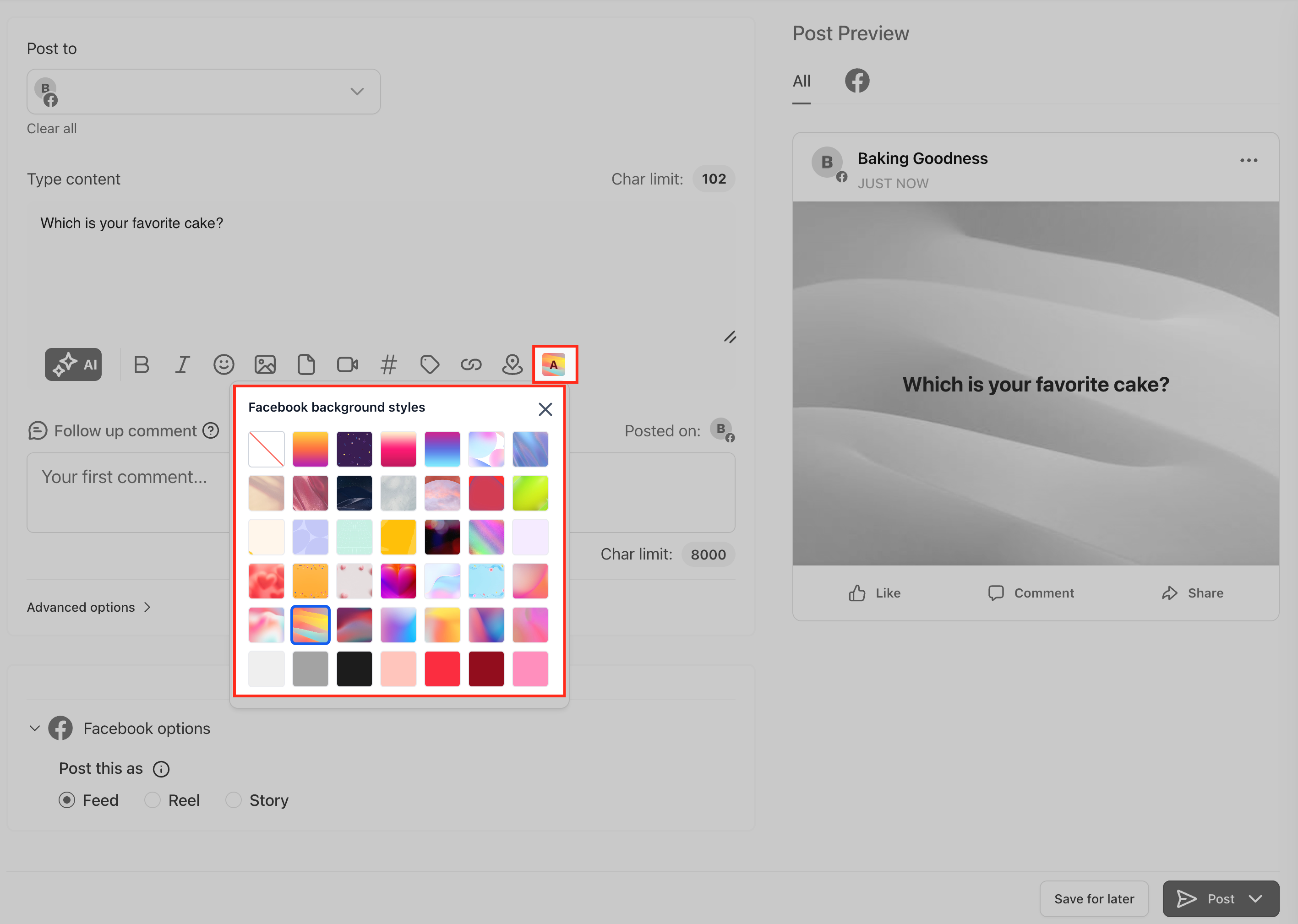
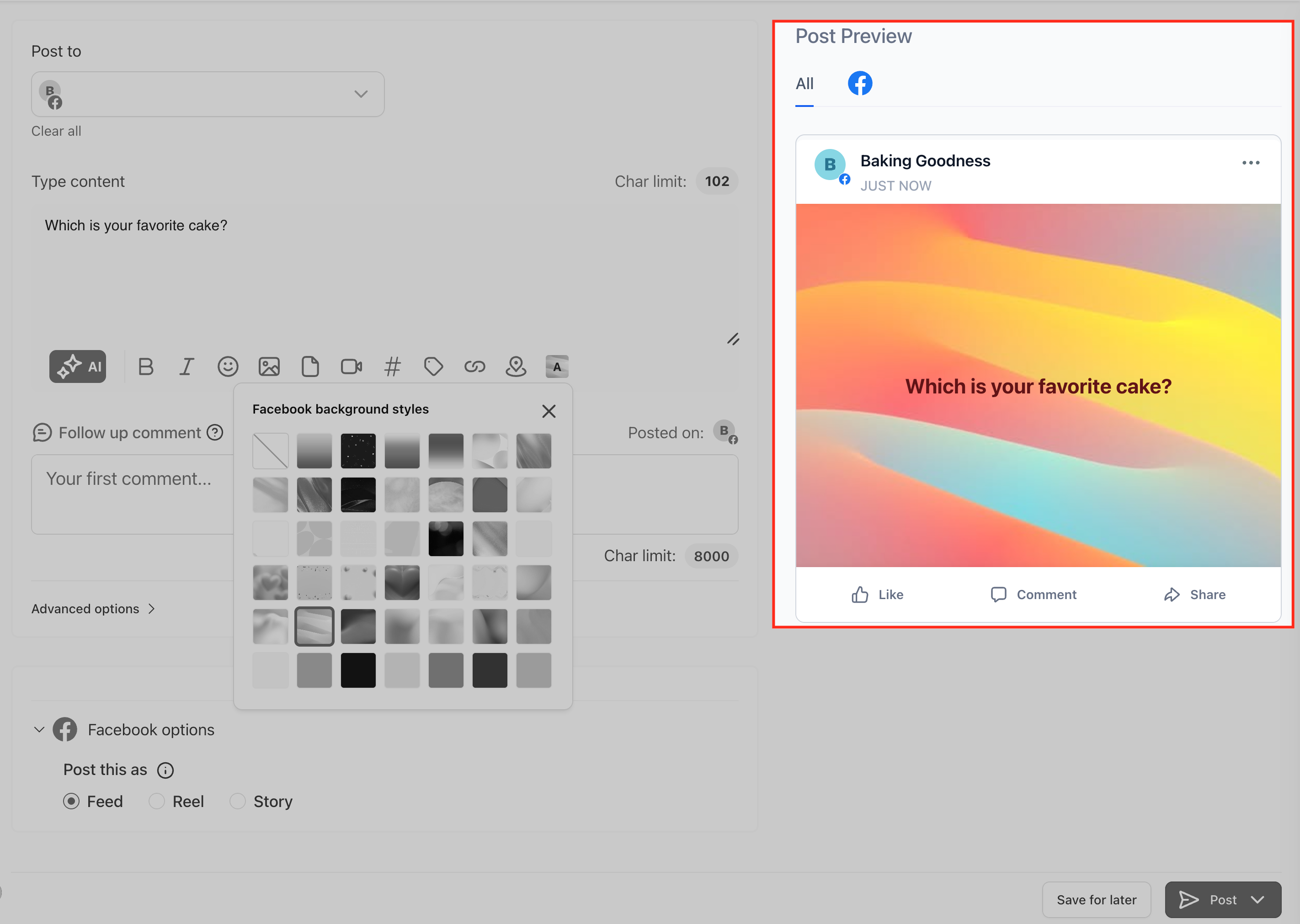
The feature adds a Text Background control to the Social Planner composer when Facebook is chosen as a channel. It presents a set of preset background styles that match Facebook’s native options. Selecting a preset right away updates a real time preview that mirrors Facebook’s layout and font scaling.
Backgrounds are only available for posts that contain text and no media. If an image or video is attached, the Text Background control is automatically disabled and any existing background is removed. The same validation runs when you edit a scheduled post, ensuring the final publish complies with Facebook’s rules.
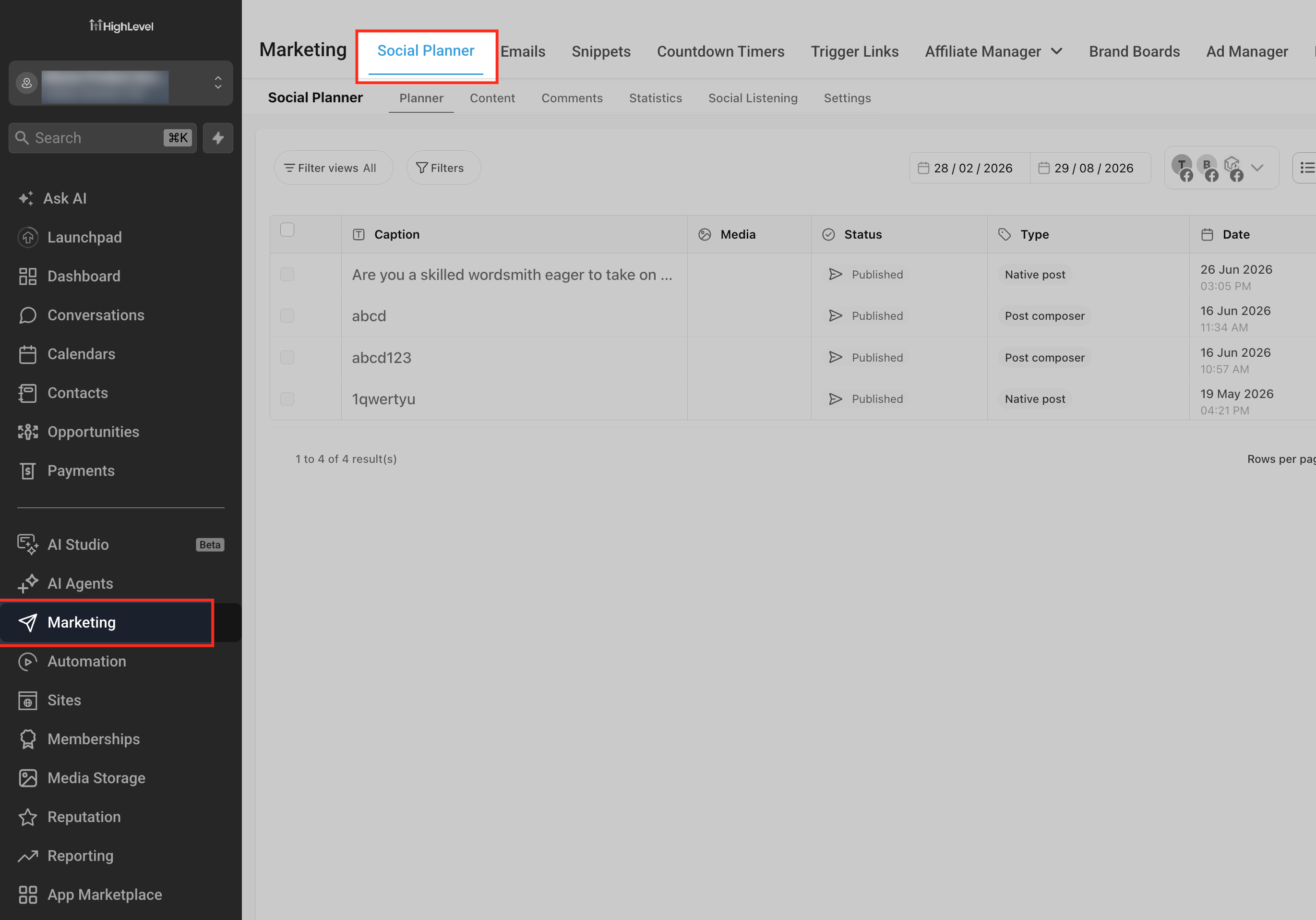
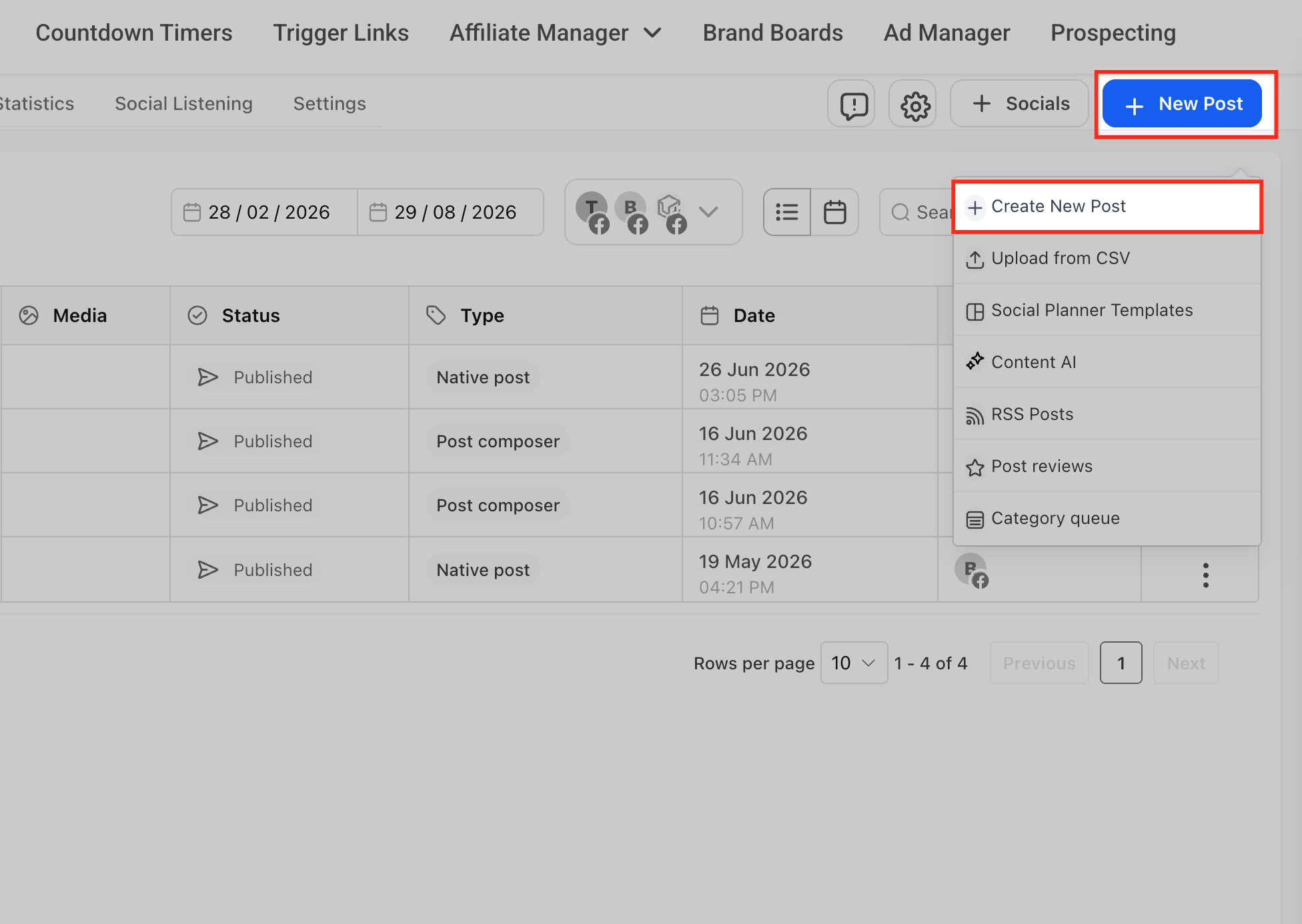
You access the feature inside Marketing > Social Planner. After opening the composer, choose Facebook, write a text only message, click the Text Background button, pick a preset, review the live preview, and then publish now or schedule for later.
03How businesses use Facebook text posts with backgrounds
- Local retail store. The store creates short announcements for daily specials using a bright background. It writes the text, selects a solid color preset, previews the look, and schedules the post for the store’s opening hour.
- Fitness studio. The studio posts class reminders with a gradient background. It types the class name and time, adds relevant hashtags, chooses a gradient preset, checks the preview, and sets the post to publish automatically each week.
- Digital marketing agency. The agency drafts client quote graphics as text only posts with pattern backgrounds. It composes the quote, applies a pattern preset, verifies readability in the preview, and schedules the post alongside other client content.
04Before you start
- A Facebook page or profile must be connected through Settings > Integrations.
- You must have access to the Social Planner module in HighLevel.
05How to set up and use Facebook text posts with backgrounds in HighLevel
Create a Facebook text post with a background
- Open Social Planner by navigating to Marketing > Social Planner.
- Click the New Post button to launch the composer.
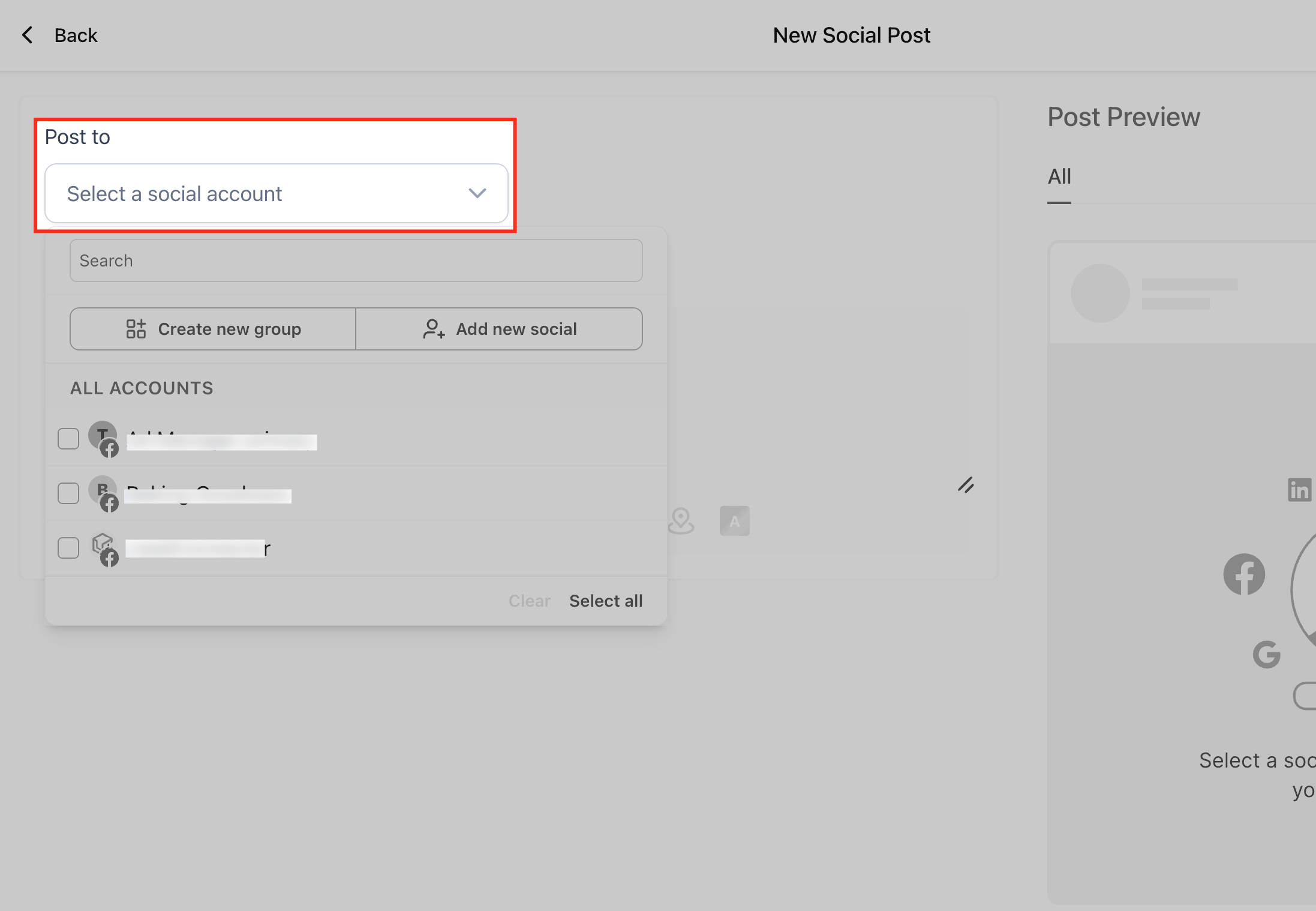
- Select one or more Facebook destinations in the channel selector.
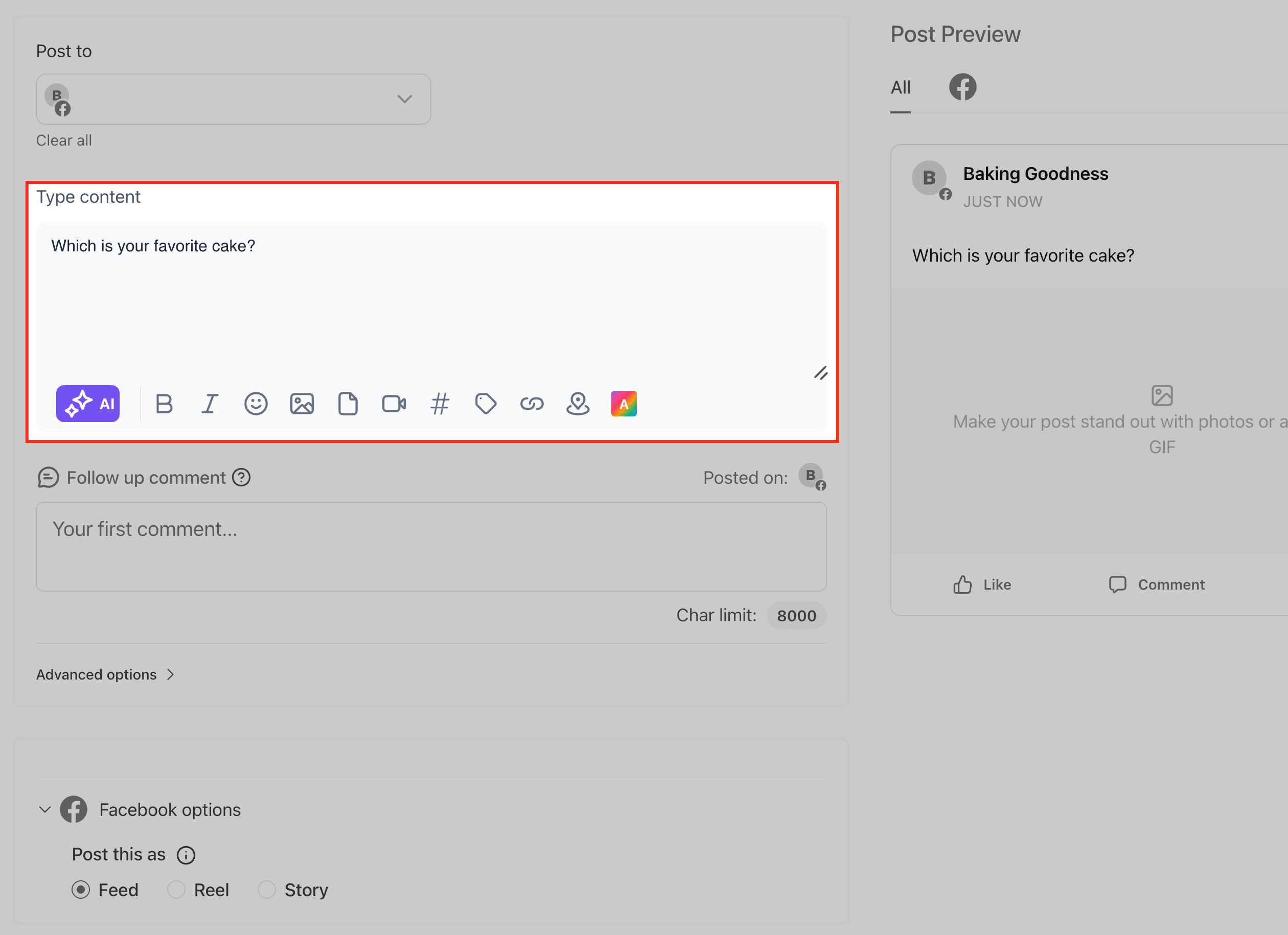
- Enter your message in the editor and keep the post text only.
- Click the Text Background option to open the background picker.
- Browse the preset designs and click a background to apply it.
- Review the live preview to ensure the text is clear and legible.
- Choose Post Now or set a date and time to schedule the post.
06What it looks like in HighLevel
07Settings that matter
- Text Background. Controls which native Facebook background preset is applied to a text only post.
08Things to know before you rely on it
- Backgrounds work only on Facebook text only posts; adding images or videos disables the option.
- Custom background images cannot be uploaded; only Facebook’s preset styles are available.
- The feature applies solely to Facebook; other social platforms do not support these backgrounds.
09If something goes wrong
- Background disappears after editing a scheduled post and adding media. Remove any attached media to retain the background, or keep the post text only.
- Unable to select a background because the option is greyed out. Ensure the post contains only text and no media attachments.
10How it connects to the rest of HighLevel
- Connect your Facebook page to use background posts Connect Facebook
- Review image and video guidelines for other Social Planner content Content guidelines
- Find help for Facebook publishing issues Facebook troubleshooting
Michael's take

Facebook text posts with backgrounds are a neat way to add visual flair without leaving Social Planner.
If you only need plain text updates on Facebook, skip it and stick to regular posts.