
01Who this is for
- Agency owners who run multiple client subaccounts, to keep proprietary funnel or page templates private.
- Marketing consultants using HighLevel to deliver custom campaigns, to prevent clients from accessing template assets.
- Digital marketing firms that offer white label services, to avoid cluttering client libraries with internal templates.
02Hide individual templates from subaccounts, explained
The feature lets an agency place selected templates into a category that is set as hidden. When a category is hidden, every template inside it is invisible to subaccounts, while the agency retains full access. This is the only method to restrict template visibility on an individual basis.
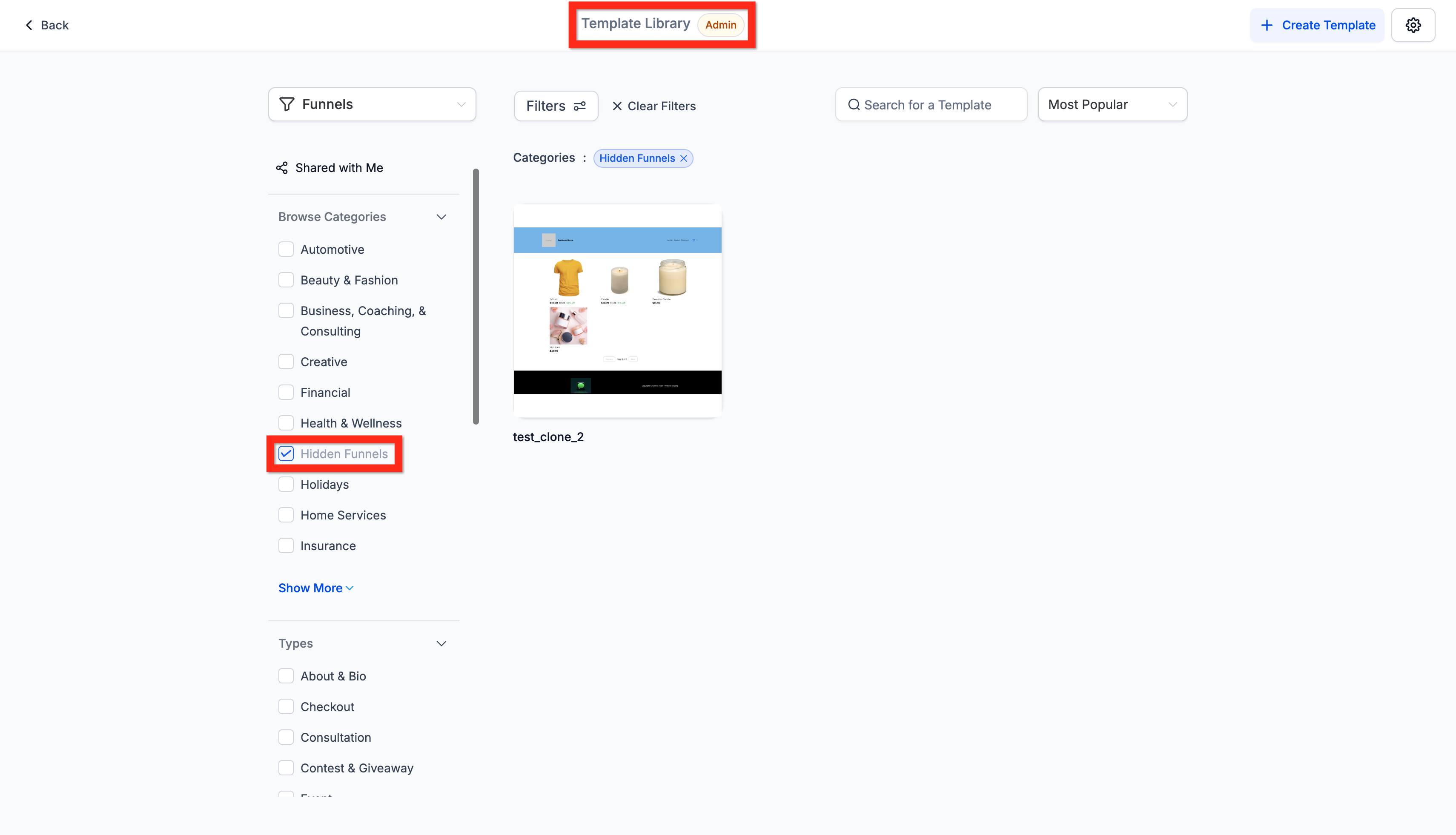
A hidden category appears in the agency view, and its templates show a grey preview box with the note "This template is hidden for all your subaccounts". Subaccount users never see the category name or the templates it contains, and they cannot select them when creating new assets.
The controls for this process are located in the Agency Template Library. Access the settings gear, choose the product (such as Funnels), and manage categories to create and hide them as needed.
03How businesses use hide individual templates
- Digital marketing agency. Create a hidden category for proprietary funnel templates. Add the templates to this category so client subaccounts cannot view or select them when building funnels.
- Web design studio. Place custom page templates in a hidden category. This keeps the studio’s design system private while allowing the agency to reuse the templates internally.
- Consulting firm. Move internal email templates to a hidden category. Clients using subaccounts will not see these templates, preserving the consultancy’s branding assets.
04How to set up and use hide individual templates in HighLevel
Hide individual templates from subaccounts
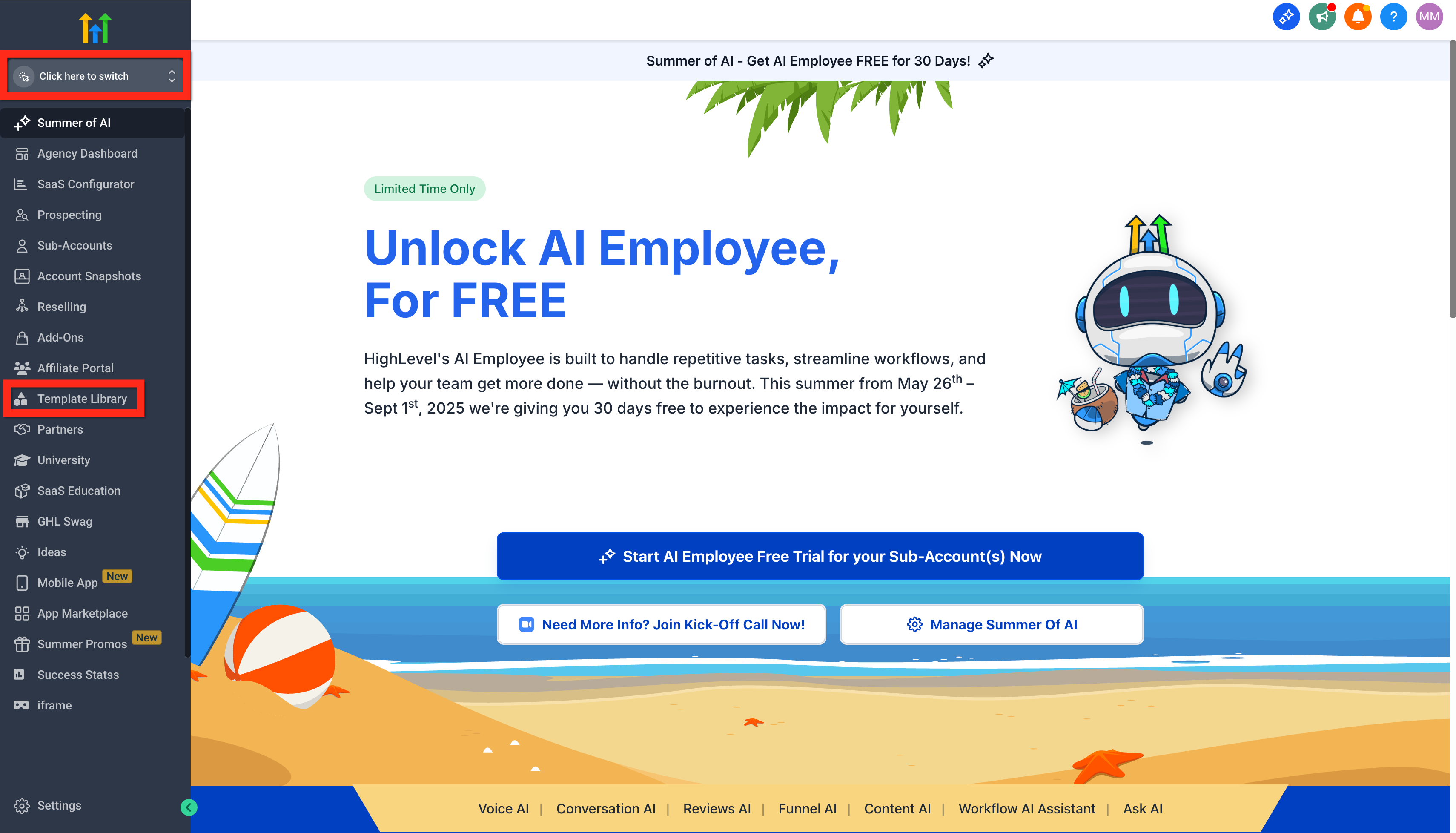
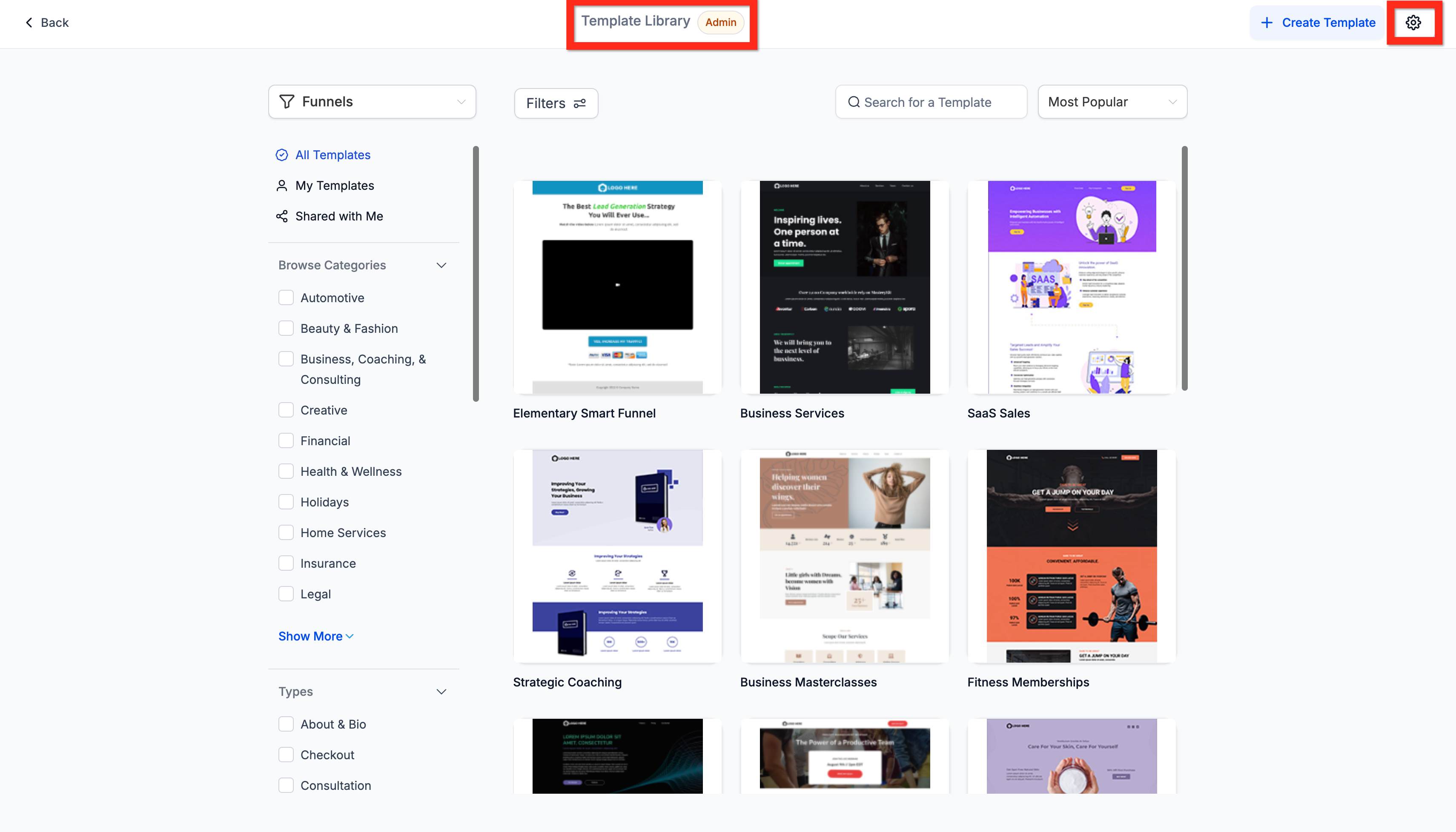
- Navigate to Agency > Template Library.
- Click the gear icon (Settings).
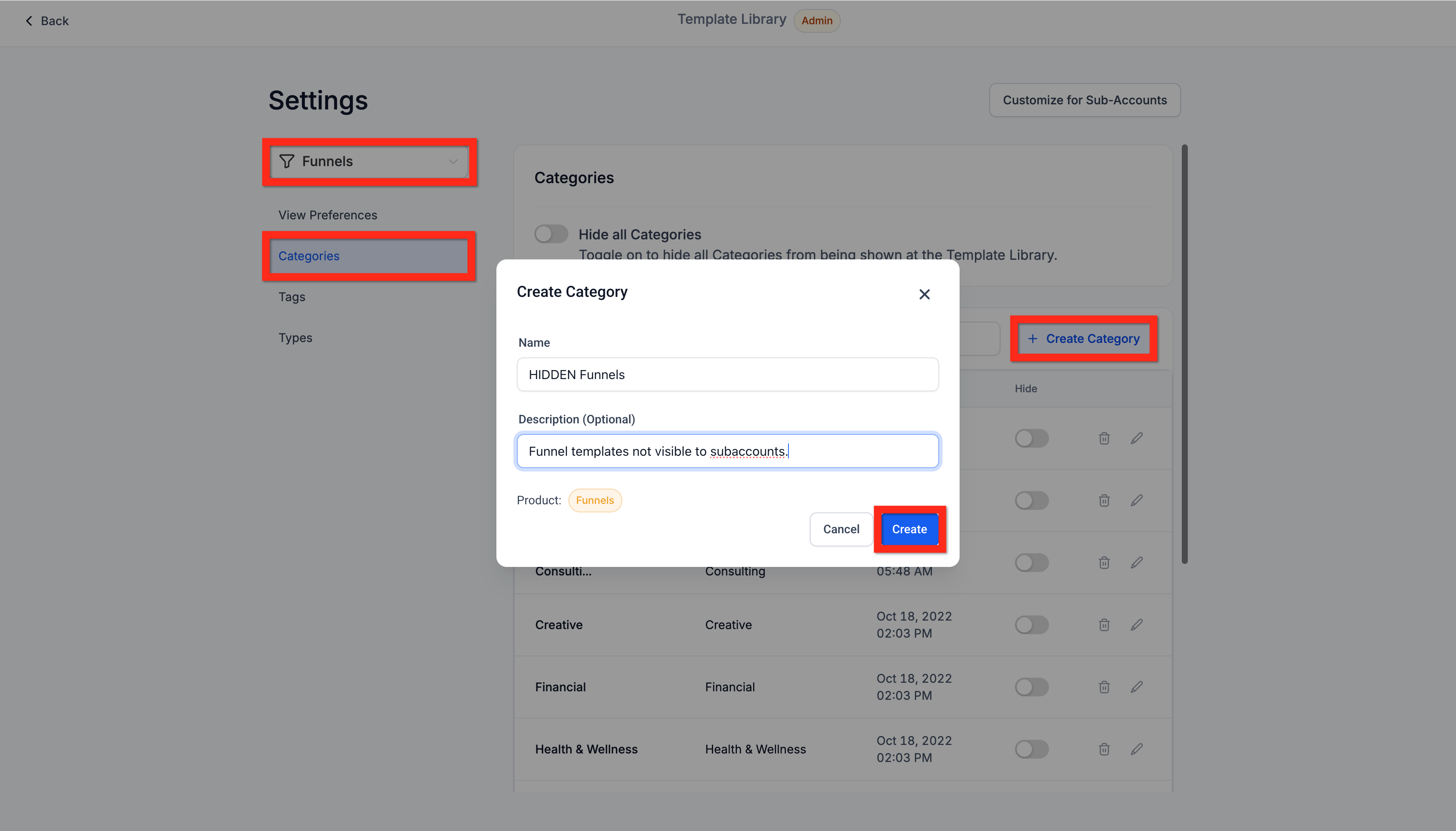
- In the Template Library Admin Settings, select a Product (e.g., Funnels) and choose Categories > Create Category.
- Enter a clear name and description for the new category, then click Create.
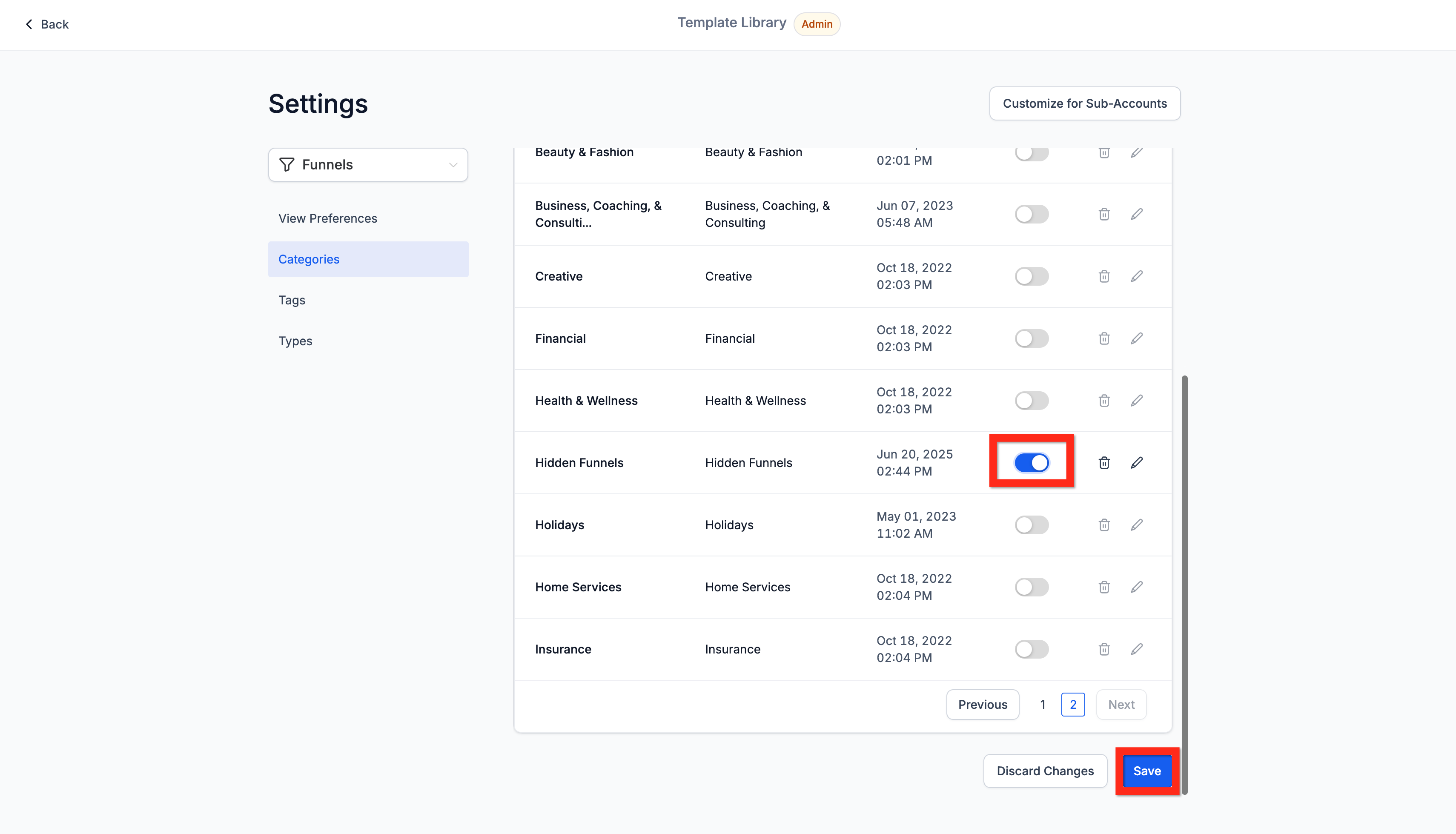
- Find the new category in the list and click the Hide toggle (it turns blue). Confirm the modal if it appears.
- Return to the Agency Template Library and verify the hidden category and its templates are visible to the agency.
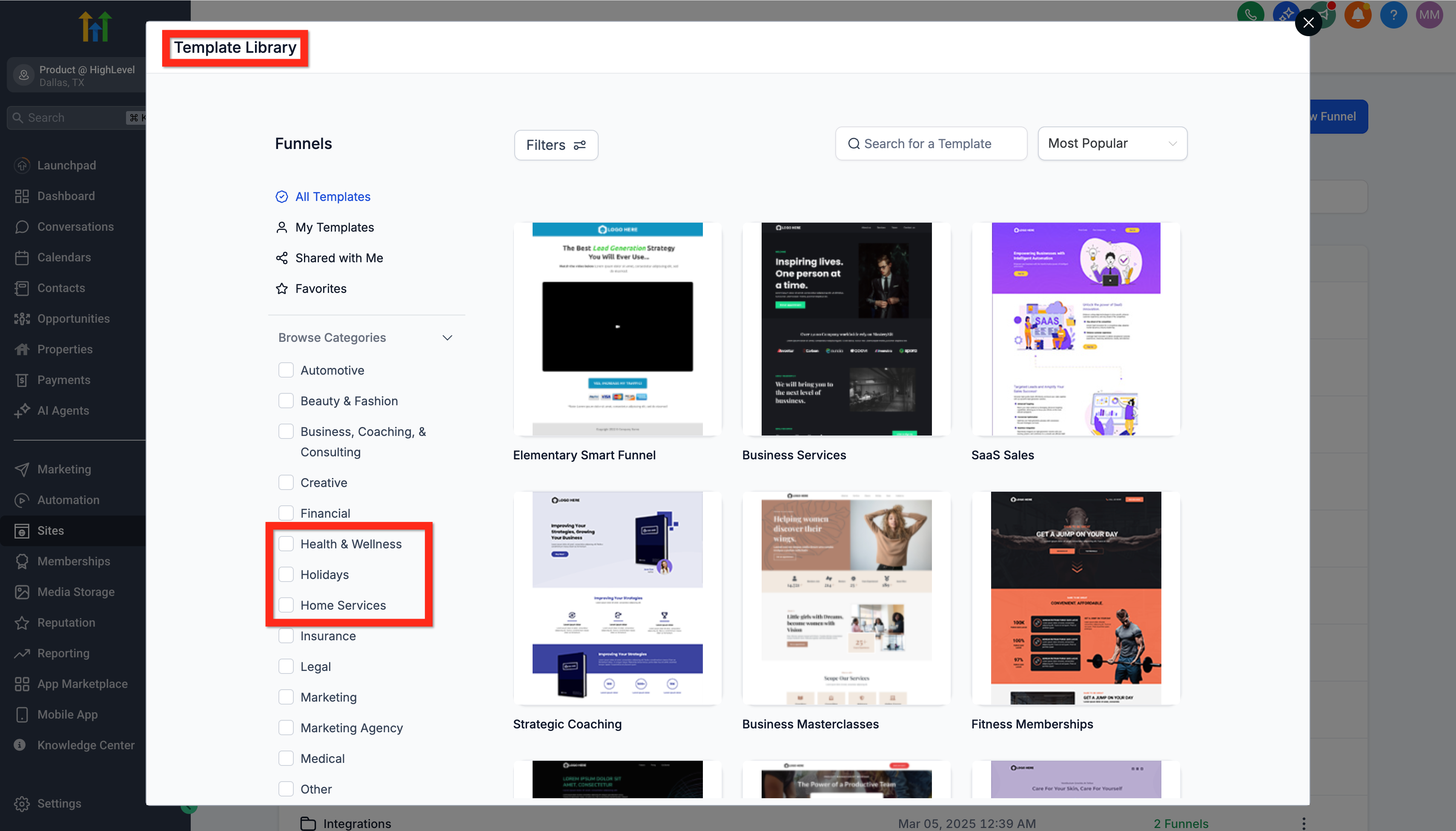
- In a subaccount, open the product’s Template Library and confirm the hidden category does not appear in the category list.
- Search for the specific template by name in the subaccount and verify the preview shows a grey box with the message "This template is hidden for all your subaccounts".
05What it looks like in HighLevel
06Settings that matter
- Template Library Admin Settings. Provides options to select a product, manage categories, and create new categories within the Agency Template Library.
- Hide toggle. Controls whether a category is visible to subaccounts; when turned on (blue) the category and its templates are hidden from subaccounts.
07Things to know before you rely on it
- There is no direct option to hide a single template; templates must be placed in a hidden category.
- Templates must not belong to any category that remains visible, otherwise they will still appear to subaccounts.
- The hidden category remains visible to the agency, but subaccounts cannot see it or its templates.
08How it connects to the rest of HighLevel
- Template Library overview and setup Template Library overview
- Managing template categories, types, and tags Manage categories
- How to hide default or HighLevel templates from the library Hide default templates
Michael's take

I find hidden categories a useful way to keep certain templates out of subaccount view.