
01Who this is for
- Agency administrators, they can control which templates each client can use, keeping the library focused on relevant assets.
- SaaS product owners, they can present only the templates that match a subscriber’s tier, protecting premium content.
- Niche specific marketing firms, they can hide unrelated categories, ensuring users work with industry appropriate designs.
02Customizing the template library for subaccounts, explained
The Subaccount View feature lets an agency admin define the set of templates and categories that a subaccount sees when building emails, funnels, or forms. By toggling visibility, the admin can hide irrelevant categories, restrict access to certain templates, or expose premium items for higher tier plans. This customization lives inside the Template Library Admin area under Settings.
When a subaccount logs into the platform, the template library shows only the items the admin has allowed. The rest remain hidden, so the subaccount works with a curated collection that matches its niche or subscription level. Adjustments are saved globally for the selected subaccount and take effect immediately.
03How businesses use customizing the template library for subaccounts
- Marketing agency. The agency admin opens Template Library Admin, selects Customize for Subaccounts, and hides funnel templates that are not used by a client’s industry. This keeps the client’s workspace tidy and focused on relevant designs.
- SaaS platform. The SaaS owner edits the subaccount settings to show exclusive email templates only for premium plan users, while basic plans see a limited set. This enforces tiered content without extra manual steps.
- Real estate brokerage. The brokerage manager selects the subaccount for each office, hides property type categories that are not applicable, and shows only the templates needed for their local listings. Agents then only access appropriate assets.
04How to set up and use customizing the template library for subaccounts in HighLevel
Customize template access
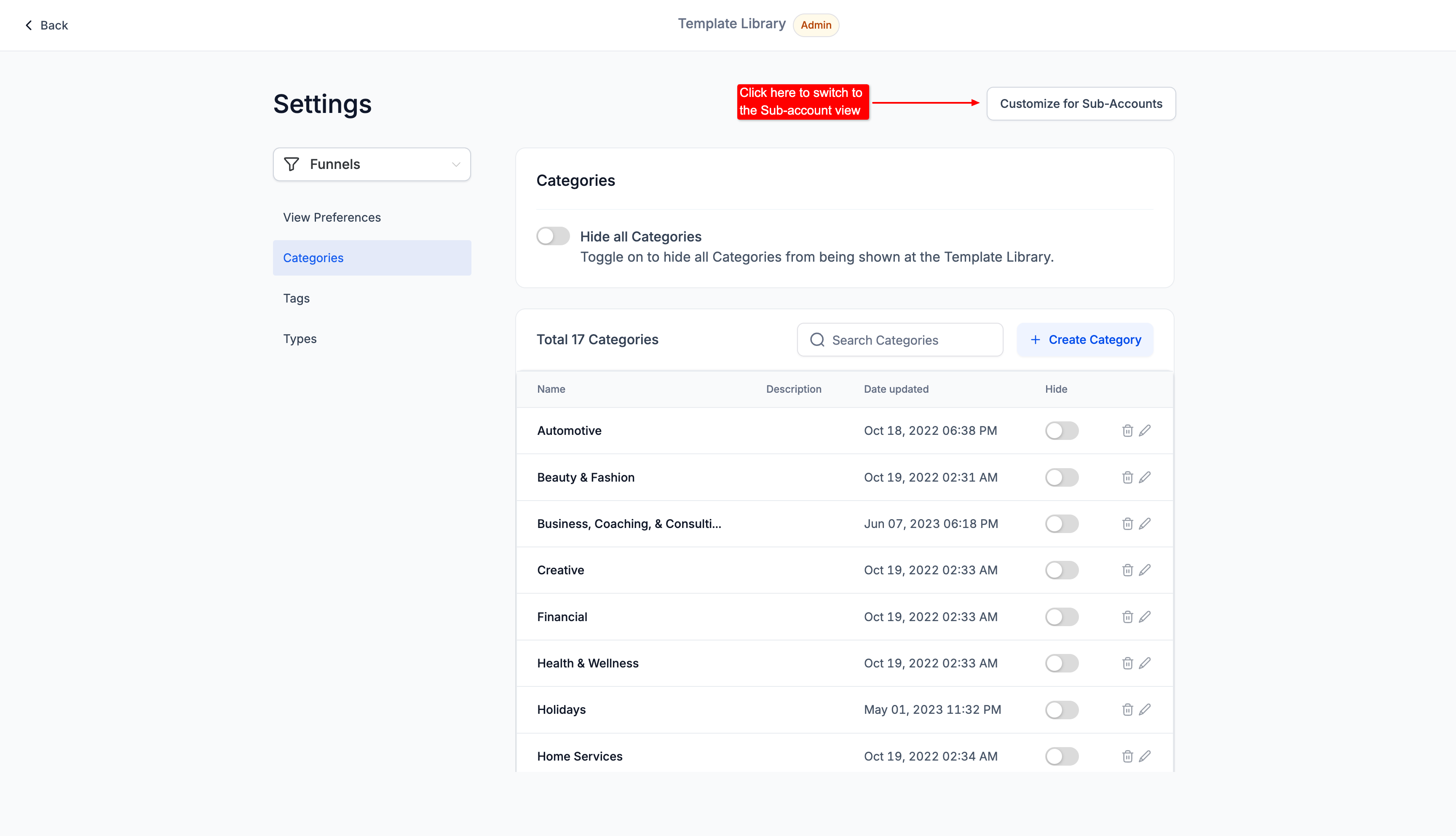
- Open the Template Library Admin section and navigate to Settings.
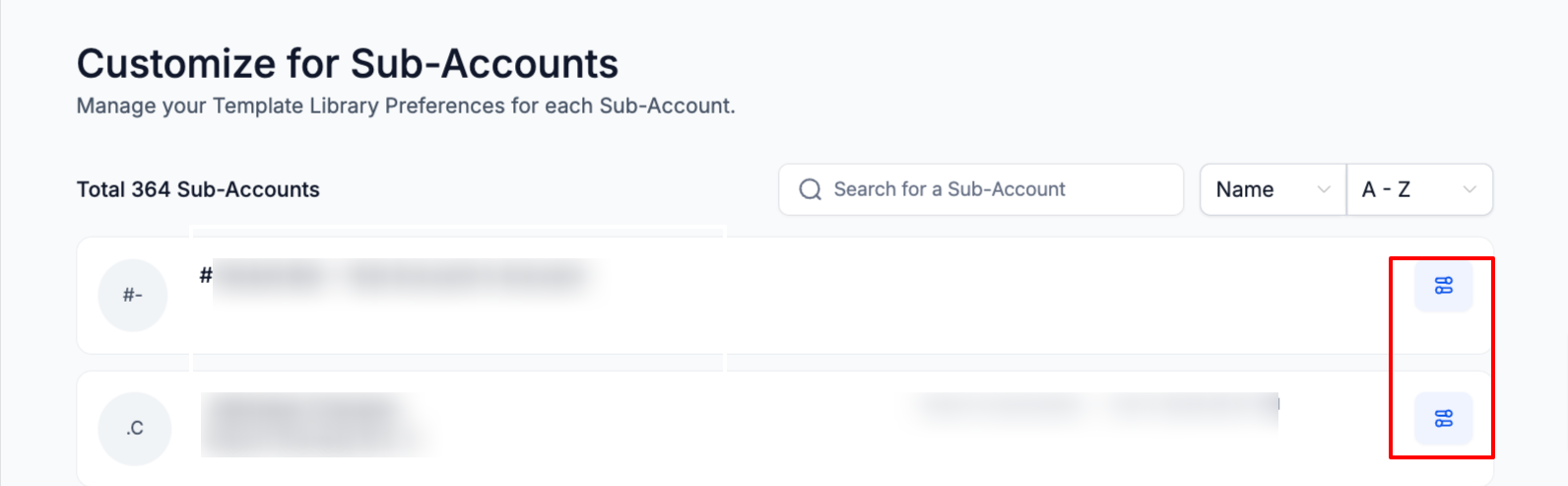
- Choose the option labeled Customize for Subaccounts.
- Find the subaccount you wish to edit and click the Edit button.
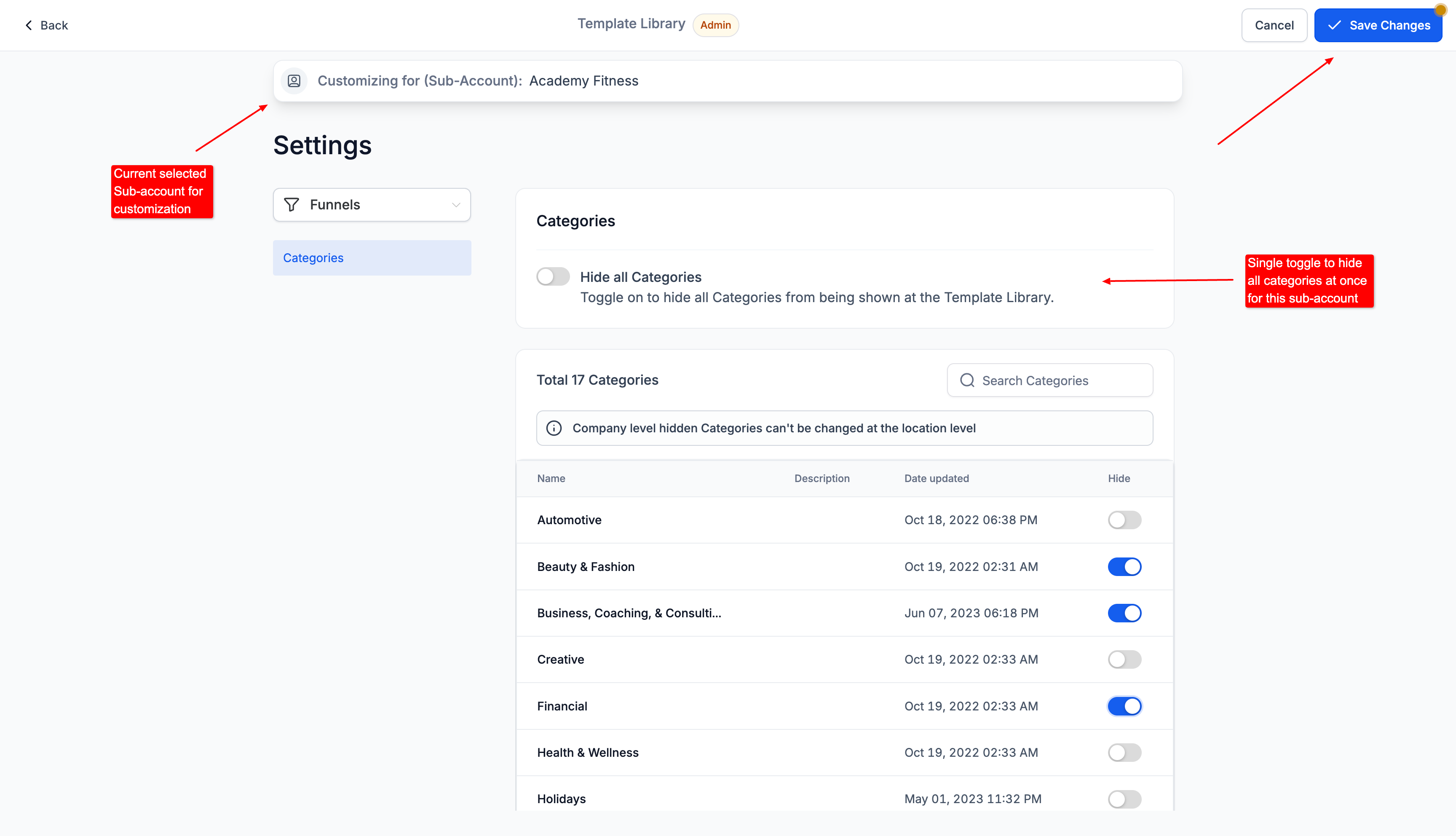
- Select categories or individual templates to hide or show according to the subaccount’s needs.
- Press Save to apply the changes.
05What it looks like in HighLevel
06Settings that matter
- Customize for Subaccounts. Controls whether an admin can set visibility of templates and categories for each subaccount.
07Things to know before you rely on it
- Only agency admins have permission to change Subaccount View settings.
08How it connects to the rest of HighLevel
- Overview of the HighLevel template library Template library overview
- How to add custom templates to the library Add custom templates
- Managing categories, types, and tags in the library Manage categories
Michael's take

Most people think the library should stay the same for every client, so they end up showing a mountain of irrelevant designs. I prefer to trim the list down to only what each subaccount truly needs.
If I were setting this up, I would first map each subaccount’s niche or plan, then go into Template Library Admin and hide everything that doesn’t match. A quick check with the subaccount user confirms they see exactly the assets they need.