
01Who this is for
- Marketers using Social Planner who need data driven timing for posts.
- Agencies managing multiple client social accounts and requiring efficient scheduling.
02Best time to post, explained
The Best Time to Post tool examines past engagement trends for each connected social profile and presents suggested publishing windows. These suggestions appear when you choose to schedule a post and can be accepted or edited to fit your strategy.
The feature lives inside the Social Planner on the desktop version, available both in the post composer and the CSV bulk action interface. It works across every social account linked to HighLevel, but it does not appear in the mobile app.
03How businesses use best time to post
- Restaurant. The owner creates a promotion post, selects the Best Time to Post option, and schedules it for the recommended lunch or dinner peak. The time can be tweaked if a special event requires a different slot.
- Real estate agency. An agent drafts a new listing announcement, views the suggested optimal publishing times, and schedules the post for when followers are most active, ensuring maximum exposure.
- Fitness studio. The studio manager composes a class reminder, uses the Best Time to Post recommendation to set the publish time, and can adjust the slot to align with a holiday schedule.
04How to set up and use best time to post in HighLevel
Schedule post using Best Time to Post feature
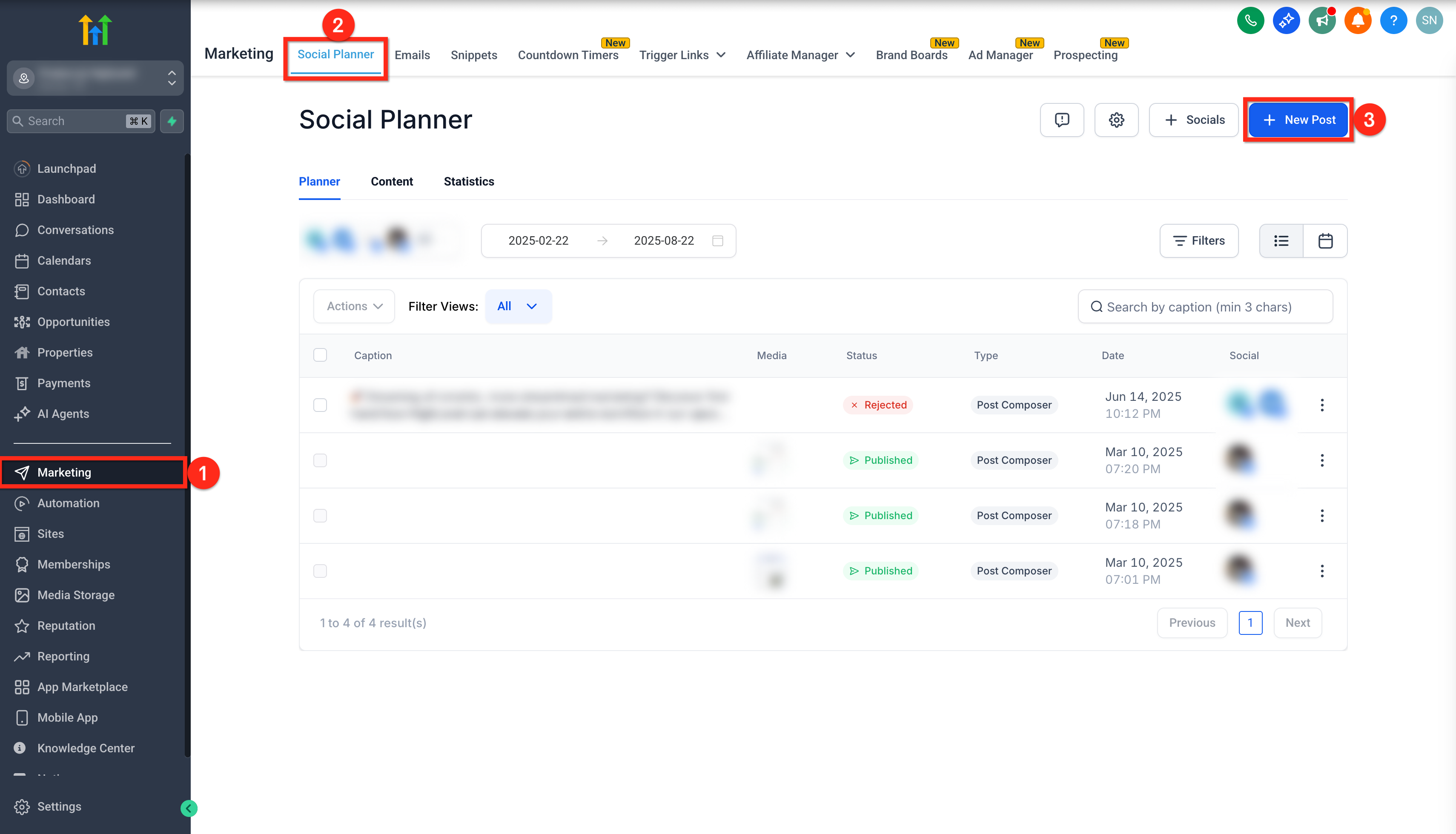
- Open the Marketing area from your subaccount.
- Select the Social Planner tab.
- Press the + New Post button.
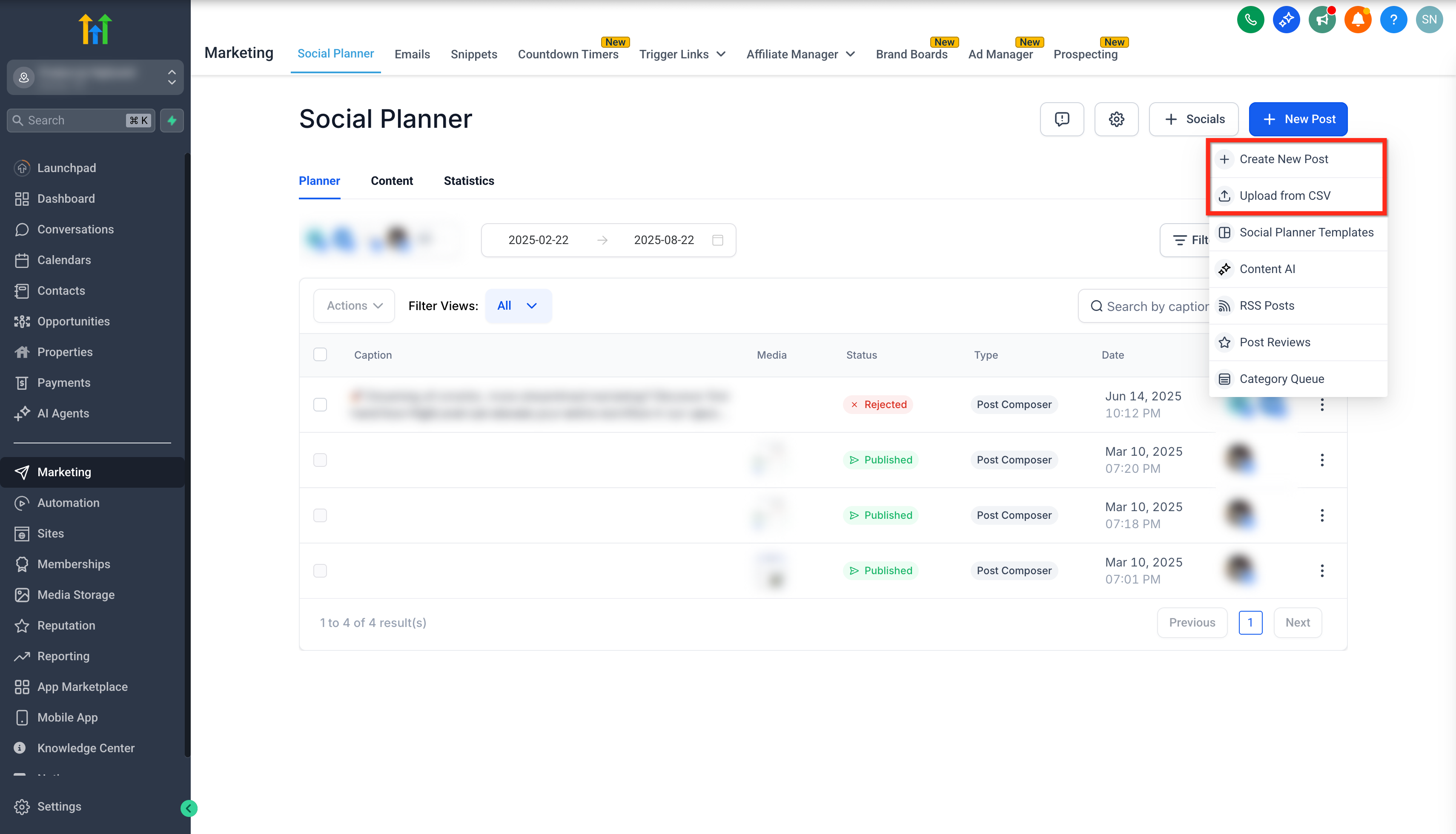
- Choose + Create New Post or Upload From CSV.
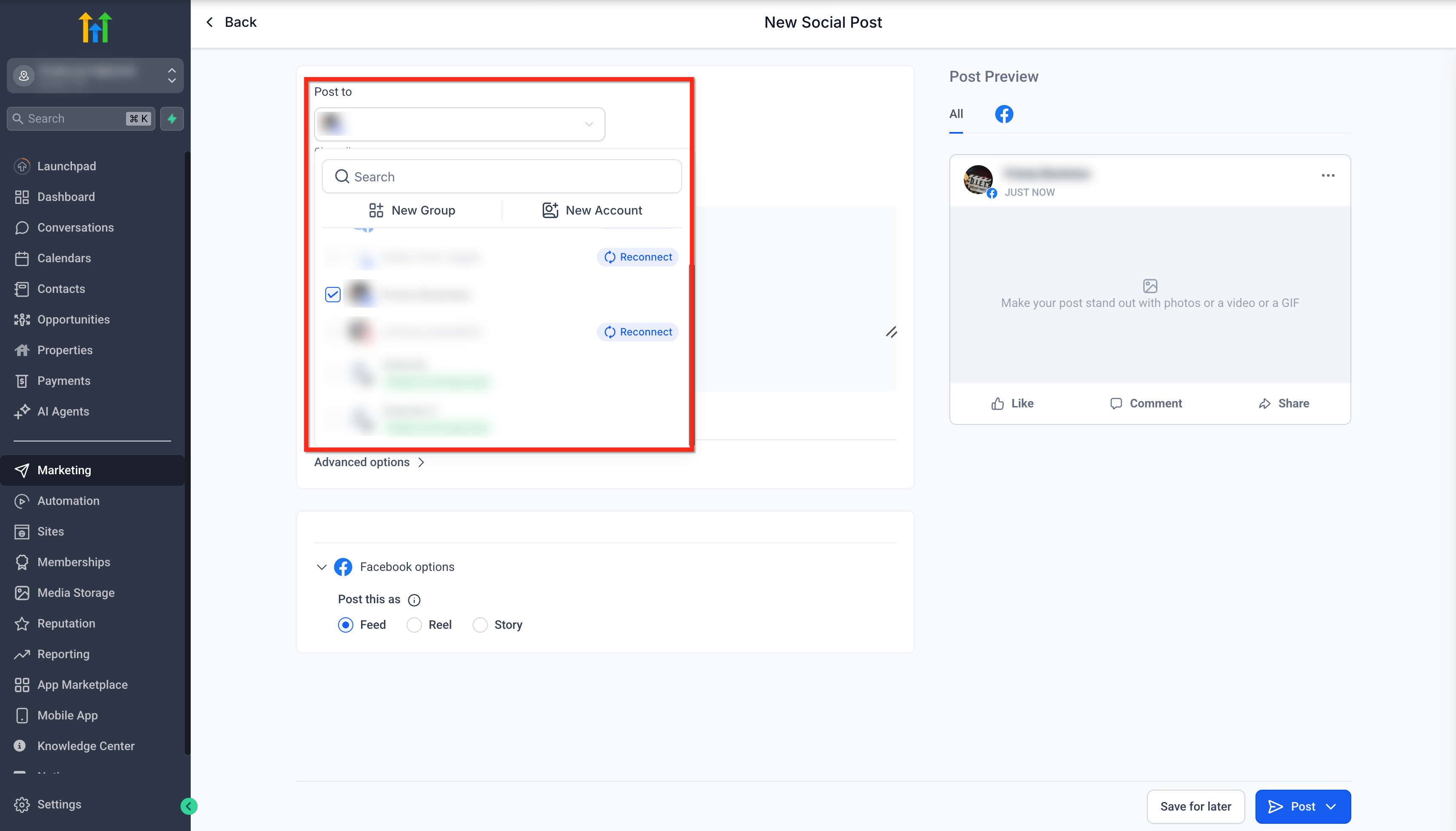
- Pick the social platforms under the Post to section.
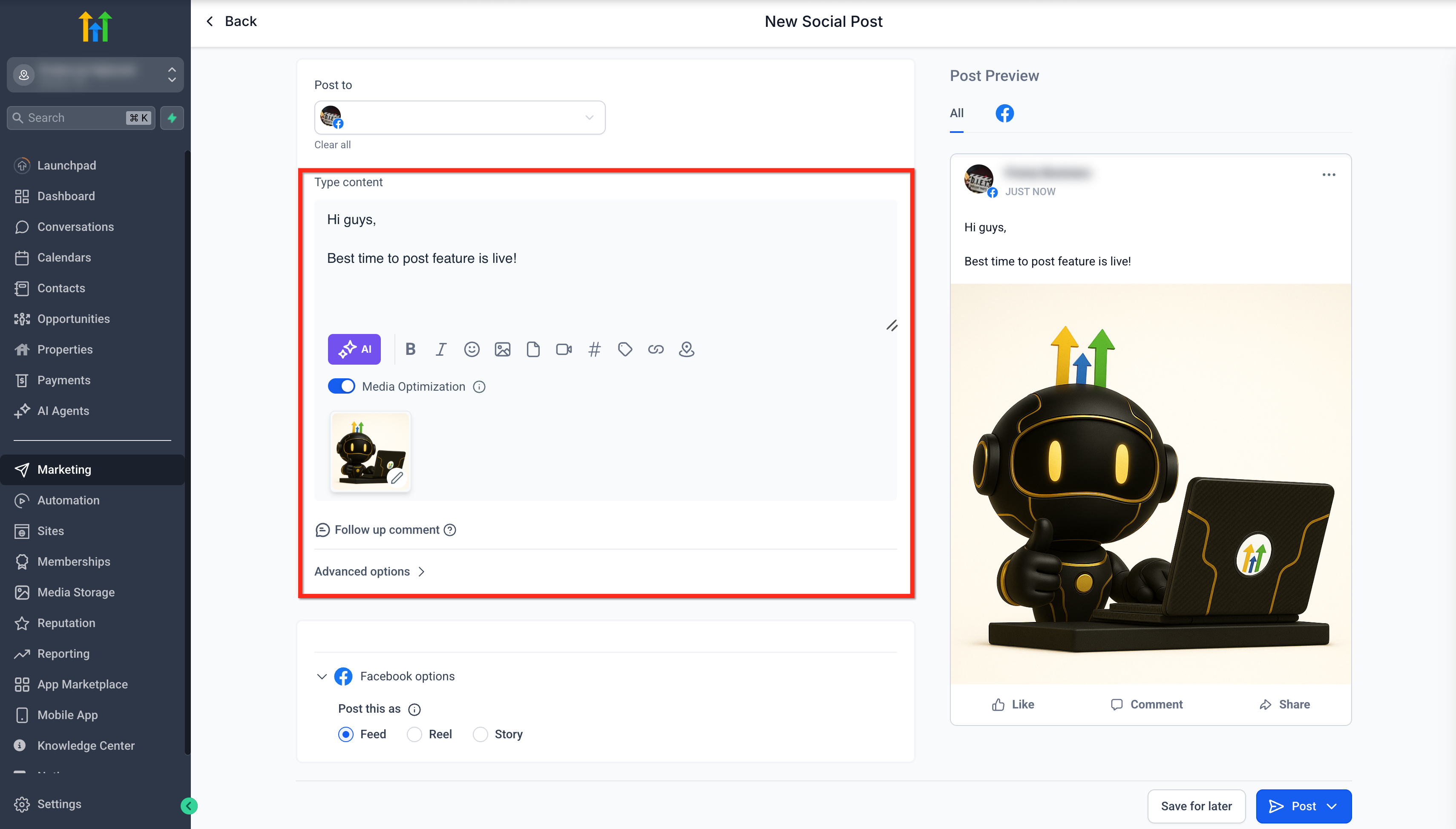
- Add your post text, images or media, and any hashtags or mentions.
- Click the down arrow beside the post button and choose the Schedule Post option.
- Review the Best Time to Post recommendations that appear based on audience trends.
- Select one of the suggested time frames for publishing.
- Press the Schedule Post button to finalize the schedule.
05What it looks like in HighLevel
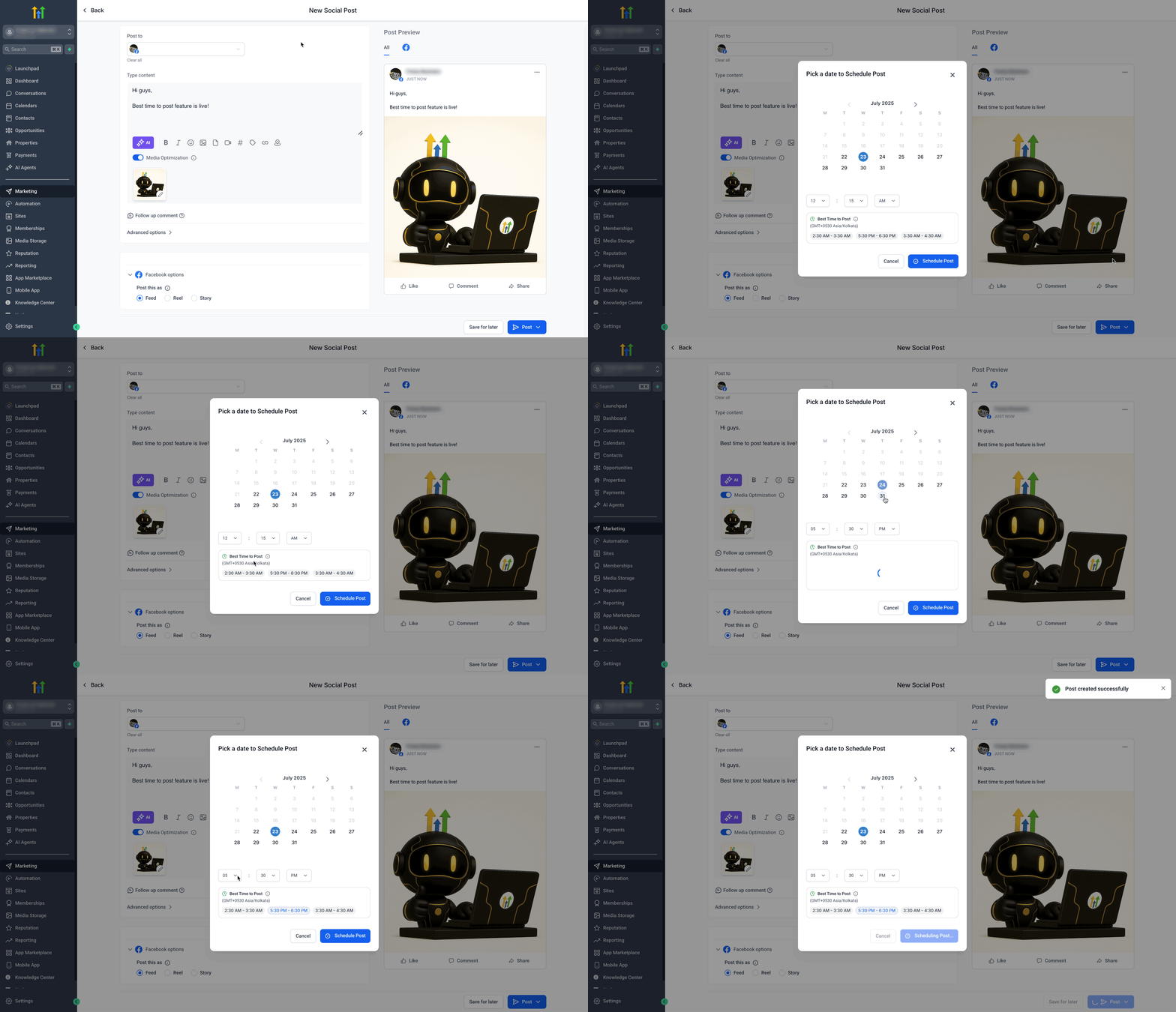
06Things to know before you rely on it
- Only available on the desktop version; the mobile app does not include this feature.
- Accessible in the Post Composer and CSV Bulk Action interfaces within Social Planner.
- Future releases will add support for Recurring Posts, Review, RSS feeds, and Category Queue formats.
07How it connects to the rest of HighLevel
- Connect your Facebook page to schedule posts with Best Time to Post on that platform. Connect Facebook
- Link your Instagram account either through Facebook or directly to use Best Time to Post. Connect Instagram
- Add your LinkedIn profile or business pages to enable Best Time to Post recommendations. Connect LinkedIn
Michael's take

A small convenience that can become a real shift for anyone who relies on social traffic. The Best Time to Post feature plugs your audience data straight into the scheduling step, so you stop guessing and start posting when it matters most.
It fits a boutique coffee shop that posts daily specials. By letting the planner suggest the sweet spot for a morning post, the shop can catch commuters scrolling before work, turning a simple coffee promo into a higher traffic hit.