
01Who this is for
- Marketing managers can display the brand’s existing social pages on Google searches, giving prospects familiar ways to engage.
- Customer support teams benefit from seeing WhatsApp or SMS options directly on the GBP, allowing quicker response handling within HighLevel.
02Messaging & social channels, explained
The integration adds messaging options, WhatsApp and Text/SMS, and links to supported social networks onto a Google Business Profile. When a number or profile is also linked to HighLevel, inbound messages or DMs are routed to the platform, keeping communication centralized.
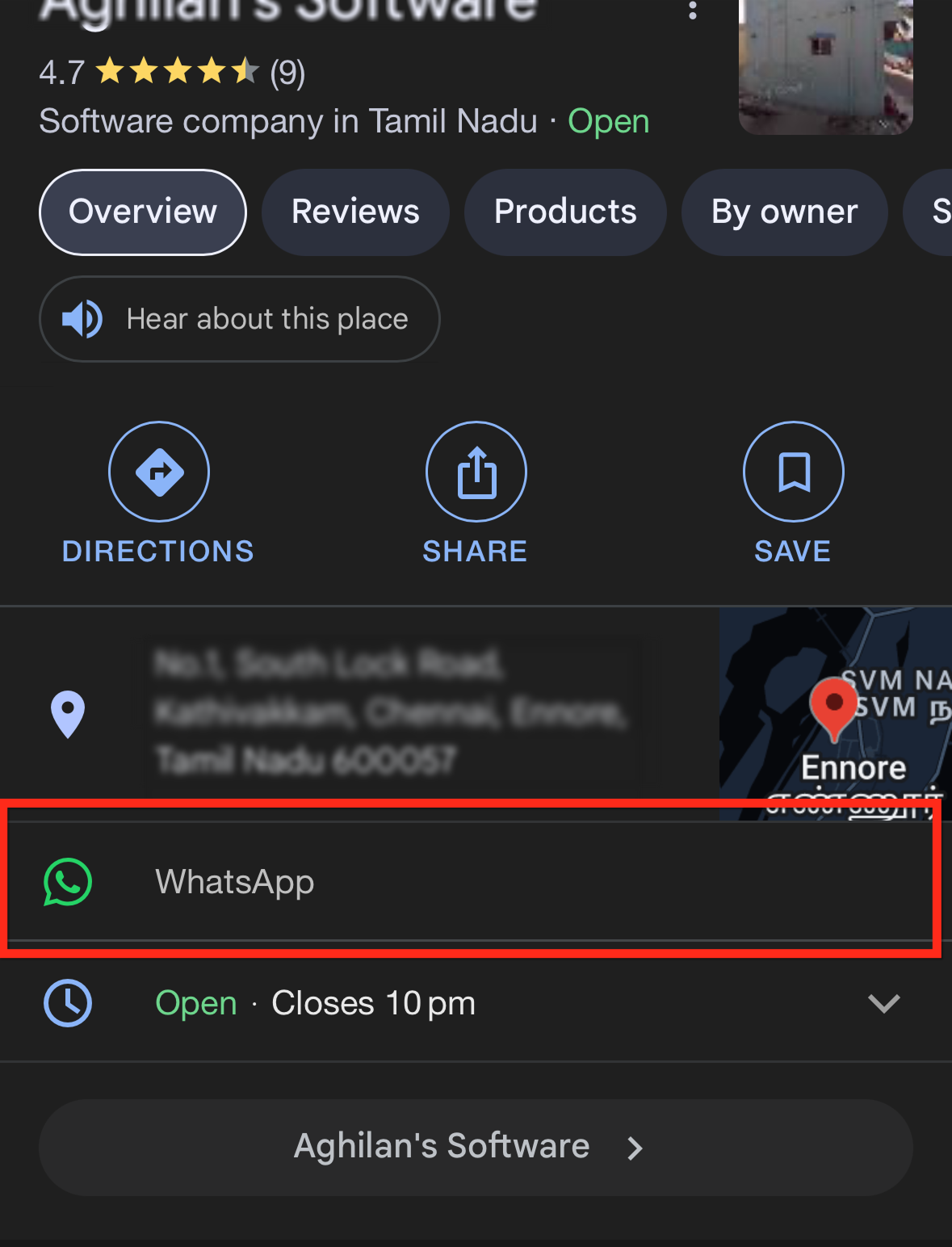
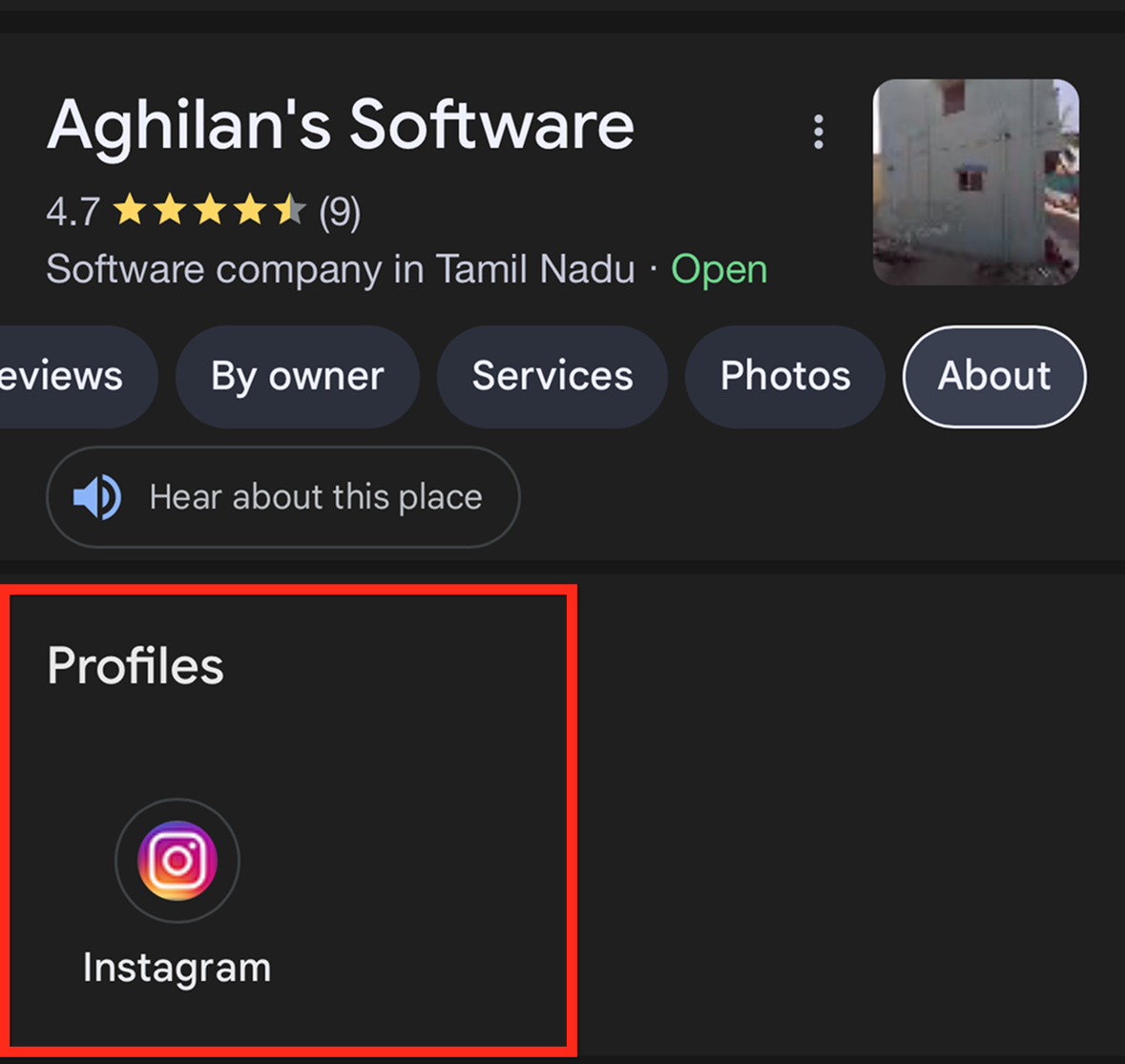
Only one messaging channel appears on the public GBP listing. Google shows the Text/SMS number by default; a WhatsApp number is shown only if no Text number is provided. Social links appear together under the About section.
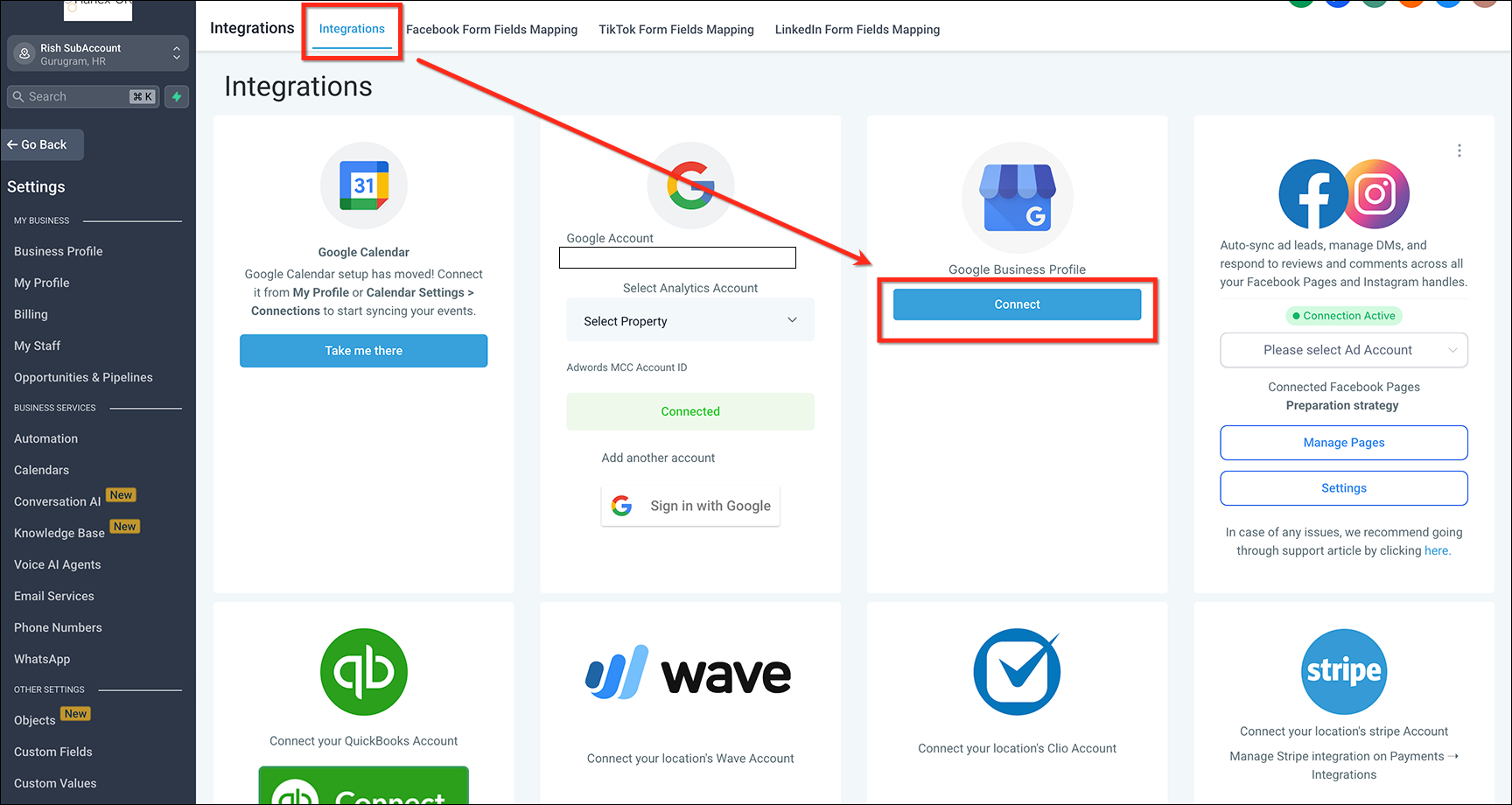
All configuration lives inside the Google Business Profile module under Settings > Integrations. From there you connect the GBP account, select channels, save, and then press Connect to finalize the linkage.
03How businesses use messaging & social channels
- Dental practice. The practice adds its clinic phone number as a Text/SMS option and links its Instagram profile. Because both are connected to HighLevel, appointment reminders and patient inquiries arrive in the same inbox.
- Roofing contractor. The contractor connects a WhatsApp number and a Facebook page to the GBP. When a homeowner clicks the WhatsApp link on the Google listing, the conversation is captured in HighLevel for follow up.
- Boutique clothing store. The store adds a Pinterest profile and a YouTube channel to its GBP. Shoppers can click those links to view the brand’s visual content, and any comments on the linked accounts are routed to HighLevel if the accounts are connected.
04The numbers and rules that matter
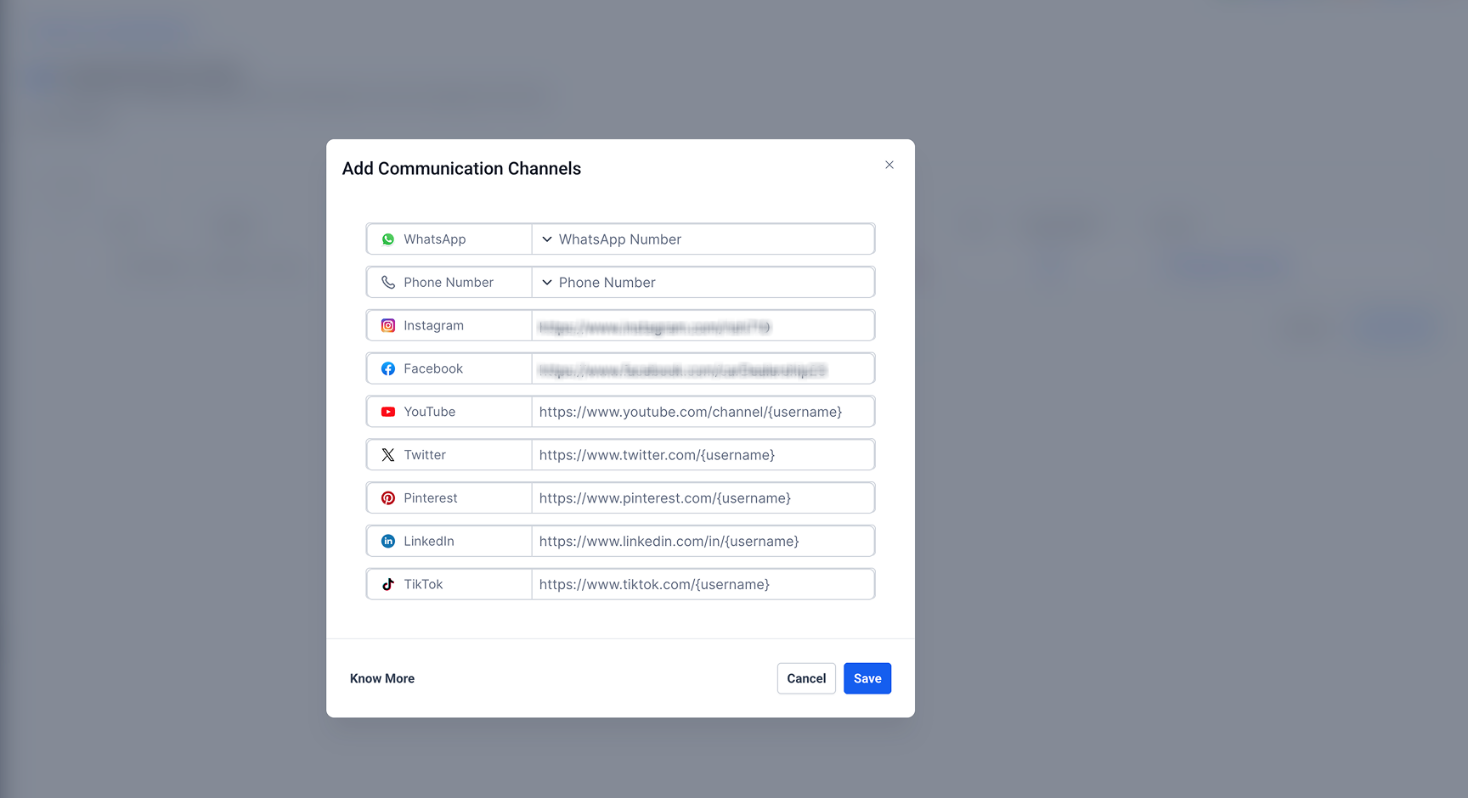
- Supported platforms: Facebook, Instagram, LinkedIn, YouTube, TikTok, X, Pinterest.
- Phone numbers must be entered in E.164 format, e.g., +15551234567 for US.
05Before you start
- A HighLevel account with the Google Business Profile integration enabled.
- At least one phone number that is integrated with HighLevel if you want sync and automation.
- Social media profiles that you plan to connect must already exist and follow the URL formats listed.
06How to set up and use messaging & social channels in HighLevel
Add messaging channel and social profiles to your Google Business Profile
- From the subaccount dashboard, open Settings, select Integrations, then use the Google Business Profile card to connect the GBP account and choose the desired page.
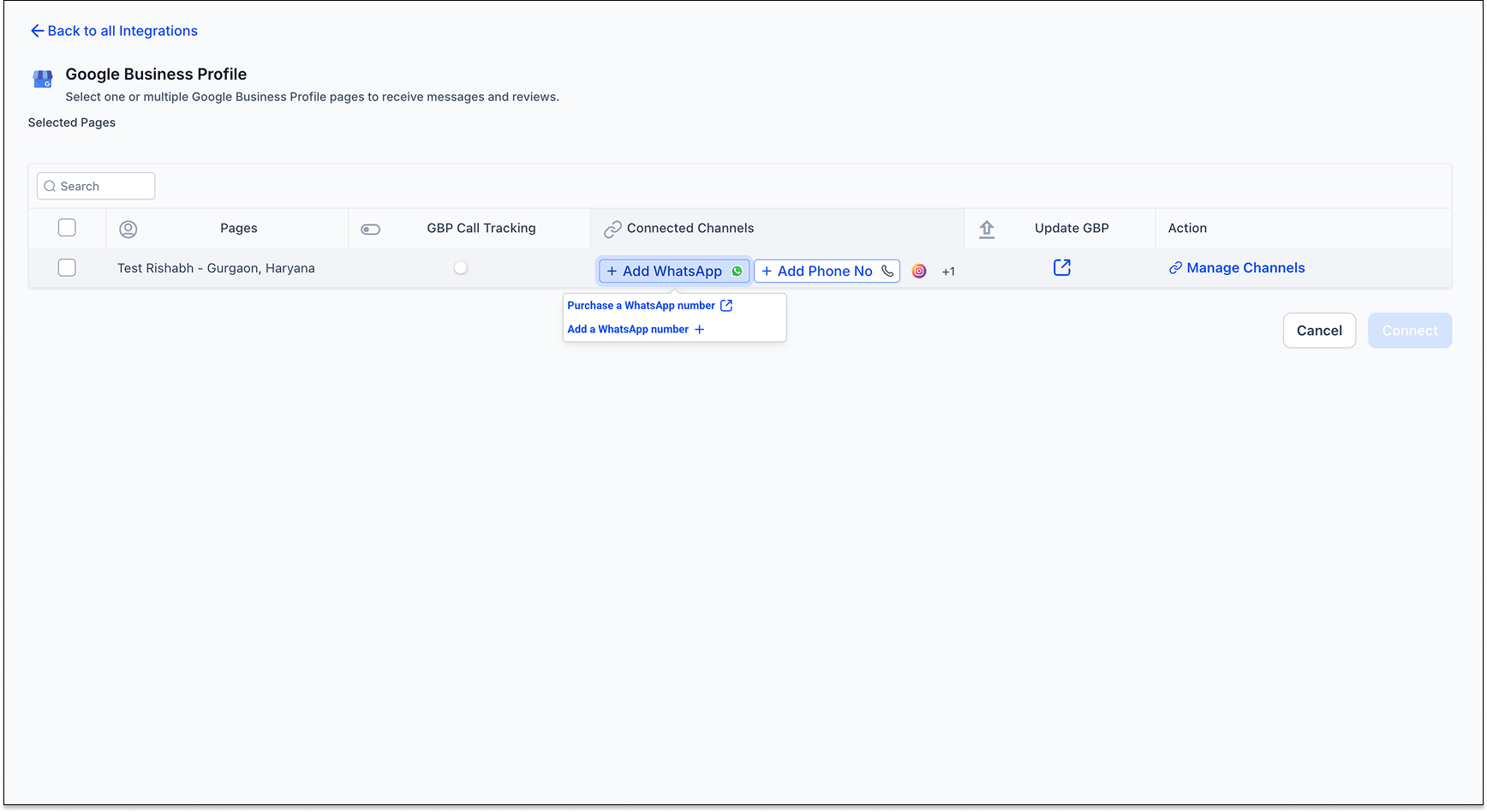
- Click the WhatsApp tab, the Message tab, or the generic Connect Channels button to start adding messaging options.
- Choose a HighLevel linked phone number or type a number in E.164 format, add any social profile URLs, and press the blue Save button.
- Press the blue Connect button to finalize the connection of the selected channels.
- Open the GBP page editor either through the Update GBP button in the page selection module or directly in Google’s console.
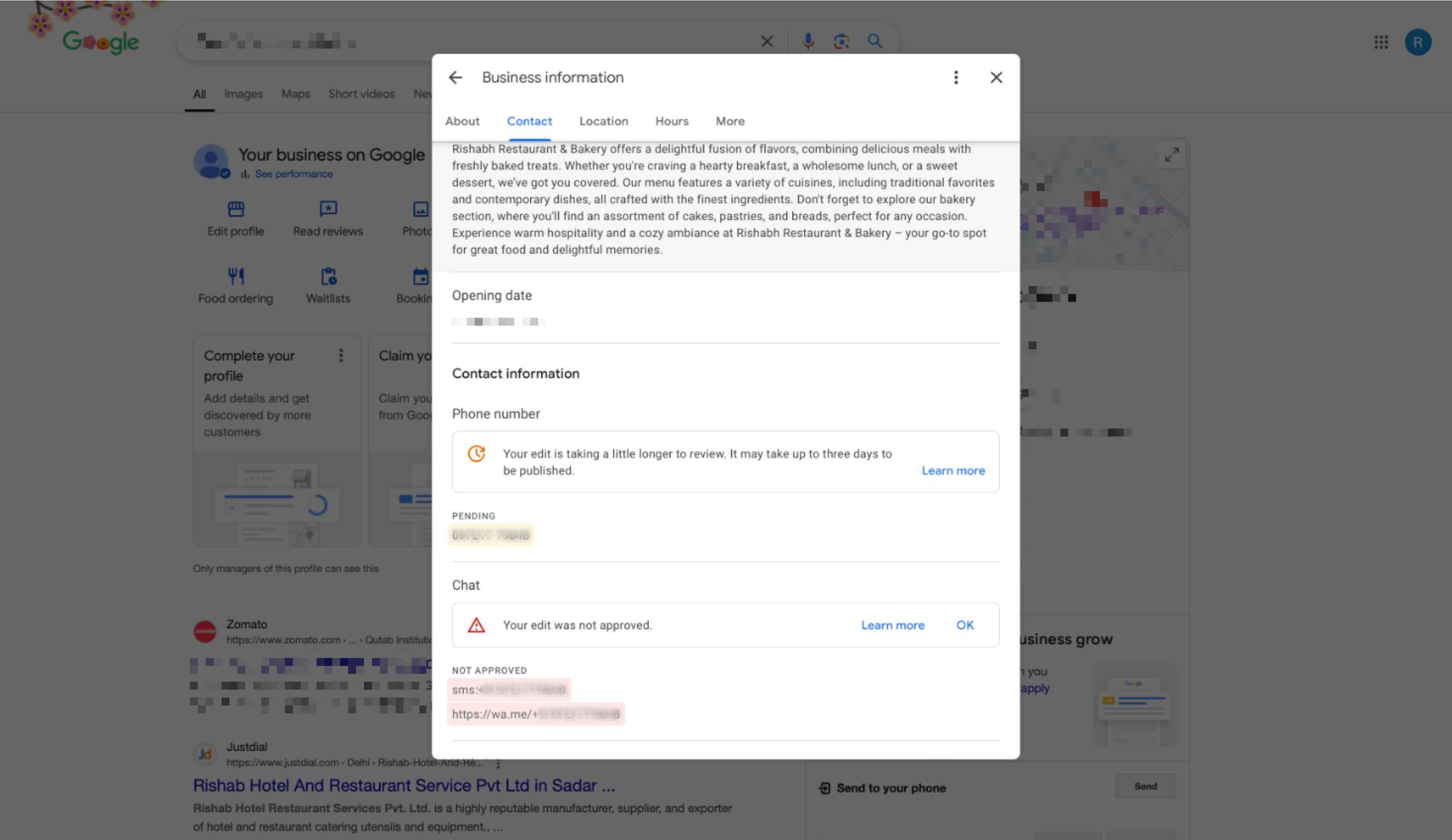
- Confirm that Google has approved the edit; if approval is pending, submit a ticket to Google for review.
07What it looks like in HighLevel
08Settings that matter
- WhatsApp & Message tabs. These tabs let you pick which messaging channel, WhatsApp or Text/SMS, to attach to the Google Business Profile.
- Connect channels. A button that opens the selection interface for adding phone numbers or social profile links.
- Save button. Commits the chosen numbers and social URLs to the integration before final connection.
- Connect button. Activates the linkage between HighLevel and the Google Business Profile after saving.
09Things to know before you rely on it
- Only one messaging channel is displayed on the public GBP listing; Text/SMS takes precedence over WhatsApp.
- Numbers that are not integrated with HighLevel can appear on the GBP but will not sync or trigger automations.
- All social URLs must follow the exact formats listed for each platform; otherwise they will not be accepted.
- Google may take additional time to review and approve changes before they become visible on the profile.
10If something goes wrong
- Text/WhatsApp option does not show on GBP results. Open the GBP page editor via the Update GBP button or Google console, verify that the edit has been approved, and if not, raise a support ticket with Google.
11How it connects to the rest of HighLevel
- How to connect a Google Business Profile in HighLevel Connect GBP
- Connecting Facebook pages in HighLevel Social Planner Facebook integration
- HighLevel Instagram connection: Facebook linked vs direct Instagram integration
Michael's take

I like that the feature lets customers use the apps they already trust, and having the messages land in the HighLevel inbox is convenient for my team.
If the extra setup time doesn’t bring noticeable new qualified leads, or if Google’s approval process drags on, the effort can feel like extra overhead.