
01Who this is for
- Marketing managers who need quick access to recurring email and funnel designs.
- Agency owners building multiple client campaigns and wanting a personal shortcut list.
- Social media planners who repeatedly use social planner templates across posts.
02Favorites, explained
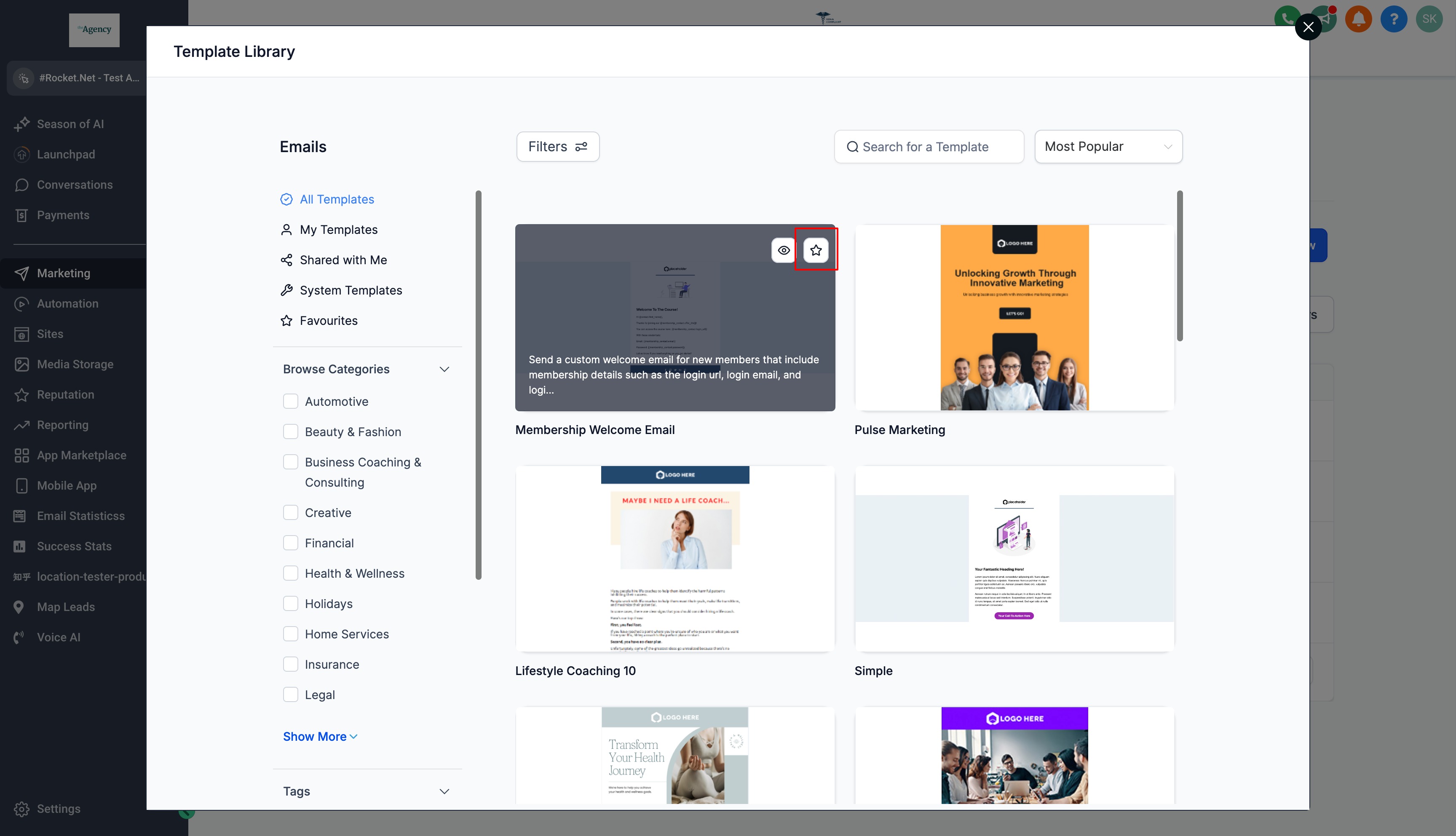
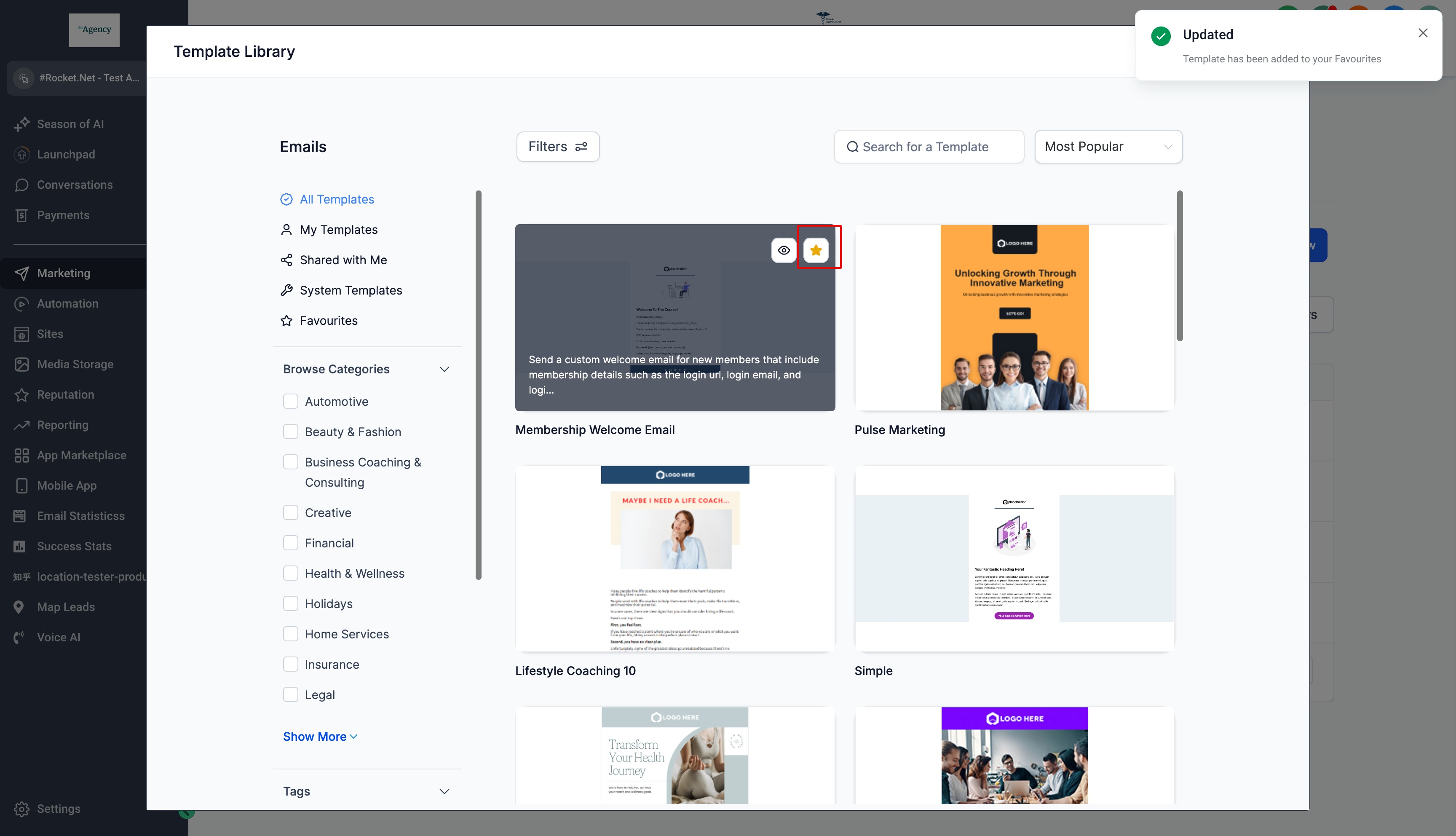
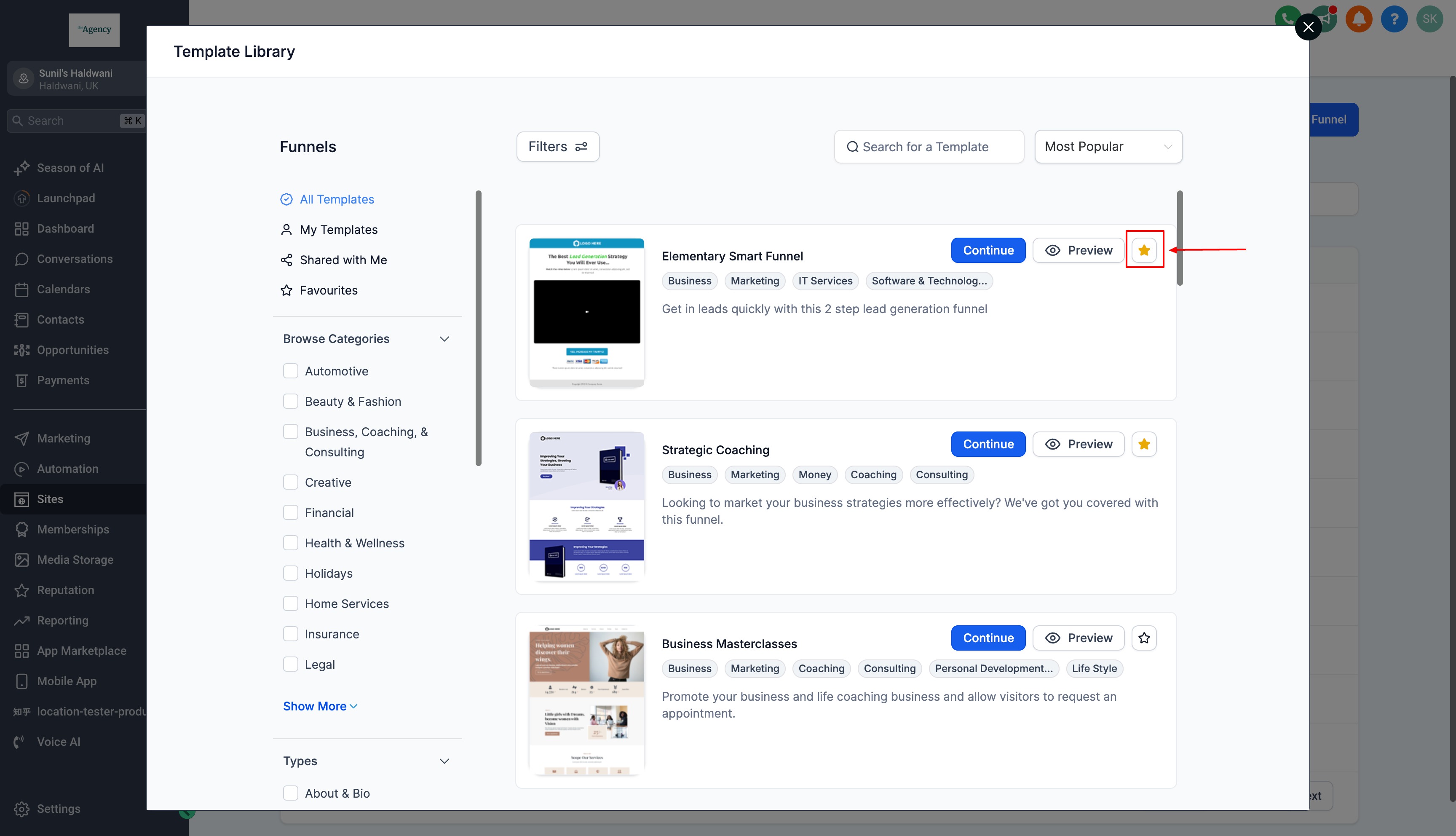
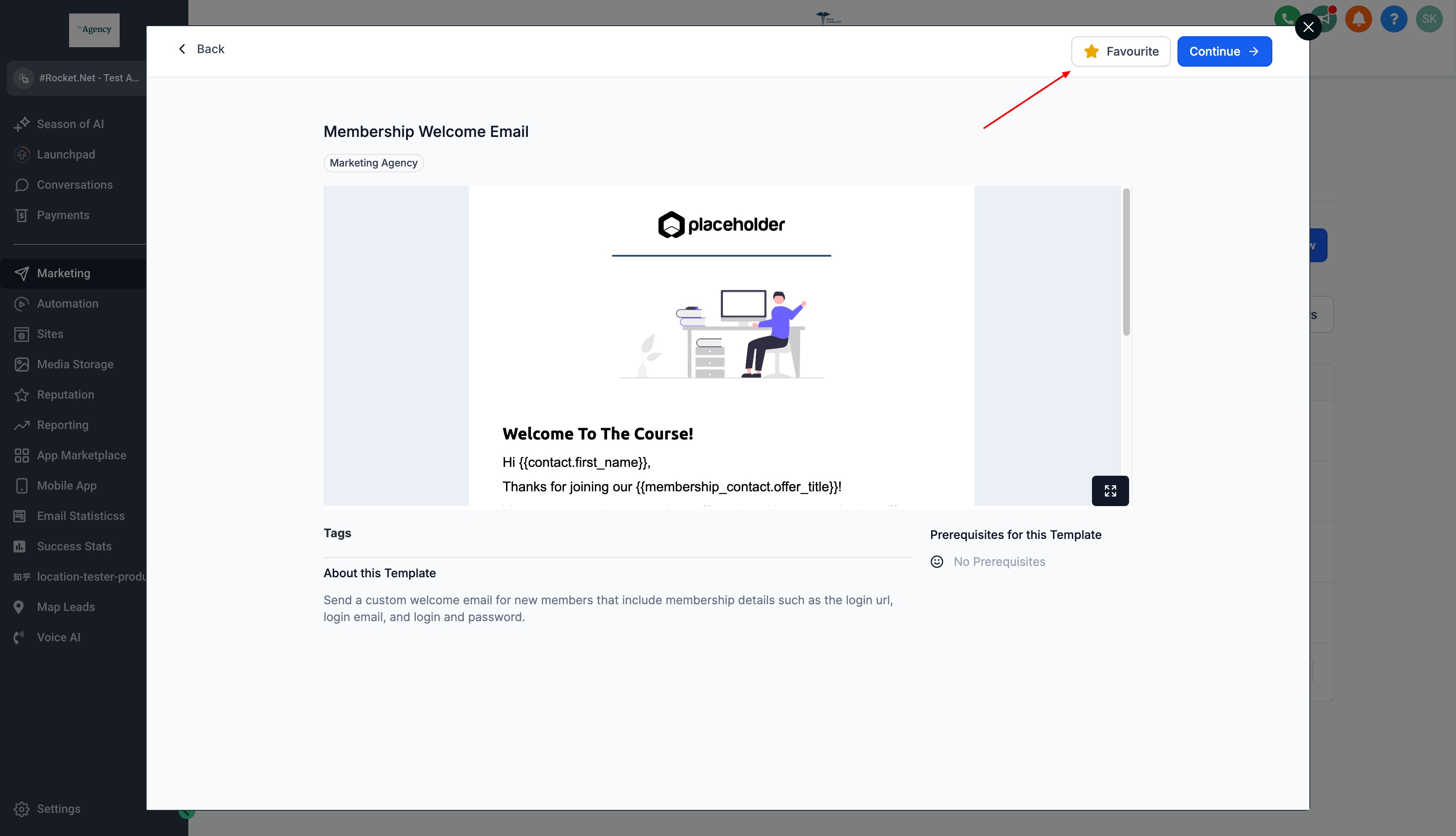
The Favorites option adds a star to any template you use often, letting you build a personal collection of shortcuts. When a template is starred, the star changes to a solid icon, indicating it is saved in your favorites list. You can later view only those starred items by applying the Favorites filter, which hides all other templates.
Starred templates stay linked to your user profile, so each person sees only their own set of favorites. The feature works for email, funnel, website, and social planner templates, and it does not affect what other team members can see.
The Favorites controls are located inside the Template Library. Each template type (Email, Funnel, Website, Social Planner) has its own section where you can star items and use the filter menu at the top of the list to display only your favorites.
03How businesses use favorites
- Dental practice. A dental office can star email reminder templates and then filter the Favorites view to pull those messages quickly when scheduling patient communications.
- Real estate agency. An agency can star funnel templates used for lead capture pages, apply the Favorites filter, and right away select a favorite when launching a new property campaign.
- Ecommerce store. An online retailer can mark social planner post templates as favorites, filter to those items, and rapidly schedule promotional content without searching the full library.
04The numbers and rules that matter
- No hard limit on number of favorites.
05How to set up and use favorites in HighLevel
Mark a template as favorite
- Open the Template Library and choose the type of template you want to star.
- Locate the desired template by scrolling or searching.
- Hover over the template and click the star icon in the upper right corner.
- Confirm the star becomes solid, indicating the template is now in your favorites.
Access favorite templates
- Return to the Template Library section where the templates reside.
- Click the filter menu near the top of the template list.
- Select the “Favorites” option to show only starred templates.
- Open any favorite template to edit or launch it.
06What it looks like in HighLevel
07Settings that matter
- Favorites filter. Shows only the templates that you have starred, hiding all other items in the current template section.
08Things to know before you rely on it
- There is no hard limit on how many templates you can favorite, but keeping the list concise improves speed.
- Favorites are stored per user profile and are not shared with other team members or subaccounts.
- The feature works across email, funnel, website, and social planner template types.
09How it connects to the rest of HighLevel
- The Favorites feature is accessed from the Template Library where you can also browse and manage all templates. Template Library overview
- You can add custom templates to the library and then star them for quick reuse. Add custom templates
- Use tags and categories alongside Favorites to further organize your template collection. Manage categories and tags
Michael's take

People often think favorites are a shared team resource, but they’re personal to each user.
I’d set up a small set of core templates as favorites for each major type. Email, funnel, website. Then keep the list trimmed. A quick review each month ensures the toolkit stays relevant without clutter.