
01Subaccount connections, explained
HighLevel subaccount connections let you choose a single subaccount when authorizing the LeadConnector Zapier app. The connection uses your HighLevel CRM login, not API keys, and keeps data clean and separated per subaccount.
After you sign in, Zapier can create or update contacts, move data, and trigger actions based on events such as pipeline stage changes. You can manage the link from Zapier’s App Connections page, where you can also delete it.
02How businesses use subaccount connections
- Automate lead capture, contact updates, and handoffs. Zaps can create or update contacts, move data, and trigger actions based on HighLevel events such as pipeline stage changes.
03How to set up and use subaccount connections in HighLevel
Connect subaccount to Zapier
- Log in to your Zapier account.
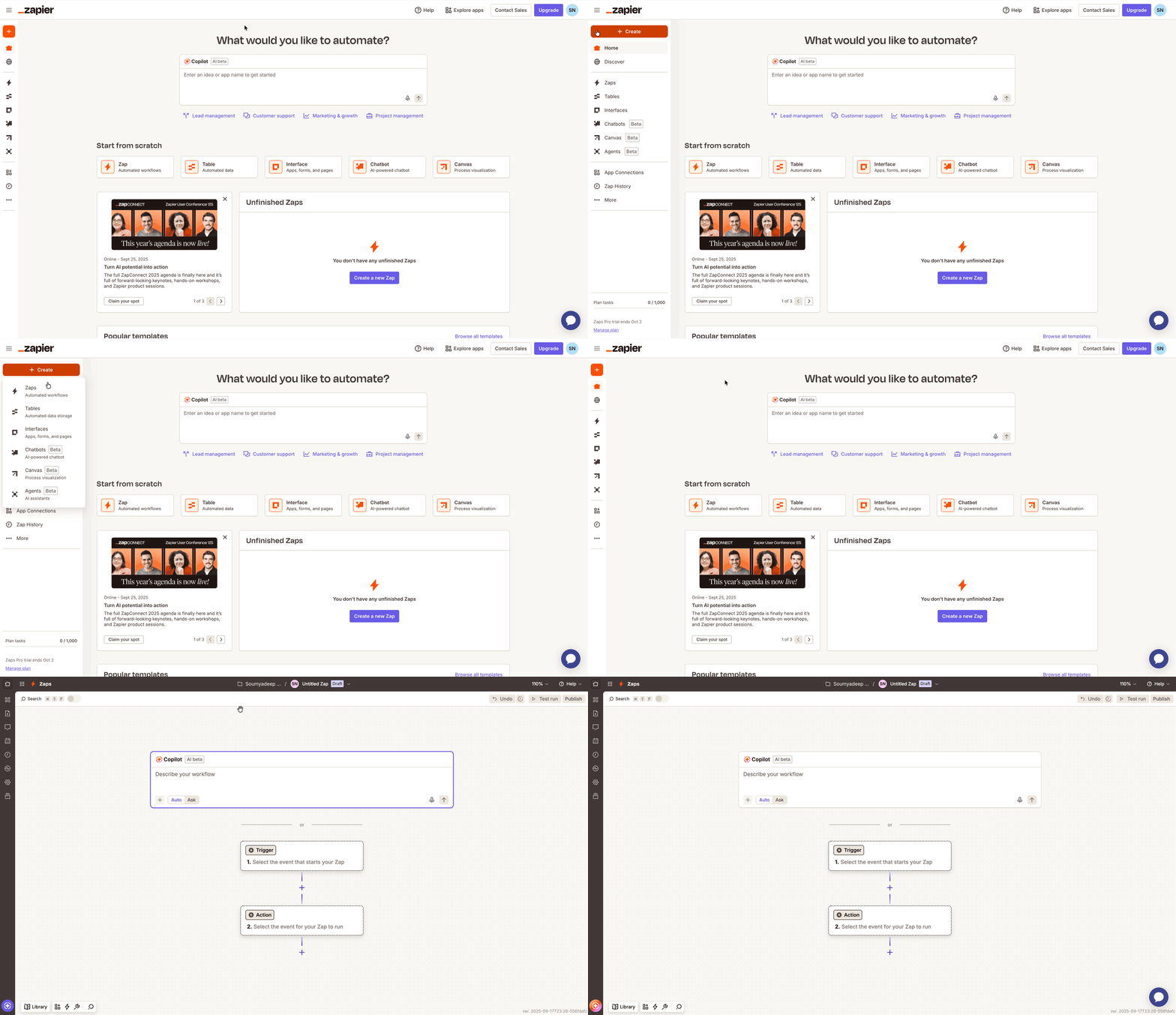
- On the home screen, click Create > Zaps.
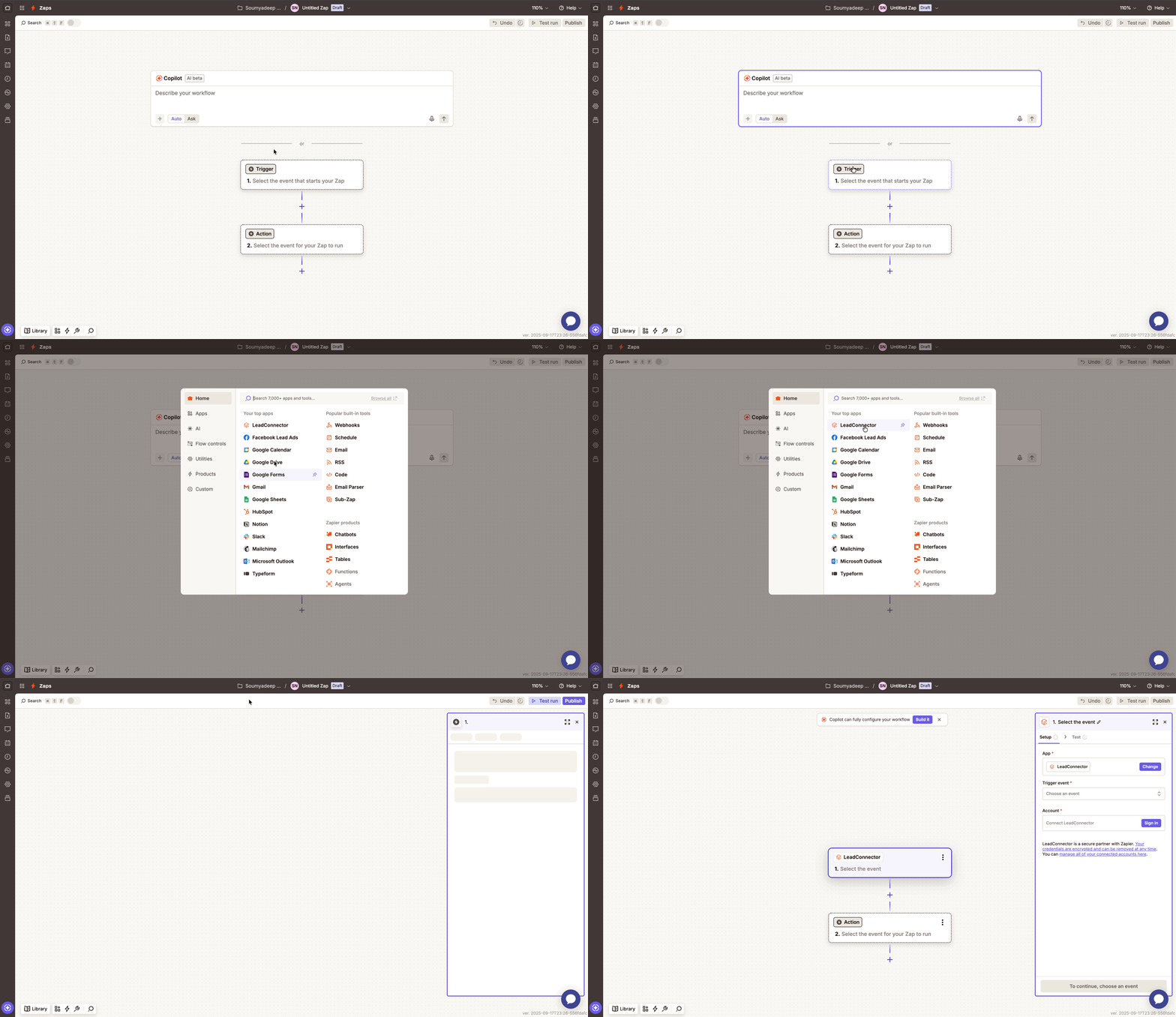
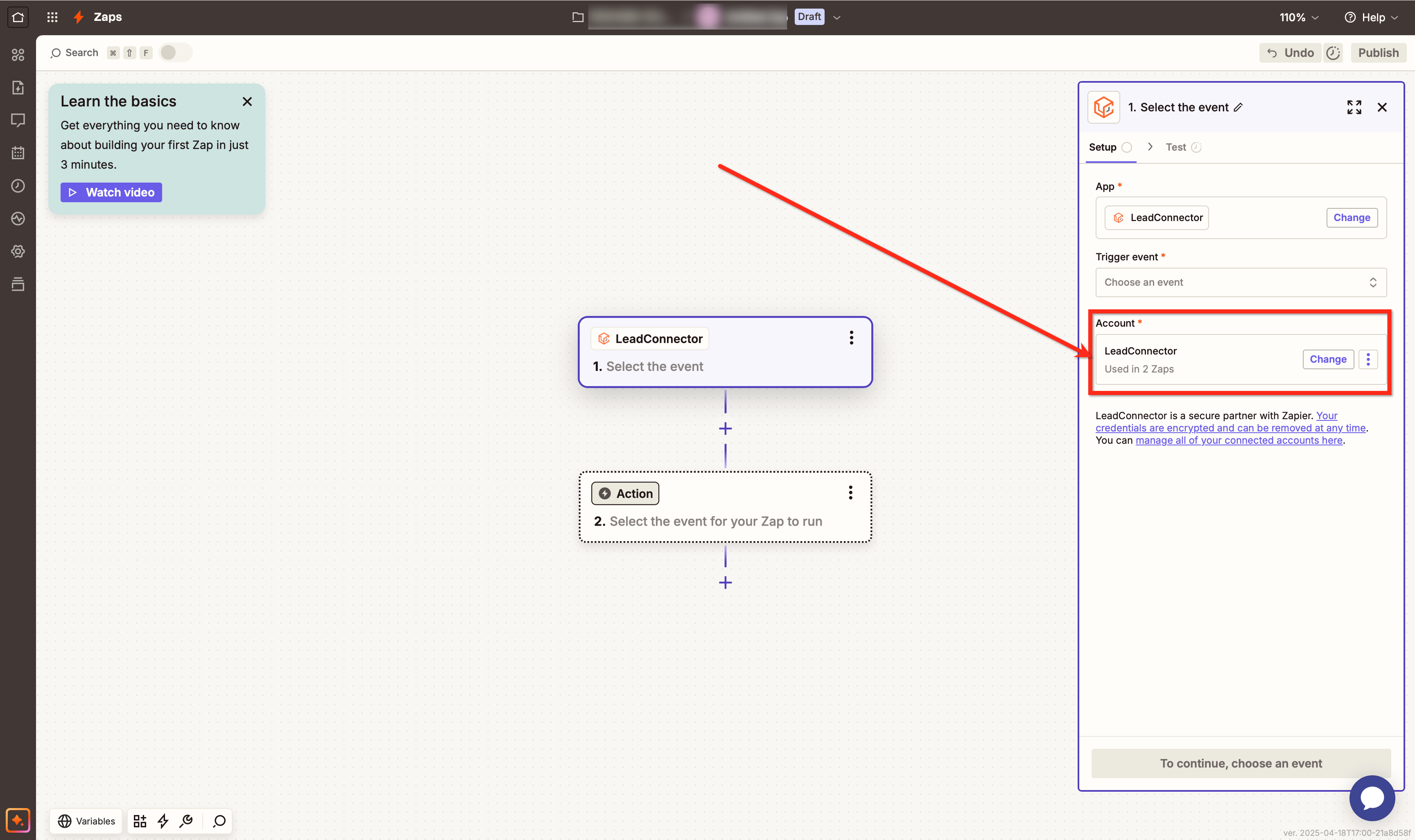
- In the Zap editor, click the Trigger block and select LeadConnector.
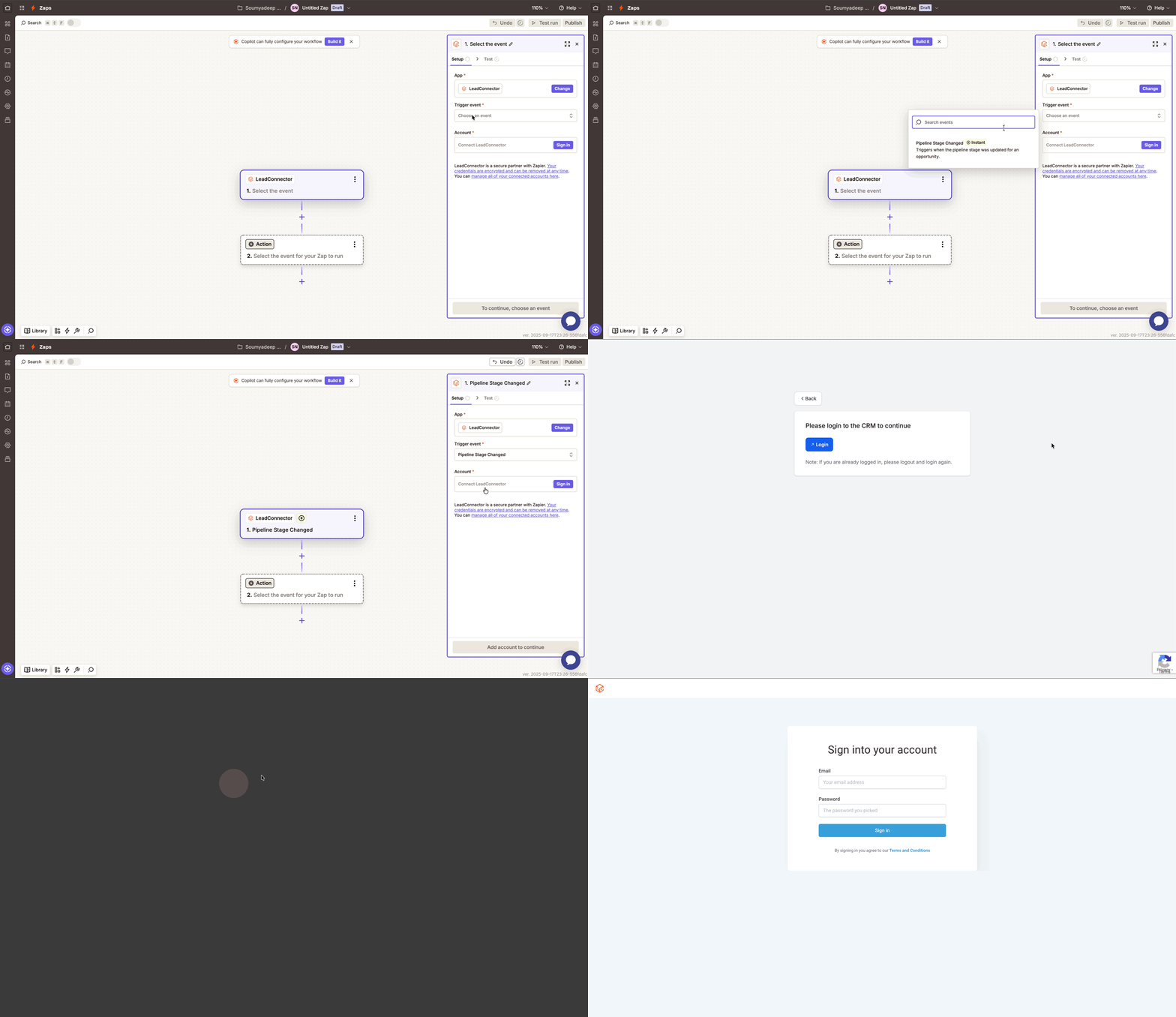
- Select a Trigger Event such as Pipeline Stage Changed.
- Under the Account section, click the Sign In button.
- Enter your HighLevel email and password on the LeadConnector login screen.
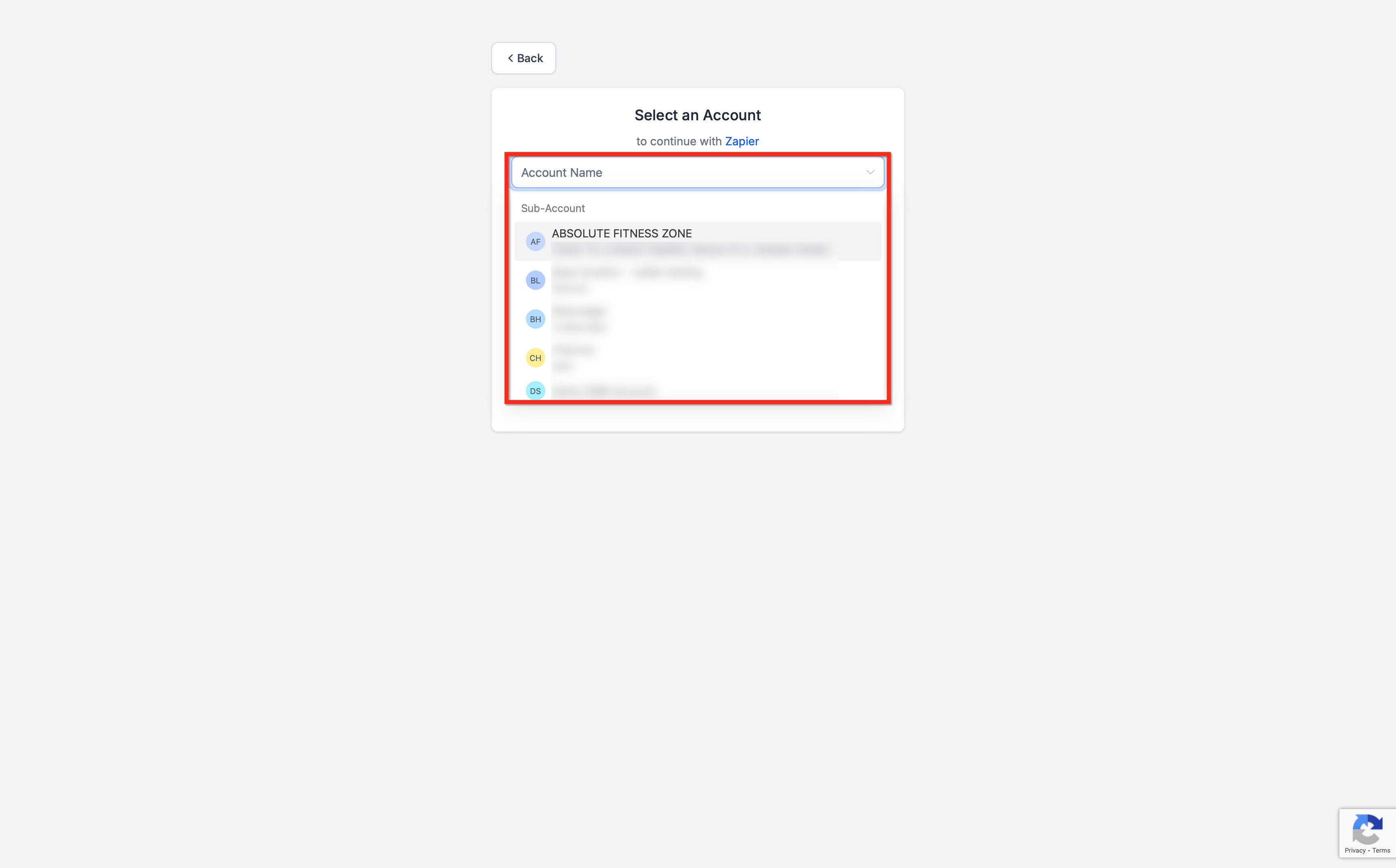
- Select the subaccount you want to connect.
- Confirm the connection; LeadConnector appears under “Accounts” in the Zap setup.
Disconnect LeadConnector from Zapier
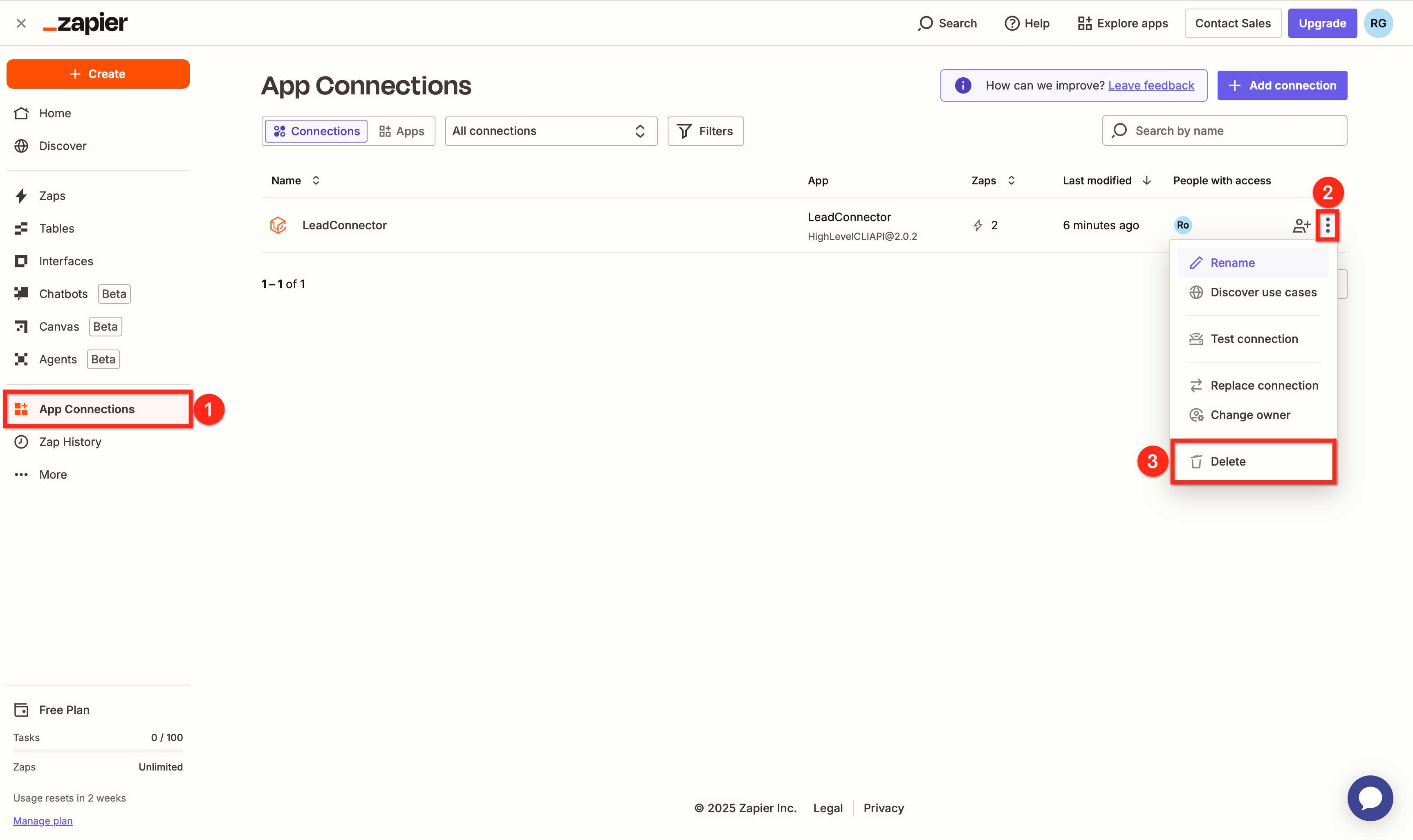
- On the Zapier home page, click App Connections in the left hand menu.
- Click the three dot menu (•••) next to LeadConnector.
- Select Delete to remove the connection.
04What it looks like in HighLevel
05If something goes wrong
- Missing subaccount when connecting. Check that you are using the correct HighLevel login and that you have access to the subaccount. If it still does not appear, contact HighLevel Support.
06Connect ServiceTitan + HighLevel (Zapier) in HighLevel
ServiceTitan + HighLevel connections let you move data between the two platforms using Zapier, which can save time for service based businesses.
ServiceTitan is a platform that helps service businesses manage their operations.
HighLevel is a lead generation tool that helps businesses find new customers.
Michael's take

People often try to pick a subaccount after they have already built a Zap, then discover the wrong account is linked and have to rebuild. Instead, pause the Zap, delete the existing LeadConnector connection, and reconnect using the correct subaccount before turning the Zap back on.
If I were setting this up, I’d first test the connection with a single, simple trigger like Pipeline Stage Changed to confirm the right subaccount is selected. Once it works, I’d duplicate the Zap for any additional automations, keeping each one scoped to the same subaccount.