
01Who this is for
- Founders who run community focused businesses can guide members to the app without extra navigation steps.
- Community managers can reduce friction for participants who prefer a native mobile experience.
- Course creators can keep learners on the same lesson when they move from web to app.
02GoKollab app banners, explained
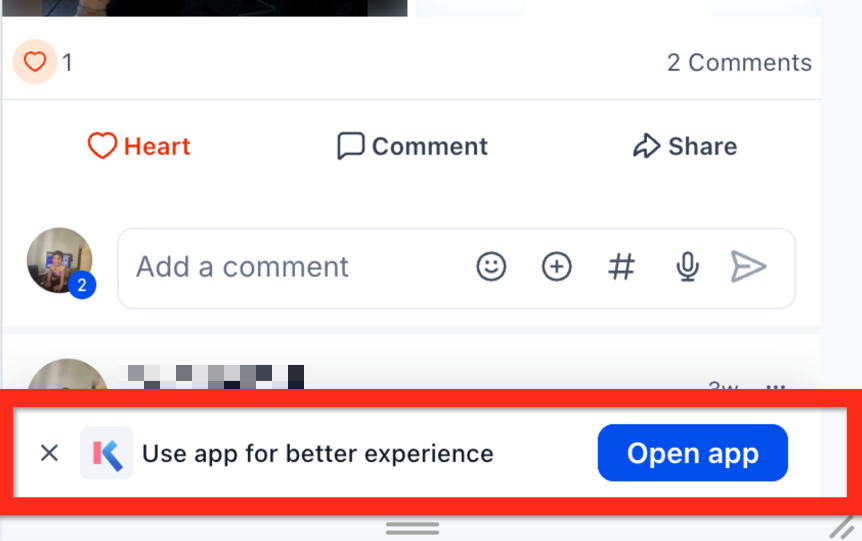
The banner shows a dismissible prompt titled “Use app for better experience” at the bottom of each supported GoKollab mobile web page. It contains an Open app button on the right and an X on the left.
When a user taps Open app, the platform checks whether the GoKollab app is installed and which operating system is in use. If installed, a deep link opens the same page inside the app. If not, the device redirects to the Apple App Store for iOS or Google Play Store for Android.
If the banner is dismissed with the X, the user remains on the mobile website and continues browsing without any redirection.
03How businesses use the GoKollab app banner
- Fitness studio. Members browsing class schedules on the mobile site can tap the banner to open the same schedule in the GoKollab app, keeping their place. If the app is not yet installed, the banner sends them to the appropriate store so they can download it with one tap.
- Online coaching program. Coaches can encourage participants to use the app for video lessons. When a participant clicks Open app, the deep link loads the exact lesson they were viewing, eliminating the need to search again.
- Professional association. Members accessing discussion threads can switch to the native app via the banner, ensuring they stay on the same thread. Those who prefer the web can simply close the banner and keep browsing.
04Before you start
- Access the GoKollab website using a mobile browser.
- Use an iOS or Android device.
- Be signed into the community, course, or client portal if you plan to open the app.
05How to set up and use the GoKollab app banner in HighLevel
Switch from GoKollab mobile website to the GoKollab app
- Open the GoKollab website in a mobile browser and navigate to the desired community, discussion, or supported page.
- Find the “Use app for better experience” banner at the bottom of the page.
- Tap the Open app button on the banner.
- If the app is already installed, it launches and displays the same page you were viewing.
- If the app is not installed, the device redirects to the Apple App Store or Google Play Store for download.
- Sign in with your existing email and password, or tap the X to dismiss the banner and remain on the website.
06What it looks like in HighLevel
07Things to know before you rely on it
- The banner appears only on supported GoKollab mobile web pages.
- Deep link navigation works only when the app is installed on the device.
- iOS devices without the app are sent to the Apple App Store; Android devices are sent to Google Play.
- Dismissing the banner hides it for the current page session.
08If something goes wrong
- Open app redirects to an app store. Install the GoKollab app on the device, then tap Open app again.
09How it connects to the rest of HighLevel
- See all GoKollab capabilities GoKollab features
- Manage communities and courses with Kollab Studio Kollab Studio
- View HighLevel pricing and plan options Pricing
Michael's take

The app banner provides a convenient way to switch from the browser to the native GoKollab app, reducing the number of taps needed. It can be useful for communities that host active discussions, allowing users to stay in the flow when moving from the web view to the app.