
01Who this is for
- Founders who need a dedicated sending domain for transactional email and want to keep their main domain free for Google Workspace.
- Marketing teams that send campaigns through Mailgun and require proper DNS authentication to improve deliverability.
02Mailgun domain setup, explained
The feature lets you route outgoing email from HighLevel through Mailgun. After adding the required DNS records in SiteGround, you verify them in Mailgun, copy the Mailgun API key, and paste it into HighLevel’s email service settings so that HighLevel can use Mailgun to send messages.
03How businesses use Mailgun domain setup
- Ecommerce store. Create a subdomain such as mg.store.com in Mailgun, add the five DNS records in SiteGround, verify them, then copy the Mailgun API key into HighLevel so order confirmation emails are sent through Mailgun.
- Digital marketing agency. Set up a dedicated subdomain like campaigns.agency.com, follow the DNS steps in SiteGround, verify in Mailgun, and configure the API key in HighLevel to send client newsletters with proper authentication.
- SaaS startup. Use the main domain or a subdomain, add the SPF, DKIM, MX and CNAME records in SiteGround, confirm verification in Mailgun, then connect the API key in HighLevel to deliver welcome and password reset emails.
04The numbers and rules that matter
- SPF TXT value: V=spf1 include: Mailgun.org ~all.
- MX priority: 10.
05Before you start
- A Mailgun account with a verified email address.
- Access to the domain’s DNS settings in SiteGround.
- Decision on whether to use the main domain or a subdomain for Mailgun.
06How to set up and use Mailgun domain setup in HighLevel
Sign up for Mailgun and add your domain
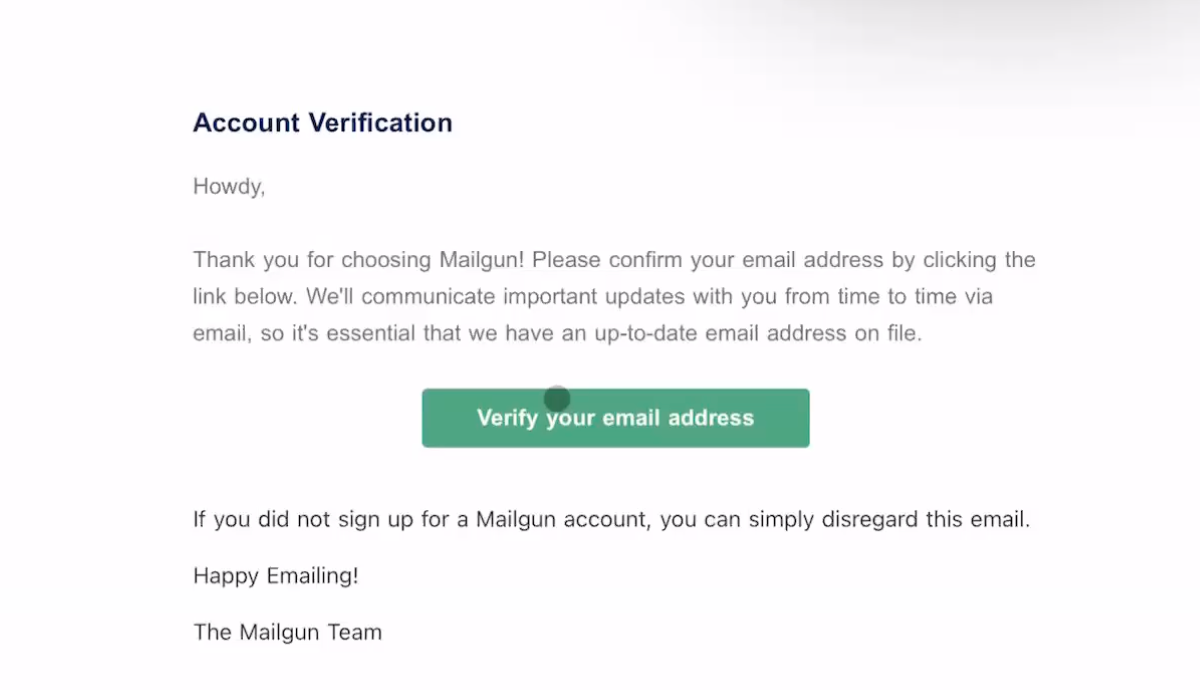
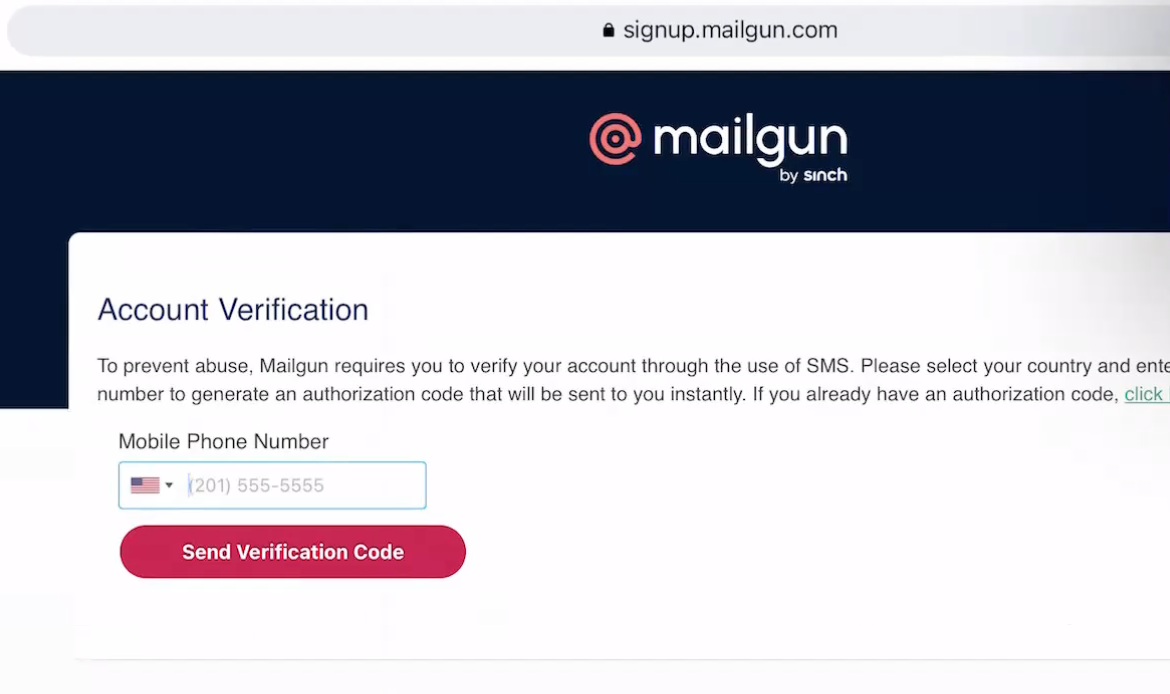
- Sign up at Mailgun.com and verify the email address you receive.
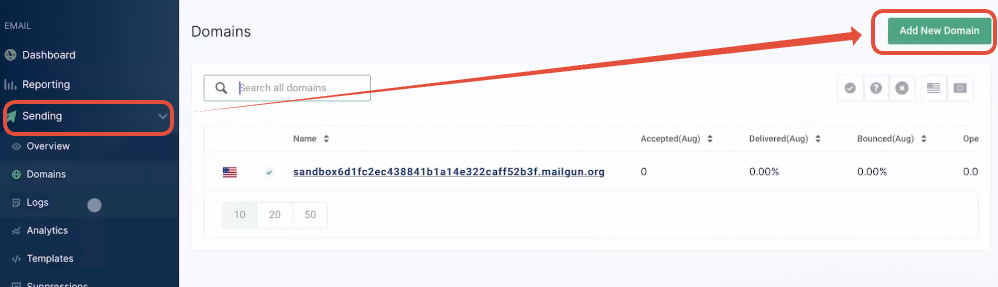
- Log in to Mailgun and open Sending > Add New Domain.
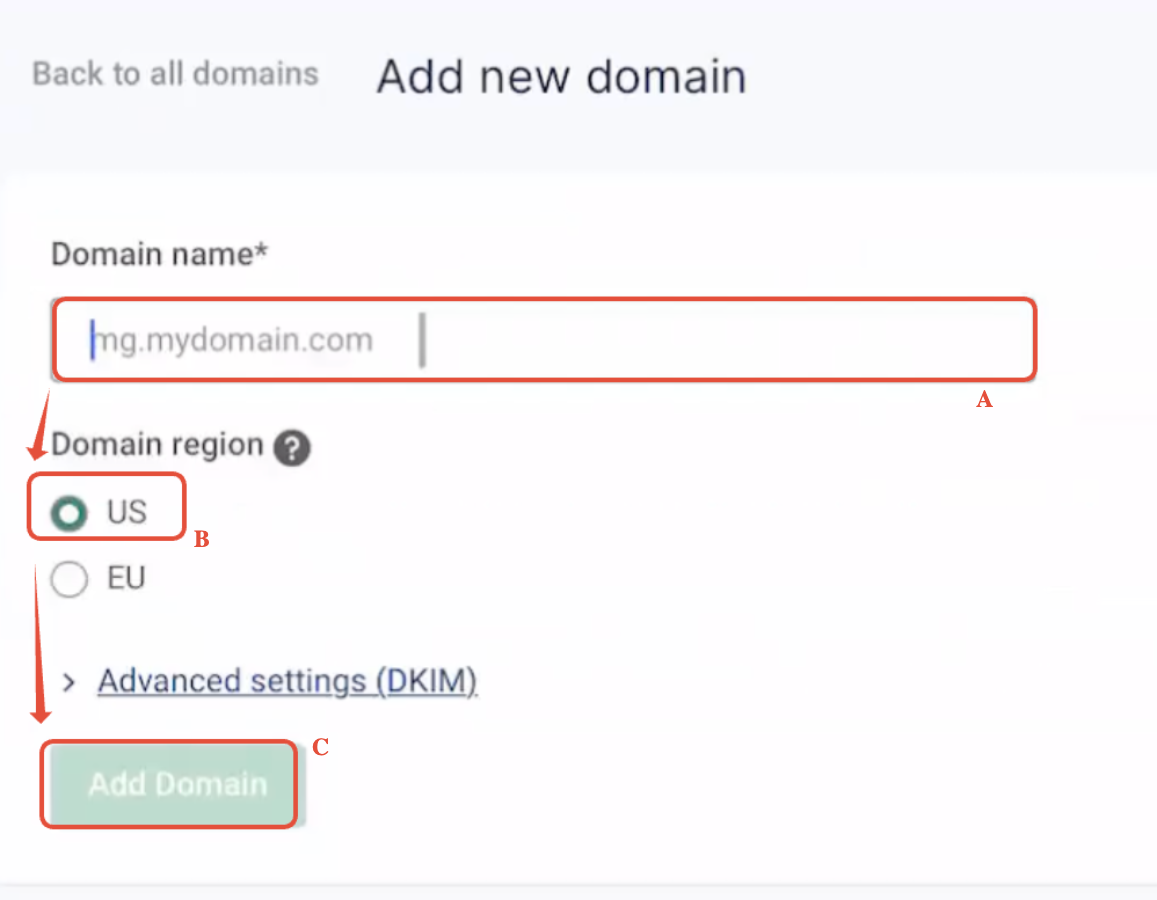
- Choose to configure either the main domain or a subdomain, following Mailgun’s guidance on sharing a domain with other email providers.
- Set the domain region to US, click Add domain, and keep the DNS record screen open.
Access DNS records in SiteGround
- Log in to SiteGround.
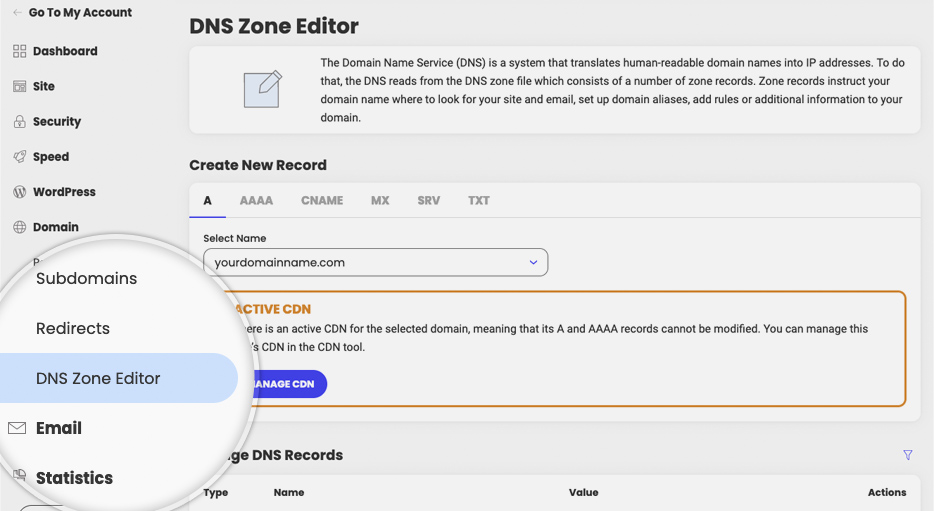
- Navigate to Site Tools > Domain > DNS Zone Editor.
- In the Create New Record section, repeat the process for each of the five records.
Add the 1st TXT record (SPF)
- Click the TXT tab in the DNS Zone Editor.
- Enter the host name (mg, replies, or @ for the root domain) without the root domain.
- Paste v=spf1 include:mailgun.org ~all into the Value field.
- Click Create.
Add the 2nd TXT record (DKIM)
- Click + Add Record and select the TXT tab.
- Copy the name part from Mailgun up to the subdomain part, excluding the root domain, and enter it.
- Copy the long DKIM value from Mailgun and paste it into the Value field.
- Click Create.
Add the 1st MX record
- Click the MX tab and choose Add your own MX records.
- Enter the host name (mg, replies, or @) appropriate for your domain.
- Set Priority to 10.
- Paste mxa.mailgun.org into the Destination field.
- Click Create.
Add the 2nd MX record
- Add another MX record.
- Enter the same host name you used for the first MX record.
- Set Priority to 10.
- Paste mxb.mailgun.org into the Destination field.
- Click Create.
Add the CNAME record
- Click the CNAME tab.
- Enter the host name (email.mg, email.replies, or email) copied from Mailgun, without the root domain.
- Paste mailgun.org into the Resolves to field.
- Click Create.
Verify DNS and finish setup
- Return to Mailgun and click Verify DNS Settings.
- If any record lacks a green check, wait for propagation and click Verify DNS Settings again.
- When all records show green, copy the Mailgun API key.
- Add the API key to HighLevel’s email service settings and send a test email to confirm delivery.
07What it looks like in HighLevel
08Settings that matter
- Name. Specifies the host portion of the DNS record; for subdomains it is the label before the domain, for the root domain it can be @ or left empty.
- Value. Holds the data for TXT records, such as the SPF string or the DKIM public key.
- Priority. Defines the preference order for MX records; Mailgun requires a value of 10 for both records.
- Destination. The target mail server for MX records; use mxa.mailgun.org for the first MX and mxb.mailgun.org for the second.
- Resolves to. The target that a CNAME record points to; Mailgun requires mailgun.org.
09Things to know before you rely on it
- Domain must be set up under the US region; the EU region is not supported.
- If using the main domain, it cannot be shared with Google Workspace or another email provider; a subdomain is required to avoid conflicts.
- DNS propagation may take a few hours before Mailgun shows a green verification status.
10If something goes wrong
- Unable to find the DNS Zone Editor in SiteGround. Log in to SiteGround and navigate to Site Tools > Domain > DNS Zone Editor.
- "Add your own MX records" option is missing. Confirm you are on the correct domain and that email hosting is not locked to a different provider in your SiteGround plan.
- Unclear whether to leave the Name field empty or use @ for the main domain. Both empty and @ are accepted by SiteGround’s DNS Zone Editor as representations of the root domain; use whichever the field allows.
- Concern that adding Mailgun records will disrupt existing Gmail or Google Workspace mail. Use a subdomain for Mailgun and keep the existing MX records for Google Workspace unchanged on the main domain.
- DNS records are not showing a green check in Mailgun. Wait a short period for DNS propagation, then click Verify DNS Settings again.
- All records are verified but email still does not send. Copy the Mailgun API key, add it to HighLevel’s email service settings, and send a test email from a conversation to confirm delivery.
11How it connects to the rest of HighLevel
- Mailgun overview, pricing and setup choices Mailgun overview
- Step by step guide to configure a Mailgun domain and DNS records Domain and DNS guide
- Guide for configuring Mailgun with a GoDaddy domain (similar DNS steps) GoDaddy setup guide
- Start a 30 day HighLevel trial to test Mailgun integration 30 day trial
Michael's take

Wondering if you really need a separate subdomain for Mailgun? Using a subdomain lets you keep your Gmail delivery intact while you add the Mailgun records. You simply follow the steps, verify the DNS, and you’re ready to fire off transactional emails without disturbing your existing inbox.
First thing I’d do is double check the host names for each record in Siteground. A tiny typo can stall verification for hours. Once the records turn green, grab the API key and send a quick test email to make sure everything routes as expected.