
01Who this is for
- Agencies that manage multiple client email accounts, they need a reliable way to collect replies without manual forwarding.
- Ecommerce owners who send order confirmations via Mailgun, automatic capture of customer replies keeps support tickets in one place.
- Consultants using HighLevel for client outreach, the webhook ensures every reply appears in the conversation thread.
02Mailgun replies, explained
The feature creates a Mailgun receiving route that forwards inbound messages to a HighLevel webhook URL. When a recipient clicks reply, Mailgun calls the webhook and HighLevel records the message as part of the original conversation. The route uses a Catch All expression, a priority of 99, and a description that identifies it as the HighLevel route.
The configuration lives in the Mailgun dashboard under the Receiving tab. HighLevel stores the Mailgun API key in the Email Services section of the agency settings. Changing or resetting the key requires editing the integration and re entering the new key.
If the webhook is missing or mismatched, replies will not appear in HighLevel. Removing conflicting routes and recreating the correct one resolves most issues.
03How businesses use Mailgun replies
- Digital marketing agency. The agency logs into each client’s Mailgun account, verifies that the receiving webhook matches HighLevel’s URL, removes any extra routes, and creates a new Catch All route labeled "HighLevel Route". This ensures all campaign replies flow back into the agency’s HighLevel dashboard.
- Online retailer. The retailer accesses Mailgun, checks the Receiving page for the correct webhook, and if it is missing, adds a new route with the required URL and priority. Replies to order updates are then captured in HighLevel for the support team.
- Consultancy firm. The firm navigates to the agency view settings, deletes the existing Mailgun API integration, fetches the latest API key from Mailgun, and re enters it in HighLevel. After saving, they refresh Mailgun’s Receiving page to confirm the route is active.
04The numbers and rules that matter
- Priority = 99.
05How to set up and use Mailgun replies in HighLevel
Check receiving routes in Mailgun
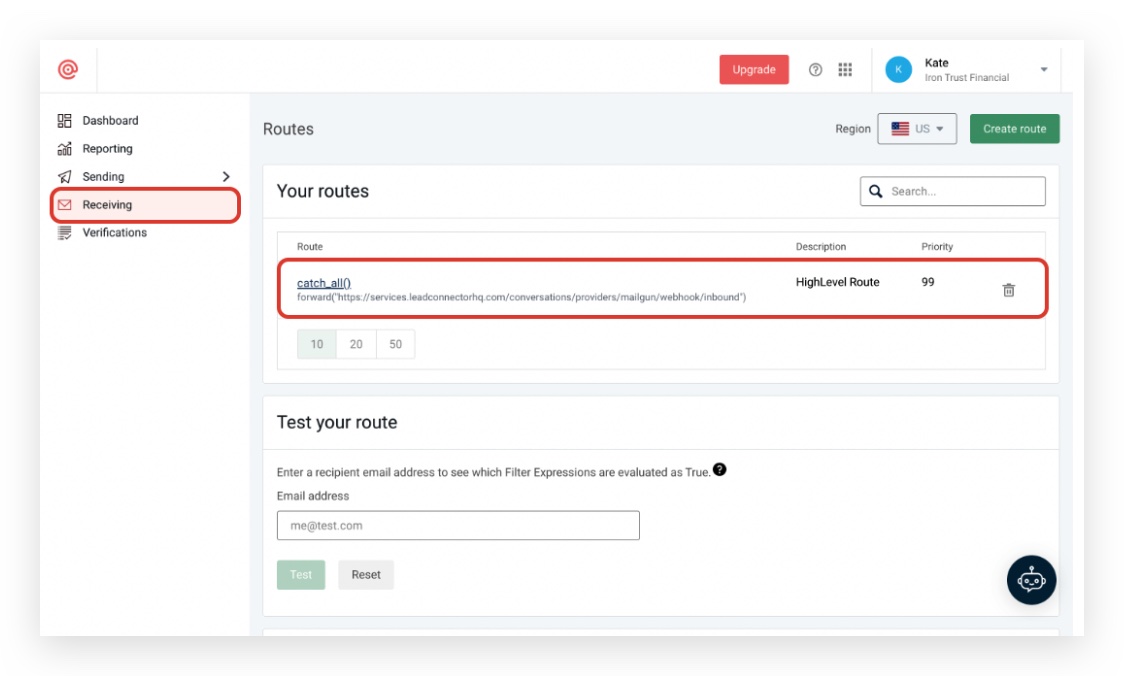
- Sign in to Mailgun and open the Receiving tab.
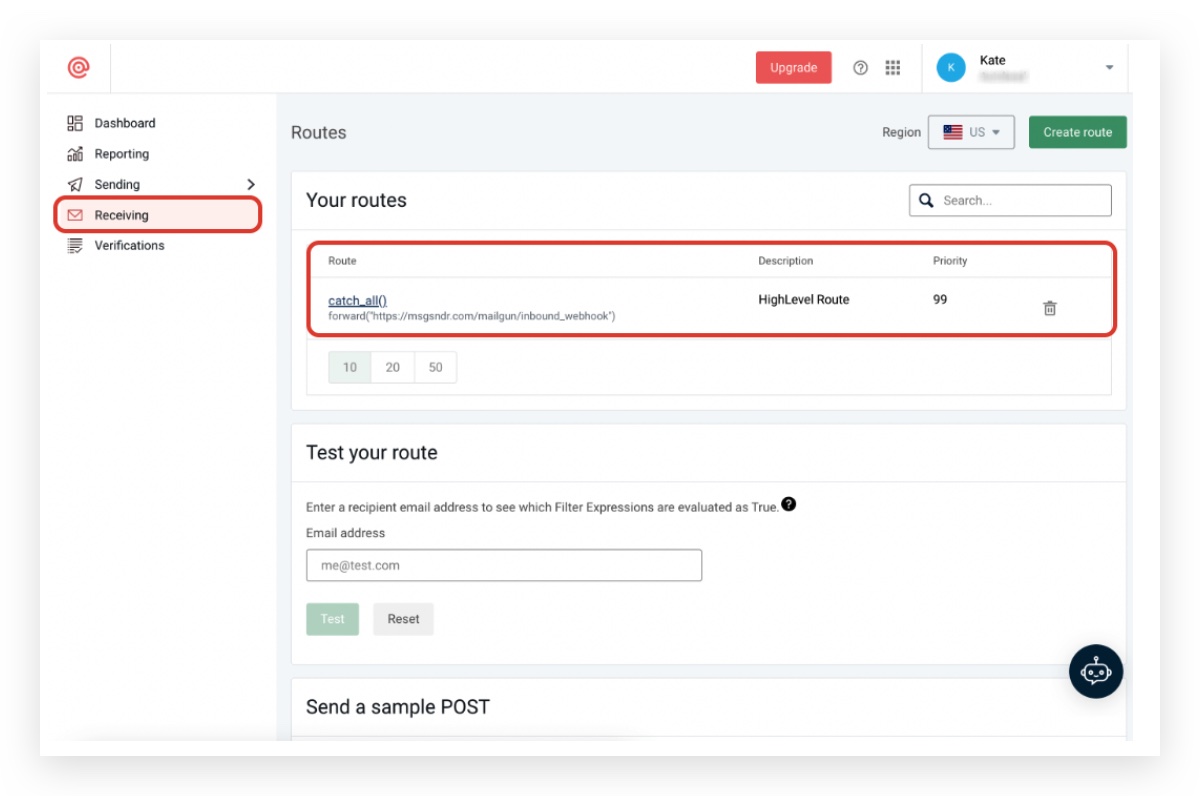
- Compare the existing webhook with the reference screenshot.
- If a white label forward link is required, use the webhook shown in the screenshot.
- Delete any webhook entries that do not match the reference.
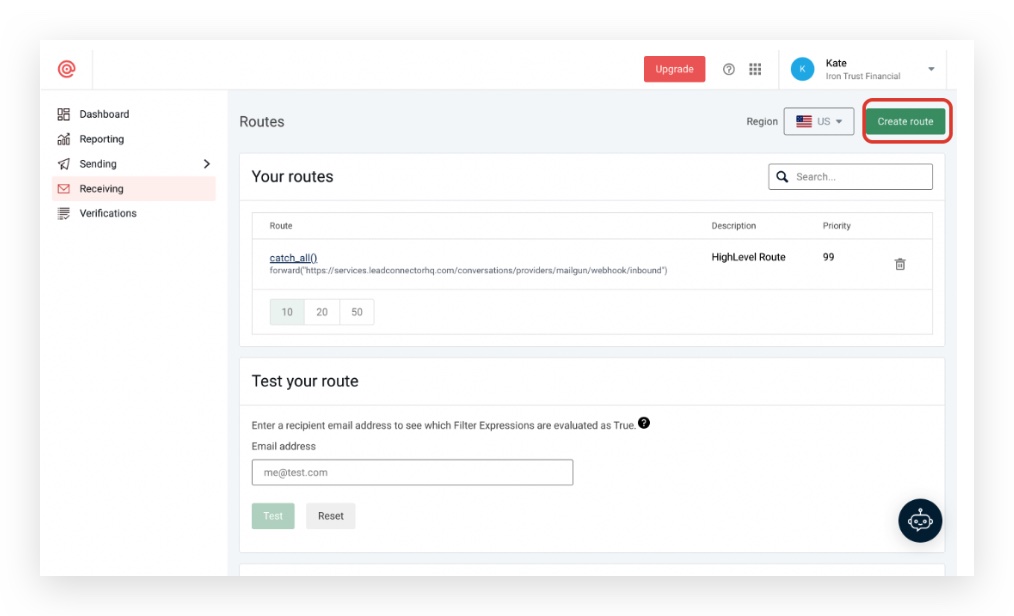
- When no matching webhook exists, click the Create Route button.
- Configure the route with the required values and save.
Create Mailgun route for HighLevel
- Select Create Route on the Receiving page.
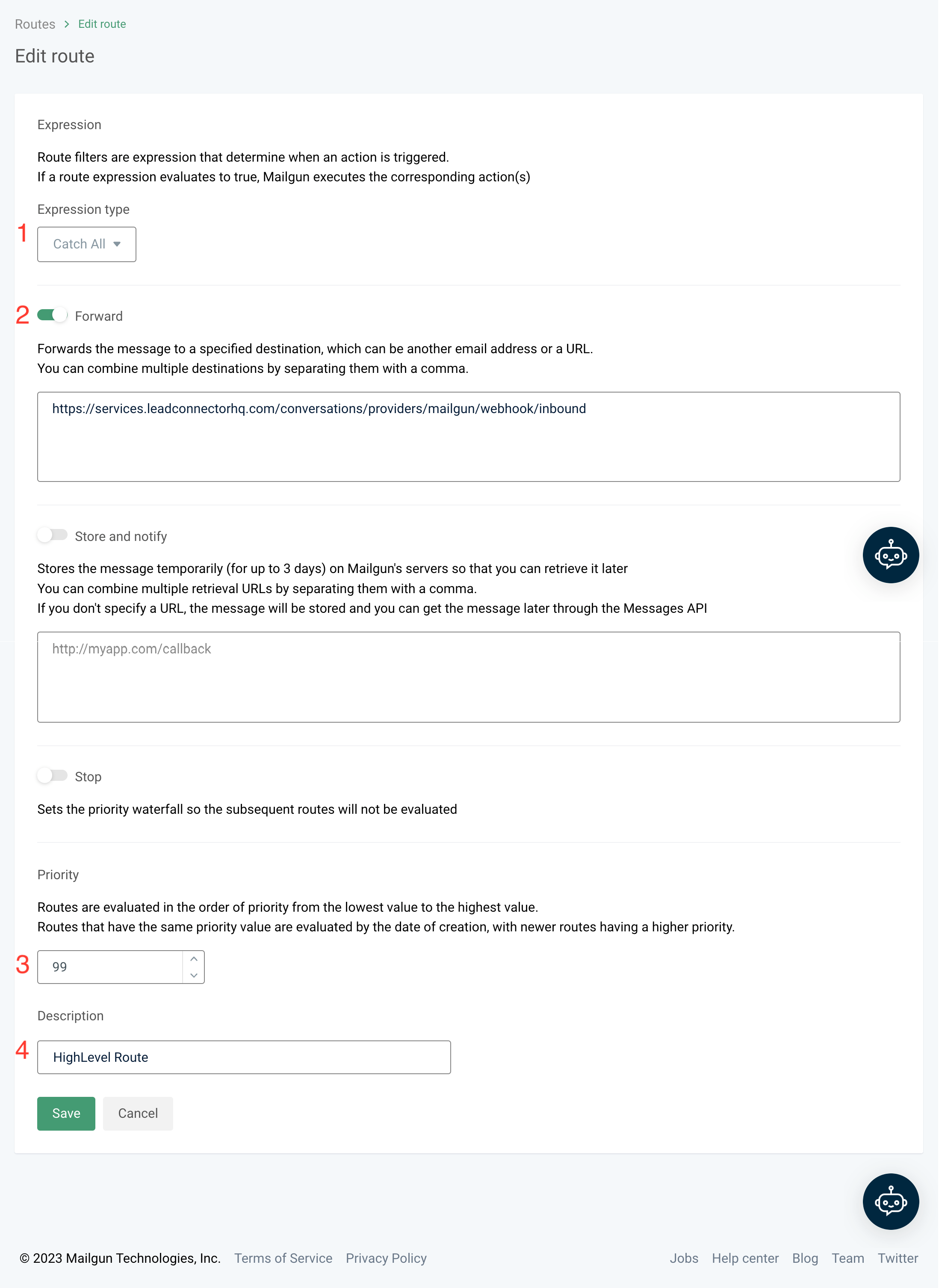
- Set Expression Type to Catch All.
- Paste the HighLevel webhook URL into the Forward field, removing any asterisks.
- Enter Priority as 99.
- Add the description "HighLevel Route" and click Save.
Reset the Mailgun API key
- Go to Agency view > Settings > Email Services > Location Settings.
- Edit the Mailgun API integration for the subaccount and choose Delete.
- Locate the current API key in your Mailgun dashboard.
- Return to HighLevel, paste the key into the Mailgun integration field, and save.
06What it looks like in HighLevel
07Settings that matter
- Expression Type. Specifies the matching pattern for inbound emails; set to Catch All to capture every message.
- Enable Forward. The field where the HighLevel webhook URL is entered; this directs inbound mail to HighLevel.
- Priority. Determines the order in which routes are evaluated; a value of 99 ensures this route runs after higher priority routes.
- Description. A label for the route; using "HighLevel Route" helps identify it later.
- Mailgun API integration. The connection that stores the Mailgun API key inside HighLevel; needed for sending and receiving through the platform.
08Things to know before you rely on it
- Mailgun enforces usage limits based on the subscription plan; check the plan details for the maximum number of replies allowed.
- The route priority of 99 is recommended to avoid conflicts with other custom routes.
09If something goes wrong
- Replies are not appearing in HighLevel. Verify the webhook URL in Mailgun matches the HighLevel URL, ensure the route is active, and confirm the domain is authenticated.
10How it connects to the rest of HighLevel
- HighLevel Mailgun overview: pricing, domains and setup choices Mailgun overview
- Step by step guide to set up Mailgun domains and DNS Domain setup guide
- How to connect Mailgun with a private API key in HighLevel Private API key setup
Michael's take

If I were setting this up for a new client, I’d start by confirming the domain is authenticated in Mailgun, then create the catch all route exactly as this page describes. A quick test of a reply can show the webhook is firing before you roll out any campaigns.