
01Who this is for
- Online retailers benefit because customers can save items for later, increasing convenience.
- Digital product sellers gain a way for users to bookmark courses or downloads without immediate purchase.
- Subscription based businesses can let members keep track of products they may want to add to future orders.
02Product wishlisting, explained
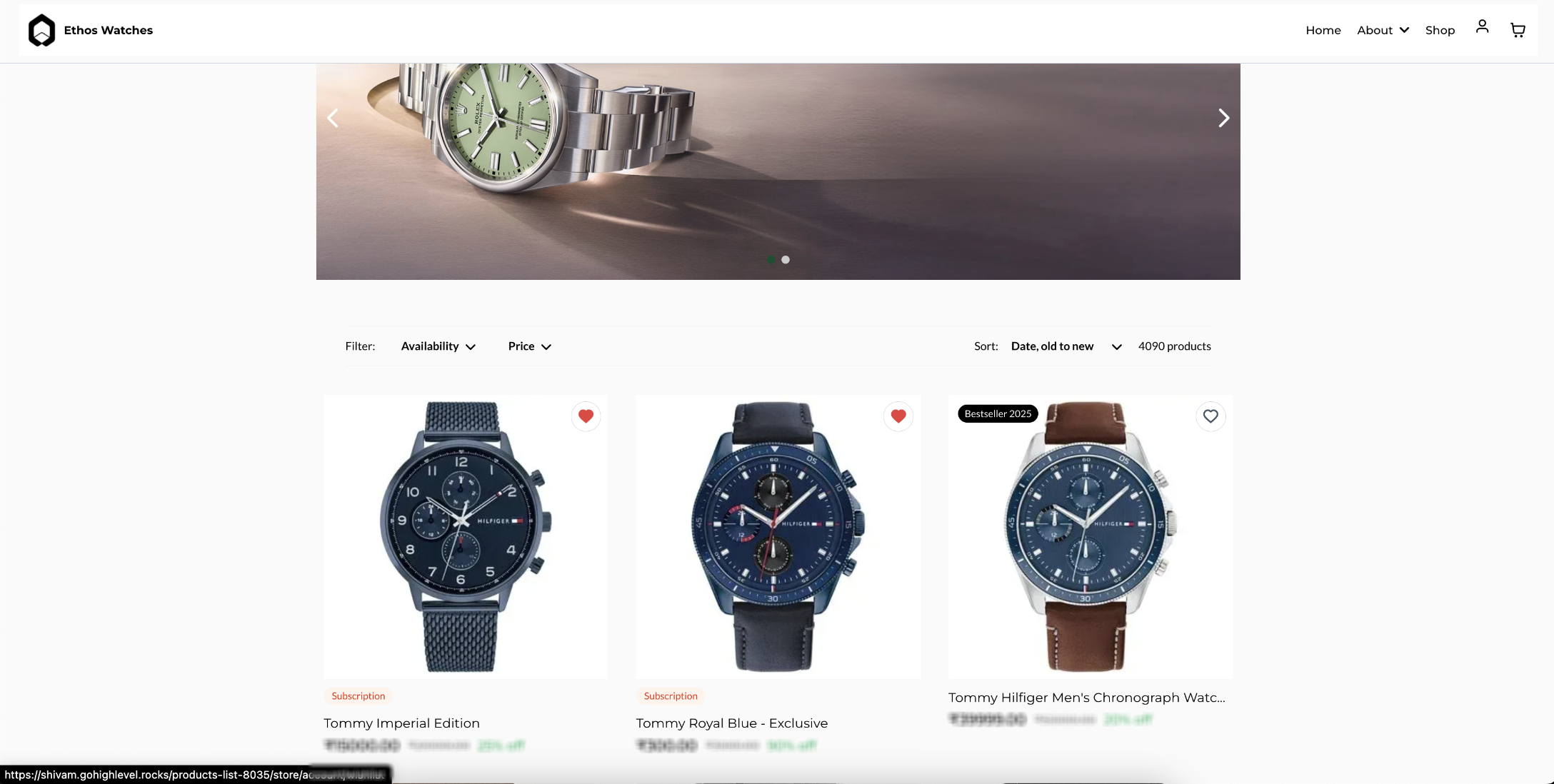
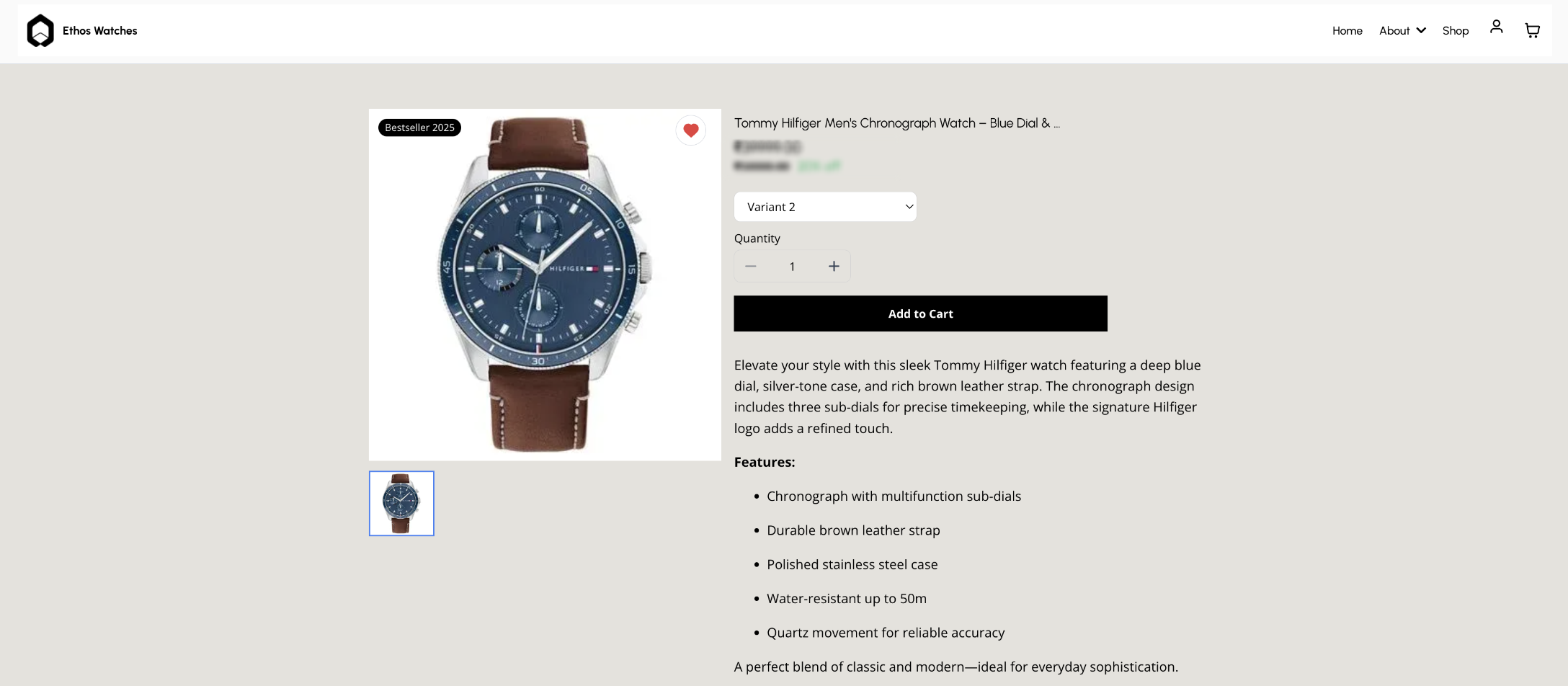
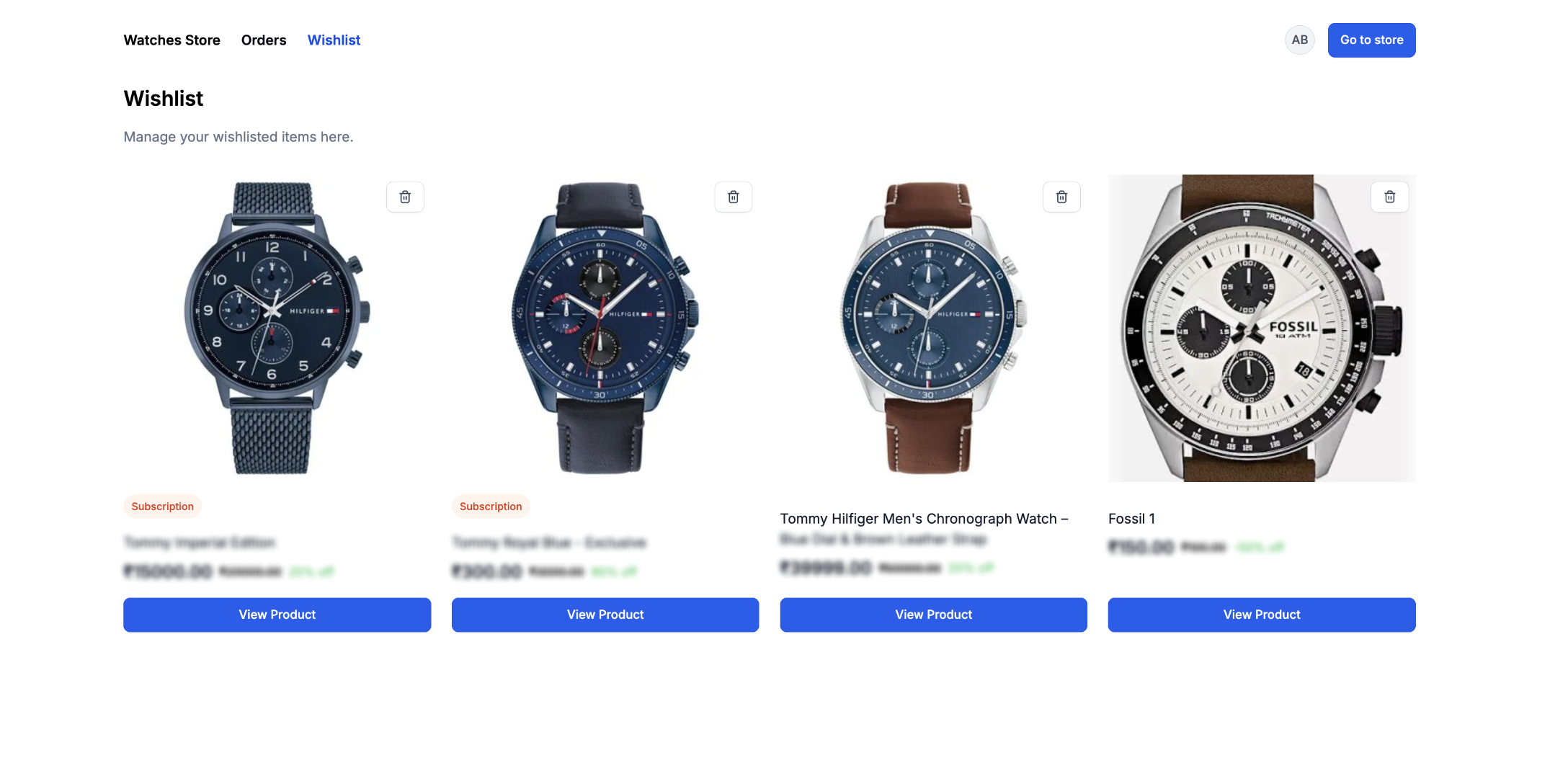
Wishlisting lets a logged in customer click a button on supported product elements to save that item for later review. The saved items appear on a dedicated Wishlist page inside the Customer Access Center. The feature works on Product List, Product Details and Featured Product elements, and the button’s colors can be styled to match the storefront.
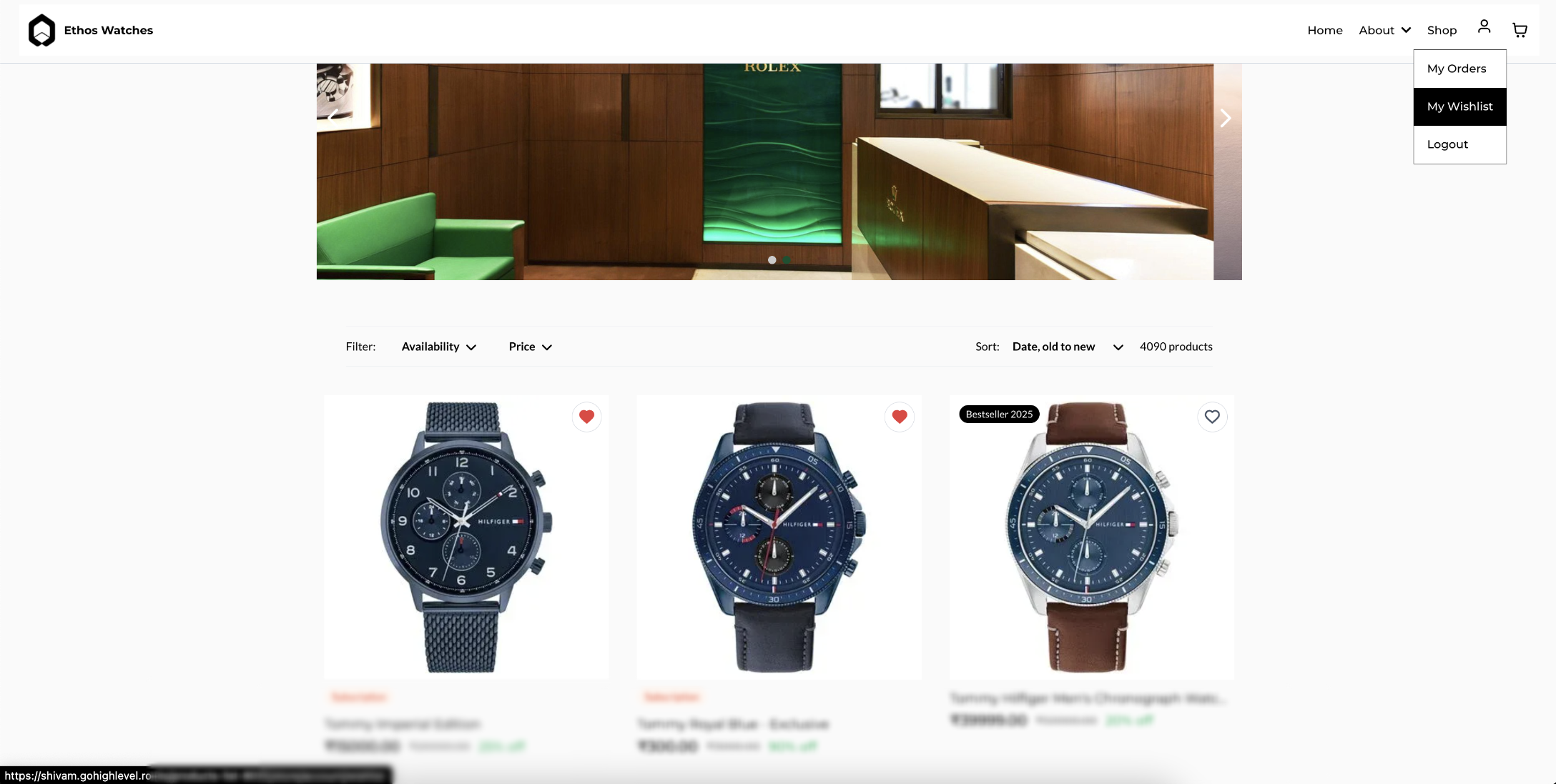
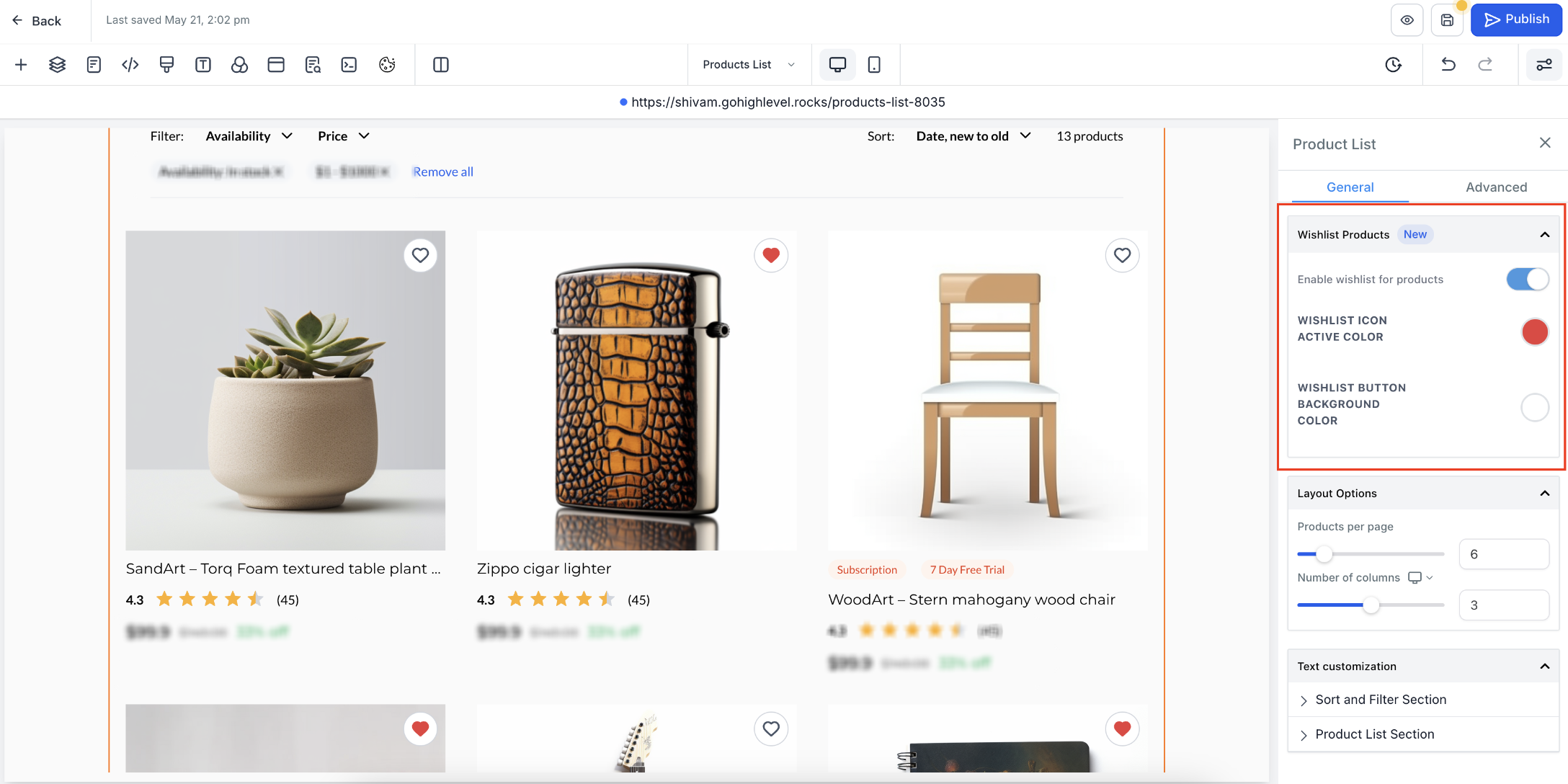
The configuration lives in the Store Builder. For each element, owners open General settings, expand the Wishlist Products section, enable the toggle and choose the active icon color and button background color. A My Wishlist link is added through the store’s Navigation Menu, which routes to the Customer Access Center’s Wishlist page. Customer login and a verified store domain are required for the flow to work.
03How businesses use product wishlisting
- Clothing boutique. Enable wishlisting on the product list so shoppers can click a heart icon to bookmark dresses. Customize the icon color to match brand hues. Add My Wishlist to the navigation so logged in shoppers can view saved styles from any page.
- Online course provider. Turn on wishlisting for the product details of each course, letting students bookmark a class while reviewing its description. Set a background color for the wishlist button that aligns with the site palette. Include My Wishlist in the menu so students can revisit saved courses.
- Home décor store. Activate wishlisting on featured product elements to let visitors save highlighted items. Adjust the active icon color to contrast with the featured layout. Provide a My Wishlist navigation entry so logged in buyers can pull up their saved décor pieces.
04The numbers and rules that matter
- Supported elements: Product List, Product Details, Featured Product.
05Before you start
- Customer Login must be enabled for the store.
- A valid, connected store domain with its default page linked to a store page is required.
06How to set up and use product wishlisting in HighLevel
Open the Store Builder
- Go to Sites > Stores.
- Open the applicable Ecommerce Store.
- Open the Store Builder and navigate to the page containing the product element you want to configure.
Enable and customize wishlist products
- Select the Product List, Product Details, or Featured Product element.
- Open General settings.
- Expand Wishlist Products.
- Turn on Enable wishlist for products.
- Choose the Wishlist Icon Active Color.
- Choose the Wishlist Button Background Color.
Add My Wishlist to customer navigation
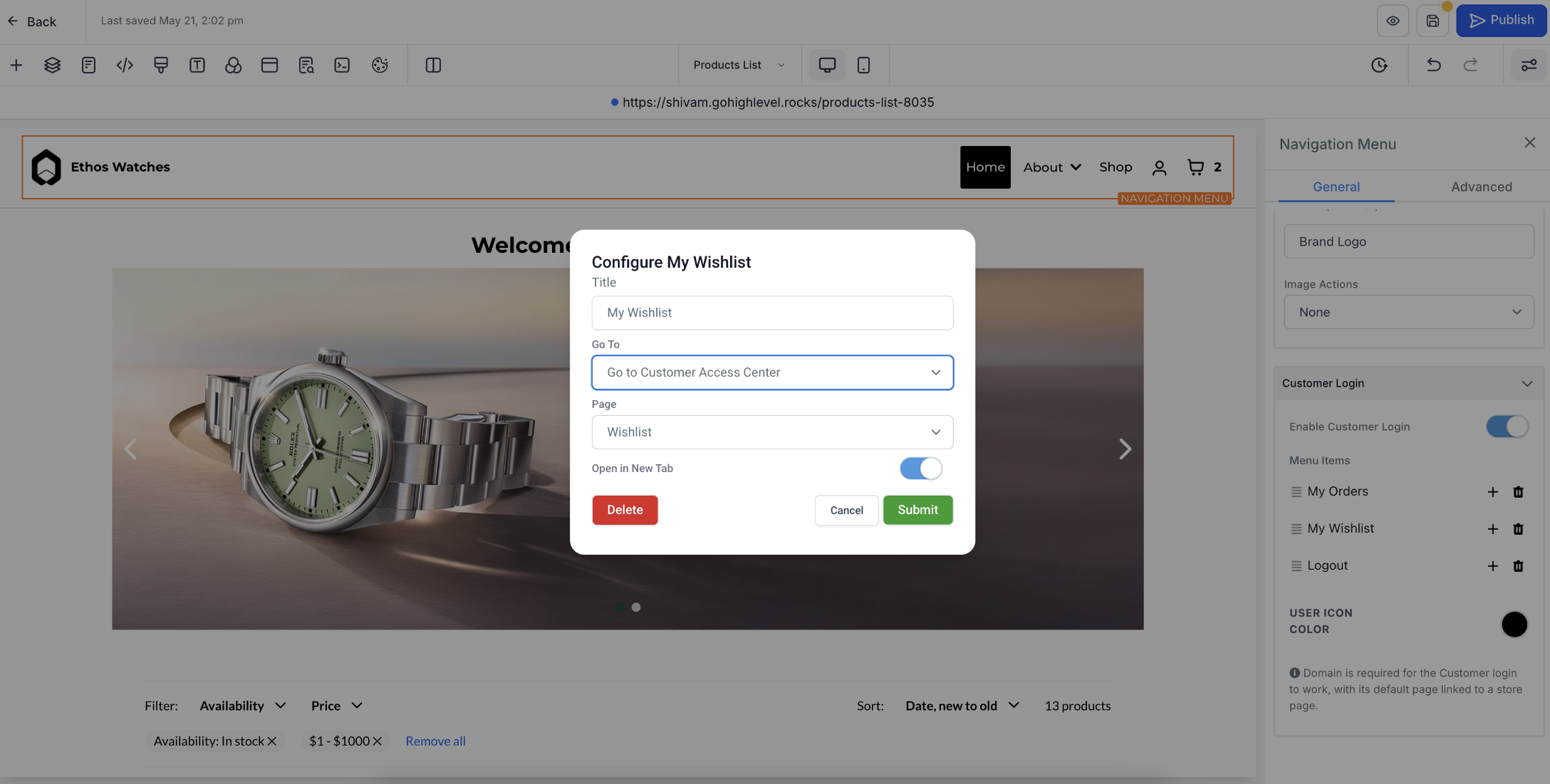
- Select the store's Navigation Menu.
- Open General > Customer Login.
- Turn on Enable Customer Login if it is not already enabled.
- Add or configure a menu item named My Wishlist.
- Set Go To to Go to Customer Access Center.
- Set Page to Wishlist.
- Submit the menu configuration.
Verify the store domain
- Confirm the store has a valid connected and verified domain.
- Confirm the domain's default page is linked to a page within the store.
- Correct the domain configuration before testing Customer Login if either requirement is missing.
Save, publish, and test
- Save the Store Builder changes.
- Publish the updated store.
- Open the live storefront.
- Test the wishlist while logged out and confirm the login experience appears.
- Log in as a customer and save a product.
- Open My Wishlist and confirm the product appears.
07What it looks like in HighLevel
08Settings that matter
- Enable wishlist for products. Activates the wishlist button on the selected product element.
- Wishlist Icon Active Color. Sets the color of the wishlist icon when a product is saved.
- Wishlist Button Background Color. Determines the background color of the wishlist button.
- Enable Customer Login. Turns on the requirement for customers to log in before using wishlist features.
- Go To. Specifies that the navigation item routes to the Customer Access Center.
- Page. Selects the Wishlist page as the destination for the navigation link.
09Things to know before you rely on it
- Wishlisting can only be enabled on Product List, Product Details, and Featured Product elements.
- Customers must be logged in to save items; a logged out user will be prompted to log in.
- A connected and verified store domain with its default page pointing to a store page is required for login and wishlist access.
10If something goes wrong
- The wishlist button does not appear. Confirm Enable wishlist for products is turned on for the applicable product element, then save and publish the page.
- A logged out customer cannot save a product. Wishlist requires customer authentication. Confirm Customer Login is enabled and the login experience can open successfully.
- My Wishlist is missing from the customer menu. Open Navigation Menu settings and confirm a menu item routes to Customer Access Center > Wishlist.
- The Customer Login button does not work. Confirm a valid domain is connected and that the domain's default page is linked to a store page.
- A saved product does not appear in Wishlist. Confirm the customer is logged in, verify the product was actually saved, and refresh the Wishlist page before testing again.
11How it connects to the rest of HighLevel
- Set up an ecommerce store in HighLevel Store setup guide
- Start a 30 day HighLevel trial Free trial
- View HighLevel pricing and plans Pricing
Michael's take

You should be aware that wishlist only works for logged in shoppers and needs a connected store domain, so it won’t function on a public site without those pieces in place. That dependency can catch people off guard if they test too early.
When it’s set up correctly, it gives shoppers a way to keep track of items they like without pushing them toward checkout.