
01Who this is for
- Ecommerce store owners who manage large catalogs benefit from faster updates across many products.
- Marketing teams can quickly adjust SEO fields for multiple items to keep search data consistent.
- Inventory managers can modify stock quantities and shipping settings in bulk, reducing manual entry errors.
02Bulk product editing, explained
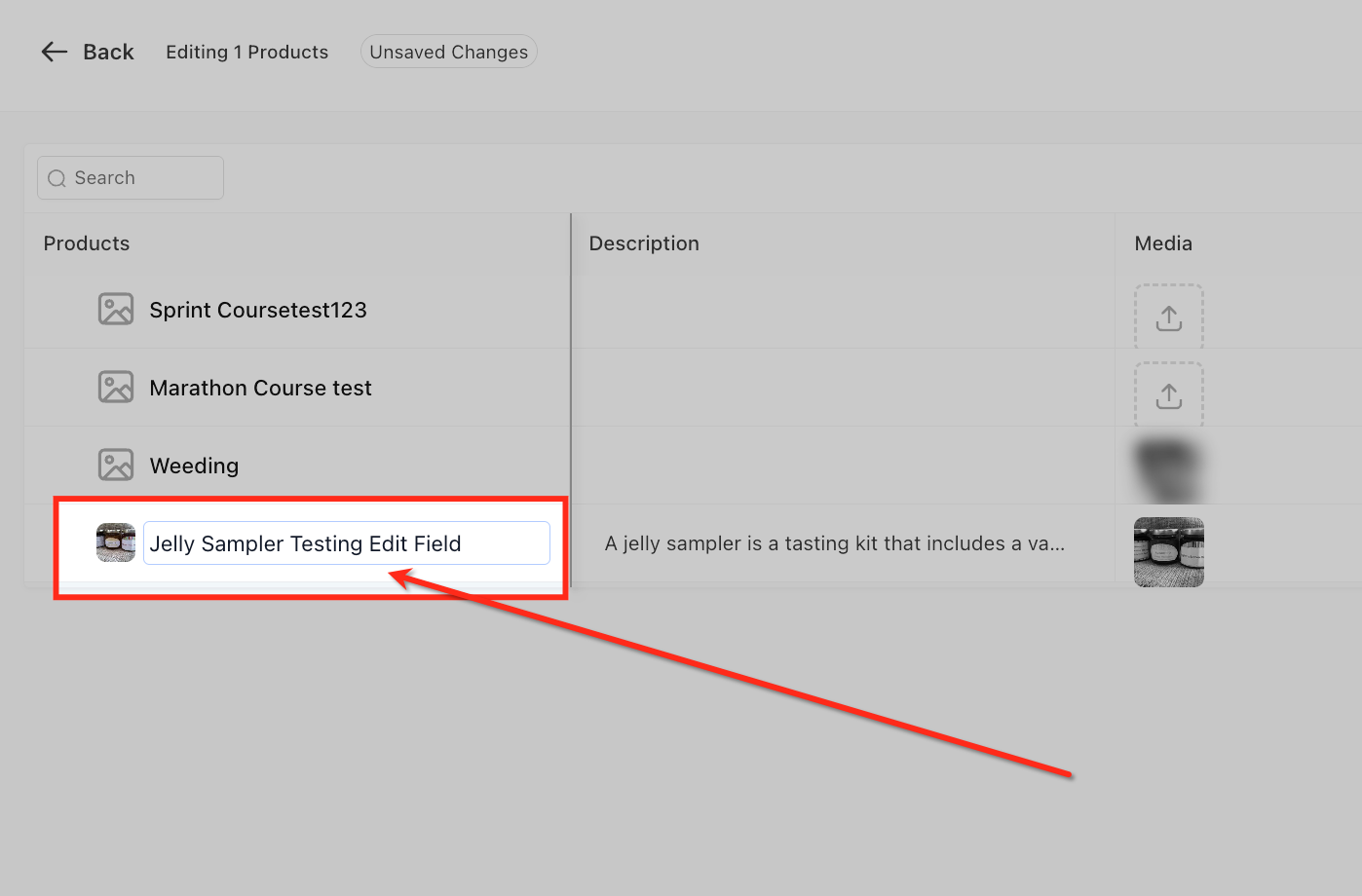
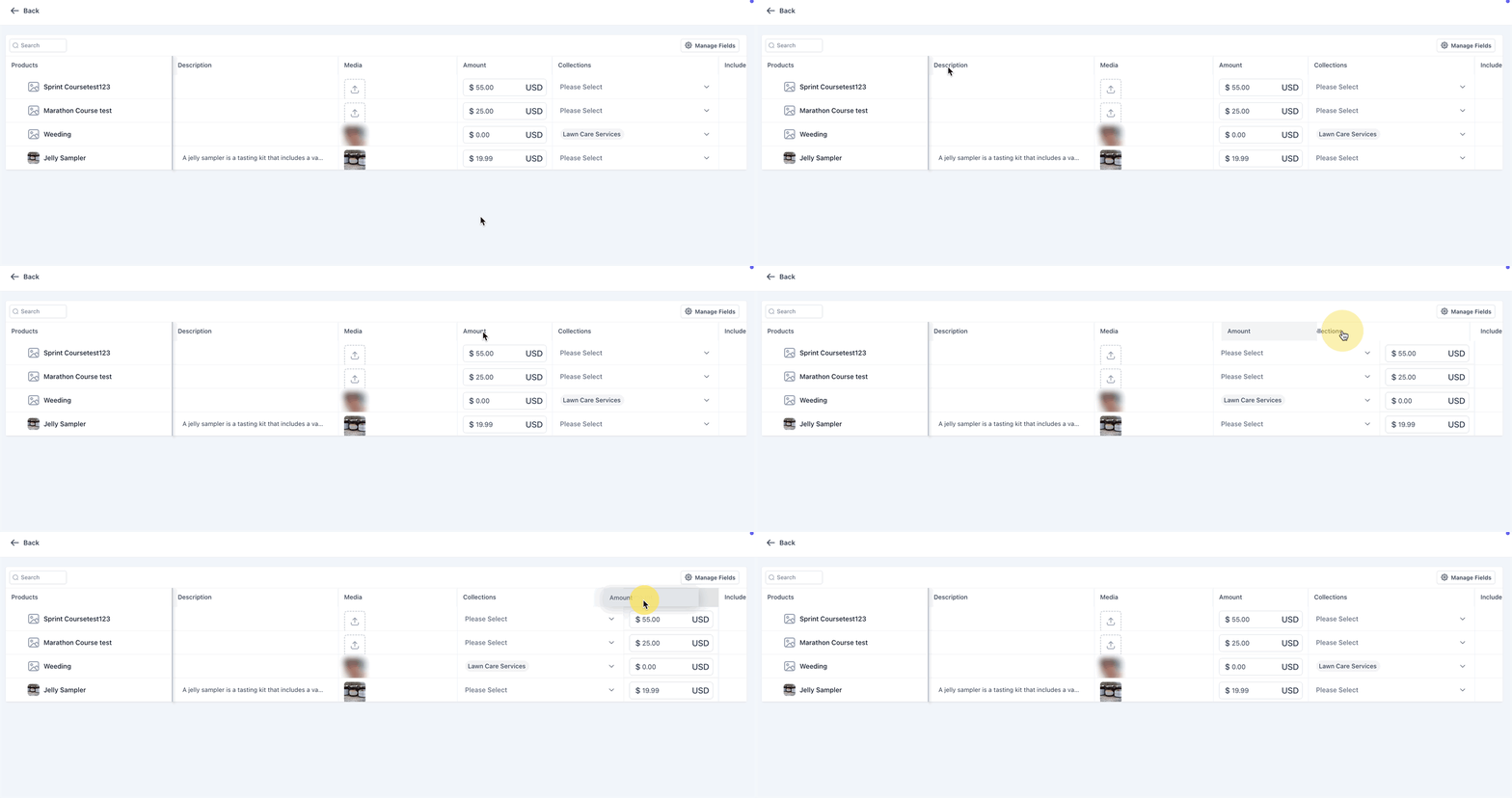
Bulk Editing of Products provides a spreadsheet style grid where merchants can change several product attributes in one view instead of editing each item individually. The editor supports fields such as title, description, media, tax codes, collections, inventory, shipping, and SEO. Validation runs across the entire grid, highlighting any invalid entries in red and preventing the Save action until all required data is correct.
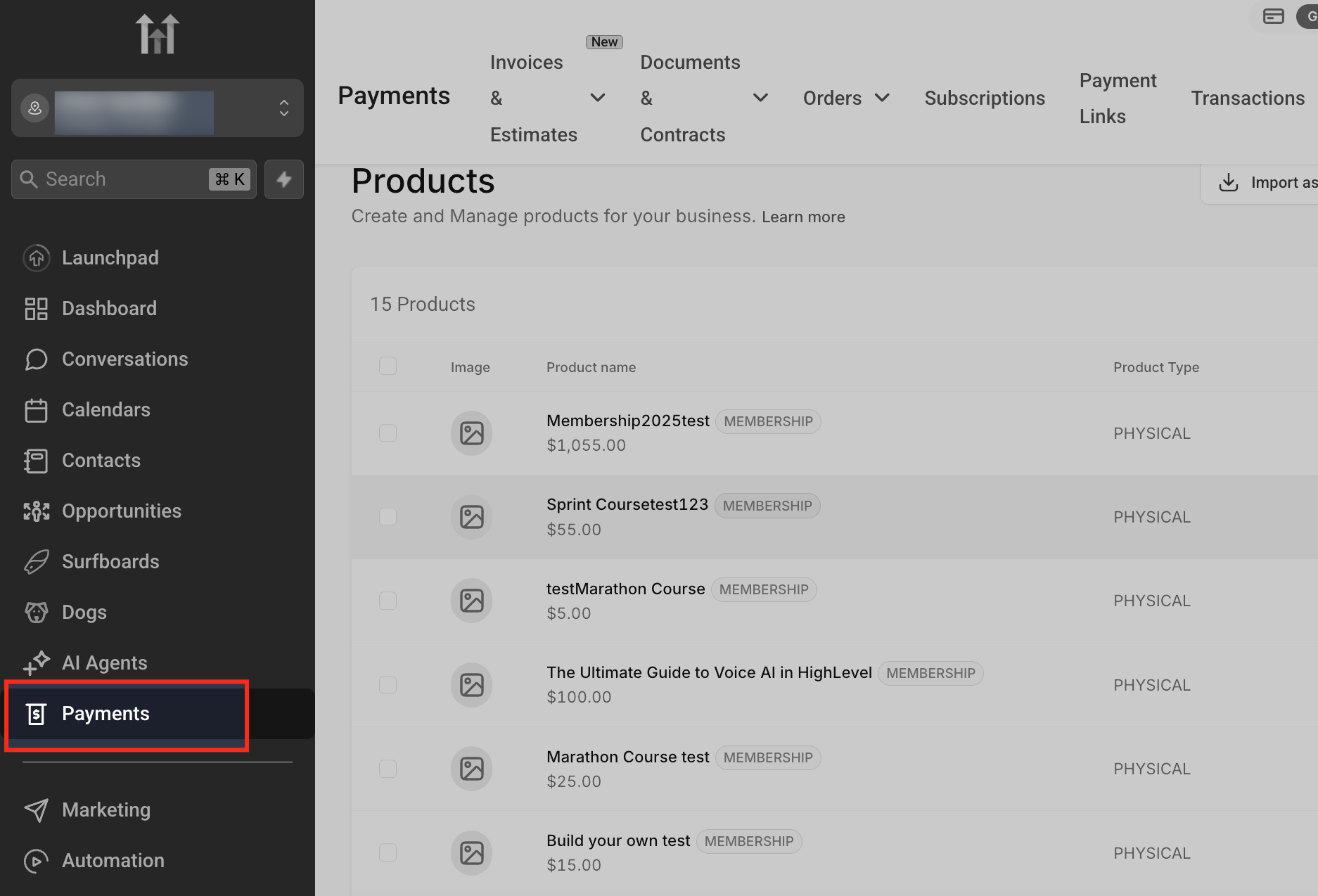
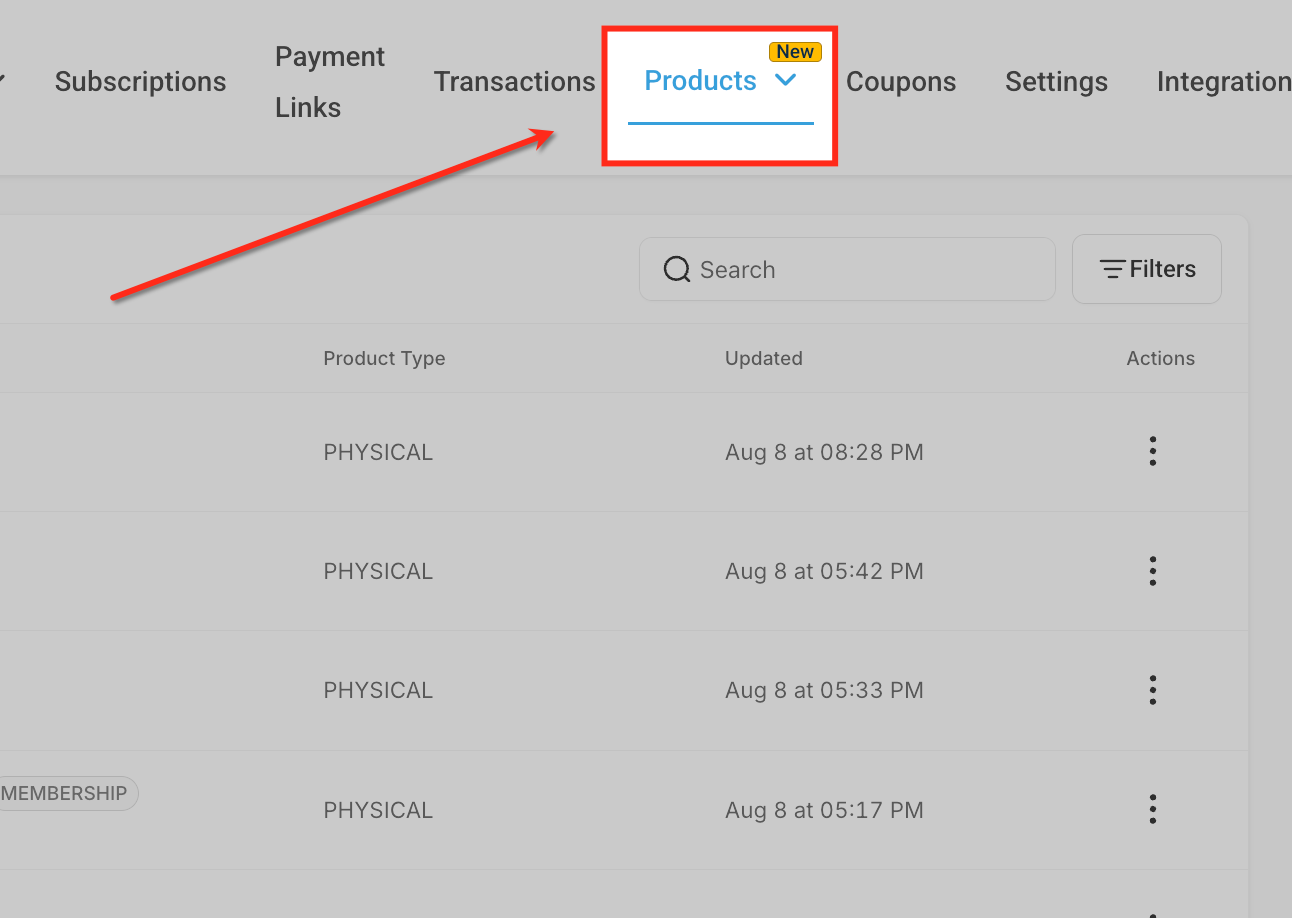
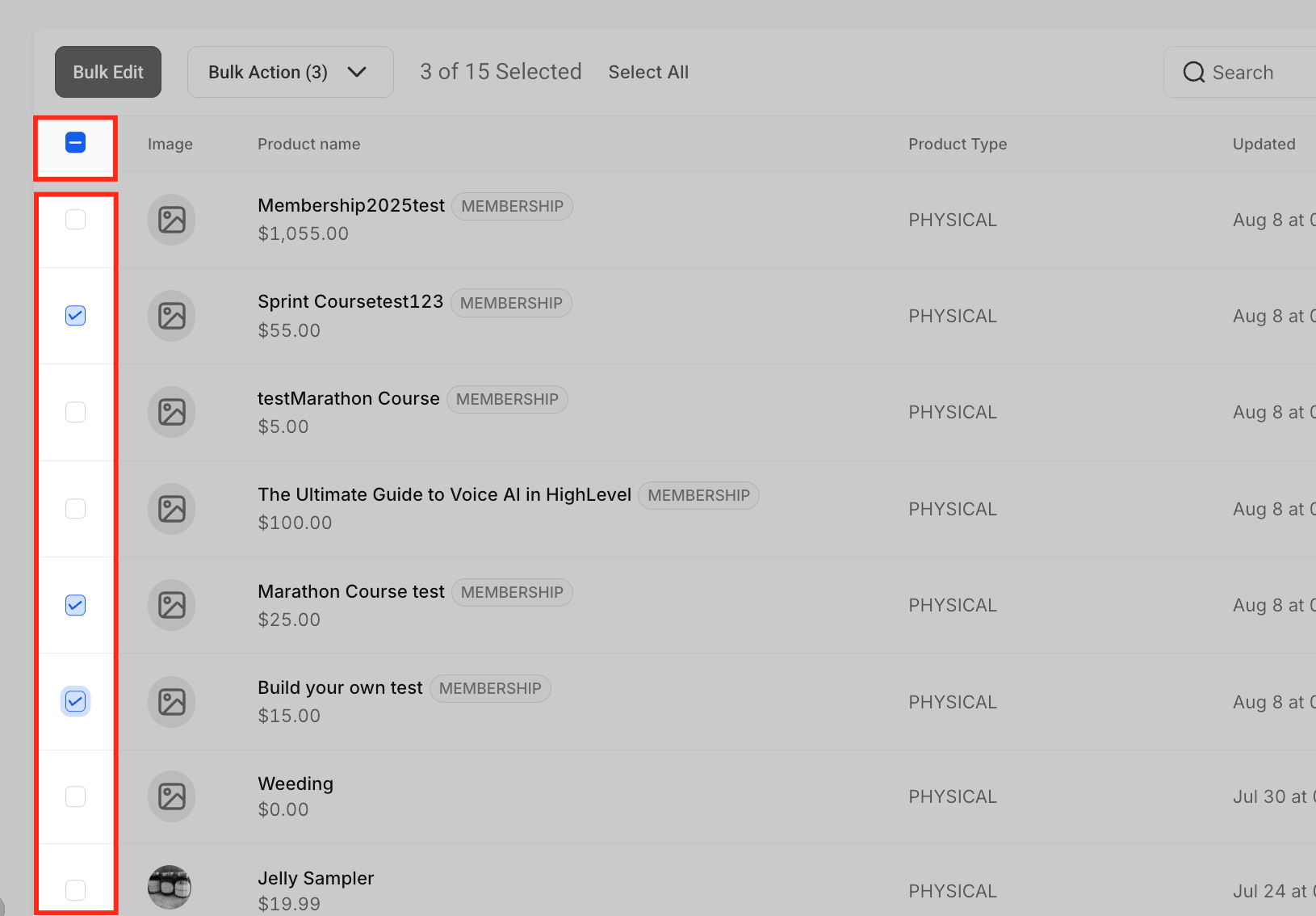
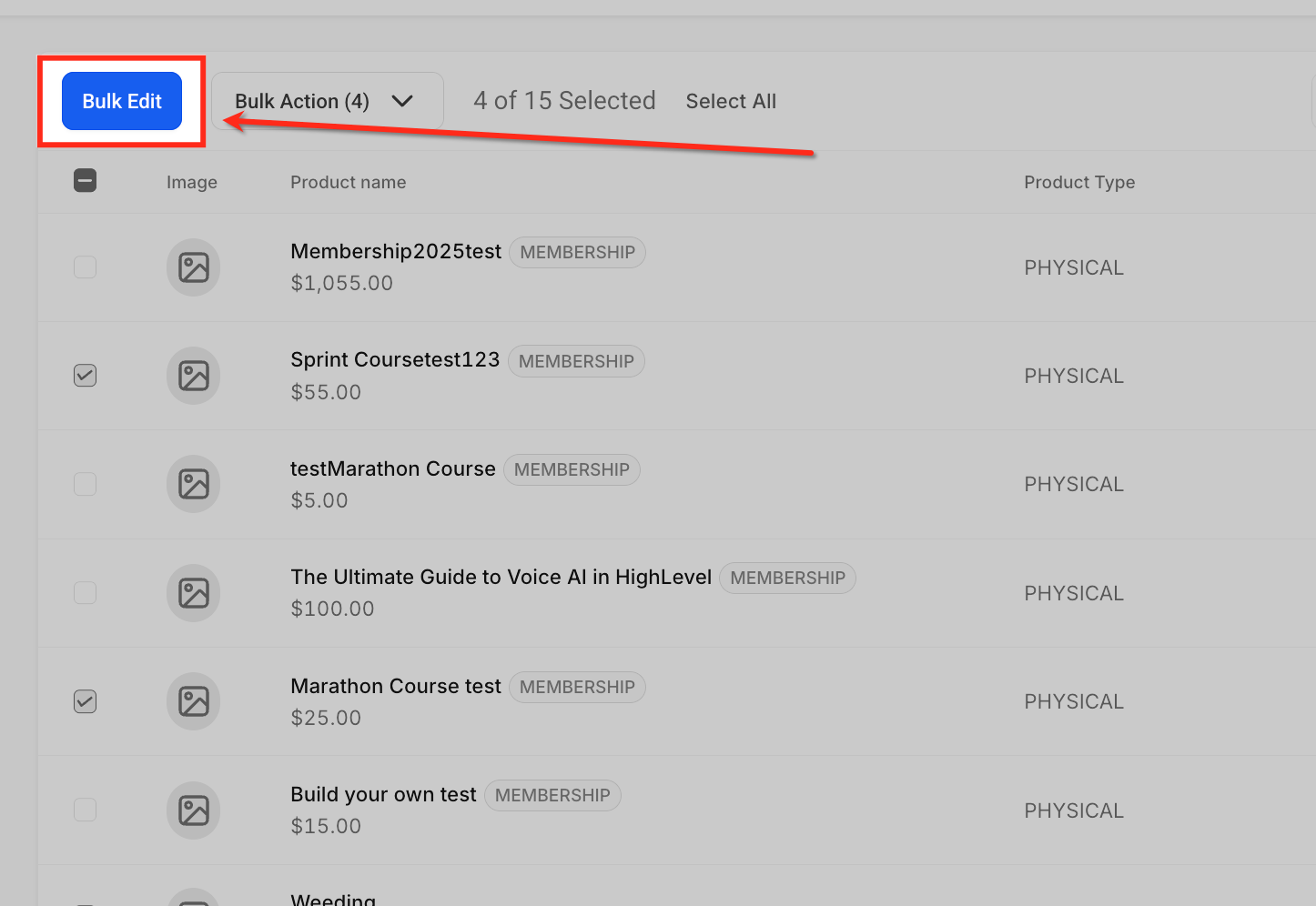
The feature is accessed from the Payments area. From the left sidebar, open Payments, then choose the Products tab. After selecting the desired rows, click the Bulk Edit button to launch the spreadsheet editor. Within the editor, users can edit cell values directly, manage which columns appear via the Manage Fields option, and finally click Save to apply changes.
Some fields may appear as (, ) depending on the current plan; those cells are not editable. The Agency plan makes all fields non editable. Hidden columns do not bypass validation, so required fields must remain valid even when not visible.
03How businesses use bulk product editing
- Online apparel retailer. The retailer opens Payments, selects a group of clothing items, and uses Bulk Edit to update sizes, prices, and inventory counts in the spreadsheet view. They customize the columns to keep size and price visible, then save the changes.
- Digital course provider. The provider navigates to Products, selects several course listings, and edits the description and SEO fields directly in the grid. Using Manage Fields they add the SEO column, make the updates, and save, ensuring all course pages have consistent metadata.
- Handcrafted jewelry boutique. The boutique accesses the product catalog, selects multiple jewelry pieces, and changes the media URLs and collection tags in bulk. They adjust the displayed columns to include Media and Collections, verify validation, and apply the edits with a single Save.
04Before you start
- User must have permission to edit products in the Payments section.
- The account plan must allow editing of the desired fields; otherwise those fields appear as (, ).
05How to set up and use bulk product editing in HighLevel
Bulk edit products
- Open the Payments section from the left sidebar.
- Click the Products tab in the top navigation bar.
- Check the boxes beside each product you wish to modify.
- Press the Bulk Edit button in the action bar to launch the spreadsheet editor.
- Change values directly in the grid cells for fields like name, description, price, or collections.
- If any cell is highlighted in red, correct the value before continuing.
- Select Manage Fields to show or hide specific product attributes in the spreadsheet view.
- Click Save in the top right corner to commit all valid changes.
06What it looks like in HighLevel
07Settings that matter
- Manage Fields. Controls which product attributes are displayed as columns in the spreadsheet editor, allowing users to show or hide fields such as Description, Collections, Media, Pricing, Inventory, and SEO.
08Things to know before you rely on it
- Fields unavailable for the current plan appear as (, ) and cannot be edited.
- All fields are non editable for products on the Agency plan.
- A single invalid or missing required value blocks the Save action for the entire bulk edit.
- Required fields must be valid even if their columns are hidden.
09If something goes wrong
- A cell is highlighted in red and saving is blocked.. Correct the highlighted value so it meets the required format, then try to Save again.
- Some columns show dashes (, ) and cannot be edited.. Confirm the account plan permits editing those fields; fields shown as (, ) will remain unchanged.
10How it connects to the rest of HighLevel
- Set up an ecommerce store to access Payments and Products ecommerce store setup
- Configure shipping zones that may be edited per product shipping zones
- Review plan capabilities that affect which fields are editable pricing and plans
- Learn how to sort and filter product lists for easier selection product list sorting
Michael's take

Be careful: Bulk editing can overwrite many product records at once, so a single typo could affect your entire catalog. Make sure you understand which columns are required and that validation is passing before you hit Save.