
01Who this is for
- Ecommerce Founders who want to raise average order value by offering extra items after purchase.
- Digital product sellers who can present add on offers without starting a new checkout.
- Subscription businesses that want to suggest add ons before the final confirmation.
02Upsell products, explained
The upsell feature adds a new page to the checkout flow where owners can showcase another product. It appears after the standard checkout page and before the thank you page.
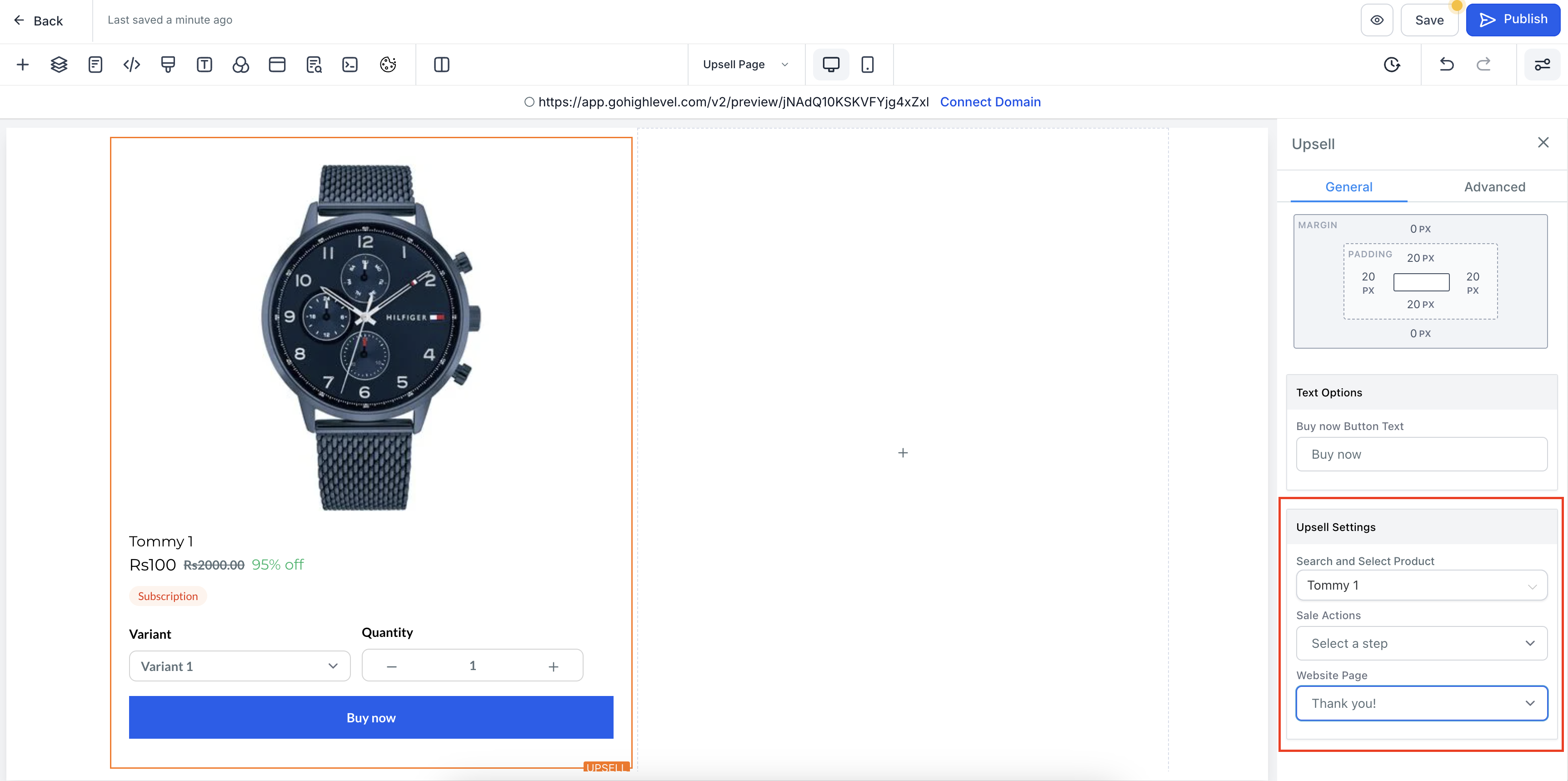
Owners drag an upsell component onto the page, select the product, decide whether shipping applies, and set where the Buy Now button sends the buyer. A separate button can be added to let the buyer skip the upsell and go straight to the thank you page.
All settings are accessed in the page builder. The upsell element lives on a regular HighLevel page and uses the same sale action logic as other checkout elements.
03How businesses use upsell products
- Physical product retailer. Create an upsell page that shows a related accessory after a customer buys a main item. Enable the shipping toggle so the buyer can pick a shipping rate. Set the Buy Now action to go to the thank you page, which creates a separate order for the accessory.
- Online course creator. Place an upsell component on a new page to offer an advanced module after the base course purchase. Disable shipping because the product is digital. Use a button that links directly to the thank you page for customers who decline the upsell.
- Digital download store. Add an upsell element that promotes a bonus file bundle after checkout. Keep the shipping option turned off. Configure the sale action to redirect to the thank you page, generating a distinct order for the bonus bundle.
04Before you start
- A checkout page must already exist in the store.
- A new page has to be created to host the upsell element.
05How to set up and use upsell products in HighLevel
Set up upsell page
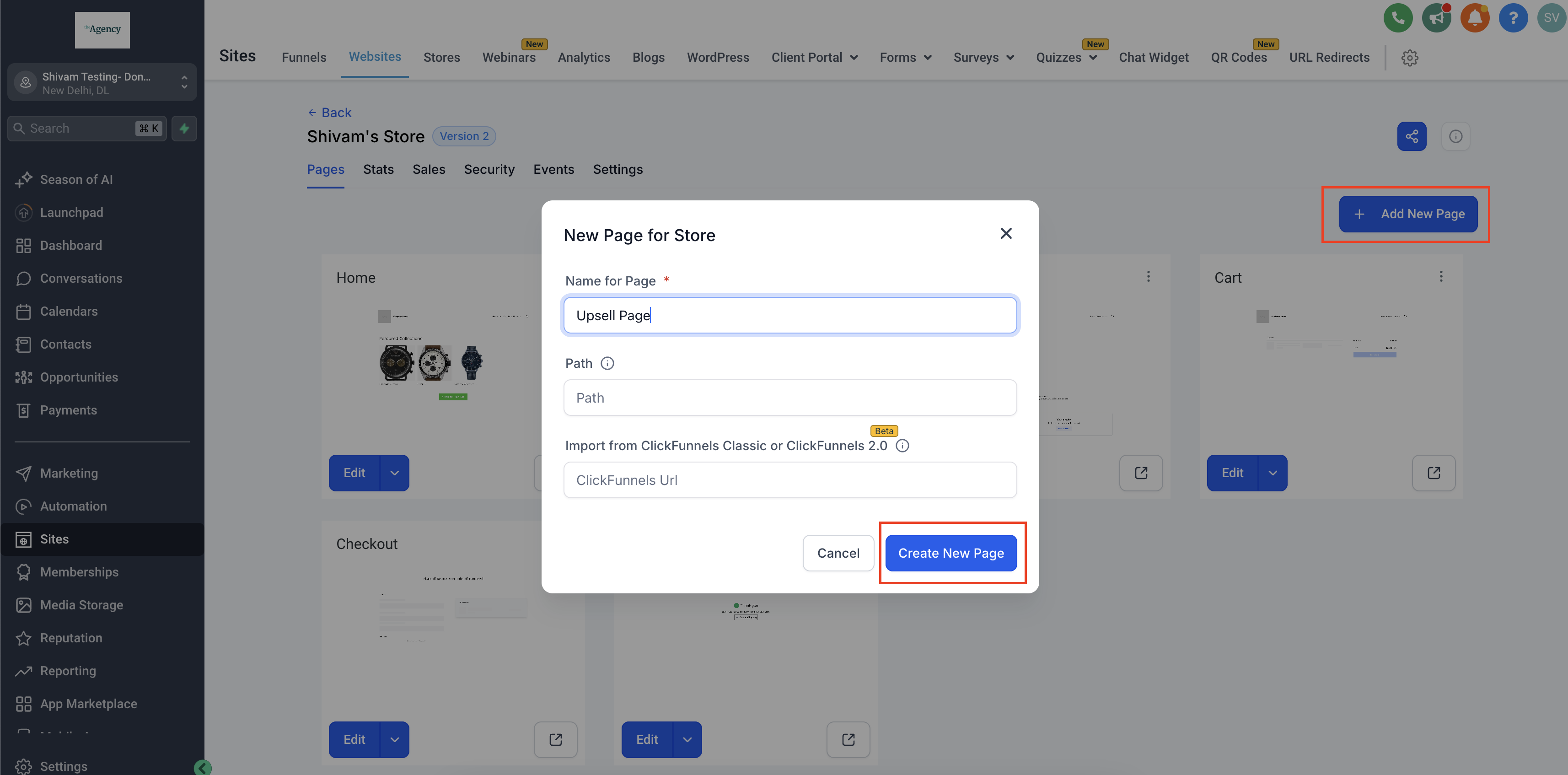
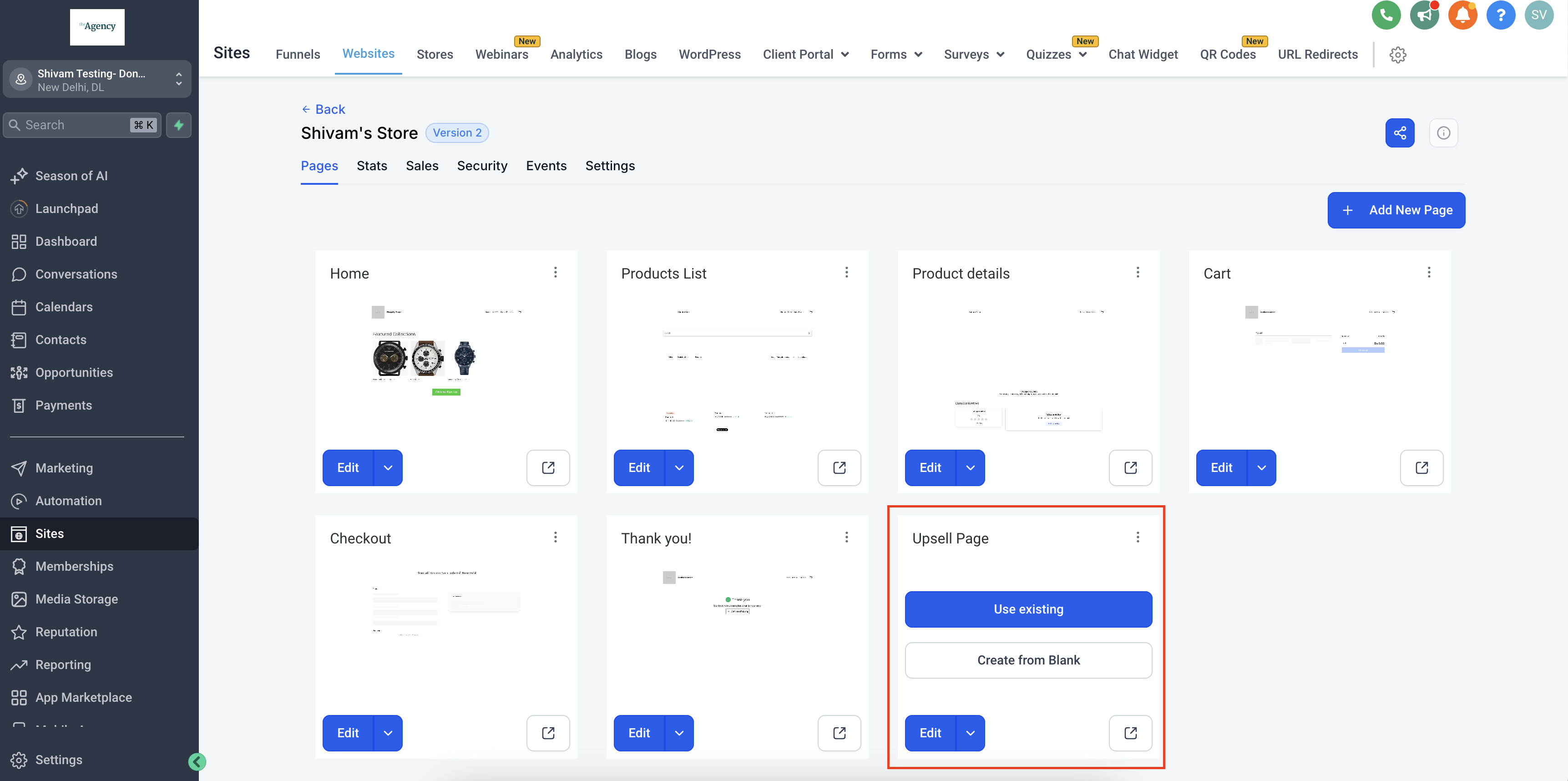
- Open the site builder and click Edit Page to create a new page for the upsell.
- Add a full width section to the new page.
- Insert a row inside the section.
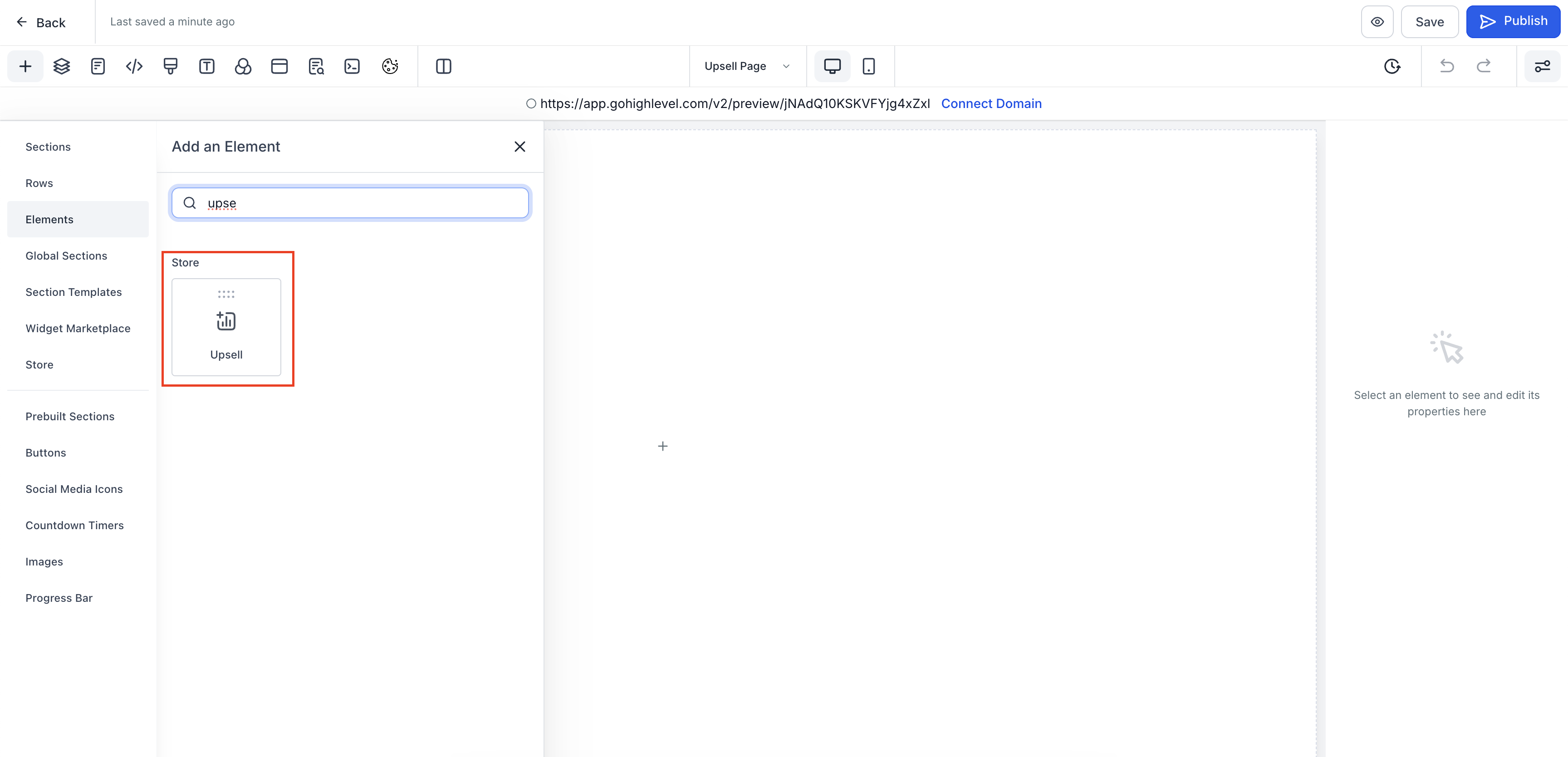
- Drag the Upsell element from the Add Element panel into the row.
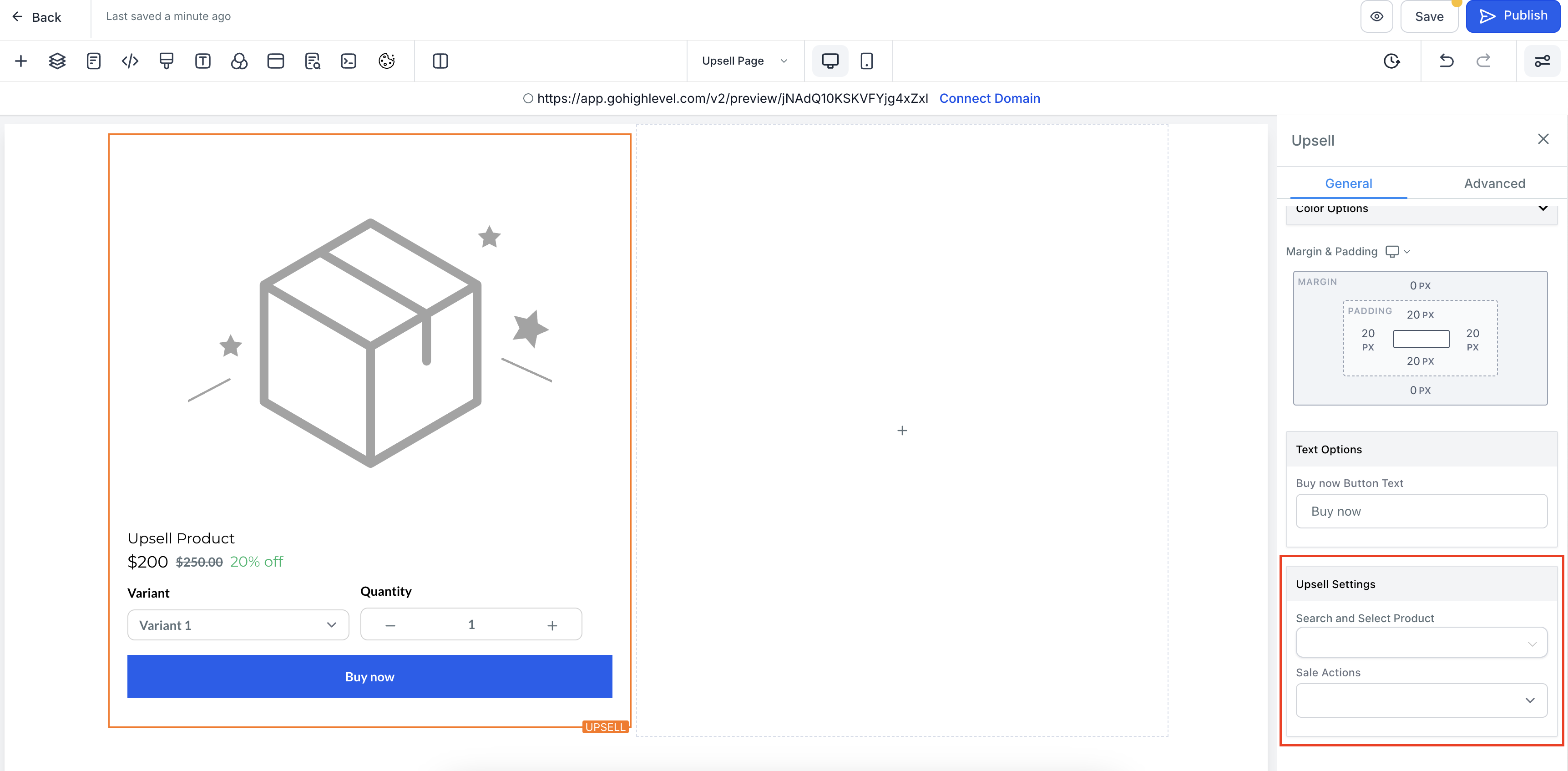
- Select the Upsell element and choose the product to upsell.
- Set the Sale Action to define where the Buy Now button redirects, either another upsell page or the thank you page.
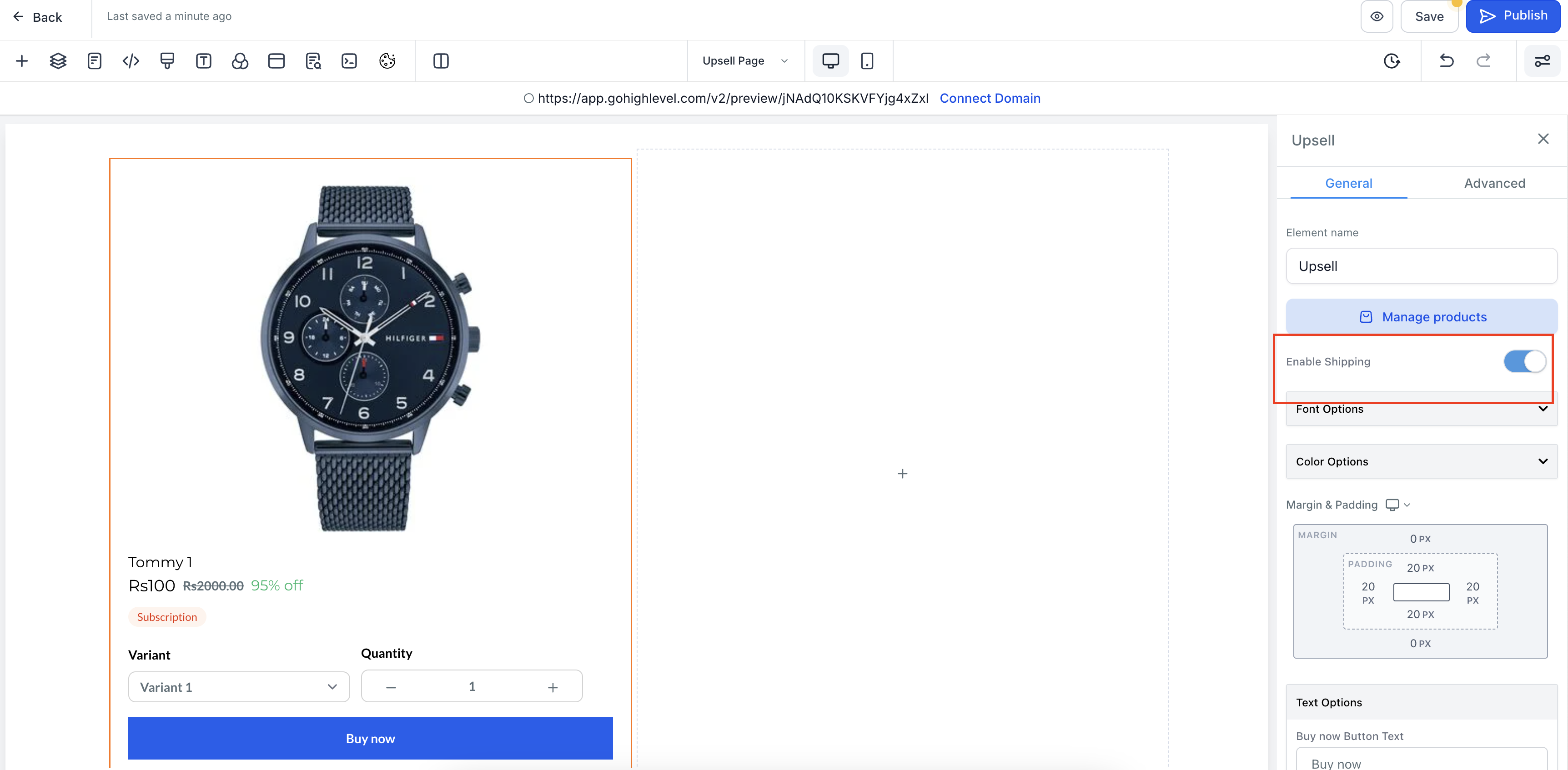
- Toggle the shipping option on or off depending on whether shipping should apply.
- Add a button in the row and set its action to link directly to the thank you page so users can skip the upsell.
- Edit the original checkout page, set its Sale Action to Go to page and select the newly created upsell page as the destination.
- Ensure the shipping toggle is set; otherwise users may be stuck on the upsell page.
06What it looks like in HighLevel
07Settings that matter
- Enable/disable shipping for Upsell elements. Controls whether a shipping dropdown appears for the upsell product.
- Sale Action. Determines the page the buyer is sent to after clicking the Buy Now button.
- Product selection. Lets the owner search for and choose which product to offer as an upsell.
- Website page selection in Sale Action. Specifies the target page for the redirect defined in the Sale Action.
- Button action. Defines where a custom button sends the user, commonly to the thank you page to skip the upsell.
08Things to know before you rely on it
- The upsell element must be placed after the checkout page; adding it before checkout causes an error.
- Each upsell purchase creates a separate order record.
- Shipping can be turned on or off per upsell component.
- For best results, use a dedicated page that only contains the upsell element.
09How it connects to the rest of HighLevel
- Set up the main ecommerce store before adding upsell pages. Setup store
- Learn how to deliver digital products that may be offered as upsells. Digital delivery
- Use abandoned checkout emails to recover sales when a customer leaves the upsell page. Abandoned checkout
Michael's take

Most store owners try to slip an upsell component onto the checkout page itself. That placement triggers an error because the upsell element must sit on a page that comes after checkout. The result is a stuck buyer who can’t move forward without buying the extra item.
I would create a dedicated upsell page, drop the upsell element there, and point the checkout’s sale action to that page. Then I add a clear skip button that sends a shopper straight to the Thank You page if they aren’t interested. It keeps the flow smooth and lets the extra offer increase revenue without blocking the original purchase.