
01Who this is for
- Ecommerce store owners who need to verify product pages fast, because the feature avoids opening the builder for each product.
- Marketing teams that distribute product URLs in campaigns, because they can copy links directly from the product list.
02Product page sharing, explained
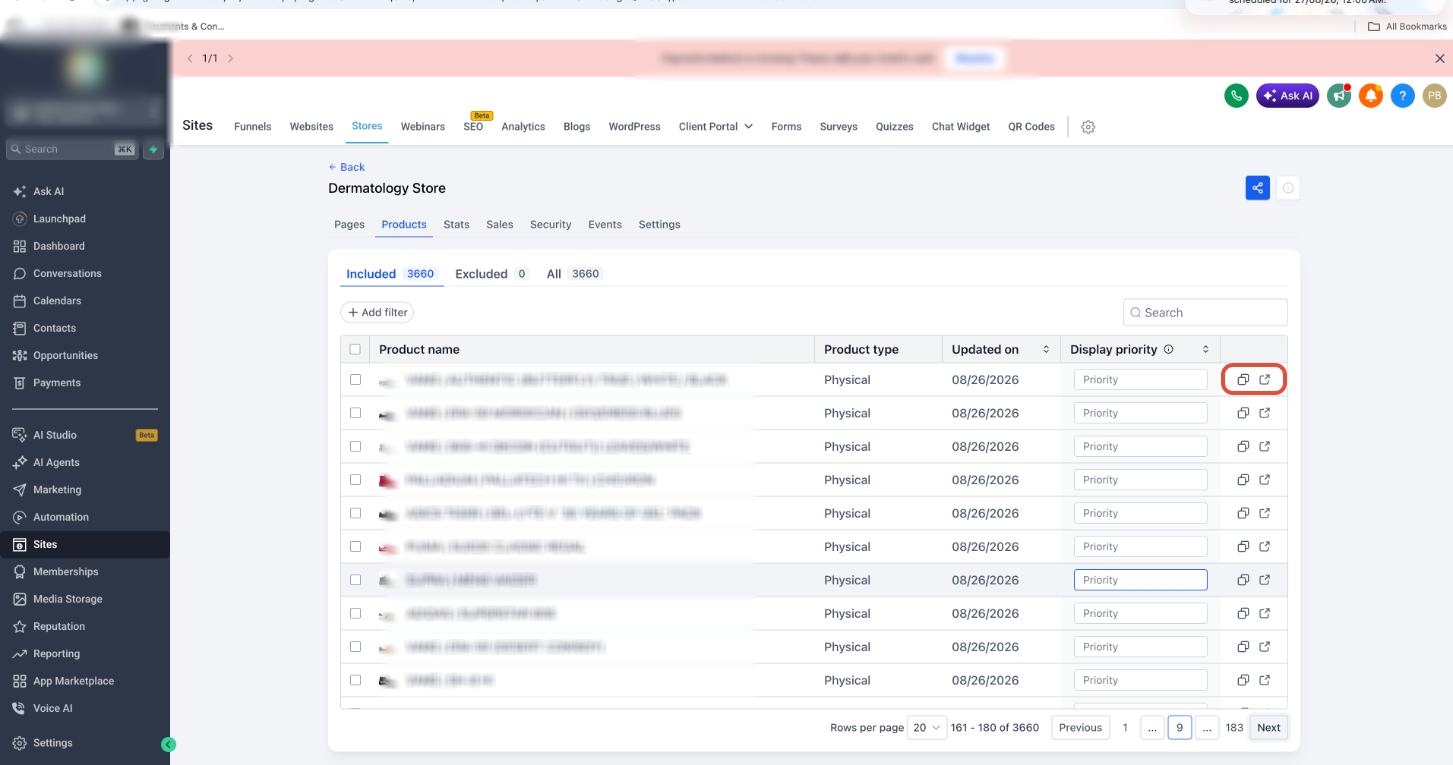
Product Page Sharing adds two actions, Preview and Copy link, to each product shown in the Stores > Products > Included tab. Preview launches the live product detail page in a new browser tab, letting you check the page before sharing. Copy link places the resolved URL on your clipboard and shows a confirmation message.
The URL generation follows three rules. First, if a product is assigned a custom product detail page, that page becomes the link target. Second, the product’s SEO handle forms the URL slug, producing clean, readable addresses. Third, HighLevel prefers a custom domain; if none is attached, it falls back to the platform’s preview domain.
These actions appear only for products that are currently included in the store, keeping the workflow focused on live items.
03How businesses use product page sharing
- Boutique clothing retailer. The retailer opens Stores > Products, finds a new dress in the Included tab, clicks Copy link, and pastes the URL into an Instagram story. If they need to double check the layout, they use Preview to open the page in a new tab.
- Online course creator. The creator selects a newly added course module from the Included products, clicks Preview to verify the course landing page, then uses Copy link to insert the URL into an email drip sequence.
- Digital ebook seller. The seller locates an ebook product, uses the Copy link action to get its live URL, and adds the link to a sales funnel page. They also preview the product to ensure the download button appears correctly.
04Before you start
- The product must be listed in the Included tab of the Stores > Products section.
- A custom domain should be connected to the store if you want the shared links to use your branded domain.
05How to set up and use product page sharing in HighLevel
Preview or copy a live product detail page link
- Go to Stores > Products; the view opens on the Included tab.
- Find the product you want to work with among the included items.
- Click Preview to open the product page in a new browser tab, or click Copy link to copy the URL.
- Paste the copied link into a campaign, email, or social post, or review the opened page for accuracy.
06What it looks like in HighLevel
07Settings that matter
- Custom PDP Mapping. When a product is linked to a custom product detail page, this setting tells HighLevel to use that page instead of the default template for the URL.
- SEO Handle. Provides the URL friendly slug for each product, creating clean and readable links.
- Domain Priority. Directs HighLevel to use the store’s custom domain for links; if none exists, it falls back to the preview domain.
08Things to know before you rely on it
- Preview and Copy link actions appear only for products in the Included tab; excluded or all tab products do not show these options.
09If something goes wrong
- Cannot preview or copy a link for a product that is not visible in the actions.. Move the product to the Included tab so it becomes active in the store.
10How it connects to the rest of HighLevel
- Set up your ecommerce store before using product page sharing. Store setup guide
- Learn how to deliver digital files that can be linked from product pages. Digital product delivery
- Review pricing options to ensure your plan includes the ecommerce features. Pricing page
Michael's take

Getting a product link to a customer or into an ad shouldn’t require you to dive into the Store Builder each time. This feature lets you pull the exact live URL right from the product list, saving clicks and reducing the chance of sharing a wrong link.
The first thing I’d lock down is making sure the store is using a custom domain. That way every link you copy carries your brand, not a generic preview address.