
01Who this is for
- Online retailers who want shoppers to locate items without scrolling through long product lists.
- Small businesses that run a HighLevel website and need a simple way to improve product discoverability.
02Search bar elements, explained
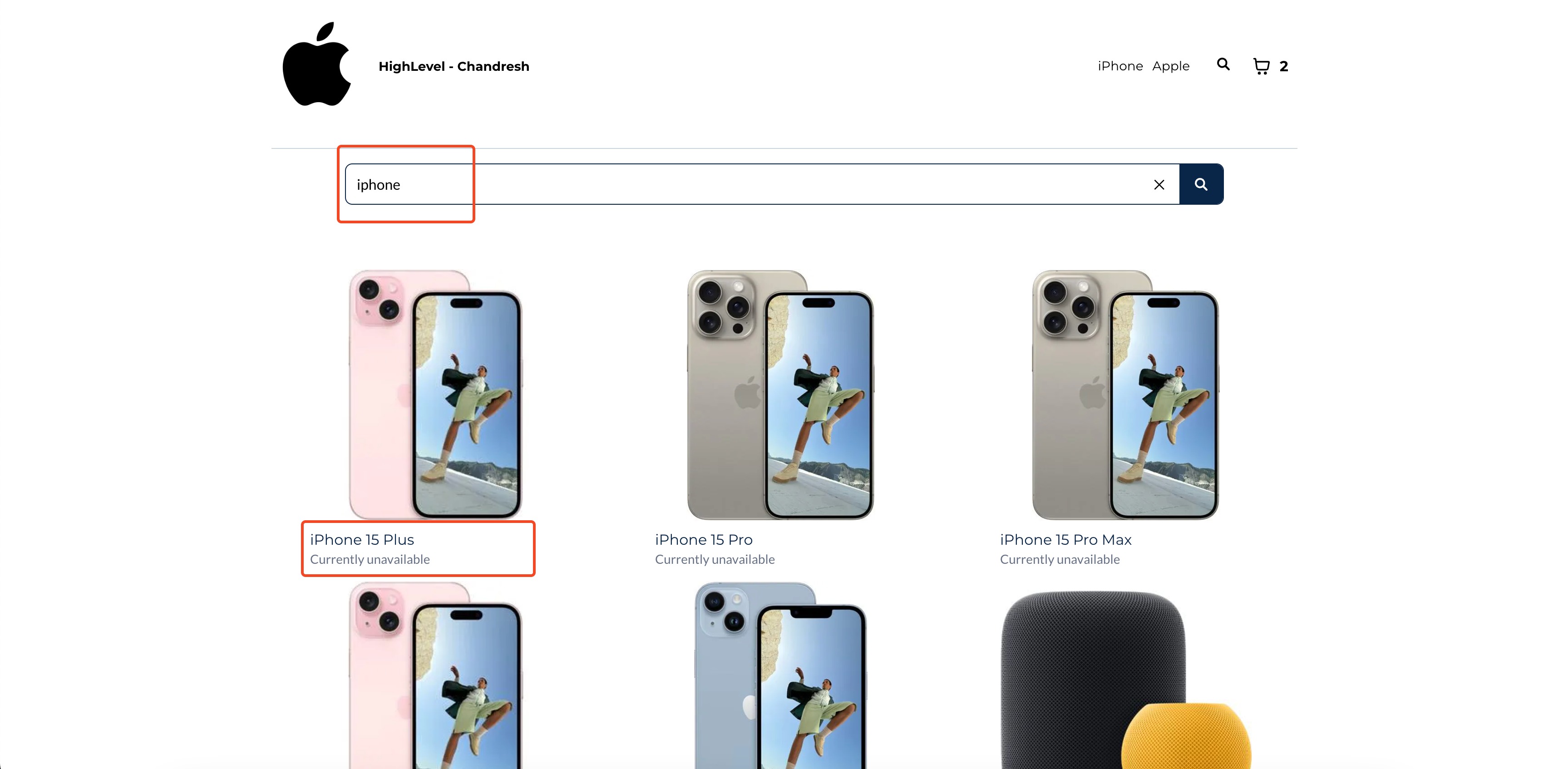
The Search bar element provides a text field where visitors type product names or keywords. When a user submits a query, the platform redirects to the product list page and displays matching items based on title and description. The element lives in the page builder under the Store section and can also be toggled inside the navigation menu.
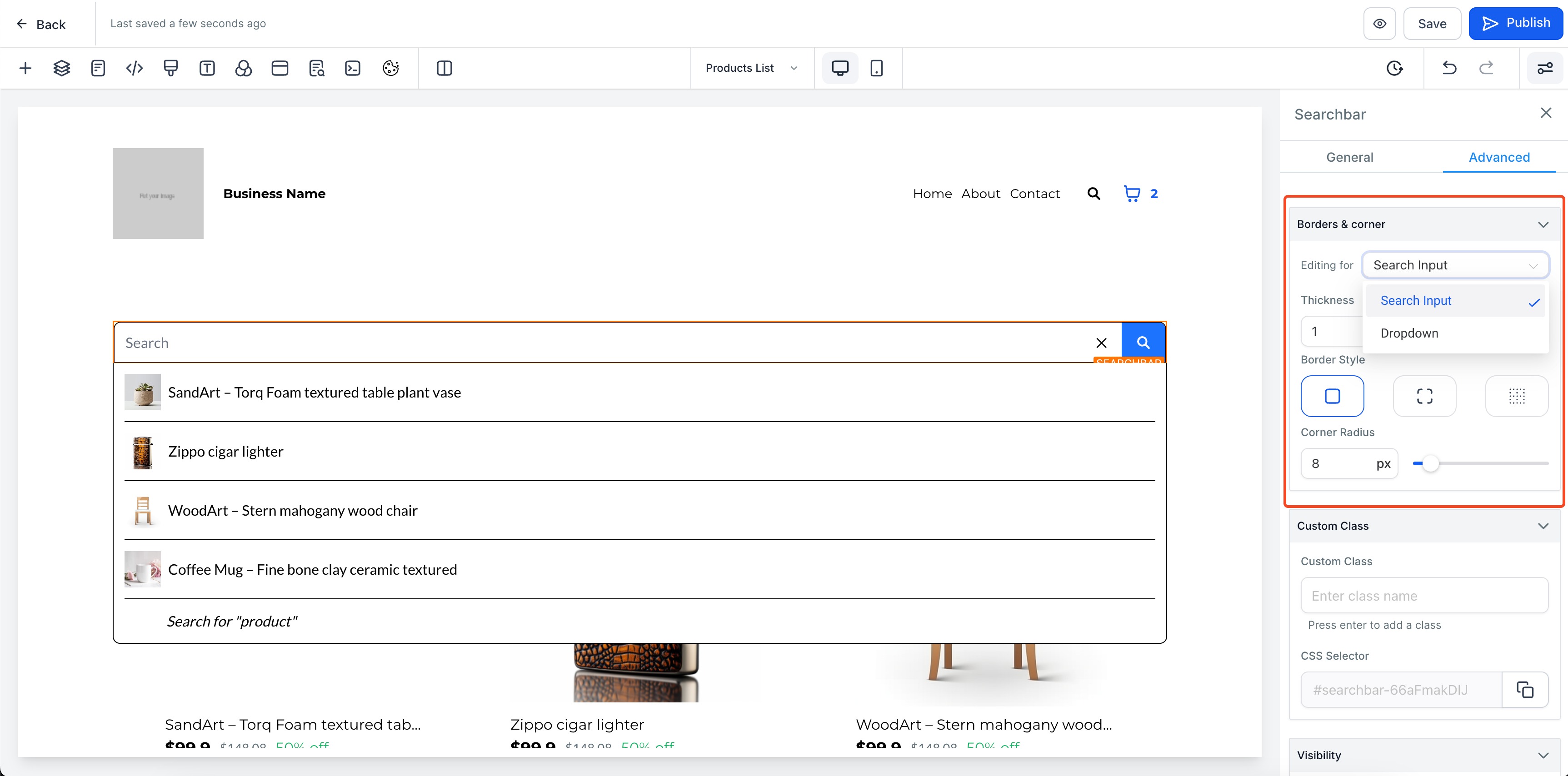
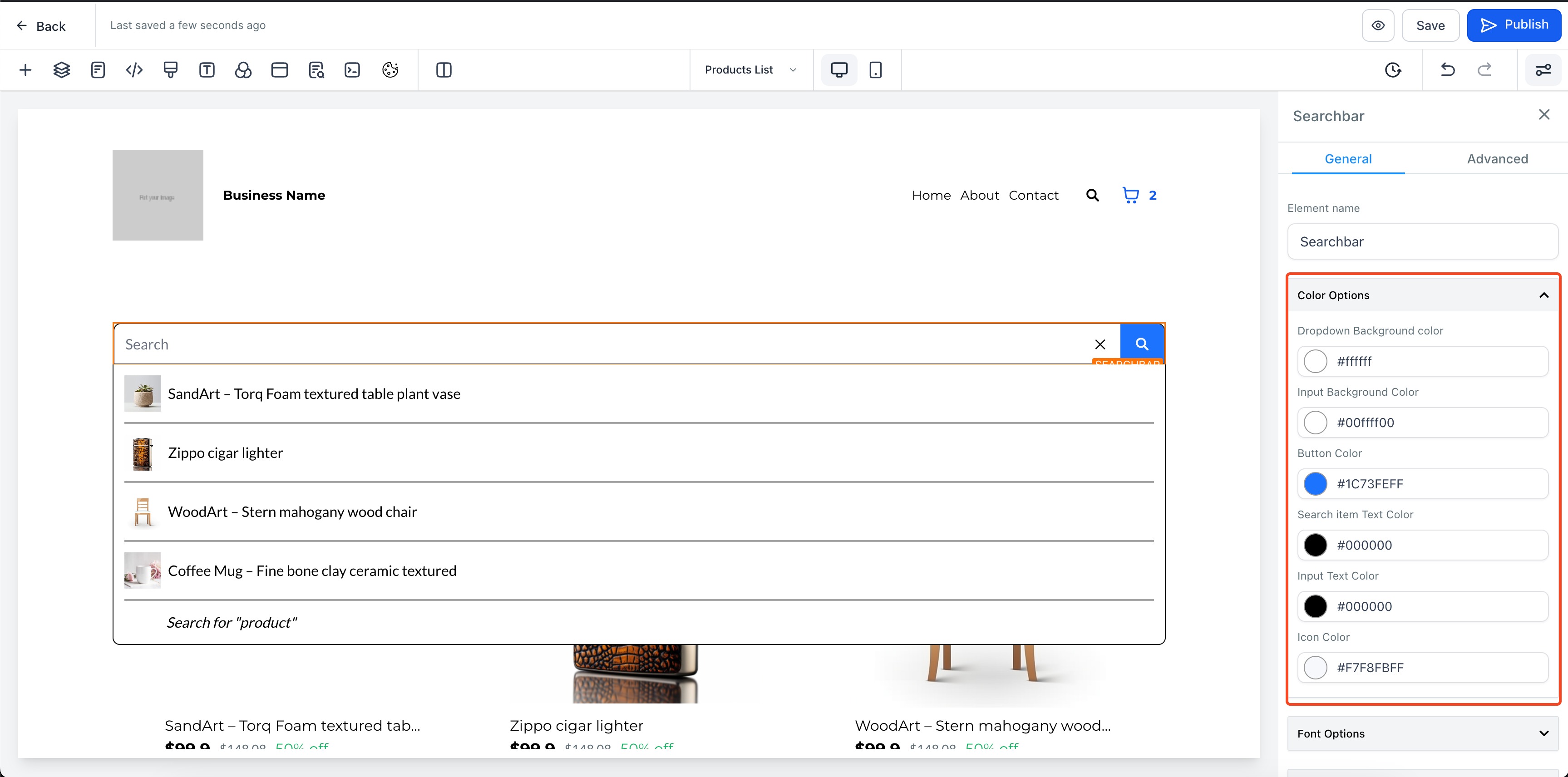
Customization covers button color, input box colors, dropdown colors, border colors, and typography. The navigation menu option only offers a toggle; detailed styling is available when the element is placed as a standalone widget.
03How businesses use search bar element
- Fashion boutique. Add the Search bar as a standalone element on the homepage, then set button and input colors to match the brand palette. Shoppers can type a dress name and be taken directly to the filtered product list.
- Digital course provider. Enable the “Show Search bar” toggle inside the navigation menu so learners can search course titles from any page. Adjust the font size to keep the menu tidy while maintaining readability.
- Handmade crafts shop. Place the Search bar on the store’s collection pages, configure the dropdown background to contrast with product images, and let customers find items by name or description without leaving the page.
04Before you start
- A HighLevel ecommerce website must be set up before adding the Search bar element.
05How to set up and use search bar element in HighLevel
Add search bar element
- Open the page builder for the store and select the Search bar element from the Store > Add elements section.
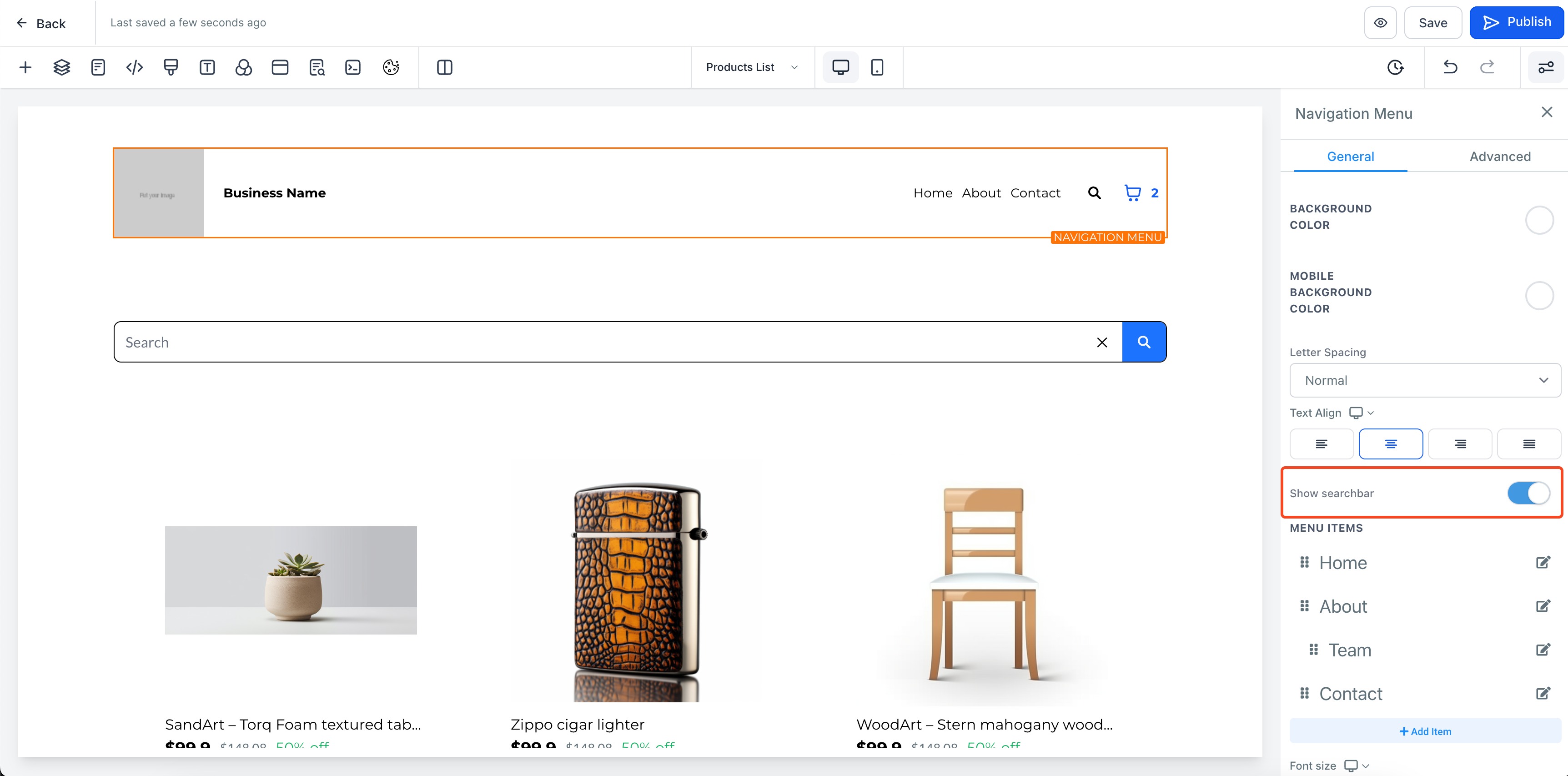
- If you prefer the bar in the navigation menu, turn on the Show Search bar toggle found in the navigation menu settings.
- Adjust visual properties such as button color, input box colors, dropdown colors, border color, font size and weight.
- Save or publish the page to see the Search bar appear on the live site.
- Note: Only HighLevel websites that host an ecommerce store can add this element to any page, and navigation menu customization is limited to the toggle.
06What it looks like in HighLevel
07Settings that matter
- Show Search bar. Controls whether the Search bar appears inside the navigation menu.
- Search button color. Sets the background color of the button that initiates the search.
- Search input box text and background color. Defines the text color and background of the input field where users type.
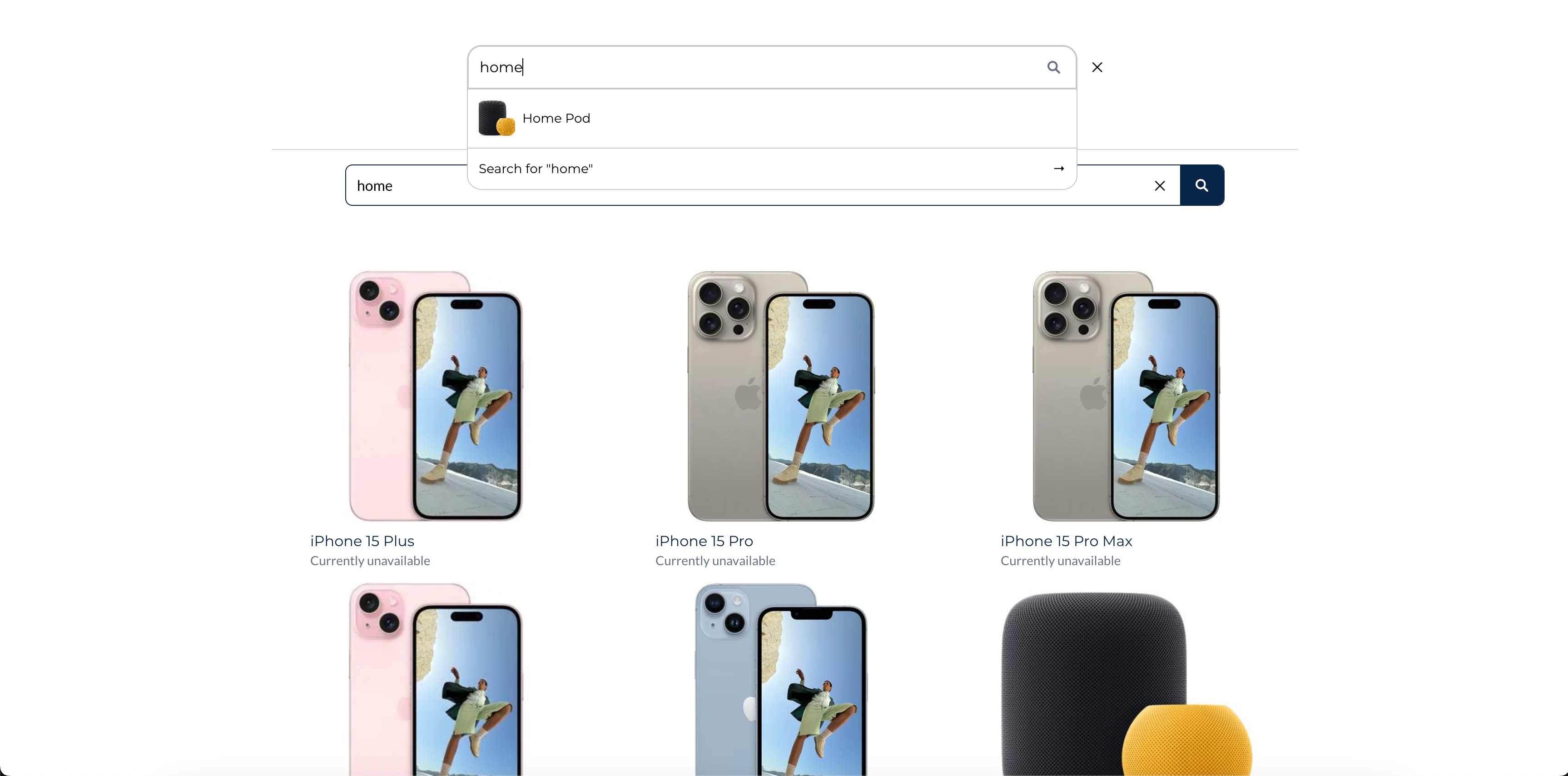
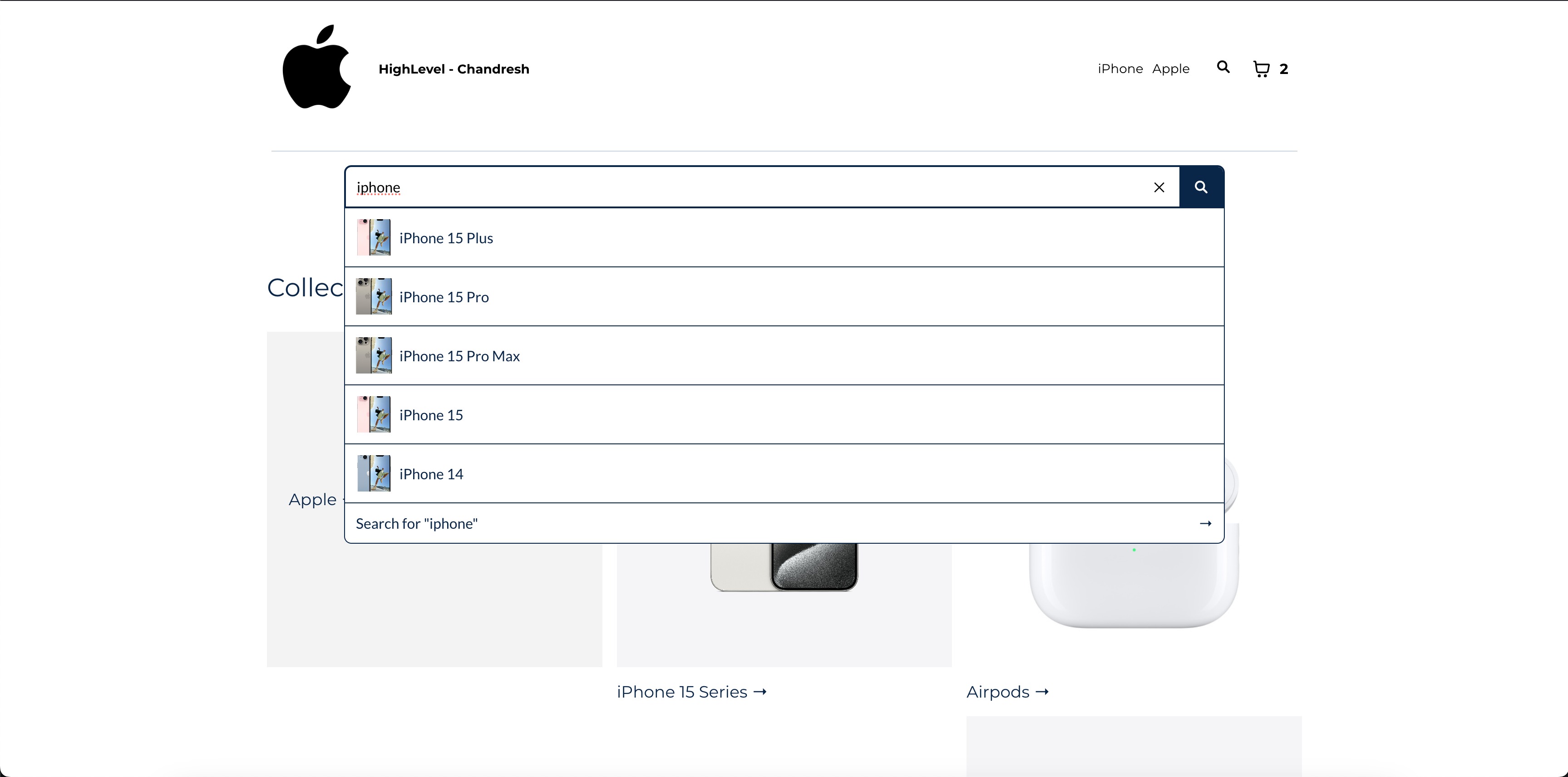
- Search dropdown text and background color. Specifies the colors for the suggestion list that appears while typing.
- Border color for input field and dropdown. Changes the outline color around the input field and its dropdown list.
- Font size and weights. Adjusts the size and boldness of text inside the Search bar element.
08Things to know before you rely on it
- Navigation menu customization is limited; full styling options work only with the standalone Search bar element.
- Only HighLevel websites that host an ecommerce store can add this element to any page, whether a store page or a non store page.
- Search suggestions in the dropdown pull only from product titles, while the result page searches both titles and descriptions.
09How it connects to the rest of HighLevel
- Learn how to build the rest of your ecommerce site in HighLevel. Set up an ecommerce store
- Configure shipping zones and ZIP limits for your store. Shipping zones
- Set up automated abandoned checkout emails to recover missed sales. Abandoned checkout emails
Michael's take

Michael ReimerFounder of CRM Pros, HighLevel Commander and Certified Admin
In my experience, adding the Search bar helps shoppers navigate large product catalogs more easily.
Get More InformationOpens on HighLevelPublished November 2, 2026 · Updated November 16, 2026