
01Who this is for
- Online retailers who want to suggest additional items during browsing, improving discovery.
- Ecommerce managers seeking quick cross sell options without extra coding.
- Small business owners using HighLevel stores who already group products into collections for seasonal promotions.
02Related Product element, explained
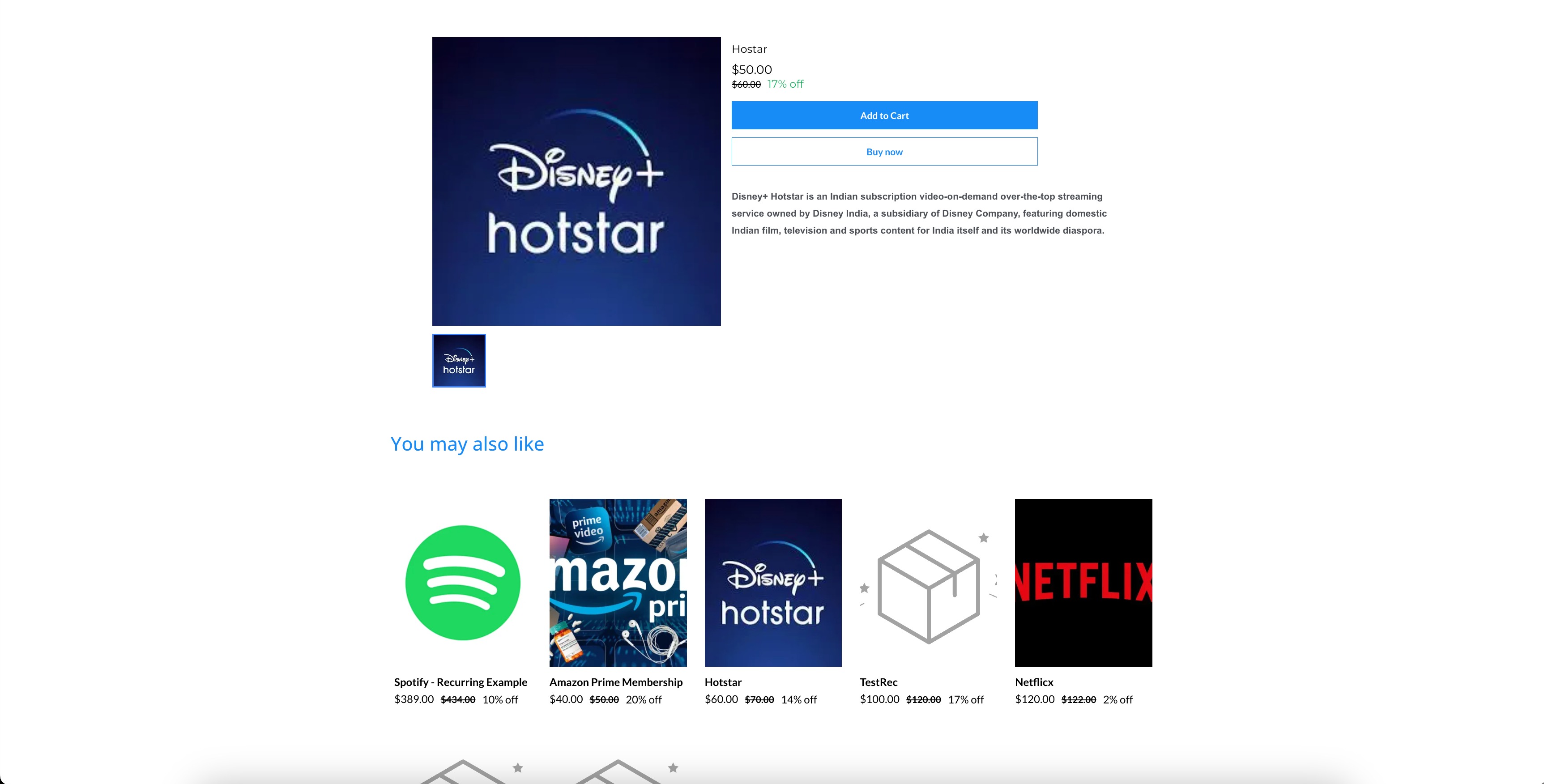
The related products element adds a section to a product detail page that shows other items from the same collection(s). Store owners can decide how many products appear, how many columns show on desktop and mobile devices, and what heading text introduces the list. Images in this list are forced to a square 1:1 aspect ratio for consistent appearance.
The feature is managed inside the page builder where each product detail page lives. After turning on the Show related products toggle and adjusting the available options, the page is saved and published, making the suggestions visible to shoppers in real time.
03How businesses use related product element
- Fashion boutique. The boutique adds summer dresses to a "Summer Sale" collection. When a shopper views a dress, the related products element pulls other items from that collection, displaying up to ten alternatives with the boutique’s custom heading.
- Electronics reseller. The reseller places iPhone models in an "Apple" collection. Viewing the iPhone 15 page triggers the element to show other Apple devices, arranged in three desktop columns and two mobile columns as configured.
- Home goods retailer. The retailer groups kitchen accessories in a "Kitchen Essentials" collection. When a customer opens a product page, the related products section suggests other items from that collection, using the store owner's chosen heading.
04The numbers and rules that matter
- Number of products to be shown default: 6.
- Number of columns per product on desktop default: 3.
- Number of columns per product on mobile default: 2.
- Maximum related products displayed: 10.
- Images are restricted to a 1:1 aspect ratio.
05Before you start
- Products must be assigned to at least one shared collection for them to appear as related items.
- A product detail page must exist in the page builder before the related products toggle can be enabled.
06How to set up and use related product element in HighLevel
Enable related products on a product detail page
- Open the page builder and locate the product detail page for the store.
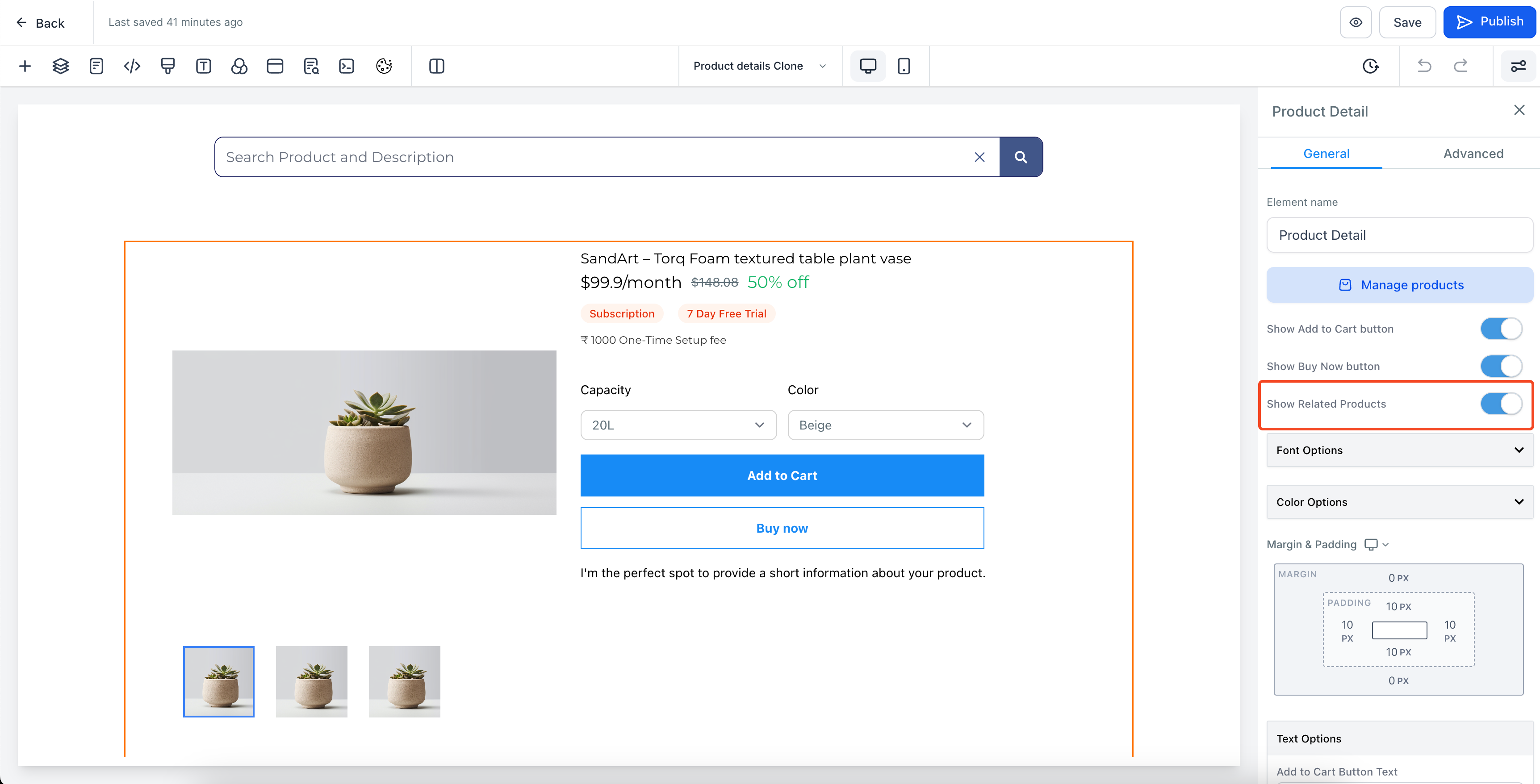
- Turn on the Show related products toggle.
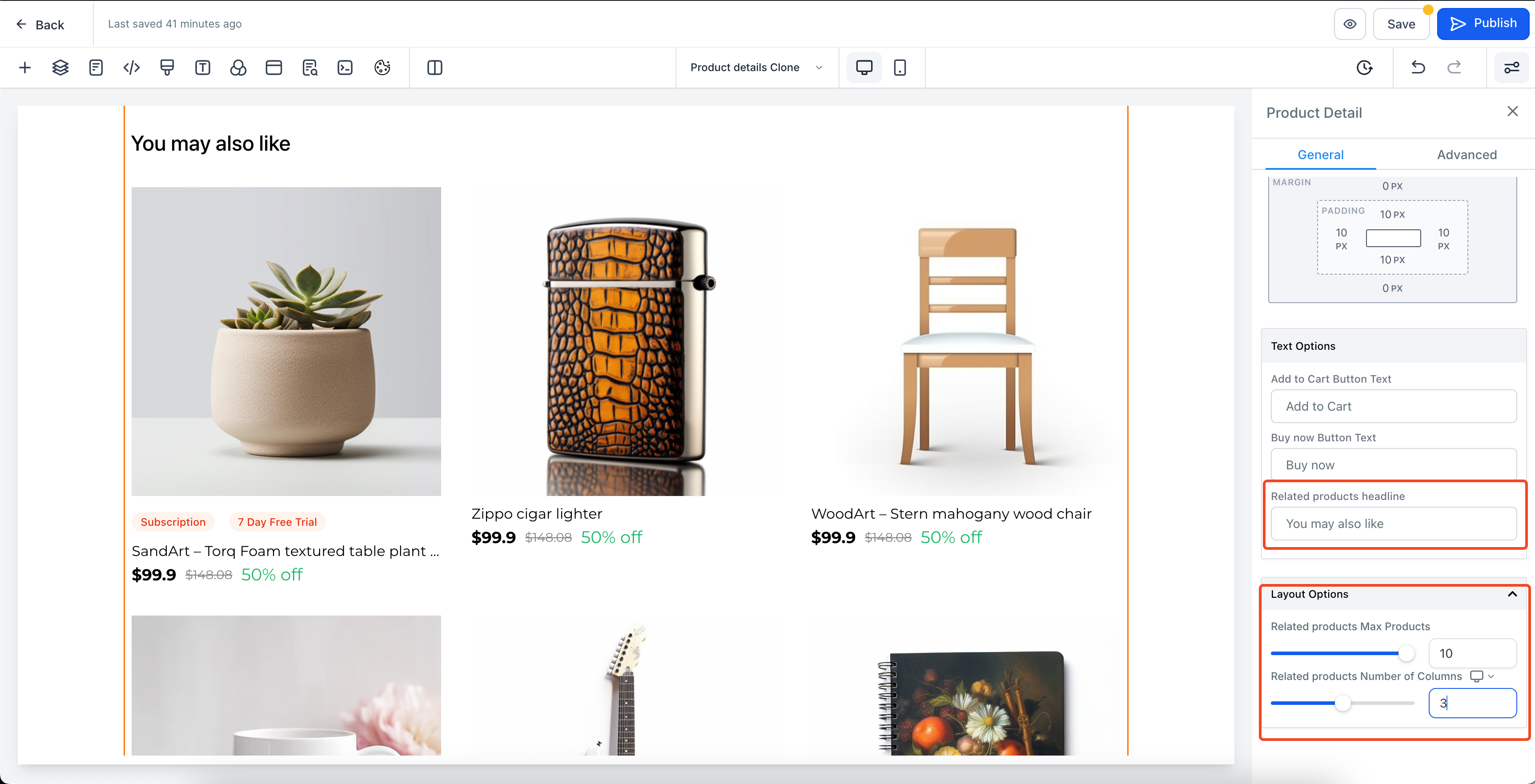
- Enter the desired number of related products to display.
- Set the number of columns for desktop view.
- Set the number of columns for mobile view.
- Edit the heading that appears above the related products section.
- Save the changes and publish the page.
07What it looks like in HighLevel
08Settings that matter
- Show related products. Activates the related products section on the product detail page.
- Number of products to be shown. Controls how many related items are displayed, up to a maximum of ten.
- Number of columns per product in desktop. Determines how many columns appear on desktop devices.
- Number of columns per product in mobile. Determines how many columns appear on mobile devices.
- Heading for the related products section. Sets the title text that introduces the related items.
09Things to know before you rely on it
- The related products list can show no more than ten items.
- Product images in the related list are forced to a 1:1 aspect ratio.
- Default values are six products, three desktop columns, two mobile columns, and the heading "You may also like".
10How it connects to the rest of HighLevel
- Configure shipping zones and ZIP limits for your store Shipping zones
- Add manual payment methods to your HighLevel ecommerce store Manual payments
- Set up digital product delivery files and download buttons Digital delivery
Michael's take

Michael ReimerFounder of CRM Pros, HighLevel Commander and Certified Admin
Don’t forget to keep your collections tidy, or you’ll show unrelated products.
Get more informationOpens on HighLevelPublished November 2, 2026 · Updated November 16, 2026