
01Who this is for
- Brick and mortar retailers use Pickup in Store to offer customers an off line collection option, reducing shipping costs.
- Online boutique owners benefit by adding a local pickup location, providing clear instructions and optional pickup fees.
- Service providers selling physical kits can let clients pick up items at an office, keeping billing address visible for compliance.
02Pickup in Store, explained
Pickup in Store is a fulfillment method that allows customers to collect physical orders from a store location you enable. Each location can store an address, pickup instructions, preparation time, a cost, and any taxes that apply.
When a location is enabled, the checkout page shows a choice between shipping and pickup. Selecting pickup hides the Shipping Details section, displays the chosen location’s details, and uses that address as the order’s shipping address while still showing the Billing Address.
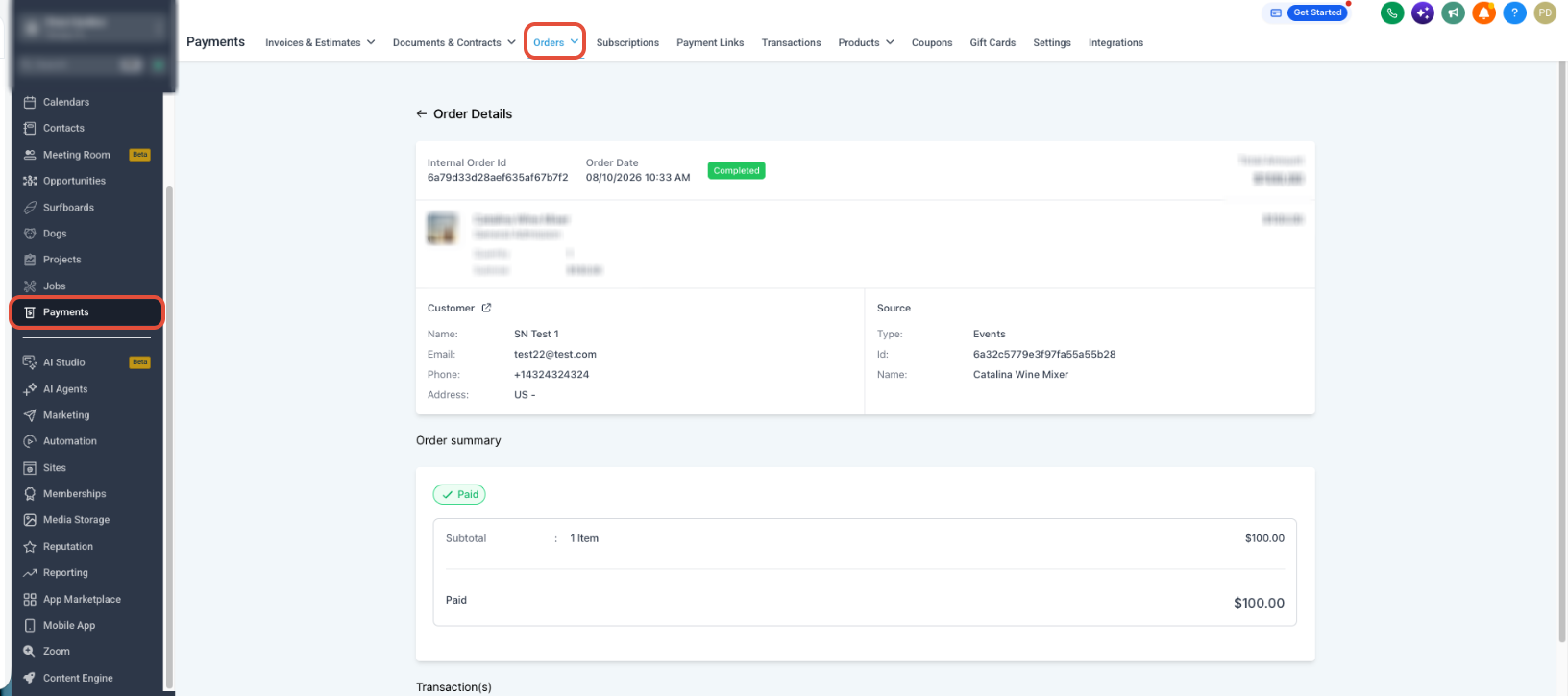
The pickup information stays attached to the order. It appears in Payments > Orders, transaction records, customer access center views, receipts and can be referenced in workflows as custom values.
03How businesses use pickup in Store
- Clothing boutique. The boutique creates a pickup location at its storefront, adds instructions and a small fee, then customers can choose that location at checkout. The boutique sees the pickup address and fee in the order details.
- Home goods store. The store configures multiple enabled locations for different neighborhoods, each with its own preparation time. Shoppers select the nearest location during checkout and the store receives the address as the shipping address.
- Fitness equipment retailer. The retailer sets a pickup cost for large items and applies applicable taxes. When a buyer opts for pickup, the fee and tax are added to the total and appear on the receipt.
04Before you start
- Create at least one pickup location.
- Enable the pickup location.
- Enter a valid address for the location.
05How to set up and use pickup in Store in HighLevel
Set up Pickup in Store
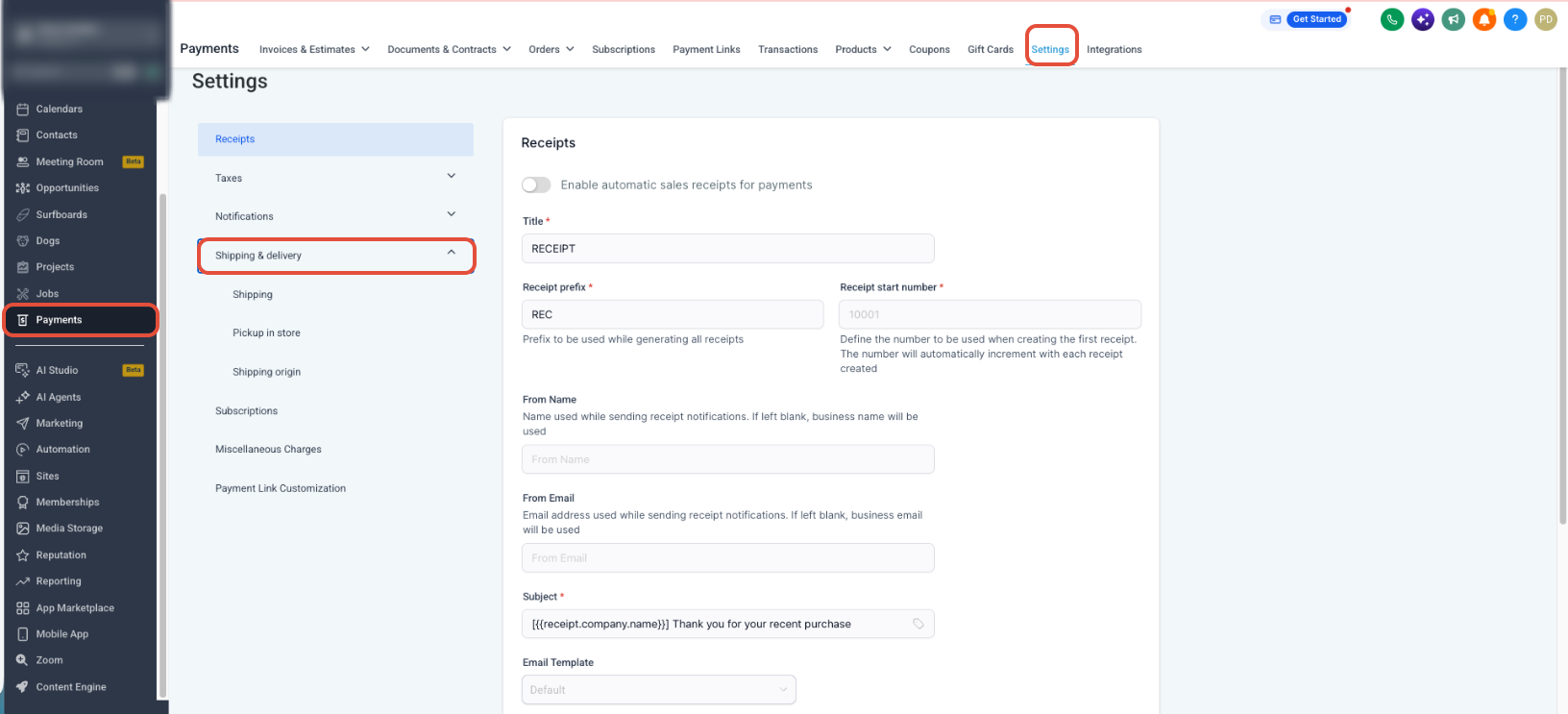
- From the Subaccount view, select Payments.
- Select Settings.
- Open Shipping & Delivery.
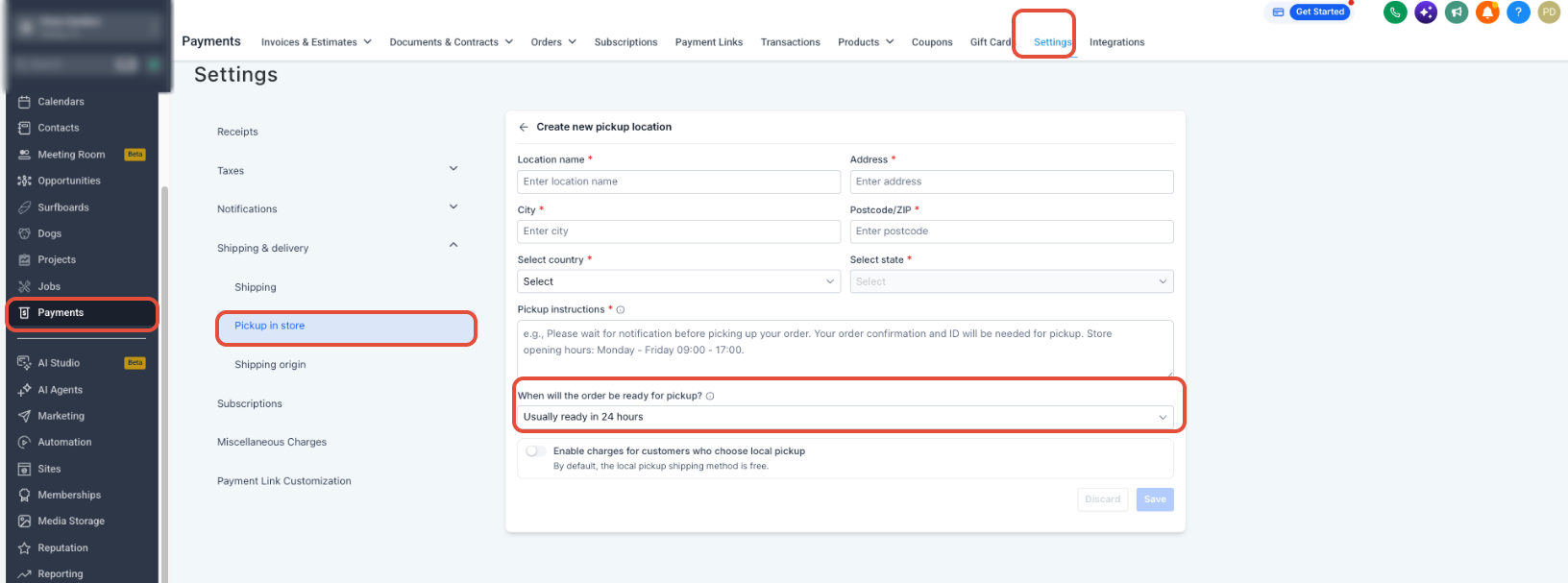
- Select Pickup & Store.
- Create a pickup location.
- Enter a valid pickup address.
- Add pickup instructions customers should follow when collecting the order.
- Configure the preparation time.
- Enter a pickup cost when a charge should apply.
- Configure any applicable pickup taxes.
- Enable the pickup location.
- Save or complete the pickup location setup.
- Preview the Ecommerce Store checkout to confirm Pickup in Store appears.
06What it looks like in HighLevel
07Settings that matter
- Pickup address. The physical address shown to customers for collecting the order.
- Pickup instructions. Text that tells customers how to collect their order at the location.
- Preparation time. The amount of time needed before the order is ready for pickup.
- Pickup cost. An optional fee added to the order total for using the pickup service.
- Pickup taxes. Taxes applied to the pickup cost based on tax settings.
- Enable the pickup location. Activates the location so it appears as an option during checkout.
08Things to know before you rely on it
- At least one enabled pickup location must exist for the option to appear.
- Only locations marked as enabled can be selected by customers.
- Each location must contain a valid address.
- The feature applies only to physical order fulfillment.
- Choosing Pickup in Store removes the Shipping Details section from checkout.
- The Billing Address section remains displayed regardless of Checkout Builder settings.
09If something goes wrong
- Pickup in Store does not appear at checkout. Create and enable at least one pickup location with a valid address.
10How it connects to the rest of HighLevel
- Set up shipping zones and ZIP limits for your ecommerce store Shipping zones
- Configure manual payment methods for orders Manual payments
- Review HighLevel pricing and plans Pricing
Michael's take

In my experience, Pickup in Store provides a local fulfillment option for businesses that already have a physical presence, keeping the order flow within HighLevel while giving customers a convenient way to collect items.
Don’t forget to enable at least one location before testing checkout.