
01Who this is for
- Ecommerce Founders who need to showcase specific product groups and improve search visibility.
- Marketing managers looking to add collection specific images and SEO metadata without extra code.
- Store designers who want flexible column layouts and heading options for collection displays.
02Product collection elements, explained
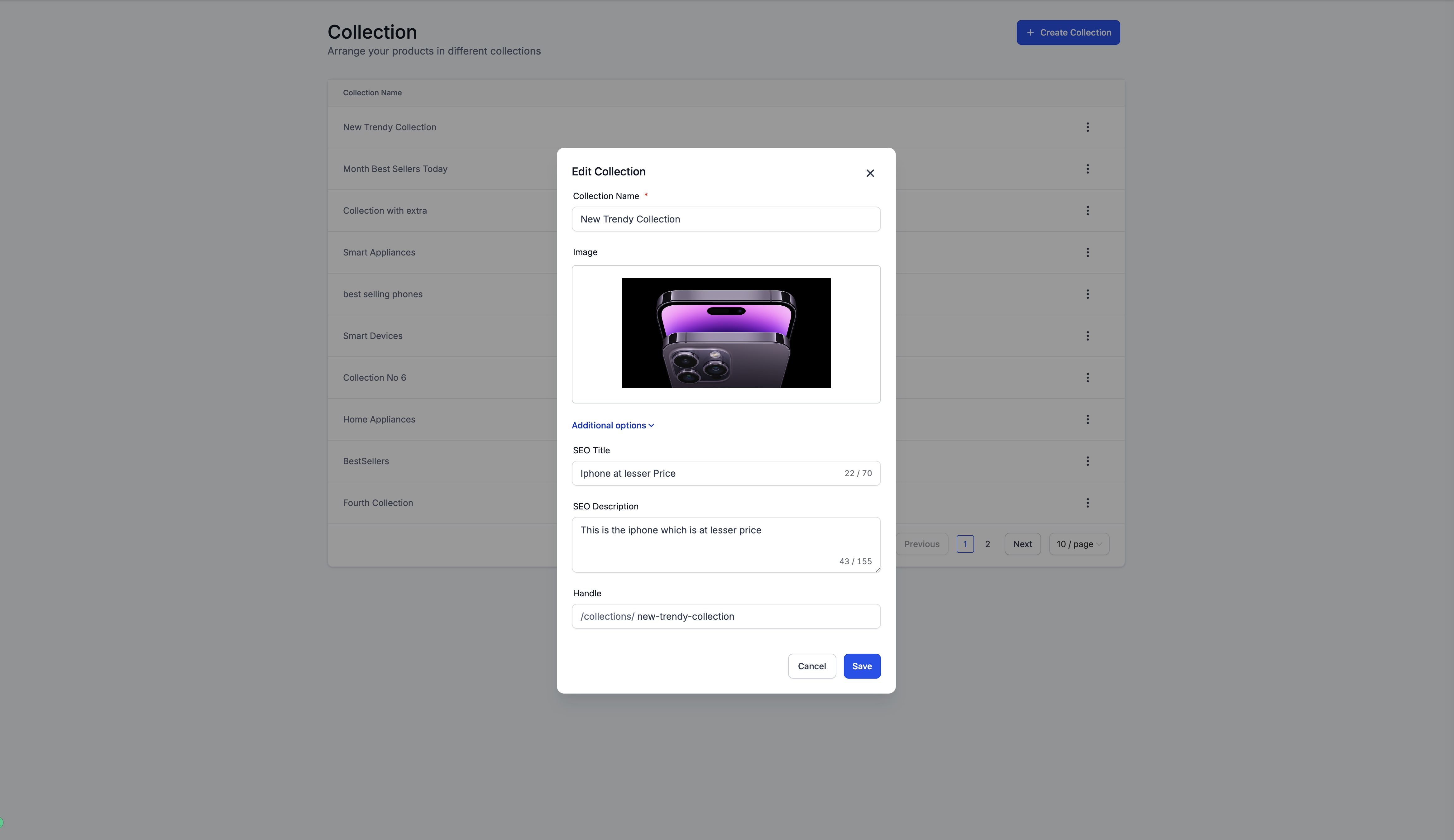
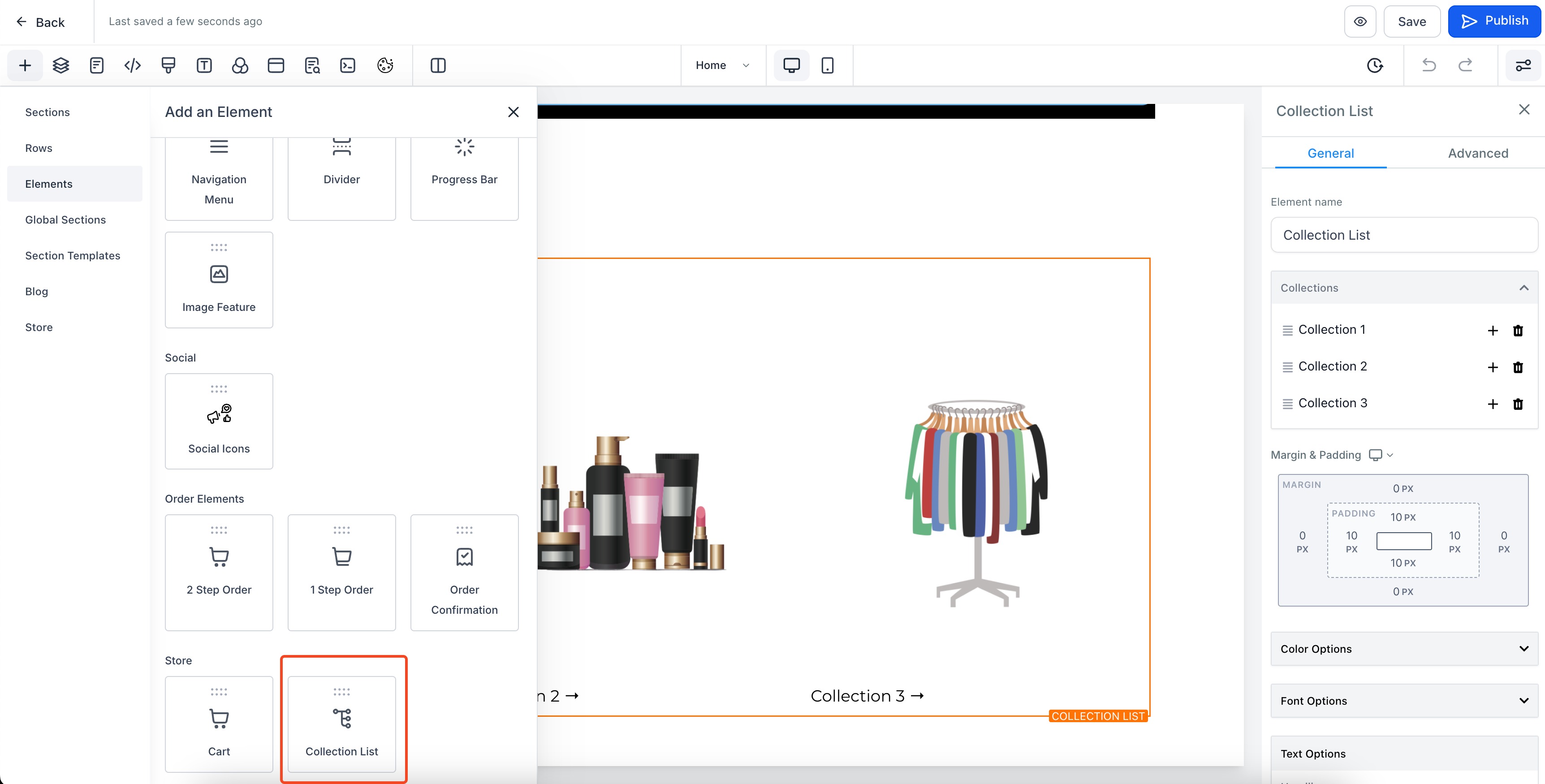
The feature introduces a Collection List element that can be placed on any page where the store is active. After placement, the element shows up to three placeholder collections that must be replaced with real collections from the Payments > Products > Collections area. Each real collection can carry an optional image, an SEO title, description and a URL handle.
Layout options let you set the number of columns for desktop (up to five) and mobile (up to two). Text, spacing, color and border controls are available under the element settings, mirroring other page elements. When a collection lacks an image, its name is centered on a background box.
The element lives in the page builder under the Store section. Selections made in the right hand settings panel or directly on the canvas stay synchronized, and the order of mapped collections remains stable when items are added or removed.
03How businesses use product collection elements
- Fashion boutique. The boutique adds a Collection List element to its homepage, assigns its seasonal lookbooks as collections, uploads runway photos for each, and fills SEO titles to help search engines surface the pages.
- Digital download shop. The shop creates collections for e books, assigns cover images, and includes SEO descriptions so the product list page generates appropriate meta tags for each collection filter.
- Home decor retailer. The retailer places the element on category pages, maps groups like "Living Room" and "Bedroom", configures two columns for mobile, and leaves the headline blank to keep a clean layout.
04The numbers and rules that matter
- 3 default placeholder collections are added.
- Default number of collections per row is 3.
- Maximum columns: 5 for desktop, 2 for mobile.
05Before you start
- Create the product collections you want to display, including any images and SEO information, in Payments > Products > Collections.
06How to set up and use product collection elements in HighLevel
Add collection list element
- Set up each collection with its name, optional image, SEO title, SEO description and handle under Payments > Products > Collections.
- Open the store's page builder.
- Drag the Collection List element from the Store elements palette onto the canvas.
- Click the placed element to open its settings pane on the right.
- Adjust heading, margin padding, colors, borders and fonts as needed.
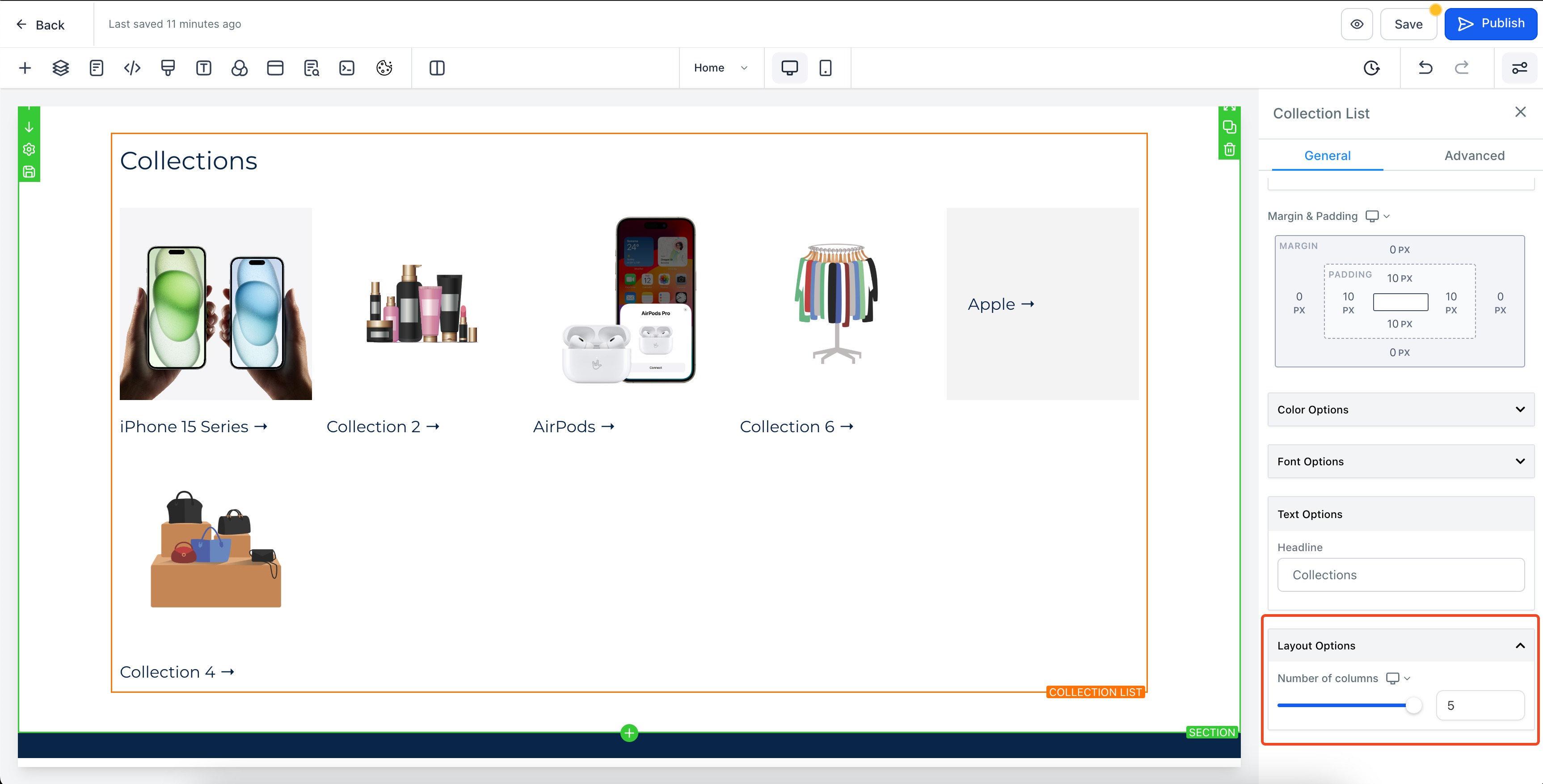
- Under the Layout tab, choose the number of columns for desktop and mobile, respecting the maximum limits.
- Leave the Headline field empty if you do not want a heading displayed.
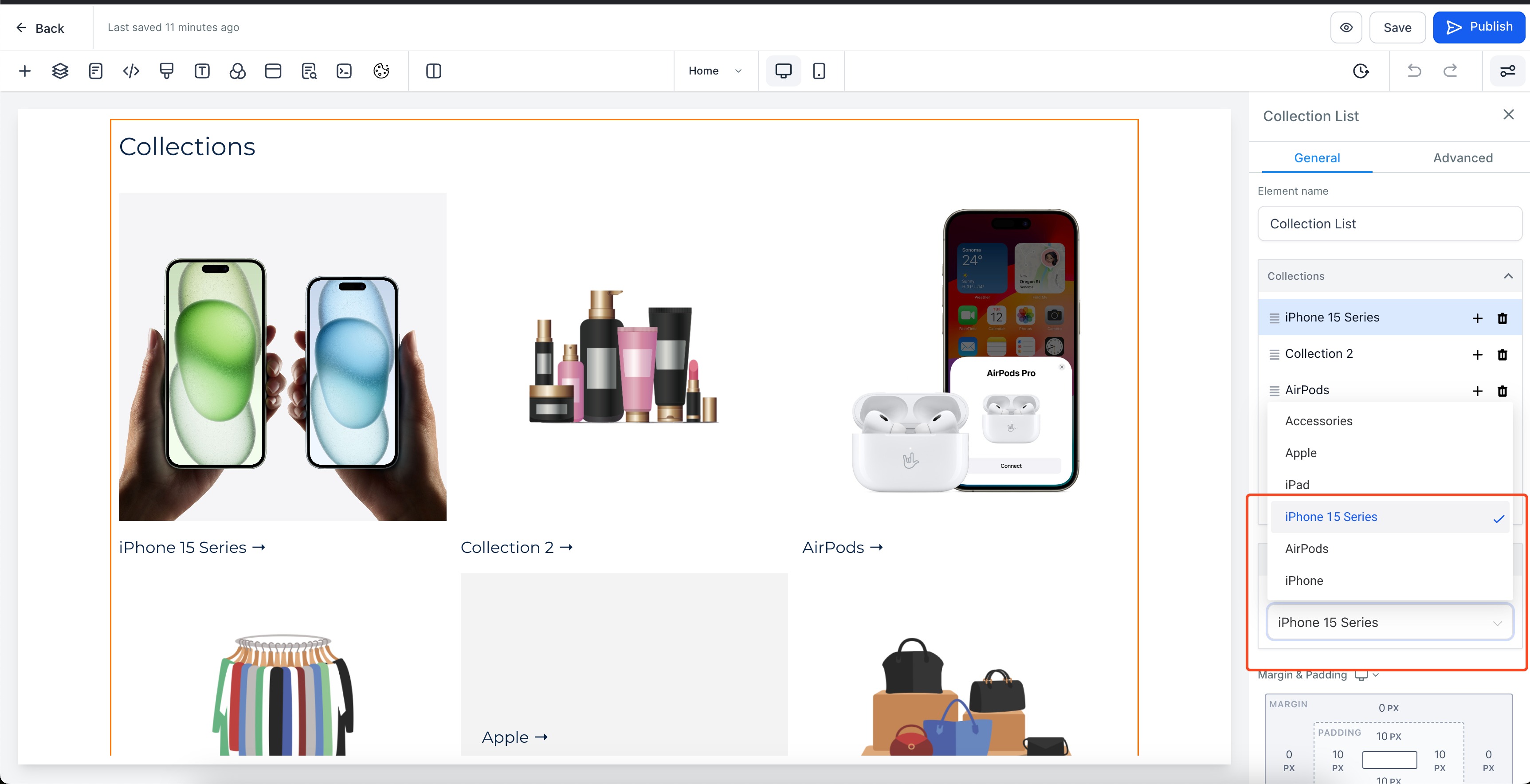
- Select a real collection for each placeholder by clicking a collection slot under the Collections group and picking from the drawer.
- Click Save or Publish to make the changes live.
Map collections directly on the canvas
- Double click a collection slot inside the Collections List element on the canvas.
- If the slot has no collection assigned, the selection drawer opens so you can choose one.
- If a collection is already assigned, the corresponding item is highlighted on the canvas.
- Click Save or Publish to apply the mapping.
07What it looks like in HighLevel
08Settings that matter
- Heading. Controls the text displayed above the collection list; leaving it empty removes the heading.
- Margin padding. Adjusts the space around and inside the element for layout fine tuning.
- Colors. Sets the background and text colors used in the element.
- Borders. Defines the line style, width and color surrounding the element.
- Fonts. Selects the typeface and size for any text within the element.
- Number of columns. Determines how many collections appear per row; maximum five for desktop and two for mobile.
- Headline. The field where you type a heading; clearing it removes the heading from view.
- Collections group. The area where you assign real collections to each placeholder slot.
09Things to know before you rely on it
- You can display up to five columns on desktop and up to two columns on mobile using the Number of columns setting.
- Placeholder collections appear only in the builder; they do not show on a published site.
- If a collection lacks an image, its name is centered on a background block instead of showing a picture.
10How it connects to the rest of HighLevel
- Set up your ecommerce store first Store setup guide
- Configure shipping zones and ZIP limits Shipping settings
- Add manual payment methods for checkout Payment methods
Michael's take

I find the new collection element useful for customizing how collections appear in my store.